Google CHEVROLET SUBURBAN 2022 User Guide
[x] Cancel search | Manufacturer: CHEVROLET, Model Year: 2022, Model line: SUBURBAN, Model: CHEVROLET SUBURBAN 2022Pages: 438, PDF Size: 14.08 MB
Page 187 of 438
Chevrolet Tahoe/Suburban Owner Manual (GMNA-Localizing-U.S./Canada/
Mexico-15555985) - 2022 - CRC - 12/3/21
186 Infotainment System
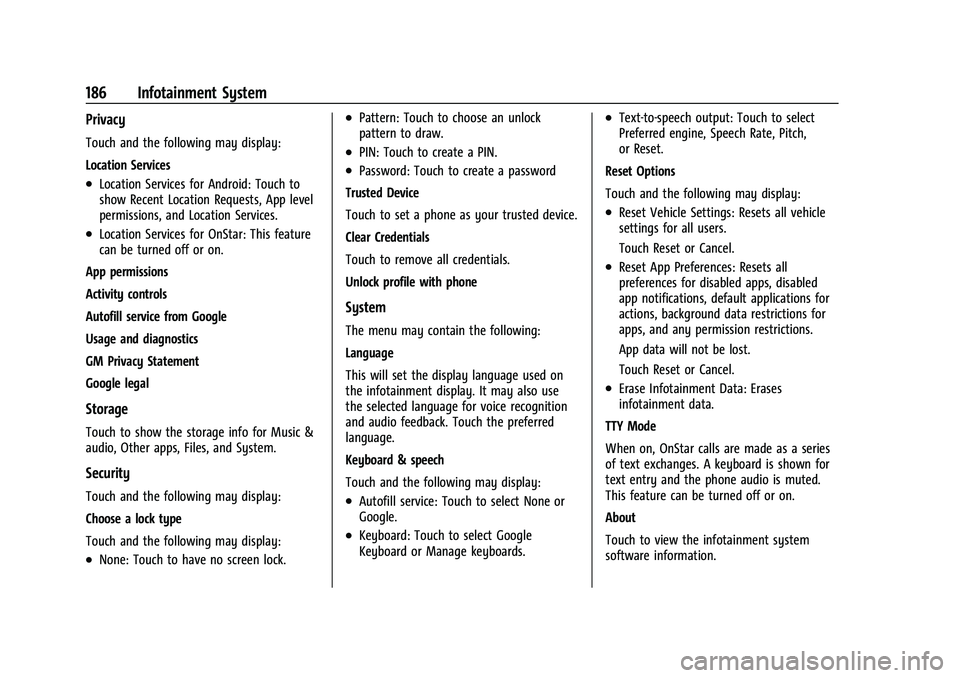
Privacy
Touch and the following may display:
Location Services
.Location Services for Android: Touch to
show Recent Location Requests, App level
permissions, and Location Services.
.Location Services for OnStar: This feature
can be turned off or on.
App permissions
Activity controls
Autofill service from Google
Usage and diagnostics
GM Privacy Statement
Google legal
Storage
Touch to show the storage info for Music &
audio, Other apps, Files, and System.
Security
Touch and the following may display:
Choose a lock type
Touch and the following may display:
.None: Touch to have no screen lock.
.Pattern: Touch to choose an unlock
pattern to draw.
.PIN: Touch to create a PIN.
.Password: Touch to create a password
Trusted Device
Touch to set a phone as your trusted device.
Clear Credentials
Touch to remove all credentials.
Unlock profile with phone
System
The menu may contain the following:
Language
This will set the display language used on
the infotainment display. It may also use
the selected language for voice recognition
and audio feedback. Touch the preferred
language.
Keyboard & speech
Touch and the following may display:
.Autofill service: Touch to select None or
Google.
.Keyboard: Touch to select Google
Keyboard or Manage keyboards.
.Text-to-speech output: Touch to select
Preferred engine, Speech Rate, Pitch,
or Reset.
Reset Options
Touch and the following may display:
.Reset Vehicle Settings: Resets all vehicle
settings for all users.
Touch Reset or Cancel.
.Reset App Preferences: Resets all
preferences for disabled apps, disabled
app notifications, default applications for
actions, background data restrictions for
apps, and any permission restrictions.
App data will not be lost.
Touch Reset or Cancel.
.Erase Infotainment Data: Erases
infotainment data.
TTY Mode
When on, OnStar calls are made as a series
of text exchanges. A keyboard is shown for
text entry and the phone audio is muted.
This feature can be turned off or on.
About
Touch to view the infotainment system
software information.
Page 188 of 438
Chevrolet Tahoe/Suburban Owner Manual (GMNA-Localizing-U.S./Canada/
Mexico-15555985) - 2022 - CRC - 12/3/21
Infotainment System 187
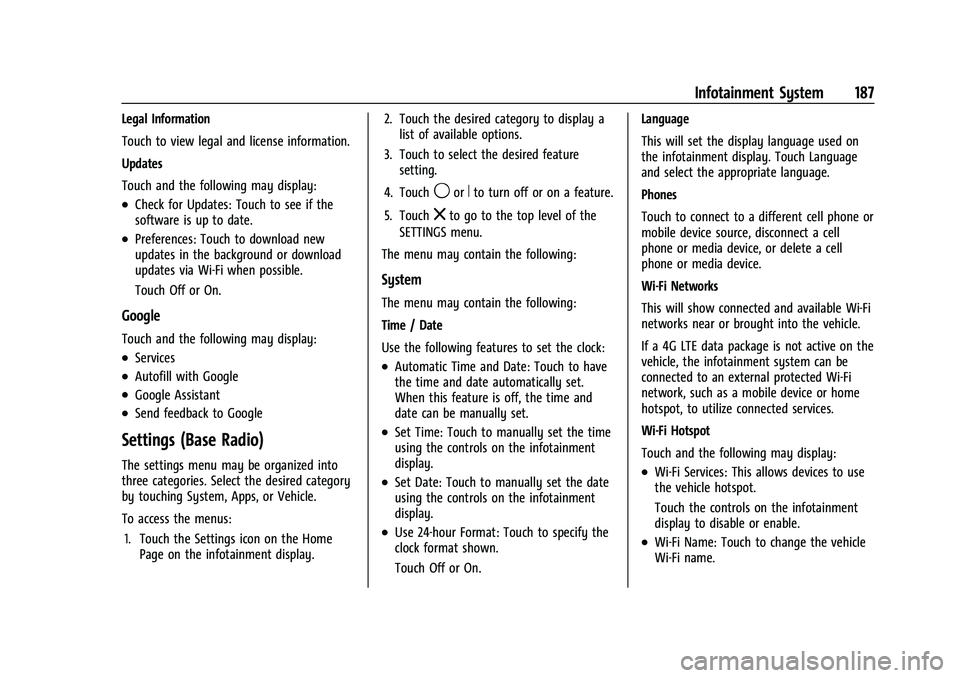
Legal Information
Touch to view legal and license information.
Updates
Touch and the following may display:
.Check for Updates: Touch to see if the
software is up to date.
.Preferences: Touch to download new
updates in the background or download
updates via Wi-Fi when possible.
Touch Off or On.
Google
Touch and the following may display:
.Services
.Autofill with Google
.Google Assistant
.Send feedback to Google
Settings (Base Radio)
The settings menu may be organized into
three categories. Select the desired category
by touching System, Apps, or Vehicle.
To access the menus:1. Touch the Settings icon on the Home Page on the infotainment display. 2. Touch the desired category to display a
list of available options.
3. Touch to select the desired feature setting.
4. Touch
9orRto turn off or on a feature.
5. Touch
zto go to the top level of the
SETTINGS menu.
The menu may contain the following:
System
The menu may contain the following:
Time / Date
Use the following features to set the clock:
.Automatic Time and Date: Touch to have
the time and date automatically set.
When this feature is off, the time and
date can be manually set.
.Set Time: Touch to manually set the time
using the controls on the infotainment
display.
.Set Date: Touch to manually set the date
using the controls on the infotainment
display.
.Use 24-hour Format: Touch to specify the
clock format shown.
Touch Off or On. Language
This will set the display language used on
the infotainment display. Touch Language
and select the appropriate language.
Phones
Touch to connect to a different cell phone or
mobile device source, disconnect a cell
phone or media device, or delete a cell
phone or media device.
Wi-Fi Networks
This will show connected and available Wi-Fi
networks near or brought into the vehicle.
If a 4G LTE data package is not active on the
vehicle, the infotainment system can be
connected to an external protected Wi-Fi
network, such as a mobile device or home
hotspot, to utilize connected services.
Wi-Fi Hotspot
Touch and the following may display:
.Wi-Fi Services: This allows devices to use
the vehicle hotspot.
Touch the controls on the infotainment
display to disable or enable.
.Wi-Fi Name: Touch to change the vehicle
Wi-Fi name.