reset CHEVROLET SUBURBAN 2022 User Guide
[x] Cancel search | Manufacturer: CHEVROLET, Model Year: 2022, Model line: SUBURBAN, Model: CHEVROLET SUBURBAN 2022Pages: 438, PDF Size: 14.08 MB
Page 125 of 438
Chevrolet Tahoe/Suburban Owner Manual (GMNA-Localizing-U.S./Canada/
Mexico-15555985) - 2022 - CRC - 12/3/21
124 Instruments and Controls
Information Displays
Driver Information Center (DIC)
(Base Level)
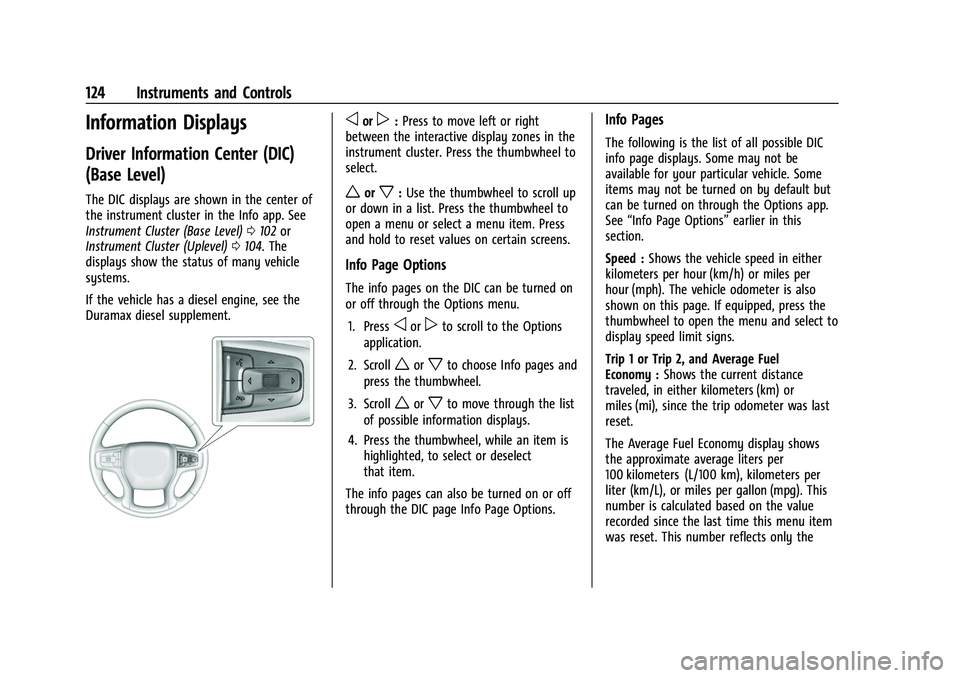
The DIC displays are shown in the center of
the instrument cluster in the Info app. See
Instrument Cluster (Base Level)0102 or
Instrument Cluster (Uplevel) 0104. The
displays show the status of many vehicle
systems.
If the vehicle has a diesel engine, see the
Duramax diesel supplement.
oorp: Press to move left or right
between the interactive display zones in the
instrument cluster. Press the thumbwheel to
select.
worx: Use the thumbwheel to scroll up
or down in a list. Press the thumbwheel to
open a menu or select a menu item. Press
and hold to reset values on certain screens.
Info Page Options
The info pages on the DIC can be turned on
or off through the Options menu.
1. Press
oorpto scroll to the Options
application.
2. Scroll
worxto choose Info pages and
press the thumbwheel.
3. Scroll
worxto move through the list
of possible information displays.
4. Press the thumbwheel, while an item is highlighted, to select or deselect
that item.
The info pages can also be turned on or off
through the DIC page Info Page Options.
Info Pages
The following is the list of all possible DIC
info page displays. Some may not be
available for your particular vehicle. Some
items may not be turned on by default but
can be turned on through the Options app.
See “Info Page Options” earlier in this
section.
Speed : Shows the vehicle speed in either
kilometers per hour (km/h) or miles per
hour (mph). The vehicle odometer is also
shown on this page. If equipped, press the
thumbwheel to open the menu and select to
display speed limit signs.
Trip 1 or Trip 2, and Average Fuel
Economy : Shows the current distance
traveled, in either kilometers (km) or
miles (mi), since the trip odometer was last
reset.
The Average Fuel Economy display shows
the approximate average liters per
100 kilometers (L/100 km), kilometers per
liter (km/L), or miles per gallon (mpg). This
number is calculated based on the value
recorded since the last time this menu item
was reset. This number reflects only the
Page 126 of 438
Chevrolet Tahoe/Suburban Owner Manual (GMNA-Localizing-U.S./Canada/
Mexico-15555985) - 2022 - CRC - 12/3/21
Instruments and Controls 125
approximate average fuel economy that the
vehicle has at that moment, and changes as
driving conditions change.
Press the thumbwheel while this display is
active to reset the trip odometer and the
average fuel economy.
Fuel Range :Shows the approximate
distance the vehicle can be driven without
refueling. LOW will be displayed when the
vehicle is low on fuel. The fuel range
estimate is based on an average of the
vehicle's fuel economy over recent driving
history and the amount of fuel remaining in
the fuel tank.
Timer : To start the timer, press the
thumbwheel while this display is active. The
display will show the amount of time that
has passed since the timer was last reset. To
stop the timer, press the thumbwheel
briefly while this display is active and the
timer is running.
Press the thumbwheel while this display is
active to reset the timer.
Oil Life : Shows an estimate of the
remaining oil life. If REMAINING OIL LIFE
99% is displayed, that means 99% of the
current oil life remains. When the remaining oil life is low, the
CHANGE ENGINE OIL SOON message will
appear on the display. The oil should be
changed as soon as possible. See
Engine Oil
0 315. In addition to the engine oil life
system monitoring the oil life, additional
maintenance is recommended. See
Maintenance Schedule 0390.
The Oil Life display must be reset after each
oil change. It will not reset itself. Do not
reset the Oil Life display at any time other
than when the oil has just been changed.
It cannot be reset accurately until the next
oil change. To reset, see Engine Oil Life
System 0316.
Tire Pressure : Shows the approximate
pressures of all four tires. Tire pressure is
displayed in either kilopascal (kPa) or in
pounds per square inch (psi). If the pressure
is low, the value for that tire is shown in
amber. See Tire Pressure Monitor System
0 351 and
Tire Pressure Monitor Operation 0352.
Air Filter Life : Shows an estimate of the
remaining engine air filter’s life and the
state of the system. Engine Air Filter Life
95% means 95% of the current air filter life
remains. Messages will display based on the
engine air filter life and the state of the system. When the REPLACE SOON message
displays, the engine air filter should be
replaced at the earliest convenience.
The Air Filter Life display must be reset after
the engine air filter replacement. To reset,
see
Engine Air Filter Life System 0318.
Brake Pad Life : Displays an estimate of the
remaining life of the front and rear brake
pads. Messages will display based on brake
pad wear and the state of the system. Reset
the Brake Pad Life display after replacing the
brake pads. See Brake Pad Life System
0 325.
Fuel Economy : Displays average fuel
economy, the best fuel economy over the
selected distance, and a bar graph showing
instantaneous fuel economy.
Press the thumbwheel to change the
selected distance. Press and hold the
thumbwheel while this display is active to
reset the best fuel economy and average
fuel economy. This display can also be reset
by selecting Reset in the menu.
Engine Hours (Hourmeter) : Shows the total
number of hours the engine has run. This
display also shows the engine idle hours.
Page 127 of 438
Chevrolet Tahoe/Suburban Owner Manual (GMNA-Localizing-U.S./Canada/
Mexico-15555985) - 2022 - CRC - 12/3/21
126 Instruments and Controls
Transmission Fluid Temperature :Shows the
temperature of the automatic transmission
fluid in either degrees Celsius (°C) or degrees
Fahrenheit (°F).
Trailer Brake : On vehicles with the
Integrated Trailer Brake Control (ITBC)
system, the trailer brake display appears in
the DIC.
TRAILER GAIN shows the trailer gain setting.
This setting can be adjusted from 0.0 to 10.0
with either a trailer connected or
disconnected.
OUTPUT shows the power output to the
trailer any time a trailer with electric brakes
is connected. Output is displayed as a bar
graph. Dotted lines may appear in the
OUTPUT display if a trailer is not connected.
Off Road : If equipped, displays vehicle pitch
and roll information, road wheel angle, and
four-wheel drive (4WD) status.
Follow Distance : If equipped, the current
follow time to the vehicle ahead is displayed
as a time value on this page.
Driver Assistance : If equipped, shows
information for Lane Keep Assist (LKA) and
Forward Collision Alert (FCA). Info Page Options :
Scroll to choose which
info pages appear on the DIC. Press the
thumbwheel to select or deselect.
Blank Page : Shows no information.
Driver Information Center (DIC)
(Uplevel)
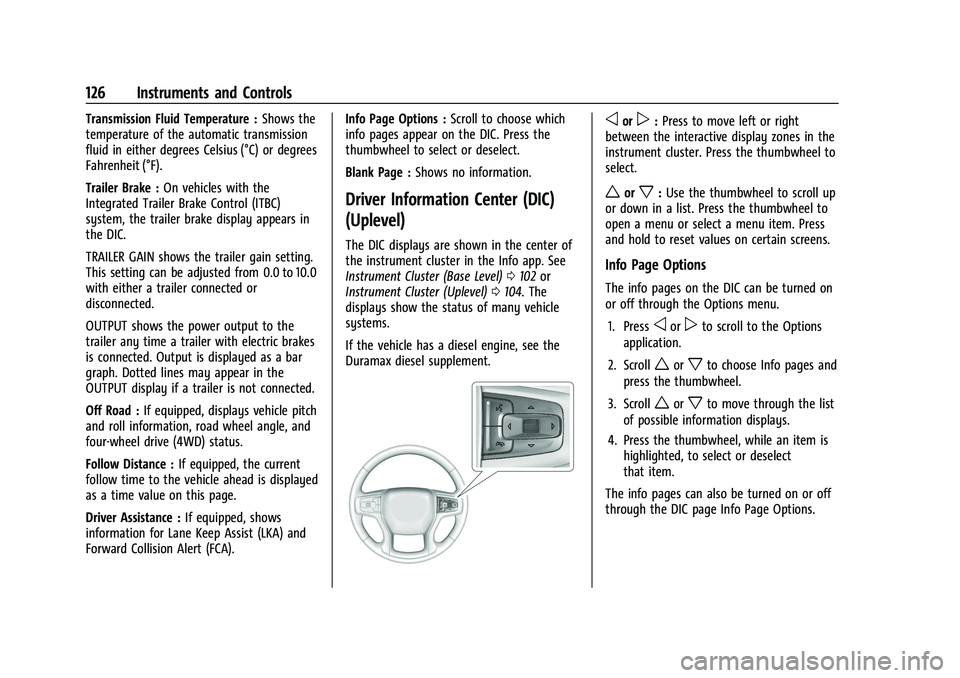
The DIC displays are shown in the center of
the instrument cluster in the Info app. See
Instrument Cluster (Base Level) 0102 or
Instrument Cluster (Uplevel) 0104. The
displays show the status of many vehicle
systems.
If the vehicle has a diesel engine, see the
Duramax diesel supplement.
oorp: Press to move left or right
between the interactive display zones in the
instrument cluster. Press the thumbwheel to
select.
worx: Use the thumbwheel to scroll up
or down in a list. Press the thumbwheel to
open a menu or select a menu item. Press
and hold to reset values on certain screens.
Info Page Options
The info pages on the DIC can be turned on
or off through the Options menu.
1. Press
oorpto scroll to the Options
application.
2. Scroll
worxto choose Info pages and
press the thumbwheel.
3. Scroll
worxto move through the list
of possible information displays.
4. Press the thumbwheel, while an item is highlighted, to select or deselect
that item.
The info pages can also be turned on or off
through the DIC page Info Page Options.
Page 128 of 438
Chevrolet Tahoe/Suburban Owner Manual (GMNA-Localizing-U.S./Canada/
Mexico-15555985) - 2022 - CRC - 12/3/21
Instruments and Controls 127
Info Pages
The following is the list of all possible DIC
info page displays. Some may not be
available for your particular vehicle. Some
items may not be turned on by default but
can be turned on through the Options app.
See“Info Page Options” earlier in this
section.
Speed : Shows the vehicle speed in either
kilometers per hour (km/h) or miles per
hour (mph).
Drive Summary : Displays the current
distance traveled, in either kilometers (km)
or miles (mi).
It also includes the Average Fuel Economy.
Average Fuel Economy shows the
approximate average liters per
100 kilometers (L/100 km), kilometers per
liter (km/L), or miles per gallon (mpg). This
number only reflects the approximate
Average Fuel Economy that the vehicle has
at that moment, and changes as driving
conditions change.
The timer shows the time in the current
drive cycle.
All values in the Drive Summary are
automatically reset each time the vehicle is
started. Trip 1 or Trip 2, Average Fuel Economy, and
Average Speed :
Shows the current distance
traveled, in either kilometers (km) or
miles (mi), since the trip odometer was last
reset.
The Average Fuel Economy display shows
the approximate average liters per
100 kilometers (L/100 km), kilometers per
liter (km/L), or miles per gallon (mpg). This
number is calculated based on the value
recorded since the last time this menu item
was reset. This number reflects only the
approximate average fuel economy that the
vehicle has at that moment, and changes as
driving conditions change.
Average Speed shows the average speed of
the vehicle in kilometers per hour (km/h) or
miles per hour (mph). This average is
calculated based on various vehicle speeds
recorded since the last reset of this value.
Press the thumbwheel while this display is
active to reset the values.
Timer : To start the timer, press the
thumbwheel while this display is active. The
display will show the amount of time that
has passed since the timer was last reset. To
stop the timer, press the thumbwheel
briefly while this display is active and the
timer is running. Press the thumbwheel while this display is
active to reset the timer.
Tire Pressure :
Shows the approximate
pressures of all four tires. Tire pressure is
displayed in either kilopascal (kPa) or in
pounds per square inch (psi). If the pressure
is low, the value for that tire is shown in
amber. See Tire Pressure Monitor System
0 351 and
Tire Pressure Monitor Operation 0352.
Fuel Economy : Displays average fuel
economy, the best fuel economy over the
selected distance, and a bar graph showing
instantaneous fuel economy.
Press the thumbwheel to change the
selected distance. Press and hold the
thumbwheel while this display is active to
reset the best fuel economy and average
fuel economy. This display can also be reset
by selecting Reset in the menu.
Driver Assistance : If equipped, shows
information for Adaptive Cruise Control
(ACC), Lane Keep Assist (LKA), Forward
Collision Alert (FCA), and Follow Distance
Indicator(FDI).
Page 129 of 438
Chevrolet Tahoe/Suburban Owner Manual (GMNA-Localizing-U.S./Canada/
Mexico-15555985) - 2022 - CRC - 12/3/21
128 Instruments and Controls
Oil Life :Shows an estimate of the
remaining oil life. If REMAINING OIL LIFE
99% is displayed, that means 99% of the
current oil life remains.
When the remaining oil life is low, the
CHANGE ENGINE OIL SOON message will
appear on the display. The oil should be
changed as soon as possible. See Engine Oil
0 315. In addition to the engine oil life
system monitoring the oil life, additional
maintenance is recommended. See
Maintenance Schedule 0390.
The Oil Life display must be reset after each
oil change. It will not reset itself. Do not
reset the Oil Life display at any time other
than when the oil has just been changed.
It cannot be reset accurately until the next
oil change. To reset, see Engine Oil Life
System 0316.
Brake Pad Life : Displays an estimate of the
remaining life of the front and rear brake
pads. Messages will display based on brake
pad wear and the state of the system. Reset
the Brake Pad Life display after replacing the
brake pads. See Brake Pad Life System
0 325.
Air Filter Life : Shows an estimate of the
remaining engine air filter’s life and the
state of the system. Engine Air Filter Life 95% means 95% of the current air filter life
remains. Messages will display based on the
engine air filter life and the state of the
system. When the REPLACE SOON message
displays, the engine air filter should be
replaced at the earliest convenience.
The Air Filter Life display must be reset after
the engine air filter replacement. To reset,
see
Engine Air Filter Life System 0318.
Trailer Brake : On vehicles with the
Integrated Trailer Brake Control (ITBC)
system, the trailer brake display appears in
the DIC.
TRAILER GAIN shows the trailer gain setting.
This setting can be adjusted from 0.0 to 10.0
with either a trailer connected or
disconnected.
OUTPUT shows the power output to the
trailer any time a trailer with electric brakes
is connected. Output is displayed as a bar
graph. Dotted lines may appear in the
OUTPUT display if a trailer is not connected.
Off Road : If equipped, displays vehicle pitch
and roll information, road wheel angle, and
four-wheel drive (4WD) status. If the vehicle
has low traction, a low traction indicator
and the wheels affected will display amber
in the Off-Road page. Engine Hours (Hourmeter) :
Shows the total
number of hours the engine has run. This
display also shows the engine idle hours.
Average Speed : Displays the average
vehicle speed in kilometers per hour (km/h)
or miles per hour (mph). This average is
based on the various vehicle speeds
recorded since the last reset. Reset the
average speed by pressing the thumbwheel
while this display is active to show a
confirmation window to select Yes or No.
Transmission Fluid Temperature : Shows the
temperature of the automatic transmission
fluid in either degrees Celsius (°C) or degrees
Fahrenheit (°F).
Coolant Temperature : Shows the engine
coolant temperature in either degrees
Celsius (°C) or degrees Fahrenheit (°F).
Oil Temperature : Shows the engine oil
temperature in either degrees Celsius (°C) or
degrees Fahrenheit (°F).
Oil Pressure : Shows the current oil pressure
in either kilopascal (kPa) or in pounds per
square inch (psi).
Info Page Options : Scroll to choose which
info pages appear on the DIC. Press the
thumbwheel to select or deselect.
Page 150 of 438
Chevrolet Tahoe/Suburban Owner Manual (GMNA-Localizing-U.S./Canada/
Mexico-15555985) - 2022 - CRC - 12/3/21
Infotainment System 149
.Set up the audio by presetting favorite
stations, setting the tone, and adjusting
the speakers.
.Set up phone numbers in advance so they
can be called easily by pressing a single
control or by using a single voice
command.
See Distracted Driving 0204.
Active Noise Cancellation (ANC)
If equipped, ANC reduces engine noise in the
vehicle’s interior. ANC requires the
factory-installed audio system, radio,
speakers, amplifier (if equipped), induction
system, and exhaust system to work
properly. Deactivation is required by your
dealer if related aftermarket equipment is
installed.
Overview
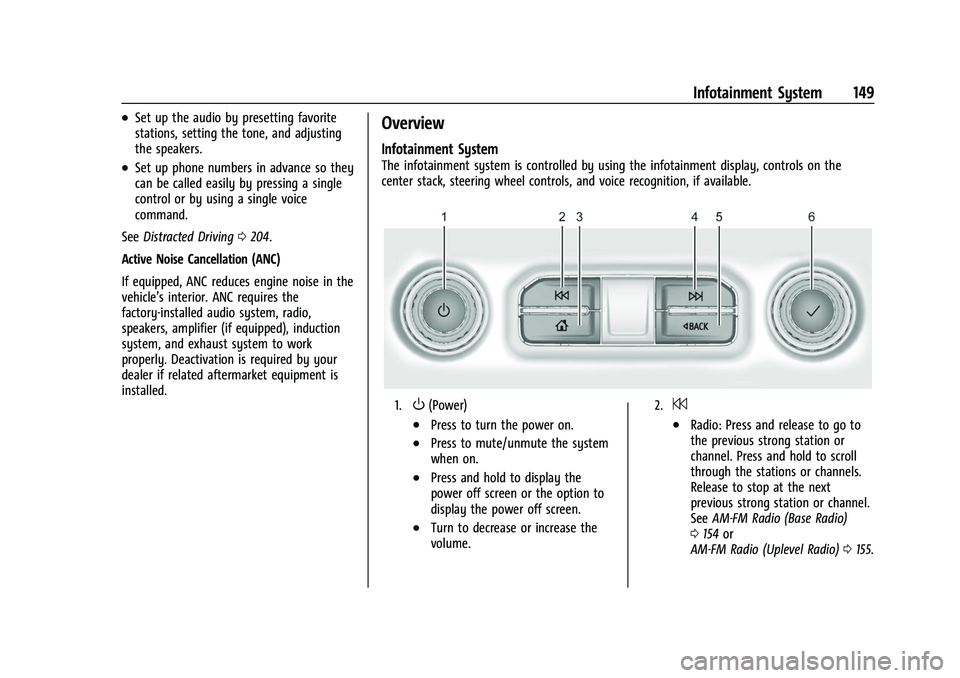
Infotainment System
The infotainment system is controlled by using the infotainment display, controls on the
center stack, steering wheel controls, and voice recognition, if available.
1.O(Power)
.Press to turn the power on.
.Press to mute/unmute the system
when on.
.Press and hold to display the
power off screen or the option to
display the power off screen.
.Turn to decrease or increase the
volume.
2.7
.Radio: Press and release to go to
the previous strong station or
channel. Press and hold to scroll
through the stations or channels.
Release to stop at the next
previous strong station or channel.
See AM-FM Radio (Base Radio)
0 154 or
AM-FM Radio (Uplevel Radio) 0155.
Page 159 of 438
Chevrolet Tahoe/Suburban Owner Manual (GMNA-Localizing-U.S./Canada/
Mexico-15555985) - 2022 - CRC - 12/3/21
158 Infotainment System
Touching a category will show the channels
associated with that category.
Favorites
Favorites are stored by touching Hold to Set.
Favorites show in the area at the bottom of
the display.
SiriusXM Settings
From the SiriusXM source main page, touch
audio settings icon on the upper right to
display the following:
Audio Settings
Touch to adjust the audio settings. See
“Audio Settings”inAM-FM Radio (Base
Radio) 0154 or
AM-FM Radio (Uplevel Radio) 0155.
From the SiriusXM source main page, touch
the user settings icon on the upper right to
display the following:
Subscription
Select to subscribe to SiriusXM.
Your Items
Select and the following may display: Listener Settings :
Touch to start songs at
the beginning when tuning to a music
channel. Explicit content and resetting
listening history is not supported.
System Settings
Select and the following may display:
Location Services : Touch to turn Location
Services on or off.
Radio ID : Touch to show the radio id and
version.
Help & Support
Touch to contact SiriusXM.
Radio Reception
Unplug electronic devices from the accessory
power outlets if there is interference or
static in the radio.
FM
FM signals only reach about 16 to 65 km (10
to 40 mi). Although the radio has a built-in
electronic circuit that automatically works to
reduce interference, some static can occur,
especially around tall buildings or hills,
causing the sound to fade in and out.
AM
The range for most AM stations is greater
than for FM, especially at night. The longer
range can cause station frequencies to
interfere with each other. Static can also
occur when things like storms and power
lines interfere with radio reception. When
this happens, try reducing the treble on the
radio.
SiriusXM Satellite Radio Service
If equipped, SiriusXM Satellite Radio Service
provides digital radio reception. Tall
buildings or hills can interfere with satellite
radio signals, causing the sound to fade in
and out. In addition, traveling or standing
under heavy foliage, bridges, garages,
or tunnels may cause loss of the SiriusXM
signal for a period of time. Some cellular
services may interfere with SXM reception
causing loss of signal.
Mobile Device Usage
Mobile device usage, such as making or
receiving calls, charging, or just having the
mobile device on may cause static
interference in the radio. Unplug the mobile
device or turn it off if this happens.
Page 166 of 438
Chevrolet Tahoe/Suburban Owner Manual (GMNA-Localizing-U.S./Canada/
Mexico-15555985) - 2022 - CRC - 12/3/21
Infotainment System 165
Voice Over
If equipped, the RSI system has a Voice Over
feature to benefit the visually and hearing
impaired.
When activated, Voice Over provides audible
feedback to the user about which area on
the screen they are touching, identifying
active buttons, as well as providing
information feedback of screen identification,
current status, list content, metadata, and
pop-up information. It allows for the user to
activate features through a double tap
anywhere on the screen which relates to the
last single touched and audibly announced
actionable button.
To turn Voice Over on or off, touch
*,
touch the toggle, and then press OK to
confirm. Voice Over turns off every time the
vehicle is turned off.
Reset Rear Media
Select to reset the Apps and log out users.
Open Source License
Select to show the license information.
Rear Consumer Ports (RCP)
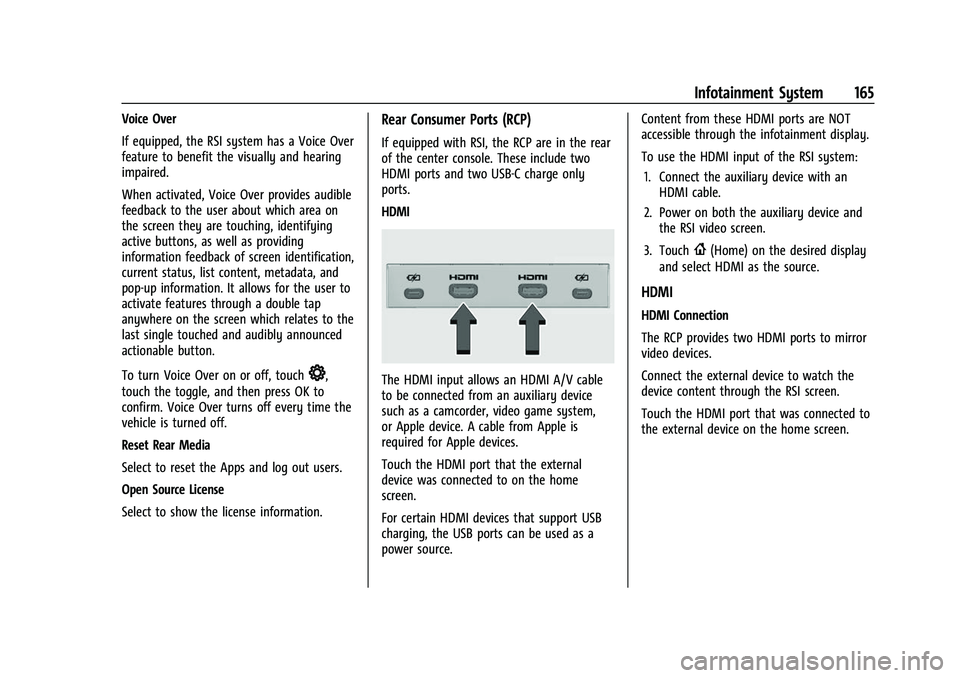
If equipped with RSI, the RCP are in the rear
of the center console. These include two
HDMI ports and two USB-C charge only
ports.
HDMI
The HDMI input allows an HDMI A/V cable
to be connected from an auxiliary device
such as a camcorder, video game system,
or Apple device. A cable from Apple is
required for Apple devices.
Touch the HDMI port that the external
device was connected to on the home
screen.
For certain HDMI devices that support USB
charging, the USB ports can be used as a
power source. Content from these HDMI ports are NOT
accessible through the infotainment display.
To use the HDMI input of the RSI system:
1. Connect the auxiliary device with an HDMI cable.
2. Power on both the auxiliary device and the RSI video screen.
3. Touch
{(Home) on the desired display
and select HDMI as the source.
HDMI
HDMI Connection
The RCP provides two HDMI ports to mirror
video devices.
Connect the external device to watch the
device content through the RSI screen.
Touch the HDMI port that was connected to
the external device on the home screen.
Page 168 of 438
Chevrolet Tahoe/Suburban Owner Manual (GMNA-Localizing-U.S./Canada/
Mexico-15555985) - 2022 - CRC - 12/3/21
Infotainment System 167
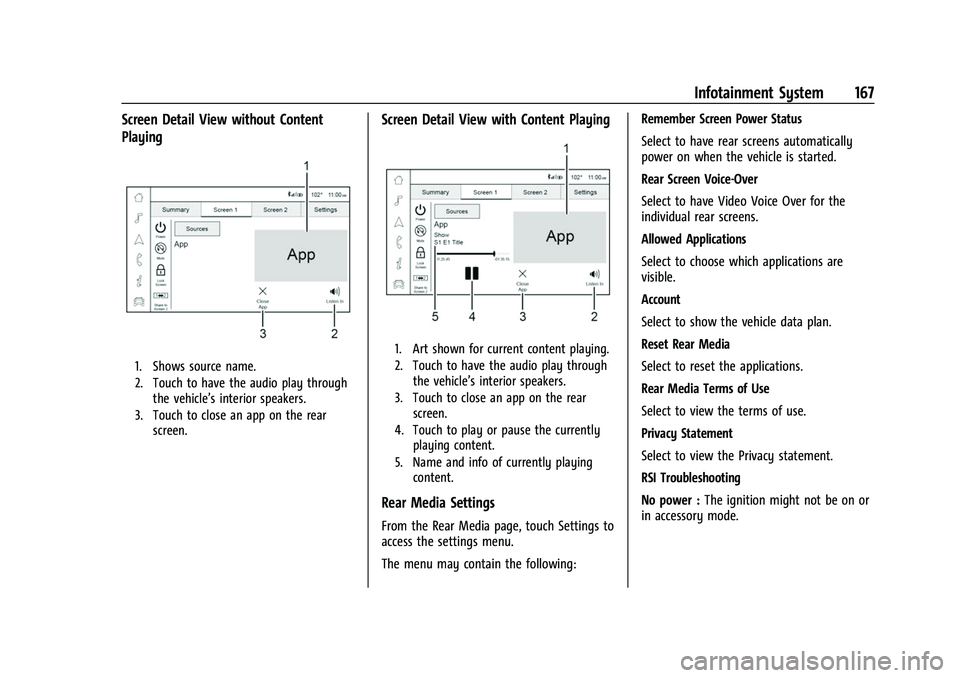
Screen Detail View without Content
Playing
1. Shows source name.
2. Touch to have the audio play throughthe vehicle’s interior speakers.
3. Touch to close an app on the rear screen.
Screen Detail View with Content Playing
1. Art shown for current content playing.
2. Touch to have the audio play throughthe vehicle’s interior speakers.
3. Touch to close an app on the rear screen.
4. Touch to play or pause the currently playing content.
5. Name and info of currently playing content.
Rear Media Settings
From the Rear Media page, touch Settings to
access the settings menu.
The menu may contain the following: Remember Screen Power Status
Select to have rear screens automatically
power on when the vehicle is started.
Rear Screen Voice-Over
Select to have Video Voice Over for the
individual rear screens.
Allowed Applications
Select to choose which applications are
visible.
Account
Select to show the vehicle data plan.
Reset Rear Media
Select to reset the applications.
Rear Media Terms of Use
Select to view the terms of use.
Privacy Statement
Select to view the Privacy statement.
RSI Troubleshooting
No power :
The ignition might not be on or
in accessory mode.
Page 175 of 438
Chevrolet Tahoe/Suburban Owner Manual (GMNA-Localizing-U.S./Canada/
Mexico-15555985) - 2022 - CRC - 12/3/21
174 Infotainment System
this option and the Phones screen will
display. See“Pairing a Phone” later in this
section.
.A Bluetooth smartphone with music
capability can be paired to the vehicle as
a smartphone and a music player at the
same time.
.Up to 10 devices can be paired to the
Bluetooth system.
.The pairing process is disabled when the
vehicle is moving.
.Pairing only needs to be completed once,
unless the pairing information on the cell
phone changes or the cell phone is
deleted from the system.
.If multiple paired cell phones are within
range of the system, the system connects
to the paired cell phone that is set to
First to Connect. If there is no cell phone
set to First to Connect, it will link to the
cell phone which was used last. To link to
a different paired cell phone, see “Linking
to a Different Phone” later in this section.
Pairing a Phone 1. Make sure Bluetooth has been enabled on the cell phone before starting the
pairing process.
2. Touch the Phone icon on the Home Page. 3. If no mobile device is connected, touch
Manage Phones and the Phones screen
will display.
If another mobile device is connected
already, touch Settings, Connections, and
then Phones.
4. Touch Add Phone. If a previously added phone is
disconnected, the "Add Phone" card will
just be a "+" card.
5. Follow the on-screen prompts to pair the cell phone.
6. Follow the instructions on the cell phone to confirm the six-digit code showing on
the infotainment display and touch Pair.
The code on the cell phone and
infotainment display needs to be
acknowledged for a successful pair.
7. Start the pairing process on the cell phone to be paired to the vehicle. See
the cell phone manufacturer's user guide
for information on this process. Once the
cell phone is paired, it will show as
Connected. 8. If the vehicle name does not appear on
your cell phone, there are a few ways to
start the pairing process over:
.Make sure there is not an entry for
the vehicle under the previously
connected list. If the vehicle and cell
phone were previously paired and
one still remembers the other, it will
not identify as a new device when
searching.
.Turn the Bluetooth off and on the
device.
.Go back to the beginning of the
Phone menus on the infotainment
display and restart the pairing
process.
.Turn the cell phone off and then
back on.
.Reset the cell phone, but this step
should be done as a last effort.
9. If the cell phone prompts to accept connection or allow phone book
download, touch Always Accept and
Allow. The phone book may not be
available if not accepted.
10. To pair additional cell phones, touch Settings, Connections, and then Phones.