USB CHEVROLET SUBURBAN 2022 Owners Manual
[x] Cancel search | Manufacturer: CHEVROLET, Model Year: 2022, Model line: SUBURBAN, Model: CHEVROLET SUBURBAN 2022Pages: 438, PDF Size: 14.08 MB
Page 6 of 438
Chevrolet Tahoe/Suburban Owner Manual (GMNA-Localizing-U.S./Canada/
Mexico-15555985) - 2022 - CRC - 12/3/21
Introduction 5
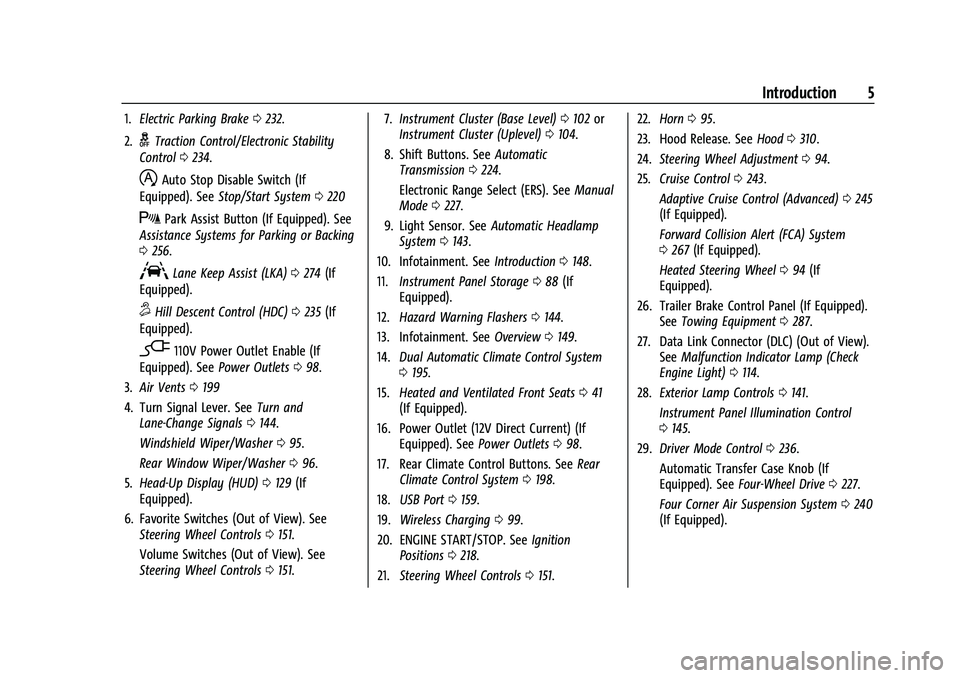
1.Electric Parking Brake 0232.
2.
gTraction Control/Electronic Stability
Control 0234.
hAuto Stop Disable Switch (If
Equipped). See Stop/Start System 0220
XPark Assist Button (If Equipped). See
Assistance Systems for Parking or Backing
0 256.
ALane Keep Assist (LKA) 0274 (If
Equipped).
5Hill Descent Control (HDC) 0235 (If
Equipped).
-110V Power Outlet Enable (If
Equipped). See Power Outlets098.
3. Air Vents 0199
4. Turn Signal Lever. See Turn and
Lane-Change Signals 0144.
Windshield Wiper/Washer 095.
Rear Window Wiper/Washer 096.
5. Head-Up Display (HUD) 0129 (If
Equipped).
6. Favorite Switches (Out of View). See Steering Wheel Controls 0151.
Volume Switches (Out of View). See
Steering Wheel Controls 0151. 7.
Instrument Cluster (Base Level) 0102 or
Instrument Cluster (Uplevel) 0104.
8. Shift Buttons. See Automatic
Transmission 0224.
Electronic Range Select (ERS). See Manual
Mode 0227.
9. Light Sensor. See Automatic Headlamp
System 0143.
10. Infotainment. See Introduction0148.
11. Instrument Panel Storage 088 (If
Equipped).
12. Hazard Warning Flashers 0144.
13. Infotainment. See Overview0149.
14. Dual Automatic Climate Control System
0195.
15. Heated and Ventilated Front Seats 041
(If Equipped).
16. Power Outlet (12V Direct Current) (If Equipped). See Power Outlets098.
17. Rear Climate Control Buttons. See Rear
Climate Control System 0198.
18. USB Port 0159.
19. Wireless Charging 099.
20. ENGINE START/STOP. See Ignition
Positions 0218.
21. Steering Wheel Controls 0151. 22.
Horn 095.
23. Hood Release. See Hood0310.
24. Steering Wheel Adjustment 094.
25. Cruise Control 0243.
Adaptive Cruise Control (Advanced) 0245
(If Equipped).
Forward Collision Alert (FCA) System
0 267 (If Equipped).
Heated Steering Wheel 094 (If
Equipped).
26. Trailer Brake Control Panel (If Equipped). SeeTowing Equipment 0287.
27. Data Link Connector (DLC) (Out of View). SeeMalfunction Indicator Lamp (Check
Engine Light) 0114.
28. Exterior Lamp Controls 0141.
Instrument Panel Illumination Control
0 145.
29. Driver Mode Control 0236.
Automatic Transfer Case Knob (If
Equipped). See Four-Wheel Drive 0227.
Four Corner Air Suspension System 0240
(If Equipped).
Page 91 of 438
Chevrolet Tahoe/Suburban Owner Manual (GMNA-Localizing-U.S./Canada/
Mexico-15555985) - 2022 - CRC - 12/3/21
90 Storage
Center Console Storage
Bench Seat
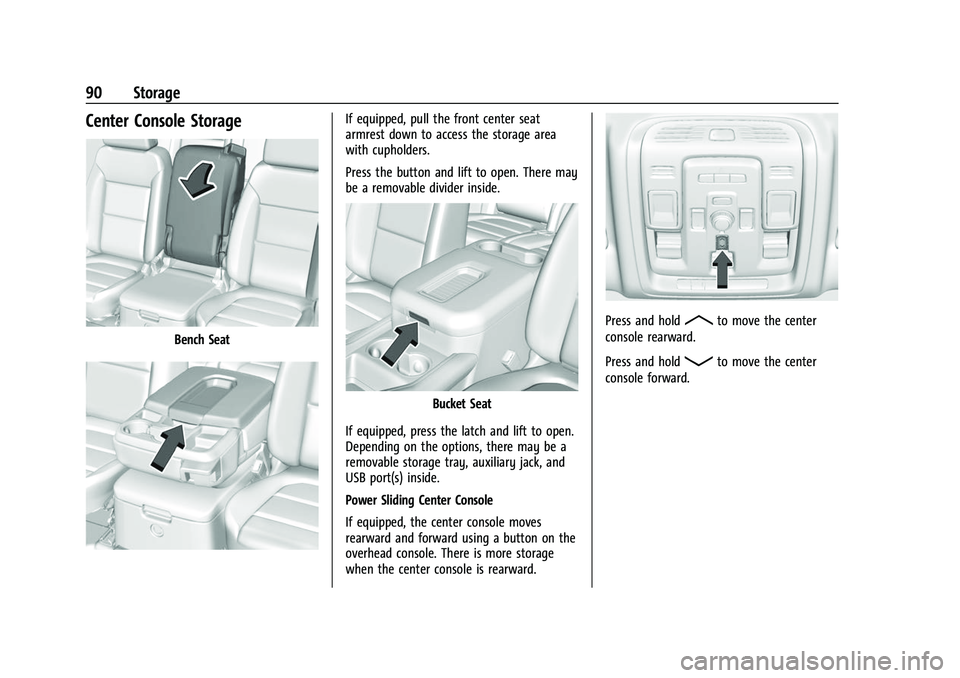
If equipped, pull the front center seat
armrest down to access the storage area
with cupholders.
Press the button and lift to open. There may
be a removable divider inside.
Bucket Seat
If equipped, press the latch and lift to open.
Depending on the options, there may be a
removable storage tray, auxiliary jack, and
USB port(s) inside.
Power Sliding Center Console
If equipped, the center console moves
rearward and forward using a button on the
overhead console. There is more storage
when the center console is rearward.
Press and holdRto move the center
console rearward.
Press and hold
Qto move the center
console forward.
Page 99 of 438
Chevrolet Tahoe/Suburban Owner Manual (GMNA-Localizing-U.S./Canada/
Mexico-15555985) - 2022 - CRC - 12/3/21
98 Instruments and Controls
signal. The compass system will
automatically determine when a GPS signal
is restored and provide a heading again.
Clock
Set the time and date using the
infotainment system. See "Time/Date" under
Settings (Uplevel Radio)0184 or
Settings (Base Radio) 0187.
Power Outlets
Accessory power outlets can be used to plug
in electrical equipment, such as a cell phone
or MP3 player.
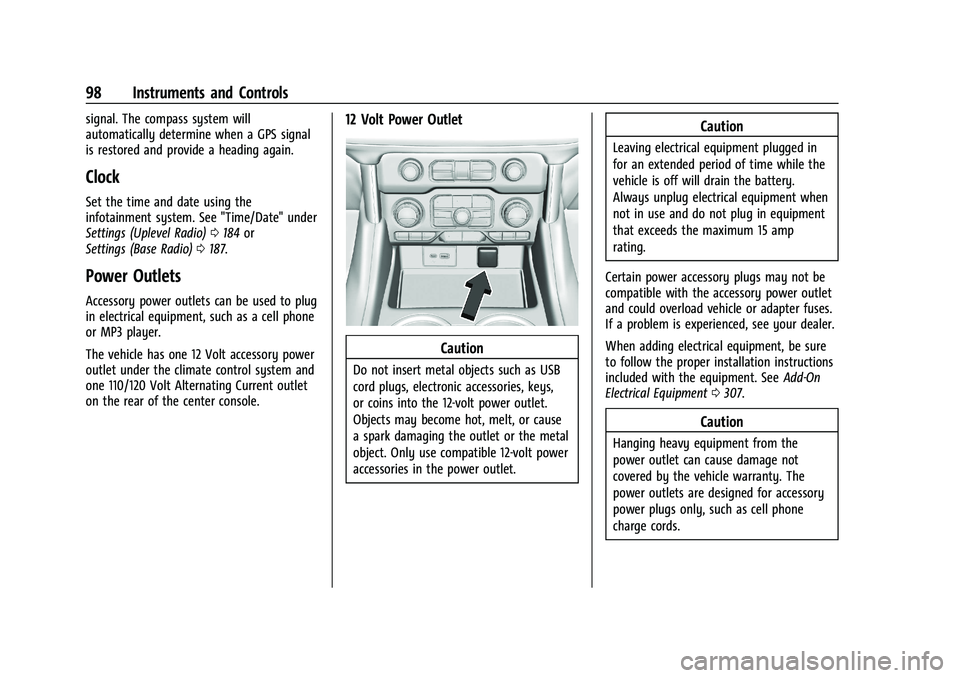
The vehicle has one 12 Volt accessory power
outlet under the climate control system and
one 110/120 Volt Alternating Current outlet
on the rear of the center console.
12 Volt Power Outlet
Caution
Do not insert metal objects such as USB
cord plugs, electronic accessories, keys,
or coins into the 12-volt power outlet.
Objects may become hot, melt, or cause
a spark damaging the outlet or the metal
object. Only use compatible 12-volt power
accessories in the power outlet.
Caution
Leaving electrical equipment plugged in
for an extended period of time while the
vehicle is off will drain the battery.
Always unplug electrical equipment when
not in use and do not plug in equipment
that exceeds the maximum 15 amp
rating.
Certain power accessory plugs may not be
compatible with the accessory power outlet
and could overload vehicle or adapter fuses.
If a problem is experienced, see your dealer.
When adding electrical equipment, be sure
to follow the proper installation instructions
included with the equipment. See Add-On
Electrical Equipment 0307.
Caution
Hanging heavy equipment from the
power outlet can cause damage not
covered by the vehicle warranty. The
power outlets are designed for accessory
power plugs only, such as cell phone
charge cords.
Page 100 of 438
Chevrolet Tahoe/Suburban Owner Manual (GMNA-Localizing-U.S./Canada/
Mexico-15555985) - 2022 - CRC - 12/3/21
Instruments and Controls 99
Power Outlet 110/120 Volt Alternating
Current
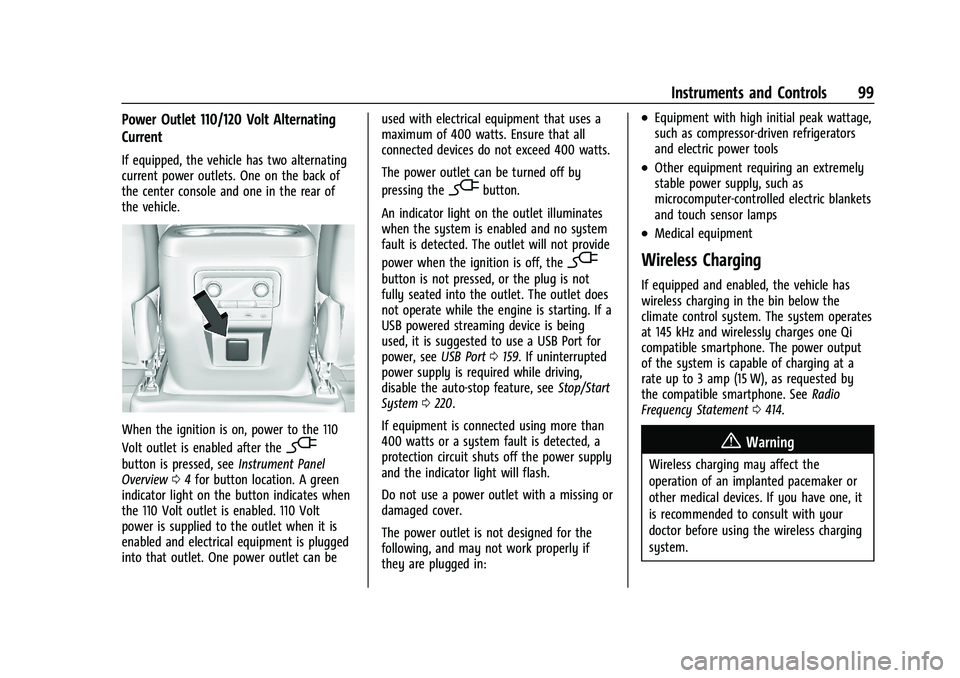
If equipped, the vehicle has two alternating
current power outlets. One on the back of
the center console and one in the rear of
the vehicle.
When the ignition is on, power to the 110
Volt outlet is enabled after the
-
button is pressed, seeInstrument Panel
Overview 04for button location. A green
indicator light on the button indicates when
the 110 Volt outlet is enabled. 110 Volt
power is supplied to the outlet when it is
enabled and electrical equipment is plugged
into that outlet. One power outlet can be used with electrical equipment that uses a
maximum of 400 watts. Ensure that all
connected devices do not exceed 400 watts.
The power outlet can be turned off by
pressing the
-button.
An indicator light on the outlet illuminates
when the system is enabled and no system
fault is detected. The outlet will not provide
power when the ignition is off, the
-
button is not pressed, or the plug is not
fully seated into the outlet. The outlet does
not operate while the engine is starting. If a
USB powered streaming device is being
used, it is suggested to use a USB Port for
power, see USB Port0159. If uninterrupted
power supply is required while driving,
disable the auto-stop feature, see Stop/Start
System 0220.
If equipment is connected using more than
400 watts or a system fault is detected, a
protection circuit shuts off the power supply
and the indicator light will flash.
Do not use a power outlet with a missing or
damaged cover.
The power outlet is not designed for the
following, and may not work properly if
they are plugged in:
.Equipment with high initial peak wattage,
such as compressor-driven refrigerators
and electric power tools
.Other equipment requiring an extremely
stable power supply, such as
microcomputer-controlled electric blankets
and touch sensor lamps
.Medical equipment
Wireless Charging
If equipped and enabled, the vehicle has
wireless charging in the bin below the
climate control system. The system operates
at 145 kHz and wirelessly charges one Qi
compatible smartphone. The power output
of the system is capable of charging at a
rate up to 3 amp (15 W), as requested by
the compatible smartphone. See Radio
Frequency Statement 0414.
{Warning
Wireless charging may affect the
operation of an implanted pacemaker or
other medical devices. If you have one, it
is recommended to consult with your
doctor before using the wireless charging
system.
Page 149 of 438
Chevrolet Tahoe/Suburban Owner Manual (GMNA-Localizing-U.S./Canada/
Mexico-15555985) - 2022 - CRC - 12/3/21
148 Infotainment System
Infotainment System
Introduction
Introduction . . . . . . . . . . . . . . . . . . . . . . . . . . . 148
Overview . . . . . . . . . . . . . . . . . . . . . . . . . . . . . . 149
Steering Wheel Controls . . . . . . . . . . . . . . . 151
Using the System . . . . . . . . . . . . . . . . . . . . . . 151
Software Updates . . . . . . . . . . . . . . . . . . . . . . 154
Radio
AM-FM Radio (Base Radio) . . . . . . . . . . . . . 154
AM-FM Radio (Uplevel Radio) . . . . . . . . . . 155
Radio Data System (RDS) . . . . . . . . . . . . . . 157
Satellite Radio . . . . . . . . . . . . . . . . . . . . . . . . . 157
Radio Reception . . . . . . . . . . . . . . . . . . . . . . . 158
Multi-Band Antenna . . . . . . . . . . . . . . . . . . . 159
Audio Players
Avoiding Untrusted Media Devices . . . . 159
USB Port . . . . . . . . . . . . . . . . . . . . . . . . . . . . . . . 159
Bluetooth Audio (Base Radio) . . . . . . . . . 160
Bluetooth Audio (Uplevel Radio) . . . . . . . 161
Rear Seat Infotainment
Rear Seat Infotainment (RSI) System . . . 161
Navigation
Using the Navigation System . . . . . . . . . . 168
Maps . . . . . . . . . . . . . . . . . . . . . . . . . . . . . . . . . . 169
Navigation Symbols . . . . . . . . . . . . . . . . . . . 169
Destination . . . . . . . . . . . . . . . . . . . . . . . . . . . . 169Global Positioning System (GPS) . . . . . . . 170
Vehicle Positioning . . . . . . . . . . . . . . . . . . . . 170
Problems with Route Guidance . . . . . . . . . 171
Voice Recognition
Voice Recognition . . . . . . . . . . . . . . . . . . . . . . 171
Phone
Bluetooth (Overview) . . . . . . . . . . . . . . . . . . 173
Bluetooth (Pairing and Using a Phone
for Uplevel Radio) . . . . . . . . . . . . . . . . . . . . 173
Bluetooth (Pairing and Using a Phone for Base Radio) . . . . . . . . . . . . . . . . . . . . . . . 177
Apple CarPlay and Android Auto (Base Radio) . . . . . . . . . . . . . . . . . . . . . . . . . . . . . . . 180
Apple CarPlay and Android Auto (Uplevel Radio) . . . . . . . . . . . . . . . . . . . . . . . 182
Settings
Settings (Uplevel Radio) . . . . . . . . . . . . . . . 184
Settings (Base Radio) . . . . . . . . . . . . . . . . . . 187
Teen Driver . . . . . . . . . . . . . . . . . . . . . . . . . . . . 189
Trademarks and License Agreements
Trademarks and LicenseAgreements . . . . . . . . . . . . . . . . . . . . . . . . . . 192
Introduction
Read the following pages to become familiar
with the features.
{Warning
Taking your eyes off the road for too
long or too often while using any
infotainment feature can cause a crash.
You or others could be injured or killed.
Do not give extended attention to
infotainment tasks while driving. Limit
your glances at the vehicle displays and
focus your attention on driving. Use voice
commands whenever possible.
The infotainment system has built-in
features intended to help avoid distraction
by disabling some features when driving.
These features may gray out when they are
unavailable. Many infotainment features are
also available through the instrument cluster
and steering wheel controls.
Before driving:
.Become familiar with the operation,
center stack controls, steering wheel
controls, and infotainment display.
Page 151 of 438
Chevrolet Tahoe/Suburban Owner Manual (GMNA-Localizing-U.S./Canada/
Mexico-15555985) - 2022 - CRC - 12/3/21
150 Infotainment System
.USB/Bluetooth: Press and hold to
fast reverse the current song if
supported by the device. Release
to return to playing speed. See
USB Port0159 or
Bluetooth Audio (Base Radio) 0160
or Bluetooth Audio (Uplevel Radio)
0 161.
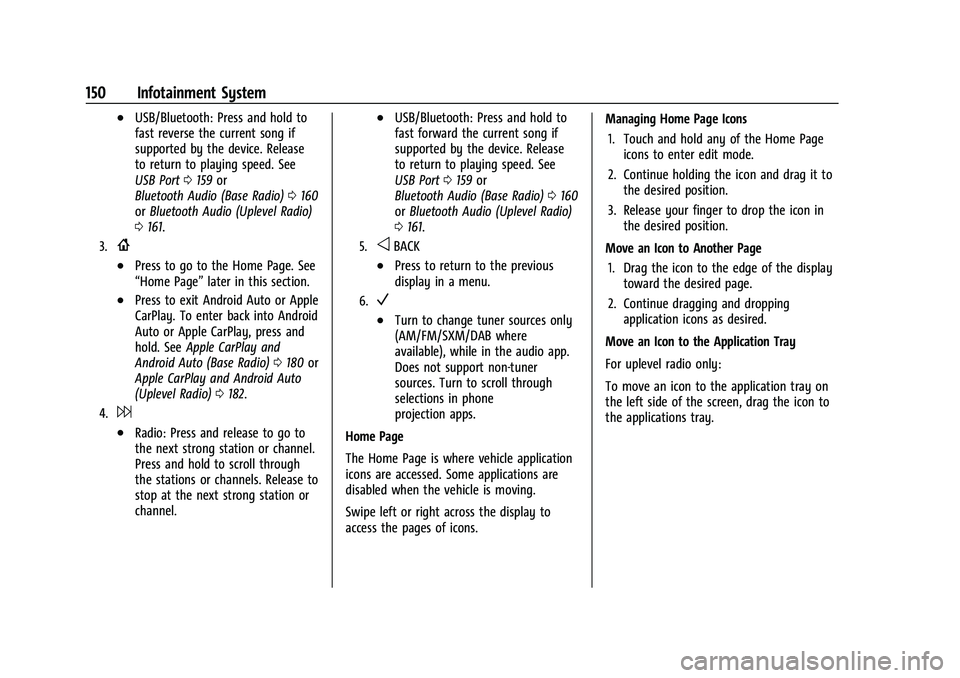
3.{
.Press to go to the Home Page. See
“Home Page” later in this section.
.Press to exit Android Auto or Apple
CarPlay. To enter back into Android
Auto or Apple CarPlay, press and
hold. SeeApple CarPlay and
Android Auto (Base Radio) 0180 or
Apple CarPlay and Android Auto
(Uplevel Radio) 0182.
4.6
.Radio: Press and release to go to
the next strong station or channel.
Press and hold to scroll through
the stations or channels. Release to
stop at the next strong station or
channel.
.USB/Bluetooth: Press and hold to
fast forward the current song if
supported by the device. Release
to return to playing speed. See
USB Port 0159 or
Bluetooth Audio (Base Radio) 0160
or Bluetooth Audio (Uplevel Radio)
0 161.
5.oBACK
.Press to return to the previous
display in a menu.
6.V
.Turn to change tuner sources only
(AM/FM/SXM/DAB where
available), while in the audio app.
Does not support non-tuner
sources. Turn to scroll through
selections in phone
projection apps.
Home Page
The Home Page is where vehicle application
icons are accessed. Some applications are
disabled when the vehicle is moving.
Swipe left or right across the display to
access the pages of icons. Managing Home Page Icons
1. Touch and hold any of the Home Page icons to enter edit mode.
2. Continue holding the icon and drag it to the desired position.
3. Release your finger to drop the icon in the desired position.
Move an Icon to Another Page 1. Drag the icon to the edge of the display toward the desired page.
2. Continue dragging and dropping application icons as desired.
Move an Icon to the Application Tray
For uplevel radio only:
To move an icon to the application tray on
the left side of the screen, drag the icon to
the applications tray.
Page 152 of 438
Chevrolet Tahoe/Suburban Owner Manual (GMNA-Localizing-U.S./Canada/
Mexico-15555985) - 2022 - CRC - 12/3/21
Infotainment System 151
Steering Wheel Controls
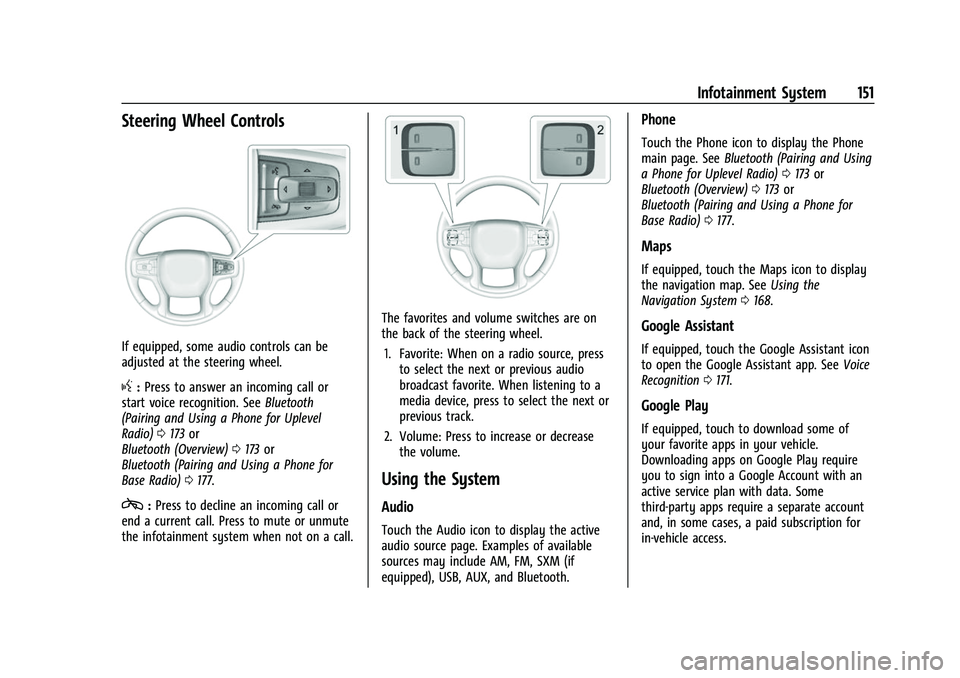
If equipped, some audio controls can be
adjusted at the steering wheel.
g:Press to answer an incoming call or
start voice recognition. See Bluetooth
(Pairing and Using a Phone for Uplevel
Radio) 0173 or
Bluetooth (Overview) 0173 or
Bluetooth (Pairing and Using a Phone for
Base Radio) 0177.
c:Press to decline an incoming call or
end a current call. Press to mute or unmute
the infotainment system when not on a call.
The favorites and volume switches are on
the back of the steering wheel.
1. Favorite: When on a radio source, press to select the next or previous audio
broadcast favorite. When listening to a
media device, press to select the next or
previous track.
2. Volume: Press to increase or decrease the volume.
Using the System
Audio
Touch the Audio icon to display the active
audio source page. Examples of available
sources may include AM, FM, SXM (if
equipped), USB, AUX, and Bluetooth.
Phone
Touch the Phone icon to display the Phone
main page. See Bluetooth (Pairing and Using
a Phone for Uplevel Radio) 0173 or
Bluetooth (Overview) 0173 or
Bluetooth (Pairing and Using a Phone for
Base Radio) 0177.
Maps
If equipped, touch the Maps icon to display
the navigation map. See Using the
Navigation System 0168.
Google Assistant
If equipped, touch the Google Assistant icon
to open the Google Assistant app. See Voice
Recognition 0171.
Google Play
If equipped, touch to download some of
your favorite apps in your vehicle.
Downloading apps on Google Play require
you to sign into a Google Account with an
active service plan with data. Some
third-party apps require a separate account
and, in some cases, a paid subscription for
in-vehicle access.
Page 155 of 438
Chevrolet Tahoe/Suburban Owner Manual (GMNA-Localizing-U.S./Canada/
Mexico-15555985) - 2022 - CRC - 12/3/21
154 Infotainment System
Software Updates
Over-the-Air Software Updates
If equipped, see“Updates”underSettings
(Uplevel Radio) 0184 or
Settings (Base Radio) 0187 for details on
software updates.
Radio
AM-FM Radio (Base Radio)
Playing the Radio
From the Home Page, touch the Audio icon
to display the active audio source page.
Choose from a list of the three most
recently used sources listed at the left side
of the screen. Choose More to display a list
of available Sources. Examples of available
sources are AM, FM, SiriusXM (if equipped),
MyMedia, USB, AUX (if equipped), and
Bluetooth.
Infotainment System Sound Menu
From any of the audio source main pages,
touch Sound to display the following:
Equalizer : Touch to adjust Bass, Midrange,
and Treble using the controls on the
infotainment display. Fade/Balance :
Touch to adjust using the
controls on the infotainment display or by
tapping/dragging the crosshair.
Finding a Station
Seeking a Station
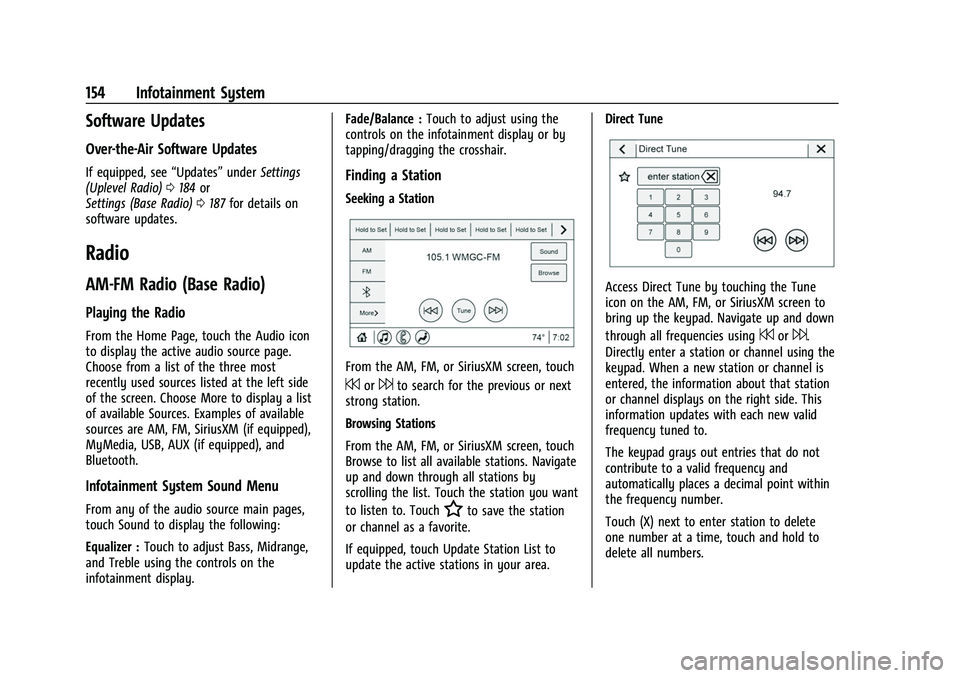
From the AM, FM, or SiriusXM screen, touch
7or6to search for the previous or next
strong station.
Browsing Stations
From the AM, FM, or SiriusXM screen, touch
Browse to list all available stations. Navigate
up and down through all stations by
scrolling the list. Touch the station you want
to listen to. Touch
Hto save the station
or channel as a favorite.
If equipped, touch Update Station List to
update the active stations in your area. Direct Tune
Access Direct Tune by touching the Tune
icon on the AM, FM, or SiriusXM screen to
bring up the keypad. Navigate up and down
through all frequencies using
7or6.
Directly enter a station or channel using the
keypad. When a new station or channel is
entered, the information about that station
or channel displays on the right side. This
information updates with each new valid
frequency tuned to.
The keypad grays out entries that do not
contribute to a valid frequency and
automatically places a decimal point within
the frequency number.
Touch (X) next to enter station to delete
one number at a time, touch and hold to
delete all numbers.
Page 160 of 438
Chevrolet Tahoe/Suburban Owner Manual (GMNA-Localizing-U.S./Canada/
Mexico-15555985) - 2022 - CRC - 12/3/21
Infotainment System 159
Multi-Band Antenna
The roof antenna may be used for radio,
navigation, and OnStar, depending on the
equipped options. Keep clear of obstructions
for clear reception. If the vehicle has a
sunroof, and it is open, reception can also
be affected.
Audio Players
Avoiding Untrusted Media Devices
When using media devices such as USB and
mobile devices, consider the source.
Untrusted media devices could contain files
that affect system operation or performance
and should be avoided.
USB Port
The vehicle may be equipped with two USB
ports in the center console under the
armrest and another two on the center
stack. These ports are for data and charging.
There may also be two USB ports at the
rear of the center console and a USB port on
each side of the third row seats for
charging only.
Caution
To avoid vehicle damage, unplug all
accessories and disconnect all accessory
cables from the vehicle when not in use.
Accessory cables left plugged into the
vehicle, unconnected to a device, could be
damaged or cause an electrical short if
the unconnected end comes in contact
with liquids or another power source such
as the accessory power outlet.
Playing from a USB
A USB mass storage device can be connected
to the USB port.
USB MP3 Player and USB Devices
The USB MP3 players and USB devices
connected must comply with the USB Mass
Storage Class specification (USB MSC).
To play a USB device on the uplevel radio:1. Connect the USB.
2. Touch Audio.
3. Touch Source from the top left of the main audio page.
4. Touch USB.
Use the following infotainment controls
when playing an active USB source:
r: Touch to play the current media source.
j: Touch to pause playback of the current
media source.
g:
.Press to seek to the beginning of the
current or previous track.
d:
.Press to seek to the next track.
Touch the Now Playing Icon in the upper
left of the now playing screen to Browse
USB content. While in Browse Mode you can
view media sorted by Playlists, Artists,
Songs, or Albums.
To play a USB device on the base radio: 1. Connect the USB.
2. Touch Audio.
3. Touch More.
4. Touch USB.
Use the following when playing an active
USB source:
r: Touch to play the current media source.
j: Touch to pause playback of the current
media source.
Page 161 of 438
Chevrolet Tahoe/Suburban Owner Manual (GMNA-Localizing-U.S./Canada/
Mexico-15555985) - 2022 - CRC - 12/3/21
160 Infotainment System
g:
.Press to seek to the beginning of the
current or previous track.
d:
.Press to seek to the next track.
Shuffle : Touch the shuffle icon to play
music in random order.
USB Browse Menu
Touch anywhere between the top and
bottom menus or touch the Browse option
on the infotainment display to view the
Browse menu and the following options are
displayed near the bottom of the display:
Playlists
1. Touch to view the playlists stored on the USB.
2. Touch a playlist to view the list of all songs in that playlist.
3. Touch a song from the list to begin playback.
Supported Playlist extensions are .m3u, .pls,
and .wpl.
Artists 1. Touch to view the list of artists stored on the USB. 2. Touch an artist name to view a list of all
albums by the artist.
3. To select a song, touch All Songs or touch an album and then select a song
from the list.
Albums 1. Touch to view the albums on the USB.
2. Touch the album to view a list of all songs on the album.
3. Touch a song from the list to begin playback.
Songs 1. Touch to display a list of all songs on the USB.
2. To begin playback, touch a song from the list.
Bluetooth Audio (Base Radio)
Music may be played from a paired
Bluetooth device. See Bluetooth (Pairing and
Using a Phone for Uplevel Radio) 0173 or
Bluetooth (Overview) 0173 or
Bluetooth (Pairing and Using a Phone for
Base Radio) 0177 for help pairing a device. Volume and song selection may be
controlled by using the infotainment
controls or the mobile device. If Bluetooth is
selected and no volume is present, check the
volume setting on the infotainment system.
Music can be launched by touching
Bluetooth from the recent sources list on
the left of the display or by touching the
More option and then touching the
Bluetooth device.
To play music via Bluetooth:
1. Power on the device, and pair to connect the device.
2. Once paired, touch Audio from the Home Page, then touch Bluetooth from the
recent sources list on the left of the
display.
Bluetooth Sound Menu
See “Infotainment System Sound Menu”
under AM-FM Radio (Base Radio) 0154 or
AM-FM Radio (Uplevel Radio) 0155.
Manage Bluetooth Devices
From the Home Page: 1. Touch Audio.
2. Touch More.
3. Touch Bluetooth.