brake sensor CHEVROLET SUBURBAN 2022 Owners Manual
[x] Cancel search | Manufacturer: CHEVROLET, Model Year: 2022, Model line: SUBURBAN, Model: CHEVROLET SUBURBAN 2022Pages: 438, PDF Size: 14.08 MB
Page 6 of 438
Chevrolet Tahoe/Suburban Owner Manual (GMNA-Localizing-U.S./Canada/
Mexico-15555985) - 2022 - CRC - 12/3/21
Introduction 5
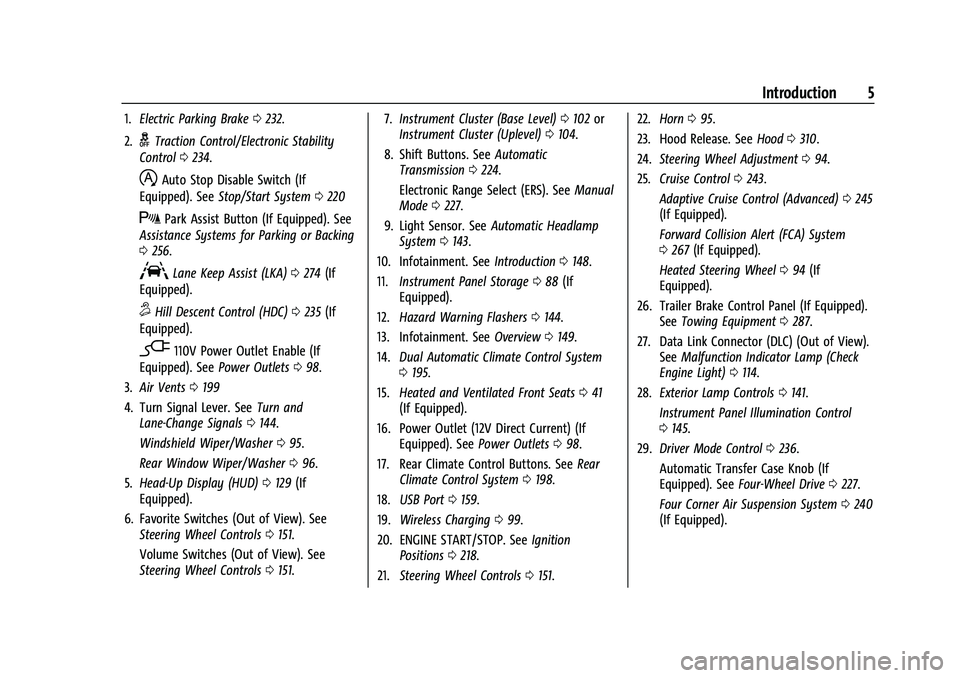
1.Electric Parking Brake 0232.
2.
gTraction Control/Electronic Stability
Control 0234.
hAuto Stop Disable Switch (If
Equipped). See Stop/Start System 0220
XPark Assist Button (If Equipped). See
Assistance Systems for Parking or Backing
0 256.
ALane Keep Assist (LKA) 0274 (If
Equipped).
5Hill Descent Control (HDC) 0235 (If
Equipped).
-110V Power Outlet Enable (If
Equipped). See Power Outlets098.
3. Air Vents 0199
4. Turn Signal Lever. See Turn and
Lane-Change Signals 0144.
Windshield Wiper/Washer 095.
Rear Window Wiper/Washer 096.
5. Head-Up Display (HUD) 0129 (If
Equipped).
6. Favorite Switches (Out of View). See Steering Wheel Controls 0151.
Volume Switches (Out of View). See
Steering Wheel Controls 0151. 7.
Instrument Cluster (Base Level) 0102 or
Instrument Cluster (Uplevel) 0104.
8. Shift Buttons. See Automatic
Transmission 0224.
Electronic Range Select (ERS). See Manual
Mode 0227.
9. Light Sensor. See Automatic Headlamp
System 0143.
10. Infotainment. See Introduction0148.
11. Instrument Panel Storage 088 (If
Equipped).
12. Hazard Warning Flashers 0144.
13. Infotainment. See Overview0149.
14. Dual Automatic Climate Control System
0195.
15. Heated and Ventilated Front Seats 041
(If Equipped).
16. Power Outlet (12V Direct Current) (If Equipped). See Power Outlets098.
17. Rear Climate Control Buttons. See Rear
Climate Control System 0198.
18. USB Port 0159.
19. Wireless Charging 099.
20. ENGINE START/STOP. See Ignition
Positions 0218.
21. Steering Wheel Controls 0151. 22.
Horn 095.
23. Hood Release. See Hood0310.
24. Steering Wheel Adjustment 094.
25. Cruise Control 0243.
Adaptive Cruise Control (Advanced) 0245
(If Equipped).
Forward Collision Alert (FCA) System
0 267 (If Equipped).
Heated Steering Wheel 094 (If
Equipped).
26. Trailer Brake Control Panel (If Equipped). SeeTowing Equipment 0287.
27. Data Link Connector (DLC) (Out of View). SeeMalfunction Indicator Lamp (Check
Engine Light) 0114.
28. Exterior Lamp Controls 0141.
Instrument Panel Illumination Control
0 145.
29. Driver Mode Control 0236.
Automatic Transfer Case Knob (If
Equipped). See Four-Wheel Drive 0227.
Four Corner Air Suspension System 0240
(If Equipped).
Page 246 of 438
Chevrolet Tahoe/Suburban Owner Manual (GMNA-Localizing-U.S./Canada/
Mexico-15555985) - 2022 - CRC - 12/3/21
Driving and Operating 245
Cruise Grade Braking is enabled when the
vehicle is started and cruise control is active.
It is not enabled in Range Selection Mode.
It assists in maintaining driver selected
speed when driving on downhill grades by
using the engine and transmission to slow
the vehicle.
For other forms of descent control, seeHill
Descent Control (HDC) 0235, Automatic
Transmission 0224, and Tow/Haul Mode,
see Driver Mode Control 0236.
Ending Cruise Control
There are four ways to end cruise control:
.Step lightly on the brake pedal.
.Press*.
.Shift the transmission to N (Neutral).
.To turn off cruise control, press5.
Erasing Speed Memory
The cruise control set speed is erased from
memory if
5is pressed or the ignition is
turned off.
Adaptive Cruise Control
(Advanced)
If equipped with Adaptive Cruise Control
(ACC), it allows for selecting the cruise
control set speed and following gap. Read
this entire section before using this system.
ACC uses a camera and radar sensor(s) to
detect other vehicles. See Radio Frequency
Statement 0414.
The following gap is the following time (or
distance) between your vehicle and a vehicle
detected directly ahead in your path,
moving in the same direction. If no vehicle
is detected in your path, ACC works like
regular cruise control.
If a vehicle is detected in your path, ACC can
apply acceleration or limited, moderate
braking to maintain the selected following
gap. To disengage ACC, apply the brake.
If ACC is controlling the vehicle speed when
the Traction Control System (TCS) or
StabiliTrak/Electronic Stability Control (ESC)
system activates, ACC may automatically
disengage. See Traction Control/Electronic
Stability Control 0234. When road
conditions allow ACC to be safely used, ACC
can be turned back on. Disabling the TCS or StabiliTrak/ESC system
will disengage and prevent engagement
of ACC.
ACC can reduce the need for you to
frequently brake and accelerate, especially
when used on expressways, freeways, and
interstate highways. When used on other
roads, you may need to take over the
control of braking or acceleration more
often.
ACC automatically slows the vehicle down
while navigating the curve and may increase
speed out of the curve, but will not exceed
the set speed.
{Warning
ACC has limited braking ability and may
not have time to slow the vehicle down
enough to avoid a collision with another
vehicle you are following. This can occur
when vehicles suddenly slow or stop
ahead, or enter your lane. Also see
“Alerting the Driver”
later in this section.
Complete attention is always required
while driving and you should be ready to
take action and apply the brakes. See
Defensive Driving 0205.
Page 247 of 438
Chevrolet Tahoe/Suburban Owner Manual (GMNA-Localizing-U.S./Canada/
Mexico-15555985) - 2022 - CRC - 12/3/21
246 Driving and Operating
{Warning
ACC will not detect or brake for children,
pedestrians, animals, or other objects.
Do not use ACC when:
.On winding and hilly roads or when
the sensors are blocked by snow, ice,
or dirt. The system may not detect a
vehicle ahead. Keep the entire front of
the vehicle clean.
.Visibility is poor due to rain, snow,
fog, dirt, insect residue, or dust; when
other foreign objects obscure the
camera and/or radar; or when the
vehicle in front or oncoming traffic
causes additional environmental
obstructions, such as road spray. ACC
performance is limited under these
conditions.
.On slippery roads where fast changes
in tire traction can cause excessive
wheel slip.
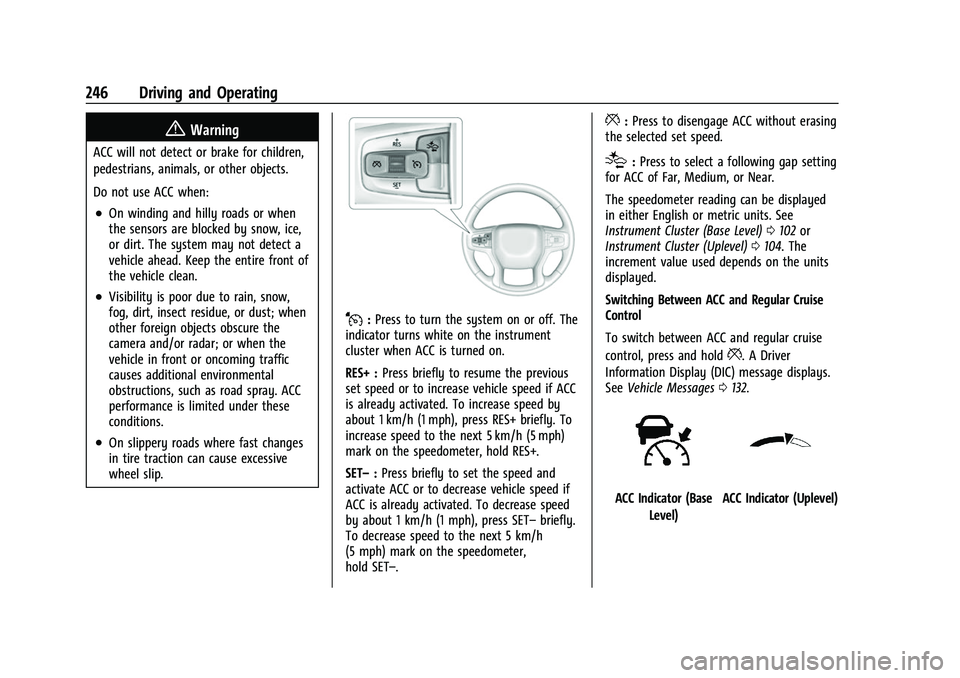
J:Press to turn the system on or off. The
indicator turns white on the instrument
cluster when ACC is turned on.
RES+ : Press briefly to resume the previous
set speed or to increase vehicle speed if ACC
is already activated. To increase speed by
about 1 km/h (1 mph), press RES+ briefly. To
increase speed to the next 5 km/h (5 mph)
mark on the speedometer, hold RES+.
SET– :Press briefly to set the speed and
activate ACC or to decrease vehicle speed if
ACC is already activated. To decrease speed
by about 1 km/h (1 mph), press SET– briefly.
To decrease speed to the next 5 km/h
(5 mph) mark on the speedometer,
hold SET–.
*: Press to disengage ACC without erasing
the selected set speed.
[: Press to select a following gap setting
for ACC of Far, Medium, or Near.
The speedometer reading can be displayed
in either English or metric units. See
Instrument Cluster (Base Level) 0102 or
Instrument Cluster (Uplevel) 0104. The
increment value used depends on the units
displayed.
Switching Between ACC and Regular Cruise
Control
To switch between ACC and regular cruise
control, press and hold
*. A Driver
Information Display (DIC) message displays.
See Vehicle Messages 0132.
ACC Indicator (Base
Level)ACC Indicator (Uplevel)
Page 252 of 438
Chevrolet Tahoe/Suburban Owner Manual (GMNA-Localizing-U.S./Canada/
Mexico-15555985) - 2022 - CRC - 12/3/21
Driving and Operating 251
The vehicle ahead indicator is in the
instrument cluster and HUD, if equipped.
It only displays when a vehicle is detected
in your vehicle’s path moving in the same
direction. If this symbol is not displaying,
ACC will not respond to or brake for vehicles
ahead.
ACC automatically slows the vehicle down
and adjusts vehicle speed to follow a
detected vehicle ahead at the selected
following gap. The vehicle speed increases or
decreases to follow a detected vehicle in
front of your vehicle when that vehicle is
traveling slower than your vehicle set speed.
It may apply limited braking, if necessary.
When braking is active, the brake lamps will
come on. The automatic braking may feel or
sound different than if the brakes were
applied manually. This is normal.
Passing a Vehicle While Using ACC
If the set speed is high enough, and the left
turn signal is used to pass a vehicle ahead
in the selected following gap, ACC may
assist by gradually accelerating the vehicle
prior to the lane change.{Warning
When using ACC to pass a vehicle or
perform a lane change, the following
distance to the vehicle being passed may
be reduced. ACC may not apply sufficient
acceleration or braking when passing a
vehicle or performing a lane change.
Always be ready to manually accelerate
or brake to complete the pass or lane
change.
Stationary or Very Slow-Moving Objects
{Warning
ACC may not detect and react to stopped
or slow-moving vehicles ahead of you. For
example, the system may not brake for a
vehicle it has never detected moving. This
can occur in stop-and-go traffic or when a
vehicle suddenly appears due to a vehicle
ahead changing lanes. Your vehicle may
not stop and could cause a crash. Use
caution when using ACC. Your complete
attention is always required while driving
and you should be ready to take action
and apply the brakes. Irregular Objects Affecting ACC
ACC may have difficulty detecting the
following objects:
.Vehicles with cargo extending from the
back end.
.Non-standard shaped vehicles, such as
vehicle transport, vehicles with a side car
fitted, or horse carriages.
.Objects that are close to the front of your
vehicle.
ACC Automatically Disengages
ACC may automatically disengage and the
driver will need to manually apply the
brakes to slow the vehicle if:
.The sensors are blocked.
.The Traction Control System (TCS) or
StabiliTrak/ESC system has activated or
been disabled.
.There is a fault in the system.
.The radar falsely reports blockage when
driving in a desert or remote area with
no other vehicles or roadside objects.
A DIC message may display to indicate
that ACC is temporarily unavailable.
The ACC indicator will turn white when ACC
is no longer active.
Page 255 of 438
Chevrolet Tahoe/Suburban Owner Manual (GMNA-Localizing-U.S./Canada/
Mexico-15555985) - 2022 - CRC - 12/3/21
254 Driving and Operating
Towing with ACC
Towing a trailer with ACC is not
recommended with an aftermarket brake
controller. Aftermarket brake controllers may
not integrate properly with the ACC system.
When towing a trailer, certain characteristics
such as following gap, acceleration rates and
braking rates may be modified to provide a
better towing experience.
If equipped when towing a trailer, ACC
driving characteristics such as following gap,
acceleration rates and braking rates may be
modified to provide a better towing
experience.
ACC should not be used while towing a
trailer with an aftermarket trailer brake
controller. Aftermarket trailer brake
controllers may not function properly with
the ACC system.
ACC may be used when towing a trailer
when trailer attached is within GM-approved
allowable size and weight limits. SeeTrailer
Towing 0283.
When towing a trailer with ACC, it is
important to properly set the Trailer Gain.
See “Integrated Trailer Brake Control
System” inTowing Equipment 0287 for
Trailer Gain Adjustment Procedure. Use Tow/Haul mode when driving down
steep hills or mountain grades, or when
hauling heavy loads. See
Driver Mode
Control 0236.
Disengaging ACC
There are three ways to disengage ACC:
.Step lightly on the brake pedal.
.Press*.
.PressJ.
Erasing Speed Memory
The ACC set speed is erased from memory if
Jis pressed or if the ignition is turned off.
Weather Conditions Affecting ACC
System operation may be limited under
snow, heavy rain, or road spray conditions.
Accessory Installations and Vehicle
Modifications
Do not install or place any object around
the front camera windshield area that would
obstruct the front camera view.
Do not install objects on top of the vehicle
that overhang and obstruct the front
camera, such as a canoe, kayak, or other
items that can be transported on a roof rack
system. See Roof Rack System 092. Do not modify the hood, headlamps, or fog
lamps, as this may limit the camera’s ability
to detect an object.
Cleaning the Sensing System
The camera sensor on the windshield behind
the rearview mirror, and the sensors on the
front of the vehicle can become blocked by
snow, ice, dirt, mud, or debris. This area
needs to be cleaned for ACC to operate
properly.
If ACC will not operate, regular cruise control
may be available. See
“Switching Between
ACC and Regular Cruise Control” previously
in this section. Always consider driving
conditions before using either cruise control
system.
For cleaning instructions, see “Washing the
Vehicle” underExterior Care 0381.
Driver Assistance Systems
This vehicle may have features that work
together to help avoid crashes or reduce
crash damage while driving, backing, and
parking. Read this entire section before
using these systems.
Page 256 of 438
Chevrolet Tahoe/Suburban Owner Manual (GMNA-Localizing-U.S./Canada/
Mexico-15555985) - 2022 - CRC - 12/3/21
Driving and Operating 255
{Warning
Do not rely on the Driver Assistance
Systems. These systems do not replace
the need for paying attention and driving
safely. You may not hear or feel alerts or
warnings provided by these systems.
Failure to use proper care when driving
may result in injury, death, or vehicle
damage. SeeDefensive Driving 0205.
Under many conditions, these systems
will not:
.Detect children, pedestrians, bicyclists,
or animals.
.Detect vehicles or objects outside the
area monitored by the system.
.Work at all driving speeds.
.Warn you or provide you with enough
time to avoid a crash.
.Work under poor visibility or bad
weather conditions.
.Work if the detection sensor is not
cleaned or is covered by ice, snow,
mud, or dirt. (Continued)
Warning (Continued)
.Work if the detection sensor is
covered up, such as with a sticker,
magnet, or metal plate.
.Work if the area surrounding the
detection sensor is damaged or not
properly repaired.
Complete attention is always required
while driving, and you should be ready to
take action and apply the brakes and/or
steer the vehicle to avoid crashes.
Audible or Safety Alert Seat
Some driver assistance features alert the
driver of obstacles by beeping. To change
the volume of the warning chime, see
“Comfort and Convenience” underVehicle
Personalization 0133.
If equipped with the Safety Alert Seat, the
driver seat cushion may provide a vibrating
pulse alert instead of beeping. To change
this, see “Collision/Detection Systems” under
Vehicle Personalization 0133.
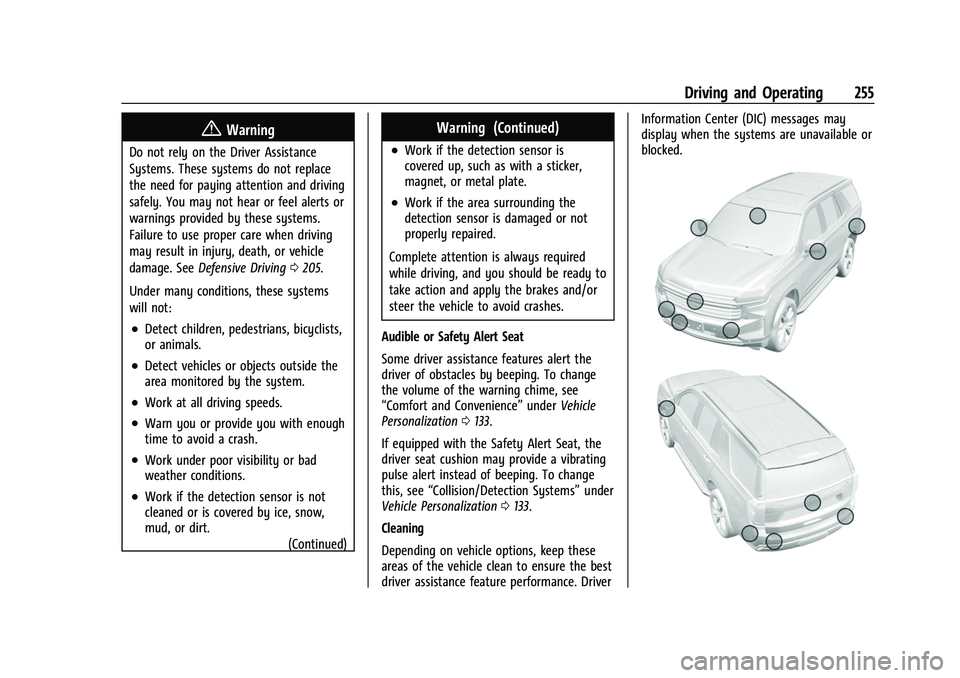
Cleaning
Depending on vehicle options, keep these
areas of the vehicle clean to ensure the best
driver assistance feature performance. Driver Information Center (DIC) messages may
display when the systems are unavailable or
blocked.
Page 268 of 438
Chevrolet Tahoe/Suburban Owner Manual (GMNA-Localizing-U.S./Canada/
Mexico-15555985) - 2022 - CRC - 12/3/21
Driving and Operating 267
Assistance Systems for Driving
If equipped, when driving the vehicle in a
forward gear, Forward Collision Alert (FCA),
Front Pedestrian Braking (FPB), Lane Keep
Assist (LKA), Side Blind Zone Alert (SBZA),
Lane Change Alert (LCA), and/or Automatic
Emergency Braking (AEB) can help to avoid a
crash or reduce crash damage.
Forward Collision Alert (FCA)
System
If equipped, the FCA system may help to
avoid or reduce the harm caused by
front-end crashes. When approaching a
vehicle ahead too quickly, FCA provides a
red flashing alert on the windshield and
rapidly beeps or pulses the driver seat. FCA
also lights an amber visual alert if following
another vehicle much too closely.
FCA detects vehicles within a distance of
approximately 60 m (197 ft) and operates at
speeds above 8 km/h (5 mph). If the vehicle
has Adaptive Cruise Control (ACC), it can
detect vehicles to distances of approximately
110 m (360 ft) and operates at all speeds.
SeeAdaptive Cruise Control (Advanced)
0 245.
{Warning
FCA is a warning system and does not
apply the brakes. When approaching a
slower-moving or stopped vehicle ahead
too rapidly, or when following a vehicle
too closely, FCA may not provide a
warning with enough time to help avoid
a crash. It also may not provide any
warning at all. FCA does not warn of
pedestrians, animals, signs, guardrails,
bridges, construction barrels, or other
objects. Be ready to take action and
apply the brakes. See Defensive Driving
0 205.
FCA can be disabled with either the FCA
steering wheel control or, if equipped,
through vehicle personalization. See
“Collision/Detection Systems” underVehicle
Personalization 0133.
Detecting the Vehicle Ahead
FCA warnings will not occur unless the FCA
system detects a vehicle ahead. When a
vehicle is detected, the vehicle ahead
indicator will display green. Vehicles may
not be detected on curves, highway exit
ramps, or hills, due to poor visibility; or if a
vehicle ahead is partially blocked by
pedestrians or other objects. FCA will not
detect another vehicle ahead until it is
completely in the driving lane.
{Warning
FCA does not provide a warning to help
avoid a crash, unless it detects a vehicle.
FCA may not detect a vehicle ahead if
the FCA sensor is blocked by dirt, snow,
or ice, or if the windshield is damaged.
It may also not detect a vehicle on
winding or hilly roads, or in conditions
that can limit visibility such as fog, rain,
or snow, or if the headlamps or
windshield are not cleaned or in proper
condition. Keep the windshield,
headlamps, and FCA sensors clean and in
good repair.
Page 269 of 438
Chevrolet Tahoe/Suburban Owner Manual (GMNA-Localizing-U.S./Canada/
Mexico-15555985) - 2022 - CRC - 12/3/21
268 Driving and Operating
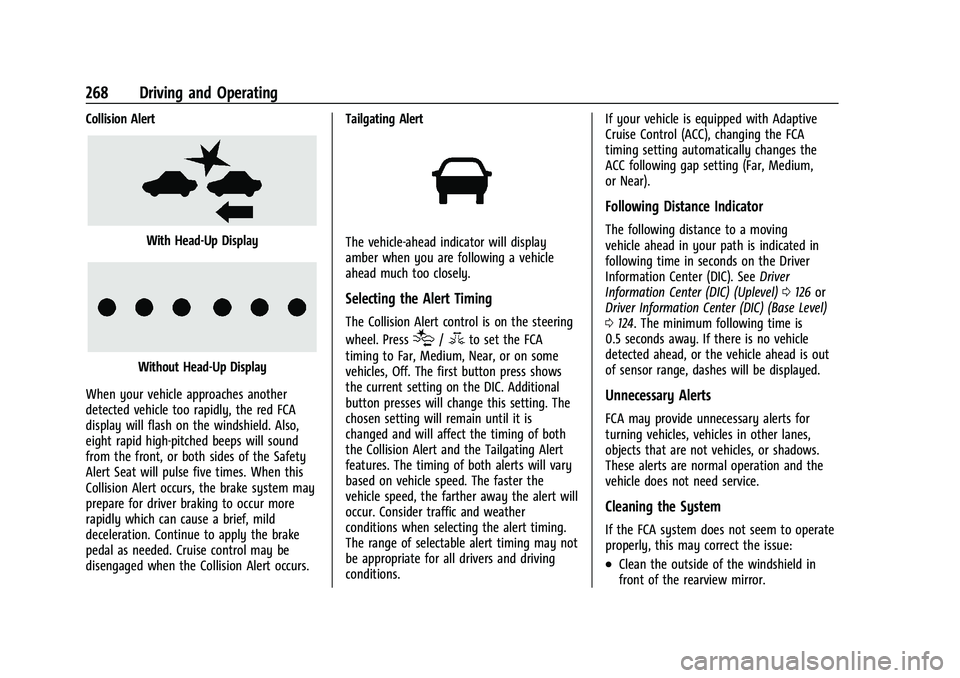
Collision Alert
With Head-Up Display
Without Head-Up Display
When your vehicle approaches another
detected vehicle too rapidly, the red FCA
display will flash on the windshield. Also,
eight rapid high-pitched beeps will sound
from the front, or both sides of the Safety
Alert Seat will pulse five times. When this
Collision Alert occurs, the brake system may
prepare for driver braking to occur more
rapidly which can cause a brief, mild
deceleration. Continue to apply the brake
pedal as needed. Cruise control may be
disengaged when the Collision Alert occurs. Tailgating Alert
The vehicle-ahead indicator will display
amber when you are following a vehicle
ahead much too closely.
Selecting the Alert Timing
The Collision Alert control is on the steering
wheel. Press
[/3to set the FCA
timing to Far, Medium, Near, or on some
vehicles, Off. The first button press shows
the current setting on the DIC. Additional
button presses will change this setting. The
chosen setting will remain until it is
changed and will affect the timing of both
the Collision Alert and the Tailgating Alert
features. The timing of both alerts will vary
based on vehicle speed. The faster the
vehicle speed, the farther away the alert will
occur. Consider traffic and weather
conditions when selecting the alert timing.
The range of selectable alert timing may not
be appropriate for all drivers and driving
conditions. If your vehicle is equipped with Adaptive
Cruise Control (ACC), changing the FCA
timing setting automatically changes the
ACC following gap setting (Far, Medium,
or Near).
Following Distance Indicator
The following distance to a moving
vehicle ahead in your path is indicated in
following time in seconds on the Driver
Information Center (DIC). See
Driver
Information Center (DIC) (Uplevel) 0126 or
Driver Information Center (DIC) (Base Level)
0 124. The minimum following time is
0.5 seconds away. If there is no vehicle
detected ahead, or the vehicle ahead is out
of sensor range, dashes will be displayed.
Unnecessary Alerts
FCA may provide unnecessary alerts for
turning vehicles, vehicles in other lanes,
objects that are not vehicles, or shadows.
These alerts are normal operation and the
vehicle does not need service.
Cleaning the System
If the FCA system does not seem to operate
properly, this may correct the issue:
.Clean the outside of the windshield in
front of the rearview mirror.
Page 271 of 438
Chevrolet Tahoe/Suburban Owner Manual (GMNA-Localizing-U.S./Canada/
Mexico-15555985) - 2022 - CRC - 12/3/21
270 Driving and Operating
Minor brake pedal pulsations or pedal
movement during this time is normal and
the brake pedal should continue to be
applied as needed. IBA will automatically
disengage only when the brake pedal is
released.
{Warning
IBA may increase vehicle braking in
situations when it may not be necessary.
You could block the flow of traffic. If this
occurs, take your foot off the brake pedal
and then apply the brakes as needed.
AEB and IBA can be disabled through vehicle
personalization. See “Collision/Detection
Systems” underVehicle Personalization
0 133.
{Warning
Using AEB or IBA while towing a trailer
could cause you to lose control of the
vehicle and crash. Turn the system to
Alert or Off when towing a trailer.
A system unavailable message may
display if:
.The front of the vehicle or windshield is
not clean.
.Heavy rain or snow is interfering with
object detection.
.There is a problem with the StabiliTrak/
Electronic Stability Control (ESC) system.
The AEB system does not need service.
Front Pedestrian Braking (FPB)
System
If equipped, the FPB system may help avoid
or reduce the harm caused by front-end
crashes with pedestrians near the forward
path of the vehicle when driving in a
forward gear. FPB displays an amber
indicator,
~, when a nearby pedestrian is
detected ahead. When approaching a
detected pedestrian too quickly, FPB
provides a red flashing alert on the
windshield and rapidly beeps or pulses the
driver seat. FPB can provide a boost to
braking or automatically brake the vehicle.
This system includes Intelligent Brake Assist
(IBA), and the Automatic Emergency Braking
(AEB) system may also respond to
pedestrians. See Automatic Emergency
Braking (AEB) 0269.
The FPB system can detect and alert to
pedestrians in a forward gear at speeds
between 8 km/h (5 mph) and 80 km/h (50 mph). During daytime driving, the
system detects pedestrians up to a distance
of approximately 40 m (131 ft). During
nighttime driving, system performance is
very limited.
{Warning
FPB does not provide an alert or
automatically brake the vehicle, unless it
detects a pedestrian. FPB may not detect
pedestrians, including children:
.When the pedestrian is not directly
ahead, fully visible, or standing
upright, or when part of a group.
.Due to poor visibility, including
nighttime conditions, fog, rain,
or snow.
.If the FPB sensor is blocked by dirt,
snow, or ice.
.If the headlamps or windshield are not
cleaned or in proper condition.
Be ready to take action and apply the
brakes. For more information, see
Defensive Driving 0205. Keep the
windshield, headlamps, and FPB sensor
clean and in good repair.
Page 300 of 438
Chevrolet Tahoe/Suburban Owner Manual (GMNA-Localizing-U.S./Canada/
Mexico-15555985) - 2022 - CRC - 12/3/21
Driving and Operating 299
After a profile is created, set up for
additional trailer features may become
available, such as Tow/Haul Mode reminder,
Trailer Tire Pressure Monitoring System,
maintenance reminders, or towing assist.
Import a Trailer Profile
Touch Import on the trailer detection pop-up
or touch Import in the Trailering App.
Follow on-screen instructions to set up
profile.
After a profile is imported it can be selected
from the trailer list. The Tow/Haul Mode
reminder, Brake Gain Setting and Trailer Tire
Pressure sensor learning, if equipped, do not
import.
Trailer Feature Setup
Tow/Haul Mode Reminder
To turn the Tow/Haul Mode Reminder
setting on, touch Yes. To turn it off,
touch No.
Trailer Tire Pressure Setup
If the Trailer Tire Pressure Monitoring
System (TTPMS) is detected, touch the Tire
Pressure Monitoring icon to set up tire
pressure monitoring.The trailer tire pressure sensors can transmit
up to 7 m (23 feet) from the hitch receiver of
the vehicle.
A trailer must be electrically connected to
the vehicle before starting the
sensor-to-vehicle learn process.
After selecting Start from the Learn Sensors
screen, use the Tool Method or the Manual
Method (described below) to learn each tire
sensor, during which the current tire number
will be highlighted.
Each sensor has a minimum of two minutes
to learn. After a sensor is learned, a
checkmark appears next to the tire, the
vehicle horn will sound, the vehicle’s brake
lamps will flash, and all working trailer
lamps will flash. It then moves to the next
sensor.
The recommended tire pressure must be
entered for the trailer tires. This allows the
vehicle to alert when the tire pressure is
high or low.
TTPMS must learn the location of the
installed tire sensors to show correct air
pressure and temperature for each tire. To
set up, use one of the following options or
see a tire or trailer dealer for service. The
learning process must be repeated when the
trailer tires are rotated or replaced.
Tool Method: A TTPMS activation tool can
be purchased separately to learn the sensor
locations.
Manual Method: Without the tool, the air
pressure can be increased or decreased in
each tire for 10 seconds. Do not exceed the
maximum inflation pressure found on the
tire sidewalls. Make sure to re-adjust tire
pressure to the recommended level when
the process is complete.
Sensor Learning Steps
To complete the sensor-to-vehicle learn
process:
1. Touch Start on the Learn Sensors screen. The horn chirps twice and the Learning
Active screen appears on the
infotainment display.
2. Start with the driver side front trailer tire.
3. Activate the tool near the valve stem or adjust the air pressure of this tire until
the horn chirps and all working vehicle
and trailer lights flash.