reset CHEVROLET SUBURBAN 2023 Owner's Manual
[x] Cancel search | Manufacturer: CHEVROLET, Model Year: 2023, Model line: SUBURBAN, Model: CHEVROLET SUBURBAN 2023Pages: 443, PDF Size: 18.73 MB
Page 172 of 443
Chevrolet Tahoe/Suburban Owner Manual (GMNA-Localizing-U.S./Canada/
Mexico-16416971) - 2023 - CRC - 4/26/22
Infotainment System 171
.The pairing process is disabled when the
vehicle is moving.
.Pairing only needs to be completed once,
unless the pairing information on the cell
phone changes or the cell phone is
deleted from the system.
.If multiple paired cell phones are within
range of the system, the system connects
to the paired cell phone that is set to
First to Connect. If there is no phone set
to First to Connect, it will link to the
device which was used last. To link to a
different paired phone, see“Linking to a
Different Phone” later in this section.
Pairing a Phone 1. Make sure Bluetooth has been enabled on the cell phone before starting pairing.
2. Touch the PHONE icon on the Home Page or the phone shortcut on the
applications tray at the bottom of the
screen.
3. Touch Phone at the top of the infotainment display. There may also be
an Add option in the middle of the
Phone screen. Touching this Add Phone
option will shortcut to the Phone
List menu.
4. Touch Add Phone. 5. Select the vehicle name shown on the
infotainment display from your phone’s
Bluetooth Settings list.
6. Follow the instructions on the cell phone to confirm the six-digit code shown on
the infotainment display and touch Pair.
7. Start the pairing process on the cell phone to be paired to the vehicle. See
the cell phone manufacturer's user guide
for information on this process. Once the
cell phone is paired, it will show under
Connected.
8. If the vehicle does not appear on your phone, there are a few ways to start the
pairing process over:
.Turn the phone off and then back on.
.Go back to the beginning of the
Phone menus on the infotainment
display and restart the pairing
process.
.Reset the phone, but this step should
be done as a last effort.
9. If the phone prompts to accept connection or allow phone book
download, select Always Accept and
Allow. The phone book may not be
available if not accepted. 10. Repeat Steps 1−8 to pair additional
phones.
First to Connect Paired Phones
If multiple paired cell phones are within the
range of the system, the system connects to
the paired cell phone that is set as First to
Connect. To enable a paired phone as the
First to Connect phone, make sure the
phone is turned on, then touch Settings,
then System, and then touch Phones.
Phones will display all paired and all
connected phones, and media player devices.
Phones can be added and removed,
connected and disconnected. To set a phone
as First to Connect, touch
yto the right
of the phone to open the phone’s settings
menu. Select the First to Connect option, to
enable the setting for that device.
Secondary Phone
A cell phone can be enabled as a Secondary
Phone by touching
yto the right of the
paired cell phone name to open the phone
settings menu. If a cell phone is enabled as
a Secondary Phone, it can connect
simultaneously alongside another Bluetooth
mobile device. In doing so, the Secondary
Phone will be labeled as Incoming Calls. This
means the device can only receive calls. The
Page 179 of 443
Chevrolet Tahoe/Suburban Owner Manual (GMNA-Localizing-U.S./Canada/
Mexico-16416971) - 2023 - CRC - 4/26/22
178 Infotainment System
About
Shows the infotainment system software
information.
Return to Factory Settings
Allows resetting the infotainment system
settings in the vehicle.
Apps
The menu may contain the following:
Android Auto
Allows interacting directly with a mobile
device on the infotainment display. See
Apple CarPlay and Android Auto (Base
Radio)0174 orApple CarPlay and Android
Auto (Uplevel Radio) 0175.
Apple CarPlay
This feature allows you to interact directly
with your mobile device on the infotainment
display. See Apple CarPlay and Android Auto
(Base Radio) 0174 orApple CarPlay and
Android Auto (Uplevel Radio) 0175.
Audio
Adjusts different audio settings.
Phone
Adjusts different phone settings.
Vehicle
The menu may contain the following:
Rear Seat Reminder
Allows for a chime and a message when the
rear door has been opened before or during
operation of the vehicle.
Buckle to Drive
This feature can prevent shifting out of Park
when the driver, and if applicable the front
passenger, seat belt is not buckled. See
Buckle To Drive 053.
Climate and Air Quality
Adjusts different climate settings.
Collision/Detection Systems
Adjusts different driver assistance system
settings.
Comfort and Convenience
Adjusts different comfort and convenience
settings.
Lighting
Adjusts different lighting settings.
Power Door Locks
Adjusts different door lock settings. Remote Lock, Unlock, and Start
Adjusts different remote lock settings.
Ride Height
Adjusts different ride height settings.
Power Assist Steps
Adjusts different running board settings.
Seating Position
Adjusts different seat settings.
Suspension
Adjusts different suspension settings.
Teen Driver
See
Teen Driver 0180.
Settings (Uplevel Radio)
Certain settings can be managed in the
Owner Center sites when an account is
established, and may be modified if other
users have accessed the vehicle or created
accounts. This may result in changes to the
security or functionality of the infotainment
system. Some settings may also be
transferred to a new vehicle, if equipped. For
instructions, in the U.S. see
my.chevrolet.com or in Canada see
mychevrolet.ca or monchevrolet.ca.
Page 181 of 443
Chevrolet Tahoe/Suburban Owner Manual (GMNA-Localizing-U.S./Canada/
Mexico-16416971) - 2023 - CRC - 4/26/22
180 Infotainment System
Display
Allows adjustment of the infotainment
display.
Sounds
Allows adjustment of the infotainment
system sounds.
Users
Modifies the infotainment system’s users.
Accounts
Allows adding or adjusting of the user
accounts.
Privacy
Allows adjustment of the privacy settings.
Storage
This menu shows the storage info on the
infotainment system.
Security
This menu allows adjustment of the
infotainment security settings.
System
The menu may contain the following:Language
This will set the display language used on
the infotainment display.
Keyboard & speech
Touch to change keyboard and speech
settings.
Reset Options
Touch to change reset settings.
TTY Mode
When on, OnStar calls are made as a series
of text exchanges. A keyboard is shown for
text entry and the phone audio is muted.
About
Touch to view the infotainment system
software information.
Legal Information
Touch to view legal and license information.
Updates
This menu allows adjustment of the vehicle
update settings.
Google
This menu allows adjustment of the Google
settings.
Teen Driver
If equipped, this allows multiple keys to be
registered for beginner drivers to encourage
safe driving habits. When the vehicle is
started with a Teen Driver key, it will
automatically activate certain safety
systems, allow setting of some features, and
limit the use of others. The Report Card will
record vehicle data about driving behavior
that can be viewed later. When the vehicle
is started with a registered key, the Driver
Information Center (DIC) displays a message
that Teen Driver is active.
To access:
1. Touch Settings on the Home Page, then touch Vehicle, and then Teen Driver.
2. Create a Personal Identification Number (PIN) by choosing a four-digit PIN.
Re-enter the PIN to confirm. To change
the PIN, touch Change PIN.
The PIN is required to:
.Set up/Add or remove keys.
.Change Teen Driver settings.
.Change or clear the Teen Driver PIN.
.Access or delete Report Card data.
Page 183 of 443
Chevrolet Tahoe/Suburban Owner Manual (GMNA-Localizing-U.S./Canada/
Mexico-16416971) - 2023 - CRC - 4/26/22
182 Infotainment System
Teen Driver Speed Limiter :Limits the
maximum speed of the vehicle. When the
speed limiter is turned on and the vehicle is
started with a Teen Driver key, the DIC
displays a message that the top speed is
limited.
On certain vehicles, when the Speed Limiter
is turned ON, the vehicle’s maximum
acceleration will be limited. The DIC will
display a message that the acceleration is
limited.
Teen Driver Speed Warning : Displays a
warning in the DIC when exceeding a
selectable speed. Turn the speed warning on
or off and choose the desired speed warning
level. The speed warning does not limit the
speed of the vehicle. On some infotainment
systems, touch Set Teen Driver Speed
Warning to set the warning speed.
Set Teen Driver Speed Warning : Choose the
desired speed warning level. The speed
warning does not limit the speed of the
vehicle.
SiriusXM Explicit Content Filter : Allows the
SiriusXM Explicit Content Filter to be turned
ON or OFF. When ON, the teen driver will
not be able to listen to SiriusXM stations that contain explicit content, and the Explicit
Content Filter selection in the Audio Settings
will be unavailable for change.
When Teen Driver is Active:
.If equipped, the radio will mute when the
driver seat belt, and in some vehicles the
front passenger seat belt, is not buckled.
The audio from any device paired to the
vehicle will also be muted.
.An object placed on the front passenger
seat, such as a briefcase, handbag,
grocery bag, laptop, or other electronic
device, could cause the passenger sensing
system to falsely sense an unbuckled
front passenger and mute the radio.
If this happens, remove the object from
the seat. See
Passenger Sensing System
0 65.
.Some safety systems, such as Automatic
Emergency Braking, if equipped, cannot
be turned off.
.The gap setting for Adaptive Cruise
Control and alert timing for Forward
Collision Alert, if equipped, cannot be
changed.
.When trying to change a safety feature
that is not configurable in Teen Driver,
the feature may be grayed out or
removed from the infotainment menu, or the DIC will display a message
indicating that Teen Driver is active and
the action is not available.
.Super Cruise, if equipped, is not available.
.Enhanced Low Fuel Warning (if equipped)
–
When the vehicle is low on fuel, the
low fuel light on the instrument cluster
flashes and the DIC low fuel warning
cannot be dismissed.
.Do not tow a trailer if equipped with
Automatic Emergency Braking.
Report Card
The vehicle owner must secure the driver’s
consent to record certain vehicle data when
the vehicle is driven with a registered Teen
Driver key. There is one Report Card per
vehicle. Data is only recorded when a
registered Teen Driver key is used to
operate the vehicle.
The Report Card data is collected from the
time Teen Driver is activated or the last
time the Report Card was reset. The
following items may be recorded:
.Distance Driven –the total distance
driven.
.Maximum Speed –the maximum vehicle
speed detected.
Page 184 of 443
Chevrolet Tahoe/Suburban Owner Manual (GMNA-Localizing-U.S./Canada/
Mexico-16416971) - 2023 - CRC - 4/26/22
Infotainment System 183
.Overspeed Warnings–the number of
times the speed warning setting was
exceeded.
.Wide Open Throttle –the number of
times the accelerator pedal was pressed
nearly all the way down.
.Forward Collision Alerts (if equipped) –
the number of times the driver was
notified when approaching a vehicle
ahead too quickly and at potential risk for
a crash.
.Forward Automatic Braking, also called
Automatic Emergency Braking (if
equipped) –the number of times the
vehicle detected that a forward collision
was imminent and applied the brakes.
.Reverse Automatic Braking (if equipped) –
the number of times the vehicle detected
that a rearward collision was imminent
and applied the brakes.
.Traction Control –the number of times
the Traction Control System activated to
reduce wheel spin or loss of traction.
.Stability Control –the number of events
which required the use of electronic
stability control.
.Antilock Braking System Active –The
number of Antilock Brake System
activations.
.Tailgating Alerts (if equipped)– the
number of times the driver was alerted
for following a vehicle ahead too closely.
Report Card Data
Cumulative Data is saved for all trips until
the Report Card is reset or until the
maximum count is exceeded. If the
maximum count is exceeded for a Report
Card line item, that item will no longer be
updated in the Report Card until it is reset.
Each item will report a maximum of
1,000 counts. The distance driven will report
a maximum of 64 374 km (40,000 mi).
To delete Report Card data, do one of the
following:
.From the Report Card display, touch
Reset.
.Touch Clear PIN and All Teen Driver Keys
from the Teen Driver menu. This will also
unregister any Teen Driver keys and
delete the PIN.
Forgotten PIN
See your dealer to reset the PIN.
Trademarks and License
Agreements
FCC Information
See Radio Frequency Statement 0419.
"Made for iPhone," means that an electronic
accessory has been designed to connect
specifically to iPhone, and has been certified
by the developer to meet Apple
performance standards. Apple is not
responsible for the operation of this device
or its compliance with safety and regulatory
standards. Please note that the use of this
accessory with iPhone may affect wireless
performance. iPhone are trademarks of
Apple Inc., registered in the U.S. and other
countries.
Page 215 of 443
Chevrolet Tahoe/Suburban Owner Manual (GMNA-Localizing-U.S./Canada/
Mexico-16416971) - 2023 - CRC - 5/16/22
214 Driving and Operating
Parking over Things That Burn
{Warning
Things that can burn could touch hot
exhaust parts under the vehicle and
ignite. Do not park over papers, leaves,
dry grass, or other things that can burn.
Dynamic Fuel Management
If equipped, Dynamic Fuel Management
allows the engine to operate in multiple
cylinder patterns, up to the full 8-cylinder
operation, depending on driving conditions.
When less power is required, such as
cruising at a constant vehicle speed, the
system will reduce any combination of
operating cylinders enabling the vehicle to
achieve better fuel economy. When greater
power is required, such as passing or
merging onto a freeway, the system will
maintain full 8-cylinder operation.
Extended Parking
It is best not to park with the vehicle
running. If the vehicle is left running, be
sure it will not move and there is adequate
ventilation.See
Shifting Into Park 0212 and
Engine Exhaust 0214.
If the vehicle is left parked and running with
the remote key outside the vehicle, it will
continue to run for up to 15 minutes.
If the vehicle is left parked and running with
the remote key inside the vehicle, it will
continue to run for up to 30 minutes.
The vehicle could turn off sooner if it is
parked on a hill, due to lack of
available fuel.
The timer will reset if the vehicle is taken
out of P (Park) while it is running.
Engine Exhaust
{
Warning
Engine exhaust contains carbon monoxide
(CO), which cannot be seen or smelled.
Exposure to CO can cause
unconsciousness and even death. (Continued)
Warning (Continued)
Exhaust may enter the vehicle if:
.The vehicle idles in areas with poor
ventilation (parking garages, tunnels,
deep snow that may block underbody
airflow or tail pipes).
.The exhaust smells or sounds strange
or different.
.The exhaust system leaks due to
corrosion or damage.
.The vehicle exhaust system has been
modified, damaged, or improperly
repaired.
.There are holes or openings in the
vehicle body from damage or
aftermarket modifications that are not
completely sealed.
If unusual fumes are detected or if it is
suspected that exhaust is coming into the
vehicle:
.Drive it only with the windows
completely down.
.Have the vehicle repaired immediately. (Continued)
Page 219 of 443
Chevrolet Tahoe/Suburban Owner Manual (GMNA-Localizing-U.S./Canada/
Mexico-16416971) - 2023 - CRC - 5/16/22
218 Driving and Operating
2. Pull the D (Drive) switch on the centerstack.
To shift out of D (Drive): 1. Bring the vehicle to a complete stop.
2. Shift to the desired gear.
Downshifting the transmission in slippery
road conditions could result in skidding. See
“Skidding” underLoss of Control 0198.
Caution
Spinning the tires or holding the vehicle
in one place on a hill using only the
accelerator pedal may damage the
transmission. The repair will not be
covered by the vehicle warranty. If the
vehicle is stuck, do not spin the tires.
When stopping on a hill, use the brakes
to hold the vehicle in place.
Manual Mode
Electronic Range Select (ERS) Mode
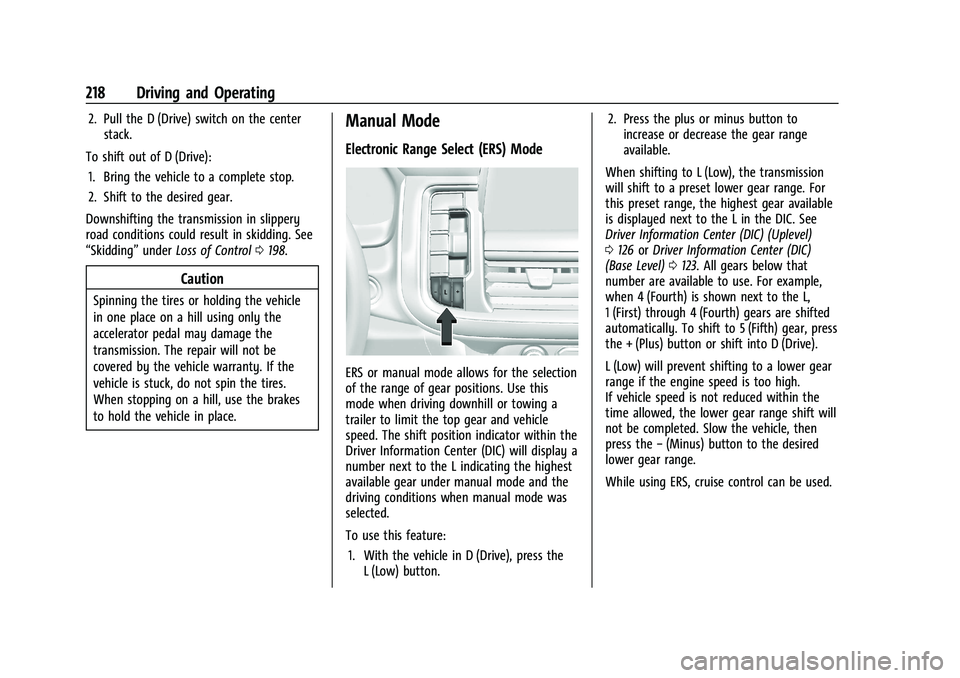
ERS or manual mode allows for the selection
of the range of gear positions. Use this
mode when driving downhill or towing a
trailer to limit the top gear and vehicle
speed. The shift position indicator within the
Driver Information Center (DIC) will display a
number next to the L indicating the highest
available gear under manual mode and the
driving conditions when manual mode was
selected.
To use this feature:
1. With the vehicle in D (Drive), press the L (Low) button. 2. Press the plus or minus button to
increase or decrease the gear range
available.
When shifting to L (Low), the transmission
will shift to a preset lower gear range. For
this preset range, the highest gear available
is displayed next to the L in the DIC. See
Driver Information Center (DIC) (Uplevel)
0 126 orDriver Information Center (DIC)
(Base Level) 0123. All gears below that
number are available to use. For example,
when 4 (Fourth) is shown next to the L,
1 (First) through 4 (Fourth) gears are shifted
automatically. To shift to 5 (Fifth) gear, press
the + (Plus) button or shift into D (Drive).
L (Low) will prevent shifting to a lower gear
range if the engine speed is too high.
If vehicle speed is not reduced within the
time allowed, the lower gear range shift will
not be completed. Slow the vehicle, then
press the −(Minus) button to the desired
lower gear range.
While using ERS, cruise control can be used.
Page 225 of 443
Chevrolet Tahoe/Suburban Owner Manual (GMNA-Localizing-U.S./Canada/
Mexico-16416971) - 2023 - CRC - 5/16/22
224 Driving and Operating
Service Electric Parking Brake Light0116.
There are also parking brake-related Driver
Information Center (DIC) messages.
Before leaving the vehicle, check the red EPB
status light to ensure that the EPB is
applied.
If a message displays on the DIC indicating
the transmission is unable to shift soon, the
service electric parking brake is on, and the
EPB light flashes at the same time, the
system must be reset. Start the vehicle,
apply the EPB, and then release it. The
message and the light should turn off. See
Electric Parking Brake Light 0116 and
Service Electric Parking Brake Light 0116.
EPB Apply
To apply the EPB:
1. Be sure the vehicle is at a complete stop.
2. Press the EPB switch.
The red EPB status light will flash and then
stay on once the EPB is fully applied. If the
red EPB status light flashes continuously,
then the EPB is only partially applied or
there is a problem with the EPB. A DIC
message will display. Release the EPB and
try to apply it again. If the light does not come on, or keeps flashing, have the vehicle
serviced. Do not drive the vehicle if the red
EPB light is flashing. See your dealer.
If the amber service EPB warning light is on,
press the EPB switch. Continue to hold the
switch until the red EPB status light remains
on. If the amber service EPB warning light is
on, see your dealer.
If the EPB is applied while the vehicle is
moving, the vehicle will decelerate as long
as the switch is pressed. If the switch is
pressed until the vehicle comes to a stop,
the EPB will remain applied.
The vehicle may automatically apply the EPB
in some situations when the vehicle is not
moving. This is normal, and is done to
periodically check the correct operation of
the EPB system, or as required by other
safety functions that utilize the EPB.
If the EPB fails to apply, block the rear
wheels to prevent vehicle movement.
EPB Release
To release the EPB:
1. Turn the ignition on or to accessory mode.
2. Apply and hold the brake pedal.
3. Press the EPB switch momentarily. The EPB is released when the red EPB status
light is off.
If the amber service EPB warning light is on,
release the EPB by pressing and holding the
EPB switch. Continue to hold the switch
until the red EPB status light is off. If either
light stays on after release is attempted, see
your dealer.
Caution
Driving with the parking brake on can
overheat the brake system and cause
premature wear or damage to brake
system parts. Make sure that the parking
brake is fully released and the brake
warning light is off before driving.
If you are towing a trailer and parking on a
hill, see Driving Characteristics and Towing
Tips 0288.
Automatic EPB Release
The EPB automatically releases if the vehicle
is running, placed into gear, and an attempt
is made to drive. Avoid rapid acceleration
when the EPB is applied to preserve parking
brake lining life.
Page 313 of 443
Chevrolet Tahoe/Suburban Owner Manual (GMNA-Localizing-U.S./Canada/
Mexico-16416971) - 2023 - CRC - 5/16/22
312 Driving and Operating
Touch to set up the Trailer Tire Pressure
Monitoring System (TTPMS) for the Trailer
Profile. See“Trailer Tire Pressure Setup”
previously in this section for details on the
setup. Also, touch Sensor Setup if the trailer
tires were rotated or if the tire pressure
sensors in the tires were replaced for this
Trailer Profile. The vehicle will need to
relearn the tire sensors and their locations.
See “Trailer Tire Pressure Setup” previously
in this section.
Touch Edit Target Pressure to change the
recommended tire pressure for the trailer’s
tires. This will change the number at which
the vehicle displays alerts related to trailer
tire pressure.
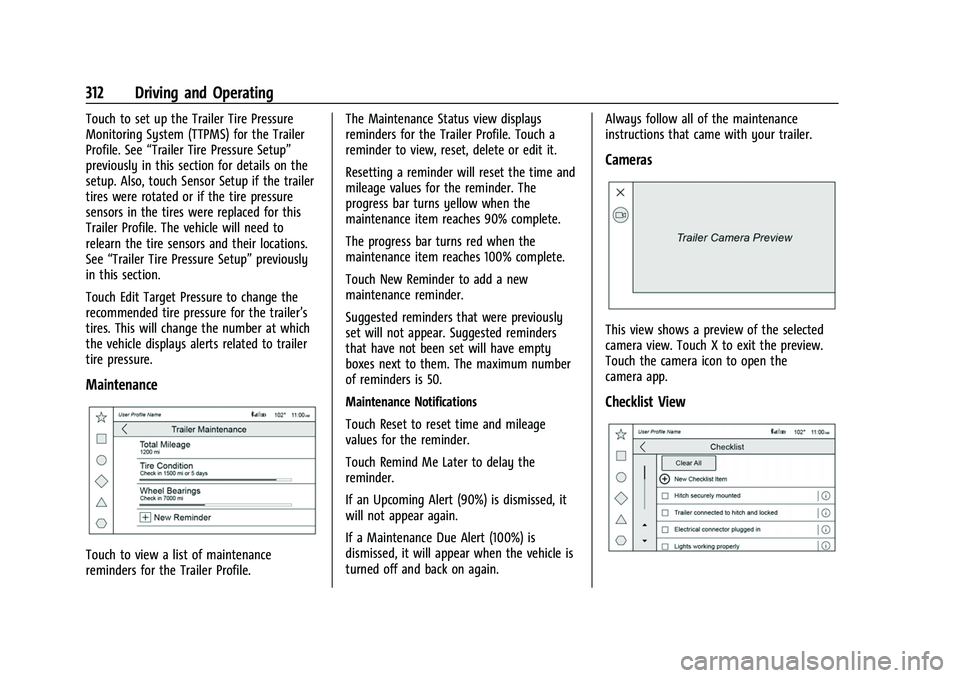
Maintenance
Touch to view a list of maintenance
reminders for the Trailer Profile. The Maintenance Status view displays
reminders for the Trailer Profile. Touch a
reminder to view, reset, delete or edit it.
Resetting a reminder will reset the time and
mileage values for the reminder. The
progress bar turns yellow when the
maintenance item reaches 90% complete.
The progress bar turns red when the
maintenance item reaches 100% complete.
Touch New Reminder to add a new
maintenance reminder.
Suggested reminders that were previously
set will not appear. Suggested reminders
that have not been set will have empty
boxes next to them. The maximum number
of reminders is 50.
Maintenance Notifications
Touch Reset to reset time and mileage
values for the reminder.
Touch Remind Me Later to delay the
reminder.
If an Upcoming Alert (90%) is dismissed, it
will not appear again.
If a Maintenance Due Alert (100%) is
dismissed, it will appear when the vehicle is
turned off and back on again.
Always follow all of the maintenance
instructions that came with your trailer.
Cameras
This view shows a preview of the selected
camera view. Touch X to exit the preview.
Touch the camera icon to open the
camera app.
Checklist View
Page 314 of 443
Chevrolet Tahoe/Suburban Owner Manual (GMNA-Localizing-U.S./Canada/
Mexico-16416971) - 2023 - CRC - 5/16/22
Driving and Operating 313
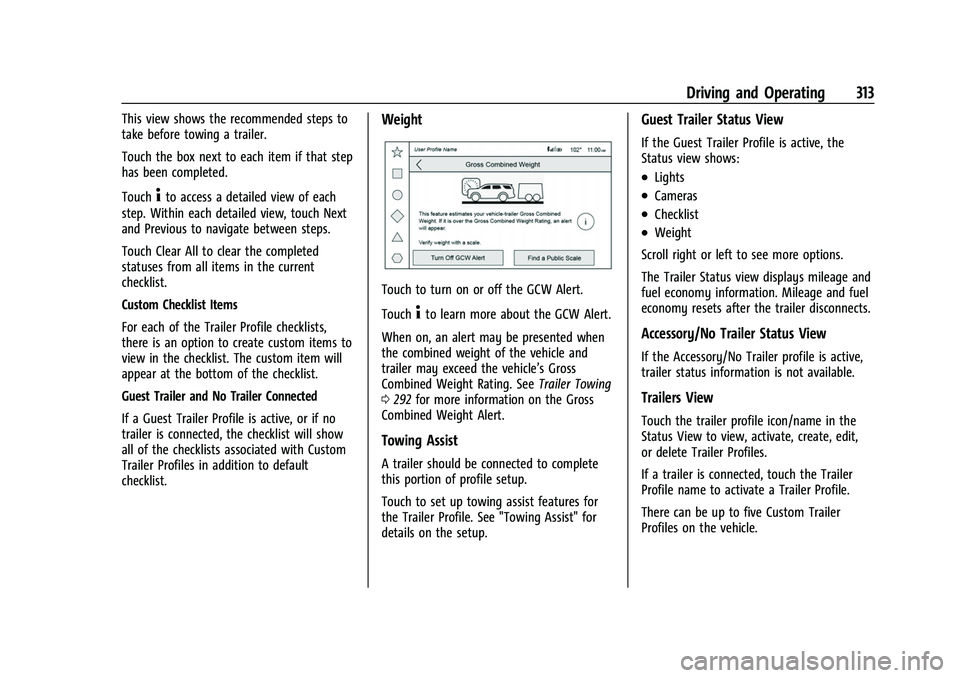
This view shows the recommended steps to
take before towing a trailer.
Touch the box next to each item if that step
has been completed.
Touch
4to access a detailed view of each
step. Within each detailed view, touch Next
and Previous to navigate between steps.
Touch Clear All to clear the completed
statuses from all items in the current
checklist.
Custom Checklist Items
For each of the Trailer Profile checklists,
there is an option to create custom items to
view in the checklist. The custom item will
appear at the bottom of the checklist.
Guest Trailer and No Trailer Connected
If a Guest Trailer Profile is active, or if no
trailer is connected, the checklist will show
all of the checklists associated with Custom
Trailer Profiles in addition to default
checklist.
Weight
Touch to turn on or off the GCW Alert.
Touch
4to learn more about the GCW Alert.
When on, an alert may be presented when
the combined weight of the vehicle and
trailer may exceed the vehicle’s Gross
Combined Weight Rating. See Trailer Towing
0 292 for more information on the Gross
Combined Weight Alert.
Towing Assist
A trailer should be connected to complete
this portion of profile setup.
Touch to set up towing assist features for
the Trailer Profile. See "Towing Assist" for
details on the setup.
Guest Trailer Status View
If the Guest Trailer Profile is active, the
Status view shows:
.Lights
.Cameras
.Checklist
.Weight
Scroll right or left to see more options.
The Trailer Status view displays mileage and
fuel economy information. Mileage and fuel
economy resets after the trailer disconnects.
Accessory/No Trailer Status View
If the Accessory/No Trailer profile is active,
trailer status information is not available.
Trailers View
Touch the trailer profile icon/name in the
Status View to view, activate, create, edit,
or delete Trailer Profiles.
If a trailer is connected, touch the Trailer
Profile name to activate a Trailer Profile.
There can be up to five Custom Trailer
Profiles on the vehicle.