ignition CHEVROLET TAHOE 2005 2.G Workshop Manual
[x] Cancel search | Manufacturer: CHEVROLET, Model Year: 2005, Model line: TAHOE, Model: CHEVROLET TAHOE 2005 2.GPages: 536, PDF Size: 3.07 MB
Page 212 of 536
DIC Warnings and Messages
Warning messages are displayed on the Driver
Information Center (DIC) to notify the driver that the
status of the vehicle has changed and that some action
may be needed by the driver to correct the condition.
If there is more than one message that needs to
be displayed, they will appear one after another. Some
messages may not require immediate action, but
you should press any of the four DIC buttons on the
steering wheel, if equipped, to acknowledge that
you received the messages and clear them from the
display. If your vehicle is not equipped with DIC buttons
on the steering wheel, press the trip odometer reset
stem located on the instrument panel cluster to
acknowledge messages and clear them from the display.
Some messages cannot be cleared from the display
because they are more urgent. These messages require
action before they can be removed from the DIC
display. You should take any messages that appear on
the display seriously and remember that clearing the
messages will only make the messages disappear, not
correct the problem. The following are the possible
messages that can be displayed and some information
about them.
BATTERY NOT CHARGING
On some vehicles, if the battery is not charging during
operation, this message will appear on the DIC.
Driving with this problem could drain your battery. Have
the electrical system checked by your GM dealer as
soon as possible. SeeBattery Warning Light on
page 3-42andVoltmeter Gage on page 3-42. Pressing
any of the four DIC buttons, if equipped, will
acknowledge the message and clear it from the DIC
display. If your vehicle is not equipped with the four DIC
buttons, pressing the trip odometer reset stem will
acknowledge the message and clear it from the DIC
display.
BUCKLE PASSENGER
If your vehicle is equipped with the passenger sensing
system, this message reminds you to buckle the
passenger’s seat belt. SeePassenger Sensing System
on page 1-78.
This message will display and a chime will sound when
the ignition is on, the driver’s seat belt is buckled, the
passenger’s seat belt is unbuckled with the passenger
airbag enabled, and the vehicle is in motion. You should
have the passenger buckle their seat belt.
3-60
Page 213 of 536
This reminder will be repeated if the ignition is on, the
vehicle is in motion, the driver is buckled and the
passenger is still unbuckled, and the passenger airbag
is enabled. If the passenger’s seat belt is already
buckled, this message and chime will not come on.
Pressing any of the four DIC buttons, if equipped, will
acknowledge the message and clear it from the
DIC display. If your vehicle is not equipped with the
four DIC buttons, pressing the trip odometer reset stem
will acknowledge the message and clear it from the
DIC display.
BUCKLE SEATBELT
If your vehicle is equipped with the passenger sensing
system, this message reminds you to buckle the
driver’s seat belt. SeePassenger Sensing System on
page 1-78.
This message will display and a chime will sound when
the ignition is on, the driver’s seat belt is unbuckled,
and the vehicle is in motion. You should buckle
your seat belt.
If the driver remains unbuckled when the ignition is on
and the vehicle is in motion, the reminder will be
repeated. If the driver’s seat belt is already buckled, this
message and chime will not come on.
This message is an additional reminder to the Safety
Belt Reminder Light in the instrument panel cluster. See
Safety Belt Reminder Light on page 3-39.Pressing any of the four DIC buttons, if equipped, will
acknowledge the message and clear it from the
DIC display. If your vehicle is not equipped with the
four DIC buttons, pressing the trip odometer reset stem
will acknowledge the message and clear it from the
DIC display.
CHANGE ENGINE OIL
This message is displayed when the engine oil needs to
be changed. When you change the engine oil, be
sure to reset the CHANGE ENGINE OIL message. See
Engine Oil Life System on page 5-19for information
on how to reset the message. This message will clear
itself after 10 seconds until the next ignition cycle or until
the message is reset. SeeEngine Oil on page 5-16
andScheduled Maintenance on page 6-4for more
information.
CHARGING SYSTEM FAILURE
On some vehicles, if there is a problem with the
generator and battery charging system, this message
will appear on the DIC, a chime will sound, and the
battery warning light on the instrument panel cluster will
come on. Driving with this problem could drain your
battery. Turn off all unnecessary accessories. Stop and
turn off the vehicle as soon as it is safe to do so.
Have the electrical system checked by your GM dealer
immediately. SeeBattery Warning Light on page 3-42
andVoltmeter Gage on page 3-42for more information.
3-61
Page 214 of 536

CHECK OIL LEVEL
If your vehicle is equipped with an oil level sensor and
the oil level in the vehicle is low, this message will
appear on the DIC. Check the oil level and correct it as
necessary. You may need to let the vehicle cool or
warm up and cycle the ignition to be sure this message
will clear. Once the problem is corrected, pressing
any of the four DIC buttons, if equipped, will
acknowledge the message and clear it from the DIC
display. If your vehicle is not equipped with the four DIC
buttons, pressing the trip odometer reset stem will
acknowledge the message and clear it from the DIC
display. This message will clear itself after 10 seconds,
until the next ignition cycle. SeeEngine Oil on
page 5-16for additional information.
CHECK TIRE PRESSURE
If your vehicle is equipped with the tire pressure monitor
system and a low tire pressure is detected in any of
the vehicle’s tires, this message will appear on the DIC,
along with a chime. Pressing any of the four DIC
buttons, if equipped, will acknowledge the message and
clear it from the DIC display. If your vehicle is not
equipped with the four DIC buttons, pressing the trip
odometer reset stem will acknowledge the message and
clear it from the DIC display. It will appear at each
ignition cycle until the tires are inated to the correct
ination pressure.
CHECK WASHER FLUID
If the washer uid level is low, this message will appear
on the DIC. Adding washer uid to the windshield
washer reservoir will clear the message. SeeWindshield
Washer Fluid on page 5-37. Pressing any of the four
DIC buttons, if equipped, will acknowledge the message
and clear it from the DIC display. If your vehicle is
not equipped with the four DIC buttons, pressing the trip
odometer reset stem will acknowledge the message
and clear it from the DIC display. This message will clear
itself after 10 seconds, until the next ignition cycle.
DRIVER DOOR AJAR
If the driver’s door is not fully closed, this message will
appear on the display and you will hear a chime.
Stop and turn off the vehicle, check the door for
obstacles, and close the door again. Check to see if the
message still appears on the DIC. Pressing any of
the four DIC buttons, if equipped, will acknowledge the
message and clear it from the DIC display. If your
vehicle is not equipped with the four DIC buttons,
pressing the trip odometer reset stem will acknowledge
the message and clear it from the DIC display.
3-62
Page 217 of 536
OIL PRESSURE LOW
If low oil pressure levels occur, this message will be
displayed on the DIC and a chime will sound. Stop the
vehicle as soon as safely possible and do not operate
it until the cause of the low oil pressure has been
corrected. Check your oil as soon as possible and have
your vehicle serviced by your GM dealer. SeeEngine
Oil on page 5-16.
Notice:If you drive your vehicle while the engine
oil pressure is low, severe engine damage may
occur. If a low oil pressure warning appears on the
Driver Information Center (DIC), stop the vehicle
as soon as possible. Do not drive the vehicle until
the cause of the low oil pressure is corrected.
SeeEngine Oil on page 5-16for more information.
PASSENGER DOOR AJAR
If the passenger’s door is not fully closed, this message
will appear on the display and you will hear a chime.
Stop and turn off the vehicle, check the door for
obstacles, and close the door again. Check to see if the
message still appears on the DIC. Pressing any of
the four DIC buttons, if equipped, will acknowledge the
message and clear it from the DIC display. If your
vehicle is not equipped with the four DIC buttons,
pressing the trip odometer reset stem will acknowledge
the message and clear it from the DIC display.
REAR ACCESS OPEN
If the liftgate is open while the ignition is in RUN, this
message will appear on the DIC and you will hear
a chime. Turn off the vehicle and check the liftgate.
Restart the vehicle and check for the message on the
DIC display. Pressing any of the four DIC buttons,
if equipped, will acknowledge the message and clear it
from the DIC display. If your vehicle is not equipped
with the four DIC buttons, pressing the trip odometer
reset stem will acknowledge the message and clear it
from the DIC display.
REDUCED ENGINE POWER
This message is displayed when the cooling system
temperature gets too hot and the engine further enters
the engine coolant protection mode. SeeEngine
Overheating on page 5-28for further information.
REPLACE LIFTGATE FUSE
This message will be displayed if the liftgate lock
malfunctions and/or the liftgate fuse blows. For more
information on fuses, seeFuses and Circuit Breakers on
page 5-107. If the message returns after replacing the
fuse, see your GM dealer for service.
3-65
Page 220 of 536

SERVICE STABILITY
If you ever see the SERVICE STABILITY message, it
means there may be a problem with your StabiliTrak®
system. If you see this message, try to reset the system.
Stop; turn off the engine; then start the engine again.
If the SERVICE STABILITY message still comes
on, it means there is a problem. You should see your
GM dealer for service. The vehicle is safe to drive,
however, you do not have the benet of StabiliTrak
®,
so reduce your speed and drive accordingly. Pressing
any of the four DIC buttons, if equipped, will
acknowledge the message and clear it from the DIC
display. If your vehicle is not equipped with the four DIC
buttons, pressing the trip odometer reset stem will
acknowledge the message and clear it from the
DIC display.
SERVICE TIRE MONITOR
If your vehicle is equipped with the tire pressure monitor
system, this message will be displayed if one or more
of the tire monitor sensors have malfunctioned or if all of
the tire monitor sensors have not been programmed
successfully. See your GM dealer. Pressing any of thefour DIC buttons, if equipped, will acknowledge the
message and clear it from the DIC display. If your
vehicle is not equipped with the four DIC buttons,
pressing the trip odometer reset stem will acknowledge
the message and clear it from the DIC display. The
message will reappear at each ignition cycle until the
system has been serviced. See your GM dealer.
STABILITY SYS (System) ACTIVE
You may see the STABILITY SYS ACTIVE message on
the DIC. It means that an advanced computer-controlled
system has come on to help your vehicle continue to
go in the direction in which you are steering. StabiliTrak
®
activates when the computer senses that your vehicle
is just starting to spin, as it might if you hit a patch of ice
or other slippery spot on the road. When the system
activates, you may hear a noise or feel a vibration in the
brake pedal. This is normal. When the STABILITY
SYS ACTIVE message is on, you should continue to
steer in the direction you want to go. The system
is designed to help you in bad weather or other difficult
driving situations by making the most of whatever
road conditions will permit.
3-68
Page 224 of 536
DIC Vehicle Customization
Your vehicle may have customization capabilities that
allow you to program some features to one setting
based on your preference. All of the customizable
options listed may not be available on your vehicle. Only
the options available will be displayed on your Driver
Information Center (DIC).
The default settings for the customization features were
set when your vehicle left the factory, but may have
been changed from their default state since then.
To change feature preferences, make sure the ignition
is on and the vehicle is in PARK (P). Press the
customization button to scroll through the available
customizable options.
After pressing the customization button, VEHICLE
SETTINGS will momentarily display before going to a
customization option.
Lock Doors
Press the customization button until LOCK DOORS
appears in the display. To select your preference
for automatic locking, press the select button while
LOCK DOORS is displayed on the DIC. Pressing the
select button will scroll through the following choices:
LOCK DOORS: IN GEAR (default):The doors will lock
when the vehicle is shifted out of PARK (P).LOCK DOORS: WITH SPEED:The doors will lock
when the vehicle speed is above 8 mph (13 km/h) for
three seconds.
Choose one of the available options and press the
customization button while it is displayed on the DIC to
select it and move on to the next feature. For more
information on automatic door locks, seeProgrammable
Automatic Door Locks on page 2-11.
Unlock Doors
Press the customization button until UNLOCK DOORS
appears in the display. To select your preference for
automatic unlocking, press the select button while
UNLOCK DOORS is displayed on the DIC. Pressing the
select button will scroll through the following choices:
UNLOCK DOORS: IN PARK (default):All of the doors
will unlock when the vehicle is shifted into PARK (P).
UNLOCK DRIVER: IN PARK:The driver’s door will be
unlocked when the vehicle is shifted into PARK (P).
UNLOCK DOORS: KEY OUT:All of the doors
will unlock when the key is taken out of the ignition.
UNLOCK DOORS: MANUALLY:The doors will not be
unlocked automatically.
Choose one of the available options and press the
customization button while it is displayed on the DIC to
select it and move on to the next feature. For more
information on automatic door locks, seeProgrammable
Automatic Door Locks on page 2-11.
3-72
Page 225 of 536
Door Lock Delay
If your DIC does not have this feature, you can still
program the delayed locking feature. SeeDelayed
Locking on page 2-10for more information.
When locking the doors with the power lock switch or
the remote keyless entry transmitter and a door or
the liftgate is open, the delayed locking feature will delay
locking the doors and liftgate until ve seconds after
the last door is closed.
Press the customization button until DOOR LOCK
DELAY appears in the display. To select your
preference for delayed locking, press the select button
while DOOR LOCK DELAY is displayed on the DIC.
Pressing the select button will scroll through the
following choices:
DOOR LOCK DELAY: OFF (default):The doors will
lock immediately when pressing the power lock switch or
the lock button on the remote keyless entry transmitter.
DOOR LOCK DELAY: ON:The doors will not lock
until ve seconds after the last door or the liftgate
is closed. You will hear three chimes to signal that the
delayed locking feature is in use. You can temporarily
override delayed locking by pressing the lock button on
the door or the remote keyless entry transmitter a
second time.Choose one of the available options and press the
customization button while it is displayed on the DIC to
select it and move on to the next feature.
This feature will not operate if the key is in the ignition.
Lock Feedback
Press the customization button until LOCK FEEDBACK
appears in the display. To select your preference for
the feedback you receive when locking the vehicle with
the remote keyless entry transmitter, press the select
button while LOCK FEEDBACK is displayed on the DIC.
Pressing the select button will scroll through the
following choices:
LOCK FEEDBACK: BOTH (default):The parking
lamps will ash each time you press the button with the
lock symbol on the remote keyless entry transmitter
and the horn will chirp the second time you press the
lock button.
LOCK FEEDBACK: LAMPS:The parking lamps will
ash each time you press the button with the lock
symbol on the remote keyless entry transmitter.
LOCK FEEDBACK: HORN:The horn will chirp the
second time you press the button with the lock symbol
on the remote keyless entry transmitter.
3-73
Page 227 of 536

Choose one of the available options and press the
customization button while it is displayed on the DIC to
select it and move on to the next feature.
Perimeter Lights
Press the customization button until PERIMETER
LIGHTS appears in the display. To select your
preference for perimeter lighting, press the select button
while PERIMETER LIGHTS is displayed on the DIC.
Pressing the select button will scroll through the
following choices:
PERIMETER LIGHTS: ON (default):The headlamps
and back-up lamps will come on for 40 seconds, if
it is dark enough outside, when you unlock the vehicle
with the remote keyless entry transmitter.
PERIMETER LIGHTS: OFF:The perimeter lights will
not come on when you unlock the vehicle with the
remote keyless entry transmitter.
Choose one of the available options and press the
customization button while it is displayed on the DIC to
select it and move on to the next feature.
Easy Exit Seat
Press the customization button until EASY EXIT SEAT
appears in the display. To select your preference for
seat position exit, press the select button while
EASY EXIT SEAT is displayed on the DIC. Pressing the
select button will scroll through the following choices:
EASY EXIT SEAT: OFF (default):No seat exit
recall will occur.
EASY EXIT SEAT: ON:The driver’s seat will move to
the exit position when the key is removed from the
ignition.
Choose one of the available options and press the
customization button while it is displayed on the DIC to
select it and move on to the next feature. For more
information on seat position exit, seeMemory Seat on
page 2-61.
3-75
Page 230 of 536
Audio System(s)
Notice:Before adding any sound equipment to
your vehicle, such as an audio system, CD player,
CB radio, mobile telephone, or two-way radio, make
sure that it can be added by checking with your
dealer. Also, check federal rules covering mobile
radio and telephone units. If sound equipment can
be added, it is very important to do it properly.
Added sound equipment may interfere with
the operation of your vehicle’s engine, radio, or
other systems, and even damage them. Your
vehicle’s systems may interfere with the operation
of sound equipment that has been added.
Notice:The chime signals related to seat belts,
parking brake, and other functions of your vehicle
operate through the GM radio/entertainment system.
If that equipment is replaced or additional
equipment is added to your vehicle, the chimes may
not work. Make sure that replacement or additional
equipment is compatible with your vehicle before
installing it.Figure out which audio system is in your vehicle, nd
out what your audio system can do, and how to operate
all of its controls.
Your vehicle may have a feature called Retained
Accessory Power (RAP). With RAP, the audio system
can be played even after the ignition is turned off.
SeeRetained Accessory Power (RAP) on page 2-21for
more information.
Setting the Time for Radios without
Radio Data Systems (RDS)
Press and hold HR until the correct hour appears on the
display. Press and hold MIN until the correct minute
appears on the display. There is an initial two-second
delay before the clock goes into time-set mode.
Display the time with the ignition off, by pressing RCL,
HR, or MIN.
3-78
Page 231 of 536
Setting the Time for Radios with
Radio Data Systems (RDS)
The radio may have a button marked with an H or HR
to represent hours and an M or MN to represent
minutes.
Press and hold the hour button until the correct hour
appears on the display. Press and hold the minute
button until the correct minute appears on the display.
The time can be set with the ignition on or off.
To synchronize the time with an FM station broadcasting
Radio Data System (RDS) information, press and
hold the hour and minute buttons at the same time until
RDS TIME appears on the display. To accept this
time, press and hold the hour and minute buttons, at the
same time, for another two seconds. If the time is not
available from the station, NO UPDAT will appear on the
display.
RDS time is broadcast once a minute. After tuning to an
RDS broadcast station, it may take a few minutes for
the time to update.
AM-FM Radio
Playing the Radio
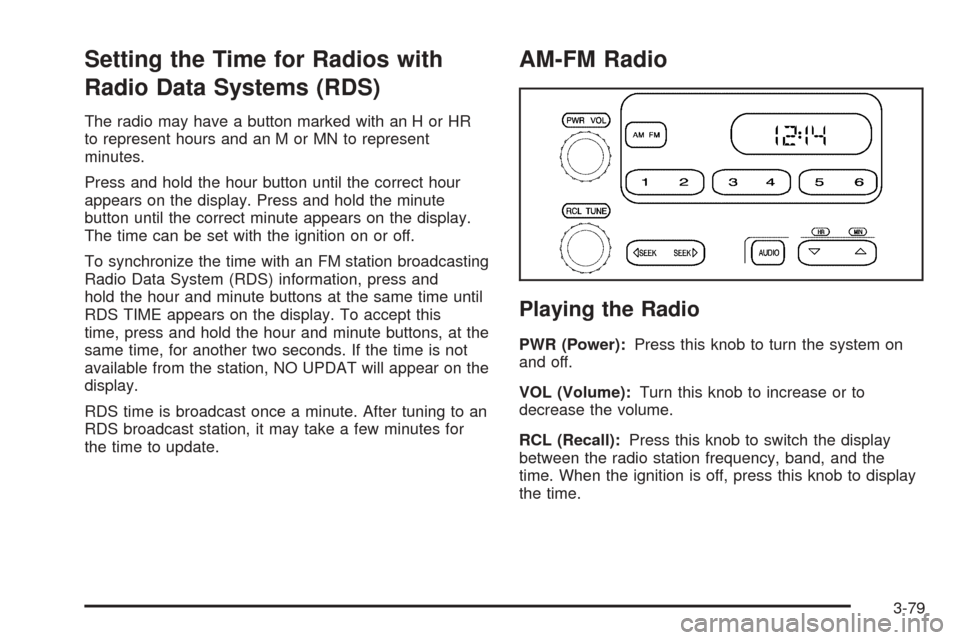
PWR (Power):Press this knob to turn the system on
and off.
VOL (Volume):Turn this knob to increase or to
decrease the volume.
RCL (Recall):Press this knob to switch the display
between the radio station frequency, band, and the
time. When the ignition is off, press this knob to display
the time.
3-79