light CHEVROLET TAHOE 2009 3.G Service Manual
[x] Cancel search | Manufacturer: CHEVROLET, Model Year: 2009, Model line: TAHOE, Model: CHEVROLET TAHOE 2009 3.GPages: 574, PDF Size: 3.06 MB
Page 167 of 574
SBZA can be disabled through the Driver Information
Center (DIC). SeeDriver Information Center (DIC)
on page 3-51for more information. If the SBZA
is disabled by the driver, the SBZA mirror displays will
not light up during normal driving.
When the System Does Not Seem To Work
Properly
Occasional missed alerts can occur under normal
circumstances and will increase in wet conditions. The
system does not need to be serviced due to an
occasional missed alert. The number of missed alerts
will increase with increased rainfall or road spray.
If the SBZA displays do not light up when the system is
on and vehicles are in the blind zone, the system
may need service. Take the vehicle to your
dealer/retailer.
SBZA is designed to ignore stationary objects; however,
the system may occasionally light up due to guard
rails, signs, trees, shrubs, and other stationary objects.
This is normal system operation, the vehicle does
not need service.SBZA does not operate when the left or right corners of
the rear bumper are covered with mud, dirt, snow,
ice, slush, or in heavy rainstorms. For cleaning
instructions, seeWashing Your Vehicle on page 5-109.
If the DIC still displays the SIDE BLIND ZONE SYS.
UNAVAILABLE message after cleaning the bumper, see
your dealer/retailer.
The SBZA displays may remain on if a trailer is attached
to the vehicle, or a bicycle or object is extending out
to either side of the vehicle.
When SBZA is disabled for any reason other than the
driver turning it off, the driver will not be able to turn
SBZA back on using the DIC. The SIDE BLIND ZONE
ALERT ON option will not be selectable if the
conditions for normal system operation are not met.
Until normal operating conditions for SBZA are met, you
should not rely upon SBZA while driving.
2-61
Page 169 of 574
Vehicles Without Navigation System
The rear vision camera system is designed to help the
driver when backing up by displaying a view of the area
behind the vehicle. When the key is in the ON/RUN
position and the driver shifts the vehicle into R (Reverse),
the video image automatically appears on the inside rear
view mirror. Once the driver shifts out of R (Reverse), the
video image automatically disappears from the inside
rear view mirror.
Turning the Rear Vision Camera System
OfforOn
To turn off the rear vision camera system, press and
hold
z, located on the inside rearview mirror, until the
left indicator light turns off. The rear camera vision
display is now disabled.
To turn the rear vision camera system on again, press
and hold
zuntil the left indicator light illuminates.
The rear vision camera system display is now enabled
and the display will appear in the mirror normally.
Vehicles With Navigation System
The rear vision camera system is designed to help the
driver when backing up by displaying a view of the
area behind the vehicle. When the driver shifts
the vehicle into R (Reverse), the video image
automatically appears on the navigation screen. Once
the driver shifts out of R (Reverse), the navigation
screen will go back to the last screen that had been
displayed, after a delay.
Turning the Rear Vision Camera System
On or Off
To turn the rear vision camera system on or off:
1. Shift into P (Park).
2. Press the MENU button to enter the congure
menu options, then press the MENU hard key
to select Display or touch the Display screen button.
3. Select the Rear Camera Options screen button. The
Rear Camera Options screen will display.
2-63
Page 170 of 574
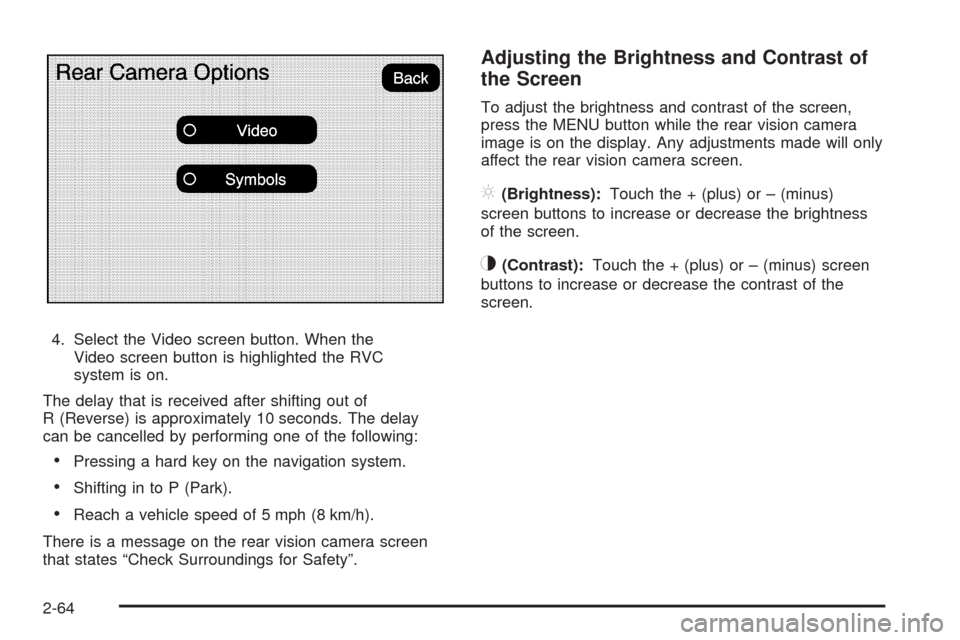
4. Select the Video screen button. When the
Video screen button is highlighted the RVC
system is on.
The delay that is received after shifting out of
R (Reverse) is approximately 10 seconds. The delay
can be cancelled by performing one of the following:
Pressing a hard key on the navigation system.
Shifting in to P (Park).
Reach a vehicle speed of 5 mph (8 km/h).
There is a message on the rear vision camera screen
that states “Check Surroundings for Safety”.
Adjusting the Brightness and Contrast of
the Screen
To adjust the brightness and contrast of the screen,
press the MENU button while the rear vision camera
image is on the display. Any adjustments made will only
affect the rear vision camera screen.
](Brightness):Touch the + (plus) or – (minus)
screen buttons to increase or decrease the brightness
of the screen.
_(Contrast):Touch the + (plus) or – (minus) screen
buttons to increase or decrease the contrast of the
screen.
2-64
Page 171 of 574
Symbols
The navigation system may have a feature that lets the
driver view symbols on the navigation screen while
using the rear vision camera. The Ultrasonic Rear Park
Assist (URPA) system must not be disabled to use
the caution symbols. If URPA has been disabled and
the symbols have been turned on, the Rear Parking
Assist Symbols Unavailable error message may display.
SeeUltrasonic Rear Parking Assist (URPA) on
page 2-56.
The symbols appear when an object has been detected
by the URPA system. The symbol may cover the
object when viewing the navigation screen.
To turn the symbols on or off:
1. Make sure that URPA has not been disabled.
2. Shift into P (Park).
3. Press the MENU hard key to enter the congure
menu options, then press the MENU hard key
repeatedly until Display is selected or touch
the Display screen button.
4. Select the Rear Camera Options screen button.
The Rear Camera Options screen will display.
5. Touch the Symbols screen button. The screen
button will be highlighted when on.
Rear Vision Camera Error Messages
Service Rear Vision Camera System:This message
can display when the system is not receiving
information it requires from other vehicle systems.
If any other problem occurs or if a problem persists, see
your dealer/retailer.
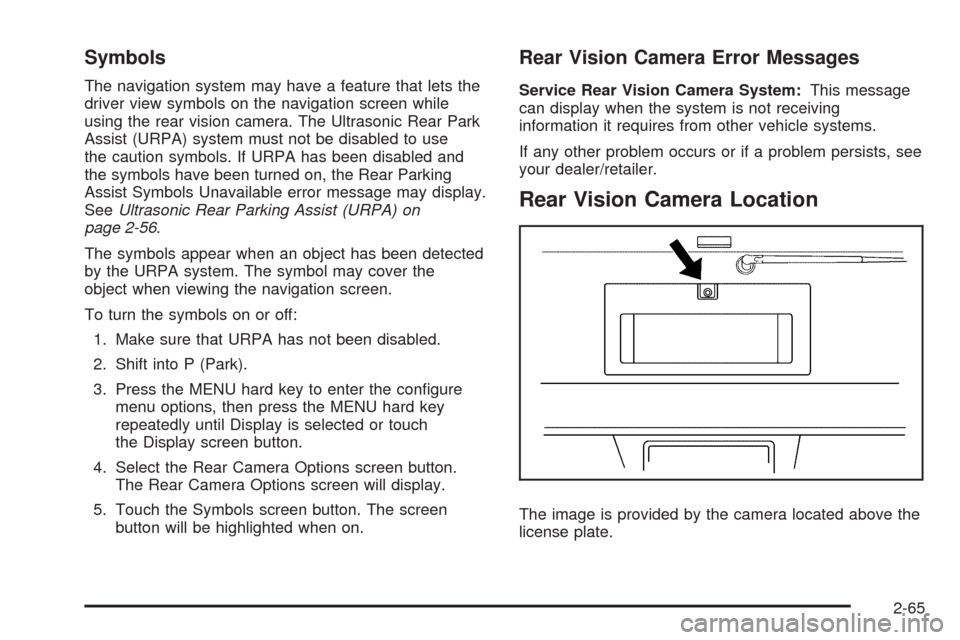
Rear Vision Camera Location
The image is provided by the camera located above the
license plate.
2-65
Page 173 of 574
When the System Does Not Seem To
Work Properly
The rear vision camera system might not work properly
or display a clear image if:
The RVC is turned off. See “Turning the Rear
Camera System On or Off” earlier in this section.
It is dark.
The sun or the beam of headlights is shining
directly into the camera lens.
Ice, snow, mud, or anything else builds up on the
camera lens. Clean the lens, rinse it with water,
and wipe it with a soft cloth.
The back of the vehicle is in an accident, the
position and mounting angle of the camera
can change or the camera can be affected. Be sure
to have the camera and its position and mounting
angle checked at your dealer/retailer.
There are extreme temperature changes.The rear vision camera system display in the rearview
mirror may turn off or not appear as expected due to one
of the following conditions. If this occurs the left
indicator light on the mirror will ash.
A slow ash may indicate a loss of video signal, or
no video signal present during the reverse cycle.
A fast ash may indicate that the display has been
on for the maximum allowable time during a
reverse cycle, or the display has reached an Over
Temperature limit.
The fast ash conditions are used to protect the
video device from high temperature conditions. Once
conditions return to normal the device will reset
and the green indicator will stop ashing.
During any of these fault conditions, the display will be
blank and the indicator will continue to ash as long
as the vehicle is in R (Reverse) or until the conditions
return to normal.
Pressing and holding
zwhen the left indicator light is
ashing will turn off the video display along with the
left indicator light.
2-67
Page 177 of 574
Location information about the vehicle is only available
if the GPS satellite signals are unobstructed and
available.
The vehicle must have a working electrical system,
including adequate battery power, for the OnStar
equipment to operate. There are other problems OnStar
cannot control that may prevent OnStar from providing
OnStar service at any particular time or place. Some
examples are damage to important parts of the vehicle
in a crash, hills, tall buildings, tunnels, weather or
wireless phone network congestion.
Your Responsibility
Increase the volume of the radio if the OnStar advisor
cannot be heard. If the light next to the OnStar buttons is
red, the system may not be functioning properly.
Press the OnStar button and request a vehicle
diagnostic. If the light appears clear (no light is
appearing), your OnStar subscription has expired and
all services have been deactivated. Press the OnStar
button to conrm that the OnStar equipment is active.
Universal Home Remote
System
The Universal Home Remote System provides a way to
replace up to three hand-held Radio-Frequency (RF)
transmitters used to activate devices such as garage
door openers, security systems, and home lighting.
This device complies with Part 15 of the FCC Rules.
Operation is subject to the following two conditions:
1. This device may not cause harmful interference.
2. This device must accept any interference received,
including interference that may cause undesired
operation.
This device complies with RSS-210 of Industry Canada.
Operation is subject to the following two conditions:
1. This device may not cause interference.
2. This device must accept any interference received,
including interference that may cause undesired
operation of the device.
Changes or modications to this system by other than
an authorized service facility could void authorization to
use this equipment.
2-71
Page 178 of 574
Universal Home Remote System
Operation (With Three Round LED)
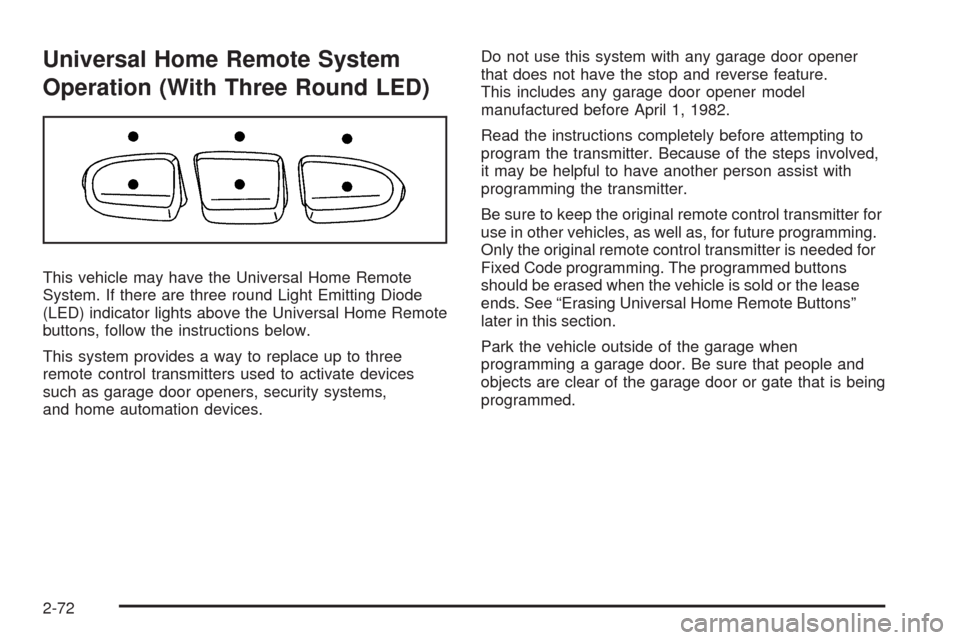
This vehicle may have the Universal Home Remote
System. If there are three round Light Emitting Diode
(LED) indicator lights above the Universal Home Remote
buttons, follow the instructions below.
This system provides a way to replace up to three
remote control transmitters used to activate devices
such as garage door openers, security systems,
and home automation devices.Do not use this system with any garage door opener
that does not have the stop and reverse feature.
This includes any garage door opener model
manufactured before April 1, 1982.
Read the instructions completely before attempting to
program the transmitter. Because of the steps involved,
it may be helpful to have another person assist with
programming the transmitter.
Be sure to keep the original remote control transmitter for
use in other vehicles, as well as, for future programming.
Only the original remote control transmitter is needed for
Fixed Code programming. The programmed buttons
should be erased when the vehicle is sold or the lease
ends. See “Erasing Universal Home Remote Buttons”
later in this section.
Park the vehicle outside of the garage when
programming a garage door. Be sure that people and
objects are clear of the garage door or gate that is being
programmed.
2-72
Page 179 of 574
Programming Universal Home
Remote — Rolling Code
For questions or help programming the Universal Home
Remote System, call 1-866-572-2728 or go to
learcar2u.com.
Most garage door openers sold after 1996 are Rolling
Code units.
Programming a garage door opener involves
time-sensitive actions, so read the entire procedure
before starting. Otherwise, the device will time out and
the procedure will have to be repeated.
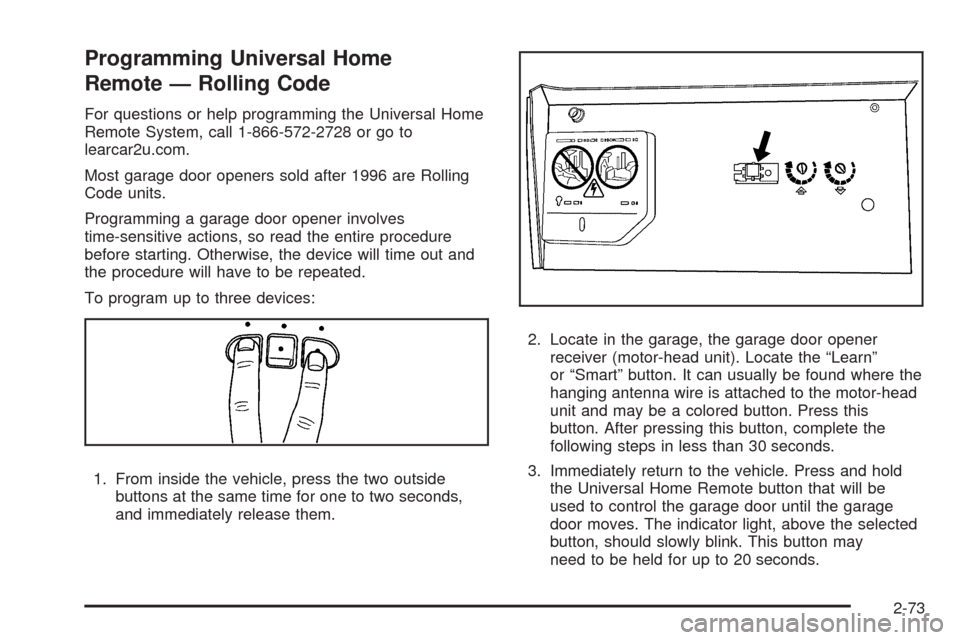
To program up to three devices:
1. From inside the vehicle, press the two outside
buttons at the same time for one to two seconds,
and immediately release them.2. Locate in the garage, the garage door opener
receiver (motor-head unit). Locate the “Learn”
or “Smart” button. It can usually be found where the
hanging antenna wire is attached to the motor-head
unit and may be a colored button. Press this
button. After pressing this button, complete the
following steps in less than 30 seconds.
3. Immediately return to the vehicle. Press and hold
the Universal Home Remote button that will be
used to control the garage door until the garage
door moves. The indicator light, above the selected
button, should slowly blink. This button may
need to be held for up to 20 seconds.
2-73
Page 180 of 574
4. Immediately, within one second, release the button
when the garage door moves. The indicator light
will blink rapidly until programming is complete.
5. Press and release the same button again. The
garage door should move, conrming that
programming is successful and complete.
To program another Rolling Code device such as an
additional garage door opener, a security device,
or home automation device, repeat Steps 1 through 5,
choosing a different function button in Step 3 than
what was used for the garage door opener.
If these instructions do not work, the garage door
opener is probably a Fixed Code unit. Follow the
Programming instructions that follow for a Fixed Code
garage door opener.
Programming Universal Home
Remote — Fixed Code
For questions or help programming the Universal Home
Remote System, call 1-866-572-2728 or go to
learcar2u.com.
Most garage door openers sold before 1996 are Fixed
Code units.
Programming a garage door opener involves
time-sensitive actions, so read the entire procedure
before starting. Otherwise, the device will time out and
the procedure will have to be repeated.To program up to three devices:
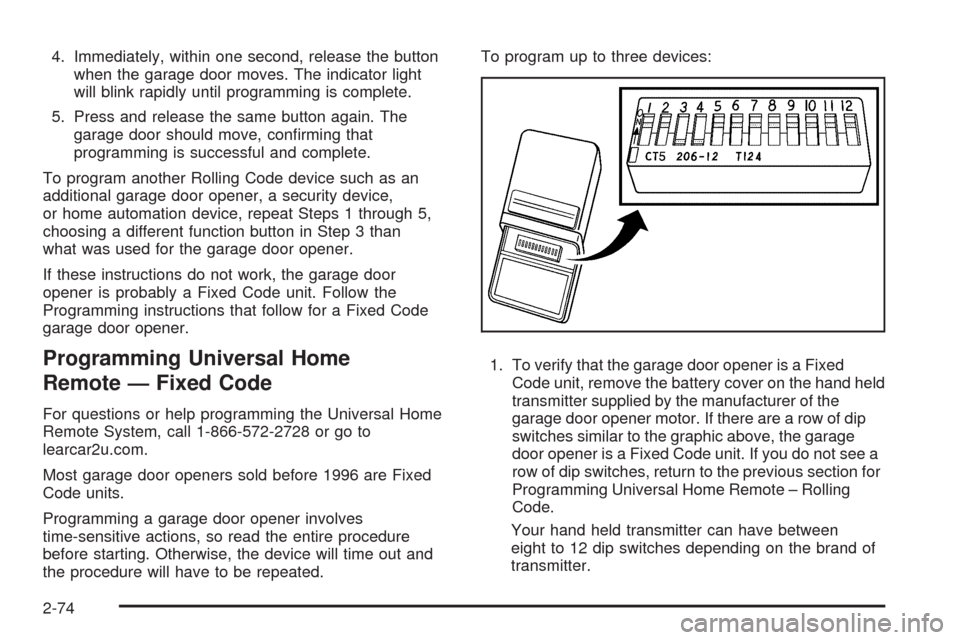
1. To verify that the garage door opener is a Fixed
Code unit, remove the battery cover on the hand held
transmitter supplied by the manufacturer of the
garage door opener motor. If there are a row of dip
switches similar to the graphic above, the garage
door opener is a Fixed Code unit. If you do not see a
row of dip switches, return to the previous section for
Programming Universal Home Remote – Rolling
Code.
Your hand held transmitter can have between
eight to 12 dip switches depending on the brand of
transmitter.
2-74
Page 182 of 574
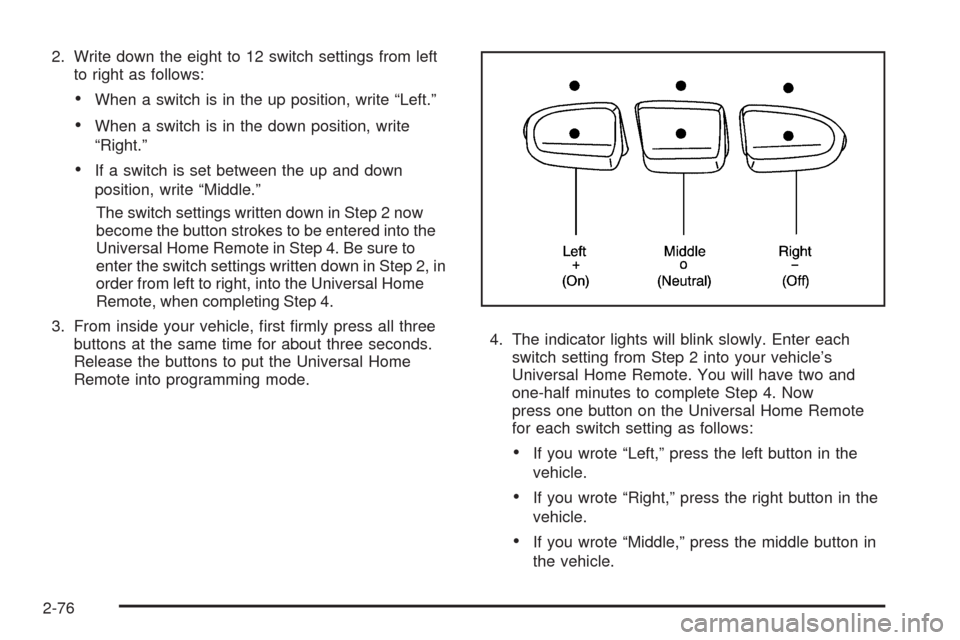
2. Write down the eight to 12 switch settings from left
to right as follows:
When a switch is in the up position, write “Left.”
When a switch is in the down position, write
“Right.”
If a switch is set between the up and down
position, write “Middle.”
The switch settings written down in Step 2 now
become the button strokes to be entered into the
Universal Home Remote in Step 4. Be sure to
enter the switch settings written down in Step 2, in
order from left to right, into the Universal Home
Remote, when completing Step 4.
3. From inside your vehicle, rst rmly press all three
buttons at the same time for about three seconds.
Release the buttons to put the Universal Home
Remote into programming mode.4. The indicator lights will blink slowly. Enter each
switch setting from Step 2 into your vehicle’s
Universal Home Remote. You will have two and
one-half minutes to complete Step 4. Now
press one button on the Universal Home Remote
for each switch setting as follows:
If you wrote “Left,” press the left button in the
vehicle.
If you wrote “Right,” press the right button in the
vehicle.
If you wrote “Middle,” press the middle button in
the vehicle.
2-76