remote control CHEVROLET TAHOE 2010 3.G Owner's Manual
[x] Cancel search | Manufacturer: CHEVROLET, Model Year: 2010, Model line: TAHOE, Model: CHEVROLET TAHOE 2010 3.GPages: 608, PDF Size: 6.53 MB
Page 314 of 608
r(Enter):Press to select the choices that are
highlighted in any menu.
y(Menu): Press to access the DVD menu. The DVD
menu is different on every DVD. Use the softkey under
the navigation arrows to navigate the cursor through the
DVD menu. After making a selection press this button.
This button only operates when using a DVD.
Nav (Navigate): Press to display directional arrows for
navigating through the menus.
q(Return): Press to exit the current active menu and
return to the previous menu. This tab operates only
when a DVD is playing and a menu is active.
DVD-A (Audio) Display Buttons
Once a DVD-A is inserted, radio display menu shows
several tab options for DVD playing. Press the softkeys
under any desired tab option during DVD playback. See
the tab options listed after, for more information.
The rear seat operator can navigate the DVD-A menus
and controls through the remote control. See “Remote
Control”, under Rear Seat Entertainment (RSE) System
on page 4‑125for more information. The Video Screen
does not automatically power on when the DVD-A is
inserted into the DVD slot. It must be manually turned
on by the rear seat occupant through the remote control
power button.
r/j(Play/Pause): Press either the play or pause
icon displayed on the radio system, to toggle between
pausing or restarting playback of a DVD. If the forward
arrow is showing on the display, the system is in pause
mode. If the pause icon is showing on the display, the
system is in playback mode.
qGroupr: Press to cycle through musical
groupings on the DVD-A disc.
Nav (Navigate): Press to display directional arrows for
navigating through the menus.
e(Audio Stream): Press to cycle through audio
stream formats located on the DVD-A disc. The video
screen shows the audio stream changing.
Stopping and Resuming Playback
To stop playing a DVD without turning off the system,
press the
cbutton on the remote control, or press the
softkey under the stop or the play/pause tab displayed
on the radio. If the radio head is sourced to something
other than DVD-V, press the DVD/CD AUX button to
make DVD-V the active source.
To resume DVD playback, press the
r/jbutton
on the remote control, or press the softkey under
the play/pause tab displayed on the radio. The
DVD should resume play from where it last stopped
if the disc has not been ejected and the stop button
has not been pressed twice on the remote control.
4-96
Page 315 of 608
If the disc has been ejected or the stop button has been
pressed twice on the remote control, the disc resumes
playing at the beginning of the disc.
DVD Radio Error Messages
Player Error:This message displays when there are
disc load or eject problems.
Disc Format Error: This message displays, if the disc
is inserted with the disc label wrong side up, or if the
disc is damaged.
Disc Region Error: This message displays, if the disc
is not from a correct region.
No Disc Inserted: This message displays, if no disc is
present when the
Zor DVD/CD AUX button is
pressed on the radio.
Using the Auxiliary Input Jack
The radio system has an auxiliary input jack located on
the lower right side of the faceplate. This is not an audio
output; do not plug the headphone set into the front
auxiliary input jack. An external audio device such as
an iPod, laptop computer, MP3 player, CD player,
or cassette tape player, etc. can be connected to the
auxiliary input jack for use as another audio source. Drivers are encouraged to set up any auxiliary device
while the vehicle is in P (Park). See
Defensive Driving
on page 5‑2for more information on driver distraction.
To use a portable audio player, connect a 3.5 mm
(1/8 in) cable to the radio's front auxiliary input jack.
When a device is connected, press the radio CD/AUX
button to begin playing audio from the device over the
vehicle speakers.
For optimal sound quality, increase the portable audio
device's volume to the loudest level.
It is always best to power the portable audio device
through its own battery while playing.
O(Power/Volume): Turn clockwise or
counterclockwise to increase or decrease the
volume of the portable player. Additional volume
adjustments might have to be made from the portable
device if the volume is not loud or soft enough.
BAND: Press to listen to the radio when a portable
audio device is playing. The portable audio device also
continues to play.
CD/AUX (CD/Auxiliary): Press to play a CD when a
portable audio device is playing. Press again and the
system begins playing audio from the connected
portable audio player. If a portable audio player is not
connected, “No Input Device Found” displays.
4-97
Page 326 of 608
Tracks are played in the following order:
.Play begins from the first track in the first playlist
and continues sequentially through all tracks in
each playlist. When the last track of the last playlist
has played, play continues from the first track of
the first playlist.
.Play begins from the first track in the first folder
and continues sequentially through all tracks in
each folder. When the last track of the last folder
has played, play continues from the first track of
the first folder.
When play enters a new folder, the display does not
automatically show the new folder name unless the
folder mode has been chosen as the default display.
The new track name displays.
File System and Naming
The song name that displays is the song name that is
contained in the ID3 tag. If the song name is not
present in the ID3 tag, then the radio displays the file
name without the extension (such as .mp3) as the
track name.
Track names longer than 32 characters or four pages
are shortened. Parts of words on the last page of text
and the extension of the filename does not display.
Preprogrammed Playlists
Preprogrammed playlists that were created using
WinAmp™, MusicMatch™, or Real Jukebox™ software
can be accessed, however, they cannot be edited using
the radio. These playlists are treated as special folders
containing compressed audio song files.
Playlists that have an .m3u or .pls file extension and are
stored on a USB device may be supported by the radio
with a USB port.
Playing an MP3/WMA File From a Disc
(In Either the DVD or CD Slot)
If a disc is inserted into the top DVD slot, the rear seat
operator can turn on the video screen and use the
remote control to navigate the CD (tracks only).
f(Tune): Turn to select MP3/WMA files.
©SEEK:Press to go to the start of the track, if less
than five seconds have played. Press to go to the
previous track if more then five seconds have played.
Press and hold or press multiple times to continue
moving backward through tracks.
¨SEEK: Press to go to the next track. Press and hold
or press multiple times to continue moving forward
through tracks.
4-108
Page 343 of 608
3. Say the name tag to send.
.If the system clearly recognizes the name tag it
responds with“OK, Sending
the dial tones are sent and the call continues.
.If the system is not sure it recognized the name
tag properly, it responds “Dial
Please say yes or no?” followed by a tone.
If the name tag is correct, say “Yes”. The
system responds with “OK, Sending
continues.
Clearing the System
Unless information is deleted out of the in‐vehicle
Bluetooth system, it will be retained indefinitely. This
includes all saved name tags in the phonebook and
phone pairing information. For information on how to
delete this information, see the above sections on
Deleting a Paired Phone and Deleting Name Tags.
Other Information
The Bluetooth®word mark and logos are owned by the
Bluetooth®SIG, Inc. and any use of such marks by
General Motors is under license. Other trademarks and
trade names are those of their respective owners.
See Radio Frequency Statement
on page 8‑19for FCC
information.
Rear Seat Entertainment (RSE)
System
The vehicle may have a DVD Rear Seat Entertainment
(RSE) system. The RSE system works with the
vehicle's audio system. The DVD player is part of the
front radio. The RSE system includes a radio with a
DVD player, a video display screen, audio/video jacks,
two wireless headphones, a remote control, and if the
vehicle has a third row seat, it may have a second
video display screen and two additional wireless
headphones. See Radio(s)
on page 4‑82for more
information on the vehicle's audio/DVD system.
Before Driving
The RSE is designed for rear seat passengers only. The
driver cannot safely view the video screen while driving
and should not try to do so.
In severe or extreme weather conditions the RSE
system might not work until the temperature is within
the operating range. The operating range for the RSE
system is above −4°F (−20°C) or below 140°F (60°C).
If the temperature of the vehicle is outside of this range,
heat or cool the vehicle until the temperature is within
the operating range of the RSE system.
4-125
Page 346 of 608
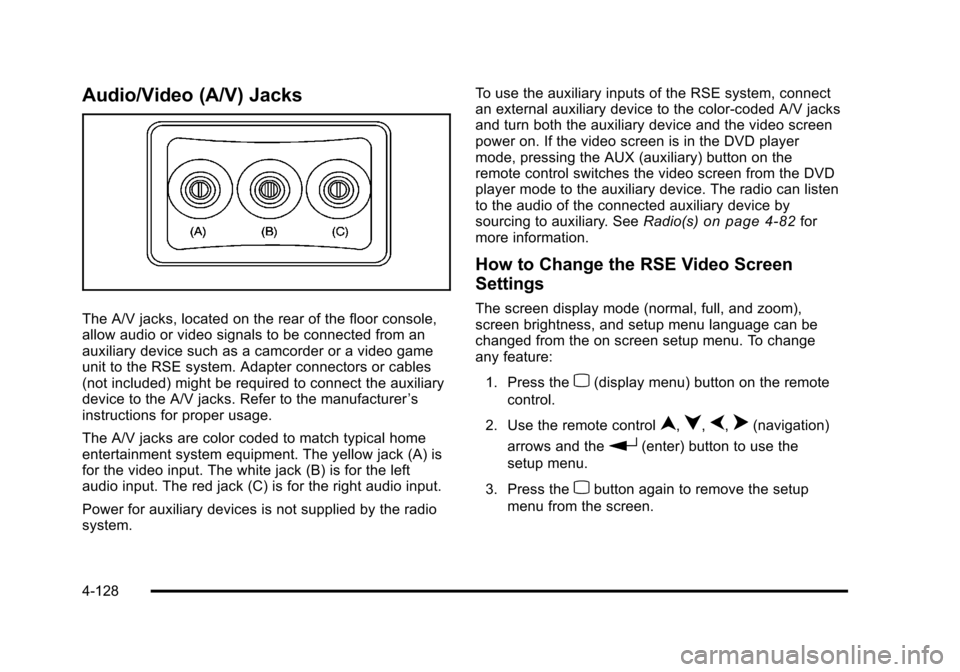
Audio/Video (A/V) Jacks
The A/V jacks, located on the rear of the floor console,
allow audio or video signals to be connected from an
auxiliary device such as a camcorder or a video game
unit to the RSE system. Adapter connectors or cables
(not included) might be required to connect the auxiliary
device to the A/V jacks. Refer to the manufacturer’s
instructions for proper usage.
The A/V jacks are color coded to match typical home
entertainment system equipment. The yellow jack (A) is
for the video input. The white jack (B) is for the left
audio input. The red jack (C) is for the right audio input.
Power for auxiliary devices is not supplied by the radio
system. To use the auxiliary inputs of the RSE system, connect
an external auxiliary device to the color-coded A/V jacks
and turn both the auxiliary device and the video screen
power on. If the video screen is in the DVD player
mode, pressing the AUX (auxiliary) button on the
remote control switches the video screen from the DVD
player mode to the auxiliary device. The radio can listen
to the audio of the connected auxiliary device by
sourcing to auxiliary. See
Radio(s)
on page 4‑82for
more information.
How to Change the RSE Video Screen
Settings
The screen display mode (normal, full, and zoom),
screen brightness, and setup menu language can be
changed from the on screen setup menu. To change
any feature:
1. Press the
z(display menu) button on the remote
control.
2. Use the remote control
n,q,p,o(navigation)
arrows and the
r(enter) button to use the
setup menu.
3. Press the
zbutton again to remove the setup
menu from the screen.
4-128
Page 347 of 608
Audio Output
Audio from the DVD player or auxiliary inputs can be
heard through the following possible sources:
.Wireless Headphones
.Vehicle Speakers
.Vehicle wired headphone jacks on the rear seat
audio system, if the vehicle has this feature.
The RSE system always transmits the audio signal to
the wireless headphones, if there is audio available.
See “Headphones” earlier in this section for more
information.
The DVD player is capable of outputting audio to the
wired headphone jacks on the RSA system, if the
vehicle has this feature. The DVD player can be
selected as an audio source on the RSA system. See
Rear Seat Audio (RSA)
on page 4‑134for more
information.
When a device is connected to the A/V jacks, or the
radio's auxiliary input jack, if the vehicle has this
feature, the rear seat passengers are able to hear audio
from the auxiliary device through the wireless or wired
headphones. The front seat passengers are able to
listen to playback from this device through the vehicle
speakers by selecting AUX as the source on the radio.
Video Screen(s)
The video screen(s) are located in the overhead
console.
To use the video screen(s):
1. Push the release button located on the overhead console.
2. Move the screen to the desired position.
When the video screen is not in use, push it up into its
locked position.
If a DVD is playing and the screen is raised to its locked
position, the screen remains on, this is normal, and the
DVD continues to play through the previous audio
source. Use the remote control power button or eject
the disc to turn off the screen.
The overhead console contains the infrared transmitters
for the wireless headphones and the infrared receivers
for the remote control. They are located at the rear of
the console.
Notice: Avoid directly touching the video screen,
as damage may occur. See “Cleaning the Video
Screen” later in this section for more information.
4-129
Page 348 of 608
Remote Control
To use the remote control, aim it at the transmitter
window at the rear of the overhead console and press
the desired button. Direct sunlight or very bright light
could affect the ability of the RSE transmitter to receive
signals from the remote control. If the remote control
does not seem to be working, the batteries might need
to be replaced. See“Battery Replacement” later in this
section. Objects blocking the line of sight could also
affect the function of the remote control.
If a CD or DVD is in the Radio DVD slot, the remote
control power button can be used to turn on the video
screen display and start the disc. The radio can also
turn on the video screen display. See Radio(s)
on
page 4‑82for more information.
Notice: Storing the remote control in a hot area or
in direct sunlight can damage it, and the repairs will
not be covered by the warranty. Storage in extreme
cold can weaken the batteries. Keep the remote
control stored in a cool, dry place.
Remote Control Buttons
O(Power): Press this button to turn the video screen
on and off.
P(Illumination): Press this button to turn the remote
control backlight on. The backlight automatically turns
off after seven to ten seconds if no other button is
pressed while the backlight is on.
v(Title): Press this button to return the DVD to the
main menu of the DVD. This function may vary for
each disc.
y(Main Menu): Press this button to access the DVD
menu. The DVD menu is different on every DVD. Use
the navigation arrows to move the cursor around the
DVD menu. After making a selection press the enter
button. This button only operates when using a DVD.
n,q,p,o(Menu Navigation Arrows): Use the
arrow buttons to navigate through a menu.
r(Enter): Press this button to select the choice that
is highlighted in any menu.
z(Display Menu): Press this button to adjust the
brightness, screen display mode (normal, full, or zoom),
and display the language menu.
q(Return): Press this button to exit the current
active menu and return to the previous menu. This
button operates only when the display menu or a DVD
menu is active.
c(Stop): Press this button to stop playing, fast
reversing, or fast forwarding a DVD. Press this button
twice to return to the beginning of the DVD.
s(Play/Pause): Press this button to start playing a
DVD. Press this button while a DVD is playing to pause
it. Press it again to continue playing the DVD.
4-130
Page 349 of 608
On some radios, play may be slowed down by pressing
the play/pause button then pressing the fast forward
button when the DVD is playing. The DVD continues
playing in a slow play mode. Some radios may perform
reverse slow play by pressing the play/pause button
and then pressing the fast reverse button. To cancel
slow play mode, press the play/pause button.
t(Previous Track/Chapter):Press this button to
return to the start of the current track or chapter. Press
this button again to go to the previous track or chapter.
This button might not work when the DVD is playing the
copyright information or the previews.
u(Next Track/Chapter): Press this button to go to the
beginning of the next chapter or track. This button might
not work when the DVD is playing the copyright
information or the previews.
r(Fast Reverse): Press this button to fast reverse
the DVD or CD. To stop fast reversing a DVD video,
press the play button. To stop fast reversing a DVD
audio or CD, release this button. This button might not
work when the DVD is playing the copyright information
or the previews.
[(Fast Forward): Press this button to fast forward the
DVD or CD. To stop fast forwarding a DVD video, press
the play/pause button. To stop fast forwarding a DVD
audio or CD, release this button. This button might not
work when the DVD is playing the copyright information
or the previews.
e(Audio): Press this button to change audio tracks on
DVDs that have this feature when the DVD is playing.
The format and content of this function vary for
each disc.
{(Subtitles): Press this button to turn ON/OFF
subtitles and to move through subtitle options when a
DVD is playing. The format and content of this function
vary for each disc.
AUX (Auxiliary): Press this button to switch the system
between the DVD player and an auxiliary source.
d(Camera): Press this button to change camera
angles on DVDs that have this feature when a DVD is
playing. The format and content of this function vary for
each disc.
1 through 0 (Numeric Keypad): The numeric keypad
provides the capability of direct chapter or track number
selection.
\(Clear): Press this button within three seconds after
entering a numeric selection, to clear all numerical
inputs.
}10 (Double Digit Entries): Press this button to select
chapter or track numbers greater than nine. Press this
button before entering the number.
If the remote control becomes lost or damaged, a new
universal remote control can be purchased. If this
happens, make sure the universal remote control uses
a code set of Toshiba
®.
4-131
Page 350 of 608
Battery Replacement
To change the remote control batteries:1. Slide the rear cover back on to the remote control.
2. Replace the two batteries in the compartment. Make sure that they are installed correctly,
using the diagram on the inside of the battery
compartment.
3. Replace the battery cover.
If the remote control is to be stored for a long period of
time, remove the batteries and keep them in a cool, dry
place.
Tips and Troubleshooting Chart
Problem Recommended Action
No power. The ignition might not be
turned ON/RUN or in
ACC/ACCESSORY.
The picture does not fill the
screen. There are black
borders on the top and
bottom or on both sides or
it looks stretched out. Check the display mode
settings in the setup menu
by pressing the display
menu button on the remote
control.
In auxiliary mode, the
picture moves or scrolls. Check the auxiliary input
connections at both
devices.
Tips and Troubleshooting Chart (cont'd)
Problem
Recommended Action
The remote control does
not work. Check to make sure there
is no obstruction between
the remote control and
the transmitter window.
Check the batteries to
make sure they are not
dead or installed
incorrectly.
After stopping the player,
I push Play but sometimes
the DVD starts where I left
off and sometimes at the
beginning. If the stop button was
pressed one time, the DVD
player resumes playing
where the DVD was
stopped. If the stop button
was pressed two times the
DVD player begins to play
from the beginning of
the DVD.
The auxiliary source is
running but there is no
picture or sound. Check that the RSE
video screen is in the
auxiliary source mode.
Check the auxiliary input
connections at both
devices.
4-132
Page 372 of 608
.Take extreme care with open fires (where
permitted), camp stoves, and lanterns.
.Never park your vehicle over dry grass or other
combustible materials that could catch fire from the
heat of the vehicle's exhaust system.
Traveling to Remote Areas
It makes sense to plan your trip, especially when going
to a remote area. Know the terrain and plan your route.
Get accurate maps of trails and terrain. Check to see if
there are any blocked or closed roads.
It is also a good idea to travel with at least one other
vehicle in case something happens to one of them.
For vehicles with a winch, be sure to read the winch
instructions. In a remote area, a winch can be handy if
you get stuck but you will want to know how to use it
properly.
Getting Familiar with Off-Road Driving
It is a good idea to practice in an area that is safe and
close to home before you go into the wilderness.
Off-roading requires some new and different skills.
Tune your senses to different kinds of signals.
Your eyes need to constantly sweep the terrain for
unexpected obstacles. Your ears need to listen for
unusual tire or engine sounds. Use your arms, hands,
feet, and body to respond to vibrations and vehicle
bounce.Controlling the vehicle is the key to successful off-road
driving. One of the best ways to control the vehicle is to
control the speed. At higher speeds:
.You approach things faster and have less time to
react.
.There is less time to scan the terrain for obstacles.
.The vehicle has more bounce when driving over
obstacles.
.More braking distance is needed, especially on an
unpaved surface.
{WARNING:
When you are driving off-road, bouncing and
quick changes in direction can easily throw you
out of position. This could cause you to lose
control and crash. So, whether you are driving on
or off the road, you and your passengers should
wear safety belts.
5-14