display CHEVROLET TAHOE 2015 4.G Repair Manual
[x] Cancel search | Manufacturer: CHEVROLET, Model Year: 2015, Model line: TAHOE, Model: CHEVROLET TAHOE 2015 4.GPages: 495, PDF Size: 6.56 MB
Page 224 of 495
Black plate (15,1)Chevrolet 2015i Tahoe/Suburban Owner Manual (GMNA-Localizing-U.S./
Canada/Mexico-8431502) - 2015 - crc - 1/12/15
Infotainment System 7-15
Auto Volume:If equipped, see
“Playing an Audio CD” previously in
this section.
EQ (Equalizer) Settings:
If equipped, this feature adjusts the
equalizer settings. See “EQ
(Equalizer) Settings” inAM-FM
Radio on page 7-8.
Playing from an iPod®/iPad®/
iPhone®
This feature supports the following
devices:
.iPod nano®(1st, 2nd, 3rd, and
4th generation)
.iPod with video (5.0 and 5.5
generation).
.iPod classic®(6th generation)
.iPod touch®(1st and 2nd
generation)
.iPad
.iPhone 3G, iPhone 3GS,
iPhone 4 There may be problems with
operation and function in the
following situations:
.When connecting a device with
a more recent version of the
firmware installed than is
supported by the infotainment
system.
.When connecting a device on
which firmware from other
providers is installed.
To connect and control a device:
1. Connect one end of the standard USB cable to the device's dock
connector.
2. Connect the other end to a USB port in the center console. See
Center Console Storage on
page 4-2.
3. Press the MEDIA button to select the source.
The music information displays on
the radio’s display and begins
playing through the vehicle’s audio
system. The device battery recharges
automatically while the vehicle is on.
When the vehicle is off while a
device is connected using the USB
cable, the device battery stops
charging and the device will
automatically turn off.
If the device is an unsupported
model, it can still be listened to in
the vehicle by connecting to the
auxiliary input jack using a standard
3.5 mm (1/8 in) stereo cable.
Menu
Press the MENU knob to display the
device Menu and the following may
display:
Browse:
Select to display the files
or songs on the device. See
“Browse Device Media” later in this
section.
Tone Settings: Select to adjust
Bass, Midrange, Treble, Balance,
Fade, and EQ (Equalizer). See
“Tone Settings” underAM-FM Radio
on page 7-8.
Page 226 of 495
Black plate (17,1)Chevrolet 2015i Tahoe/Suburban Owner Manual (GMNA-Localizing-U.S./
Canada/Mexico-8431502) - 2015 - crc - 1/12/15
Infotainment System 7-17
SD Card Reader
This vehicle may have an SD card
reader in the center stack or inside
the front seat armrest. SeeCenter
Console Storage on page 4-2.
1. Plug the SD card into the reader.
2. Press the MEDIA button to select the SD device.
If an SD card has already been
connected, but a different source is
currently active, press the MEDIA
screen button repeatedly to cycle
through all of the available audio
source screens, until the SD card
screen is shown.
Playing Music from the SD Card
An SD card is played the same way
a USB device is played. See USB
Port on page 7-14.
Auxiliary Jack
The AUX jack is in the center stack
or inside the front seat armrest. See
Center Console Storage on
page 4-2. Possible auxiliary audio sources
include:
.Laptop computer
.Audio music player
This jack is not an audio output. Do
not plug headphones into the
auxiliary input jack. Auxiliary
devices should be set up while the
vehicle is in P (Park).
Connect a 3.5 mm (1/8 in) cable
from the auxiliary device to the
auxiliary input jack.
If an auxiliary device has already
been connected, but a different
source is currently active, press the
MEDIA faceplate button repeatedly
to scroll through all of the available
audio source screens, until the AUX
source screen is shown.
Playing from the AUX Jack
An auxiliary device is played
through the audio system and
controlled through the device itself. AUX Menu
Press the MENU knob to display the
AUX menu and the following may
display:
Tone Settings:
Select to adjust
Bass, Midrange, Treble, Balance,
Fade, and EQ (Equalizer). See
“Tone Settings” underAM-FM Radio
on page 7-8.
Auto Volume: If equipped, see
“Playing an Audio CD” previously in
this section.
EQ (Equalizer): If equipped, this
feature adjusts the pre-defined
equalizer settings. See “EQ
(Equalizer)” inAM-FM Radio on
page 7-8.
Page 227 of 495
Black plate (18,1)Chevrolet 2015i Tahoe/Suburban Owner Manual (GMNA-Localizing-U.S./
Canada/Mexico-8431502) - 2015 - crc - 1/12/15
7-18 Infotainment System
Navigation
OnStar®System
An OnStar®subscriber has the
ability to connect to the OnStar
system (if equipped) and ask an
OnStar Advisor to download a
destination into the vehicle. OnStar
will send address information and
location coordinates of the
destination into the vehicle.
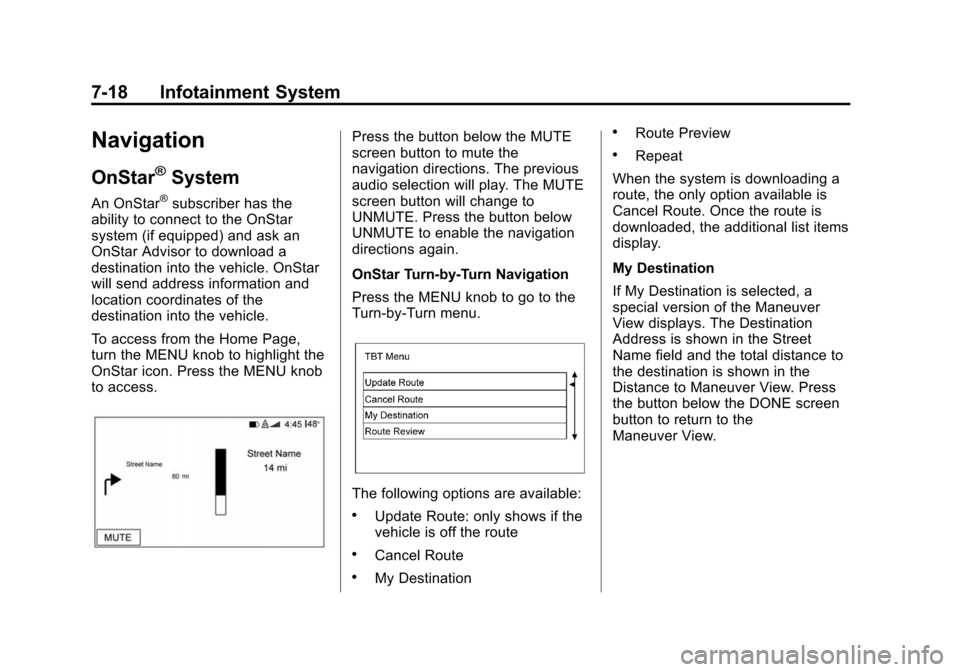
To access from the Home Page,
turn the MENU knob to highlight the
OnStar icon. Press the MENU knob
to access.
Press the button below the MUTE
screen button to mute the
navigation directions. The previous
audio selection will play. The MUTE
screen button will change to
UNMUTE. Press the button below
UNMUTE to enable the navigation
directions again.
OnStar Turn-by-Turn Navigation
Press the MENU knob to go to the
Turn-by-Turn menu.
The following options are available:
.Update Route: only shows if the
vehicle is off the route
.Cancel Route
.My Destination
.Route Preview
.Repeat
When the system is downloading a
route, the only option available is
Cancel Route. Once the route is
downloaded, the additional list items
display.
My Destination
If My Destination is selected, a
special version of the Maneuver
View displays. The Destination
Address is shown in the Street
Name field and the total distance to
the destination is shown in the
Distance to Maneuver View. Press
the button below the DONE screen
button to return to the
Maneuver View.
Page 228 of 495
Black plate (19,1)Chevrolet 2015i Tahoe/Suburban Owner Manual (GMNA-Localizing-U.S./
Canada/Mexico-8431502) - 2015 - crc - 1/12/15
Infotainment System 7-19
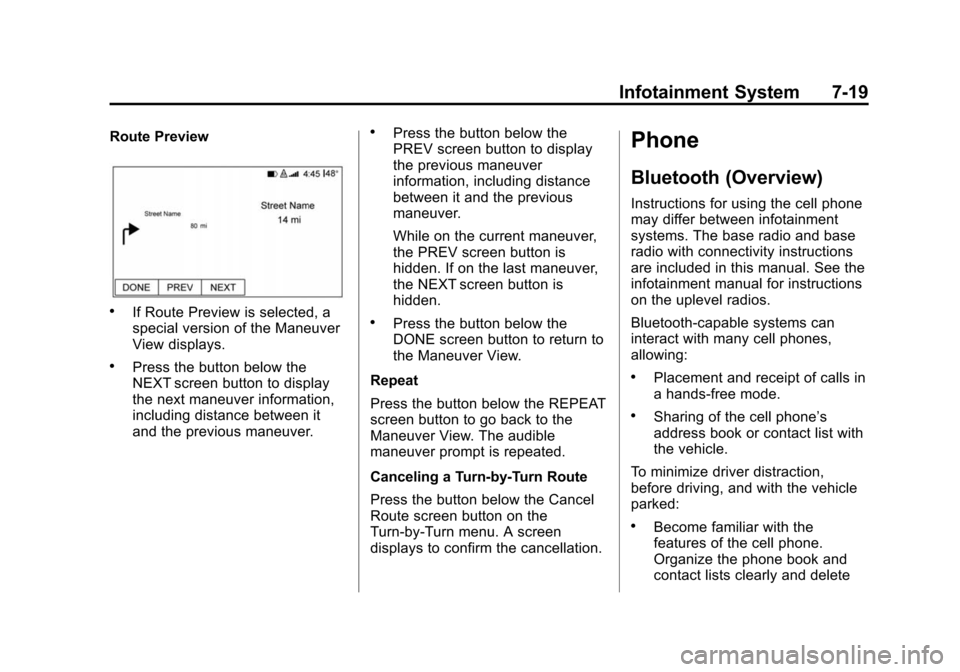
Route Preview
.If Route Preview is selected, a
special version of the Maneuver
View displays.
.Press the button below the
NEXT screen button to display
the next maneuver information,
including distance between it
and the previous maneuver.
.Press the button below the
PREV screen button to display
the previous maneuver
information, including distance
between it and the previous
maneuver.
While on the current maneuver,
the PREV screen button is
hidden. If on the last maneuver,
the NEXT screen button is
hidden.
.Press the button below the
DONE screen button to return to
the Maneuver View.
Repeat
Press the button below the REPEAT
screen button to go back to the
Maneuver View. The audible
maneuver prompt is repeated.
Canceling a Turn-by-Turn Route
Press the button below the Cancel
Route screen button on the
Turn-by-Turn menu. A screen
displays to confirm the cancellation.
Phone
Bluetooth (Overview)
Instructions for using the cell phone
may differ between infotainment
systems. The base radio and base
radio with connectivity instructions
are included in this manual. See the
infotainment manual for instructions
on the uplevel radios.
Bluetooth-capable systems can
interact with many cell phones,
allowing:
.Placement and receipt of calls in
a hands-free mode.
.Sharing of the cell phone’s
address book or contact list with
the vehicle.
To minimize driver distraction,
before driving, and with the vehicle
parked:
.Become familiar with the
features of the cell phone.
Organize the phone book and
contact lists clearly and delete
Page 231 of 495
Black plate (22,1)Chevrolet 2015i Tahoe/Suburban Owner Manual (GMNA-Localizing-U.S./
Canada/Mexico-8431502) - 2015 - crc - 1/12/15
7-22 Infotainment System
the cell phone changes or the
cell phone is deleted from the
system.
.Only one paired cell phone can
be connected to the Bluetooth
system at a time.
.If multiple paired cell phones are
within range of the system, the
system connects to the first
available paired cell phone in the
order that they were newly
paired to the system. To connect
to a different paired phone, see
“Connecting to a Different
Phone”later in this section.
Pairing a Phone or Device
1. From the Home Page, turn the MENU knob to access the
PHONE screen button, then
press the MENU knob to select
the PHONE screen button. If a
device has been previously
paired, the main Phone menu
will be shown. If no devices
have been paired, Step 2 can be
skipped. 2. Turn the MENU knob and press
to select Manage Phones.
3. Press the button just below the PAIR screen button. A four-digit
Personal Identification Number
(PIN) appears on the display.
The PIN is used in Step 5.
4. Start the pairing process on the cell phone to be paired to the
vehicle. See your cell phone
manufacturer's user guide for
information on this process.
5. Locate the device named “Your
Vehicle” in the list on the cell
phone. Follow the instructions
on the cell phone to enter the
PIN provided in Step 3. If a six
digit code is shown on the phone
and the vehicle screen, confirm
the codes are the same. The
system recognizes the new
connected phone after the
pairing process is complete. 6. If the phone prompts to accept
connection or allow phone book
download, select Always Accept
and Allow. The phone book may
not be available if not accepted.
7. Repeat Steps 1–6 to pair additional phones or devices.
Listing All Paired and Connected
Phones
1. To list all paired devices, from the Home Page turn the MENU
knob, then press to select the
PHONE screen button.
2. Turn the MENU knob and press to select Manage Phones.
Deleting a Paired Phone
1. From the Home Page, turn the MENU knob, then press to
select the PHONE screen
button.
2. Turn the MENU knob and press to select Manage Phones.
3. Turn the MENU knob to highlight the phone to be deleted.
Page 232 of 495
Black plate (23,1)Chevrolet 2015i Tahoe/Suburban Owner Manual (GMNA-Localizing-U.S./
Canada/Mexico-8431502) - 2015 - crc - 1/12/15
Infotainment System 7-23
4. Press the button below theDELETE screen button to delete
the highlighted device.
5. A confirmation screen is displayed. Press the button just
below the DELETE screen
button to confirm deletion.
Connecting to a Different Phone
1. From the Home Page, turn the MENU knob, then press to
select the PHONE screen
button.
2. Turn the MENU knob and press to select Manage Phones.
3. Turn the MENU knob to highlight the phone to be connected.
4. Press the button just below the CONNECT screen button to
connect to the highlighted
device.Phone Menu
Once a phone is connected and
selected, the following may display:
Recent Calls: Turn the MENU
knob to highlight Recent Calls and
press to select.
Contacts: Turn the MENU knob to
highlight Contacts and press to
select.
Keypad: Turn the MENU knob to
highlight Keypad and press to
select.
Active Call: Turn the MENU knob
to highlight Active Call and press to
select and display the active call
screen.
Manage Phones: Turn the MENU
knob to highlight Manage Phones
and press to select.
Making a Call Using Contacts
and Recent Calls
For cell phones that support the
Contacts and Recent Calls feature,
the Bluetooth system can use the
contacts stored on your cell phone to make calls. See your cell phone
manufacturer
’s user guide or
contact your wireless provider to
find out if this feature is supported
by your phone.
If the phone prompts to allow phone
book download during the pairing
process, select Always Accept and
Allow. The phone book may not be
available if not accepted.
When a cell phone supports the
phone book feature, the Contacts
and Recent Calls menus are
automatically available.
The Contacts menu allows you to
access the phone book stored in the
cell phone to make a call.
The Recent Calls menu allows you
to access the phone numbers from
the Incoming Calls, Outgoing Calls,
and Missed Calls menus on the cell
phone to make a call.
Page 240 of 495
Black plate (31,1)Chevrolet 2015i Tahoe/Suburban Owner Manual (GMNA-Localizing-U.S./
Canada/Mexico-8431502) - 2015 - crc - 1/12/15
Infotainment System 7-31
Settings
Teen Driver
If equipped, Teen Driver allows keys
to be programmed with
customizable vehicle settings.
It limits some vehicle features and
prevents some systems, such as
Park Assist, if equipped, from being
turned off. It also displays a report
card of the driving behavior when a
Teen Driver key is used.
To activate or change the settings,
select Teen Driver from the Settings
menu. SeeVehicle Personalization
on page 5-47. If no keys are
activated, the Teen Driver feature
will not record any Report
Card data.
A Personal Identification Number
(PIN) must be created using the
keypad. The PIN is required to:
.Register Keys.
.Change settings.
.Access or delete Report Card
data or Teen Driver settings.
Register or Unregister a Key
Any of the vehicle keys can be
registered as a Teen Driver key.
Label the key to tell it apart from the
other keys. A maximum of eight
keys can be registered. There is
one Report Card per vehicle.
After creating the PIN, to register or
unregister the key(s):
1. Have the vehicle running.
2. For automatic transmissions, the vehicle must be in P (Park). For
manual transmissions, the
vehicle must be stopped with the
parking brake set.
3. Select Teen Driver from the Settings menu.
4. Enter the PIN.
5. Select Key Registration.
The system will display instructions
for registering or unregistering
a key. For Ignition Keyed System:
.If the key is not registered,
select Register and follow the
instructions. A message displays
to confirm successful
registration.
.If the key is already registered,
the option to unregister displays.
If Unregister is selected, the key
is no longer registered and a
confirmation displays.
For Pushbutton Start System:
Once Key Registration is selected,
the system detects whether there is
a transmitter key in the transmitter
pocket, which is in the center
console storage area or on the side
of the steering wheel column. See
Remote Keyless Entry (RKE)
System Operation (Key Access) on
page 2-5 orRemote Keyless Entry
(RKE) System Operation (Keyless
Access) on page 2-8.
Page 241 of 495
Black plate (32,1)Chevrolet 2015i Tahoe/Suburban Owner Manual (GMNA-Localizing-U.S./
Canada/Mexico-8431502) - 2015 - crc - 1/12/15
7-32 Infotainment System
.If no transmitter key is detected,
a message displays indicating to
place the transmitter key in the
transmitter pocket.
.If the transmitter key is in the
transmitter pocket, it will identify
whether the transmitter key is
registered or unregistered.
.If the transmitter key is not
registered, a message
displays requesting
confirmation to register.
Select Register and follow
the instructions. A message
displays to confirm
successful registration.
.If the transmitter key is
already registered, the option
to unregister displays.
If Unregister is selected, the
transmitter key is no longer
registered and a confirmation
displays.
In vehicles with a Pushbutton start
system, if a Teen Driver transmitter
key and a non-Teen Driver
transmitter key are both present at start up, the vehicle will recognize
the non-Teen Driver transmitter key
to start the vehicle. The Teen Driver
settings will not be active.
Manage Settings
The PIN can be used to change
these settings:
Audio Volume Limit:
Allows a
maximum radio volume to be set.
Teen Driver Speed Warning:
Allows a warning to be set when a
selected speed is exceeded.
Teen Driver Speed Limiter:
If equipped, this allows the
maximum speed limit of the vehicle
to be set.
The following cannot be changed:
.The radio will mute when the
driver safety belt is not fastened,
and in some vehicles, when the
safety belt of a front outboard
passenger is not fastened.
.Other vehicle features, such as
Park Assist, if equipped, cannot
be turned off when the Teen
Driver setting is in use.
Delete Report Card Data
The Report Card continues to save
data for all trips until the data is
deleted using the PIN.
To delete Report Card data:
.Select Reset from the Report
Card screen.
.Select Clear All Teen Keys/PIN
from the Teen Driver menu.
Forgotten PIN
See your dealer to reset the PIN.
Page 245 of 495
Black plate (2,1)Chevrolet 2015i Tahoe/Suburban Owner Manual (GMNA-Localizing-U.S./
Canada/Mexico-8431502) - 2015 - crc - 1/12/15
8-2 Climate Controls
Front Climate Controls
Automatic Operation
The system automatically controls
the fan speed, air delivery, air
conditioning, and recirculation in
order to heat or cool the vehicle to
the desired temperature.
When the indicator light is on, the
system is in full automatic operation.
If the air delivery mode or fan
setting is manually adjusted, the
auto indicator turns off and the
selected settings are displayed.
To place the system in
automatic mode:
1. Press AUTO.
2. Set the driver and passengertemperature.
To find your comfort setting, start
with 22°C (72°F) and allow the
system time to stabilize. Then
adjust the temperature as
needed for best comfort. To improve fuel efficiency and to
cool the vehicle faster, recirculation
may be automatically selected in
warm weather.
The recirculation light will not come
on when automatically controlled.
Press
@to manually select
recirculation; press it again to select
outside air.
Do not cover the solar sensor on the
top of the instrument panel near the
windshield. This sensor regulates
air temperature based on sun load.
See “Sensors” later in this section.
Manual Operation
O(On/Off): Press to turn the
climate control system on or off.
Outside air still enters the vehicle,
and is directed to the floor. This
direction can be changed by
pressing the air delivery mode.
9(Fan Control): Turn clockwise
or counterclockwise to increase or
decrease the fan speed. Press AUTO to return to automatic
operation.
Driver and Passenger
Temperature Control:
The
temperature can be adjusted
separately for the driver and
passenger.
Turn the knob clockwise or
counterclockwise to increase or
decrease the driver or passenger
temperature setting.
SYNC (Synchronized
Temperature): Press to link the
passenger and rear climate
temperature settings to the driver
setting. The SYNC indicator light will
turn on. When the passenger or rear
climate settings are adjusted, the
SYNC indicator light turns off.
Air Delivery Mode Control:
Press
Y,\,[, or-to change
the direction of the airflow. An
indicator light comes on in the
selected mode button.
Page 247 of 495
Black plate (4,1)Chevrolet 2015i Tahoe/Suburban Owner Manual (GMNA-Localizing-U.S./
Canada/Mexico-8431502) - 2015 - crc - 1/12/15
8-4 Climate Controls
{Caution
Using a razor blade or sharp
object to clear the inside rear
window can damage the rear
window defogger. Repairs would
not be covered by the vehicle
warranty. Do not clear the inside
rear window with sharp objects.
Heated Mirror: If equipped with
heated outside rearview mirrors, the
mirrors heat to help clear fog or frost
from the surface of the mirror when
the rear window defog button is
pressed. See Heated Mirrors on
page 2-30.
Rear Climate Controls
O(On/Off): Press to turn the rear
climate control system on or off.
AUTO: Press AUTO to control the
rear passenger temperature, air
delivery, and fan speed. AUTO
appears in the display when
automatic operation is active. If any
of the climate control settings except rear temperature are
manually adjusted, this cancels full
automatic operation.
Fan Control:
Press up or down to
increase or decrease the rear
passenger area fan speed.
Air Delivery Mode Control: Press
up or down to change the direction
of the rear passenger airflow.
Repeatedly press the switch until
the desired mode appears on the
display. Multiple presses will cycle
through the delivery selections.
Temperature Control: Press up or
down to increase or decrease the
airflow temperature into the rear
passenger area.
RCTRL (Rear Climate Control
Lockout): Press to lock or unlock
control of the rear climate control
system from the rear seat
passengers. When locked, the rear
climate control can only be adjusted
from the front seat. Remote Start Climate Control
Operation
If equipped with the remote start
feature, the climate control system
will come on when the vehicle is
started remotely, depending on the
outside temperature. The rear
window defogger and heated seats,
if equipped, may also come on. See
Remote Vehicle Start on page 2-15
and
Heated and Cooled Front Seats
on page 3-9.
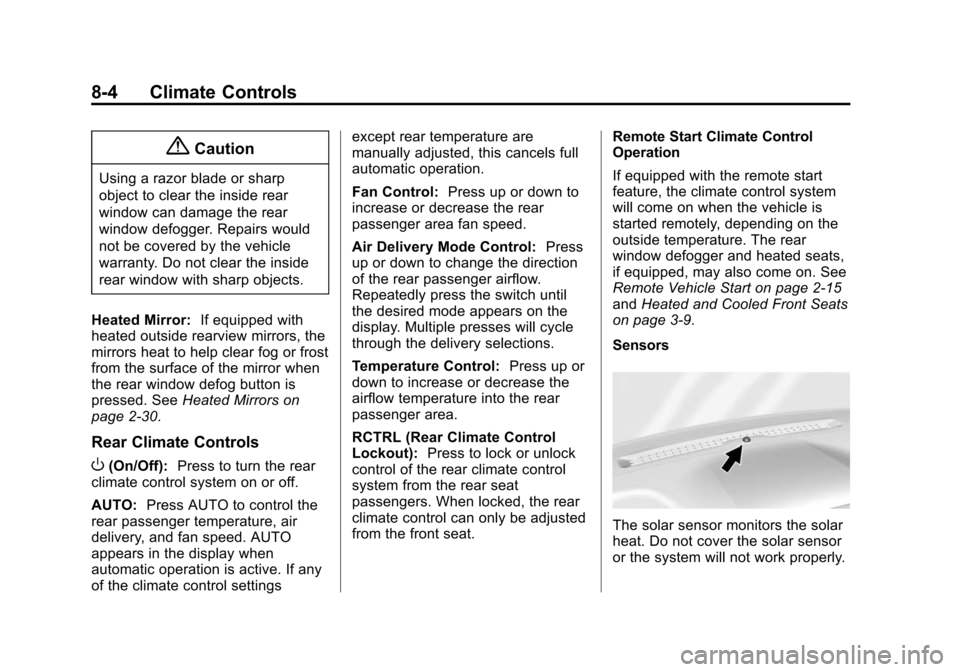
Sensors
The solar sensor monitors the solar
heat. Do not cover the solar sensor
or the system will not work properly.