Steering system CHEVROLET TAHOE 2016 4.G Owner's Manual
[x] Cancel search | Manufacturer: CHEVROLET, Model Year: 2016, Model line: TAHOE, Model: CHEVROLET TAHOE 2016 4.GPages: 453, PDF Size: 6.23 MB
Page 150 of 453
Chevrolet Tahoe/Suburban Owner Manual (GMNA-Localizing-U.S./Canada/
Mexico-9159366) - 2016 - crc - 5/20/15
Instruments and Controls 149
Antilock Brake System
(ABS) Warning Light
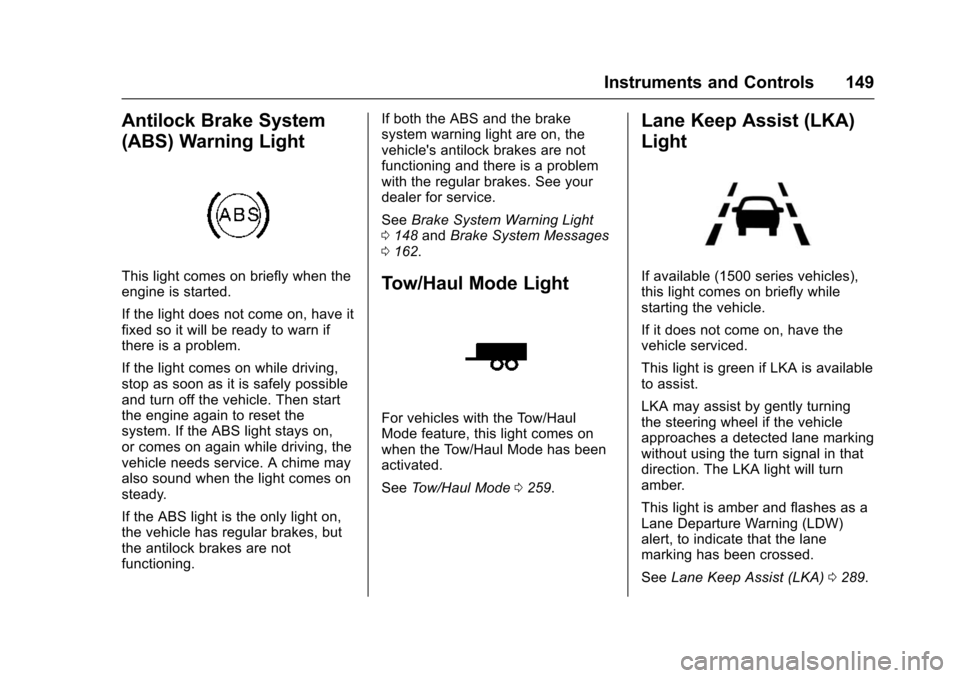
This light comes on briefly when the
engine is started.
If the light does not come on, have it
fixed so it will be ready to warn if
there is a problem.
If the light comes on while driving,
stop as soon as it is safely possible
and turn off the vehicle. Then start
the engine again to reset the
system. If the ABS light stays on,
or comes on again while driving, the
vehicle needs service. A chime may
also sound when the light comes on
steady.
If the ABS light is the only light on,
the vehicle has regular brakes, but
the antilock brakes are not
functioning.If both the ABS and the brake
system warning light are on, the
vehicle's antilock brakes are not
functioning and there is a problem
with the regular brakes. See your
dealer for service.
See
Brake System Warning Light
0 148 andBrake System Messages
0 162.Tow/Haul Mode Light
For vehicles with the Tow/Haul
Mode feature, this light comes on
when the Tow/Haul Mode has been
activated.
See Tow/Haul Mode 0259.
Lane Keep Assist (LKA)
Light
If available (1500 series vehicles),
this light comes on briefly while
starting the vehicle.
If it does not come on, have the
vehicle serviced.
This light is green if LKA is available
to assist.
LKA may assist by gently turning
the steering wheel if the vehicle
approaches a detected lane marking
without using the turn signal in that
direction. The LKA light will turn
amber.
This light is amber and flashes as a
Lane Departure Warning (LDW)
alert, to indicate that the lane
marking has been crossed.
See Lane Keep Assist (LKA) 0289.
Page 156 of 453
Chevrolet Tahoe/Suburban Owner Manual (GMNA-Localizing-U.S./Canada/
Mexico-9159366) - 2016 - crc - 5/20/15
Instruments and Controls 155
Unit
This will change the displays on the
instrument cluster and DIC to either
metric or English (US)
measurements. To change the units,
press the trip odometer reset stem
when UNITS is displayed to enter
the Unit menu. Turn the trip
odometer reset stem to switch
between English and metric. Press
the trip odometer reset stem when
the desired setting is displayed.
Compass
The vehicle may have a compass in
the Driver Information Center (DIC).
SeeCompass 0132.
Driver Information Center
(DIC) (Uplevel)
The DIC displays are shown in the
center of the instrument cluster in
the Info app. See Instrument Cluster
0 137. The displays show the status
of many vehicle systems. The
controls for the DIC are on the right
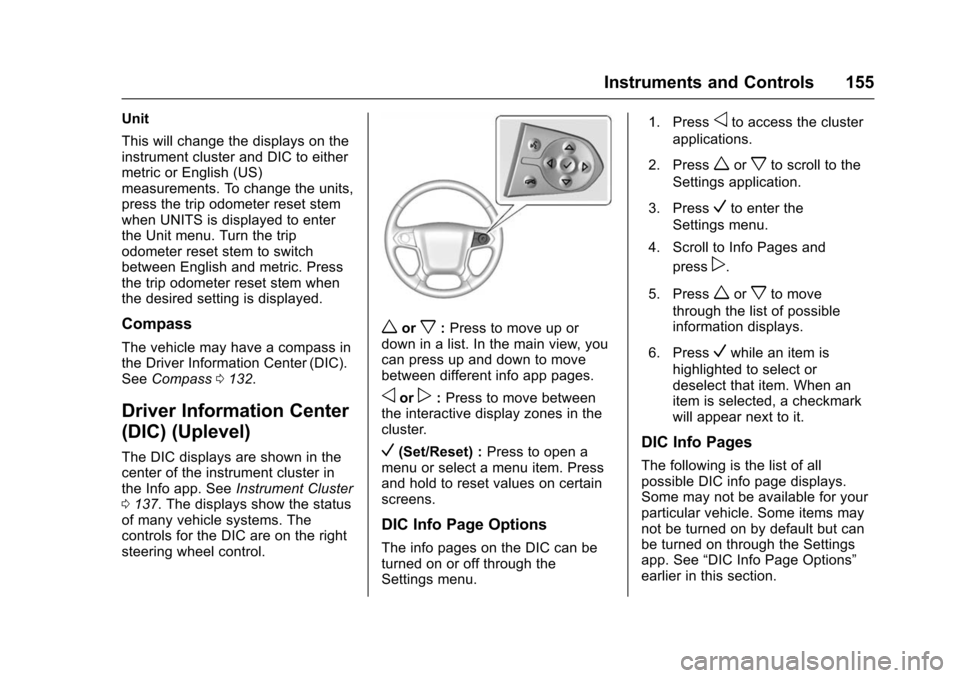
steering wheel control.
worx: Press to move up or
down in a list. In the main view, you
can press up and down to move
between different info app pages.
oorp: Press to move between
the interactive display zones in the
cluster.
V(Set/Reset) : Press to open a
menu or select a menu item. Press
and hold to reset values on certain
screens.
DIC Info Page Options
The info pages on the DIC can be
turned on or off through the
Settings menu. 1. Press
oto access the cluster
applications.
2. Press
worxto scroll to the
Settings application.
3. Press
Vto enter the
Settings menu.
4. Scroll to Info Pages and press
p.
5. Press
worxto move
through the list of possible
information displays.
6. Press
Vwhile an item is
highlighted to select or
deselect that item. When an
item is selected, a checkmark
will appear next to it.
DIC Info Pages
The following is the list of all
possible DIC info page displays.
Some may not be available for your
particular vehicle. Some items may
not be turned on by default but can
be turned on through the Settings
app. See “DIC Info Page Options”
earlier in this section.
Page 170 of 453
Chevrolet Tahoe/Suburban Owner Manual (GMNA-Localizing-U.S./Canada/
Mexico-9159366) - 2016 - crc - 5/20/15
Instruments and Controls 169
The message turns off as soon as
the conditions that caused the
message to be displayed are no
longer present.
Airbag System Messages
SERVICE AIRBAG
This message displays if there is a
problem with the airbag system.
Take the vehicle to your dealer for
service.
Security Messages
SERVICE THEFT DETERRENT
SYSTEM
This message displays when there
is a problem with the theft-deterrent
system. The vehicle may or may not
restart, so you may want to take the
vehicle to your dealer before turning
off the engine. SeeImmobilizer
Operation (Key Access) 054 or
Immobilizer Operation (Keyless
Access) 054.
Steering System
Messages
STEERING ASSIST IS
REDUCED DRIVE WITH CARE
This message may display if a
problem occurs with the electric
power steering system. If this
message appears, steering effort
may be slightly higher than normal.
The vehicle is still safe to drive. Use
caution while in reduced assist
mode. If this message is persistent
or appears repeatedly, take the
vehicle to your dealer for service.
See Steering 0230.
SERVICE POWER STEERING
This message displays when there
is a problem with electric power
steering. If this message displays
and a reduction in steering
performance or loss of power
steering assistance is noticed, see
your dealer. See Steering0230.
Starting the Vehicle
Messages
PRESS BRAKE TO START
This message is displayed when
attempting to start the vehicle
without first pressing the brake
pedal.
SERVICE KEYLESS START
SYSTEM
This message is displayed if there is
a problem with the pushbutton start
system. Take the vehicle to your
dealer for service.
Tire Messages
SERVICE TIRE MONITOR
SYSTEM
If equipped with the Tire Pressure
Monitor System (TPMS), this
message displays if a part on the
system is not working properly. The
tire pressure light also flashes and
then remains on during the same
Page 174 of 453
Chevrolet Tahoe/Suburban Owner Manual (GMNA-Localizing-U.S./Canada/
Mexico-9159366) - 2016 - crc - 5/20/15
Instruments and Controls 173
Vehicle
Personalization
Use the audio system controls to
access the personalization menus
for customizing vehicle features.
The following are all possible
personalization features. Depending
on the vehicle, some may not be
available.
Base Radio Audio System
Controls
MENU :Press the center of the
knob to enter menus and select
menu items. Turn the knob to scroll
through the menus.
oBACK : Press to return to the
previous menu or exit.
Uplevel Radio Audio System
Controls
1. Press the desired feature to display a list of available
options.
2. Press to select the desired feature setting. 3. Press
oBACK on the
faceplate or the
0screen
button to return to the previous
menu or exit.
Turn the vehicle to ON/RUN to
access the Settings menu, then
select SETTINGS from the Home
Page on the infotainment system
display.
Personalization Menus
The following list of menu items may
be available:
. Time and Date
. Language (Language)
. Valet Mode
. Radio
. Vehicle
. Bluetooth
. Voice
. Display
. Rear Camera
. Return to Factory Settings
. Software Information Detailed information for each menu
follows.
Time and Date
Manually set the time and date. See
Clock
0132.
Language (Language)
Select Language, then select from
the available language(s).
The selected language will display
on the system, and voice
recognition will reflect the selected
language.
Valet Mode (If Equipped)
This will lock the infotainment
system and steering wheel controls.
It may also limit access to vehicle
storage locations (if equipped).
To enable valet mode:
1. Enter a four-digit code on the keypad.
2. Select Enter to go to the confirmation screen.
3. Re-enter the four-digit code.
Page 184 of 453
Chevrolet Tahoe/Suburban Owner Manual (GMNA-Localizing-U.S./Canada/
Mexico-9159366) - 2016 - crc - 5/19/15
Lighting 183
Lighting
Exterior Lighting
Exterior Lamp Controls . . . . . . . 183
Exterior Lamps OffReminder . . . . . . . . . . . . . . . . . . . 185
Headlamp High/Low-Beam Changer . . . . . . . . . . . . . . . . . . . . 185
Flash-to-Pass . . . . . . . . . . . . . . . . 185
Daytime Running Lamps (DRL) . . . . . . . . . . . . . . . 186
Automatic Headlamp System . . . . . . . . . . . . . . . . . . . . . . 186
Hazard Warning Flashers . . . . . 187
Turn and Lane-Change Signals . . . . . . . . . . . . . . . . . . . . . . 187
Fog Lamps . . . . . . . . . . . . . . . . . . . 188
Interior Lighting
Instrument Panel Illumination Control . . . . . . . . . . . . . . . . . . . . . . 188
Dome Lamps . . . . . . . . . . . . . . . . . 189
Reading Lamps . . . . . . . . . . . . . . 189
Lighting Features
Entry Lighting . . . . . . . . . . . . . . . . 190
Exit Lighting . . . . . . . . . . . . . . . . . . 190
Battery Load Management . . . 190
Battery Power Protection . . . . . 191
Exterior Lighting
Exterior Lamp Controls
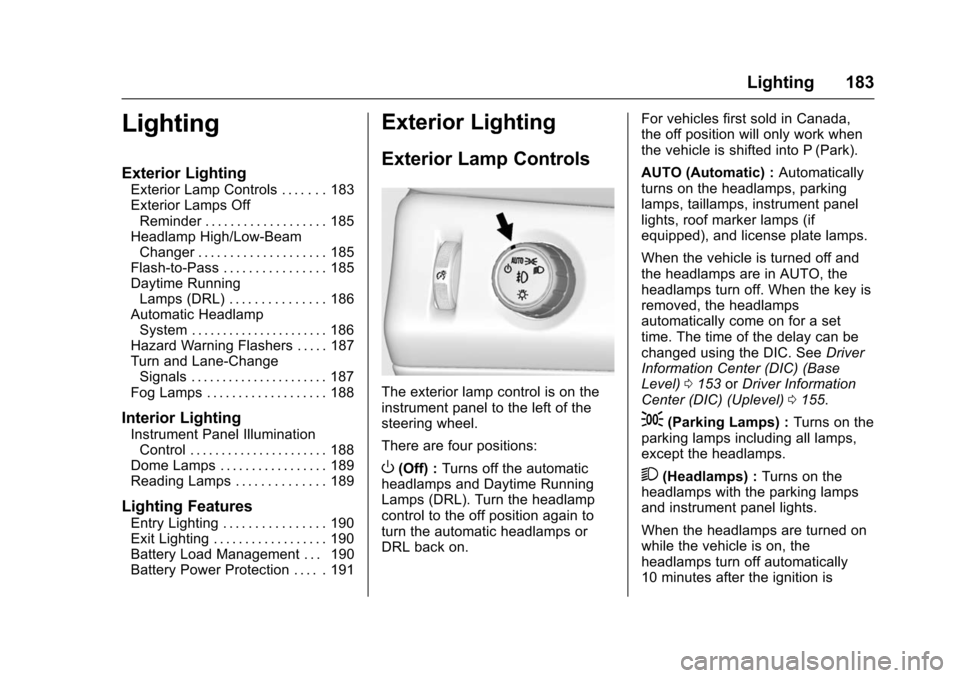
The exterior lamp control is on the
instrument panel to the left of the
steering wheel.
There are four positions:
O(Off) : Turns off the automatic
headlamps and Daytime Running
Lamps (DRL). Turn the headlamp
control to the off position again to
turn the automatic headlamps or
DRL back on. For vehicles first sold in Canada,
the off position will only work when
the vehicle is shifted into P (Park).
AUTO (Automatic) :
Automatically
turns on the headlamps, parking
lamps, taillamps, instrument panel
lights, roof marker lamps (if
equipped), and license plate lamps.
When the vehicle is turned off and
the headlamps are in AUTO, the
headlamps turn off. When the key is
removed, the headlamps
automatically come on for a set
time. The time of the delay can be
changed using the DIC. See Driver
Information Center (DIC) (Base
Level) 0153 orDriver Information
Center (DIC) (Uplevel) 0155.
;(Parking Lamps) : Turns on the
parking lamps including all lamps,
except the headlamps.
2(Headlamps) : Turns on the
headlamps with the parking lamps
and instrument panel lights.
When the headlamps are turned on
while the vehicle is on, the
headlamps turn off automatically
10 minutes after the ignition is
Page 194 of 453
Chevrolet Tahoe/Suburban Owner Manual (GMNA-Localizing-U.S./Canada/
Mexico-9159366) - 2016 - crc - 5/19/15
Infotainment System 193
functions may gray out when they
are unavailable. Many infotainment
features are also available through
the instrument cluster and steering
wheel controls.
Before driving:
.Become familiar with the
operation, faceplate buttons, and
screen buttons.
. Set up the audio by presetting
favorite stations, setting the
tone, and adjusting the
speakers.
. Set up phone numbers in
advance so they can be called
easily by pressing a single
button or by using a single voice
command if equipped with
Bluetooth phone capability.
See Defensive Driving 0229.
To play the infotainment system with
the ignition off, see Retained
Accessory Power (RAP) 0251.Theft-Deterrent Feature
TheftLock®is designed to
discourage theft of the vehicle's
radio by learning a portion of the
Vehicle Identification Number (VIN).
The radio does not operate if it is
stolen or moved to a different
vehicle.
Overview
Infotainment System Overview
The infotainment system is
controlled by using the buttons on
the faceplate and steering wheel
controls, if equipped. See Steering
Wheel Controls 0128.
Page 199 of 453
Chevrolet Tahoe/Suburban Owner Manual (GMNA-Localizing-U.S./Canada/
Mexico-9159366) - 2016 - crc - 5/19/15
198 Infotainment System
SeeAssistance Systems for Parking
or Backing 0281.
Rear Cross Traffic Alert (If
Equipped) : This feature will display
an alert icon when cross traffic is
detected.
Select Off or On.
See Assistance Systems for Parking
or Backing 0281.
Return to Factory Settings
Select and the following may
display:
Restore Vehicle Settings : This
option will restore factory vehicle
personalization settings. Select
Cancel or Confirm.
Clear All Private Data : This option
clears all private information from
the vehicle. Select Cancel or
Confirm.
Restore Radio Settings : This
option will restore factory radio
settings. Select Cancel or Continue.English and Metric Unit
Conversion
To change the display units between
English and metric units, see Driver
Information Center (DIC) (Base
Level) 0153 orDriver Information
Center (DIC) (Uplevel) 0155.
Software Updates
See the website for more
information.
Website Information
In the U.S., see www.chevrolet.com
In Canada, see
www.chevrolet.gm.ca
In Mexico, see
www.chevrolet.com.mx
Radio
AM-FM Radio
Playing the Radio
While on the audio main page,
press the RADIO or MEDIA button
repeatedly through the available
sources (AM, FM, and SiriusXM
®(if
equipped), CD, USB, and AUX).
The steering wheel controls can
also be used to adjust the volume.
See Steering Wheel Controls 0128.
AM, FM, SiriusXM (If Equipped)
To select AM, FM, or SiriusXM (if
equipped), press the RADIO button
to toggle to the desired broadcast
source.
Press the RADIO faceplate button
to display the active radio source.
Press the MENU knob and the
following radio settings may display:
Page 209 of 453
Chevrolet Tahoe/Suburban Owner Manual (GMNA-Localizing-U.S./Canada/
Mexico-9159366) - 2016 - crc - 5/19/15
208 Infotainment System
Phone
Bluetooth (Overview)
Instructions for using the cell phone
may differ between infotainment
systems. The base radio and base
radio with connectivity instructions
are included in this manual. See the
infotainment manual for instructions
on the uplevel radios.
Bluetooth-capable systems can
interact with many cell phones,
allowing:
.Placement and receipt of calls in
a hands-free mode.
. Sharing of the cell phone’s
address book or contact list with
the vehicle.
To minimize driver distraction,
before driving, and with the vehicle
parked:
. Become familiar with the
features of the cell phone.
Organize the phone book and
contact lists clearly and delete duplicate or rarely used entries.
If possible, program speed dial
or other shortcuts.
. Review the controls and
operation of the infotainment
system.
. Pair cell phone(s) to the vehicle.
The system may not work with
all cell phones. See “Pairing”in
this section.
. If the cell phone has voice
dialing capability, learn to use
that feature to access the
address book or contact list. See
“Voice Pass-Thru” in this
section.
. See “Storing and Deleting Phone
Numbers” in this section.
{Warning
When using a cell phone, it can
be distracting to look too long or
too often at the screen of the
phone or the infotainment system.
Taking your eyes off the road too
(Continued)
Warning (Continued)
long or too often could cause a
crash resulting in injury or death.
Focus your attention on driving.
Vehicles with a Bluetooth system
can use a Bluetooth-capable cell
phone with a Hands-Free Profile to
make and receive phone calls. The
infotainment system and voice
recognition are used to control the
system. The system can be used
while in ON/RUN or ACC/
ACCESSORY. The range of the
Bluetooth system can be up to 9.1 m
(30 ft). Not all phones support all
functions and not all phones work
with the Bluetooth system. See
www.gm.com/bluetooth for more
information about compatible
phones.
Bluetooth Controls
Use the buttons on the instrument
panel, faceplate, and the steering
wheel to operate the Bluetooth
system.
Page 210 of 453
Chevrolet Tahoe/Suburban Owner Manual (GMNA-Localizing-U.S./Canada/
Mexico-9159366) - 2016 - crc - 5/19/15
Infotainment System 209
Steering Wheel Controls
g(Press to Talk) :Press to answer
incoming calls, confirm system
information, and start voice
recognition.
i(Phone/Mute) : Press to end a
call, reject a call, or cancel an
operation. Press to mute or unmute
the infotainment system.
Infotainment System Controls
For information about how to
navigate the menu system using the
infotainment controls, see Overview
0 193.
MENU : Turn to scroll through a list.
Press to select the highlighted list
option.
{(Home Page) : Press to go to the
Home Page. See Home Page
0 196.
PHONE : Select to enter the phone
main menu. See Bluetooth
(Overview) 0208 orBluetooth
(Infotainment Controls - Base
Radio) 0209 orBluetooth (Voice
Recognition - Base Radio) 0213.
Voice Recognition
The voice recognition system uses
commands to control the system
and dial phone numbers.
Noise : The system may not
recognize voice commands if there
is too much background noise, such
as noise from open windows or loud
talking inside the vehicle.
When to Speak : A tone sounds to
indicate that the system is ready for
a voice command. Wait for the tone
and then speak.
How to Speak : Speak clearly in a
calm and natural voice.
Audio System
When using the Bluetooth system,
sound comes through the vehicle's
front audio system speakers and
overrides the audio system. Use the
Oknob during a call to change the
volume level. The system maintains
a minimum volume level.
Bluetooth Audio Quality
Turn off the Echo and Noise
cancellation feature on your phone,
if supported, for the best hands-free
performance.
See www.gm.com/bluetooth.
Bluetooth (Infotainment
Controls - Base Radio)
For information about how to
navigate the menu system using the
infotainment controls, see Overview
0 193.
Switching to Handset or
Hands-Free Mode
To switch between handset mode
and hands-free mode, use the
OnStar command, “transfer call.”
Pairing
A Bluetooth-enabled cell phone
must be paired to the Bluetooth
system and then connected to the
vehicle before it can be used. See
your cell phone manufacturer's user
guide for Bluetooth functions before
pairing the cell phone. If a Bluetooth
Page 213 of 453
Chevrolet Tahoe/Suburban Owner Manual (GMNA-Localizing-U.S./Canada/
Mexico-9159366) - 2016 - crc - 5/19/15
212 Infotainment System
To make a call using the
Contacts menu:1. From the Home Page, turn the MENU knob, then press to
select the PHONE screen
button.
2. Turn the MENU knob to highlight Contacts and press to
select.
3. Turn the MENU knob to highlight the letter group and
press to select.
4. Turn the MENU knob to highlight the contact and press
to select.
5. Turn the MENU knob to highlight the desired number,
then press the MENU knob to
call the contact.
To make a call using the Recent
Calls menu:
1. From the Home Page, turn the MENU knob, then press to
select the PHONE screen
button. 2. Turn the MENU knob to
highlight Recent Calls and
press to select.
If necessary, select between
Missed, Recent, and Sent calls
by pressing the button below
the appropriate screen button.
3. Turn the MENU knob to highlight the contact or the
phone number.
4. Press the MENU knob to call the contact.
Making a Call Using the
Keypad
To make a call:
1. From the Home Page, turn the MENU knob, then press to
select the PHONE screen
button.
2. Turn the MENU knob and press to select Keypad.
3. Turn the MENU knob to highlight the first digit and
press to select. Continue this
process through the number.
To call, press the button just
below the CALL screen button.
Accepting or Declining a Call
When an incoming call is received,
the infotainment system mutes and
a ring tone is heard in the vehicle.
Accepting a Call
To accept a call, do one of the
following:
.Press the button just below the
ANSWER screen button.
. Press
gon the steering wheel
controls.
Declining a Call
To decline a call, do one of the
following:
. Press the button just below the
IGNORE screen button.
. Press
ion the steering wheel
controls.
. Do nothing.
Call Waiting
Call waiting must be supported on
the Bluetooth phone and enabled by
the wireless service carrier to work.