ESP CHEVROLET TAHOE 2016 4.G Owners Manual
[x] Cancel search | Manufacturer: CHEVROLET, Model Year: 2016, Model line: TAHOE, Model: CHEVROLET TAHOE 2016 4.GPages: 453, PDF Size: 6.23 MB
Page 26 of 453
Chevrolet Tahoe/Suburban Owner Manual (GMNA-Localizing-U.S./Canada/
Mexico-9159366) - 2016 - crc - 5/19/15
In Brief 25
V:Press to open a menu or select
a menu item. Press and hold to
reset values on certain screens.
See Driver Information Center (DIC)
(Base Level) 0153 orDriver
Information Center (DIC) (Uplevel)
0 155.
Forward Collision Alert
(FCA) System
If equipped, FCA may help avoid or
reduce the harm caused by
front-end crashes. FCA provides a
green indicator,
V, when a vehicle
is detected ahead. This indicator
displays amber if you follow a
vehicle much too closely. When
approaching a vehicle ahead too
quickly, FCA provides a flashing red
alert on the windshield and rapidly
beeps or pulses the driver seat.
See Forward Collision Alert (FCA)
System 0283.
Front Automatic Braking
(FAB) System
If the vehicle has Adaptive Cruise
Control (ACC), it also has FAB,
which includes Intelligent Brake
Assist (IBA). When the system
detects a vehicle ahead in your path
that is traveling in the same
direction that you may be about to
crash into, it can provide a boost to
braking or automatically brake the
vehicle. This can help avoid or
lessen the severity of crashes when
driving in a forward gear.
See Front Automatic Braking (FAB)
System 0286.
Lane Keep Assist (LKA)
If equipped, LKA may help avoid
crashes due to unintentional lane
departures. It may assist by gently
turning the steering wheel if the
vehicle approaches a detected lane
marking without using a turn signal
in that direction. It may also provide
a Lane Departure Warning (LDW)
alert as the lane marking is crossed.
The system will not assist or alert if it detects that you are actively
steering. Override LKA by turning
the steering wheel. LKA uses a
camera to detect lane markings
between 60 km/h (37 mph) and
180 km/h (112 mph).
See
Lane Departure Warning (LDW)
0 289 andLane Keep Assist (LKA)
0 289.
Lane Change Alert (LCA)
If equipped, the LCA system is a
lane-changing aid that assists
drivers with avoiding lane change
crashes that occur with moving
vehicles in the side blind zone (or
spot) areas or with vehicles rapidly
approaching these areas from
behind. The LCA warning display
will light up in the corresponding
outside side mirror and will flash if
the turn signal is on. The Side Blind
Zone Alert (SBZA) system is
included as part of the LCA system.
See Side Blind Zone Alert (SBZA)
0 287 andLane Change Alert (LCA)
0 287.
Page 45 of 453
Chevrolet Tahoe/Suburban Owner Manual (GMNA-Localizing-U.S./Canada/
Mexico-9159366) - 2016 - crc - 5/19/15
44 Keys, Doors, and Windows
The engine will continue to run
for 10 minutes. Repeat
Steps 1 and 2 for a 10-minute
time extension.
Place the ignition in ON/RUN/
START to operate the vehicle.
Extending Engine Run Time
The engine run time can be
extended by 10 minutes, for a total
of 20 minutes, if during the first
10 minutes Steps 1 and 2 are
repeated while the engine is still
running. An extension can be
requested, 30 seconds after
starting.
A maximum of two remote starts,
or a single start with an extension,
is allowed between ignition cycles.
The vehicle's ignition must be
turned on and then back off to use
remote start again.
Canceling a Remote Start
To cancel a remote start, do one of
the following:
. Press and hold
/until the
parking lamps turn off. .
Turn on the hazard warning
flashers.
. Turn the ignition on and then off.
Door Locks
{Warning
Unlocked doors can be
dangerous.
. Passengers, especially
children, can easily open
the doors and fall out of a
moving vehicle. When a
door is locked, the handle
will not open it. The chance
of being thrown out of the
vehicle in a crash is
increased if the doors are
not locked. So, all
passengers should wear
safety belts properly and the
doors should be locked
whenever the vehicle is
driven.
(Continued)
Warning (Continued)
.Young children who get into
unlocked vehicles may be
unable to get out. A child
can be overcome by
extreme heat and can suffer
permanent injuries or even
death from heat stroke.
Always lock the vehicle
whenever leaving it.
. Outsiders can easily enter
through an unlocked door
when you slow down or stop
the vehicle. Locking the
doors can help prevent this
from happening.
To lock or unlock the doors from
outside the vehicle:
. Press
QorKon the Remote
Keyless Entry (RKE) transmitter.
. Use the key in the driver door.
To lock or unlock the doors from
inside the vehicle:
. Press
QorKon the power door
lock switch.
Page 52 of 453
Chevrolet Tahoe/Suburban Owner Manual (GMNA-Localizing-U.S./Canada/
Mexico-9159366) - 2016 - crc - 5/19/15
Keys, Doors, and Windows 51
Caution
Splashing water may cause the
liftgate to open. Keep the RKE
transmitter away from the rear
bumper detection area or turn the
liftgate mode to OFF when
cleaning or working near the rear
bumper to avoid accidental
opening.
. Do not sweep your foot side
to side.
. Do not keep your foot under the
bumper; the liftgate will not
activate.
. Do not touch the liftgate until it
has stopped moving.
. This feature may be temporarily
disabled under some conditions.
If the liftgate does not respond to
the kick, open or close the
liftgate by another method or
start the vehicle. The feature will
be re-enabled. When closing the liftgate using this
feature, there will be a short delay.
The rear lights will flash and a
chime will sound. Step away from
the gate before it starts moving.
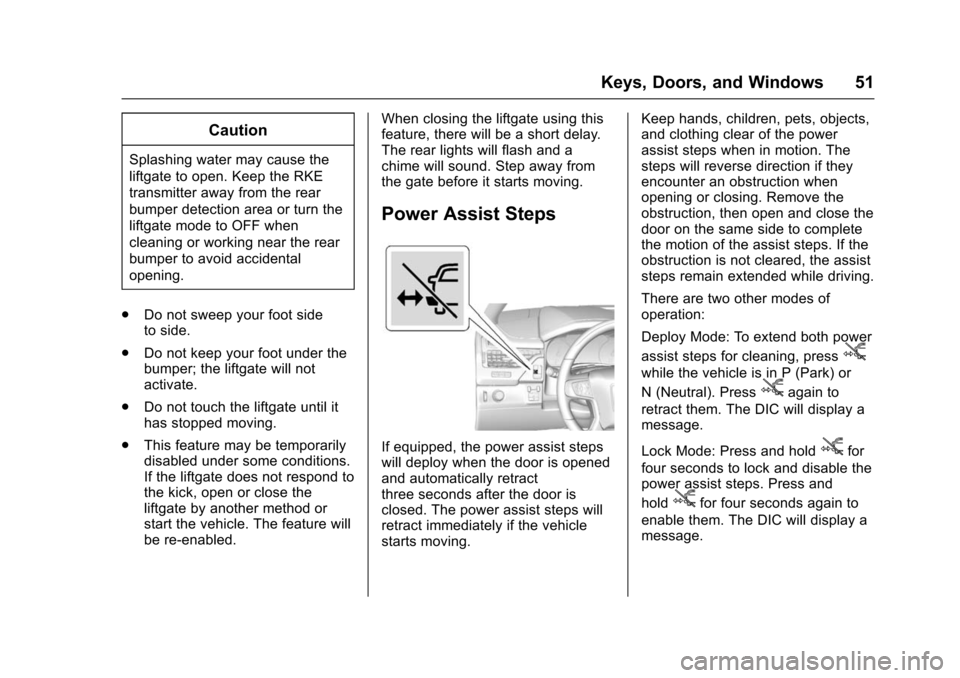
Power Assist Steps
If equipped, the power assist steps
will deploy when the door is opened
and automatically retract
three seconds after the door is
closed. The power assist steps will
retract immediately if the vehicle
starts moving. Keep hands, children, pets, objects,
and clothing clear of the power
assist steps when in motion. The
steps will reverse direction if they
encounter an obstruction when
opening or closing. Remove the
obstruction, then open and close the
door on the same side to complete
the motion of the assist steps. If the
obstruction is not cleared, the assist
steps remain extended while driving.
There are two other modes of
operation:
Deploy Mode: To extend both power
assist steps for cleaning, press
j
while the vehicle is in P (Park) or
N (Neutral). Press
jagain to
retract them. The DIC will display a
message.
Lock Mode: Press and hold
jfor
four seconds to lock and disable the
power assist steps. Press and
hold
jfor four seconds again to
enable them. The DIC will display a
message.
Page 60 of 453
Chevrolet Tahoe/Suburban Owner Manual (GMNA-Localizing-U.S./Canada/
Mexico-9159366) - 2016 - crc - 5/19/15
Keys, Doors, and Windows 59
Automatic Dimming
Rearview Mirror
If equipped, automatic dimming
reduces the glare of headlamps
from behind. The dimming feature
comes on when the vehicle is
started.
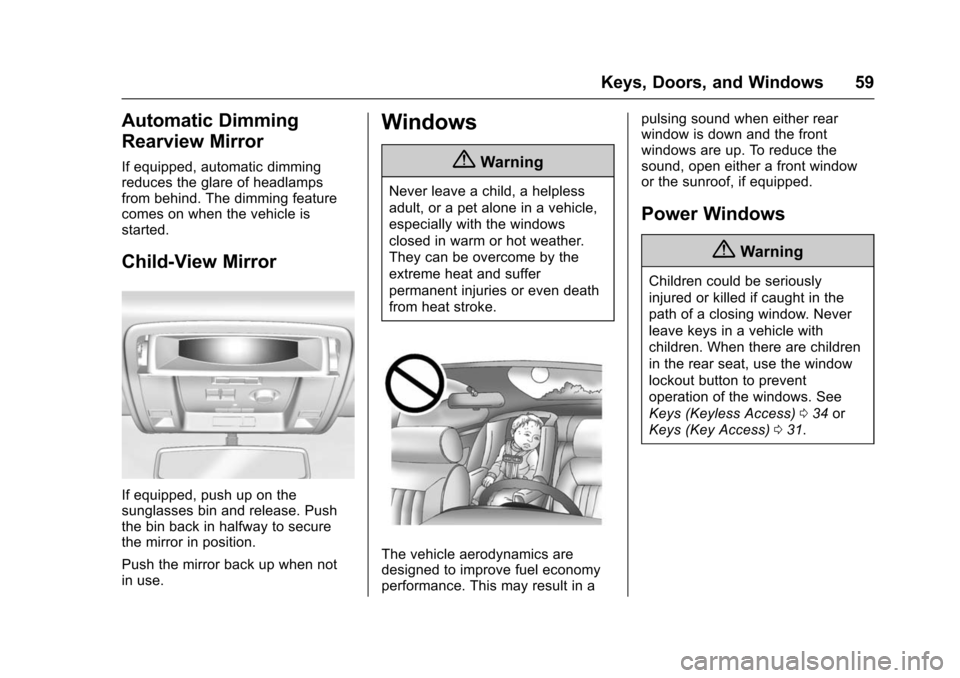
Child-View Mirror
If equipped, push up on the
sunglasses bin and release. Push
the bin back in halfway to secure
the mirror in position.
Push the mirror back up when not
in use.
Windows
{Warning
Never leave a child, a helpless
adult, or a pet alone in a vehicle,
especially with the windows
closed in warm or hot weather.
They can be overcome by the
extreme heat and suffer
permanent injuries or even death
from heat stroke.
The vehicle aerodynamics are
designed to improve fuel economy
performance. This may result in apulsing sound when either rear
window is down and the front
windows are up. To reduce the
sound, open either a front window
or the sunroof, if equipped.
Power Windows
{Warning
Children could be seriously
injured or killed if caught in the
path of a closing window. Never
leave keys in a vehicle with
children. When there are children
in the rear seat, use the window
lockout button to prevent
operation of the windows. See
Keys (Keyless Access)
034 or
Keys (Key Access) 031.
Page 71 of 453
Chevrolet Tahoe/Suburban Owner Manual (GMNA-Localizing-U.S./Canada/
Mexico-9159366) - 2016 - crc - 5/19/15
70 Seats and Restraints
RKE transmitters are not labeled
with a number. If your memory seat
position is stored to 1 or 2, but this
position is not automatically
recalling, then change the stored
position or switch RKE transmitters
with the other driver.
Obstructions
If something has blocked the driver
seat, power tilt and telescoping
steering column, and/or adjustable
pedals (if equipped) while recalling
the exit position, the recall may
stop. Remove the obstruction; then
press and hold the appropriate
manual control for the exit feature
not recalling for two seconds. Try
recalling the memory position again
by opening the driver door and
pressing
Kon the RKE transmitter.
If the exit position is still not
recalling, see your dealer for
service.
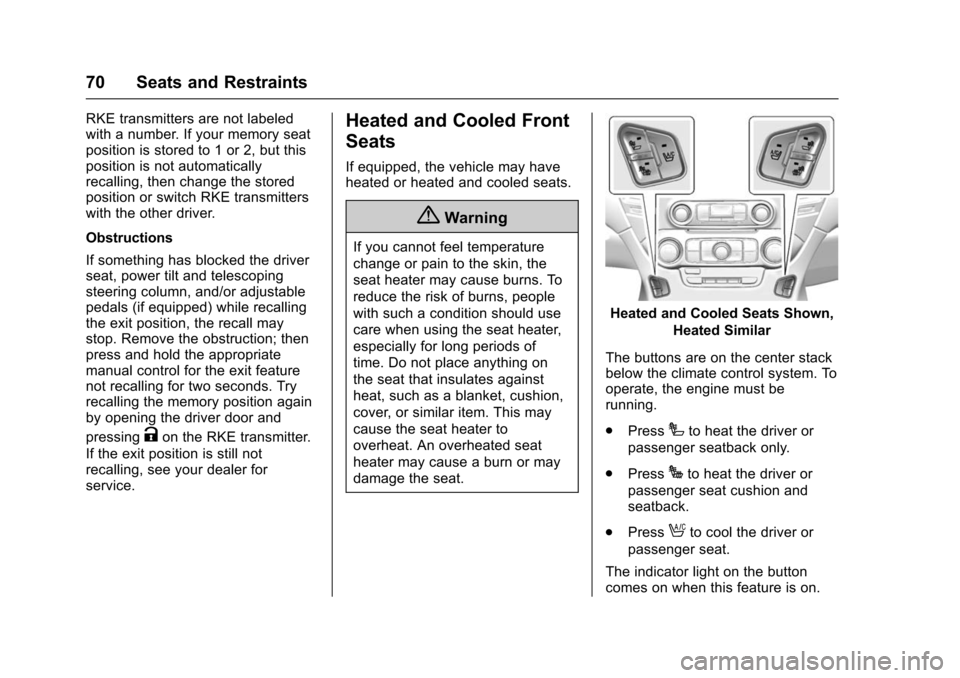
Heated and Cooled Front
Seats
If equipped, the vehicle may have
heated or heated and cooled seats.
{Warning
If you cannot feel temperature
change or pain to the skin, the
seat heater may cause burns. To
reduce the risk of burns, people
with such a condition should use
care when using the seat heater,
especially for long periods of
time. Do not place anything on
the seat that insulates against
heat, such as a blanket, cushion,
cover, or similar item. This may
cause the seat heater to
overheat. An overheated seat
heater may cause a burn or may
damage the seat.
Heated and Cooled Seats Shown,
Heated Similar
The buttons are on the center stack
below the climate control system. To
operate, the engine must be
running.
. Press
Ito heat the driver or
passenger seatback only.
. Press
Jto heat the driver or
passenger seat cushion and
seatback.
. Press
Ato cool the driver or
passenger seat.
The indicator light on the button
comes on when this feature is on.
Page 201 of 453
Chevrolet Tahoe/Suburban Owner Manual (GMNA-Localizing-U.S./Canada/
Mexico-9159366) - 2016 - crc - 5/19/15
200 Infotainment System
or SiriusXM (if equipped), press and
hold a favorites/soft-key button on
the faceplate.
Mixed-Audio Favorites
Media and Broadcast favorites can
be stored.
To display the favorites page, press
qorrbutton on the radio
faceplate.
From the Settings menu press the
MENU knob to select Manage
Favorites. The Manage Favorites
feature has the option of moving or
deleting a favorite. See “Manage
Favorites” underOverview 0193.
Satellite Radio
SiriusXM®Satellite Radio
Service
Vehicles with a SiriusXM satellite
radio tuner and a valid SiriusXM
satellite radio subscription can
receive SiriusXM programming.
SiriusXM is a satellite radio service
based in the 48 contiguous United
States and 10 Canadian provinces.
SiriusXM satellite radio has a wide variety of programming and
commercial-free music, coast to
coast, and in digital-quality sound.
A service fee is required to receive
the SiriusXM service. See
www.siriusxmradio.com or call
1-866-635-2349 (U.S.); or see
www.xmradio.ca or call
1-877-209-0079 (Canada).
When SiriusXM is active, the
channel name and number,
category name, song title, and artist
display on the screen.
Browsing SiriusXM Channels
To browse the SiriusXM channels:
1. Press the MENU knob.
2. Turn the MENU knob to highlight XM Channel List.
3. Turn the MENU knob to highlight the desired XM
Channels.
Radio Reception
Frequency interference and static
can occur during normal radio
reception if items such as phone
chargers, vehicle convenience accessories, and external electronic
devices are plugged into the
accessory power outlet. If there is
interference or static, unplug the
item from the accessory power
outlet.
FM
FM signals only reach about 16 to
65 km (10 to 40 mi). Although the
radio has a built-in electronic circuit
that automatically works to reduce
interference, some static can occur,
especially around tall buildings or
hills, causing the sound to fade in
and out.
AM
The range for most AM stations is
greater than for FM, especially at
night. The longer range can cause
station frequencies to interfere with
each other. Static can also occur
when things like storms and power
lines interfere with radio reception.
When this happens, try reducing the
treble on the radio.
Page 206 of 453
Chevrolet Tahoe/Suburban Owner Manual (GMNA-Localizing-U.S./Canada/
Mexico-9159366) - 2016 - crc - 5/19/15
Infotainment System 205
To play a USB device:
.Connect the USB.
. Press the MEDIA button on the
faceplate until the connected
device is shown.
While the USB source is active, use
the corresponding faceplate buttons
to operate USB function:
.
t(Seek Previous/Fast
Reverse)
.
u(Seek Next/Fast Forward)
.
j/r(Play/Pause)
.
Z(Shuffle)
For information on how to use the
screen icons, see “Playing an Audio
CD” previously in this section.
USB Menu
Press the MENU knob to display the
USB menu and the following may
display:
Browse : Select to display the files
and folders on the USB device. Tone Settings :
Select to adjust
Bass, Midrange, Treble, Balance,
Fade, and EQ (Equalizer). See
“Tone Settings” underAM-FM Radio
0 198.
Auto Volume : If equipped, see
“Playing an Audio CD” previously in
this section.
EQ (Equalizer) Settings :
If equipped, this feature adjusts the
equalizer settings. See “EQ
(Equalizer) Settings” inAM-FM
Radio 0198.
Playing from an iPod®/iPad®/
iPhone®
This feature supports the following
devices:
. iPod nano
®(1st, 2nd, 3rd, and
4th generation)
. iPod with video (5.0 and 5.5
generation).
. iPod classic
®(6th generation)
. iPod touch
®(1st and 2nd
generation)
. iPad .
iPhone 3G, iPhone 3GS,
iPhone 4
There may be problems with
operation and function in the
following situations:
. When connecting a device with
a more recent version of the
firmware installed than is
supported by the infotainment
system.
. When connecting a device on
which firmware from other
providers is installed.
To connect and control a device: 1. Connect one end of the standard USB cable to the
device's dock connector.
2. Connect the other end to a USB port in the center console.
See Center Console Storage
0 123.
3. Press the MEDIA button to select the source.
The music information displays on
the radio’s display and begins
playing through the vehicle’s audio
system.
Page 214 of 453
Chevrolet Tahoe/Suburban Owner Manual (GMNA-Localizing-U.S./Canada/
Mexico-9159366) - 2016 - crc - 5/19/15
Infotainment System 213
Accepting a Call Waiting Call
To accept a call waiting call, do one
of the following:
.Press the button just below the
SWITCH screen button.
. Press
gon the steering wheel
controls.
Declining a Call Waiting Call
To decline a call waiting call, do one
of the following:
. Press the button just below the
IGNORE screen button.
. Press
ion the steering wheel
controls.
. Do nothing.
Ending a Call
To end a call, do one of the
following:
.Press the button just below the
END screen button.
. Press
ion the steering wheel
controls.
Dual Tone Multi-Frequency
(DTMF) Tones
The in-vehicle Bluetooth system can
send numbers during a call. This is
used when calling a menu-driven
phone system.
1. When a call is active, press the button just below the KEYPAD
screen button.
2. Turn the MENU knob to highlight the first digit and
press to select.
If not initially in the phone
application, from the Home Page,
turn the MENU knob, then press to
select the PHONE screen button.
From the PHONE main menu, turn
the MENU knob to highlight Active
Call and press to select.
Bluetooth (Voice
Recognition - Base
Radio)
Using Voice Recognition
To use voice recognition, pressg
on the steering wheel. Use the
commands below for the various
voice features. For additional
information, say “Help”while you
are in a voice recognition menu.
Pairing
Pairing a Phone
1. Press
g. The system responds
“Ready,” followed by a tone.
2. Say “Bluetooth.”
3. Say “Pair.”The system
responds with instructions and
a four-digit Personal
Identification Number (PIN).
The PIN is used in Step 5.
4. Start the pairing process on the cell phone that you want to
pair. For help with this process,
see your cell phone
manufacturer's user guide.
Page 215 of 453
Chevrolet Tahoe/Suburban Owner Manual (GMNA-Localizing-U.S./Canada/
Mexico-9159366) - 2016 - crc - 5/19/15
214 Infotainment System
5. Locate the device named“Your
Vehicle” in the list on the cell
phone. Follow the instructions
on the cell phone to enter the
PIN provided in Step 3. The
system may respond with a six
digit code to be confirmed on
the cell phone (instead of
entering a four digit code),
check that the same digits are
shown on the cell phone and
say "Yes" to confirm. Select
Confirm on the cell phone as
well. After the PIN is
successfully entered, the
system prompts you to provide
a name for the paired cell
phone. This name will be used
to indicate which phones are
paired and connected to the
vehicle. The system responds
with “
successfully paired” after the
pairing process is complete.
6. Repeat Steps 1−5 to pair additional phones. Listing All Paired and Connected
Phones
The system can list all cell phones
paired to it. If a paired cell phone is
also connected to the vehicle, the
system responds with
“is connected”
after that phone name.
1. Press
g. The system responds
“Ready,” followed by a tone.
2. Say “Bluetooth.”
3. Say “List.”
Deleting a Paired Phone
If the phone name to delete is
unknown, see “Listing All Paired
and Connected Phones.”
1. Press
g. The system responds
“Ready,” followed by a tone.
2. Say “Bluetooth.”
3. Say “Delete.” The system asks
for which phone to delete.
4. Say the name of the phone to delete. Connecting to a Different Phone
To connect to a different cell phone,
the Bluetooth system looks for the
next available cell phone in the
order in which all available cell
phones were paired. This may need
to be repeated depending on how
many cell phones have been
connected.
1. Press
g. The system responds
“Ready,” followed by a tone.
2. Say “Bluetooth.”
3. Say “Change phone.”
. If another cell phone is
found, the response will be
“
connected.”
This can be repeated to
connect any of the up to
five paired phones.
. If another cell phone is not
found, the original phone
remains connected.
Page 216 of 453
Chevrolet Tahoe/Suburban Owner Manual (GMNA-Localizing-U.S./Canada/
Mexico-9159366) - 2016 - crc - 5/19/15
Infotainment System 215
Storing and Deleting Phone
Numbers
The following commands are used
to delete and store phone numbers.
Store :This command will store a
phone number, or a group of
numbers as a name tag.
Digit Store : This command allows
a phone number to be stored as a
name tag by entering the digits one
at a time.
Delete : This command is used to
delete individual name tags.
Delete All Name Tags : This
command deletes all stored name
tags in the Hands-Free Calling
Directory and the Destinations
Directory.
Using the “Store”Command
1. Press
g. The system responds
“Ready,” followed by a tone.
2. Say “Store.”
3. Say the entire phone number or a group of digits all at once
with no pauses, then follow the directions given by the system
to save a name tag for this
number.
Using the “Digit Store” Command
If an unwanted number is
recognized by the system, say
“Correction” at any time to clear the
last number.
To hear all of the digits recognized
by the system, say “Verify”at
any time.
1. Press
g. The system responds
“Ready,” followed by a tone.
2. Say “Digit Store.”
3. Say each digit, one at a time. After each digit is entered, the
system repeats back the digit it
heard followed by a tone. After
the last digit has been entered,
say “Store,” and then follow the
directions given by the system
to save a name tag for this
number.
Using the “Delete”Command
1. Press
g. The system responds
“Ready,” followed by a tone. 2. Say
“Delete.”
3. Say the name tag you want to delete.
Using the “Delete All Name Tags”
Command
This command deletes all stored
name tags in the Hands-Free
Calling Directory and the
Destinations Directory.
To delete all name tags:
1. Press
g. The system responds
“Ready,” followed by a tone.
2. Say “Delete all name tags.”
Listing Stored Numbers
The list command will list all the
stored numbers and name tags.
Using the “List”Command
1. Press
g. The system responds
“Ready,” followed by a tone.
2. Say “Directory.”
3. Say “Hands-Free Calling.”
4. Say “List.”