display CHEVROLET TAHOE 2017 4.G User Guide
[x] Cancel search | Manufacturer: CHEVROLET, Model Year: 2017, Model line: TAHOE, Model: CHEVROLET TAHOE 2017 4.GPages: 465, PDF Size: 7.47 MB
Page 54 of 465
Chevrolet Tahoe/Suburban Owner Manual (GMNA-Localizing-U.S./Canada/
Mexico-9955986) - 2017 - crc - 7/5/16
Keys, Doors, and Windows 53
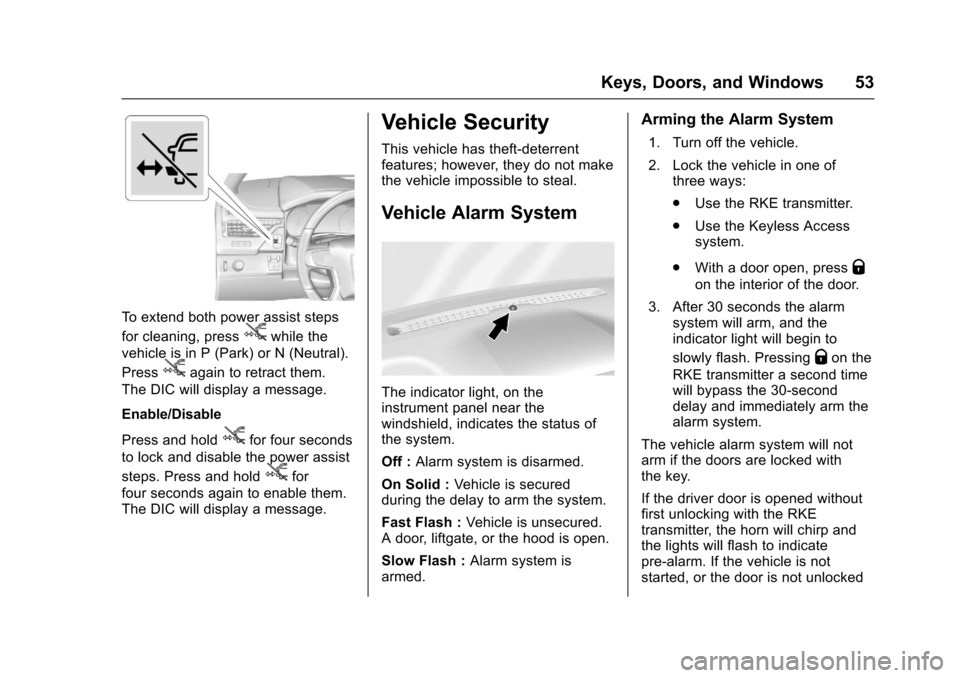
To extend both power assist steps
for cleaning, press
jwhile the
vehicle is in P (Park) or N (Neutral).
Press
jagain to retract them.
The DIC will display a message.
Enable/Disable
Press and hold
jfor four seconds
to lock and disable the power assist
steps. Press and hold
jfor
four seconds again to enable them.
The DIC will display a message.
Vehicle Security
This vehicle has theft-deterrent
features; however, they do not make
the vehicle impossible to steal.
Vehicle Alarm System
The indicator light, on the
instrument panel near the
windshield, indicates the status of
the system.
Off : Alarm system is disarmed.
On Solid : Vehicle is secured
during the delay to arm the system.
Fast Flash : Vehicle is unsecured.
A door, liftgate, or the hood is open.
Slow Flash : Alarm system is
armed.
Arming the Alarm System
1. Turn off the vehicle.
2. Lock the vehicle in one of three ways:
.Use the RKE transmitter.
. Use the Keyless Access
system.
. With a door open, press
Q
on the interior of the door.
3. After 30 seconds the alarm system will arm, and the
indicator light will begin to
slowly flash. Pressing
Qon the
RKE transmitter a second time
will bypass the 30-second
delay and immediately arm the
alarm system.
The vehicle alarm system will not
arm if the doors are locked with
the key.
If the driver door is opened without
first unlocking with the RKE
transmitter, the horn will chirp and
the lights will flash to indicate
pre-alarm. If the vehicle is not
started, or the door is not unlocked
Page 72 of 465
Chevrolet Tahoe/Suburban Owner Manual (GMNA-Localizing-U.S./Canada/
Mexico-9955986) - 2017 - crc - 7/5/16
Seats and Restraints 71
2. Adjust the driver seat, outsidemirrors, power tilt and
telescoping steering column (if
equipped), and adjustable
pedals (if equipped).
3. Press and release SET. A beep will sound.
4. Immediately press and hold 1 until two beeps sound.
5. Repeat Steps 1–4 for a second driver using 2.
To store exit positions and easy exit
features to the
B(Exit) button,
repeat Steps 1–4 using
Bto store
your positions for getting out of the
vehicle.
Manually Recalling Memory
Positions
Press and hold 1, 2, or
B(Exit) to
manually recall the previously
stored memory positions. Releasing
1, 2, or
Bbefore the stored
positions are reached stops the
recall. If something has blocked the driver
seat, power tilt and telescoping
steering column, and/or adjustable
pedals while recalling a memory
position, the recall may stop.
Remove the obstruction; then press
and hold the appropriate manual
control for the memory item that is
not recalling for two seconds. Try
recalling the memory position again
by pressing the appropriate memory
button. If the memory position is still
not recalling, see your dealer for
service.
Automatically Recalling Memory
Positions (Auto Memory Recall)
If programmed on in the vehicle
personalization menu, the Auto
(Automatic) Memory Recall feature
automatically recalls the current
driver
’s previously stored 1 or 2
position when the ignition is
changed from off to ON/RUN or
ACC/ACCESSORY.
See “Auto Memory Recall” under
“Comfort and Convenience” in
Vehicle Personalization 0178. To stop recall movement, press one
of the memory, power mirror,
or power seat controls; press the
power tilt and telescoping steering
column control (if equipped); or
press the adjustable pedal control (if
equipped).
If the vehicle driver has changed, in
some vehicles the Driver ID may be
displayed for the first few ignition
cycles.
RKE transmitters are not labeled
with a number. If your memory seat
position is stored to 1 or 2, but this
position is not automatically
recalling, then store your positions
to the other button or switch RKE
transmitters with the other driver.
Easy Exit Recall
If programmed on in the vehicle
personalization menu, the easy exit
feature automatically recalls the
previously storedBpositions when
leaving the vehicle. See Vehicle
Personalization 0178.
Easy exit recall automatically
activates when one of the following
occurs:
Page 74 of 465
Chevrolet Tahoe/Suburban Owner Manual (GMNA-Localizing-U.S./Canada/
Mexico-9955986) - 2017 - crc - 7/5/16
Seats and Restraints 73
Press the button once for the
highest setting. With each press of
the button, the seat will change to
the next lower setting, and then to
the off setting. The indicator lights
next to the buttons indicate three for
the highest setting and one for the
lowest. If the heated seats are on
high for an extended time, their level
may automatically be lowered.
The passenger seat may take
longer to heat up.
Remote Start Auto Heated and
Ventilated Seats
During a remote start, the heated or
ventilated seats can be turned on
automatically. When it is cold
outside, the heated seats turn on,
and when it is hot outside the
ventilated seats turn on. The heated
or ventilated seats are canceled
when the ignition is turned on. Press
the heated or ventilated seat button
to use the heated or ventilated seats
after the vehicle is started.
The heated or ventilated seat
indicator lights do not turn on during
a remote start.The temperature performance of an
unoccupied seat may be reduced.
This is normal.
The heated or ventilated seats will
not turn on during a remote start
unless they are enabled in the
vehicle personalization menu. See
Remote Vehicle Start
044 and
Vehicle Personalization 0178.Rear Seats
Rear Seat Reminder
Look in Rear Seat Reminder
Feature
This message displays under
certain conditions indicating there
may be an item or passenger in the
rear seat. Check before exiting the
vehicle.
This feature will activate when a
second row door is opened while
the vehicle is on or up to 10 minutes
before the vehicle is turned on,
including if the vehicle was started
remotely. There will be an alert
when the vehicle is turned off. The
alert does not directly detect objects
in the rear seat; instead, under
certain conditions, it detects when a
rear door is opened and closed,
indicating that there may be
something in the rear seat.
The feature is active only once each
time the vehicle is turned on and off,
and will require reactivation by
opening and closing the second row
doors. There may be an alert even
when there is nothing in the rear
Page 130 of 465
Chevrolet Tahoe/Suburban Owner Manual (GMNA-Localizing-U.S./Canada/
Mexico-9955986) - 2017 - crc - 7/5/16
Instruments and Controls 129
Instruments and
Controls
Controls
Steering Wheel Adjustment . . . 130
Steering Wheel Controls . . . . . . 131
Heated Steering Wheel . . . . . . . 132
Horn . . . . . . . . . . . . . . . . . . . . . . . . . . 132
Windshield Wiper/Washer . . . . 132
Rear Window Wiper/Washer . . . . . . . . . . . . . . . . . . . . . 134
Compass . . . . . . . . . . . . . . . . . . . . . 135
Clock . . . . . . . . . . . . . . . . . . . . . . . . . 135
Power Outlets . . . . . . . . . . . . . . . . 136
Wireless Charging . . . . . . . . . . . . 138
Warning Lights, Gauges, and
Indicators
Warning Lights, Gauges, and Indicators . . . . . . . . . . . . . . . . . . . 140
Instrument Cluster . . . . . . . . . . . . 141
Speedometer . . . . . . . . . . . . . . . . . 145
Odometer . . . . . . . . . . . . . . . . . . . . . 145
Trip Odometer . . . . . . . . . . . . . . . . 145
Tachometer . . . . . . . . . . . . . . . . . . . 145
Fuel Gauge . . . . . . . . . . . . . . . . . . . 145
Engine Oil Pressure
Gauge . . . . . . . . . . . . . . . . . . . . . . 146 Engine Coolant Temperature
Gauge . . . . . . . . . . . . . . . . . . . . . . 147
Voltmeter Gauge . . . . . . . . . . . . . 148
Safety Belt Reminders . . . . . . . . 149
Airbag Readiness Light . . . . . . . 149
Passenger Airbag Status Indicator . . . . . . . . . . . . . . . . . . . . 150
Charging System Light . . . . . . . 151
Malfunction Indicator Lamp (Check Engine Light) . . . . . . . . 151
Brake System Warning Light . . . . . . . . . . . . . . . . . . . . . . . . 153
Antilock Brake System (ABS) Warning Light . . . . . . . . . . . . . . . 154
Tow/Haul Mode Light . . . . . . . . . 154
Hill Descent Control Light . . . . 154
Lane Keep Assist (LKA) Light (1500 Series) . . . . . . . . . . . . . . . 154
Vehicle Ahead Indicator . . . . . . 155
Traction Off Light . . . . . . . . . . . . . 155
StabiliTrak®OFF Light . . . . . . . . 155
Traction Control System (TCS)/ StabiliTrak
®Light . . . . . . . . . . . 156
Tire Pressure Light . . . . . . . . . . . 156
Low Fuel Warning Light . . . . . . 156
Security Light . . . . . . . . . . . . . . . . . 157
High-Beam On Light . . . . . . . . . . 157
Front Fog Lamp Light . . . . . . . . . 157
Lamps On Reminder . . . . . . . . . 157
Cruise Control Light . . . . . . . . . . 157
Information Displays
Driver Information Center (DIC) (Base Level) . . . . . . . . . . . . . . . . 158
Driver Information Center (DIC) (Uplevel) . . . . . . . . . . . . . . . . . . . . 160
Head-Up Display (HUD) . . . . . . 162
Vehicle Messages
Vehicle Messages . . . . . . . . . . . . 166
Battery Voltage and Charging
Messages . . . . . . . . . . . . . . . . . . . 166
Brake System Messages . . . . . 167
Compass Messages . . . . . . . . . . 167
Cruise Control Messages . . . . . 167
Door Ajar Messages . . . . . . . . . . 168
Engine Cooling System Messages . . . . . . . . . . . . . . . . . . . 168
Engine Oil Messages . . . . . . . . . 169
Engine Power Messages . . . . . 169
Fuel System Messages . . . . . . . 170
Key and Lock Messages . . . . . 170
Lamp Messages . . . . . . . . . . . . . . 170
Object Detection System
Messages . . . . . . . . . . . . . . . . . . . 171
Ride Control System Messages . . . . . . . . . . . . . . . . . . . 172
Airbag System Messages . . . . 174
Security Messages . . . . . . . . . . . 174
Steering System Messages . . . . . . . . . . . . . . . . . . . 174
Page 133 of 465
Chevrolet Tahoe/Suburban Owner Manual (GMNA-Localizing-U.S./Canada/
Mexico-9955986) - 2017 - crc - 7/5/16
132 Instruments and Controls
1. Favorite: When on a radiosource, press to select the next
or previous favorite. When on a
media source, press to select
the next or previous track.
2. Volume: Press to increase or decrease the volume.
Heated Steering Wheel
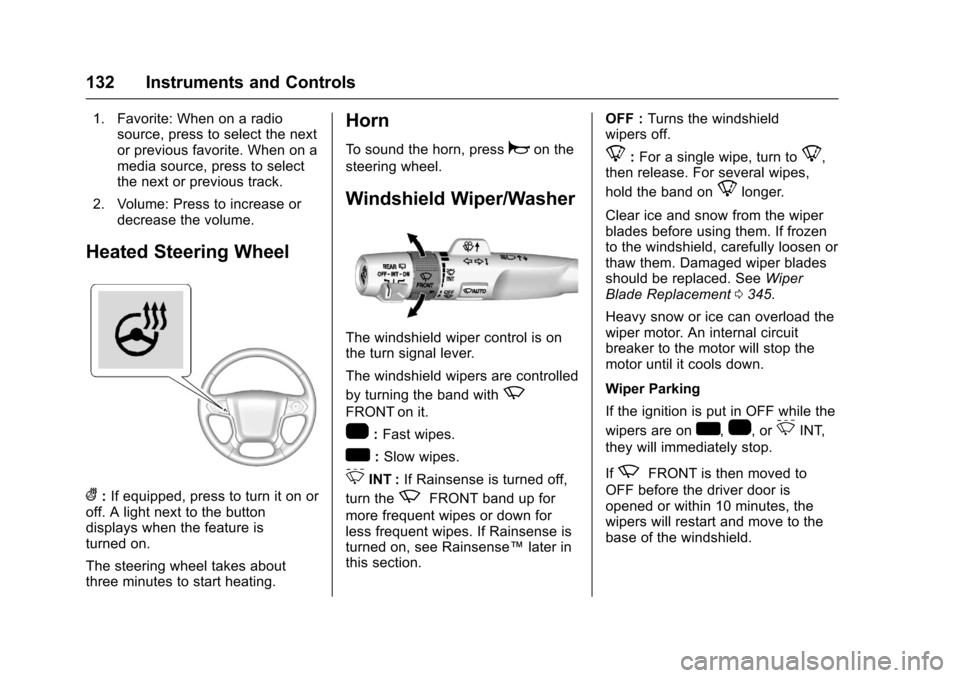
(:If equipped, press to turn it on or
off. A light next to the button
displays when the feature is
turned on.
The steering wheel takes about
three minutes to start heating.
Horn
To sound the horn, pressaon the
steering wheel.
Windshield Wiper/Washer
The windshield wiper control is on
the turn signal lever.
The windshield wipers are controlled
by turning the band with
z
FRONT on it.
1: Fast wipes.
w:Slow wipes.
3INT : If Rainsense is turned off,
turn the
zFRONT band up for
more frequent wipes or down for
less frequent wipes. If Rainsense is
turned on, see Rainsense™ later in
this section. OFF :
Turns the windshield
wipers off.
8: For a single wipe, turn to8,
then release. For several wipes,
hold the band on
8longer.
Clear ice and snow from the wiper
blades before using them. If frozen
to the windshield, carefully loosen or
thaw them. Damaged wiper blades
should be replaced. See Wiper
Blade Replacement 0345.
Heavy snow or ice can overload the
wiper motor. An internal circuit
breaker to the motor will stop the
motor until it cools down.
Wiper Parking
If the ignition is put in OFF while the
wipers are on
w,1, or3INT,
they will immediately stop.
If
zFRONT is then moved to
OFF before the driver door is
opened or within 10 minutes, the
wipers will restart and move to the
base of the windshield.
Page 134 of 465
Chevrolet Tahoe/Suburban Owner Manual (GMNA-Localizing-U.S./Canada/
Mexico-9955986) - 2017 - crc - 7/5/16
Instruments and Controls 133
If the ignition is put in OFF while the
wipers are performing wipes due to
windshield washing or Rainsense,
the wipers continue to run until they
reach the base of the windshield.
Rainsense™
With Rainsense, a sensor near the
top center of the windshield detects
the amount of water on the
windshield and controls the
frequency of the windshield wiper.
Keep this area of the windshield
clear of debris to allow for best
system performance.
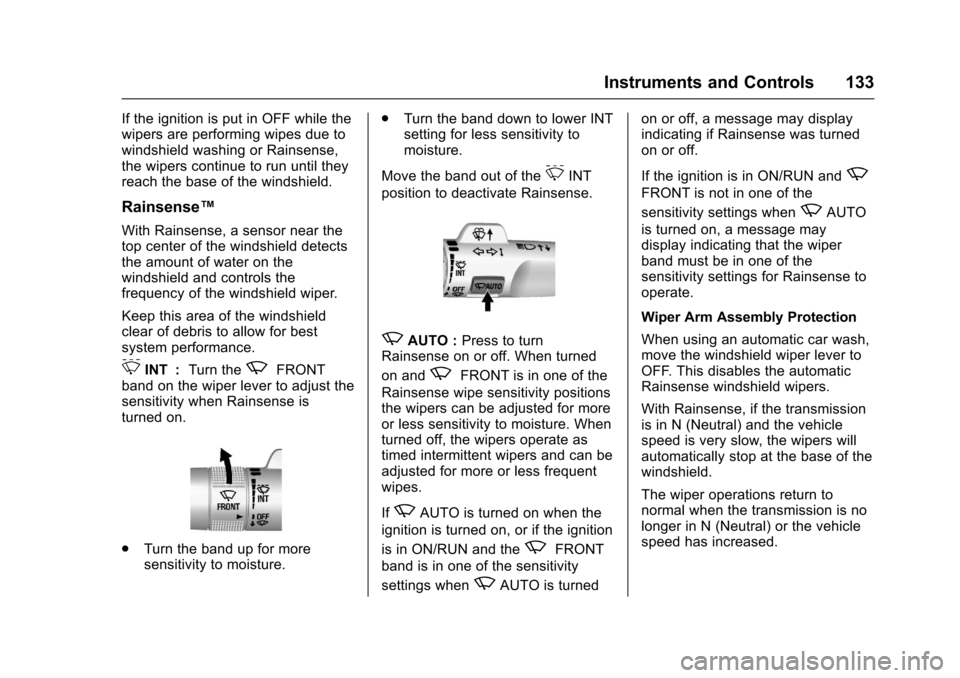
3INT :Turn thezFRONT
band on the wiper lever to adjust the
sensitivity when Rainsense is
turned on.
. Turn the band up for more
sensitivity to moisture. .
Turn the band down to lower INT
setting for less sensitivity to
moisture.
Move the band out of the
3INT
position to deactivate Rainsense.
zAUTO : Press to turn
Rainsense on or off. When turned
on and
zFRONT is in one of the
Rainsense wipe sensitivity positions
the wipers can be adjusted for more
or less sensitivity to moisture. When
turned off, the wipers operate as
timed intermittent wipers and can be
adjusted for more or less frequent
wipes.
If
zAUTO is turned on when the
ignition is turned on, or if the ignition
is in ON/RUN and the
zFRONT
band is in one of the sensitivity
settings when
zAUTO is turned on or off, a message may display
indicating if Rainsense was turned
on or off.
If the ignition is in ON/RUN and
z
FRONT is not in one of the
sensitivity settings when
zAUTO
is turned on, a message may
display indicating that the wiper
band must be in one of the
sensitivity settings for Rainsense to
operate.
Wiper Arm Assembly Protection
When using an automatic car wash,
move the windshield wiper lever to
OFF. This disables the automatic
Rainsense windshield wipers.
With Rainsense, if the transmission
is in N (Neutral) and the vehicle
speed is very slow, the wipers will
automatically stop at the base of the
windshield.
The wiper operations return to
normal when the transmission is no
longer in N (Neutral) or the vehicle
speed has increased.
Page 136 of 465
Chevrolet Tahoe/Suburban Owner Manual (GMNA-Localizing-U.S./Canada/
Mexico-9955986) - 2017 - crc - 7/5/16
Instruments and Controls 135
interval wipes, then the rear wiper
automatically performs interval
wipes.
This feature can be turned on or off.
SeeVehicle Personalization 0178.
The windshield washer reservoir is
used for the windshield and the rear
window. Check the fluid level in the
reservoir if either washer is not
working. See Washer Fluid 0338.
Compass
The vehicle may have a compass
display on the Driver Information
Center (DIC). The compass receives
its heading and other information
from the Global Positioning
System (GPS) antenna,
StabiliTrak
®, and vehicle speed
information.
The compass system is designed to
operate for a certain number of
miles or degrees of turn before
needing a signal from the GPS
satellites. When the compass
display shows CAL, drive the
vehicle for a short distance in an
open area where it can receive a
GPS signal. The compass system will automatically determine when a
GPS signal is restored and provide
a heading again. See
Compass
Messages 0167 for the messages
that may be displayed for the
compass.
Clock
Setting the Time and Date with
Faceplate Controls
To set the time or date:
1. Select SETTINGS from the Home Page, then select Time
and Date.
2. Select the desired function.
3. Turn the MENU knob to increase or decrease the value.
4. Press the MENU knob to go to the next value. After the last
value is selected, the system
will update and return to the
Settings menu. Press
oBACK
to go to the last menu and
save the changes.
Auto Set requires an active
connection to OnStar. If auto timing is set, the time
displayed on the clock may not
update immediately when driving
into a new time zone.
To set the clock display:
1. Select SETTINGS from the Home Page, then select Time
and Date.
2. Select Clock Display.
3. Turn the MENU knob to Off or On.
4. Press the MENU knob to select.
Press
oBACK to go to the last
menu and save the changes.
Setting the Time and Date with
Touchscreen Controls
To set the time:
1. Touch SETTINGS on the Home Page, then touch Time
and Date.
Page 137 of 465
Chevrolet Tahoe/Suburban Owner Manual (GMNA-Localizing-U.S./Canada/
Mexico-9955986) - 2017 - crc - 7/5/16
136 Instruments and Controls
2. Touch Set Time, then touch«
orªto increase or decrease
hours, minutes, and AM or PM.
Touch 12–24 Hr for 12 or
24 hour clock.
3. Touch
Sto go back to the
previous menu.
Auto Set requires an active
connection to OnStar.
If auto timing is set, the time
displayed on the clock may not
update immediately when driving
into a new time zone.
To set the date: 1. Touch SETTINGS on the Home Page, then touch Time
and Date.
2. Touch Set Date, then touch
«
orªto increase or decrease
month, day, or year.
3. Touch
Sto go back to the
previous menu.
To set the clock display: 1. Touch SETTINGS on the Home
Page, then touch Time
and Date.
2. Touch Clock Display, then touch Off or On to turn the
clock display off or on.
3. Touch
Sto go back to the
previous menu.
Power Outlets
Power Outlets 12-Volt Direct
Current
Accessory power outlets can be
used to plug in electrical equipment,
such as a cell phone, MP3
player, etc.
The vehicle may have up to five
accessory power outlets:
Vehicles with a Center Console
. One in front of the cupholders on
the center console.
. One inside the center storage
console.
. One on the rear of the center
storage console. .
One in the third row seat on the
driver side.
. One in the rear cargo area on
the passenger side.
Vehicles with Bench Seats
. One on the center stack below
the climate control system.
. One in the storage area on the
bench seat.
. One on the rear of the center
armrest storage.
. One in the third row seat area on
the driver side.
. One in the rear cargo area on
the passenger side.
Lift the cover to access and replace
when not in use.
The accessory power outlets are
powered as follows:
. The power outlet near the
cupholders for vehicles with a
center console or on the center
stack for vehicles with bench
seats, can be configured to
operate using Retained
Accessory Power (RAP) or
Page 140 of 465
Chevrolet Tahoe/Suburban Owner Manual (GMNA-Localizing-U.S./Canada/
Mexico-9955986) - 2017 - crc - 7/5/16
Instruments and Controls 139
{Warning
Remove all metal objects from the
charging pad before charging
your mobile device. Metal objects,
such as coins, keys, rings,
or paper clips, between the phone
and charging pad will become
very hot. On the rare occasion
that the charging system does not
detect a metal object, and the
object gets wedged between the
phone and charger, remove the
phone and allow the metallic
object to cool before removing it
from the charging pad, to prevent
burns.
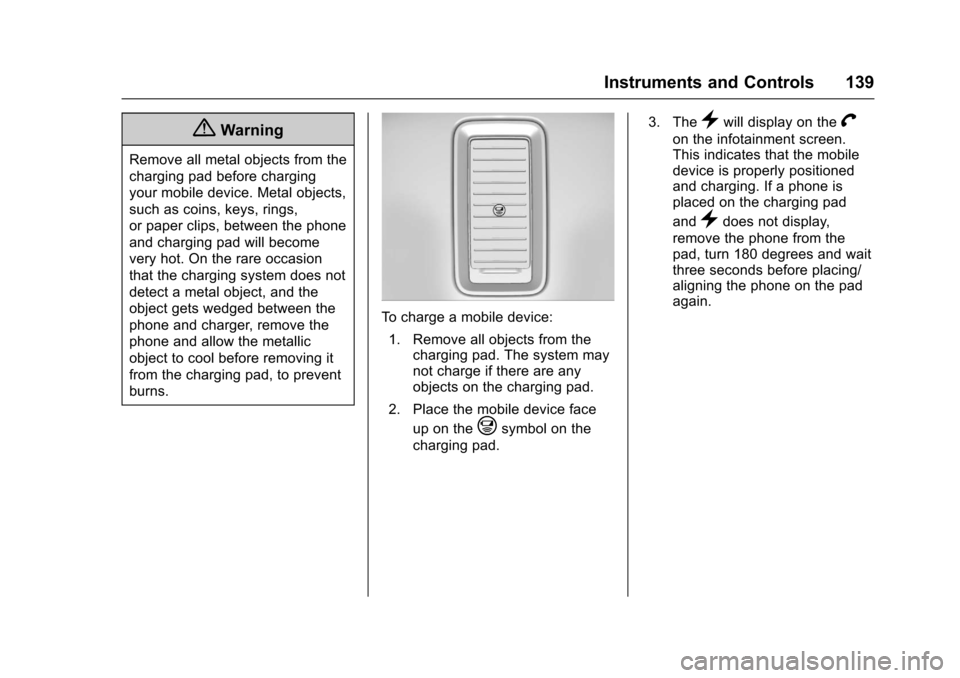
To charge a mobile device:1. Remove all objects from the charging pad. The system may
not charge if there are any
objects on the charging pad.
2. Place the mobile device face up on the
@symbol on the
charging pad. 3. The
}will display on theV
on the infotainment screen.
This indicates that the mobile
device is properly positioned
and charging. If a phone is
placed on the charging pad
and
}does not display,
remove the phone from the
pad, turn 180 degrees and wait
three seconds before placing/
aligning the phone on the pad
again.
Page 145 of 465
Chevrolet Tahoe/Suburban Owner Manual (GMNA-Localizing-U.S./Canada/
Mexico-9955986) - 2017 - crc - 7/5/16
144 Instruments and Controls
Cluster Menu (Uplevel Cluster)
There is an interactive display area
in the center of the instrument
cluster.
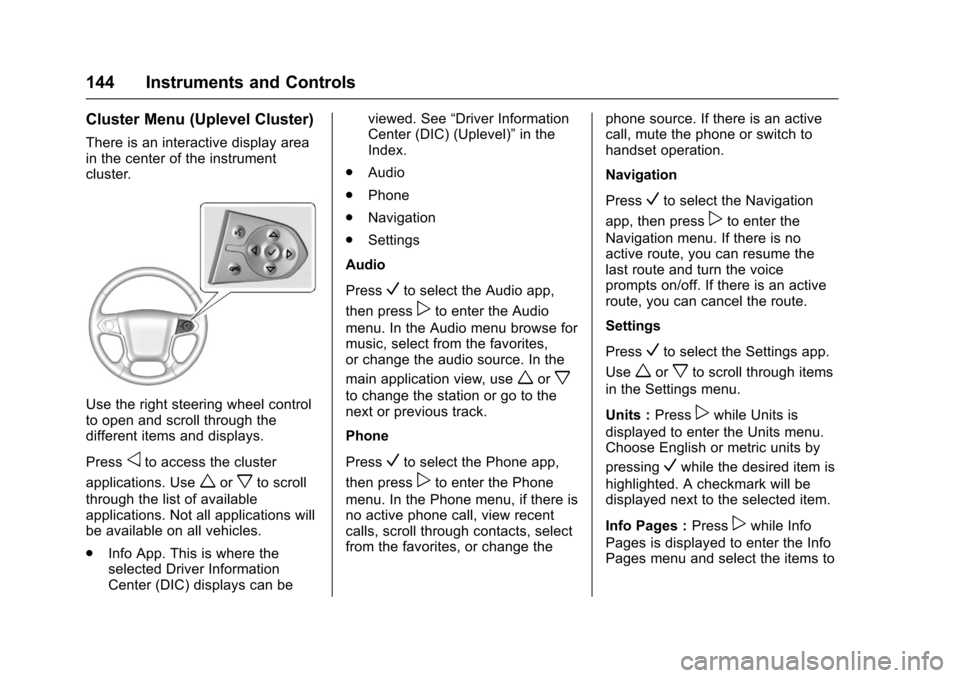
Use the right steering wheel control
to open and scroll through the
different items and displays.
Press
oto access the cluster
applications. Use
worxto scroll
through the list of available
applications. Not all applications will
be available on all vehicles.
. Info App. This is where the
selected Driver Information
Center (DIC) displays can be viewed. See
“Driver Information
Center (DIC) (Uplevel)” in the
Index.
. Audio
. Phone
. Navigation
. Settings
Audio
Press
Vto select the Audio app,
then press
pto enter the Audio
menu. In the Audio menu browse for
music, select from the favorites,
or change the audio source. In the
main application view, use
worx
to change the station or go to the
next or previous track.
Phone
Press
Vto select the Phone app,
then press
pto enter the Phone
menu. In the Phone menu, if there is
no active phone call, view recent
calls, scroll through contacts, select
from the favorites, or change the phone source. If there is an active
call, mute the phone or switch to
handset operation.
Navigation
Press
Vto select the Navigation
app, then press
pto enter the
Navigation menu. If there is no
active route, you can resume the
last route and turn the voice
prompts on/off. If there is an active
route, you can cancel the route.
Settings
Press
Vto select the Settings app.
Use
worxto scroll through items
in the Settings menu.
Units : Press
pwhile Units is
displayed to enter the Units menu.
Choose English or metric units by
pressing
Vwhile the desired item is
highlighted. A checkmark will be
displayed next to the selected item.
Info Pages : Press
pwhile Info
Pages is displayed to enter the Info
Pages menu and select the items to