light CHEVROLET TAHOE 2017 4.G Workshop Manual
[x] Cancel search | Manufacturer: CHEVROLET, Model Year: 2017, Model line: TAHOE, Model: CHEVROLET TAHOE 2017 4.GPages: 465, PDF Size: 7.47 MB
Page 157 of 465
Chevrolet Tahoe/Suburban Owner Manual (GMNA-Localizing-U.S./Canada/
Mexico-9955986) - 2017 - crc - 7/5/16
156 Instruments and Controls
Traction Control System
(TCS)/StabiliTrak®Light
This light comes on briefly when the
engine is started.
If the light does not come on, have
the vehicle serviced by your dealer.
If the system is working normally,
the indicator light turns off.
If the light is on and not flashing, the
TCS and potentially the StabiliTrak
system have been disabled.
A Driver Information Center (DIC)
message may display. Check the
DIC messages to determine which
feature(s) is no longer functioning
and whether the vehicle requires
service. SeeRide Control System
Messages 0172.
If the light is on and flashing, the
TCS and/or the StabiliTrak system
is actively working. See
Traction Control/Electronic
Stability Control 0274.
Tire Pressure Light
For vehicles with the Tire Pressure
Monitor System (TPMS), this light
comes on briefly when the engine is
started. It provides information
about tire pressures and the TPMS.
When the Light Is On Steady
This indicates that one or more of
the tires are significantly
underinflated.
A Driver Information Center (DIC)
tire pressure message may also
display. See Tire Messages 0174.
Stop as soon as possible, and
inflate the tires to the pressure value
shown on the Tire and Loading
Information label. See Tire
Pressure 0369. When the Light Flashes First and
Then Is On Steady
If the light flashes for about a minute
and then stays on, there may be a
problem with the TPMS. If the
problem is not corrected, the light
will come on at every ignition cycle.
See
Tire Pressure Monitor
Operation 0372.
Low Fuel Warning Light
This light is near the fuel gauge and
comes on briefly when the ignition is
turned on as a check to show it is
working.
It also comes on when the fuel tank
is low on fuel. The light turns off
when fuel is added. If it does not,
have the vehicle serviced.
Page 158 of 465
Chevrolet Tahoe/Suburban Owner Manual (GMNA-Localizing-U.S./Canada/
Mexico-9955986) - 2017 - crc - 7/5/16
Instruments and Controls 157
Security Light
The security light should come on
briefly as the engine is started. If it
does not come on, have the vehicle
serviced by your dealer. If the
system is working normally, the
indicator light turns off.
If the light stays on and the engine
does not start, there could be a
problem with the theft-deterrent
system. SeeImmobilizer Operation
(Key Access) 055 orImmobilizer
Operation (Keyless Access) 056.
High-Beam On Light
This light comes on when the
high-beam headlamps are in use.
See Headlamp High/Low-Beam
Changer 0191.
IntelliBeam®Light
This light comes on when the
IntelliBeam system, if equipped, is
enabled.
See Exterior Lamp Controls 0189.
Front Fog Lamp Light
For vehicles with fog lamps, this
light comes on when the fog lamps
are on. The light goes out when the fog
lamps are turned off. See
Fog
Lamps 0194 for more information.
Lamps On Reminder
This light comes on when the
exterior lamps are in use. See
Exterior Lamp Controls 0189.
Cruise Control Light
The cruise control light is white
when the cruise control is on and
ready, and turns green when the
cruise control is set and active.
See Cruise Control 0278.
Page 159 of 465
Chevrolet Tahoe/Suburban Owner Manual (GMNA-Localizing-U.S./Canada/
Mexico-9955986) - 2017 - crc - 7/5/16
158 Instruments and Controls
Adaptive Cruise Control Light
This light is white when the Adaptive
Cruise Control (ACC, if equipped) is
on and ready, and turns green when
the ACC is set and active. See
Adaptive Cruise Control0280.
Information Displays
Driver Information Center
(DIC) (Base Level)
The DIC displays are shown in the
center of the instrument cluster. The
displays show the status of many
vehicle systems. The trip odometer
reset stem in the instrument cluster
is used to access the DIC menu
items.
DIC Menu Items
Turn the trip odometer reset stem to
scroll through the following menu
items:
.
Digital Speedometer
. Trip
. Fuel Range
. Average Fuel Economy
. Tire Pressure
. Remaining Oil Life
. Transmission Fluid Temperature
. Trailer Brake
. Hourmeter .
Unit
Digital Speedometer
The speedometer shows how fast
the vehicle is moving in either
kilometers per hour (km/h) or miles
per hour (mph). The speedometer
cannot be reset.
Trip
Turn the trip odometer reset stem
until TRIP displays. The current
distance traveled, in either
kilometers (km) or miles (mi), since
the last reset for the trip odometer is
shown. The trip odometer can be
reset to zero by pressing and
holding the trip odometer reset stem
while the trip odometer is displayed.
Fuel Range
This display shows the approximate
distance the vehicle can be driven
without refueling. The fuel range
estimate is based on an average of
the vehicle's fuel economy over
recent driving history and the
amount of fuel remaining in the fuel
tank. Fuel range cannot be reset.
Page 161 of 465
Chevrolet Tahoe/Suburban Owner Manual (GMNA-Localizing-U.S./Canada/
Mexico-9955986) - 2017 - crc - 7/5/16
160 Instruments and Controls
Unit
This will change the displays on the
instrument cluster and DIC to either
metric or English (US)
measurements. To change the units,
press the trip odometer reset stem
when UNITS is displayed to enter
the Unit menu. Turn the trip
odometer reset stem to switch
between English and metric. Press
the trip odometer reset stem when
the desired setting is displayed.
Compass
The vehicle may have a compass in
the Driver Information Center (DIC).
SeeCompass 0135.
Driver Information Center
(DIC) (Uplevel)
The DIC displays are shown in the
center of the instrument cluster in
the Info app. See Instrument Cluster
0 141. The displays show the status
of many vehicle systems. The
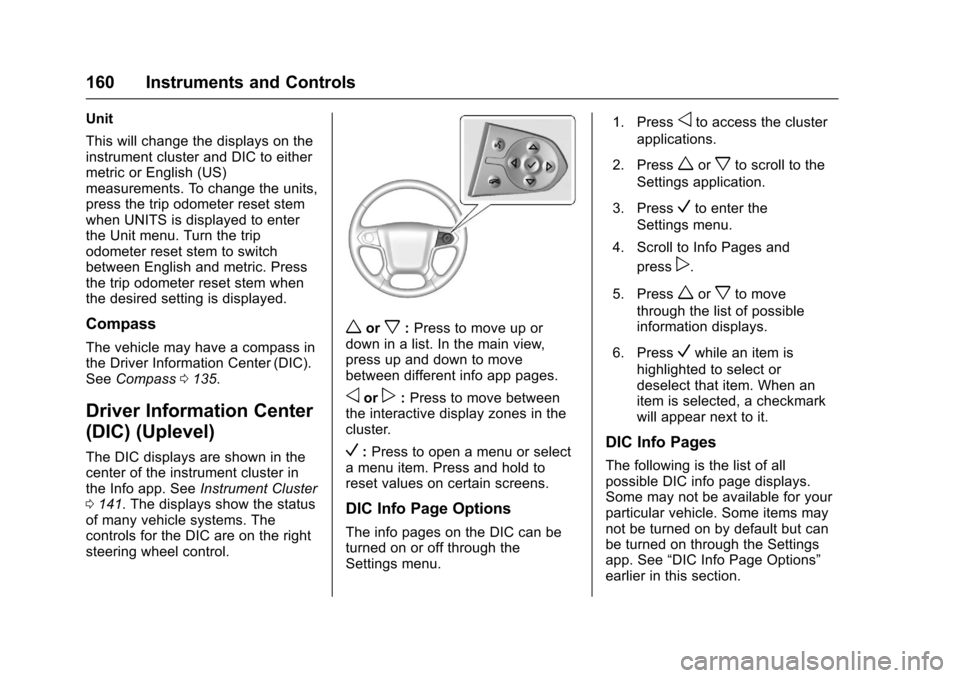
controls for the DIC are on the right
steering wheel control.
worx: Press to move up or
down in a list. In the main view,
press up and down to move
between different info app pages.
oorp: Press to move between
the interactive display zones in the
cluster.
V: Press to open a menu or select
a menu item. Press and hold to
reset values on certain screens.
DIC Info Page Options
The info pages on the DIC can be
turned on or off through the
Settings menu. 1. Press
oto access the cluster
applications.
2. Press
worxto scroll to the
Settings application.
3. Press
Vto enter the
Settings menu.
4. Scroll to Info Pages and press
p.
5. Press
worxto move
through the list of possible
information displays.
6. Press
Vwhile an item is
highlighted to select or
deselect that item. When an
item is selected, a checkmark
will appear next to it.
DIC Info Pages
The following is the list of all
possible DIC info page displays.
Some may not be available for your
particular vehicle. Some items may
not be turned on by default but can
be turned on through the Settings
app. See “DIC Info Page Options”
earlier in this section.
Page 165 of 465
Chevrolet Tahoe/Suburban Owner Manual (GMNA-Localizing-U.S./Canada/
Mexico-9955986) - 2017 - crc - 7/5/16
164 Instruments and Controls
$:Press down or lift up to center
the HUD image. The HUD image
can only be adjusted up and down,
not side to side.
!: Press to select the display
view. Each press will change the
display view.
D: Lift up and hold to brighten
the display. Press down and hold to
dim the display. Hold down to turn
the display off.
The HUD image will automatically
dim and brighten to compensate for
outside lighting. The HUD
brightness control can also be
adjusted as needed.
The HUD image can temporarily
light up depending on the angle and
position of the sunlight on the HUD
display. This is normal.
Polarized sunglasses could make
the HUD image harder to see.
HUD Views
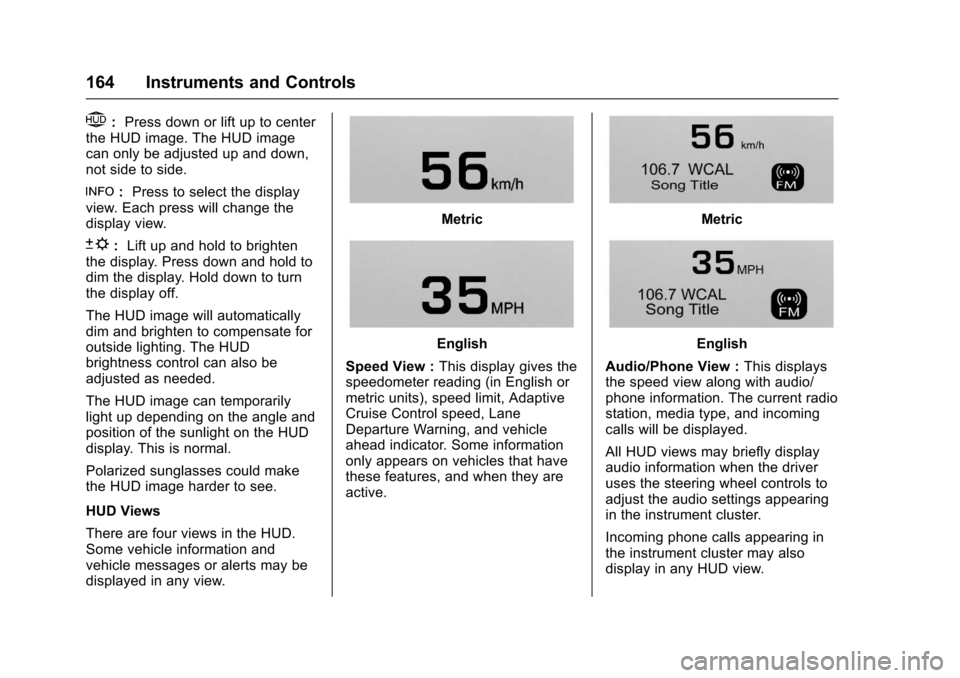
There are four views in the HUD.
Some vehicle information and
vehicle messages or alerts may be
displayed in any view.
Metric
English
Speed View : This display gives the
speedometer reading (in English or
metric units), speed limit, Adaptive
Cruise Control speed, Lane
Departure Warning, and vehicle
ahead indicator. Some information
only appears on vehicles that have
these features, and when they are
active.
Metric
English
Audio/Phone View : This displays
the speed view along with audio/
phone information. The current radio
station, media type, and incoming
calls will be displayed.
All HUD views may briefly display
audio information when the driver
uses the steering wheel controls to
adjust the audio settings appearing
in the instrument cluster.
Incoming phone calls appearing in
the instrument cluster may also
display in any HUD view.
Page 167 of 465
Chevrolet Tahoe/Suburban Owner Manual (GMNA-Localizing-U.S./Canada/
Mexico-9955986) - 2017 - crc - 7/5/16
166 Instruments and Controls
Vehicle Messages
Messages displayed on the DIC
indicate the status of the vehicle or
some action that may be needed to
correct a condition. Multiple
messages may appear one after
another.
The messages that do not require
immediate action can be
acknowledged and cleared by
pressing
Vor the trip odometer
reset stem on the base cluster.
The messages that require
immediate action cannot be cleared
until that action is performed.
All messages should be taken
seriously and clearing the message
does not correct the problem.
The following are the possible
messages and some information
about them.
Battery Voltage and
Charging Messages
BATTERY LOW START
VEHICLE
When the vehicle’ s battery is
severely discharged, this message
will display and four chimes will
sound. Start the vehicle
immediately. If the vehicle is not
started and the battery continues to
discharge, the climate controls,
heated seats, and audio systems
will shut off and the vehicle may
require a jump start. These systems
will function again after the vehicle
is started.
BATTERY SAVER ACTIVE
This message displays when the
battery voltage drops below
expected levels and features are
disabled. Turn off all unnecessary
accessory features.
SERVICE BATTERY
CHARGING SYSTEM
On some vehicles, this message
displays if there is a problem with
the battery charging system. Under
certain conditions, the charging
system light may also turn on in the
instrument cluster. See Charging
System Light 0151. Driving with this
problem could drain the battery.
Turn off all unnecessary
accessories. Have the electrical
system checked as soon as
possible. See your dealer.
TRANSPORT MODE ON
This message is displayed when the
vehicle is in transport mode. Some
features can be disabled while in
this mode, including Remote
Keyless Entry (RKE), remote start,
and the vehicle alarm system. Take
the vehicle to your dealer for service
to turn transport mode off.
Page 174 of 465
Chevrolet Tahoe/Suburban Owner Manual (GMNA-Localizing-U.S./Canada/
Mexico-9955986) - 2017 - crc - 7/5/16
Instruments and Controls 173
SERVICE SUSPENSION
SYSTEM
If the vehicle has the Magnetic Ride
Control suspension system, this
message displays when the
suspension system is not operating
properly. Have the vehicle serviced
by your dealer.
SERVICE TRACTION
CONTROL
This message displays when there
is a problem with the Traction
Control System (TCS). When this
message displays, the system will
not limit wheel spin. Adjust your
driving accordingly. See your dealer
for service. SeeTraction Control/
Electronic Stability Control 0274.
STABILITRAK INITIALIZING
This message may come on if the
StabiliTrak system has not fully
initialized because of road
conditions or the incorrect tire size.
When the StabiliTrak system is fully
initialized, the message will turn off.
See Traction Control/Electronic
Stability Control 0274. If this
message continues to be displayed for multiple ignition cycles and on
different road surfaces, see your
dealer for service.
TRACTION CONTROL OFF
This message displays when the
traction control has been turned off.
See
Traction Control/Electronic
Stability Control 0274.
TRACTION CONTROL ON
This message displays when the
traction control is active. See
Traction Control/Electronic Stability
Control 0274.
STABILITRAK OFF
This message displays when the
StabiliTrak system has been turned
off. Adjust your driving accordingly.
To limit wheel spin and realize the
full benefits of the stability
enhancement system, you should
normally leave StabiliTrak on. See
Traction Control/Electronic Stability
Control 0274. STABILITRAK OFF may also
display when the stability control
has been automatically disabled.
Several conditions can cause this
message to appear:
.
If the system is overheating,
which could occur if StabiliTrak
activates continuously for an
extended period of time.
. If the brake system warning light
is on. See Brake System
Warning Light 0153.
. If the stability system takes
longer than usual to complete its
diagnostic checks due to driving
conditions.
. If an engine or vehicle-related
problem has been detected and
the vehicle needs service. See
your dealer.
. If the transfer case is in
Four-Wheel Drive Low.
The message turns off as soon as
the conditions that caused the
message to be displayed are no
longer present.
Page 175 of 465
Chevrolet Tahoe/Suburban Owner Manual (GMNA-Localizing-U.S./Canada/
Mexico-9955986) - 2017 - crc - 7/5/16
174 Instruments and Controls
Airbag System Messages
SERVICE AIRBAG
This message displays if there is a
problem with the airbag system.
Take the vehicle to your dealer for
service.
Security Messages
SERVICE THEFT DETERRENT
SYSTEM
This message displays when there
is a problem with the theft-deterrent
system. The vehicle may or may not
restart, so you may want to take the
vehicle to your dealer before turning
off the engine. SeeImmobilizer
Operation (Key Access) 055 or
Immobilizer Operation (Keyless
Access) 056.
Steering System
Messages
STEERING ASSIST IS
REDUCED DRIVE WITH CARE
This message may display if a
problem occurs with the electric
power steering system. If this
message appears, steering effort
may be slightly higher than normal.
The vehicle is still safe to drive. Use
caution while in reduced assist
mode. If this message is persistent
or appears repeatedly, take the
vehicle to your dealer for service.
See Steering 0237.
SERVICE POWER STEERING
This message displays when there
is a problem with electric power
steering. If this message displays
and a reduction in steering
performance or loss of power
steering assistance is noticed, see
your dealer. See Steering0237.
Starting the Vehicle
Messages
PRESS BRAKE TO START
This message is displayed when
attempting to start the vehicle
without first pressing the brake
pedal.
SERVICE KEYLESS START
SYSTEM
This message is displayed if there is
a problem with the pushbutton start
system. Take the vehicle to your
dealer for service.
Tire Messages
SERVICE TIRE MONITOR
SYSTEM
If equipped with the Tire Pressure
Monitor System (TPMS), this
message displays if a part on the
system is not working properly. The
tire pressure light also flashes and
then remains on during the same
ignition cycle. See Tire Pressure
Light 0156. Several conditions may
cause this message to appear. See
Page 176 of 465
Chevrolet Tahoe/Suburban Owner Manual (GMNA-Localizing-U.S./Canada/
Mexico-9955986) - 2017 - crc - 7/5/16
Instruments and Controls 175
Tire Pressure Monitor Operation
0372. If the warning comes on and
stays on, there may be a problem
with the TPMS. See your dealer.
TIRE LEARNING ACTIVE
If equipped with the Tire Pressure
Monitor System (TPMS), this
message displays when the system
is relearning the tire positions on
your vehicle. The tire positions must
be relearned after rotating the tires
or after replacing a tire or sensor.
See Tire Inspection 0375, Tire
Rotation 0375, Tire Pressure
Monitor System 0371, and Tire
Pressure 0369.
TIRE PRESSURE LOW ADD
AIR TO TIRE
If equipped with the Tire Pressure
Monitor System (TPMS), this
message displays when the
pressure in one or more of the
vehicle's tires is low. This message
also displays with a vehicle picture
to indicate the location of the low
tire. The low tire pressure warning
light will also come on. See Tire
Pressure Light 0156. You can receive more than one tire pressure
message at a time. If a tire pressure
message appears on the DIC, stop
as soon as you can. Have the tire
pressures checked and set to those
shown on the Tire and Loading
Information label. See
Tires0362,
Vehicle Load Limits 0247, and Tire
Pressure 0369. The DIC also
shows the tire pressure values. See
Driver Information Center (DIC)
(Base Level) 0158 orDriver
Information Center (DIC)
(Uplevel) 0160.
Transmission Messages
4WD OFF
If equipped with four-wheel drive,
this message displays when the
four-wheel-drive system is
temporarily disabled due to an
overheated condition. The vehicle
will run in two-wheel drive when this
message is present. Once the
four-wheel-drive system cools down,
the message turns off and the
four-wheel-drive system returns to
normal operation.
4WD SHIFT IN PROGRESS
This message will display while the
four-wheel-drive system is shifting.
FOR 4WD LOW SHIFT TO
NEUTRAL
If a four-wheel drive shift into 4nis
requested, and the vehicle speed is
correct, but the transmission is not
in N (Neutral), this message will
display until the transmission is
shifted to N (Neutral).
FOR 4WD LOW SLOW TO XXX
If a four-wheel drive shift into 4nis
requested, but the vehicle speed is
too high, this message will display
until the correct vehicle speed is
reached.
GRADE BRAKING ACTIVE
This message displays when grade
braking has been activated while
driving on downhill grades. This
message will only appear the first
time the feature is activated in an
ignition cycle. See Tow/Haul Mode
0 266, Automatic Transmission
0 262, and Cruise Control 0278.
Page 180 of 465
Chevrolet Tahoe/Suburban Owner Manual (GMNA-Localizing-U.S./Canada/
Mexico-9955986) - 2017 - crc - 7/5/16
Instruments and Controls 179
Teen Driver
See“Teen Driver” under“Settings”
in the infotainment manual.
Valet Mode
This will lock the infotainment
system and steering wheel controls.
It may also limit access to vehicle
storage locations (if equipped).
To enable valet mode:
1. Enter a four-digit code on the keypad.
2. Select Enter to go to the confirmation screen.
3. Re-enter the four-digit code.
Select LOCK or UNLOCK to lock or
unlock the system. Touch Back to
go back to the previous menu.
Radio
Select and the following may
display:
. Manage Favorites
. Number of Favorites Shown
. Audible Touch Feedback
. Auto Volume .
Maximum Startup Volume
. Audio Cue Volume
Manage Favorites
This allows favorites to be edited.
See “Manage Favorites” in“Radio
Setup” underHome Page 0202 or
“Manage Favorites” in“Settings”
under “Radio” in the infotainment
manual.
Number of Favorites Shown
Select to set the number of favorites
to display.
Select the desired number or select
Auto and the infotainment system
will automatically adjust the number
of favorites shown.
Audible Touch Feedback
This allows Audible Touch
Feedback to be turned on or off.
Select Off or On.
Auto Volume
This feature adjusts the volume
based on vehicle speed and
ambient noise. Select Off, Low, Medium-Low,
Medium, Medium-High, or High.
Maximum Startup Volume
This feature sets the maximum
startup volume. If the vehicle is
started and the volume is greater
than this level, the volume is
adjusted to this level. To set the
maximum startup volume, turn the
MENU knob or select + or
−to
increase or decrease.
Audio Cue Volume
This feature sets the volume of
audio files played at system startup
and shutdown.
Select On, then select + or −to
increase or decrease the volume.
Vehicle
Select and the following may
display:
. Climate and Air Quality
. Collision/Detection Systems
. Comfort and Convenience
. Lighting
. Power Door Locks