infotainment CHEVROLET TAHOE 2020 User Guide
[x] Cancel search | Manufacturer: CHEVROLET, Model Year: 2020, Model line: TAHOE, Model: CHEVROLET TAHOE 2020Pages: 438, PDF Size: 6.71 MB
Page 162 of 438
Chevrolet Tahoe/Suburban Owner Manual (GMNA-Localizing-U.S./Canada/
Mexico-13566622) - 2020 - CRC - 4/15/19
Instruments and Controls 161
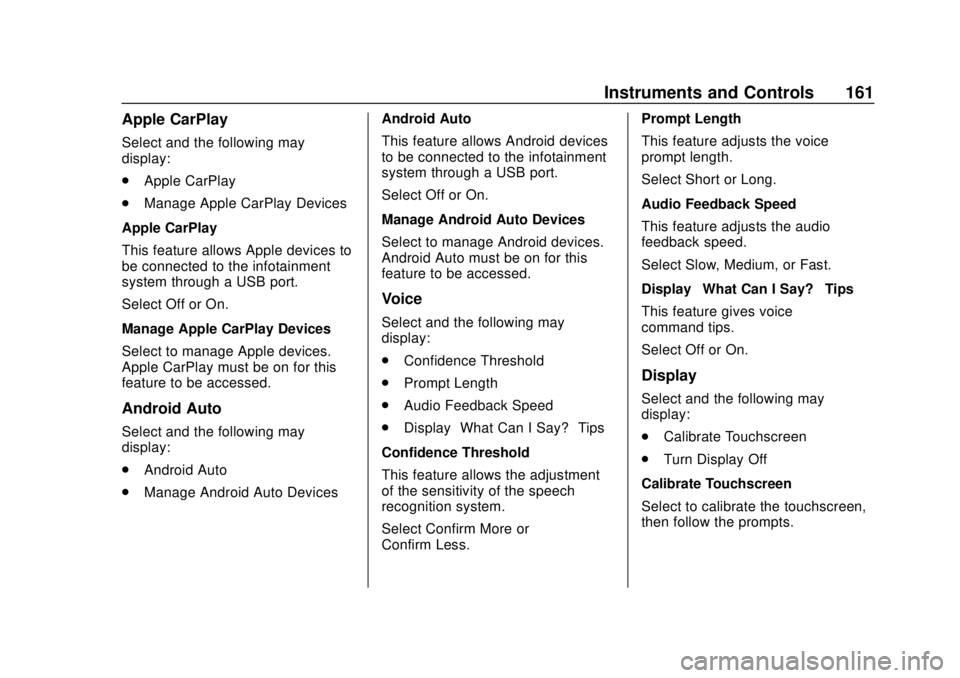
Apple CarPlay
Select and the following may
display:
.Apple CarPlay
. Manage Apple CarPlay Devices
Apple CarPlay
This feature allows Apple devices to
be connected to the infotainment
system through a USB port.
Select Off or On.
Manage Apple CarPlay Devices
Select to manage Apple devices.
Apple CarPlay must be on for this
feature to be accessed.
Android Auto
Select and the following may
display:
. Android Auto
. Manage Android Auto Devices Android Auto
This feature allows Android devices
to be connected to the infotainment
system through a USB port.
Select Off or On.
Manage Android Auto Devices
Select to manage Android devices.
Android Auto must be on for this
feature to be accessed.
Voice
Select and the following may
display:
.
Confidence Threshold
. Prompt Length
. Audio Feedback Speed
. Display “What Can I Say?” Tips
Confidence Threshold
This feature allows the adjustment
of the sensitivity of the speech
recognition system.
Select Confirm More or
Confirm Less. Prompt Length
This feature adjusts the voice
prompt length.
Select Short or Long.
Audio Feedback Speed
This feature adjusts the audio
feedback speed.
Select Slow, Medium, or Fast.
Display
“What Can I Say?” Tips
This feature gives voice
command tips.
Select Off or On.
Display
Select and the following may
display:
. Calibrate Touchscreen
. Turn Display Off
Calibrate Touchscreen
Select to calibrate the touchscreen,
then follow the prompts.
Page 163 of 438
Chevrolet Tahoe/Suburban Owner Manual (GMNA-Localizing-U.S./Canada/
Mexico-13566622) - 2020 - CRC - 4/15/19
162 Instruments and Controls
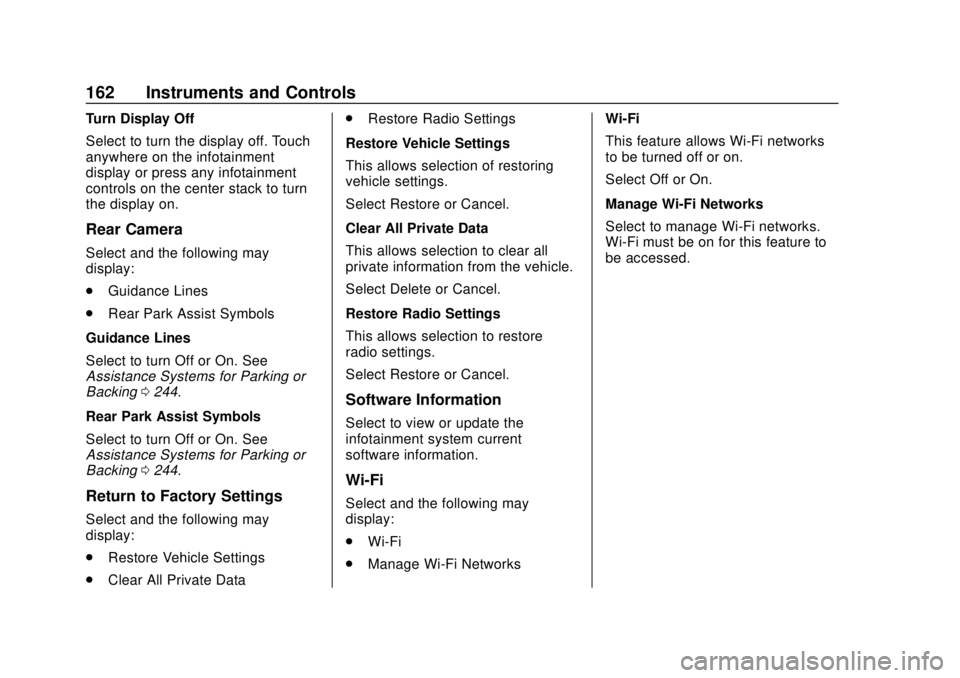
Turn Display Off
Select to turn the display off. Touch
anywhere on the infotainment
display or press any infotainment
controls on the center stack to turn
the display on.
Rear Camera
Select and the following may
display:
.Guidance Lines
. Rear Park Assist Symbols
Guidance Lines
Select to turn Off or On. See
Assistance Systems for Parking or
Backing 0244.
Rear Park Assist Symbols
Select to turn Off or On. See
Assistance Systems for Parking or
Backing 0244.
Return to Factory Settings
Select and the following may
display:
.
Restore Vehicle Settings
. Clear All Private Data .
Restore Radio Settings
Restore Vehicle Settings
This allows selection of restoring
vehicle settings.
Select Restore or Cancel.
Clear All Private Data
This allows selection to clear all
private information from the vehicle.
Select Delete or Cancel.
Restore Radio Settings
This allows selection to restore
radio settings.
Select Restore or Cancel.
Software Information
Select to view or update the
infotainment system current
software information.
Wi-Fi
Select and the following may
display:
. Wi-Fi
. Manage Wi-Fi Networks Wi-Fi
This feature allows Wi-Fi networks
to be turned off or on.
Select Off or On.
Manage Wi-Fi Networks
Select to manage Wi-Fi networks.
Wi-Fi must be on for this feature to
be accessed.
Page 178 of 438
Chevrolet Tahoe/Suburban Owner Manual (GMNA-Localizing-U.S./Canada/
Mexico-13566622) - 2020 - CRC - 4/15/19
Infotainment System 177
Infotainment
System
Introduction
Infotainment . . . . . . . . . . . . . . . . . . 177
Introduction
Infotainment
See the infotainment manual for
information on the radio, audio
players, phone, navigation system,
Rear Seat Entertainment (RSE),
and voice or speech recognition,
if equipped. It also includes
information on settings.
Active Noise Cancellation (ANC)
If equipped, ANC reduces engine
noise in the vehicle’s interior. ANC
requires the factory-installed audio
system, radio, speakers, amplifier (if
equipped), induction system, and
exhaust system to work properly.
Deactivation is required by your
dealer if related aftermarket
equipment is installed.
Page 189 of 438
Chevrolet Tahoe/Suburban Owner Manual (GMNA-Localizing-U.S./Canada/
Mexico-13566622) - 2020 - CRC - 4/24/19
188 Driving and Operating
.Do not use a phone in
demanding driving situations.
Use a hands-free method to
place or receive necessary
phone calls.
. Watch the road. Do not read,
take notes, or look up
information on phones or other
electronic devices.
. Designate a front seat
passenger to handle potential
distractions.
. Become familiar with vehicle
features before driving, such as
programming favorite radio
stations and adjusting climate
control and seat settings.
Program all trip information into
any navigation device prior to
driving.
. Wait until the vehicle is parked
to retrieve items that have fallen
to the floor.
. Stop or park the vehicle to tend
to children.
. Keep pets in an appropriate
carrier or restraint. .
Avoid stressful conversations
while driving, whether with a
passenger or on a cell phone.
{Warning
Taking your eyes off the road too
long or too often could cause a
crash resulting in injury or death.
Focus your attention on driving.
Refer to the infotainment manual for
more information on using that
system and the navigation system,
if equipped, including pairing and
using a cell phone.
Defensive Driving
Defensive driving means “always
expect the unexpected.” The first
step in driving defensively is to wear
the seat belt. See Seat Belts063.
. Assume that other road users
(pedestrians, bicyclists, and
other drivers) are going to be
careless and make mistakes.
Anticipate what they might do
and be ready. .
Allow enough following distance
between you and the driver in
front of you.
. Focus on the task of driving.
Drunk Driving
Death and injury associated with
drinking and driving is a global
tragedy.
{Warning
Drinking and then driving is very
dangerous. Your reflexes,
perceptions, attentiveness, and
judgment can be affected by even
a small amount of alcohol. You
can have a serious —or even
fatal —collision if you drive after
drinking.
Do not drink and drive or ride with
a driver who has been drinking.
Ride home in a cab; or if you are
with a group, designate a driver
who will not drink.
Page 209 of 438

Chevrolet Tahoe/Suburban Owner Manual (GMNA-Localizing-U.S./Canada/
Mexico-13566622) - 2020 - CRC - 4/24/19
208 Driving and Operating
while turning the key to ACC/
ACCESSORY. If this does not work,
then the vehicle needs service.
{Warning
Turning off the vehicle while
moving may cause loss of power
assist in the brake and steering
systems and disable the airbags.
While driving, turn off the vehicle
only in an emergency.
In an emergency, if the vehicle
cannot be pulled over and must be
turned off while driving: 1. Push the key all the way in toward the steering column,
then turn the key to ACC/
ACCESSORY.
2. Brake using firm and steady pressure. Do not pump the
brakes repeatedly. This may
deplete power assist, requiring
increased brake pedal force. 3. Shift the vehicle to N (Neutral).
This can be done while the
vehicle is moving. Continue
braking and steer the vehicle to
a safe location.
4. Come to a complete stop.
5. Shift to P (Park).
6. Push the key all the way in toward the steering column (1),
then turn the ignition to
LOCK/OFF (2).
7. Set the parking brake. See Parking Brake 0228.
8. Remove the key.
9. Release the brake pedal.
Caution
Use the correct key, make sure it
is all the way in —or pushed all
the way in toward the steering
column when turning off the
vehicle —and turn it only with
your hand. 1 (ACC/ACCESSORY) :
This
position allows features such as the
infotainment system to operate
while the vehicle is off. It also
unlocks the steering column,
if equipped with a locking steering
column. Use this position if the
vehicle must be pushed or towed.
See Retained Accessory Power
(RAP) 0212.
From ON/RUN, push the key all the
way in toward the steering column,
then turn the key to ACC/
ACCESSORY.
If the key is left in ACC/
ACCESSORY with the engine off,
the battery could drain and the
vehicle may not start.
A warning chime will sound when
the driver door is opened and the
key is in the ignition.
2 (ON/RUN) : This position can be
used to operate the electrical
accessories and to display some
instrument cluster warning and
indicator lights. This position can
also be used for service and
diagnostics, and to verify the proper
Page 213 of 438
Chevrolet Tahoe/Suburban Owner Manual (GMNA-Localizing-U.S./Canada/
Mexico-13566622) - 2020 - CRC - 4/24/19
212 Driving and Operating
Warning (Continued)
vehicle. Possible heater
cord and thermostat
damage could occur.
. While in use, do not let the
heater cord touch vehicle
parts or sharp edges. Never
close the hood on the
heater cord.
. Before starting the vehicle,
unplug the cord, reattach
the cover to the plug, and
securely fasten the cord.
Keep the cord away from
any moving parts.
4. Before starting the engine, be sure to unplug and store the
cord as it was before to keep it
away from moving engine
parts. If you do not, it could be
damaged.
The length of time the heater should
remain plugged in depends on
several factors. Ask a dealer in the
area where you will be parking the
vehicle for the best advice on this.
Retained Accessory
Power (RAP)
When the ignition is turned from on
to off, the following features (if
equipped) will continue to function
for up to 10 minutes, or until the
driver door is opened. These
features will also work when the
ignition is in RUN or ACC/
ACCESSORY:
. Infotainment System
. Power Windows (during RAP
this functionality will be lost
when any door is opened)
. Sunroof (during RAP this
functionality will be lost when
any door is opened)
. Auxiliary Power Outlet
. Audio System
. OnStar System
Shifting Into Park
{Warning
It can be dangerous to get out of
the vehicle if the shift lever is not
fully in P (Park) with the parking
brake firmly set. The vehicle can
roll. If you have left the engine
running, the vehicle can move
suddenly. You or others could be
injured. To be sure the vehicle will
not move, even when you are on
fairly level ground, use the steps
that follow. If the vehicle has a
four-wheel-drive transfer case
with an N (Neutral) position, and
the transfer case is in N (Neutral),
the vehicle will be free to roll,
even if the shift lever is in
P (Park). Be sure the transfer
case is in a drive gear. If towing a
trailer, see Driving Characteristics
and Towing Tips 0262.
1. Hold the brake pedal down, then set the parking brake. See
Parking Brake 0228.
Page 246 of 438
Chevrolet Tahoe/Suburban Owner Manual (GMNA-Localizing-U.S./Canada/
Mexico-13566622) - 2020 - CRC - 4/24/19
Driving and Operating 245
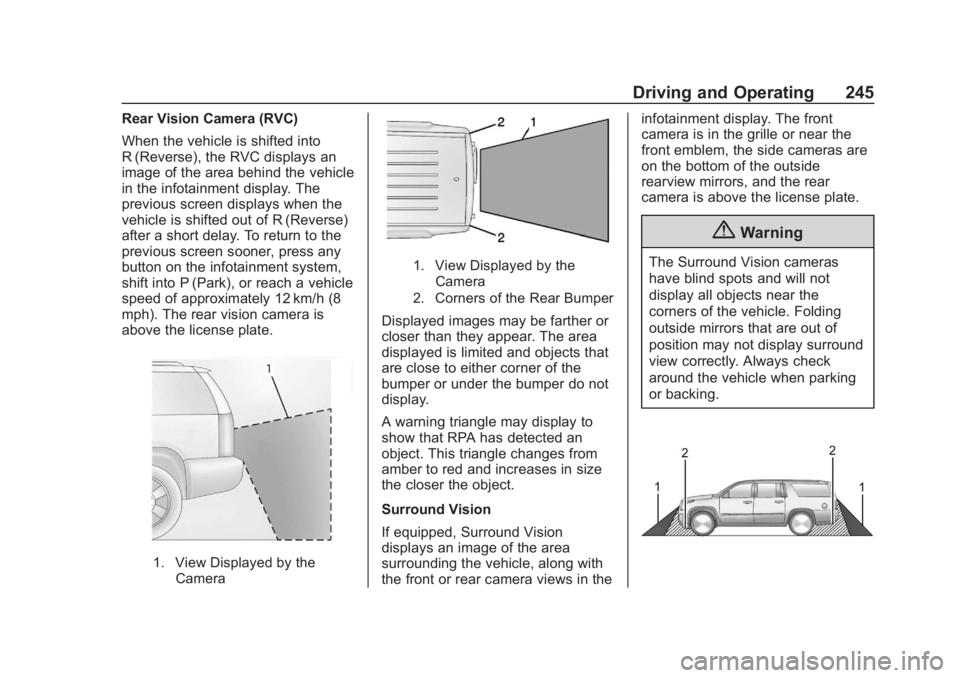
Rear Vision Camera (RVC)
When the vehicle is shifted into
R (Reverse), the RVC displays an
image of the area behind the vehicle
in the infotainment display. The
previous screen displays when the
vehicle is shifted out of R (Reverse)
after a short delay. To return to the
previous screen sooner, press any
button on the infotainment system,
shift into P (Park), or reach a vehicle
speed of approximately 12 km/h (8
mph). The rear vision camera is
above the license plate.
1. View Displayed by theCamera
1. View Displayed by theCamera
2. Corners of the Rear Bumper
Displayed images may be farther or
closer than they appear. The area
displayed is limited and objects that
are close to either corner of the
bumper or under the bumper do not
display.
A warning triangle may display to
show that RPA has detected an
object. This triangle changes from
amber to red and increases in size
the closer the object.
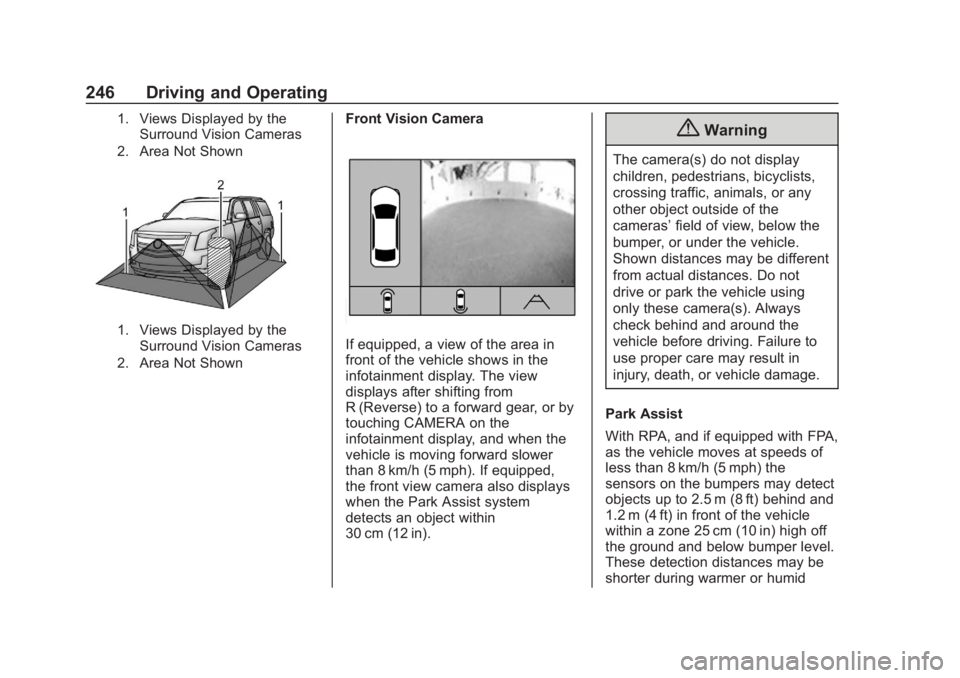
Surround Vision
If equipped, Surround Vision
displays an image of the area
surrounding the vehicle, along with
the front or rear camera views in the infotainment display. The front
camera is in the grille or near the
front emblem, the side cameras are
on the bottom of the outside
rearview mirrors, and the rear
camera is above the license plate.
{Warning
The Surround Vision cameras
have blind spots and will not
display all objects near the
corners of the vehicle. Folding
outside mirrors that are out of
position may not display surround
view correctly. Always check
around the vehicle when parking
or backing.
Page 247 of 438
Chevrolet Tahoe/Suburban Owner Manual (GMNA-Localizing-U.S./Canada/
Mexico-13566622) - 2020 - CRC - 4/24/19
246 Driving and Operating
1. Views Displayed by theSurround Vision Cameras
2. Area Not Shown
1. Views Displayed by the Surround Vision Cameras
2. Area Not Shown
Front Vision Camera
If equipped, a view of the area in
front of the vehicle shows in the
infotainment display. The view
displays after shifting from
R (Reverse) to a forward gear, or by
touching CAMERA on the
infotainment display, and when the
vehicle is moving forward slower
than 8 km/h (5 mph). If equipped,
the front view camera also displays
when the Park Assist system
detects an object within
30 cm (12 in).
{Warning
The camera(s) do not display
children, pedestrians, bicyclists,
crossing traffic, animals, or any
other object outside of the
cameras’ field of view, below the
bumper, or under the vehicle.
Shown distances may be different
from actual distances. Do not
drive or park the vehicle using
only these camera(s). Always
check behind and around the
vehicle before driving. Failure to
use proper care may result in
injury, death, or vehicle damage.
Park Assist
With RPA, and if equipped with FPA,
as the vehicle moves at speeds of
less than 8 km/h (5 mph) the
sensors on the bumpers may detect
objects up to 2.5 m (8 ft) behind and
1.2 m (4 ft) in front of the vehicle
within a zone 25 cm (10 in) high off
the ground and below bumper level.
These detection distances may be
shorter during warmer or humid
Page 249 of 438
Chevrolet Tahoe/Suburban Owner Manual (GMNA-Localizing-U.S./Canada/
Mexico-13566622) - 2020 - CRC - 4/24/19
248 Driving and Operating
Turning the Features On or Off
TheXbutton to the left of the
steering wheel is used to turn on or
off the Front and Rear Park Assist.
The indicator light in the button
comes on when the features are on
and turns off when the features
have been disabled.
Front and Rear Park Assist can be
set to Off, On, or On with Towbar
through vehicle personalization. See
“Park Assist” underVehicle
Personalization 0154. If Park Assist
is turned off through vehicle
personalization, the Park Assist
button will be disabled. To turn the
Park Assist on again, select On in
vehicle personalization. The On with
Towbar setting allows for Park
Assist to work properly with an
attached trailer hitch. Turn off Park
Assist when towing a trailer.
To turn the RPA symbols, guidance
lines, or Rear Cross Traffic Alert on
or off, see “Rear Camera” and
“Collision/Detection Systems” under
Vehicle Personalization 0154. On some models, select the guidance
lines button on the infotainment
display to turn them on or off.
Assistance Systems for
Driving
If equipped, when driving the
vehicle in a forward gear, Forward
Collision Alert (FCA), Lane
Departure Warning (LDW), Lane
Keep Assist (LKA), Side Blind Zone
Alert (SBZA), Lane Change Alert
(LCA), and/or Automatic Emergency
Braking (AEB) can help to avoid a
crash or reduce crash damage.
Forward Collision Alert
(FCA) System
If equipped, the FCA system may
help to avoid or reduce the harm
caused by front-end crashes. When
approaching a vehicle ahead too
quickly, FCA provides a red flashing
alert on the windshield and rapidly
beeps or pulses the driver seat.
FCA also lights an amber visual
alert if following another vehicle
much too closely. FCA detects vehicles within a
distance of approximately 60 m
(197 ft) and operates at speeds
above 8 km/h (5 mph). If the vehicle
has Adaptive Cruise Control (ACC),
it can detect vehicles to distances of
approximately 110 m (360 ft) and
operates at all speeds. See
Adaptive Cruise Control
0235.
{Warning
FCA is a warning system and
does not apply the brakes. When
approaching a slower-moving or
stopped vehicle ahead too rapidly,
or when following a vehicle too
closely, FCA may not provide a
warning with enough time to help
avoid a crash. It also may not
provide any warning at all. FCA
does not warn of pedestrians,
animals, signs, guardrails,
bridges, construction barrels,
or other objects. Be ready to take
action and apply the brakes. See
Defensive Driving 0188.
Page 329 of 438
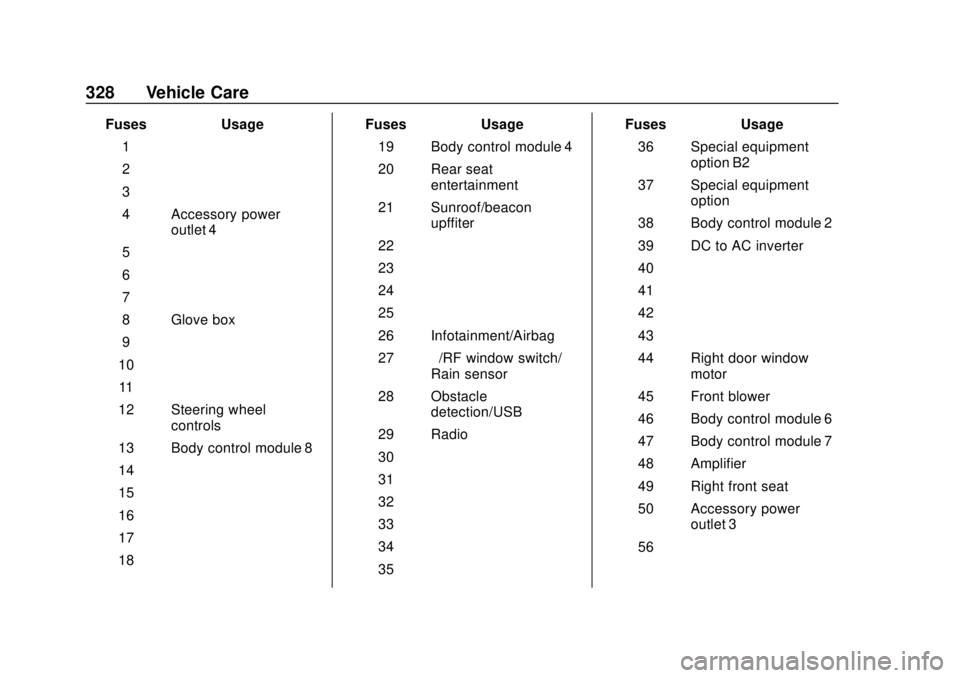
Chevrolet Tahoe/Suburban Owner Manual (GMNA-Localizing-U.S./Canada/
Mexico-13566622) - 2020 - CRC - 4/15/19
328 Vehicle Care
FusesUsage
1 –
2 –
3 –
4 Accessory power outlet 4
5 –
6 –
7 –
8 Glove box
9 –
10 –
11 –
12 Steering wheel controls
13 Body control module 8
14 –
15 –
16 –
17 –
18 – Fuses
Usage
19 Body control module 4
20 Rear seat entertainment
21 Sunroof/beacon upffiter
22 –
23 –
24 –
25 –
26 Infotainment/Airbag
27 –/RF window switch/
Rain sensor
28 Obstacle detection/USB
29 Radio
30 –
31 –
32 –
33 –
34 –
35 – Fuses
Usage
36 Special equipment option B2
37 Special equipment option
38 Body control module 2
39 DC to AC inverter
40 –
41 –
42 –
43 –
44 Right door window motor
45 Front blower
46 Body control module 6
47 Body control module 7
48 Amplifier
49 Right front seat
50 Accessory power outlet 3
56 –