Camera CHEVROLET TAHOE 2021 User Guide
[x] Cancel search | Manufacturer: CHEVROLET, Model Year: 2021, Model line: TAHOE, Model: CHEVROLET TAHOE 2021Pages: 433, PDF Size: 7.36 MB
Page 261 of 433
Chevrolet Tahoe/Suburban Owner Manual (GMNA-Localizing-U.S./Canada/
Mexico-13690484) - 2021 - crc - 8/17/20
260 Driving and Operating
ACC will not detect a vehicle ahead until it
is completely in the lane. The brakes may
need to be manually applied.
Objects Not Directly in Front of Your Vehicle
The detection of objects in front of the
vehicle may not be possible if:
.The vehicle or object ahead is not within
your lane.
.The vehicle ahead is shifted, not centered,
or is shifted to one side of the lane.
Driving in Narrow Lanes
Vehicles in adjacent traffic lanes or roadside
objects may be incorrectly detected when
located along the roadway.
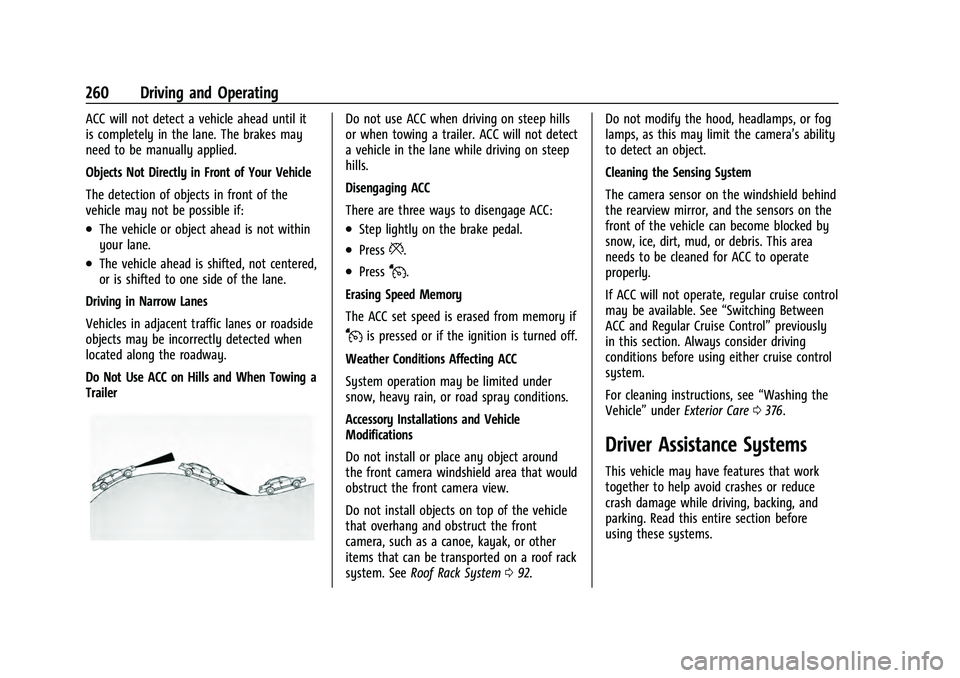
Do Not Use ACC on Hills and When Towing a
Trailer
Do not use ACC when driving on steep hills
or when towing a trailer. ACC will not detect
a vehicle in the lane while driving on steep
hills.
Disengaging ACC
There are three ways to disengage ACC:
.Step lightly on the brake pedal.
.Press*.
.PressJ.
Erasing Speed Memory
The ACC set speed is erased from memory if
Jis pressed or if the ignition is turned off.
Weather Conditions Affecting ACC
System operation may be limited under
snow, heavy rain, or road spray conditions.
Accessory Installations and Vehicle
Modifications
Do not install or place any object around
the front camera windshield area that would
obstruct the front camera view.
Do not install objects on top of the vehicle
that overhang and obstruct the front
camera, such as a canoe, kayak, or other
items that can be transported on a roof rack
system. See Roof Rack System 092. Do not modify the hood, headlamps, or fog
lamps, as this may limit the camera’s ability
to detect an object.
Cleaning the Sensing System
The camera sensor on the windshield behind
the rearview mirror, and the sensors on the
front of the vehicle can become blocked by
snow, ice, dirt, mud, or debris. This area
needs to be cleaned for ACC to operate
properly.
If ACC will not operate, regular cruise control
may be available. See
“Switching Between
ACC and Regular Cruise Control” previously
in this section. Always consider driving
conditions before using either cruise control
system.
For cleaning instructions, see “Washing the
Vehicle” underExterior Care 0376.
Driver Assistance Systems
This vehicle may have features that work
together to help avoid crashes or reduce
crash damage while driving, backing, and
parking. Read this entire section before
using these systems.
Page 263 of 433
Chevrolet Tahoe/Suburban Owner Manual (GMNA-Localizing-U.S./Canada/
Mexico-13690484) - 2021 - crc - 8/17/20
262 Driving and Operating
.Front and rear bumpers and the area
below the bumpers
.Front grille and headlamps
.Front camera lens in the front grille or
near the front emblem
.Front side and rear side panels
.Outside of the windshield in front of the
rearview mirror
.Side camera lens on the bottom of the
outside mirrors
.Rear side corner bumpers
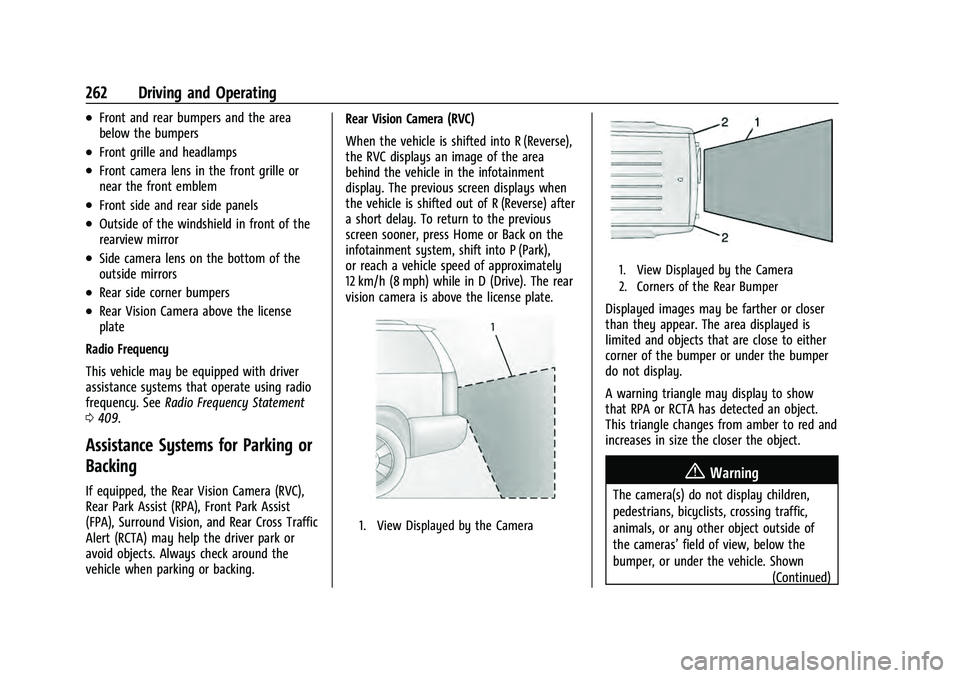
.Rear Vision Camera above the license
plate
Radio Frequency
This vehicle may be equipped with driver
assistance systems that operate using radio
frequency. See Radio Frequency Statement
0 409.
Assistance Systems for Parking or
Backing
If equipped, the Rear Vision Camera (RVC),
Rear Park Assist (RPA), Front Park Assist
(FPA), Surround Vision, and Rear Cross Traffic
Alert (RCTA) may help the driver park or
avoid objects. Always check around the
vehicle when parking or backing. Rear Vision Camera (RVC)
When the vehicle is shifted into R (Reverse),
the RVC displays an image of the area
behind the vehicle in the infotainment
display. The previous screen displays when
the vehicle is shifted out of R (Reverse) after
a short delay. To return to the previous
screen sooner, press Home or Back on the
infotainment system, shift into P (Park),
or reach a vehicle speed of approximately
12 km/h (8 mph) while in D (Drive). The rear
vision camera is above the license plate.
1. View Displayed by the Camera
1. View Displayed by the Camera
2. Corners of the Rear Bumper
Displayed images may be farther or closer
than they appear. The area displayed is
limited and objects that are close to either
corner of the bumper or under the bumper
do not display.
A warning triangle may display to show
that RPA or RCTA has detected an object.
This triangle changes from amber to red and
increases in size the closer the object.
{Warning
The camera(s) do not display children,
pedestrians, bicyclists, crossing traffic,
animals, or any other object outside of
the cameras’
field of view, below the
bumper, or under the vehicle. Shown (Continued)
Page 264 of 433
Chevrolet Tahoe/Suburban Owner Manual (GMNA-Localizing-U.S./Canada/
Mexico-13690484) - 2021 - crc - 8/17/20
Driving and Operating 263
Warning (Continued)
distances may be different from actual
distances. Do not drive or park the
vehicle using only these camera(s).
Always check behind and around the
vehicle before driving. Failure to use
proper care may result in injury, death,
or vehicle damage.
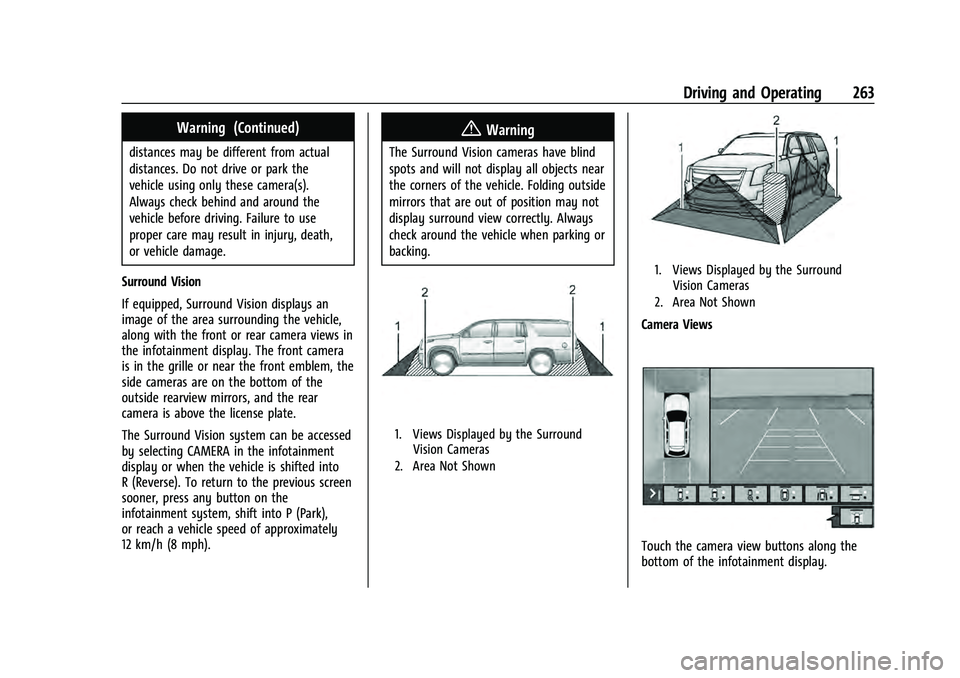
Surround Vision
If equipped, Surround Vision displays an
image of the area surrounding the vehicle,
along with the front or rear camera views in
the infotainment display. The front camera
is in the grille or near the front emblem, the
side cameras are on the bottom of the
outside rearview mirrors, and the rear
camera is above the license plate.
The Surround Vision system can be accessed
by selecting CAMERA in the infotainment
display or when the vehicle is shifted into
R (Reverse). To return to the previous screen
sooner, press any button on the
infotainment system, shift into P (Park),
or reach a vehicle speed of approximately
12 km/h (8 mph).
{Warning
The Surround Vision cameras have blind
spots and will not display all objects near
the corners of the vehicle. Folding outside
mirrors that are out of position may not
display surround view correctly. Always
check around the vehicle when parking or
backing.
1. Views Displayed by the Surround Vision Cameras
2. Area Not Shown
1. Views Displayed by the Surround Vision Cameras
2. Area Not Shown
Camera Views
Touch the camera view buttons along the
bottom of the infotainment display.
Page 265 of 433
Chevrolet Tahoe/Suburban Owner Manual (GMNA-Localizing-U.S./Canada/
Mexico-13690484) - 2021 - crc - 8/17/20
264 Driving and Operating
Front/Rear Standard View :Displays an
image of the area in front or behind the
vehicle. Touch Front/Rear Standard View on
the infotainment display when a camera
view is active. Touching the button multiple
times will toggle between front and rear
camera views.
If equipped, the front view camera also
displays when the Park Assist system
detects an object within 30 cm (12 in).
Front/Rear Junction View : Displays a front
or rear cross traffic view that shows objects
directly to the left and right of the front or
back of the vehicle. Touch Junction View on
the infotainment display when a camera
view is active. Touching the button multiple
times will toggle between front and rear
camera views.
Front/Rear Overhead View : Displays a Front
or Rear Overhead View of the vehicle.
Touching the button will toggle between the
two views.
Front/Rear Bowl View : Displays a view of
the vehicle from either the front or the back
of the vehicle. Touch Bowl View on the
infotainment display when a camera view is
active. Touching the button multiple times will toggle between forward and rearward
views. Park Assist and RCTA are not available
when Bowl view is active.
Side Forward/Rearward View :
Displays a
view that shows objects next to the front or
rear sides of the vehicle. Touch Side
Forward/Rearward View on the infotainment
display when a camera view is active.
Touching the button multiple times will
toggle between forward and rearward views.
Park Assist and RCTA overlays are not
available when Side Forward/Rearward view
is active.
Hitch View : If equipped, assists while
connecting to a trailer. Displays a zoomed-in
view of the hitch to help align the vehicle’s
hitch ball with the trailer coupler. Shifting
into P (Park) while in this view will
automatically engage the Electric Parking
Brake (EPB).
Guidance Lines : Displays available
guidelines. The horizontal markings
represent distance from the vehicle.
Top Down View : Displays an image of the
area surrounding the vehicle, along with
other views in the infotainment display. Top
Down can be enabled or disabled by
pressing the Top Down View button multiple
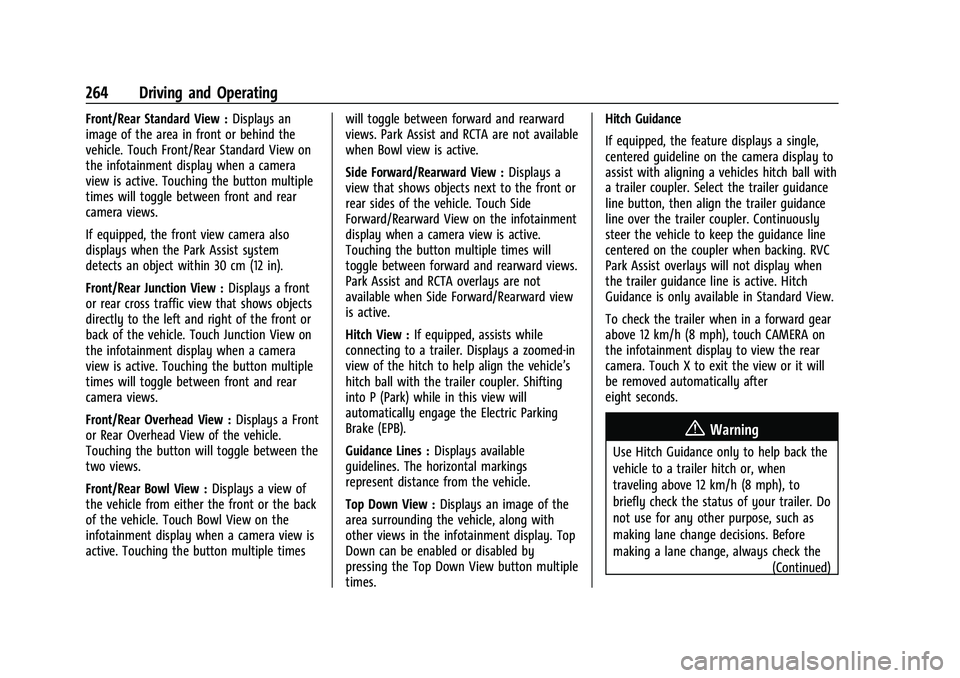
times. Hitch Guidance
If equipped, the feature displays a single,
centered guideline on the camera display to
assist with aligning a vehicles hitch ball with
a trailer coupler. Select the trailer guidance
line button, then align the trailer guidance
line over the trailer coupler. Continuously
steer the vehicle to keep the guidance line
centered on the coupler when backing. RVC
Park Assist overlays will not display when
the trailer guidance line is active. Hitch
Guidance is only available in Standard View.
To check the trailer when in a forward gear
above 12 km/h (8 mph), touch CAMERA on
the infotainment display to view the rear
camera. Touch X to exit the view or it will
be removed automatically after
eight seconds.
{Warning
Use Hitch Guidance only to help back the
vehicle to a trailer hitch or, when
traveling above 12 km/h (8 mph), to
briefly check the status of your trailer. Do
not use for any other purpose, such as
making lane change decisions. Before
making a lane change, always check the
(Continued)
Page 267 of 433
Chevrolet Tahoe/Suburban Owner Manual (GMNA-Localizing-U.S./Canada/
Mexico-13690484) - 2021 - crc - 8/17/20
266 Driving and Operating
left or right or three Safety Alert Seat pulses
occur on the left or right side, depending on
the direction of the detected vehicle.
Use caution while backing up when towing
a trailer, as the RCTA detection zones that
extend out from the back of the vehicle do
not move further back when a trailer is
towed.
Turning the Features On or Off
TheXbutton located in the customizing
menu is used to turn on or off the Park
Assist.
Front and Rear Park Assist can be set to Off,
On, or On with Towbar through vehicle
personalization. See “Park Assist”under
Vehicle Personalization 0124. If Park Assist
is turned off through vehicle personalization,
the Park Assist button will be disabled. To
turn the Park Assist on again, select On in
vehicle personalization. The On with Towbar
setting allows for Park Assist to work
properly with an attached trailer hitch. Turn
off Park Assist when towing a trailer.
To turn the RPA symbols, guidance lines,
or Rear Cross Traffic Alert on or off, see Rear
Camera and Collision/Detection Systems
under Vehicle Personalization 0124. On some models, select the guidance lines
button on the infotainment display to turn
them on or off.
Rear Pedestrian Alert
Under certain conditions, this feature can
provide alerts for a pedestrian within the
system’s range directly behind the vehicle.
This feature only works in R (Reverse) below
12 km/h (8 mph), and detects pedestrians up
to 8 m (26 ft) away during daytime driving.
During nighttime driving, feature
performance is very limited.
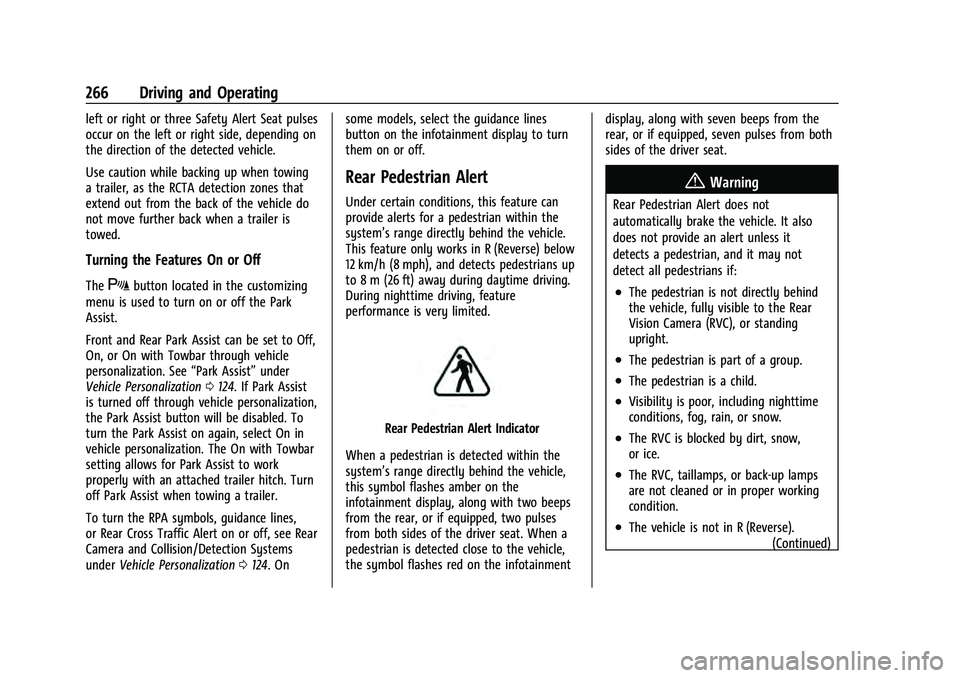
Rear Pedestrian Alert Indicator
When a pedestrian is detected within the
system’s range directly behind the vehicle,
this symbol flashes amber on the
infotainment display, along with two beeps
from the rear, or if equipped, two pulses
from both sides of the driver seat. When a
pedestrian is detected close to the vehicle,
the symbol flashes red on the infotainment display, along with seven beeps from the
rear, or if equipped, seven pulses from both
sides of the driver seat.
{Warning
Rear Pedestrian Alert does not
automatically brake the vehicle. It also
does not provide an alert unless it
detects a pedestrian, and it may not
detect all pedestrians if:
.The pedestrian is not directly behind
the vehicle, fully visible to the Rear
Vision Camera (RVC), or standing
upright.
.The pedestrian is part of a group.
.The pedestrian is a child.
.Visibility is poor, including nighttime
conditions, fog, rain, or snow.
.The RVC is blocked by dirt, snow,
or ice.
.The RVC, taillamps, or back-up lamps
are not cleaned or in proper working
condition.
.The vehicle is not in R (Reverse).
(Continued)
Page 276 of 433

Chevrolet Tahoe/Suburban Owner Manual (GMNA-Localizing-U.S./Canada/
Mexico-13690484) - 2021 - crc - 8/17/20
Driving and Operating 275
Driving with a Trailer
Although this system is intended to help
drivers avoid lane change crashes, it does
not replace driver vision and therefore
should be considered a lane change aid.
Even with the ESBZA system, the driver
must check carefully for objects outside of
the reporting zone (e.g., a fast approaching
vehicle) or vehicle along the side of the
trailer before changing lanes.
Use caution while changing lanes when
towing a trailer.
Lane Keep Assist (LKA)
If equipped, LKA may help avoid crashes due
to unintentional lane departures. This
system uses a camera to detect lane
markings between 60 km/h (37 mph) and
180 km/h (112 mph). It may assist by gently
turning the steering wheel if the vehicle
approaches a detected lane marking. It may
also provide a Lane Departure Warning
(LDW) alert if the vehicle crosses a detected
lane marking. LKA can be overridden by
turning the steering wheel. This system is
not intended to keep the vehicle centered in
the lane. LKA will not assist and alert if theturn signal is active in the direction of lane
departure, or if it detects that you are
accelerating, braking or actively steering.
{Warning
The LKA system does not continuously
steer the vehicle. It may not keep the
vehicle in the lane or give a Lane
Departure Warning (LDW) alert, even if a
lane marking is detected.
The LKA and LDW systems may not:
.Provide an alert or enough steering
assist to avoid a lane departure or
crash.
.Detect lane markings under poor
weather or visibility conditions. This
can occur if the windshield or
headlamps are blocked by dirt, snow,
or ice; if they are not in proper
condition; or if the sun shines directly
into the camera.
.Detect road edges.
.Detect lanes on winding or hilly roads.
If LKA only detects lane markings on one
side of the road, it will only assist or
provide an LDW alert when approaching (Continued)
Warning (Continued)
the lane on the side where it has
detected a lane marking. Even with LKA
and LDW, you must steer the vehicle.
Always keep your attention on the road
and maintain proper vehicle position
within the lane, or vehicle damage,
injury, or death could occur. Always keep
the windshield, headlamps, and camera
sensors clean and in good repair. Do not
use LKA in bad weather conditions or on
roads with unclear lane markings, such as
construction zones.
{Warning
Using LKA while towing a trailer or on
slippery roads could cause loss of control
of the vehicle and a crash. Turn the
system off.
How the System Works
LKA uses a camera sensor installed on the
windshield ahead of the rearview mirror to
detect lane markings. It may provide brief
steering assist if it detects an unintended
lane departure. It may further provide an
Page 277 of 433

Chevrolet Tahoe/Suburban Owner Manual (GMNA-Localizing-U.S./Canada/
Mexico-13690484) - 2021 - crc - 8/17/20
276 Driving and Operating
audible alert or the driver seat may pulse
indicating that a lane marking has been
crossed.
To turn LKA on and off, press
Ato the
left of the steering wheel. If equipped, the
indicator light on the button comes on
when LKA is on and turns off when LKA is
disabled.
When on,
Ais white, if equipped,
indicating that the system is not ready to
assist.
Ais green if LKA is ready to
assist. LKA may assist by gently turning the
steering wheel if the vehicle approaches a
detected lane marking.
Ais amber when
assisting. It may also provide a Lane
Departure Warning (LDW) alert by flashing
Aamber if the vehicle crosses a
detected lane marking. Additionally, there
may be three beeps, or the driver seat may
pulse three times, on the right or left,
depending on the lane departure direction.
Take Steering
The LKA system does not continuously steer
the vehicle. If LKA does not detect active
driver steering, an alert and chime may be
provided. Steer the vehicle to dismiss. LKA
may become temporarily unavailable after
repeated take steering alerts.
When the System Does Not Seem to
Work Properly
The system performance may be
affected by:
.Close vehicles ahead.
.Sudden lighting changes, such as when
driving through tunnels.
.Banked roads.
.Roads with poor lane markings, such as
two-lane roads.
If the LKA system is not functioning
properly when lane markings are clearly
visible, cleaning the windshield may help.
A camera blocked message may display if
the camera is blocked. Some driver
assistance systems may have reduced
performance or not work at all. An LKA or
LDW unavailable message may display if the
systems are temporarily unavailable. This
message could be due to a blocked camera.
The LKA system does not need service. Clean
the outside of the windshield behind the
rearview mirror.
LKA assistance and/or LDW alerts may occur
due to tar marks, shadows, cracks in the
road, temporary or construction lane
markings, or other road imperfections. This is normal system operation; the vehicle does
not need service. Turn LKA off if these
conditions continue.
Fuel
Top Tier Fuel
GM recommends the use of TOP TIER
Detergent Gasoline to keep the engine clean,
reduce engine deposits, and maintain
optimal vehicle performance. Look for the
TOP TIER Logo or see www.toptiergas.com
for a list of TOP TIER Detergent Gasoline
marketers and applicable countries.
Page 331 of 433
Chevrolet Tahoe/Suburban Owner Manual (GMNA-Localizing-U.S./Canada/
Mexico-13690484) - 2021 - crc - 8/17/20
330 Vehicle Care
Glass Replacement
If the windshield or front side glass must be
replaced, see your dealer to determine the
correct replacement glass.
Windshield Replacement
HUD System
The windshield is part of the HUD system.
If the windshield must be replaced, get one
that is designed for HUD or the HUD image
may look out of focus.
Driver Assistance Systems
If the windshield needs to be replaced and
the vehicle is equipped with a front camera
sensor for the Driver Assistance Systems, a
GM replacement windshield is
recommended. The replacement windshield
must be installed according to GM
specifications for proper alignment. If it is
not, these systems may not work properly,
they may display messages, or they may
not work at all. See your dealer for proper
windshield replacement.
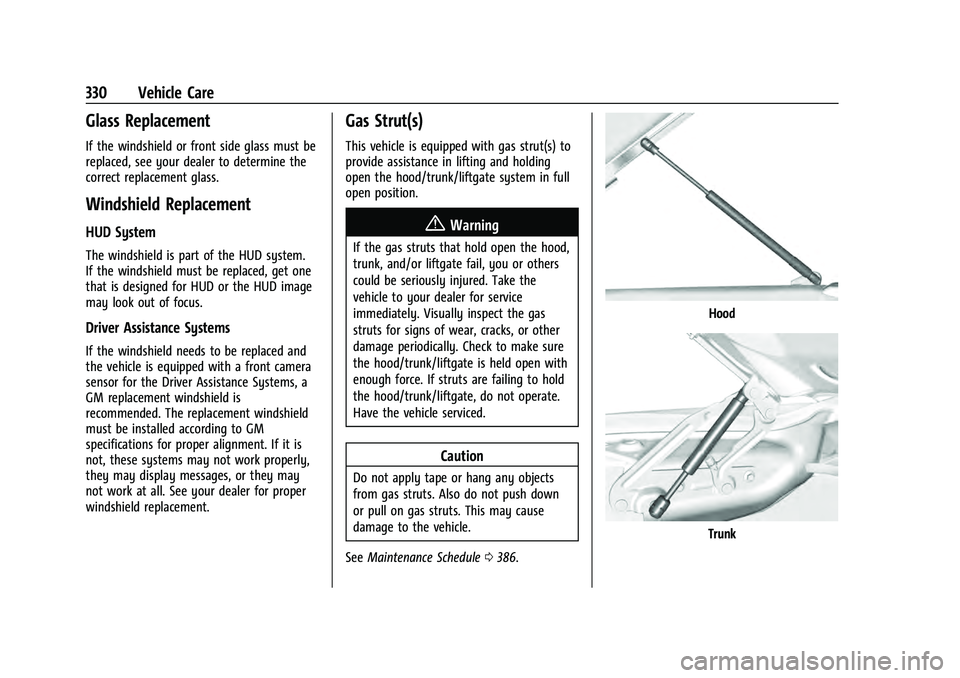
Gas Strut(s)
This vehicle is equipped with gas strut(s) to
provide assistance in lifting and holding
open the hood/trunk/liftgate system in full
open position.
{Warning
If the gas struts that hold open the hood,
trunk, and/or liftgate fail, you or others
could be seriously injured. Take the
vehicle to your dealer for service
immediately. Visually inspect the gas
struts for signs of wear, cracks, or other
damage periodically. Check to make sure
the hood/trunk/liftgate is held open with
enough force. If struts are failing to hold
the hood/trunk/liftgate, do not operate.
Have the vehicle serviced.
Caution
Do not apply tape or hang any objects
from gas struts. Also do not push down
or pull on gas struts. This may cause
damage to the vehicle.
See Maintenance Schedule 0386.
Hood
Trunk
Page 337 of 433
Chevrolet Tahoe/Suburban Owner Manual (GMNA-Localizing-U.S./Canada/
Mexico-13690484) - 2021 - crc - 8/17/20
336 Vehicle Care
FusesUsage
1 –
2 –
3 –
4 –
6 ELM 7 7 ELM 4
8 –
9 ELM 5
10 ELM 6 11 Spare
12 –
13 Washer front
14 Washer rear 15 Rec 2
16 Power sounder 17 Spare
19 DC/AC inverter
20 IECR 2 21 –
22 IECL 2 Fuses
Usage
24 EBCM 25 REC 1
26 Camera wash 27 Horn
28 Headlamp RT
29 Headlamp LT
30 ELM 3 31 ELM 1
32 –
33 Not R/C
34 –
37 OBD body
38 MISC body
39 Upfitter
40 MISC IP 41 Trailer parking lamps
42 Right taillamp
44 Trailer tow 45 Secondary axle motor
46 ECM ignition Fuses
Usage
47 OBD engine
48 –
49 TCM 50 A/C clutch 51 TCCM
52 Front wiper
53 –
54 Left taillamps 55 Trailer back up lamp
56 SADS 57 Spare
58 Starter motor
60 AFM 1 61 ALC main
62 ICCM/CVS/DEF
63 Trailer brake
65 AUX UEC
66 Left cool fan motor 67 AFM2
68 ALC motor
Page 339 of 433
Chevrolet Tahoe/Suburban Owner Manual (GMNA-Localizing-U.S./Canada/
Mexico-13690484) - 2021 - crc - 8/17/20
338 Vehicle Care
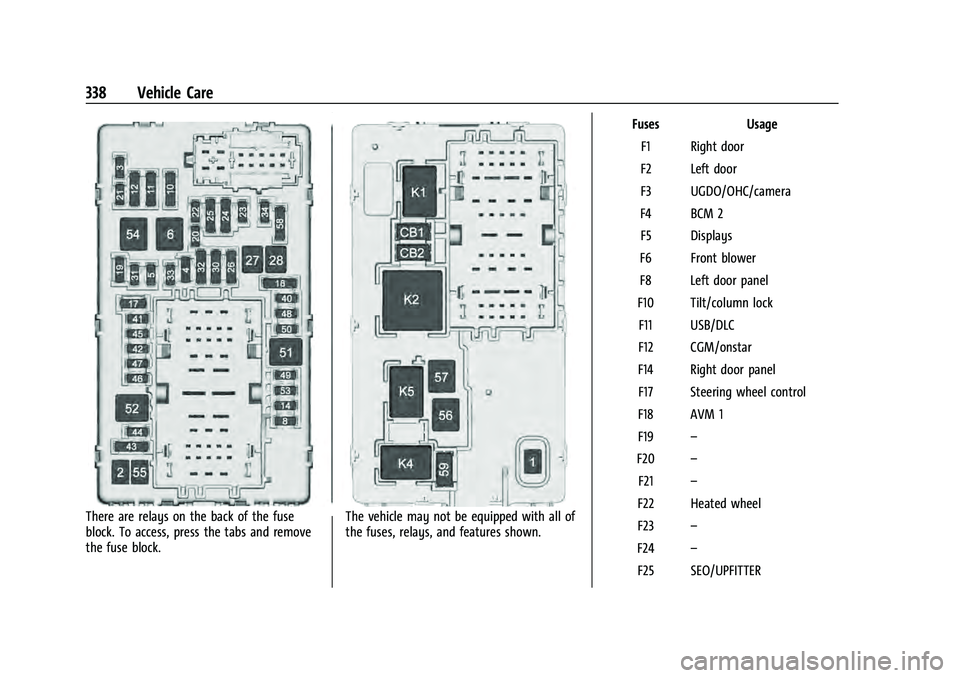
There are relays on the back of the fuse
block. To access, press the tabs and remove
the fuse block.The vehicle may not be equipped with all of
the fuses, relays, and features shown. Fuses Usage
F1 Right door
F2 Left door
F3 UGDO/OHC/camera
F4 BCM 2 F5 Displays
F6 Front blower
F8 Left door panel
F10 Tilt/column lock F11 USB/DLC
F12 CGM/onstar
F14 Right door panel F17 Steering wheel control
F18 AVM 1
F19 –
F20 –
F21 –
F22 Heated wheel
F23 –
F24 –
F25 SEO/UPFITTER