OnStar CHEVROLET TAHOE 2021 User Guide
[x] Cancel search | Manufacturer: CHEVROLET, Model Year: 2021, Model line: TAHOE, Model: CHEVROLET TAHOE 2021Pages: 433, PDF Size: 7.36 MB
Page 169 of 433
Chevrolet Tahoe/Suburban Owner Manual (GMNA-Localizing-U.S./Canada/
Mexico-13690484) - 2021 - crc - 8/17/20
168 Infotainment System
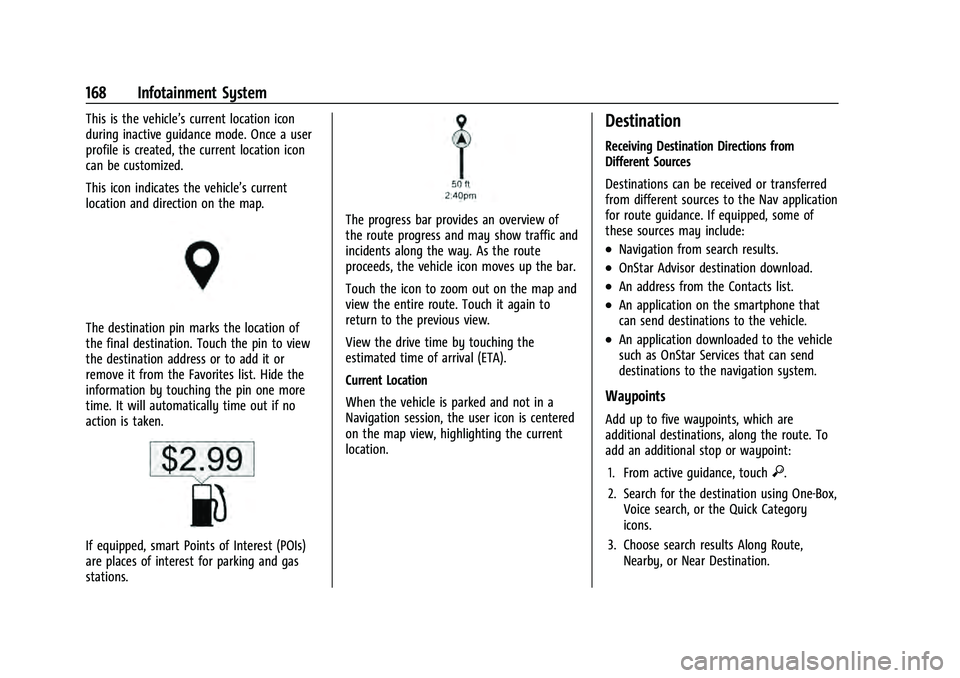
This is the vehicle’s current location icon
during inactive guidance mode. Once a user
profile is created, the current location icon
can be customized.
This icon indicates the vehicle’s current
location and direction on the map.
The destination pin marks the location of
the final destination. Touch the pin to view
the destination address or to add it or
remove it from the Favorites list. Hide the
information by touching the pin one more
time. It will automatically time out if no
action is taken.
If equipped, smart Points of Interest (POIs)
are places of interest for parking and gas
stations.
The progress bar provides an overview of
the route progress and may show traffic and
incidents along the way. As the route
proceeds, the vehicle icon moves up the bar.
Touch the icon to zoom out on the map and
view the entire route. Touch it again to
return to the previous view.
View the drive time by touching the
estimated time of arrival (ETA).
Current Location
When the vehicle is parked and not in a
Navigation session, the user icon is centered
on the map view, highlighting the current
location.
Destination
Receiving Destination Directions from
Different Sources
Destinations can be received or transferred
from different sources to the Nav application
for route guidance. If equipped, some of
these sources may include:
.Navigation from search results.
.OnStar Advisor destination download.
.An address from the Contacts list.
.An application on the smartphone that
can send destinations to the vehicle.
.An application downloaded to the vehicle
such as OnStar Services that can send
destinations to the navigation system.
Waypoints
Add up to five waypoints, which are
additional destinations, along the route. To
add an additional stop or waypoint:1. From active guidance, touch
}.
2. Search for the destination using One-Box, Voice search, or the Quick Category
icons.
3. Choose search results Along Route, Nearby, or Near Destination.
Page 175 of 433
Chevrolet Tahoe/Suburban Owner Manual (GMNA-Localizing-U.S./Canada/
Mexico-13690484) - 2021 - crc - 8/17/20
174 Infotainment System
OnStar System
With a connected plan, an OnStar Advisor
can download a destination to the vehicle or
into the built-in navigation system.
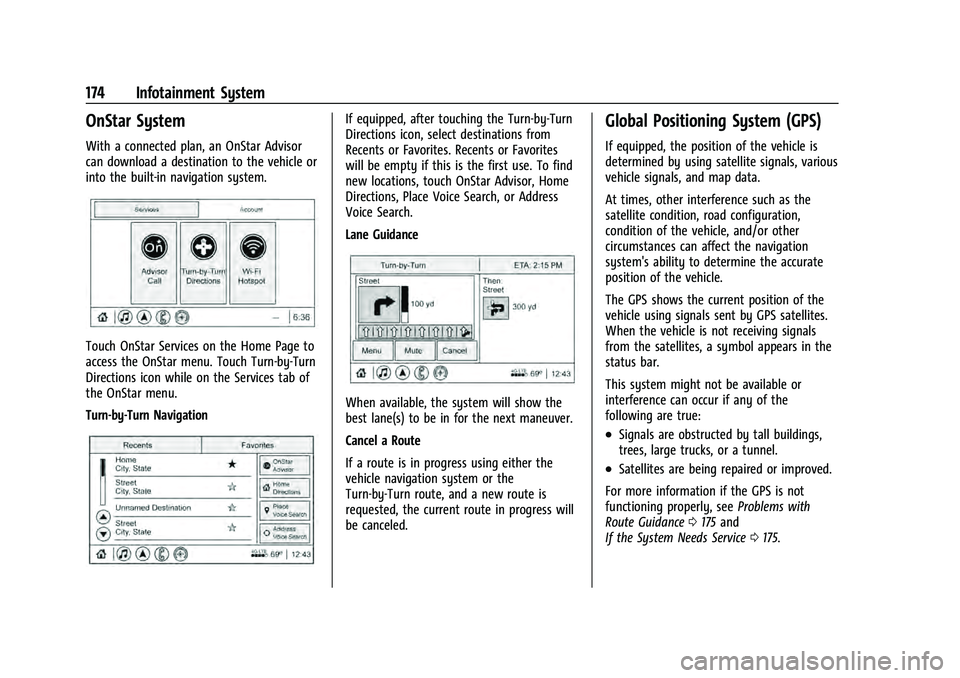
Touch OnStar Services on the Home Page to
access the OnStar menu. Touch Turn-by-Turn
Directions icon while on the Services tab of
the OnStar menu.
Turn-by-Turn Navigation
If equipped, after touching the Turn-by-Turn
Directions icon, select destinations from
Recents or Favorites. Recents or Favorites
will be empty if this is the first use. To find
new locations, touch OnStar Advisor, Home
Directions, Place Voice Search, or Address
Voice Search.
Lane Guidance
When available, the system will show the
best lane(s) to be in for the next maneuver.
Cancel a Route
If a route is in progress using either the
vehicle navigation system or the
Turn-by-Turn route, and a new route is
requested, the current route in progress will
be canceled.
Global Positioning System (GPS)
If equipped, the position of the vehicle is
determined by using satellite signals, various
vehicle signals, and map data.
At times, other interference such as the
satellite condition, road configuration,
condition of the vehicle, and/or other
circumstances can affect the navigation
system's ability to determine the accurate
position of the vehicle.
The GPS shows the current position of the
vehicle using signals sent by GPS satellites.
When the vehicle is not receiving signals
from the satellites, a symbol appears in the
status bar.
This system might not be available or
interference can occur if any of the
following are true:
.Signals are obstructed by tall buildings,
trees, large trucks, or a tunnel.
.Satellites are being repaired or improved.
For more information if the GPS is not
functioning properly, see Problems with
Route Guidance 0175 and
If the System Needs Service 0175.
Page 189 of 433
Chevrolet Tahoe/Suburban Owner Manual (GMNA-Localizing-U.S./Canada/
Mexico-13690484) - 2021 - crc - 8/17/20
188 Infotainment System
If a 4G LTE data package is not active on the
vehicle, the infotainment system can be
connected to an external protected Wi-Fi
network, such as a mobile device or home
hotspot, to utilize connected services.
Wi-Fi Hotspot
Touch and the following may display:
.Wi-Fi Services: This allows devices to use
the vehicle hotspot.
Touch the controls on the infotainment
display to disable or enable.
.Wi-Fi Name: Touch to change the vehicle
Wi-Fi name.
.Wi-Fi Password: Touch to change the
vehicle Wi-Fi password.
.Connected Devices: Touch to show
connected devices.
.Share Hotspot Data: Touch On to allow
devices to use the vehicle hotspot and its
data, or touch Off to allow devices to
only use the vehicle hotspot but not
its data.
Privacy
Touch and the following may display:
.Location Services: This setting enables or
disables sharing of vehicle location
outside the vehicle. Emergency services
will not be affected when Off is selected.
.Data Services: If equipped, this setting
determines if data sharing can be used by
features including Wi-Fi, Hotspot, and
applications. Touch Off to disable data
services. Emergency services and phone
calls, such as calls with OnStar Advisors or
others, will not be affected when Off is
selected.
.Voice Recognition Sharing: This setting
determines if voice commands can be
shared with a cloud-based voice
recognition system. Touch Off to prevent
the sharing and possible recording of your
voice commands with this system. This
may limit the system’s ability to
understand your voice commands and
may disable some features.
.Types: This setting lists all
Android-defined as dangerous permissions
currently used by the infotainment
system, the number of applications that
have requested this permission, and the
number of applications that are allowed
to use this permission.
.Used By Applications: This setting lists all
applications that are requested or are
using Android-defined as dangerous
permissions. Only requested and active
permissions are shown.
Display
Touch and the following may display:
.Mode: This adjusts the appearance of the
navigation map view and any
downloaded apps optimized for day or
night time conditions. Set to Auto for the
display to automatically adjust based on
bright/dark conditions.
Touch Auto, Day, or Night to adjust the
display.
.Calibrate Touchscreen: Touch to calibrate
the infotainment display and follow the
prompts.
.Turn Display Off: Touch to turn the
display off. Touch anywhere on the
infotainment display or press any
infotainment control on the center stack
again to turn the display on.
Sounds
Touch and the following may display:
Page 193 of 433
Chevrolet Tahoe/Suburban Owner Manual (GMNA-Localizing-U.S./Canada/
Mexico-13690484) - 2021 - crc - 8/17/20
192 Infotainment System
.Auto Heated Seats: This setting
automatically turns on and regulates the
heated seats when the cabin temperature
is cool. The auto heated seats can be
turned off by using the heated seat
controls on the center stack.
Touch the controls on the infotainment
display to disable or enable.
.Auto Defog: This setting automatically
turns the front defogger on when the
vehicle engine is started.
Touch the controls on the infotainment
display to disable or enable.
.Auto Rear Defog: This setting
automatically turns the rear window
defogger on when the vehicle engine is
started.
Touch the controls on the infotainment
display to disable or enable.
Navigation (if equipped)
Touch and the following may display:
.Set Up My Places
.Map Preferences
.Route Preferences
.Navigation Voice Control
.Traffic Preferences
.Alert Preferences
.Manage History
.Predictive Navigation
.About
See Using the Navigation System 0164.
Phone
Touch and the following may display:
.My Number: Displays the cell phone
number of the Bluetooth connected
device.
.Active Call View: Shows active call display
when answering a call.
Touch the controls on the infotainment
display to disable or enable.
.Privacy: Only show call alerts in the
instrument cluster.
Touch Off or On.
.Sort Contacts: Touch to sort by first or
last name.
.Re-sync Device Contacts:
This allows the device contacts to re-sync
if you are having difficulty accessing all of
the contacts on your cell phone.
.Delete All Vehicle Contacts: Touch to
delete all vehicle stored contacts.
.OnStar Phone TTY Mode: This enables
OnStar cell phone TTY mode. Touch Disable or Enable.
Vehicle
This menu allows adjustment of different
vehicle features. See
Vehicle Personalization
0 124.
Personal
If equipped, this menu allows adjustment of
different user profile settings. See “Users”in
Using the System 0145 for information on
setting up user profiles.
The menu may contain the following:
Name
Touch to edit your user name that will be
displayed in the vehicle.
Vehicle Account Information
Touch to view the vehicle account
information and to change the account
password.
An “unverified user account” pop-up will
display until the account information
verification process has been completed on
the Internet. Check your registered e-mail
account for an activation e-mail to complete
the verification process.
Page 231 of 433
Chevrolet Tahoe/Suburban Owner Manual (GMNA-Localizing-U.S./Canada/
Mexico-13690484) - 2021 - crc - 8/17/20
230 Driving and Operating
.Infotainment System
.Power Windows (during RAP this
functionality will be lost when any door
is opened)
.Sunroof (during RAP this functionality will
be lost when any door is opened)
.Auxiliary Power Outlet
.Audio System
.OnStar System
Shifting Into Park
{Warning
It can be dangerous to get out of the
vehicle if the vehicle is not in P (Park)
with the parking brake set. The vehicle
can roll. If you have left the engine
running, the vehicle can move suddenly.
You or others could be injured. To be
sure the vehicle will not move, even
when you are on fairly level ground, use
the steps that follow. If you are pulling a
trailer, seeDriving Characteristics and
Towing Tips 0280.
1. Hold the brake pedal down and set the parking brake. See Electric Parking Brake
0 240. 2. Press the P (Park) switch on the center
stack.
3. Press ENGINE START/STOP to turn the engine off.
If the vehicle is shifted into P (Park) on a
hill, the Electric Parking Brake (EPB) may
apply automatically. The driver may not be
able to release the EPB using the EPB
switch. It should automatically release when
the vehicle is shifted out of P (Park).
Leaving the Vehicle with the Engine
Running
{Warning
It can be dangerous to leave the vehicle
with the engine running. It could
overheat and catch fire.
It is dangerous to get out of the vehicle
if the vehicle is not in P (Park) with the
parking brake set. The vehicle can roll.
Do not leave the vehicle when the engine
is running. If you have left the engine
running, the vehicle can move suddenly.
You or others could be injured. To be
sure the vehicle will not move, even
when you are on fairly level ground, (Continued)
Warning (Continued)
always set the parking brake and shift
the vehicle to P (Park). SeeShifting Into
Park 0230. If you are towing a trailer,
see Driving Characteristics and Towing
Tips 0280.
If you have to leave the vehicle with the
engine running, the vehicle must be in
P (Park) with the parking brake set.
Confirm that the vehicle is in P (Park).
Shifting out of Park
This vehicle is equipped with an electronic
transmission.
To shift out of P (Park): 1. Ensure the engine is running.
2. Apply the brake pedal.
3. Press or pull the desired shift switch. For N (Neutral) press and hold the N (Neutral)
switch until the N indicator
illuminates red.
4. The P indicator will turn white and the gear indicator will turn red when the
vehicle is no longer in P (Park).
Page 299 of 433
Chevrolet Tahoe/Suburban Owner Manual (GMNA-Localizing-U.S./Canada/
Mexico-13690484) - 2021 - crc - 8/17/20
298 Driving and Operating
The Trailering App Preview will appear when
the Trailering App is opened for the first
time from the Home Page. Touch GET
STARTED in the Trailering App to go into
the app.
When a trailer is electrically connected and
a trailer profile has not been created, there
will be an option to create a profile, use a
guest profile, or select Accessory/No trailer.
After the pop-up is displayed three times,
Don’t Remind Me will display and touching
that will turn off the trailer detection
pop-up. To turn the Trailer Detection Alert
on, select ON in the Settings tab.
When a trailer is electrically connected and
after a Trailer Profile has been created, the
trailer detection pop-up will appear with a
list of all of the custom Trailer Profiles made
on the vehicle. To load an existing Trailer
Profile, select one of the Trailer Profiles
listed, or load the Guest Trailer Profile by
selecting GUEST TRAILER. Touching
Accessory/No trailer will select Accessory/No
trailer as the active Trailer Profile and will
dismiss the pop- up. Shifting the vehicle
from P (Park) will select Guest Trailer as the
active Trailer Profile and will dismiss the
pop-up.Create a Trailer Profile
1. Touch Create Profile on the trailer detection pop-up or touch + Add Trailer
Profile in the Trailering App.
2. Create a name for the trailer.
3. Select the trailer type.
4. Select Save Profile.
A pop-up will indicate the setup is complete.
Touch DONE to complete the process or
touch TRAILER FEATURE SETUP to set up the
Tow/Haul Mode reminder, Trailer Tire
Pressure Monitoring System, if equipped,
maintenance reminders, or towing
assistance, if equipped.
Import a Trailer Profile
A trailer profile saved to an OnStar account
can be imported to the vehicle. 1. Touch + Add Trailer Profile in the Trailering App
2. Touch Import Profile on the pop-up.
3. Select a trailer profile from the list.
4. Touch IMPORT.
A pop-up will indicate the import was
successful. Touch OK to return to the trailer
list and select the trailer profile. The Tow/ Haul Mode reminder, Brake Gain Setting and
Trailer Tire Pressure sensor learning,
if equipped, do not import.
Trailer Feature Setup
Tow/Haul Mode Reminder
To turn the Tow/Haul Mode Reminder
setting on, touch Yes. To turn it off,
touch No.
Trailer Tire Pressure Setup
If the Trailer Tire Pressure Monitoring
System (TTPMS) is detected, touch the Tire
Pressure Monitoring icon to set up tire
pressure monitoring. Touch Yes to set up
the sensors or touch No to return to the
previous screen.
The trailer tire pressure sensors can transmit
up to 7 m (23 feet) from the hitch receiver of
the vehicle.
A trailer must be electrically connected to
the vehicle before starting the
sensor-to-vehicle learn process.
After selecting Start from the Learn Sensors
screen, use the Tool Method or the Manual
Method (described below) to learn each tire
sensor, during which the current tire number
will be highlighted.
Page 306 of 433
Chevrolet Tahoe/Suburban Owner Manual (GMNA-Localizing-U.S./Canada/
Mexico-13690484) - 2021 - crc - 8/17/20
Driving and Operating 305
Edit Reminder
Touch to edit the mileage or time settings
for the reminder. Touch Save to save the
new settings to the Trailer Profile.
Delete Reminder
Touch to delete the maintenance reminder.
On the pop-up, touch Delete to delete the
reminder or touch Cancel to return to the
previous view and nothing will change.
New Maintenance Reminder
Touch + New Maintenance Reminder to set
up a new reminder. Suggested reminders
that were previously set will have
checkmarks next to them. Suggested
reminders that have not been set will have
empty boxes next to them. The maximum
number of reminders is 50.
Edit Mileage
Touch to edit the Trailer Profile’s mileage.
Touch Reset to reset trailer mileage to zero,
or enter a new value and touch Save.
Touching back will return to the Trailer
Profile view.Effect on Maintenance Reminders
If the mileage is reset or changed, and
mileage has already accumulated, any
maintenance reminders that have been set
up will be adjusted accordingly.
Reset Average Fuel Economy
Touch to reset the average fuel economy for
the Trailer Profile. Touch Reset to change,
or touch Cancel to go back to the
previous view.
Delete/Remove Trailer
Touch to remove the Trailer Profile and all
of its settings.
On the pop-up, touch Remove to remove the
Trailer Profile from the vehicle. Touch Cancel
to dismiss the pop-up and return to the
previous view.
Remove will be displayed if there is a
connected OnStar plan active with the
vehicle. Removing a trailer profile will
remove the profile from the vehicle but the
profile will still be associated with the user
account. However, if there is not a
connected OnStar plan then the remove
button will read DELETE and the profile will
be deleted permanentlySettings View
Within the Trailering App, touch the Settings
tab to modify the following settings:
.Trailer Detection Alert
.Maintenance Alerts
.Theft Alert
.Tow/Haul Mode Reminder
Trailer Detection Alert
The Trailer Detection Alert setting will be on
by default. Turn it off to disable the Trailer
Detection pop-up from displaying when a
trailer is connected. The Guest Trailer Profile
will become the active Trailer Profile, unless
another Trailer Profile is selected manually
through the Trailering App. If this setting is
disabled while a Custom Trailer Profile is
active, that Trailer Profile will remain the
active profile until the trailer is
disconnected.
Maintenance Alerts
Touch Maintenance Alerts to view the
Maintenance Alerts settings page. These
alerts are based on the Trailer Profile, so the
settings for each Trailer Profile must be
turned on or off. Touch a profile to view
more information or adjust the setting for
that profile.
Page 307 of 433
Chevrolet Tahoe/Suburban Owner Manual (GMNA-Localizing-U.S./Canada/
Mexico-13690484) - 2021 - crc - 8/17/20
306 Driving and Operating
The setting will be on by default for each
profile. All Maintenance Alerts for that active
Trailer Profile will be received.
Turn a setting off to not receive any of the
Maintenance Alerts when that Trailer Profile
is active.
Theft Alert
A theft alert can be set if a trailer is
connected and the alert is enabled. When
the trailer is disconnected and the vehicle is
off, an alarm will sound.
Touch Theft Alert in Settings to view the
Theft Alert settings page. These alerts are
based on the Trailer Profile, so the settings
for each Trailer Profile must be turned on or
off. Touch a profile to view more
information or adjust the setting for that
profile.
This setting will be off by default for each
Trailer Profile, including the Guest Trailer
Profile.
A smartphone will receive a notification that
the trailer related to the selected Trailer
Profile is disconnected from the vehicle,
if the setting is on for the active Trailer
Profile, the vehicle has an OnStar orconnected service plan and the smartphone
number has been added to the account for
this notification.
If the setting is turned off for a given Trailer
Profile, the smartphone will not receive this
security notification even if the Trailer
Profile is active.Tow/Haul Mode Reminder
This is a reminder to turn on the Tow/Haul
Mode when towing a trailer. See
Tow/Haul
Mode 0235.
Touch Tow/Haul Mode Reminder in Settings
to view the Tow/Haul Mode Reminder
settings page. These alerts are based on the
Trailer Profile, so the settings for each
Trailer Profile must be turned on or off.
Touch a profile to view more information or
to adjust the setting for that profile.
This setting will default to OFF for each
Trailer Profile, including the Guest Trailer
Profile.
If Tow/Haul Mode is off and this setting is
on for a Trailer Profile, each time the
ignition is turned on a reminder will appear
to turn on Tow/Haul Mode when the Trailer
Profile is active. If Tow/Haul Mode is on and this setting is
on for a Trailer Profile, the reminder will not
appear when the Trailer Profile is active.
Conversions and Add-Ons
Add-On Electrical Equipment
{Warning
The Data Link Connector (DLC) is used for
vehicle service and Emission Inspection/
Maintenance testing. See
Malfunction
Indicator Lamp (Check Engine Light) 0110.
A device connected to the DLC —such as
an aftermarket fleet or driver-behavior
tracking device —may interfere with
vehicle systems. This could affect vehicle
operation and cause a crash. Such devices
may also access information stored in the
vehicle’s systems.
Caution
Some electrical equipment can damage
the vehicle or cause components to not
work and would not be covered by the
vehicle warranty. Always check with your
dealer before adding electrical equipment.
Page 339 of 433
Chevrolet Tahoe/Suburban Owner Manual (GMNA-Localizing-U.S./Canada/
Mexico-13690484) - 2021 - crc - 8/17/20
338 Vehicle Care
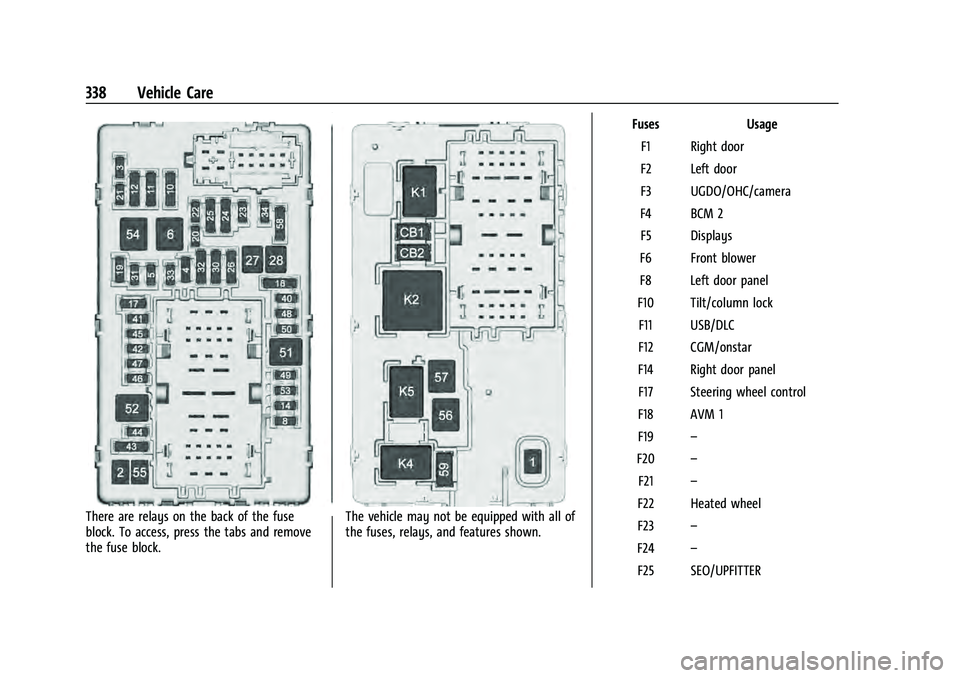
There are relays on the back of the fuse
block. To access, press the tabs and remove
the fuse block.The vehicle may not be equipped with all of
the fuses, relays, and features shown. Fuses Usage
F1 Right door
F2 Left door
F3 UGDO/OHC/camera
F4 BCM 2 F5 Displays
F6 Front blower
F8 Left door panel
F10 Tilt/column lock F11 USB/DLC
F12 CGM/onstar
F14 Right door panel F17 Steering wheel control
F18 AVM 1
F19 –
F20 –
F21 –
F22 Heated wheel
F23 –
F24 –
F25 SEO/UPFITTER
Page 402 of 433
Chevrolet Tahoe/Suburban Owner Manual (GMNA-Localizing-U.S./Canada/
Mexico-13690484) - 2021 - crc - 8/17/20
Customer Information 401
Customer Information
Customer Information
Customer Satisfaction Procedure . . . . . . 401
Customer Assistance Offices . . . . . . . . . . . 403
Customer Assistance for Text Telephone(TTY) Users . . . . . . . . . . . . . . . . . . . . . . . . . . 403
Online Owner Center . . . . . . . . . . . . . . . . . . 403
GM Mobility Reimbursement Program . . . . . . . . . . . . . . . . . . . . . . . . . . . . 404
Roadside Assistance Program . . . . . . . . . 404
Scheduling Service Appointments . . . . . 405
Courtesy Transportation Program . . . . . 406
Collision Damage Repair . . . . . . . . . . . . . . 407
Publication Ordering Information . . . . . 408
Radio Frequency Statement . . . . . . . . . . . 409
Reporting Safety Defects
Reporting Safety Defects to the United States Government . . . . . . . . . . . . . . . . . . 409
Reporting Safety Defects to the Canadian Government . . . . . . . . . . . . . . . 409
Reporting Safety Defects to General Motors . . . . . . . . . . . . . . . . . . . . . . . . . . . . . . 410
Vehicle Data Recording and Privacy
Vehicle Data Recording and Privacy . . . 410
Cybersecurity . . . . . . . . . . . . . . . . . . . . . . . . . . 410
Event Data Recorders . . . . . . . . . . . . . . . . . . 411
OnStar . . . . . . . . . . . . . . . . . . . . . . . . . . . . . . . . . 411
Infotainment System . . . . . . . . . . . . . . . . . . 411Customer Information
Customer Satisfaction Procedure
Your satisfaction and goodwill are important
to your dealer and to Chevrolet. Normally,
any concerns with the sales transaction or
the operation of the vehicle will be resolved
by your dealer's sales or service
departments. Sometimes, however, despite
the best intentions of all concerned,
misunderstandings can occur. If your concern
has not been resolved to your satisfaction,
the following steps should be taken:
STEP ONE : Discuss your concern with a
member of dealership management.
Normally, concerns can be quickly resolved
at that level. If the matter has already been
reviewed with the sales, service, or parts
manager, contact the owner of your
dealership or the general manager.
STEP TWO : If after contacting a member of
dealership management, it appears your
concern cannot be resolved by your
dealership without further help, in the U.S.,
call the Chevrolet Customer Assistance
Center at 1-800-222-1020. In Canada, call
General Motors of Canada Customer Care
Centre at 1-800-263-3777 (English),
or 1-800-263-7854 (French).