wheel CHEVROLET TAHOE 2021 Owner's Guide
[x] Cancel search | Manufacturer: CHEVROLET, Model Year: 2021, Model line: TAHOE, Model: CHEVROLET TAHOE 2021Pages: 433, PDF Size: 7.36 MB
Page 115 of 433
Chevrolet Tahoe/Suburban Owner Manual (GMNA-Localizing-U.S./Canada/
Mexico-13690484) - 2021 - crc - 8/17/20
114 Instruments and Controls
If equipped, this indicator will display green
when a vehicle is detected ahead and amber
when you are following a vehicle ahead
much too closely.
SeeForward Collision Alert (FCA) System
0 267.
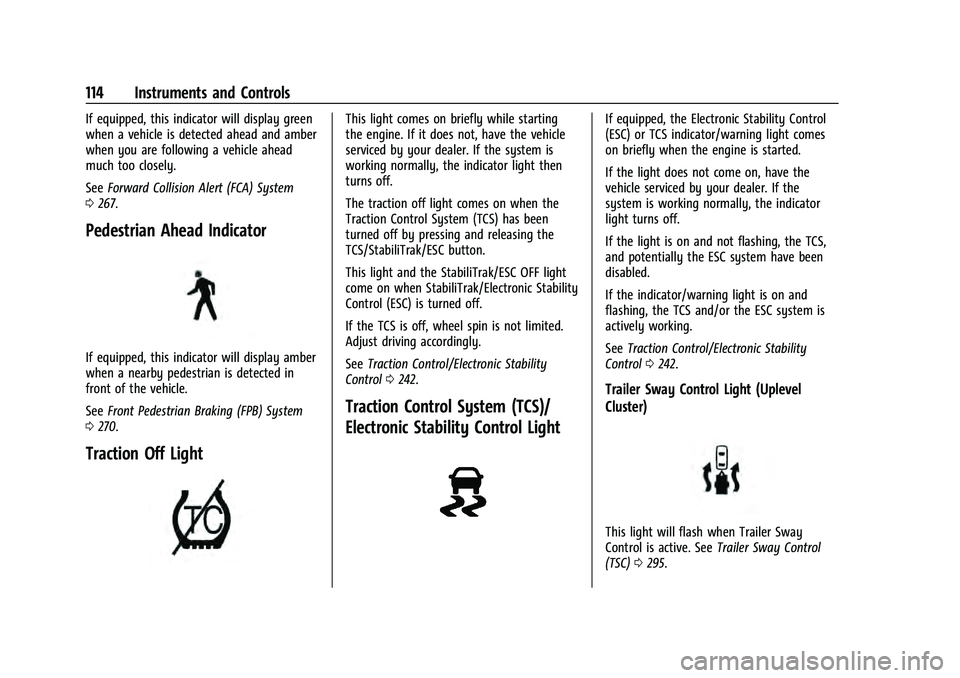
Pedestrian Ahead Indicator
If equipped, this indicator will display amber
when a nearby pedestrian is detected in
front of the vehicle.
See Front Pedestrian Braking (FPB) System
0 270.
Traction Off Light
This light comes on briefly while starting
the engine. If it does not, have the vehicle
serviced by your dealer. If the system is
working normally, the indicator light then
turns off.
The traction off light comes on when the
Traction Control System (TCS) has been
turned off by pressing and releasing the
TCS/StabiliTrak/ESC button.
This light and the StabiliTrak/ESC OFF light
come on when StabiliTrak/Electronic Stability
Control (ESC) is turned off.
If the TCS is off, wheel spin is not limited.
Adjust driving accordingly.
See Traction Control/Electronic Stability
Control 0242.
Traction Control System (TCS)/
Electronic Stability Control Light
If equipped, the Electronic Stability Control
(ESC) or TCS indicator/warning light comes
on briefly when the engine is started.
If the light does not come on, have the
vehicle serviced by your dealer. If the
system is working normally, the indicator
light turns off.
If the light is on and not flashing, the TCS,
and potentially the ESC system have been
disabled.
If the indicator/warning light is on and
flashing, the TCS and/or the ESC system is
actively working.
See Traction Control/Electronic Stability
Control 0242.
Trailer Sway Control Light (Uplevel
Cluster)
This light will flash when Trailer Sway
Control is active. See Trailer Sway Control
(TSC) 0295.
Page 120 of 433
Chevrolet Tahoe/Suburban Owner Manual (GMNA-Localizing-U.S./Canada/
Mexico-13690484) - 2021 - crc - 8/17/20
Instruments and Controls 119
Information Displays
Driver Information Center (DIC)
The DIC displays are shown in the center of
the instrument cluster in the Info app. See
Instrument Cluster0102. The displays show
the status of many vehicle systems.
If the vehicle has a diesel engine, see the
Duramax diesel supplement.
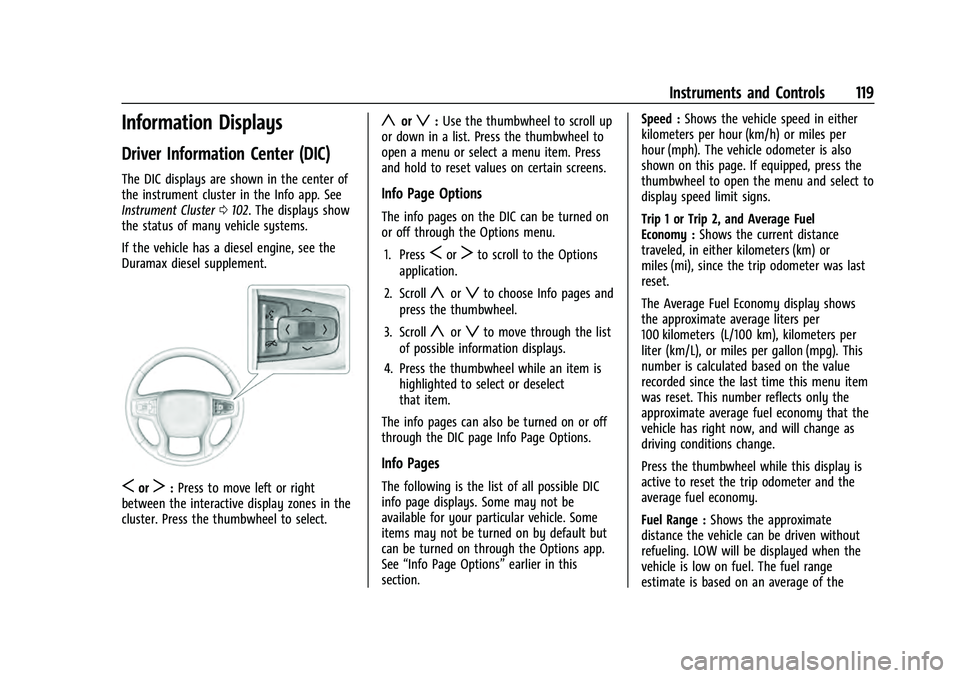
SorT: Press to move left or right
between the interactive display zones in the
cluster. Press the thumbwheel to select.
yorz: Use the thumbwheel to scroll up
or down in a list. Press the thumbwheel to
open a menu or select a menu item. Press
and hold to reset values on certain screens.
Info Page Options
The info pages on the DIC can be turned on
or off through the Options menu.
1. Press
SorTto scroll to the Options
application.
2. Scroll
yorzto choose Info pages and
press the thumbwheel.
3. Scroll
yorzto move through the list
of possible information displays.
4. Press the thumbwheel while an item is highlighted to select or deselect
that item.
The info pages can also be turned on or off
through the DIC page Info Page Options.
Info Pages
The following is the list of all possible DIC
info page displays. Some may not be
available for your particular vehicle. Some
items may not be turned on by default but
can be turned on through the Options app.
See “Info Page Options” earlier in this
section. Speed :
Shows the vehicle speed in either
kilometers per hour (km/h) or miles per
hour (mph). The vehicle odometer is also
shown on this page. If equipped, press the
thumbwheel to open the menu and select to
display speed limit signs.
Trip 1 or Trip 2, and Average Fuel
Economy : Shows the current distance
traveled, in either kilometers (km) or
miles (mi), since the trip odometer was last
reset.
The Average Fuel Economy display shows
the approximate average liters per
100 kilometers (L/100 km), kilometers per
liter (km/L), or miles per gallon (mpg). This
number is calculated based on the value
recorded since the last time this menu item
was reset. This number reflects only the
approximate average fuel economy that the
vehicle has right now, and will change as
driving conditions change.
Press the thumbwheel while this display is
active to reset the trip odometer and the
average fuel economy.
Fuel Range : Shows the approximate
distance the vehicle can be driven without
refueling. LOW will be displayed when the
vehicle is low on fuel. The fuel range
estimate is based on an average of the
Page 121 of 433
Chevrolet Tahoe/Suburban Owner Manual (GMNA-Localizing-U.S./Canada/
Mexico-13690484) - 2021 - crc - 8/17/20
120 Instruments and Controls
vehicle's fuel economy over recent driving
history and the amount of fuel remaining in
the fuel tank.
Timer :This display can be used as a timer.
To start the timer, press the thumbwheel
while this display is active. The display will
show the amount of time that has passed
since the timer was last reset. To stop the
timer, press the thumbwheel briefly while
this display is active and the timer is
running.
Press the thumbwheel while this display is
active to reset the timer.
Oil Life : Shows an estimate of the oil's
remaining useful life. If REMAINING OIL LIFE
99% is displayed, that means 99% of the
current oil life remains.
When the remaining oil life is low, the
CHANGE ENGINE OIL SOON message will
appear on the display. The oil should be
changed as soon as possible. See Engine Oil
0 315. In addition to the engine oil life
system monitoring the oil life, additional
maintenance is recommended. See
Maintenance Schedule 0386.
The Oil Life display must be reset after each
oil change. It will not reset itself. Do not
reset the Oil Life display at any time other than when the oil has just been changed.
It cannot be reset accurately until the next
oil change. To reset the engine oil life
system, press the thumbwheel while the Oil
Life display is active. See
Engine Oil Life
System 0316.
Tire Pressure : Shows the approximate
pressures of all four tires. Tire pressure is
displayed in either kilopascal (kPa) or in
pounds per square inch (psi). If the pressure
is low, the value for that tire is shown in
amber. See Tire Pressure Monitor System
0 348 and
Tire Pressure Monitor Operation 0349.
Air Filter Life : Shows an estimate of the
engine air filter’s remaining useful life and
the state of the system. Engine Air Filter Life
95% means 95% of the current air filter life
remains. Messages will display based on the
engine air filter life and the state of the
system. When the REPLACE SOON message
displays, the engine air filter should be
replaced at the earliest convenience.
The Air Filter Life display must be reset after
the engine air filter replacement. To reset,
see Engine Air Filter Life System 0318.
Brake Pad Life : This displays an estimate of
the remaining life of the front and rear
brake pads. Messages will display based on brake pad wear and the state of the system.
Reset the Brake Pad Life display after
replacing the brake pads. See
Brake Pad Life
System 0325.
Fuel Economy : Displays average fuel
economy, the best fuel economy over the
selected distance, and a bar graph showing
instantaneous fuel economy.
Press the thumbwheel to change the
selected distance. Press and hold the
thumbwheel while this display is active to
reset the best fuel economy and average
fuel economy. This display can also be reset
by selecting reset in the menu.
Engine Hours (Hourmeter) : Shows the total
number of hours the engine has run. This
display also shows the engine idle hours.
Transmission Fluid Temperature : Shows the
temperature of the automatic transmission
fluid in either degrees Celsius (°C) or degrees
Fahrenheit (°F).
Trailer Brake : On vehicles with the
Integrated Trailer Brake Control (ITBC)
system, the trailer brake display appears in
the DIC.
Page 122 of 433
Chevrolet Tahoe/Suburban Owner Manual (GMNA-Localizing-U.S./Canada/
Mexico-13690484) - 2021 - crc - 8/17/20
Instruments and Controls 121
TRAILER GAIN shows the trailer gain setting.
This setting can be adjusted from 0.0 to 10.0
with either a trailer connected or
disconnected.
OUTPUT shows the power output to the
trailer any time a trailer with electric brakes
is connected. Output is displayed as a bar
graph. Dotted lines may appear in the
OUTPUT display if a trailer is not connected.
Off Road :If equipped, displays vehicle pitch
and roll information, road wheel angle, and
four-wheel drive (4WD) status.
Follow Distance : If equipped, the current
follow time to the vehicle ahead is displayed
as a time value on this page.
Driver Assistance : If equipped, shows
information for Lane Keep Assist (LKA) and
Forward Collision Alert (FCA).
Info Page Options : Scroll to choose which
info pages appear on the DIC. Press the
thumbwheel to select or deselect.
Blank Page : Shows no information.Head-Up Display (HUD)
{Warning
If the HUD image is too bright or too
high in your field of view, it may take
you more time to see things you need to
see when it is dark outside. Be sure to
keep the HUD image dim and placed low
in your field of view.
If equipped with HUD, some information
about the operation of the vehicle is
projected onto the windshield. The image is
projected through the HUD lens on top of
the instrument panel. The information
appears as an image focused out toward the
front of the vehicle.
Caution
If you try to use the HUD image as a
parking aid, you may misjudge the
distance and damage your vehicle. Do not
use the HUD image as a parking aid.
The HUD information can be displayed in
various languages. The speedometer reading
and other numerical values can be displayed
in either English or metric units. The language selection is changed through
the radio, and the units of measurement is
changed through the instrument cluster. See
Settings
0187 and “Options” under
Instrument Cluster 0102.
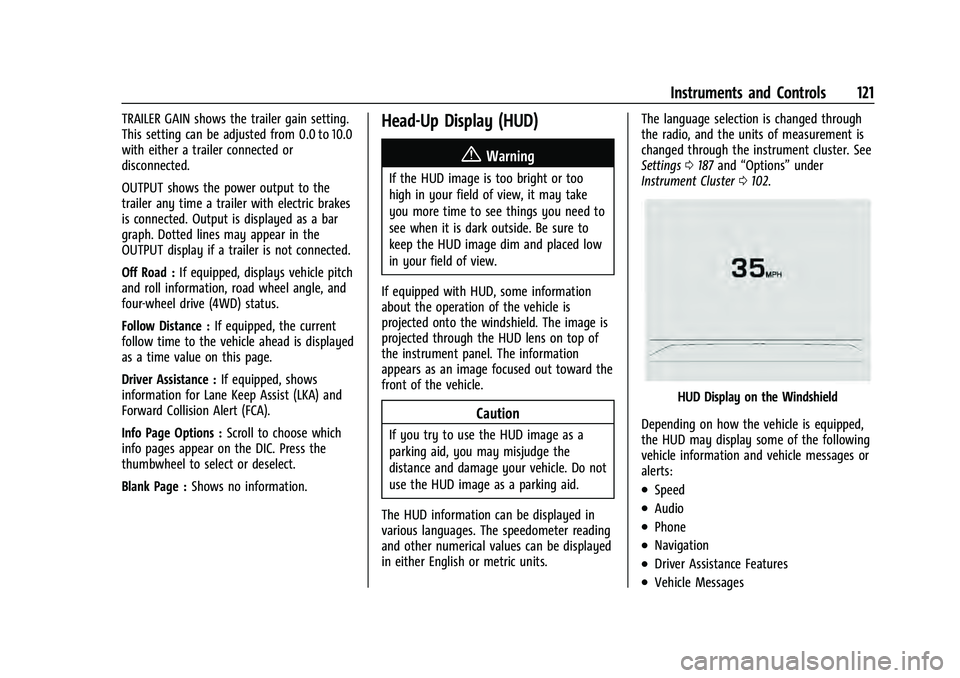
HUD Display on the Windshield
Depending on how the vehicle is equipped,
the HUD may display some of the following
vehicle information and vehicle messages or
alerts:
.Speed
.Audio
.Phone
.Navigation
.Driver Assistance Features
.Vehicle Messages
Page 123 of 433
Chevrolet Tahoe/Suburban Owner Manual (GMNA-Localizing-U.S./Canada/
Mexico-13690484) - 2021 - crc - 8/17/20
122 Instruments and Controls
Some vehicle messages or alerts displayed in
the HUD may be cleared by using the
steering wheel controls.
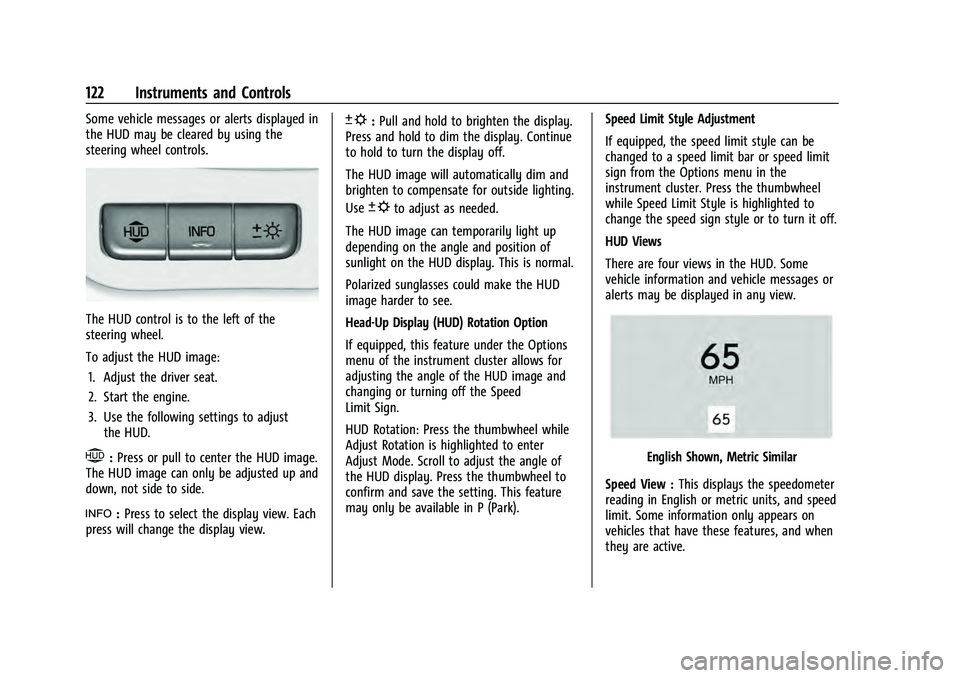
The HUD control is to the left of the
steering wheel.
To adjust the HUD image:1. Adjust the driver seat.
2. Start the engine.
3. Use the following settings to adjust the HUD.
$:Press or pull to center the HUD image.
The HUD image can only be adjusted up and
down, not side to side.
!: Press to select the display view. Each
press will change the display view.
D: Pull and hold to brighten the display.
Press and hold to dim the display. Continue
to hold to turn the display off.
The HUD image will automatically dim and
brighten to compensate for outside lighting.
Use
Dto adjust as needed.
The HUD image can temporarily light up
depending on the angle and position of
sunlight on the HUD display. This is normal.
Polarized sunglasses could make the HUD
image harder to see.
Head-Up Display (HUD) Rotation Option
If equipped, this feature under the Options
menu of the instrument cluster allows for
adjusting the angle of the HUD image and
changing or turning off the Speed
Limit Sign.
HUD Rotation: Press the thumbwheel while
Adjust Rotation is highlighted to enter
Adjust Mode. Scroll to adjust the angle of
the HUD display. Press the thumbwheel to
confirm and save the setting. This feature
may only be available in P (Park). Speed Limit Style Adjustment
If equipped, the speed limit style can be
changed to a speed limit bar or speed limit
sign from the Options menu in the
instrument cluster. Press the thumbwheel
while Speed Limit Style is highlighted to
change the speed sign style or to turn it off.
HUD Views
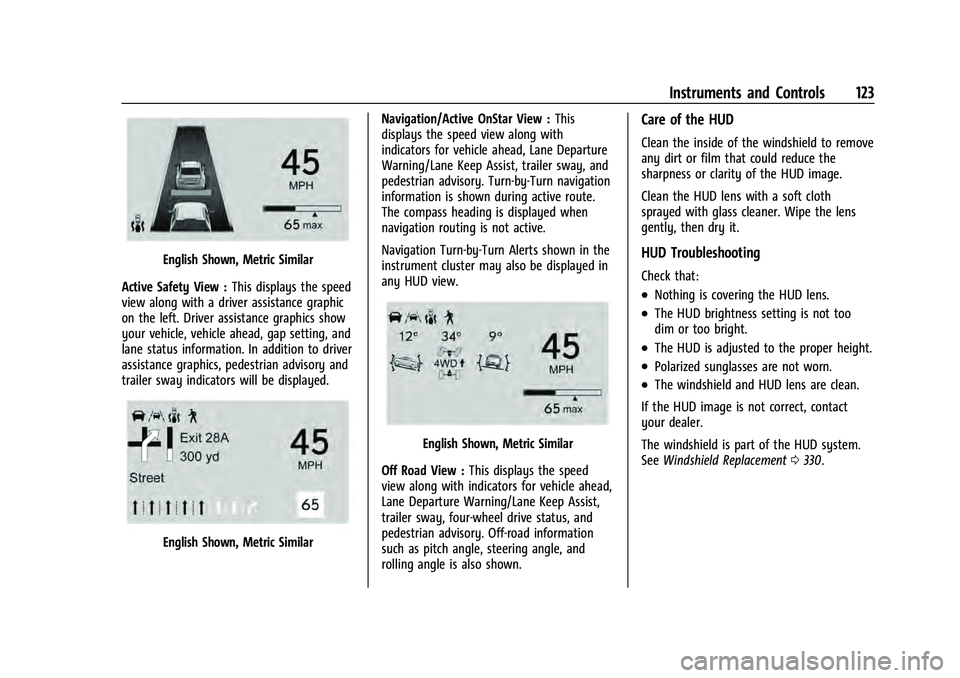
There are four views in the HUD. Some
vehicle information and vehicle messages or
alerts may be displayed in any view.
English Shown, Metric Similar
Speed View : This displays the speedometer
reading in English or metric units, and speed
limit. Some information only appears on
vehicles that have these features, and when
they are active.
Page 124 of 433
Chevrolet Tahoe/Suburban Owner Manual (GMNA-Localizing-U.S./Canada/
Mexico-13690484) - 2021 - crc - 8/17/20
Instruments and Controls 123
English Shown, Metric Similar
Active Safety View : This displays the speed
view along with a driver assistance graphic
on the left. Driver assistance graphics show
your vehicle, vehicle ahead, gap setting, and
lane status information. In addition to driver
assistance graphics, pedestrian advisory and
trailer sway indicators will be displayed.
English Shown, Metric Similar Navigation/Active OnStar View :
This
displays the speed view along with
indicators for vehicle ahead, Lane Departure
Warning/Lane Keep Assist, trailer sway, and
pedestrian advisory. Turn-by-Turn navigation
information is shown during active route.
The compass heading is displayed when
navigation routing is not active.
Navigation Turn-by-Turn Alerts shown in the
instrument cluster may also be displayed in
any HUD view.
English Shown, Metric Similar
Off Road View : This displays the speed
view along with indicators for vehicle ahead,
Lane Departure Warning/Lane Keep Assist,
trailer sway, four-wheel drive status, and
pedestrian advisory. Off-road information
such as pitch angle, steering angle, and
rolling angle is also shown.
Care of the HUD
Clean the inside of the windshield to remove
any dirt or film that could reduce the
sharpness or clarity of the HUD image.
Clean the HUD lens with a soft cloth
sprayed with glass cleaner. Wipe the lens
gently, then dry it.
HUD Troubleshooting
Check that:
.Nothing is covering the HUD lens.
.The HUD brightness setting is not too
dim or too bright.
.The HUD is adjusted to the proper height.
.Polarized sunglasses are not worn.
.The windshield and HUD lens are clean.
If the HUD image is not correct, contact
your dealer.
The windshield is part of the HUD system.
See Windshield Replacement 0330.
Page 126 of 433
Chevrolet Tahoe/Suburban Owner Manual (GMNA-Localizing-U.S./Canada/
Mexico-13690484) - 2021 - crc - 8/17/20
Instruments and Controls 125
4. Touch9orRto turn a feature off or on.
5. Touch
zto go to the top level of the
Settings menu.
The menu may contain the following:
Rear Seat Reminder
This allows for a chime and a message when
the rear door has been opened before or
during operation of the vehicle.
Touch Off or On.
Climate and Air Quality
Touch and the following may display:
.Auto Fan Speed
.Auto Cooled Seats
.Auto Heated Seats
.Auto Defog
.Auto Rear Defog
Auto Fan Speed
This setting specifies the amount of airflow
when the climate control fan setting is
Auto Fan.
Touch Low, Medium, or High. Auto Cooled Seats
This setting automatically turns on and
regulates the ventilated seats when the
cabin temperature is warm. See
Heated and
Ventilated Front Seats 043.
Touch Off or On.
Auto Heated Seats
This setting automatically turns on and
regulates the heated seats when the cabin
temperature is cool. The auto heated seats
can be turned off by using the heated seat
buttons on the center stack. See Heated and
Ventilated Front Seats 043.
If equipped with the auto heated steering
wheel, this feature will turn on when the
auto heated seats turn on.
Touch Off or On.
Auto Defog
This setting automatically directs air to the
windshield to assist in defogging, based on
temperature and humidity conditions.
Touch Off or On.
Auto Rear Defog
This setting automatically turns the rear
defogger on based on temperature and
humidity conditions. Touch Off or On.
Collision/Detection Systems
Touch and the following may display:
.Alert Type
.Forward Collision System
.Front Pedestrian Detection
.Adaptive Cruise Go Notifier
.Lane Change Alert
.Park Assist
.Rear Camera Park Assist Symbols
.Rear Cross Traffic Alert
.Rear Pedestrian Detection
Alert Type
This feature sets the type of alert from the
driver assistance systems to help avoid
crashes.
Touch Beeps or Safety Alert Seat.
Forward Collision System
This setting can alert of a potential crash
with a detected vehicle ahead and can apply
brakes to help reduce a collision’s severity.
Touch Off, Alert, or Alert and Brake.
Page 127 of 433
Chevrolet Tahoe/Suburban Owner Manual (GMNA-Localizing-U.S./Canada/
Mexico-13690484) - 2021 - crc - 8/17/20
126 Instruments and Controls
Front Pedestrian Detection
This feature may help avoid or reduce the
harm caused by front-end crashes with
nearby pedestrians. SeeFront Pedestrian
Braking (FPB) System 0270.
Touch Off, Alert, or Alert and Brake.
Adaptive Cruise Go Notifier
This setting determines if an alert will
appear when Adaptive Cruise Control brings
the vehicle to a complete stop and the
vehicle ahead of you starts moving again.
See Adaptive Cruise Control (Advanced)
0 253.
Touch Off or On.
Lane Change Alert
This allows the feature to be turned on or
off. See Lane Change Alert (LCA) 0272.
Touch Off or On.
Park Assist
This allows the feature to be turned on or
off. See Assistance Systems for Parking or
Backing 0262.
Select Off or On. Rear Camera Park Assist Symbols
This setting enables the Rear Camera Park
Assist Symbols. See
Assistance Systems for
Parking or Backing 0262.
Touch Off or On.
Rear Cross Traffic Alert
This allows the Rear Cross Traffic Alert
feature to be turned on or off. See
Assistance Systems for Parking or Backing
0 262.
Touch Off or On.
Rear Pedestrian Detection
This setting specifies if alerts will display
when the vehicle detects pedestrians behind
when in R (Reverse). See Rear Pedestrian
Alert 0266.
Touch Off, Alert, or Alert and Brake.
Comfort and Convenience
Touch and the following may display:
.Automatic Entry/Egress Assist
.Chime Volume
.Hands Free Liftgate/Trunk Control
.Reverse Tilt Mirror
.Remote Mirror Folding
.Rain Sense Wipers
.Auto Wipe in Reverse Gear
Automatic Entry/Egress Assist
This feature specifies if the vehicle will
automatically lower to make it easier to
enter or exit the vehicle.
Touch Off or On.
Chime Volume
This determines the chime volume level.
Touch the controls on the infotainment
display to adjust the volume.
Hands Free Liftgate/Trunk Control
The liftgate may be operated with a kicking
motion under the left corner of the rear
bumper. See Liftgate018.
Touch Off, On-Open and Close,
or On-Open Only.
Reverse Tilt Mirror
When on, the driver, passenger, or both
driver and passenger outside mirrors will tilt
downward when the vehicle is shifted into
R (Reverse) to improve visibility of the
ground near the rear wheels. They may
move from their tilted position when the
vehicle is shifted out of R (Reverse) or
turned off. See Reverse Tilt Mirrors 029.
Page 129 of 433

Chevrolet Tahoe/Suburban Owner Manual (GMNA-Localizing-U.S./Canada/
Mexico-13690484) - 2021 - crc - 8/17/20
128 Instruments and Controls
Remote Lock Feedback
This allows selection of what type of
feedback is given when locking the vehicle
with the Remote Key.
Touch Off, Lights and Horn, Lights Only,
or Horn Only.
Remote Door Unlock
This allows selection of which doors will
unlock when pressing
Kon the
Remote Key.
Touch All Doors or Driver Door.
Remote Start Auto Cool Seats
If equipped and turned on, this feature will
turn on the ventilated seats when using
remote start on warm days. See Heated and
Ventilated Front Seats 043 and
Remote Vehicle Start 014.
Touch Off or On.
Remote Start Auto Heat Seats
If equipped and turned on, this feature will
turn on the heated seats when using remote
start on cold days. See Heated and
Ventilated Front Seats 043 and
Remote Vehicle Start 014. If equipped with Auto Heated Steering
Wheel, this feature will turn on when the
Remote Start Auto Heated Seats turn on.
Touch Off or On.
Remote Window Operation
If equipped, this feature enables remote
operation of the windows with the Remote
Key. See
Remote Keyless Entry (RKE) System
Operation 08.
Touch Off or On.
Passive Door Unlock
This allows the selection of what doors will
unlock when using the button on the driver
door to unlock the vehicle.
Touch Off, All Doors or Driver Door Only.
Passive Door Lock
This allows passive locking to be turned on
or off and selects feedback. See Remote
Keyless Entry (RKE) System Operation 08.
Touch Off, On with Horn Chirp, or On.
Remote Left in Vehicle Alert
This feature sounds an alert when the
Remote Key is left in the vehicle.
Touch Off or On. Remote Removed from Vehicle Alert
This feature beeps the horn 3 times when
exiting a running vehicle with the
Remote Key.
Touch Off or On.
Ride Height
Touch and the following may display:
.Automatic Entry/Egress
Automatic Entry/Egress
This feature specifies if the vehicle will
automatically lower to make it easier to
enter or exit the vehicle.
Touch Off or On.
Running Boards
Touch and the following may display:
.Automatic Running Boards
.Deploy Running Boards
Automatic Running Boards
This feature specifies the position and use of
the running boards. See Power Assist Steps
0 25.
Touch Off or On.
Page 130 of 433
Chevrolet Tahoe/Suburban Owner Manual (GMNA-Localizing-U.S./Canada/
Mexico-13690484) - 2021 - crc - 8/17/20
Instruments and Controls 129
Deploy Running Boards
This feature moves the running boards to a
deployed position so they can be used with
the doors closed.
Touch Off or Deploy.
Seating Position
Touch and the following may display:
.Seat Entry Memory
.Seat Exit Memory
Seat Entry Memory
This feature automatically recalls the
previously stored 1 or 2 button positions
when the ignition is changed from off to on
or ACC/ACCESSORY. See Memory Seats040.
Touch Off or On.
Seat Exit Memory
This feature automatically recalls the
previously stored exit button position when
the ignition is changed from on or ACC/
ACCESSORY to off and the driver door is
open. See Memory Seats 040.
Touch Off or On.
Suspension
Touch and the following may display:
.Service Mode
.Alignment Mode
Service Mode
This feature disables the air suspension
system and is used to prevent unintended
raising or lowering of the suspension..
Touch Off or On.
Alignment Mode
This feature will optimize the vehicle height
to provide the most accurate wheel
alignment.
Touch Off or On.
Teen Driver
See “Teen Driver” underSettings 0187.
Valet Mode
This will lock the infotainment system and
steering wheel controls. It may also limit
access to vehicle storage locations,
if equipped.
To enable valet mode:
1. Enter a four-digit code on the keypad.
2. Select Enter to go to the confirmation screen.
3. Re-enter the four-digit code. Touch Lock or Unlock to lock or unlock the
system. Touch Back to go back to the
previous menu.
Universal Remote System
See
Radio Frequency Statement 0409.
Universal Remote System
Programming
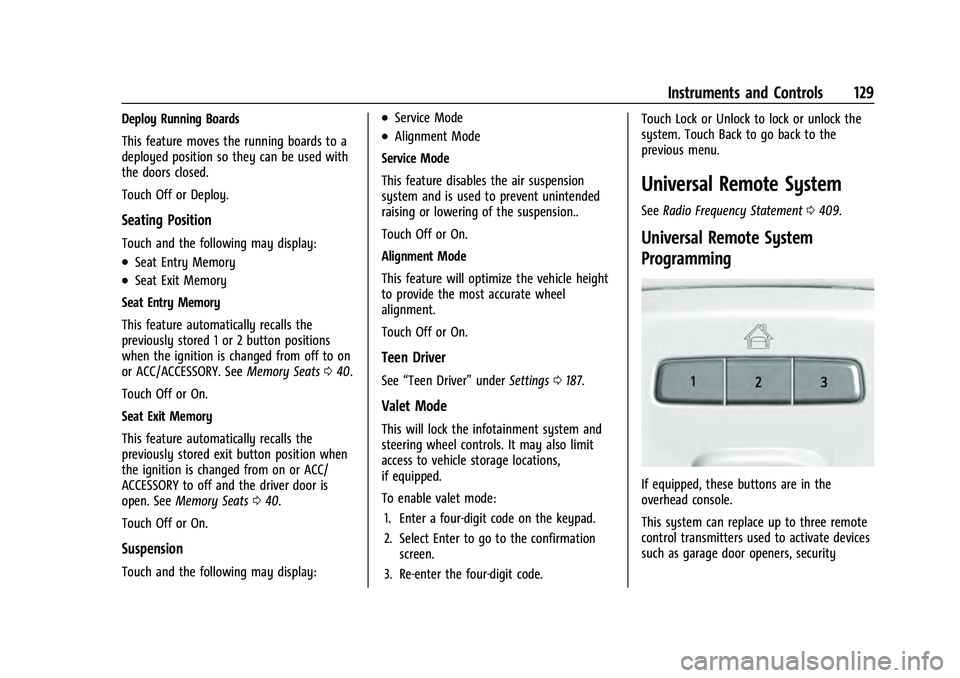
If equipped, these buttons are in the
overhead console.
This system can replace up to three remote
control transmitters used to activate devices
such as garage door openers, security