aux port CHEVROLET TAHOE 2021 Owner's Manual
[x] Cancel search | Manufacturer: CHEVROLET, Model Year: 2021, Model line: TAHOE, Model: CHEVROLET TAHOE 2021Pages: 433, PDF Size: 7.36 MB
Page 91 of 433
Chevrolet Tahoe/Suburban Owner Manual (GMNA-Localizing-U.S./Canada/
Mexico-13690484) - 2021 - crc - 8/17/20
90 Storage
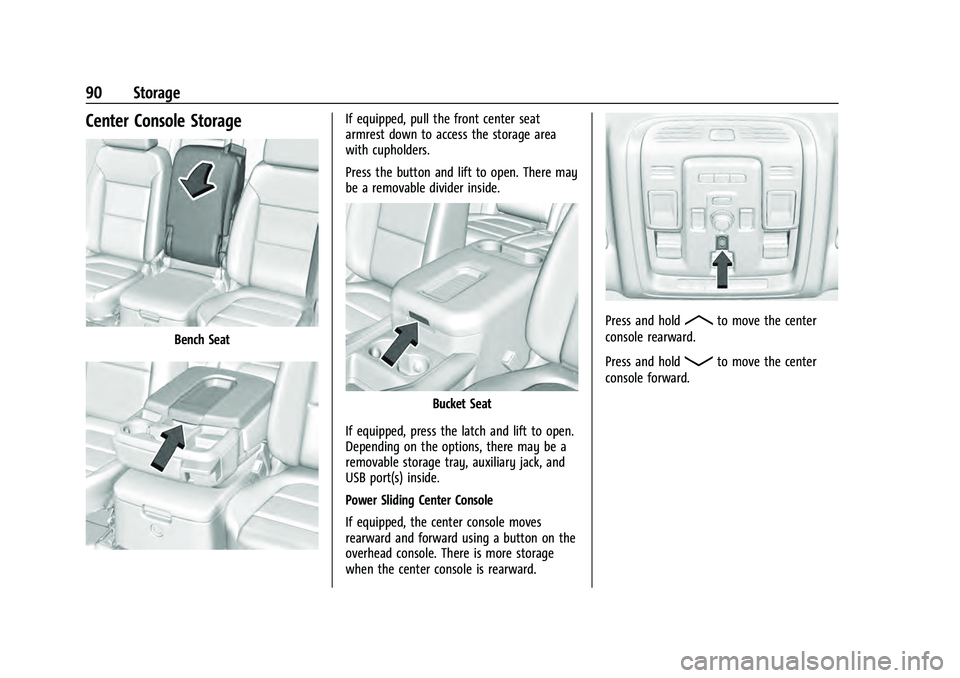
Center Console Storage
Bench Seat
If equipped, pull the front center seat
armrest down to access the storage area
with cupholders.
Press the button and lift to open. There may
be a removable divider inside.
Bucket Seat
If equipped, press the latch and lift to open.
Depending on the options, there may be a
removable storage tray, auxiliary jack, and
USB port(s) inside.
Power Sliding Center Console
If equipped, the center console moves
rearward and forward using a button on the
overhead console. There is more storage
when the center console is rearward.
Press and holdRto move the center
console rearward.
Press and hold
Qto move the center
console forward.
Page 146 of 433
Chevrolet Tahoe/Suburban Owner Manual (GMNA-Localizing-U.S./Canada/
Mexico-13690484) - 2021 - crc - 8/17/20
Infotainment System 145
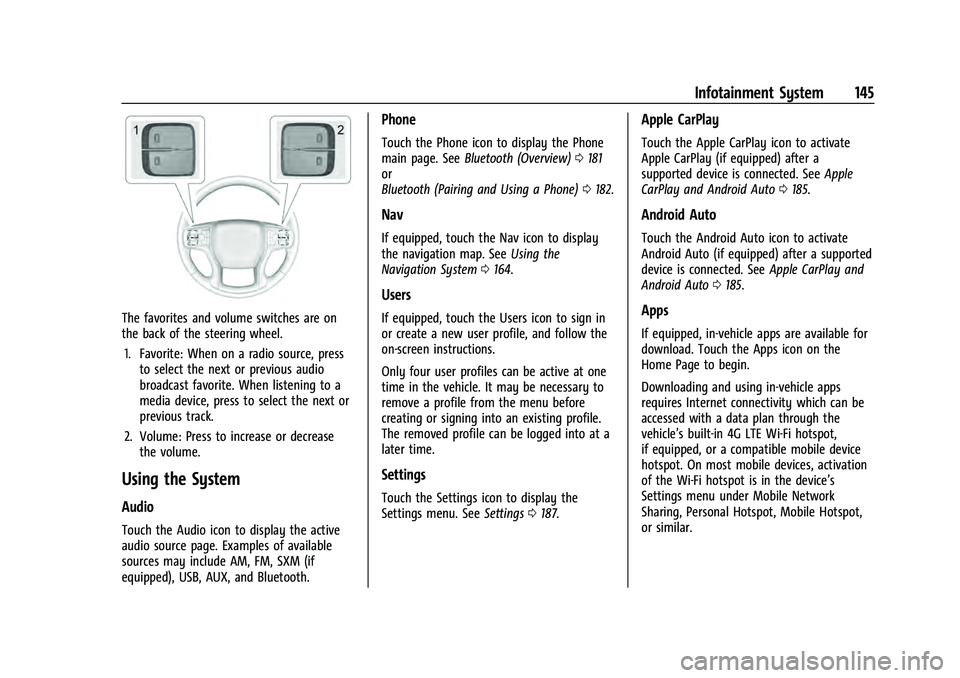
The favorites and volume switches are on
the back of the steering wheel.1. Favorite: When on a radio source, press to select the next or previous audio
broadcast favorite. When listening to a
media device, press to select the next or
previous track.
2. Volume: Press to increase or decrease the volume.
Using the System
Audio
Touch the Audio icon to display the active
audio source page. Examples of available
sources may include AM, FM, SXM (if
equipped), USB, AUX, and Bluetooth.
Phone
Touch the Phone icon to display the Phone
main page. See Bluetooth (Overview) 0181
or
Bluetooth (Pairing and Using a Phone) 0182.
Nav
If equipped, touch the Nav icon to display
the navigation map. See Using the
Navigation System 0164.
Users
If equipped, touch the Users icon to sign in
or create a new user profile, and follow the
on-screen instructions.
Only four user profiles can be active at one
time in the vehicle. It may be necessary to
remove a profile from the menu before
creating or signing into an existing profile.
The removed profile can be logged into at a
later time.
Settings
Touch the Settings icon to display the
Settings menu. See Settings0187.
Apple CarPlay
Touch the Apple CarPlay icon to activate
Apple CarPlay (if equipped) after a
supported device is connected. See Apple
CarPlay and Android Auto 0185.
Android Auto
Touch the Android Auto icon to activate
Android Auto (if equipped) after a supported
device is connected. See Apple CarPlay and
Android Auto 0185.
Apps
If equipped, in-vehicle apps are available for
download. Touch the Apps icon on the
Home Page to begin.
Downloading and using in-vehicle apps
requires Internet connectivity which can be
accessed with a data plan through the
vehicle’s built-in 4G LTE Wi-Fi hotspot,
if equipped, or a compatible mobile device
hotspot. On most mobile devices, activation
of the Wi-Fi hotspot is in the device’s
Settings menu under Mobile Network
Sharing, Personal Hotspot, Mobile Hotspot,
or similar.
Page 158 of 433
Chevrolet Tahoe/Suburban Owner Manual (GMNA-Localizing-U.S./Canada/
Mexico-13690484) - 2021 - crc - 8/17/20
Infotainment System 157
Navigate (if equipped):Touch to access the
navigation system. See Using the Navigation
System 0164.
Status Bar includes:
.}: Touch to turn off the screen.
Double-tap anywhere on the screen to
turn on the screen again.
.X: Touch to go to Bluetooth Headphone
Setup menu. See “Settings”later in this
section.
.Current Time: The current time is shown
in the middle of the status bar.
.*: Touch to go to the Settings menu.
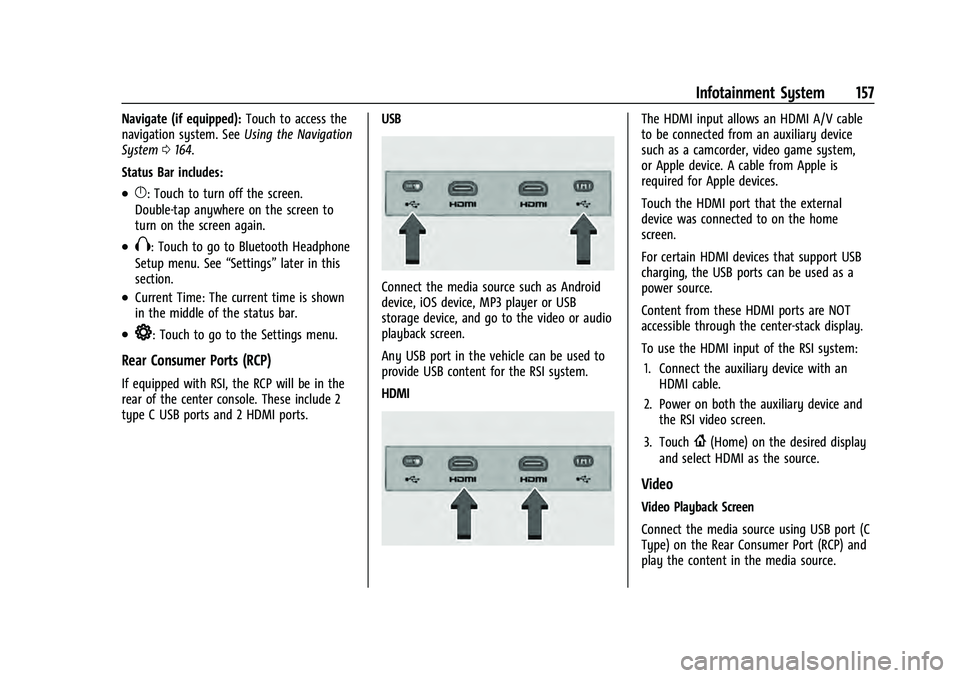
Rear Consumer Ports (RCP)
If equipped with RSI, the RCP will be in the
rear of the center console. These include 2
type C USB ports and 2 HDMI ports. USB
Connect the media source such as Android
device, iOS device, MP3 player or USB
storage device, and go to the video or audio
playback screen.
Any USB port in the vehicle can be used to
provide USB content for the RSI system.
HDMI
The HDMI input allows an HDMI A/V cable
to be connected from an auxiliary device
such as a camcorder, video game system,
or Apple device. A cable from Apple is
required for Apple devices.
Touch the HDMI port that the external
device was connected to on the home
screen.
For certain HDMI devices that support USB
charging, the USB ports can be used as a
power source.
Content from these HDMI ports are NOT
accessible through the center-stack display.
To use the HDMI input of the RSI system:
1. Connect the auxiliary device with an HDMI cable.
2. Power on both the auxiliary device and the RSI video screen.
3. Touch
{(Home) on the desired display
and select HDMI as the source.
Video
Video Playback Screen
Connect the media source using USB port (C
Type) on the Rear Consumer Port (RCP) and
play the content in the media source.