cancel CHEVROLET TAHOE 2022 User Guide
[x] Cancel search | Manufacturer: CHEVROLET, Model Year: 2022, Model line: TAHOE, Model: CHEVROLET TAHOE 2022Pages: 433, PDF Size: 7.37 MB
Page 181 of 433
Chevrolet Tahoe/Suburban Owner Manual (GMNA-Localizing-U.S./Canada/
Mexico-13690484) - 2021 - crc - 8/17/20
180 Infotainment System
Changes to voice commands due to media
content limits are:
.Files including other individual files of all
media types such as songs, audiobook
chapters, podcast episodes, and videos.
.Album type folders including types such
as albums and audiobooks.
There are no restrictions if the number of
files and albums is fewer than 12,000. When
the number of files connected to the system
is between 12,000 and 24,000, the content
cannot be accessed directly with one
command like “Play
The restriction is that the command “Play
Song” must be spoken first; the system will
then ask for the song name. The reply
command would be to say the name of the
song to play.
Similar limits exist for album content.
If there are more than 12,000 albums, but
fewer than 24,000, the content cannot be
accessed directly with one command like,
“Play
Album” must first be spoken; the system
will then ask for the album name. The reply
would be to say the name of the album
to play. Once the number of files has exceeded
approximately 24,000, there is no support
for accessing the songs directly through
voice commands. There will still be access to
the media content by using commands for
playlists, artists, and genres.
The access commands for playlists, artists,
and genres are prohibited after the number
of this type of media exceeds 12,000.
The system will provide feedback the first
time voice recognition is initiated if it has
become apparent that any of these limits
are reached during a device initializing
process.
Voice recognition performance will degrade
to some extent based on many factors when
adding large amounts of data to recognize.
If this is the case, perhaps accessing songs
through playlists or artist name would work
better.
Voice Recognition for Navigation (If
Equipped)
“Navigation”
:Begin a dialog to enter
specific destination information.
“Navigation Commands” :Begin a dialog to
enter specific destination information. “Address”
:Begin a dialog to enter a
specific destination address, which includes
the entire address consisting of the house
number, street name, city, state/province,
and country. Do not include the ZIP code.
“Place of Interest” :Begin a dialog to enter
a destination Place of Interest category or
major brand name.
The name must be precisely spoken.
Nicknames or short names for the
businesses will not likely be found. Lesser
known businesses might have to be located
by category, such as fast food, hotels,
or banks.
“Navigate to Contact” :Begin a dialog to
enter a specific destination contact name.
“Cancel Route” :End route guidance.
“Take Me Home” :Create a route to a
stored home location.
Voice Recognition for the Phone
“Call
stored contact. The command may include
location if the contact has location numbers
stored.
Page 183 of 433
Chevrolet Tahoe/Suburban Owner Manual (GMNA-Localizing-U.S./Canada/
Mexico-13690484) - 2021 - crc - 8/17/20
182 Infotainment System
i:Press to end a call, decline a call,
or cancel an operation. Press to mute or
unmute the infotainment system when not
on a call.
Infotainment System Controls
For information about how to navigate the
menu system using the infotainment
controls, see Using the System 0145.
Audio System
When using the Bluetooth mobile device
system, sound comes through the vehicle's
front audio system speakers and overrides
the audio system. The volume level while on
a mobile device call can be adjusted by
pressing the steering wheel controls or the
volume control on the center stack. The
adjusted volume level remains in memory
for later calls. The volume cannot be
lowered beyond a certain level.
Bluetooth (Pairing and Using a
Phone)
Pairing
A Bluetooth-enabled mobile device must be
paired to the Bluetooth system and then
connected to the vehicle before it can be used. See the mobile device manufacturer's
user guide for Bluetooth functions before
pairing the device.
Pairing Information
.If no mobile device has been connected,
the Phone main page on the infotainment
display will show the Connect Phone
option. Touch this option to connect.
Another way to connect is to touch the
Phones tab at the top right of the display
and then touch Add Phone.
.A Bluetooth smartphone with music
capability can be paired to the vehicle as
a smartphone and a music player at the
same time.
.Up to 10 devices can be paired to the
Bluetooth system.
.The pairing process is disabled when the
vehicle is moving.
.Pairing only needs to be completed once,
unless the pairing information on the cell
phone changes or the cell phone is
deleted from the system.
.If multiple paired cell phones are within
range of the system, the system connects
to the paired cell phone that is set to
First to Connect. If there is no cell phone
set to First to Connect, it will link to thecell phone which was used last. To link to
a different paired cell phone, see
“Linking
to a Different Phone” later in this section.
Pairing a Phone 1. Make sure Bluetooth has been enabled on the cell phone before the pairing
process is started.
2. Touch the Phone icon on the Home Page or the phone icon on the shortcut tray
near the bottom of the display.
3. Touch Phones at the top of the infotainment display. There is also a
Connect Phones option in the middle of
the Phone display which will shortcut to
the Phone List menu.
4. Touch Add Phone.
5. Select the vehicle name shown on the infotainment display from your cell
phone’s Bluetooth Settings list.
6. Follow the instructions on the cell phone to confirm the six-digit code showing on
the infotainment display and touch Pair.
The code on the cell phone and
infotainment display will need to be
acknowledged for a successful pair.
7. Start the pairing process on the cell phone to be paired to the vehicle. See
the cell phone manufacturer's user guide
Page 191 of 433
Chevrolet Tahoe/Suburban Owner Manual (GMNA-Localizing-U.S./Canada/
Mexico-13690484) - 2021 - crc - 8/17/20
190 Infotainment System
The vehicle can be used normally during the
software download. Once the download is
complete, there may be a prompt to accept
the installation of the update upon the next
ignition cycle or the next time the vehicle is
shifted into P (Park). For most updates, the
vehicle will be disabled and cannot be driven
during the installation. The system will
deliver messages indicating success or error
during and after the download and
installation processes.
Downloading Over-the-Air vehicle software
updates requires Internet connectivity, which
can be accessed through the vehicle’s
built-in 4G LTE connection, if equipped and
active. If required, data plans are provided
by a third party. Optionally, a secure Wi-Fi
hotspot such as a compatible mobile device
hotspot, home hotspot, or public hotspot
can be used. Applicable data rates may
apply.
To connect the infotainment system to a
secured mobile device hotspot, home
hotspot, or public hotspot, touch Settings on
the Home Page, select the System tab,
followed by Wi-Fi Networks. Select the
appropriate Wi-Fi network, and follow the
on-screen prompts. Download speeds
may vary.On most compatible mobile devices,
activation of the Wi-Fi hotspot is in the
Settings menu under Mobile Network
Sharing, Personal Hotspot, Mobile Hotspot,
or similar.
Availability of Over-the-Air software updates
varies by vehicle and country. Features are
subject to change. For more information on
this feature, see my.chevrolet.com/learn.
Preferences
Touch the controls on the infotainment
display to disable or enable the download of
new updates in the background.
About
Touch to view the infotainment system
software information.
Running Applications
Touch to see a complete list of applications
that are currently running on the
infotainment system.
Return to Factory Settings
Touch and the following may display:
.Reset Vehicle Settings: Resets all vehicle
settings for the current user.
Touch Reset or Cancel.
.Erase Settings and Personal Data: Erases
app data settings, user profiles, and
personal data including navigation and
mobile device data.
Touch Erase or Cancel.
.Clear Default Applications: Resets
preferred applications that have been set
to open when selecting a function. No
application data will be lost.
Touch Clear or Cancel.
Apps
The menu may contain the following:
Android Auto
If equipped, this feature allows you to
interact directly with your mobile device on
the infotainment display. See
Apple CarPlay
and Android Auto 0185.
Touch the controls on the infotainment
display to disable or enable.
Apple CarPlay
If equipped, this feature allows you to
interact directly with your mobile device on
the infotainment display. See Apple CarPlay
and Android Auto 0185.
Touch the controls on the infotainment
display to disable or enable.
Page 194 of 433

Chevrolet Tahoe/Suburban Owner Manual (GMNA-Localizing-U.S./Canada/
Mexico-13690484) - 2021 - crc - 8/17/20
Infotainment System 193
Profile Picture
Touch to choose or change your profile
picture.
Profile Identifiers
Touch to have the vehicle recognize the
identifier you choose.
Touch Vehicle Key 1 and/or Vehicle Key 2.
If the Remote Key is lost or stolen, see your
dealer.
Security
Touch to have your profile secured with
a PIN.
Touch No or Yes.
Vehicle Name
Touch to edit your vehicle name.
Vehicle Account
Touch to view the vehicle account
information and to change the account
password.
Delete Profile
Touch to remove the profile from the
vehicle.
Touch Remove or Cancel.Teen Driver
If equipped, this allows multiple keys to be
registered for beginner drivers to encourage
safe driving habits. When the vehicle is
started with a Teen Driver key, it will
automatically activate certain safety
systems, allow setting of some features, and
limit the use of others. The Report Card will
record vehicle data about driving behavior
that can be viewed later. When the vehicle
is started with a registered key, the Driver
Information Center (DIC) displays a message
that Teen Driver is active.
To access:1. Touch Settings on the Home Page, then touch Vehicle, and then Teen Driver.
2. Create a Personal Identification Number (PIN) by choosing a four-digit PIN.
Re-enter the PIN to confirm. To change
the PIN, touch Change PIN.
The PIN is required to:
.Register or unregister keys.
.Change Teen Driver settings.
.Change or clear the Teen Driver PIN.
.Access or delete Report Card data. Register keys to activate Teen Driver and
assign restrictions to the key:
Any vehicle key can be registered, up to a
maximum of eight keys. Label the key to
tell it apart from the other keys.
For a pushbutton start system:
1. Start the engine.
2. For automatic transmissions, the vehicle must be in P (Park). For manual
transmissions, the vehicle must be
stopped with the parking brake set.
3. From the Settings menu, touch Vehicle and then Teen Driver.
4. Enter the PIN.
5. Place the Remote Keyless Entry (RKE) transmitter key you wish to register in
the transmitter pocket. The key does not
need to be the one that started the
vehicle. See Remote Keyless Entry (RKE)
System Operation 08for transmitter
pocket location.
6. From the Teen Driver menu, touch Setup Keys.
.If the transmitter key has not
previously been registered, the option
to add the key displays. Touch Setup
and a confirmation message displays.
Page 197 of 433
Chevrolet Tahoe/Suburban Owner Manual (GMNA-Localizing-U.S./Canada/
Mexico-13690484) - 2021 - crc - 8/17/20
196 Infotainment System
.From the Report Card display, touch
Reset.
.Touch Clear All Teen Keys and PIN from
the Teen Driver menu. This will also
unregister any Teen Driver keys and
delete the PIN.
Forgotten PIN
See your dealer to reset the PIN.
Trademarks and License
Agreements
FCC Information
See Radio Frequency Statement 0409.
"Made for iPod," and "Made for iPhone,"
mean that an electronic accessory has been
designed to connect specifically to iPod or
iPhone, respectively, and has been certified
by the developer to meet Apple
performance standards. Apple is not
responsible for the operation of this device or its compliance with safety and regulatory
standards. Please note that the use of this
accessory with iPod or iPhone may affect
wireless performance. iPhone, iPod, iPod
classic, iPod nano, iPod shuffle, and iPod
touch are trademarks of Apple Inc.,
registered in the U.S. and other countries.
If you decide to continue service after your
trial, your selected subscription plan will
automatically renew thereafter. You will be
charged at then-current rates. Fees and taxes
apply. Please see the SiriusXM Customer
Agreement at siriusxm.com for complete
terms and how to cancel, which includes
calling SiriusXM at 1-866-635-2349. All fees
and programming are subject to change.
Fees and Taxes: Subscription fee, taxes, one
time activation fee, and other fees may
apply. Subscription fee is consumer only. All
fees and programming subject to change.
Subscriptions subject to Customer
Agreement available at www.siriusxm.com.
SiriusXM service is only available in the
48 contiguous United States and Canada.
In Canada: Some deterioration of service
may occur in extreme northern latitudes.
This is beyond the control of SiriusXM
Satellite Radio.
Explicit Language Notice: Channels with
frequent explicit language are indicated with
an
“XL” preceding the channel name.
Channel blocking is available for SiriusXM
Satellite Radio receivers by notifying
SiriusXM:.USA Customers —See www.siriusxm.com
or call 1-888-601–6296.
.Canada Customers —See
www.siriusxm.ca or call 1-877-438-9677.
It is prohibited to copy, decompile,
disassemble, reverse engineer, hack,
manipulate, or otherwise make available any
technology or software incorporated in
receivers compatible with the SiriusXM
Satellite Radio System or that support the
SiriusXM website, the Online Service or any
of its content. Furthermore, the AMBER voice
compression software included in this
product is protected by intellectual property
Page 207 of 433
Chevrolet Tahoe/Suburban Owner Manual (GMNA-Localizing-U.S./Canada/
Mexico-13690484) - 2021 - crc - 8/17/20
206 Climate Controls
Manual Operation
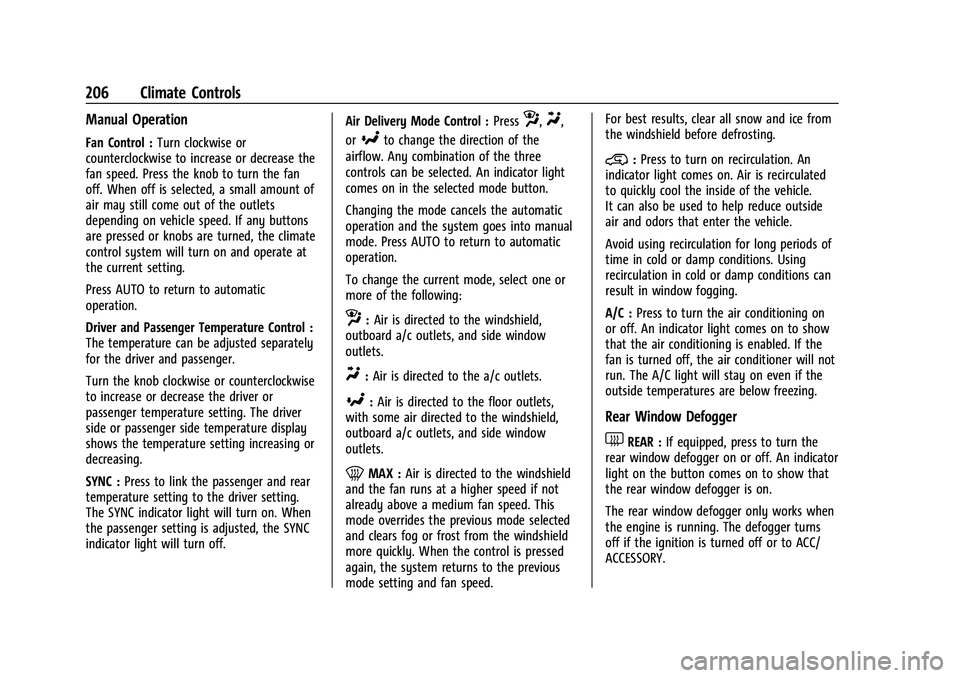
Fan Control :Turn clockwise or
counterclockwise to increase or decrease the
fan speed. Press the knob to turn the fan
off. When off is selected, a small amount of
air may still come out of the outlets
depending on vehicle speed. If any buttons
are pressed or knobs are turned, the climate
control system will turn on and operate at
the current setting.
Press AUTO to return to automatic
operation.
Driver and Passenger Temperature Control :
The temperature can be adjusted separately
for the driver and passenger.
Turn the knob clockwise or counterclockwise
to increase or decrease the driver or
passenger temperature setting. The driver
side or passenger side temperature display
shows the temperature setting increasing or
decreasing.
SYNC : Press to link the passenger and rear
temperature setting to the driver setting.
The SYNC indicator light will turn on. When
the passenger setting is adjusted, the SYNC
indicator light will turn off. Air Delivery Mode Control :
Press
z,Y,
or
[to change the direction of the
airflow. Any combination of the three
controls can be selected. An indicator light
comes on in the selected mode button.
Changing the mode cancels the automatic
operation and the system goes into manual
mode. Press AUTO to return to automatic
operation.
To change the current mode, select one or
more of the following:
z: Air is directed to the windshield,
outboard a/c outlets, and side window
outlets.
Y: Air is directed to the a/c outlets.
[:Air is directed to the floor outlets,
with some air directed to the windshield,
outboard a/c outlets, and side window
outlets.
0MAX : Air is directed to the windshield
and the fan runs at a higher speed if not
already above a medium fan speed. This
mode overrides the previous mode selected
and clears fog or frost from the windshield
more quickly. When the control is pressed
again, the system returns to the previous
mode setting and fan speed. For best results, clear all snow and ice from
the windshield before defrosting.
@:
Press to turn on recirculation. An
indicator light comes on. Air is recirculated
to quickly cool the inside of the vehicle.
It can also be used to help reduce outside
air and odors that enter the vehicle.
Avoid using recirculation for long periods of
time in cold or damp conditions. Using
recirculation in cold or damp conditions can
result in window fogging.
A/C : Press to turn the air conditioning on
or off. An indicator light comes on to show
that the air conditioning is enabled. If the
fan is turned off, the air conditioner will not
run. The A/C light will stay on even if the
outside temperatures are below freezing.
Rear Window Defogger
1REAR : If equipped, press to turn the
rear window defogger on or off. An indicator
light on the button comes on to show that
the rear window defogger is on.
The rear window defogger only works when
the engine is running. The defogger turns
off if the ignition is turned off or to ACC/
ACCESSORY.
Page 209 of 433
Chevrolet Tahoe/Suburban Owner Manual (GMNA-Localizing-U.S./Canada/
Mexico-13690484) - 2021 - crc - 8/17/20
208 Climate Controls
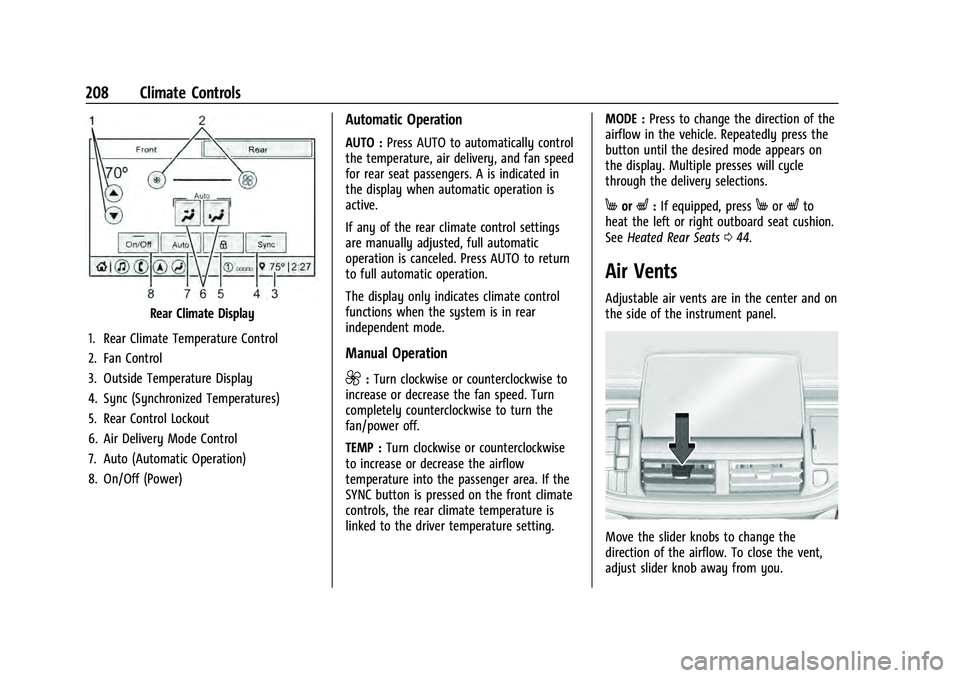
Rear Climate Display
1. Rear Climate Temperature Control
2. Fan Control
3. Outside Temperature Display
4. Sync (Synchronized Temperatures)
5. Rear Control Lockout
6. Air Delivery Mode Control
7. Auto (Automatic Operation)
8. On/Off (Power)
Automatic Operation
AUTO : Press AUTO to automatically control
the temperature, air delivery, and fan speed
for rear seat passengers. A is indicated in
the display when automatic operation is
active.
If any of the rear climate control settings
are manually adjusted, full automatic
operation is canceled. Press AUTO to return
to full automatic operation.
The display only indicates climate control
functions when the system is in rear
independent mode.
Manual Operation
9: Turn clockwise or counterclockwise to
increase or decrease the fan speed. Turn
completely counterclockwise to turn the
fan/power off.
TEMP : Turn clockwise or counterclockwise
to increase or decrease the airflow
temperature into the passenger area. If the
SYNC button is pressed on the front climate
controls, the rear climate temperature is
linked to the driver temperature setting. MODE :
Press to change the direction of the
airflow in the vehicle. Repeatedly press the
button until the desired mode appears on
the display. Multiple presses will cycle
through the delivery selections.
MorL: If equipped, pressMorLto
heat the left or right outboard seat cushion.
See Heated Rear Seats 044.
Air Vents
Adjustable air vents are in the center and on
the side of the instrument panel.
Move the slider knobs to change the
direction of the airflow. To close the vent,
adjust slider knob away from you.
Page 259 of 433
Chevrolet Tahoe/Suburban Owner Manual (GMNA-Localizing-U.S./Canada/
Mexico-13690484) - 2021 - crc - 8/17/20
258 Driving and Operating
Irregular Objects Affecting ACC
ACC may have difficulty detecting the
following objects:
.Vehicles with cargo extending from the
back end.
.Non-standard shaped vehicles, such as
vehicle transport, vehicles with a side car
fitted, or horse carriages.
.Objects that are close to the front of your
vehicle.
ACC Automatically Disengages
ACC may automatically disengage and the
driver will need to manually apply the
brakes to slow the vehicle if:
.The sensors are blocked.
.The Traction Control System (TCS) or
StabiliTrak/ESC system has activated or
been disabled.
.There is a fault in the system.
.The radar falsely reports blockage when
driving in a desert or remote area with
no other vehicles or roadside objects.
A DIC message may display to indicate
that ACC is temporarily unavailable.
The ACC indicator will turn white when ACC
is no longer active. In some cases, when ACC is temporarily
unavailable, regular cruise control may be
used. See
“Switching Between ACC and
Regular Cruise Control” previously in this
section. Always consider driving conditions
before using either cruise control system.
Notification to Resume ACC
ACC will maintain a follow gap behind a
detected vehicle and slow your vehicle to a
stop behind that vehicle.
If the stopped vehicle ahead has driven
away and ACC has not resumed, the vehicle
ahead indicator will flash as a reminder to
check traffic ahead before proceeding. In
addition, the left and right sides of the
Safety Alert Seat will pulse three times,
or three beeps will sound. See ”Alert Type”
and “Adaptive Cruise Go Notifier” in
“Collision/Detection Systems” underVehicle
Personalization 0124.
When the vehicle ahead drives away, press
RES+ or the accelerator pedal to resume
ACC. If stopped for more than two minutes
or if the driver door is opened and the
driver seat belt is unbuckled, the ACC
automatically applies the Electric Parking
Brake (EPB) to hold the vehicle. The EPB
status light will turn on. See Electric Parking
Brake 0240. A DIC warning message may display
indicating to shift to P (Park) before exiting
the vehicle. See
Vehicle Messages 0124.
{Warning
If ACC has stopped the vehicle, and if ACC
is disengaged, turned off, or canceled, the
vehicle will no longer be held at a stop.
The vehicle can move. When ACC is
holding the vehicle at a stop, always be
prepared to manually apply the brakes.
{Warning
Leaving the vehicle without placing it in
P (Park) can be dangerous. Do not leave
the vehicle while it is being held at a
stop by ACC. Always place the vehicle in
P (Park) and turn off the ignition before
leaving the vehicle.
ACC Override
If using the accelerator pedal while ACC is
active, the ACC indicator turns blue on the
instrument cluster indicating ACC braking
will not occur. ACC will resume operation
when the accelerator pedal is not being
pressed.
Page 300 of 433
Chevrolet Tahoe/Suburban Owner Manual (GMNA-Localizing-U.S./Canada/
Mexico-13690484) - 2021 - crc - 8/17/20
Driving and Operating 299
Each sensor has a minimum of two minutes
to learn, shown by a timer. After a sensor is
learned, a checkmark appears next to the
tire, the vehicle horn will sound, the
vehicle’s brake lamps will flash, and all
working trailer lamps will flash. It then
moves to the next sensor.
To cancel the process touch Stop.
The recommended tire pressure must be
entered for the trailer tires. This allows the
vehicle to alert when the tire pressure is
high or low.
TTPMS must learn the location of the
installed tire sensors to show correct air
pressure and temperature for each tire. To
set up, use one of the following options or
see a tire or trailer dealer for service. The
learning process must be repeated when the
trailer tires are rotated or replaced. See
“Editing a Trailer Profile”later in this section
for tire pressure sensor relearn information.
Tool Method: A TTPMS activation tool can
be purchased separately to learn the sensor
locations.
Manual Method: Without the tool, the air
pressure can be increased or decreased in
each tire for 10 seconds. Do not exceed the
maximum inflation pressure found on the tire sidewalls. Make sure to re-adjust tire
pressure to the recommended level when
the process is complete.
Sensor Learning Steps
To complete the sensor-to-vehicle learn
process:
1. Touch Start on the Learn Sensors screen. The horn chirps twice and the Learning
Active screen appears on the
infotainment display.
2. Start with the driver side front trailer tire.
3. Activate the tool near the valve stem or adjust the air pressure of this tire until
the horn chirps and all working vehicle
and trailer lights flash.
The process stops without saving the
sensor locations if this step takes more
than two minutes.
4. Move to the next tire and repeat Step 3 for each sensor. The horn chirps twice
when all sensors are completed.
5. Return to the vehicle to complete the setup.Maintenance Reminders
To set up maintenance reminders, touch the
Trailer Maintenance icon. Select Yes to set
up the maintenance reminders for the
Trailer Profile. Follow the on-screen prompts.
The maximum number of reminders is 50.
Select No to return to the previous screen.
Trailer Side Blind Zone Alert Setup
Trailer dimensions must be in range to
enable this feature.
.Trailer Length: 300 cm (118.1 in) –1200 cm
(472.4 in). Measure from center of coupler
to furthest rear point on the trailer.
If trailer dimensions are out of range, this
feature will be unavailable.
Status View
The Status view shows:
.Vehicle
.Connections
.Tires
.Maintenance
Upon entry, the most recent items will be
shown. Select MORE to view all options.
Page 305 of 433
Chevrolet Tahoe/Suburban Owner Manual (GMNA-Localizing-U.S./Canada/
Mexico-13690484) - 2021 - crc - 8/17/20
304 Driving and Operating
Editing a Trailer Profile
Trailer Profile View
Touch to edit any of the following options
in the Trailer Profile view:
.Trailer Name
.Towing Assistance Setup, if equipped
.Tire Pressure Setup, if equipped
.Trailer Maintenance
.Edit Mileage
.Reset Average Fuel Economy
Touch Save to save the new value to the
Trailer Profile. Touching Back will still save
the previously entered information.
Trailer Name
Touch to edit the Trailer Profile’s name. Use
at least one character and no spaces.
Touch Save.
Towing Assistance Setup
A trailer should be connected to complete
this portion of profile setup.
Touch to set up towing assistance features
for the Trailer Profile. See "Towing
Assistance" for details on the setup. Tire Pressure Setup
Touch to set up the Trailer Tire Pressure
Monitoring System (TTPMS) for the Trailer
Profile. See
“Trailer Tire Pressure Setup”
previously in this section for details on the
setup. Also, touch Tire Pressure Setup if the
trailer tires were rotated or if the tire
pressure sensors in the tires were replaced
for this Trailer Profile. The vehicle will need
to relearn the tire sensors and their
locations.
If TTPMS had been set up previously, the
Select Number of Sensors screen will appear
after touching Tire Pressure Setup. If the
number of sensors has changed, select the
number and touch Next.
If a new number of sensors is selected, the
Relearn Sensors pop-up will appear. Touch
Cancel to go back or touch Relearn to
overwrite the current sensors and begin the
relearning process. See “Trailer Tire Pressure
Setup” previously in this section.
If number of sensors has not changed, touch
Next and the Learn sensors screen will
appear. On the Learn Sensors screen. Touch Relearn
to overwrite the current sensors and begin
the relearning process. See
“Trailer Tire
Pressure Setup” previously in this section.
On the Learn Sensors screen, touch Next to
go to the Edit Recommended Tire Pressure
screen.
On the Edit Recommended Tire Pressure
screen, touch a number on the keypad to
change the
Recommended Tire Pressure for the trailer’s
tires. This will change the number at which
the vehicle displays alerts related to trailer
tire pressure. Touch Done to return to the
Trailer Profile view.
Trailer Maintenance
Touch to view a list of maintenance
reminders for the Trailer Profile.
Touch a reminder to view, reset, delete,
or edit it.
Reset Reminder
Touch Maintenance Complete in the
reminder view to reset the reminder. On the
pop-up, touch Reset to reset the time and
mileage values for the reminder. Touch
Cancel to return to the previous view and
nothing will change.