steering wheel CHEVROLET TAHOE 2023 User Guide
[x] Cancel search | Manufacturer: CHEVROLET, Model Year: 2023, Model line: TAHOE, Model: CHEVROLET TAHOE 2023Pages: 443, PDF Size: 18.73 MB
Page 96 of 443
Chevrolet Tahoe/Suburban Owner Manual (GMNA-Localizing-U.S./Canada/
Mexico-16416971) - 2023 - CRC - 4/25/22
Instruments and Controls 95
If equipped with auto heated seats, the
heated steering wheel will turn on when the
auto heated seat is activated. The heated
steering wheel indicator will display the
state of the steering wheel heat.
SeeHeated and Ventilated Front Seats 042.
Horn
To sound the horn, pressaon the
steering wheel.
Windshield Wiper/Washer
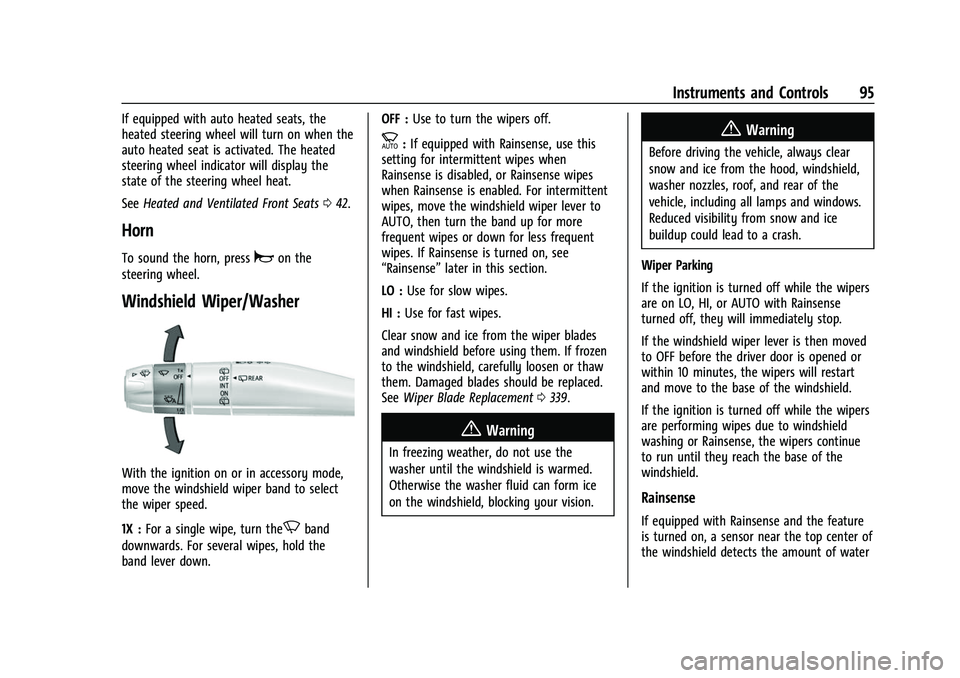
With the ignition on or in accessory mode,
move the windshield wiper band to select
the wiper speed.
1X : For a single wipe, turn the
Nband
downwards. For several wipes, hold the
band lever down. OFF :
Use to turn the wipers off.
c:If equipped with Rainsense, use this
setting for intermittent wipes when
Rainsense is disabled, or Rainsense wipes
when Rainsense is enabled. For intermittent
wipes, move the windshield wiper lever to
AUTO, then turn the band up for more
frequent wipes or down for less frequent
wipes. If Rainsense is turned on, see
“Rainsense” later in this section.
LO : Use for slow wipes.
HI : Use for fast wipes.
Clear snow and ice from the wiper blades
and windshield before using them. If frozen
to the windshield, carefully loosen or thaw
them. Damaged blades should be replaced.
See Wiper Blade Replacement 0339.
{Warning
In freezing weather, do not use the
washer until the windshield is warmed.
Otherwise the washer fluid can form ice
on the windshield, blocking your vision.
{Warning
Before driving the vehicle, always clear
snow and ice from the hood, windshield,
washer nozzles, roof, and rear of the
vehicle, including all lamps and windows.
Reduced visibility from snow and ice
buildup could lead to a crash.
Wiper Parking
If the ignition is turned off while the wipers
are on LO, HI, or AUTO with Rainsense
turned off, they will immediately stop.
If the windshield wiper lever is then moved
to OFF before the driver door is opened or
within 10 minutes, the wipers will restart
and move to the base of the windshield.
If the ignition is turned off while the wipers
are performing wipes due to windshield
washing or Rainsense, the wipers continue
to run until they reach the base of the
windshield.
Rainsense
If equipped with Rainsense and the feature
is turned on, a sensor near the top center of
the windshield detects the amount of water
Page 103 of 443
Chevrolet Tahoe/Suburban Owner Manual (GMNA-Localizing-U.S./Canada/
Mexico-16416971) - 2023 - CRC - 4/25/22
102 Instruments and Controls
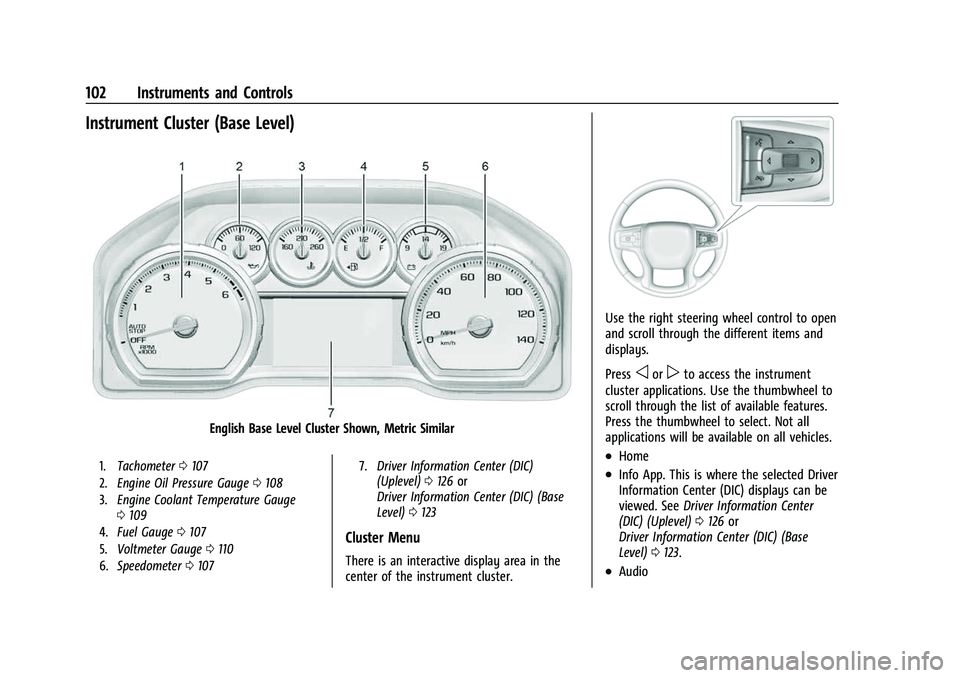
Instrument Cluster (Base Level)
English Base Level Cluster Shown, Metric Similar
1.Tachometer 0107
2. Engine Oil Pressure Gauge 0108
3. Engine Coolant Temperature Gauge
0109
4. Fuel Gauge 0107
5. Voltmeter Gauge 0110
6. Speedometer 0107 7.
Driver Information Center (DIC)
(Uplevel) 0126 or
Driver Information Center (DIC) (Base
Level) 0123
Cluster Menu
There is an interactive display area in the
center of the instrument cluster.
Use the right steering wheel control to open
and scroll through the different items and
displays.
Press
oorpto access the instrument
cluster applications. Use the thumbwheel to
scroll through the list of available features.
Press the thumbwheel to select. Not all
applications will be available on all vehicles.
.Home
.Info App. This is where the selected Driver
Information Center (DIC) displays can be
viewed. See Driver Information Center
(DIC) (Uplevel) 0126 or
Driver Information Center (DIC) (Base
Level) 0123.
.Audio
Page 105 of 443
Chevrolet Tahoe/Suburban Owner Manual (GMNA-Localizing-U.S./Canada/
Mexico-16416971) - 2023 - CRC - 4/25/22
104 Instruments and Controls
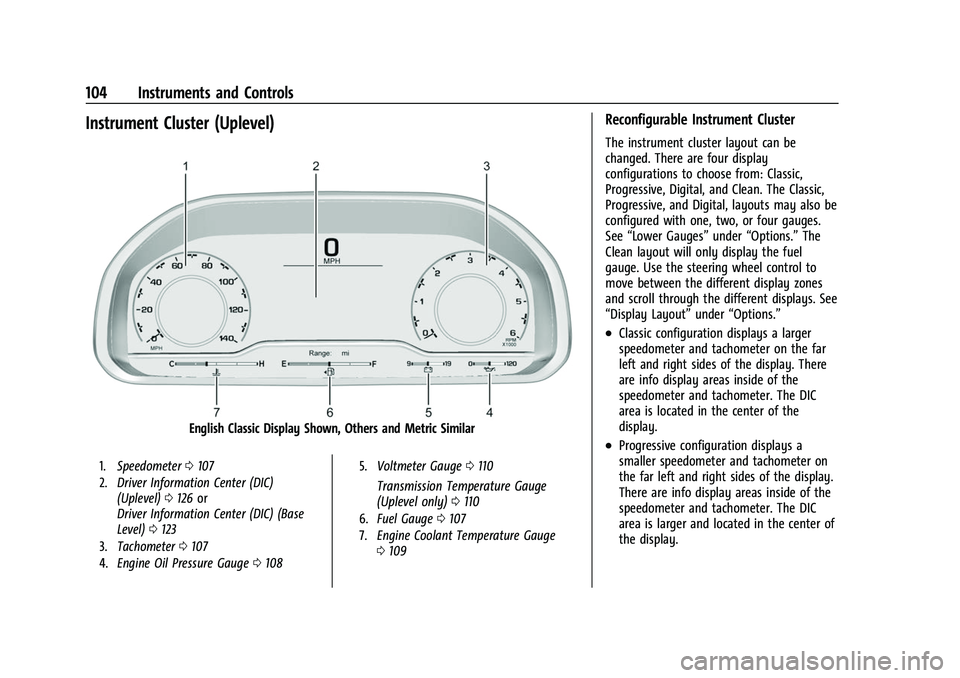
Instrument Cluster (Uplevel)
English Classic Display Shown, Others and Metric Similar
1.Speedometer 0107
2. Driver Information Center (DIC)
(Uplevel) 0126 or
Driver Information Center (DIC) (Base
Level) 0123
3. Tachometer 0107
4. Engine Oil Pressure Gauge 0108 5.
Voltmeter Gauge 0110
Transmission Temperature Gauge
(Uplevel only) 0110
6. Fuel Gauge 0107
7. Engine Coolant Temperature Gauge
0109
Reconfigurable Instrument Cluster
The instrument cluster layout can be
changed. There are four display
configurations to choose from: Classic,
Progressive, Digital, and Clean. The Classic,
Progressive, and Digital, layouts may also be
configured with one, two, or four gauges.
See “Lower Gauges” under“Options.” The
Clean layout will only display the fuel
gauge. Use the steering wheel control to
move between the different display zones
and scroll through the different displays. See
“Display Layout” under“Options.”
.Classic configuration displays a larger
speedometer and tachometer on the far
left and right sides of the display. There
are info display areas inside of the
speedometer and tachometer. The DIC
area is located in the center of the
display.
.Progressive configuration displays a
smaller speedometer and tachometer on
the far left and right sides of the display.
There are info display areas inside of the
speedometer and tachometer. The DIC
area is larger and located in the center of
the display.
Page 106 of 443
Chevrolet Tahoe/Suburban Owner Manual (GMNA-Localizing-U.S./Canada/
Mexico-16416971) - 2023 - CRC - 4/25/22
Instruments and Controls 105
.Digital configuration displays the info
display areas on the far left and right
sides of the display. The DIC area is larger
and located in the center of the display.
.Clean configuration is a simplified display
that has a digital speed in the center. The
DIC area is located on the far right of the
display.
Cluster Menu
There are interactive display areas in the
instrument cluster. Locations vary by the
selected display layout.
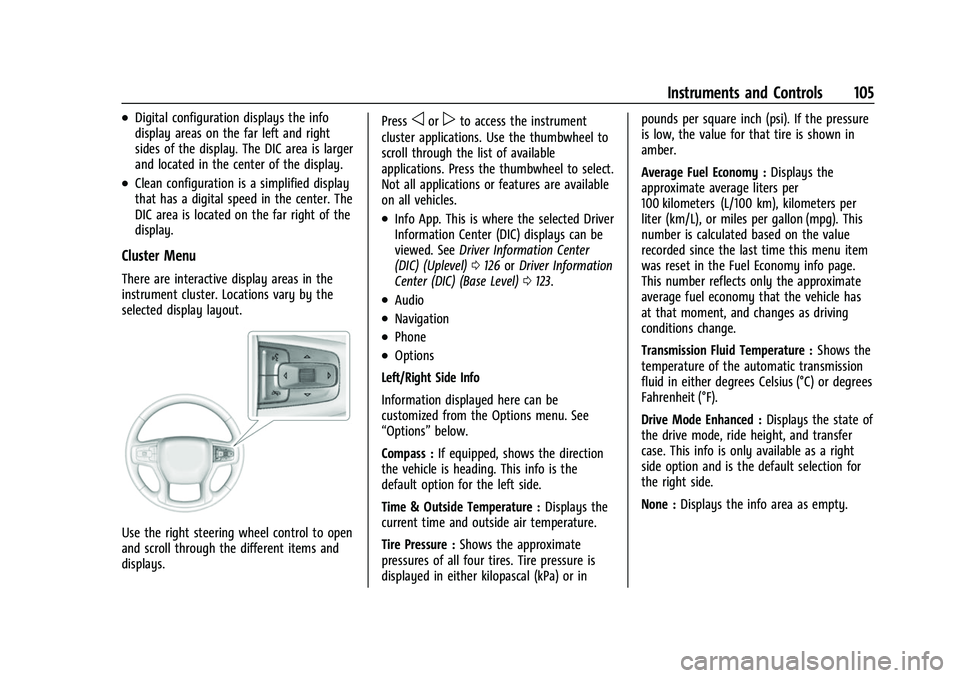
Use the right steering wheel control to open
and scroll through the different items and
displays.Press
oorpto access the instrument
cluster applications. Use the thumbwheel to
scroll through the list of available
applications. Press the thumbwheel to select.
Not all applications or features are available
on all vehicles.
.Info App. This is where the selected Driver
Information Center (DIC) displays can be
viewed. See Driver Information Center
(DIC) (Uplevel) 0126 orDriver Information
Center (DIC) (Base Level) 0123.
.Audio
.Navigation
.Phone
.Options
Left/Right Side Info
Information displayed here can be
customized from the Options menu. See
“Options” below.
Compass : If equipped, shows the direction
the vehicle is heading. This info is the
default option for the left side.
Time & Outside Temperature : Displays the
current time and outside air temperature.
Tire Pressure : Shows the approximate
pressures of all four tires. Tire pressure is
displayed in either kilopascal (kPa) or in pounds per square inch (psi). If the pressure
is low, the value for that tire is shown in
amber.
Average Fuel Economy :
Displays the
approximate average liters per
100 kilometers (L/100 km), kilometers per
liter (km/L), or miles per gallon (mpg). This
number is calculated based on the value
recorded since the last time this menu item
was reset in the Fuel Economy info page.
This number reflects only the approximate
average fuel economy that the vehicle has
at that moment, and changes as driving
conditions change.
Transmission Fluid Temperature : Shows the
temperature of the automatic transmission
fluid in either degrees Celsius (°C) or degrees
Fahrenheit (°F).
Drive Mode Enhanced : Displays the state of
the drive mode, ride height, and transfer
case. This info is only available as a right
side option and is the default selection for
the right side.
None : Displays the info area as empty.
Page 116 of 443
Chevrolet Tahoe/Suburban Owner Manual (GMNA-Localizing-U.S./Canada/
Mexico-16416971) - 2023 - CRC - 4/25/22
Instruments and Controls 115
light off. SeeRecommended Fuel (5.3L
Engine) 0285 or
Recommended Fuel (6.2L Engine) 0285.
If the light remains on, see your dealer.
Emissions Inspection and Maintenance
Programs
If the vehicle requires an Emissions
Inspection/Maintenance test, the test
equipment will likely connect to the
vehicle's Data Link Connector (DLC).
The DLC is under the instrument panel to
the left of the steering wheel. Connecting
devices that are not used to perform an
Emissions Inspection/Maintenance test or to
service the vehicle may affect vehicle
operation. See Add-On Electrical Equipment
0 316. See your dealer if assistance is
needed.
The vehicle may not pass inspection if:
.The light is on when the engine is
running.
.The light does not come on when the
ignition is in Service Mode.
.Critical emission control systems have not
been completely diagnosed. If this
happens, the vehicle would not be ready
for inspection and might require
several days of routine driving before the
system is ready for inspection. This can
happen if the 12-volt battery has recently
been replaced or run down, or if the
vehicle has been recently serviced.
See your dealer if the vehicle will not pass
or cannot be made ready for the test.
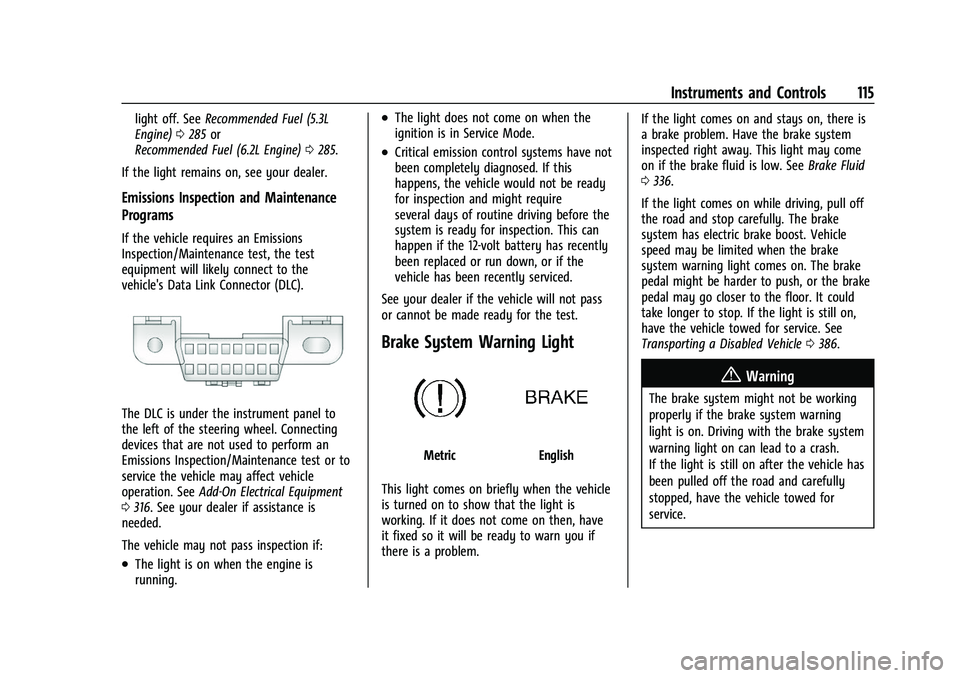
Brake System Warning Light
MetricEnglish
This light comes on briefly when the vehicle
is turned on to show that the light is
working. If it does not come on then, have
it fixed so it will be ready to warn you if
there is a problem. If the light comes on and stays on, there is
a brake problem. Have the brake system
inspected right away. This light may come
on if the brake fluid is low. See
Brake Fluid
0 336.
If the light comes on while driving, pull off
the road and stop carefully. The brake
system has electric brake boost. Vehicle
speed may be limited when the brake
system warning light comes on. The brake
pedal might be harder to push, or the brake
pedal may go closer to the floor. It could
take longer to stop. If the light is still on,
have the vehicle towed for service. See
Transporting a Disabled Vehicle 0386.
{Warning
The brake system might not be working
properly if the brake system warning
light is on. Driving with the brake system
warning light on can lead to a crash.
If the light is still on after the vehicle has
been pulled off the road and carefully
stopped, have the vehicle towed for
service.
Page 118 of 443
Chevrolet Tahoe/Suburban Owner Manual (GMNA-Localizing-U.S./Canada/
Mexico-16416971) - 2023 - CRC - 4/25/22
Instruments and Controls 117
The light will flash when a shift is in
progress. Once the shift is complete the
light will be steady.
If the light turns amber, there may be a
malfunction with the four-wheel-drive
system. See your dealer.
SeeFour-Wheel Drive 0219.
Hill Descent Control Light
If equipped, the Hill Descent Control light
comes on when the system is ready for use.
When the light flashes, the system is active.
See Hill Descent Control (HDC) 0227.
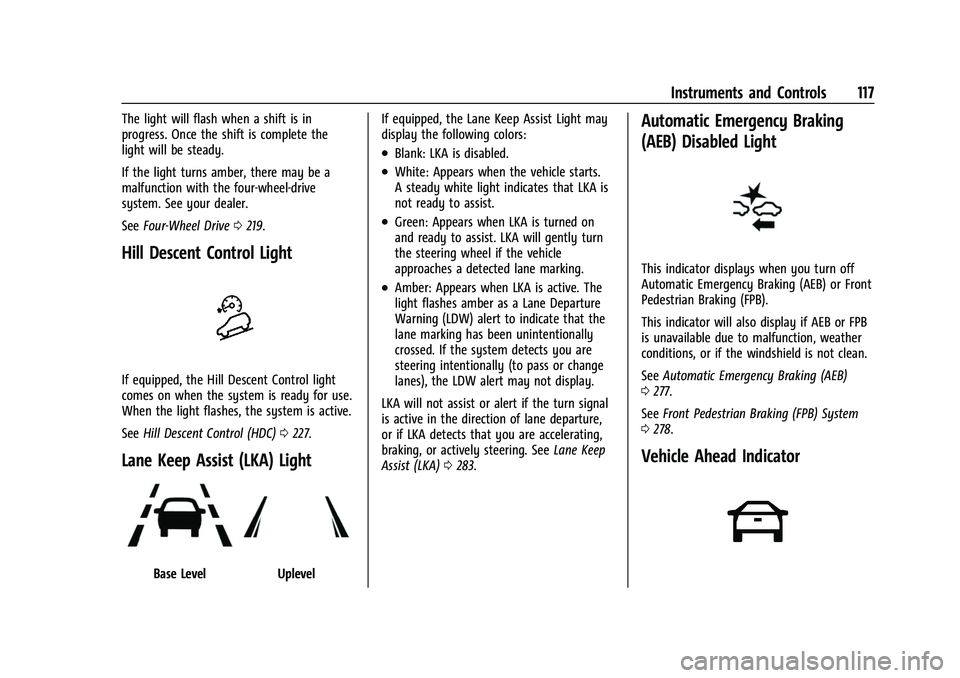
Lane Keep Assist (LKA) Light
Base LevelUplevel If equipped, the Lane Keep Assist Light may
display the following colors:
.Blank: LKA is disabled.
.White: Appears when the vehicle starts.
A steady white light indicates that LKA is
not ready to assist.
.Green: Appears when LKA is turned on
and ready to assist. LKA will gently turn
the steering wheel if the vehicle
approaches a detected lane marking.
.Amber: Appears when LKA is active. The
light flashes amber as a Lane Departure
Warning (LDW) alert to indicate that the
lane marking has been unintentionally
crossed. If the system detects you are
steering intentionally (to pass or change
lanes), the LDW alert may not display.
LKA will not assist or alert if the turn signal
is active in the direction of lane departure,
or if LKA detects that you are accelerating,
braking, or actively steering. See Lane Keep
Assist (LKA) 0283.
Automatic Emergency Braking
(AEB) Disabled Light
This indicator displays when you turn off
Automatic Emergency Braking (AEB) or Front
Pedestrian Braking (FPB).
This indicator will also display if AEB or FPB
is unavailable due to malfunction, weather
conditions, or if the windshield is not clean.
See Automatic Emergency Braking (AEB)
0 277.
See Front Pedestrian Braking (FPB) System
0 278.
Vehicle Ahead Indicator
Page 130 of 443
Chevrolet Tahoe/Suburban Owner Manual (GMNA-Localizing-U.S./Canada/
Mexico-16416971) - 2023 - CRC - 4/25/22
Instruments and Controls 129
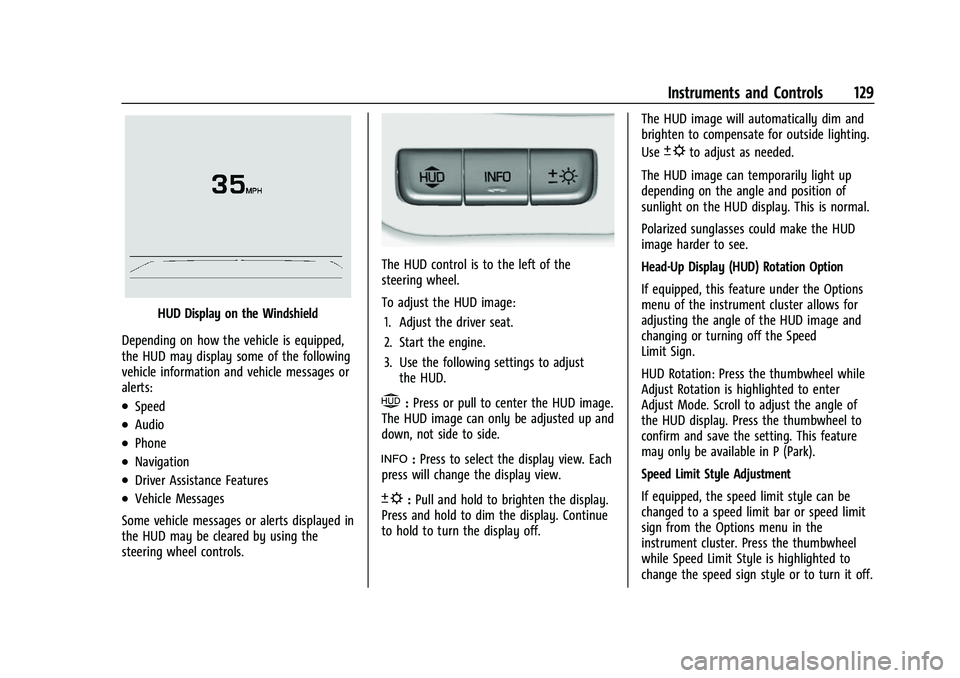
HUD Display on the Windshield
Depending on how the vehicle is equipped,
the HUD may display some of the following
vehicle information and vehicle messages or
alerts:
.Speed
.Audio
.Phone
.Navigation
.Driver Assistance Features
.Vehicle Messages
Some vehicle messages or alerts displayed in
the HUD may be cleared by using the
steering wheel controls.
The HUD control is to the left of the
steering wheel.
To adjust the HUD image: 1. Adjust the driver seat.
2. Start the engine.
3. Use the following settings to adjust the HUD.
$:Press or pull to center the HUD image.
The HUD image can only be adjusted up and
down, not side to side.
!: Press to select the display view. Each
press will change the display view.
D: Pull and hold to brighten the display.
Press and hold to dim the display. Continue
to hold to turn the display off. The HUD image will automatically dim and
brighten to compensate for outside lighting.
Use
Dto adjust as needed.
The HUD image can temporarily light up
depending on the angle and position of
sunlight on the HUD display. This is normal.
Polarized sunglasses could make the HUD
image harder to see.
Head-Up Display (HUD) Rotation Option
If equipped, this feature under the Options
menu of the instrument cluster allows for
adjusting the angle of the HUD image and
changing or turning off the Speed
Limit Sign.
HUD Rotation: Press the thumbwheel while
Adjust Rotation is highlighted to enter
Adjust Mode. Scroll to adjust the angle of
the HUD display. Press the thumbwheel to
confirm and save the setting. This feature
may only be available in P (Park).
Speed Limit Style Adjustment
If equipped, the speed limit style can be
changed to a speed limit bar or speed limit
sign from the Options menu in the
instrument cluster. Press the thumbwheel
while Speed Limit Style is highlighted to
change the speed sign style or to turn it off.
Page 132 of 443

Chevrolet Tahoe/Suburban Owner Manual (GMNA-Localizing-U.S./Canada/
Mexico-16416971) - 2023 - CRC - 4/25/22
Instruments and Controls 131
English Off Road View Shown, Metric Similar
Off Road View : This displays the speed
view along with indicators for vehicle ahead,
Lane Departure Warning/Lane Keep Assist,
trailer sway, four-wheel drive status, and
pedestrian advisory. Off-road information
such as pitch angle, steering angle, and
rolling angle is also shown.
Temporary Overlays
Infotainment: Audio, and Phone, are
temporary overlays linked to cluster layouts.English Audio Overlay Shown, Metric Similar
English Phone Overlay Shown, Metric Similar
Audio/Phone Overlay : This displays digital
speed, indicators from speed view along
with audio/phone information, vehicle ahead
indicator, Lane Departure Warning/Lane
Keep Assist, Adaptive Cruise Control, and set
speed. The current radio station, media type,
and incoming calls will also be displayed. Audio overlays display when the audio app
is selected on the instrument cluster. All
HUD views may briefly display audio
information when the driver uses the
steering wheel controls to adjust the audio
settings appearing in the instrument cluster.
Incoming phone calls appearing in the
instrument cluster, may also display in any
HUD view.
Care of the HUD
Clean the inside of the windshield to remove
any dirt or film that could reduce the
sharpness or clarity of the HUD image.
Clean the HUD lens with a soft cloth
sprayed with glass cleaner. Wipe the lens
gently, then dry it.
HUD Troubleshooting
Check that:
.Nothing is covering the HUD lens.
.The HUD brightness setting is not too
dim or too bright.
.The HUD is adjusted to the proper height.
.Polarized sunglasses are not worn.
.The windshield and HUD lens are clean.
If the HUD image is not correct, contact
your dealer.
Page 137 of 443
Chevrolet Tahoe/Suburban Owner Manual (GMNA-Localizing-U.S./Canada/
Mexico-16416971) - 2023 - CRC - 4/25/22
136 Lighting
Lighting
Exterior Lighting
Exterior Lamp Controls . . . . . . . . . . . . . . . . 136
Exterior Lamps Off Reminder . . . . . . . . . . 137
Headlamp High/Low-Beam Changer . . . . 138
Flash-to-Pass . . . . . . . . . . . . . . . . . . . . . . . . . . . 138
Daytime Running Lamps (DRL) . . . . . . . . . 138
Automatic Headlamp System . . . . . . . . . . 138
Hazard Warning Flashers . . . . . . . . . . . . . . 139
Turn and Lane-Change Signals . . . . . . . . . 139
Interior Lighting
Instrument Panel IlluminationControl . . . . . . . . . . . . . . . . . . . . . . . . . . . . . . 140
Dome Lamps . . . . . . . . . . . . . . . . . . . . . . . . . . 140
Reading Lamps . . . . . . . . . . . . . . . . . . . . . . . . . 141
Lighting Features
Entry Lighting . . . . . . . . . . . . . . . . . . . . . . . . . . 141
Exit Lighting . . . . . . . . . . . . . . . . . . . . . . . . . . . 141
Battery Load Management . . . . . . . . . . . . 142
Battery Power Protection . . . . . . . . . . . . . . 142
Exterior Lighting Battery Saver . . . . . . . . 142
Exterior Lighting
Exterior Lamp Controls
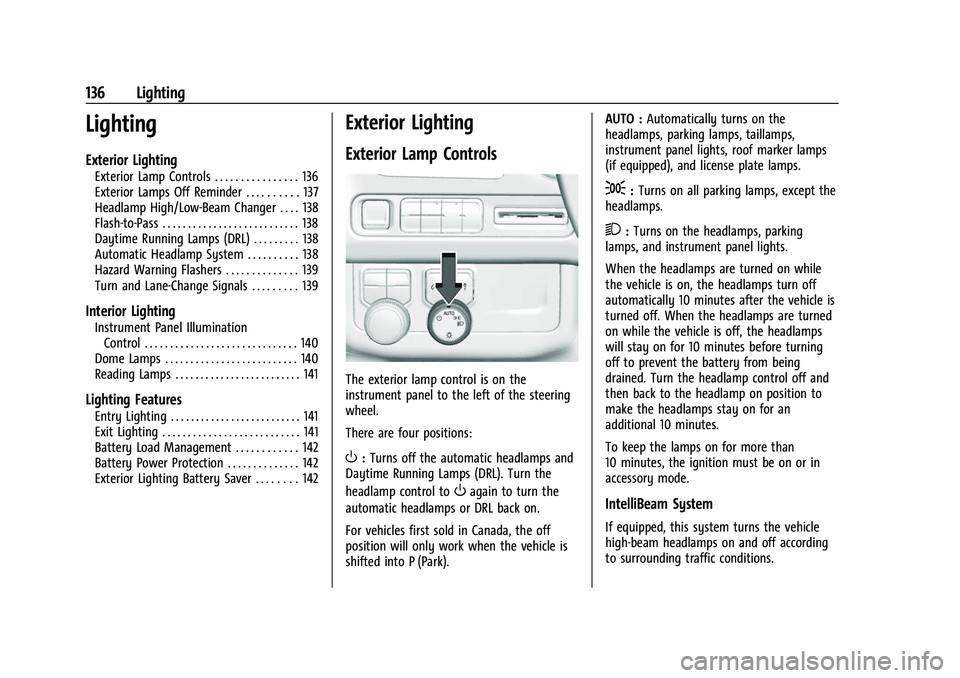
The exterior lamp control is on the
instrument panel to the left of the steering
wheel.
There are four positions:
O: Turns off the automatic headlamps and
Daytime Running Lamps (DRL). Turn the
headlamp control to
Oagain to turn the
automatic headlamps or DRL back on.
For vehicles first sold in Canada, the off
position will only work when the vehicle is
shifted into P (Park). AUTO :
Automatically turns on the
headlamps, parking lamps, taillamps,
instrument panel lights, roof marker lamps
(if equipped), and license plate lamps.
;: Turns on all parking lamps, except the
headlamps.
2: Turns on the headlamps, parking
lamps, and instrument panel lights.
When the headlamps are turned on while
the vehicle is on, the headlamps turn off
automatically 10 minutes after the vehicle is
turned off. When the headlamps are turned
on while the vehicle is off, the headlamps
will stay on for 10 minutes before turning
off to prevent the battery from being
drained. Turn the headlamp control off and
then back to the headlamp on position to
make the headlamps stay on for an
additional 10 minutes.
To keep the lamps on for more than
10 minutes, the ignition must be on or in
accessory mode.
IntelliBeam System
If equipped, this system turns the vehicle
high-beam headlamps on and off according
to surrounding traffic conditions.
Page 144 of 443
Chevrolet Tahoe/Suburban Owner Manual (GMNA-Localizing-U.S./Canada/
Mexico-16416971) - 2023 - CRC - 4/26/22
Infotainment System 143
Infotainment System
Introduction
Introduction . . . . . . . . . . . . . . . . . . . . . . . . . . . 143
Overview . . . . . . . . . . . . . . . . . . . . . . . . . . . . . . 144
Steering Wheel Controls . . . . . . . . . . . . . . . 146
Using the System . . . . . . . . . . . . . . . . . . . . . 146
Software Updates . . . . . . . . . . . . . . . . . . . . . 149
Radio
AM-FM Radio (Base Radio) . . . . . . . . . . . . . 149
AM-FM Radio (Uplevel Radio) . . . . . . . . . . 150
Satellite Radio . . . . . . . . . . . . . . . . . . . . . . . . . . 151
Radio Reception . . . . . . . . . . . . . . . . . . . . . . . . 152
Multi-Band Antenna . . . . . . . . . . . . . . . . . . . 153
Audio Players
Avoiding Untrusted Media Devices . . . . . 153
Avoiding Untrusted Media Devices . . . . . 153
USB Port . . . . . . . . . . . . . . . . . . . . . . . . . . . . . . . 153
Bluetooth Audio (Base Radio) . . . . . . . . . . 153
Bluetooth Audio (Uplevel Radio) . . . . . . . 154
Rear Seat Infotainment
Rear Seat Infotainment (RSI)System . . . . . . . . . . . . . . . . . . . . . . . . . . . . . . 154
Navigation
Using the Navigation System . . . . . . . . . . 161
Maps . . . . . . . . . . . . . . . . . . . . . . . . . . . . . . . . . . 162
Navigation Symbols . . . . . . . . . . . . . . . . . . . 162 Destination . . . . . . . . . . . . . . . . . . . . . . . . . . . . 162
Global Positioning System (GPS) . . . . . . . 163
Vehicle Positioning . . . . . . . . . . . . . . . . . . . . 163
Problems with Route Guidance . . . . . . . . 164
Voice Recognition
Voice Recognition . . . . . . . . . . . . . . . . . . . . . 164
Phone
Bluetooth (Overview) . . . . . . . . . . . . . . . . . . 166
Bluetooth (Pairing and Using a Phone
for Uplevel Radio) . . . . . . . . . . . . . . . . . . . . 167
Bluetooth (Pairing and Using a Phone for Base Radio) . . . . . . . . . . . . . . . . . . . . . . 170
Apple CarPlay and Android Auto (Base Radio) . . . . . . . . . . . . . . . . . . . . . . . . . . . . . . . . 174
Apple CarPlay and Android Auto (Uplevel Radio) . . . . . . . . . . . . . . . . . . . . . . . 175
Settings
Settings (Base Radio) . . . . . . . . . . . . . . . . . . 177
Settings (Uplevel Radio) . . . . . . . . . . . . . . . 178
Teen Driver . . . . . . . . . . . . . . . . . . . . . . . . . . . . 180
Trademarks and License Agreements
Trademarks and LicenseAgreements . . . . . . . . . . . . . . . . . . . . . . . . . . 183
Introduction
Read the following pages to become familiar
with the features.
{Warning
Taking your eyes off the road for too
long or too often while using any
infotainment feature can cause a crash.
You or others could be injured or killed.
Do not give extended attention to
infotainment tasks while driving. Limit
your glances at the vehicle displays and
focus your attention on driving. Use voice
commands whenever possible.
The infotainment system has built-in
features intended to help avoid distraction
by disabling some features when driving.
These features may gray out when they are
unavailable. Many infotainment features are
also available through the instrument cluster
and steering wheel controls.
Before driving:
.Become familiar with the operation,
center stack controls, steering wheel
controls, and infotainment display.