steering CHEVROLET TAHOE 2023 Owner's Manual
[x] Cancel search | Manufacturer: CHEVROLET, Model Year: 2023, Model line: TAHOE, Model: CHEVROLET TAHOE 2023Pages: 443, PDF Size: 18.73 MB
Page 133 of 443
Chevrolet Tahoe/Suburban Owner Manual (GMNA-Localizing-U.S./Canada/
Mexico-16416971) - 2023 - CRC - 4/25/22
132 Instruments and Controls
The windshield is part of the HUD system.
SeeWindshield Replacement 0340.
Vehicle Messages
Messages displayed on the DIC indicate the
status of the vehicle or some action that
may be needed to correct a condition.
Multiple messages may appear one after
another.
The messages that do not require
immediate action can be acknowledged and
cleared by pressing
V. The messages that
require immediate action cannot be cleared
until that action is performed.
All messages should be taken seriously;
clearing the message does not correct the
problem.
If a SERVICE message appears, see your
dealer.
Follow the instructions given in the
messages. The system displays messages
regarding the following topics:
.Service Messages
.Fluid Levels
.Vehicle Security
.Brakes
.Steering
.Ride Control Systems
.Driver Assistance Systems
.Cruise Control
.Lighting and Bulb Replacement
.Wiper/Washer Systems
.Doors and Windows
.Seat Belts
.Airbag Systems
.Engine and Transmission
.Tire Pressure
.Battery
.Four Corner Air Suspension System
Engine Power Messages
REDUCED ACCELERATION DRIVE
WITH CARE
This message displays when the vehicle's
propulsion power is reduced. A reduction in
propulsion power can affect the vehicle's
ability to accelerate. If this message is on,
but there is no observed reduction in
performance, proceed to your destination.
Under certain conditions the performance
may be reduced the next time the vehicle is
driven. The vehicle may be driven while this
message is on, but maximum acceleration
and speed may be reduced. Anytime this message stays on, or displays repeatedly,
the vehicle should be taken to your dealer
for service as soon as possible.
Under certain operating conditions,
propulsion will be disabled. Try restarting
after the ignition has been off for
two minutes.
Vehicle Speed Messages
SPEED LIMITED TO XXX KM/H (MPH)
This message shows that the vehicle speed
has been limited to the speed displayed. The
limited speed is a protection for various
propulsion and vehicle systems, such as
lubrication, thermal, brakes, suspension,
Teen Driver if equipped, or tires.
(If equipped with a diesel engine, see the
Duramax Diesel supplement.)
–For Diesel
Universal Remote System
See Radio Frequency Statement 0419.
Page 137 of 443
Chevrolet Tahoe/Suburban Owner Manual (GMNA-Localizing-U.S./Canada/
Mexico-16416971) - 2023 - CRC - 4/25/22
136 Lighting
Lighting
Exterior Lighting
Exterior Lamp Controls . . . . . . . . . . . . . . . . 136
Exterior Lamps Off Reminder . . . . . . . . . . 137
Headlamp High/Low-Beam Changer . . . . 138
Flash-to-Pass . . . . . . . . . . . . . . . . . . . . . . . . . . . 138
Daytime Running Lamps (DRL) . . . . . . . . . 138
Automatic Headlamp System . . . . . . . . . . 138
Hazard Warning Flashers . . . . . . . . . . . . . . 139
Turn and Lane-Change Signals . . . . . . . . . 139
Interior Lighting
Instrument Panel IlluminationControl . . . . . . . . . . . . . . . . . . . . . . . . . . . . . . 140
Dome Lamps . . . . . . . . . . . . . . . . . . . . . . . . . . 140
Reading Lamps . . . . . . . . . . . . . . . . . . . . . . . . . 141
Lighting Features
Entry Lighting . . . . . . . . . . . . . . . . . . . . . . . . . . 141
Exit Lighting . . . . . . . . . . . . . . . . . . . . . . . . . . . 141
Battery Load Management . . . . . . . . . . . . 142
Battery Power Protection . . . . . . . . . . . . . . 142
Exterior Lighting Battery Saver . . . . . . . . 142
Exterior Lighting
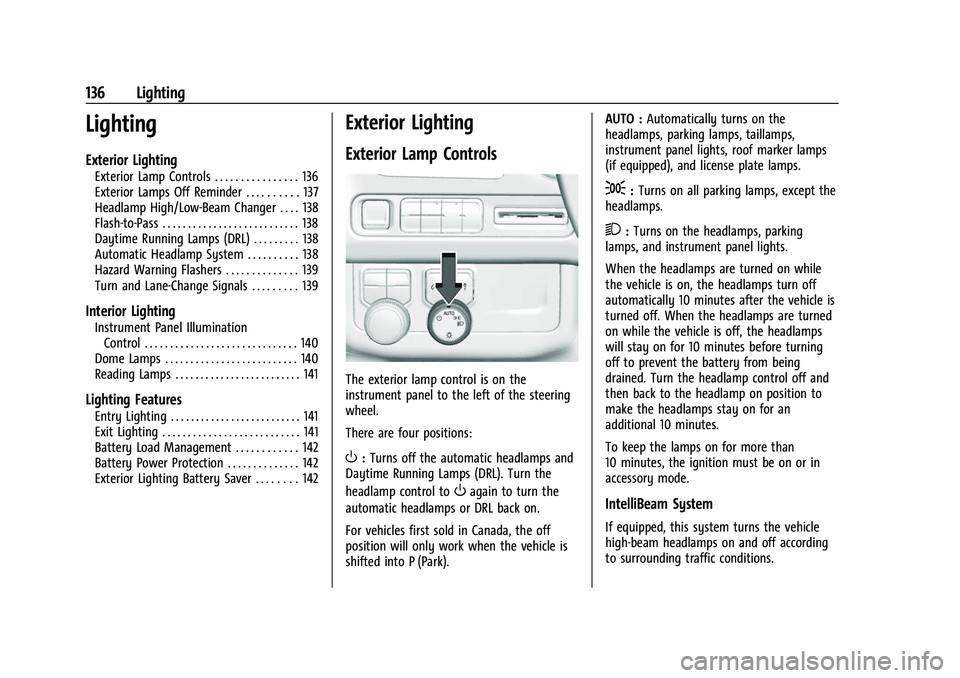
Exterior Lamp Controls
The exterior lamp control is on the
instrument panel to the left of the steering
wheel.
There are four positions:
O: Turns off the automatic headlamps and
Daytime Running Lamps (DRL). Turn the
headlamp control to
Oagain to turn the
automatic headlamps or DRL back on.
For vehicles first sold in Canada, the off
position will only work when the vehicle is
shifted into P (Park). AUTO :
Automatically turns on the
headlamps, parking lamps, taillamps,
instrument panel lights, roof marker lamps
(if equipped), and license plate lamps.
;: Turns on all parking lamps, except the
headlamps.
2: Turns on the headlamps, parking
lamps, and instrument panel lights.
When the headlamps are turned on while
the vehicle is on, the headlamps turn off
automatically 10 minutes after the vehicle is
turned off. When the headlamps are turned
on while the vehicle is off, the headlamps
will stay on for 10 minutes before turning
off to prevent the battery from being
drained. Turn the headlamp control off and
then back to the headlamp on position to
make the headlamps stay on for an
additional 10 minutes.
To keep the lamps on for more than
10 minutes, the ignition must be on or in
accessory mode.
IntelliBeam System
If equipped, this system turns the vehicle
high-beam headlamps on and off according
to surrounding traffic conditions.
Page 144 of 443
Chevrolet Tahoe/Suburban Owner Manual (GMNA-Localizing-U.S./Canada/
Mexico-16416971) - 2023 - CRC - 4/26/22
Infotainment System 143
Infotainment System
Introduction
Introduction . . . . . . . . . . . . . . . . . . . . . . . . . . . 143
Overview . . . . . . . . . . . . . . . . . . . . . . . . . . . . . . 144
Steering Wheel Controls . . . . . . . . . . . . . . . 146
Using the System . . . . . . . . . . . . . . . . . . . . . 146
Software Updates . . . . . . . . . . . . . . . . . . . . . 149
Radio
AM-FM Radio (Base Radio) . . . . . . . . . . . . . 149
AM-FM Radio (Uplevel Radio) . . . . . . . . . . 150
Satellite Radio . . . . . . . . . . . . . . . . . . . . . . . . . . 151
Radio Reception . . . . . . . . . . . . . . . . . . . . . . . . 152
Multi-Band Antenna . . . . . . . . . . . . . . . . . . . 153
Audio Players
Avoiding Untrusted Media Devices . . . . . 153
Avoiding Untrusted Media Devices . . . . . 153
USB Port . . . . . . . . . . . . . . . . . . . . . . . . . . . . . . . 153
Bluetooth Audio (Base Radio) . . . . . . . . . . 153
Bluetooth Audio (Uplevel Radio) . . . . . . . 154
Rear Seat Infotainment
Rear Seat Infotainment (RSI)System . . . . . . . . . . . . . . . . . . . . . . . . . . . . . . 154
Navigation
Using the Navigation System . . . . . . . . . . 161
Maps . . . . . . . . . . . . . . . . . . . . . . . . . . . . . . . . . . 162
Navigation Symbols . . . . . . . . . . . . . . . . . . . 162 Destination . . . . . . . . . . . . . . . . . . . . . . . . . . . . 162
Global Positioning System (GPS) . . . . . . . 163
Vehicle Positioning . . . . . . . . . . . . . . . . . . . . 163
Problems with Route Guidance . . . . . . . . 164
Voice Recognition
Voice Recognition . . . . . . . . . . . . . . . . . . . . . 164
Phone
Bluetooth (Overview) . . . . . . . . . . . . . . . . . . 166
Bluetooth (Pairing and Using a Phone
for Uplevel Radio) . . . . . . . . . . . . . . . . . . . . 167
Bluetooth (Pairing and Using a Phone for Base Radio) . . . . . . . . . . . . . . . . . . . . . . 170
Apple CarPlay and Android Auto (Base Radio) . . . . . . . . . . . . . . . . . . . . . . . . . . . . . . . . 174
Apple CarPlay and Android Auto (Uplevel Radio) . . . . . . . . . . . . . . . . . . . . . . . 175
Settings
Settings (Base Radio) . . . . . . . . . . . . . . . . . . 177
Settings (Uplevel Radio) . . . . . . . . . . . . . . . 178
Teen Driver . . . . . . . . . . . . . . . . . . . . . . . . . . . . 180
Trademarks and License Agreements
Trademarks and LicenseAgreements . . . . . . . . . . . . . . . . . . . . . . . . . . 183
Introduction
Read the following pages to become familiar
with the features.
{Warning
Taking your eyes off the road for too
long or too often while using any
infotainment feature can cause a crash.
You or others could be injured or killed.
Do not give extended attention to
infotainment tasks while driving. Limit
your glances at the vehicle displays and
focus your attention on driving. Use voice
commands whenever possible.
The infotainment system has built-in
features intended to help avoid distraction
by disabling some features when driving.
These features may gray out when they are
unavailable. Many infotainment features are
also available through the instrument cluster
and steering wheel controls.
Before driving:
.Become familiar with the operation,
center stack controls, steering wheel
controls, and infotainment display.
Page 145 of 443
Chevrolet Tahoe/Suburban Owner Manual (GMNA-Localizing-U.S./Canada/
Mexico-16416971) - 2023 - CRC - 4/26/22
144 Infotainment System
.Set up the audio by presetting favorite
stations, setting the tone, and adjusting
the speakers.
.Set up phone numbers in advance so they
can be called easily by pressing a single
control or by using a single voice
command.
See Distracted Driving 0195.
Active Noise Cancellation (ANC)
If equipped, ANC reduces engine noise in the
vehicle’s interior. ANC requires the
factory-installed audio system, radio,
speakers, amplifier (if equipped), induction
system, and exhaust system to work
properly. Deactivation is required by your
dealer if related aftermarket equipment is
installed.
Overview
Infotainment System
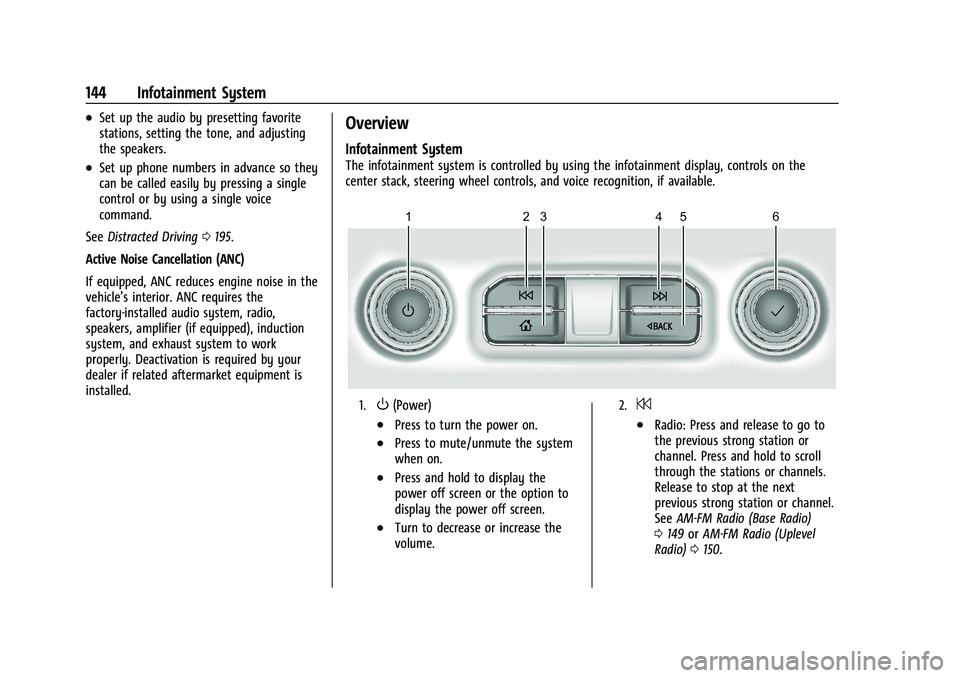
The infotainment system is controlled by using the infotainment display, controls on the
center stack, steering wheel controls, and voice recognition, if available.
1.O(Power)
.Press to turn the power on.
.Press to mute/unmute the system
when on.
.Press and hold to display the
power off screen or the option to
display the power off screen.
.Turn to decrease or increase the
volume.
2.7
.Radio: Press and release to go to
the previous strong station or
channel. Press and hold to scroll
through the stations or channels.
Release to stop at the next
previous strong station or channel.
See AM-FM Radio (Base Radio)
0 149 orAM-FM Radio (Uplevel
Radio) 0150.
Page 147 of 443
Chevrolet Tahoe/Suburban Owner Manual (GMNA-Localizing-U.S./Canada/
Mexico-16416971) - 2023 - CRC - 4/26/22
146 Infotainment System
Steering Wheel Controls
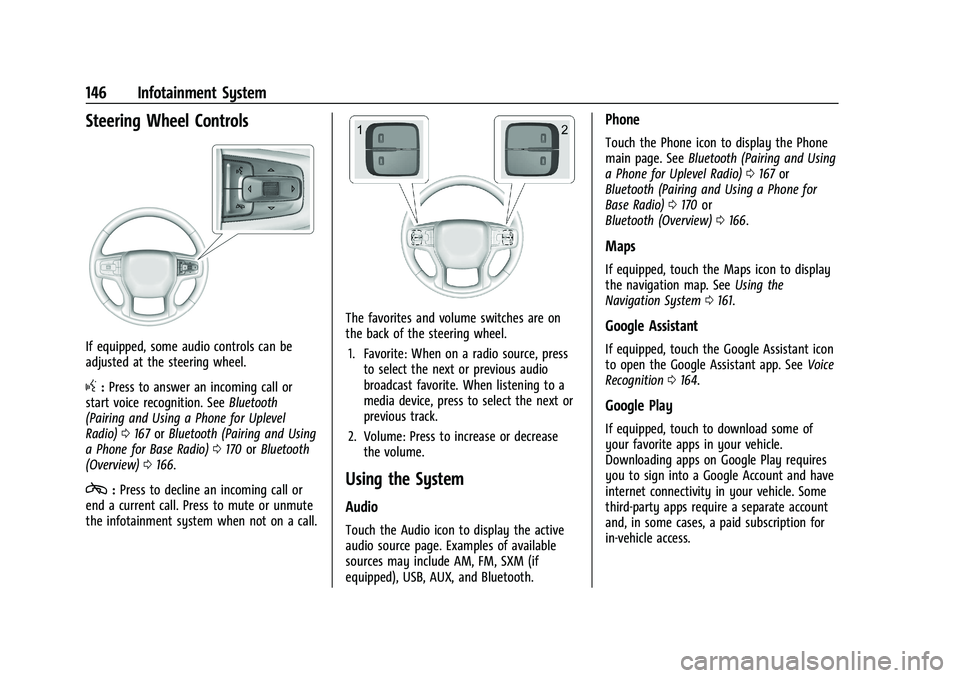
If equipped, some audio controls can be
adjusted at the steering wheel.
g:Press to answer an incoming call or
start voice recognition. See Bluetooth
(Pairing and Using a Phone for Uplevel
Radio) 0167 orBluetooth (Pairing and Using
a Phone for Base Radio) 0170 orBluetooth
(Overview) 0166.
c:Press to decline an incoming call or
end a current call. Press to mute or unmute
the infotainment system when not on a call.
The favorites and volume switches are on
the back of the steering wheel.
1. Favorite: When on a radio source, press to select the next or previous audio
broadcast favorite. When listening to a
media device, press to select the next or
previous track.
2. Volume: Press to increase or decrease the volume.
Using the System
Audio
Touch the Audio icon to display the active
audio source page. Examples of available
sources may include AM, FM, SXM (if
equipped), USB, AUX, and Bluetooth.
Phone
Touch the Phone icon to display the Phone
main page. See Bluetooth (Pairing and Using
a Phone for Uplevel Radio) 0167 or
Bluetooth (Pairing and Using a Phone for
Base Radio) 0170 or
Bluetooth (Overview) 0166.
Maps
If equipped, touch the Maps icon to display
the navigation map. See Using the
Navigation System 0161.
Google Assistant
If equipped, touch the Google Assistant icon
to open the Google Assistant app. See Voice
Recognition 0164.
Google Play
If equipped, touch to download some of
your favorite apps in your vehicle.
Downloading apps on Google Play requires
you to sign into a Google Account and have
internet connectivity in your vehicle. Some
third-party apps require a separate account
and, in some cases, a paid subscription for
in-vehicle access.
Page 165 of 443
Chevrolet Tahoe/Suburban Owner Manual (GMNA-Localizing-U.S./Canada/
Mexico-16416971) - 2023 - CRC - 4/26/22
164 Infotainment System
.The surface streets run parallel to a
freeway.
.The vehicle has been transferred by a
vehicle carrier or a ferry.
.The current position calibration is set
incorrectly.
.The vehicle is traveling at high speed.
.The vehicle changes directions more than
once, or the vehicle is turning on a turn
table in a parking lot.
.The vehicle is entering and/or exiting a
parking lot, garage, or a lot with a roof.
.The GPS signal is not received.
.A roof carrier is installed on the vehicle.
.Tire chains are installed on the vehicle.
.The tires are replaced or worn.
.The tire pressure for the tires is incorrect.
.This is the first navigation use after the
map data is updated.
.The 12-volt battery has been disconnected
for several days.
.The vehicle is driving in heavy traffic
where driving is at low speeds, and the
vehicle is stopped and started repeatedly.
Problems with Route Guidance
Inappropriate route guidance can occur
under one or more of the following
conditions:
.The turn was not made on the road
indicated.
.Route guidance might not be available
when using automatic rerouting for the
next right or left turn.
.The route might not be changed when
using automatic rerouting.
.There is no route guidance when turning
at an intersection.
.Automatic rerouting might display a route
returning to the set waypoint if heading
for a destination without passing through
a set waypoint.
.The route prohibits the entry of a vehicle
due to a regulation by time or season or
any other regulation which may be given.
.Some routes might not be searched.
.The route to the destination might not be
shown if there are new roads, if roads
have recently changed, or if certain roads
are not listed in Maps.To recalibrate the vehicle's position on the
map, park with the vehicle running for two
to five minutes, until the vehicle position
updates. Make sure the vehicle is parked in
a location that is safe and has a clear view
of the sky and away from large
obstructions.
Voice Recognition
If equipped, Google Assistant allows for
hands-free use of media and messaging,
navigation and climate control functionality
in the vehicle. This feature can be started by
pressing
gon the steering wheel, touching
Google Assistant on the Home screen, or by
using the wake up words “Hey Google”or
“OK Google.”
However, not all features within these areas
are supported by voice commands and
requires the user to have a valid data
subscription plan in order to use some of
the Google Assistant features.
Using Voice Recognition
Voice recognition becomes available once
the system is initialized. This begins when
the vehicle is turned on. Initialization may
take a few moments.
Page 166 of 443
Chevrolet Tahoe/Suburban Owner Manual (GMNA-Localizing-U.S./Canada/
Mexico-16416971) - 2023 - CRC - 4/26/22
Infotainment System 165
1. Pressgon the steering wheel controls,
touch Google Assistant on the Home
screen, or use the wake up words “Hey
Google” or“OK Google” to activate voice
recognition. Google Assistant must be set
as the Default Assistant for the
gand
the wake word options to work.
2. Clearly speak one of the commands described later in this section.
Canceling Google Assistant
.Presscon the steering wheel controls
to cancel the Google Assistant request.
Helpful Hints for Speaking Commands
Voice recognition identifies commands that
are naturally stated in sentence form,
or direct commands that state the
application and the task.
For best results:
.Speak the command naturally, not too
fast, not too slow.
.Use direct commands without a lot of
extra words. For example, “Call
at work,” “Play” followed by the artist or
song name, or “Play”followed by the
radio station number. Direct commands are more clearly
understood by the system. An example of a
direct command is
“Dial
If a cell phone number was saved with a
name and a place, the direct command
should include both. For example “Call
Voice Recognition for the Radio
When voice is touched, the voice recognition
commands for AM, FM, SiriusXM (if
equipped), and media apps (if supported) are
available.
“Play
radio station frequency identified in the
command (like “nine fifty”).
“Play
radio station frequency identified in the
command (like “one oh one point one”).
“Play channel
SiriusXM” :Tune to the SiriusXM radio
station channel number identified in the
command. This command may require an
online connection.
“Play
Tune to the SiriusXM radio station channel
name identified in the command. This
command may require an online connection. “Play
Page 167 of 443
Chevrolet Tahoe/Suburban Owner Manual (GMNA-Localizing-U.S./Canada/
Mexico-16416971) - 2023 - CRC - 4/26/22
166 Infotainment System
“Find a
initiate navigation to a POI in the command
in the command.
“Add
way-point to the current route.
“Take me home” :Starts navigation to
Home location set in Google maps.
Onboard Vehicle Commands
These commands can be used to adjust
vehicle temperature, control window
defrosters and obtain fuel information.
“Turn on the A/C” :Turns on the air
conditioning.
“How much gas do I have left” :Find out
how much fuel your vehicle has left.
“Set temperature to
degrees” :Set to a specific temperature
inside your vehicle.
Phone Assistant Voice Recognition
While a device is connected via Bluetooth,
Android Auto, or CarPlay, press and hold
g
on the steering wheel controls to pass
through and launch the Voice Assistant on
the connected mobile phone (e.g, Google
assistant, Siri, etc.).
Phone
Bluetooth (Overview)
The Bluetooth-capable system can interact
with many mobile devices to:
.Place and receive calls in a
hands-free mode.
.Share the device’s address book or
contact list with the vehicle.
.Stream audio (music, podcasts).
.Notify receipt of text messages.
To minimize driver distraction, before
driving, and with the vehicle parked:
.Become familiar with the features of the
mobile device. Organize the phone book
and contact lists clearly and delete
duplicate or rarely used entries.
.Review the controls and operation of the
infotainment system.
.Pair mobile device(s) to the vehicle. The
system may not work with all mobile
devices. See “Pairing”later in this section.
Vehicles with a Bluetooth system can use a
Bluetooth-capable mobile device with a
Hands-Free Profile to make and receive
phone calls. The infotainment system and
voice recognition are used to control the system. The system can be used while the
ignition is on or in accessory mode. The
range of the Bluetooth system can be up to
9.1 m (30 ft). Not all mobile devices support
all functions and not all mobile devices work
with the Bluetooth system. See
Online
Account 0413 for more information about
compatible mobile devices.
Controls
Use the controls on the infotainment display
and the steering wheel to operate the
Bluetooth system.
Steering Wheel Controls
g: Press and release to answer incoming
calls on your connected Bluetooth mobile
device. Press and hold for mobile device
assistant.
c: Press to end a call, decline a call,
or cancel an operation. Press to mute or
unmute the infotainment system when not
on a call.
Infotainment System Controls
For information about how to navigate the
menu system using the infotainment
controls, see Using the System 0146.
Page 168 of 443
Chevrolet Tahoe/Suburban Owner Manual (GMNA-Localizing-U.S./Canada/
Mexico-16416971) - 2023 - CRC - 4/26/22
Infotainment System 167
Audio System
When using the Bluetooth mobile device
system, sound comes through the vehicle's
front audio system speakers and overrides
the audio system. The volume level while on
a mobile device call can be adjusted by
pressing the steering wheel controls or the
volume control on the center stack. The
adjusted volume level remains in memory
for later calls. The volume cannot be
lowered beyond a certain level.
Bluetooth (Pairing and Using a
Phone for Uplevel Radio)
Pairing
A Bluetooth-enabled mobile device must be
paired to the Bluetooth system and then
connected to the vehicle before it can be
used. See the mobile device manufacturer's
user guide for Bluetooth functions before
pairing the device.
Pairing Information
.Touch the Phone icon on the home page
of the infotainment display.
.If no mobile device has been paired, a
message on the infotainment display will
show the Manage Phones option. Touchthis option and the Phones screen will
display. See
“Pairing a Phone” later in this
section.
.A Bluetooth smartphone with music
capability can be paired to the vehicle as
a smartphone and a music player at the
same time.
.Up to 10 devices can be paired to the
Bluetooth system.
.The pairing process is disabled when the
vehicle is moving.
.Pairing only needs to be completed once,
unless the pairing information on the cell
phone changes or the cell phone is
deleted from the system.
.If multiple paired cell phones are within
range of the system, the system connects
to the paired cell phone that is set to
First to Connect. If there is no cell phone
set to First to Connect, it will link to the
cell phone which was used last. To link to
a different paired cell phone, see “Linking
to a Different Phone” later in this section.
Pairing a Phone 1. Make sure Bluetooth has been enabled on the cell phone before starting the
pairing process.
2. Touch the Phone icon on the Home Page. 3. If no mobile device is connected, touch
Manage Phones and the Phones screen
will display.
If another mobile device is connected
already, touch Settings, Connections, and
then Phones.
4. Touch Add Phone. If a previously added phone is
disconnected, the "Add Phone" card will
just be a "+" card.
5. Follow the on-screen prompts to pair the cell phone.
6. Follow the instructions on the cell phone to confirm the six-digit code showing on
the infotainment display and touch Pair.
The code on the cell phone and
infotainment display needs to be
acknowledged for a successful pair.
7. Start the pairing process on the cell phone to be paired to the vehicle. See
the cell phone manufacturer's user guide
for information on this process. Once the
cell phone is paired, it will show as
Connected.
Page 171 of 443
Chevrolet Tahoe/Suburban Owner Manual (GMNA-Localizing-U.S./Canada/
Mexico-16416971) - 2023 - CRC - 4/26/22
170 Infotainment System
Making a Call Using the Keypad
To make a call by dialing the numbers:1. Touch the Phone icon on the Home Page or on the shortcut tray near the left of
the display.
2. Touch Keypad and enter a phone number.
3. Touch the phone icon on the infotainment display to start dialing the
number.
Searching Contacts Using the Keypad
To search for contacts using the keypad:
1. Touch the Phone icon on the Home Page.
2. Touch Keypad and enter partial phone numbers or contact names using the
digits on the keypad to search.
Results appear on the right side of the
display. Touch one to place a call.
Accepting or Declining a Call
When an incoming call is received, the
infotainment system mutes and a ring tone
is heard in the vehicle.
Accepting a Call
There are two ways to accept a call:
.Pressgon the steering wheel controls.
.Touch Answer on the infotainment
display.
Declining a Call
There are two ways to decline a call:
.Presscon the steering wheel controls.
.Touch Decline on the infotainment
display.
Call Waiting
Call waiting must be supported on the
Bluetooth cell phone and enabled by the
wireless service carrier to work.
Accepting a Call
Press
gto answer, then touch Switch on
the infotainment display.
Declining a Call
Press
cto decline, then touch Decline on
the infotainment display.
Switching Between Calls (Call Waiting
Calls Only)
To switch between calls, touch Phone on the
Home Page to display Call View. While in
Call View, touch the call information of the
call on hold to change calls.
Ending a Call
.Presscon the steering wheel controls.
.Touch#on the infotainment display,
next to a call, to end only that call.
Dual Tone Multi-Frequency (DTMF) Tones
The in-vehicle Bluetooth system can send
numbers during a call. This is used when
calling a menu-driven phone system. Use the
Keypad to enter the number.
Bluetooth (Pairing and Using a
Phone for Base Radio)
Pairing
A Bluetooth-enabled cell phone must be
paired to the Bluetooth system and then
connected to the vehicle before it can be
used. See the cell phone manufacturer's user
guide for Bluetooth functions before pairing
the cell phone.
Pairing Information
.A Bluetooth phone with music capability
can be paired to the vehicle as a phone
and a music player at the same time.
.Up to 10 devices can be paired to the
Bluetooth system.