unlock CHEVROLET TAHOE 2023 Owner's Manual
[x] Cancel search | Manufacturer: CHEVROLET, Model Year: 2023, Model line: TAHOE, Model: CHEVROLET TAHOE 2023Pages: 443, PDF Size: 18.73 MB
Page 82 of 443
Chevrolet Tahoe/Suburban Owner Manual (GMNA-Localizing-U.S./Canada/
Mexico-16416971) - 2023 - CRC - 4/25/22
Seats and Restraints 81
Warning (Continued)
anchor. Attaching more than one child
restraint to a single anchor could cause
the anchor or attachment to come loose
or even break during a crash. A child or
others could be injured.
{Warning
Children can be seriously injured or
strangled if a shoulder belt is wrapped
around their neck. The shoulder belt can
tighten but cannot be loosened if it is
locked. The shoulder belt locks when it is
pulled all the way out of the retractor.
It unlocks when the shoulder belt is
allowed to go all the way back into the
retractor, but it cannot do this if it is
wrapped around a child’s neck. If the
shoulder belt is locked and tightened
around a child’s neck, the only way to
loosen the belt is to cut it.
Buckle any unused seat belts behind the
child restraint so children cannot reach
them. Pull the shoulder belt all the way
out of the retractor to set the lock, and(Continued)
Warning (Continued)
tighten the belt behind the child restraint
after the child restraint has been
installed.
Caution
Do not let the LATCH attachments rub
against the vehicle’s seat belts. This may
damage these parts. If necessary, move
buckled seat belts to avoid rubbing the
LATCH attachments.
Do not fold the rear seatback when the
seat is occupied. Do not fold the empty
rear seat with a seat belt buckled. This
could damage the seat belt or the seat.
Unbuckle and return the seat belt to its
stowed position, before folding the seat.
The vehicle is equipped with a front center
airbag in the inboard side of the driver seat.
Even with a front center airbag, a child
restraint can be installed in any second row
seating position.
If you need to secure more than one child
restraint in the rear seat, see Where to Put
the Restraint 075. 1. Attach and tighten the lower
attachments to the lower anchors. If the
child restraint does not have lower
attachments or the desired seating
position does not have lower anchors,
secure the child restraint with the seat
belt and top tether when recommended
by the child restraint manufacturer. Refer
to your child restraint manufacturer
instructions and the instructions in this
manual.
1.1. Find the lower anchors for the desired seating position.
1.2. Put the child restraint on the seat.
1.3. Attach and tighten the lower attachments on the child restraint
to the lower anchors.
2. If the child restraint manufacturer recommends that the top tether be
attached, adjust the top tether to its full
length and attach it to the anchor. Refer
to the child restraint instructions and the
following steps:
2.1. Find the top tether anchor.
2.2. Route, attach, and tighten the top tether according to your child
restraint instructions and the
following instructions:
Page 89 of 443
Chevrolet Tahoe/Suburban Owner Manual (GMNA-Localizing-U.S./Canada/
Mexico-16416971) - 2023 - CRC - 4/25/22
88 Storage
Storage
Storage Compartments
Storage Compartments . . . . . . . . . . . . . . . . . 88
Instrument Panel Storage . . . . . . . . . . . . . . 88
Glove Box . . . . . . . . . . . . . . . . . . . . . . . . . . . . . . 88
Cupholders . . . . . . . . . . . . . . . . . . . . . . . . . . . . . 88
Rear Storage . . . . . . . . . . . . . . . . . . . . . . . . . . . 89
Center Console Storage . . . . . . . . . . . . . . . . 90
Floor Console Storage . . . . . . . . . . . . . . . . . . 91
Additional Storage Features
Cargo Tie-Downs . . . . . . . . . . . . . . . . . . . . . . . . 91
Convenience Net . . . . . . . . . . . . . . . . . . . . . . . 92
Roof Rack System
Roof Rack System . . . . . . . . . . . . . . . . . . . . . . 92
Storage Compartments{
Warning
Do not store heavy or sharp objects in
storage compartments. In a crash, these
objects may cause the cover to open and
could result in injury.
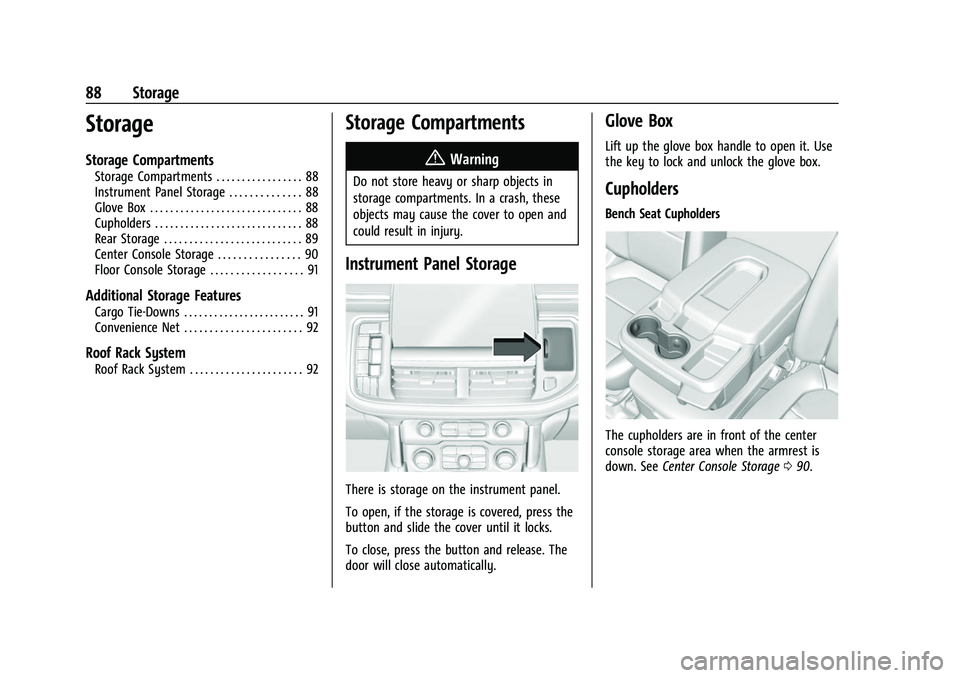
Instrument Panel Storage
There is storage on the instrument panel.
To open, if the storage is covered, press the
button and slide the cover until it locks.
To close, press the button and release. The
door will close automatically.
Glove Box
Lift up the glove box handle to open it. Use
the key to lock and unlock the glove box.
Cupholders
Bench Seat Cupholders
The cupholders are in front of the center
console storage area when the armrest is
down. See Center Console Storage 090.
Page 92 of 443
Chevrolet Tahoe/Suburban Owner Manual (GMNA-Localizing-U.S./Canada/
Mexico-16416971) - 2023 - CRC - 4/25/22
Storage 91
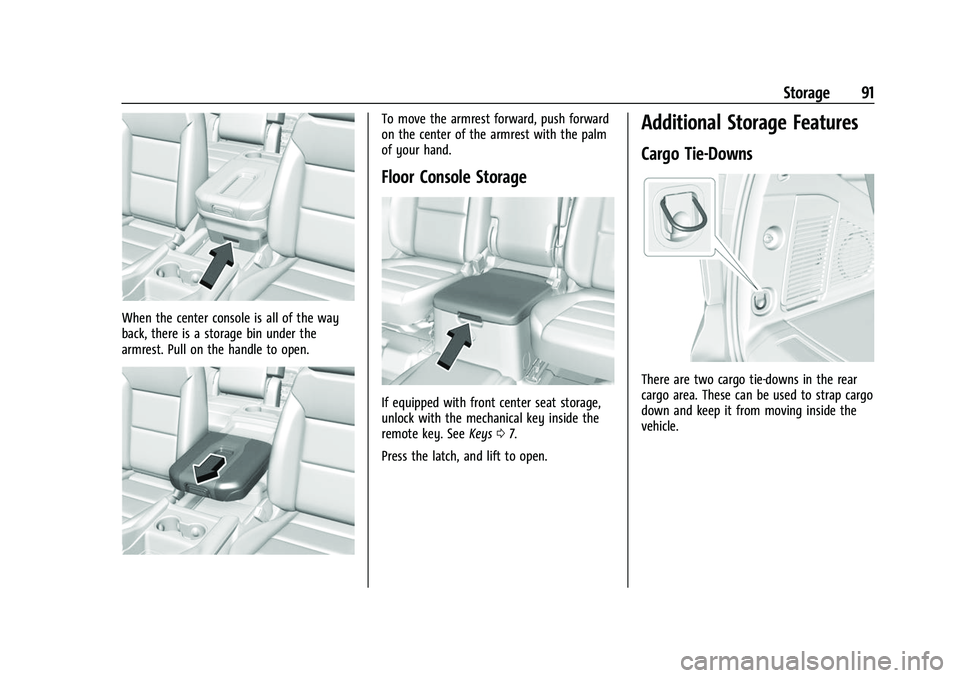
When the center console is all of the way
back, there is a storage bin under the
armrest. Pull on the handle to open.
To move the armrest forward, push forward
on the center of the armrest with the palm
of your hand.
Floor Console Storage
If equipped with front center seat storage,
unlock with the mechanical key inside the
remote key. SeeKeys07.
Press the latch, and lift to open.
Additional Storage Features
Cargo Tie-Downs
There are two cargo tie-downs in the rear
cargo area. These can be used to strap cargo
down and keep it from moving inside the
vehicle.
Page 179 of 443
Chevrolet Tahoe/Suburban Owner Manual (GMNA-Localizing-U.S./Canada/
Mexico-16416971) - 2023 - CRC - 4/26/22
178 Infotainment System
About
Shows the infotainment system software
information.
Return to Factory Settings
Allows resetting the infotainment system
settings in the vehicle.
Apps
The menu may contain the following:
Android Auto
Allows interacting directly with a mobile
device on the infotainment display. See
Apple CarPlay and Android Auto (Base
Radio)0174 orApple CarPlay and Android
Auto (Uplevel Radio) 0175.
Apple CarPlay
This feature allows you to interact directly
with your mobile device on the infotainment
display. See Apple CarPlay and Android Auto
(Base Radio) 0174 orApple CarPlay and
Android Auto (Uplevel Radio) 0175.
Audio
Adjusts different audio settings.
Phone
Adjusts different phone settings.
Vehicle
The menu may contain the following:
Rear Seat Reminder
Allows for a chime and a message when the
rear door has been opened before or during
operation of the vehicle.
Buckle to Drive
This feature can prevent shifting out of Park
when the driver, and if applicable the front
passenger, seat belt is not buckled. See
Buckle To Drive 053.
Climate and Air Quality
Adjusts different climate settings.
Collision/Detection Systems
Adjusts different driver assistance system
settings.
Comfort and Convenience
Adjusts different comfort and convenience
settings.
Lighting
Adjusts different lighting settings.
Power Door Locks
Adjusts different door lock settings. Remote Lock, Unlock, and Start
Adjusts different remote lock settings.
Ride Height
Adjusts different ride height settings.
Power Assist Steps
Adjusts different running board settings.
Seating Position
Adjusts different seat settings.
Suspension
Adjusts different suspension settings.
Teen Driver
See
Teen Driver 0180.
Settings (Uplevel Radio)
Certain settings can be managed in the
Owner Center sites when an account is
established, and may be modified if other
users have accessed the vehicle or created
accounts. This may result in changes to the
security or functionality of the infotainment
system. Some settings may also be
transferred to a new vehicle, if equipped. For
instructions, in the U.S. see
my.chevrolet.com or in Canada see
mychevrolet.ca or monchevrolet.ca.
Page 180 of 443
Chevrolet Tahoe/Suburban Owner Manual (GMNA-Localizing-U.S./Canada/
Mexico-16416971) - 2023 - CRC - 4/26/22
Infotainment System 179
Refer to the User Terms and Privacy
Statement for important details. To view,
touch the Settings icon on the Home Page
of the infotainment display.
To access the personalization menus:1. Touch Settings on the Home Page on the infotainment display.
2. Touch the desired category to display a list of available options.
3. Touch to select the desired feature setting.
4. Touch the options on the infotainment display to disable or enable a feature.
5. Touch
Sto go back.
The Settings menu may contain the
following:
Connections
Phones
Allows connecting to a different cell phone
or mobile device source, disconnect a cell
phone or media device, or delete a cell
phone or media device.
Wi-Fi Networks
Shows connected and available Wi-Fi
networks. Wi-Fi Hotspot
Allows adjustment of different Wi-Fi
features.
Vehicle-to-Phone Sharing
Vehicle
The menu may contain the following:
Rear Seat Reminder
Allows for a chime and a message when the
rear door has been opened before or during
operation of the vehicle.
Buckle to Drive
This feature can prevent shifting out of Park
when the driver, and if applicable the front
passenger, seat belt is not buckled. See
Buckle To Drive
053.
Climate and Air Quality
Adjusts different climate settings.
Collision/Detection Systems
Adjusts different driver assistance system
settings.
Comfort and Convenience
Adjusts different comfort and convenience
settings. Lighting
Adjusts different lighting settings.
Power Door Locks
Adjusts different door lock settings.
Remote Lock, Unlock, and Start
Adjusts different remote lock settings.
Ride Height
Adjusts different ride height settings.
Power Assist Steps
Adjusts different running board settings.
Seating Position
Adjusts different seating position settings.
Suspension
Adjusts different suspension settings.
Teen Driver
See
Teen Driver 0180.
Apps & Permissions
Shows a list of installed apps and the
permissions used.
Date / Time
Allows setting of the clock.
Page 390 of 443

Chevrolet Tahoe/Suburban Owner Manual (GMNA-Localizing-U.S./Canada/
Mexico-16416971) - 2023 - CRC - 4/26/22
Vehicle Care 389
Caution
Failure to tow the vehicle with the
transmission in P (Park) can cause
damage to the transmission.
6. Turn off the engine.
7. Place the vehicle in accessory mode by pressing the start button without
stepping on the brake pedal.
8. Release the parking brake only when you are confident it is secured to tow vehicle
and will not roll.
Before going on to the next step, be
sure to take the mechanical key with
you. It will be needed to re-enter the
vehicle after the power is disconnected.
See “Drive Door Key Lock Cylinder
Access” underDoor Locks 015.
9. Disconnect the negative battery cable at the battery and secure the nut and bolt.
Cover the negative battery post with a
non-conductive material to prevent any
contact with the negative battery
terminal.
Caution
Failure to disconnect the negative battery
cable or to have it contact the terminals
can cause damage to the vehicle.
10. Move the steering wheel to make sure the steering column is unlocked.
Caution
If the steering column is locked, vehicle
damage may occur.
11. Rock the vehicle to make sure the parking brake is not set and transfer case
is in N (Neutral).
Caution
Towing the vehicle with the parking
brake set can damage it. Always release
the parking brake prior to towing the
vehicle.
Disconnecting the Towed Vehicle
Before disconnecting the towed vehicle: 1. Park on a level surface.
2. Connect the battery.
3. Apply the brake pedal.
{Warning
The vehicle can roll when the brake pedal
is released. Always apply and hold the
brake pedal when setting the parking
brake. Make sure the parking brake is
fully engaged before releasing the brake
pedal.
4. Start the engine and shift the transfer case out of N (Neutral) to 2
m. See
“Shifting out of N (Neutral)” under
Four-Wheel Drive 0219. See your dealer
if the transfer case cannot be shifted out
of N (Neutral).
5. Check that the vehicle is in 2
mby
shifting the transmission to R (Reverse)
and then to D (Drive). There should be
movement of the vehicle while shifting.
6. Shift the transmission to P (Park) and turn off the vehicle.
7. Set the parking brake.
8. Release the parking brake.
9. Disconnect the vehicle from the tow vehicle.
Page 399 of 443
Chevrolet Tahoe/Suburban Owner Manual (GMNA-Localizing-U.S./Canada/
Mexico-16416971) - 2023 - CRC - 4/26/22
398 Vehicle Care
mats are purchased. Non-GM floor mats
may not fit properly and may interfere
with the pedals. Always check that the
floor mats do not interfere with the
pedals.
.Do not use a floor mat if the vehicle is
not equipped with a floor mat retainer on
the driver side floor.
.Use the floor mat with the correct side
up. Do not turn it over.
.Do not place anything on top of the
driver side floor mat.
.Use only a single floor mat on the
driver side.
.Do not place one floor mat on top of
another.
Removing and Replacing the Floor Mats
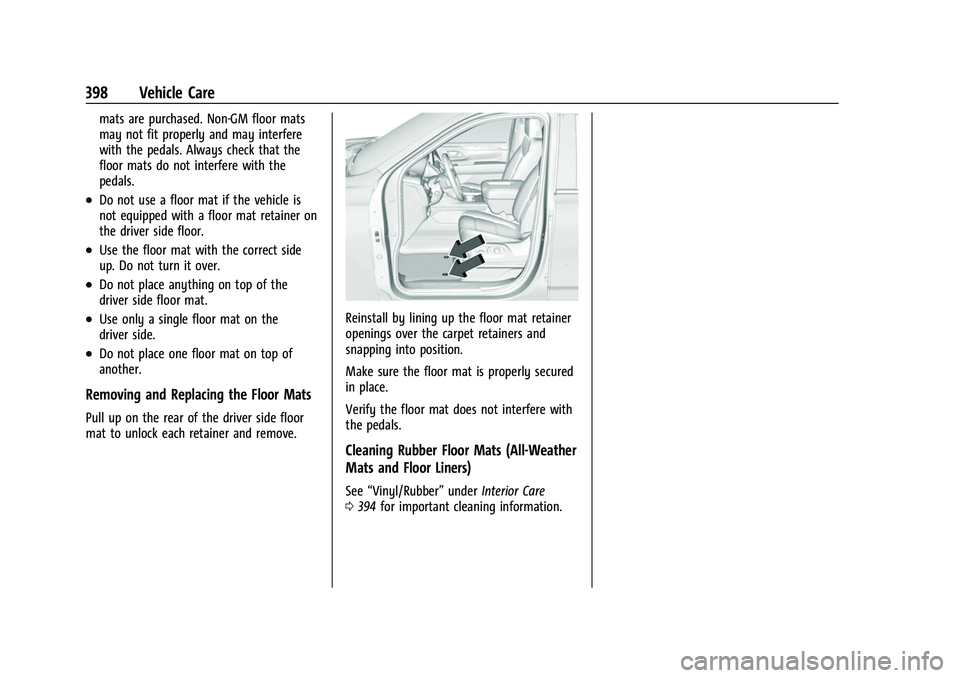
Pull up on the rear of the driver side floor
mat to unlock each retainer and remove.
Reinstall by lining up the floor mat retainer
openings over the carpet retainers and
snapping into position.
Make sure the floor mat is properly secured
in place.
Verify the floor mat does not interfere with
the pedals.
Cleaning Rubber Floor Mats (All-Weather
Mats and Floor Liners)
See“Vinyl/Rubber” underInterior Care
0 394 for important cleaning information.
Page 416 of 443
Chevrolet Tahoe/Suburban Owner Manual (GMNA-Localizing-U.S./Canada/
Mexico-16416971) - 2023 - CRC - 4/25/22
Customer Information 415
Services Provided
.Emergency Fuel Delivery:Delivery of
enough fuel for the vehicle to get to the
nearest service station.
.Lock-Out Service: Service to unlock the
vehicle if you are locked out. A remote
unlock may be available if you have
OnStar. For security reasons, the driver
must present identification before this
service is given.
.Emergency Tow from a Public Road or
Highway: Tow to the nearest Chevrolet
dealer for warranty service, or if the
vehicle was in a crash and cannot be
driven. Assistance is not given when the
vehicle is stuck in the sand, mud,
or snow.
.Flat Tire Change: Service to change a flat
tire with the spare tire. The spare tire,
if equipped, must be in good condition
and properly inflated. It is the owner's
responsibility for the repair or
replacement of the tire if it is not covered
by the warranty.
.Battery Jump Start: Service to jump start
a dead battery.
.Trip Interruption Benefits and Assistance:
If your trip is interrupted due to a
warranty event, incidental expenses may be reimbursed within the Powertrain
warranty period. Items considered are
reasonable and customary hotel, meals,
rental car, or a vehicle being delivered
back to the customer, up to 500 miles.
Services Not Included in Roadside
Assistance
.Impound towing caused by violation of
any laws
.Legal fines
.Mounting, dismounting, or changing of
snow tires, chains, or other traction
devices
Service is not provided if a vehicle is in an
area that is not accessible to the service
vehicle or is not a regularly traveled or
maintained public road, which includes ice
and winter roads. Off-road use is not
covered.
Services Specific to Canadian-Purchased
Vehicles
.Fuel Delivery: Reimbursement is up to
7 liters. If available, diesel fuel delivery
may be restricted. Propane and other
fuels are not provided through this
service.
.Lock-Out Service: Vehicle registration is
required.
.Trip Interruption Benefits and Assistance:
Must be over 150 km from where your
trip was started to qualify.
Pre-authorization, original detailed
receipts, and a copy of the repair orders
are required. Once authorization has been
received, the Roadside Assistance advisor
will help to make arrangements and
explain how to receive payment.
.Alternative Service: If assistance cannot
be provided right away, the Roadside
Assistance advisor may give permission to
get local emergency road service. You will
receive payment, up to $100, after
sending the original receipt to Roadside
Assistance. Mechanical failures may be
covered, however any cost for parts and
labor for repairs not covered by the
warranty are the owner responsibility.
Scheduling Service Appointments
When the vehicle requires warranty service,
contact your dealer and request an
appointment. By scheduling a service
appointment and advising the service
consultant of your transportation needs,
your dealer can help minimize your
inconvenience.
Page 426 of 443
Chevrolet Tahoe/Suburban Owner Manual (GMNA-Localizing-U.S./Canada/
Mexico-16416971) - 2023 - CRC - 4/25/22
OnStar 425
Potential Issues
OnStar cannot perform Remote Door Unlock
or Stolen Vehicle Assistance after the vehicle
has been off continuously for an extended
period of time without an ignition cycle. To
find out the duration of time that applies
for the vehicle, contact an OnStar Advisor by
pressing
Qor calling 1-888-4ONSTAR. If the
vehicle has not been started for an extended
period of time, OnStar can contact Roadside
Assistance or a locksmith to help gain access
to the vehicle.
Global Positioning System (GPS)
.Obstruction of the GPS can occur in a
large city with tall buildings; in parking
garages; around airports; in tunnels and
underpasses; or in an area with very
dense trees. If GPS signals are not
available, the OnStar system should still
operate to call OnStar. However, OnStar
could have difficulty identifying the exact
location.
.In emergency situations, OnStar can use
the last stored GPS location to send to
emergency responders. A temporary loss of GPS can cause loss of
the ability to send a Turn-by-Turn
Navigation route. The Advisor may give a
verbal route or may ask for a call back after
the vehicle is driven into an open area.
Cellular and GPS Antennas
Cellular reception is required for OnStar to
send remote signals to the vehicle. Do not
place items over or near the antenna to
prevent blocking cellular and GPS signal
reception.
Unable to Connect to OnStar Message
If there is limited cellular coverage or the
cellular network has reached maximum
capacity, this message may come on. Press
Qto try the call again or try again after
driving a few miles into another
cellular area.
Vehicle and Power Issues
OnStar services require a vehicle electrical
system, wireless service, and GPS satellite
technologies to be available and operating
for features to function properly. These
systems may not operate if the battery is
discharged or disconnected.
Add-on Electrical Equipment
The OnStar system is integrated into the
electrical architecture of the vehicle. Do not
add any electrical equipment. See Add-On
Electrical Equipment 0316. Added electrical
equipment may interfere with the operation
of the OnStar system and cause it to not
operate.
Vehicle Software Updates
OnStar or GM may remotely deliver
software updates or changes to the vehicle
without further notice or consent. These
updates or changes may enhance or
maintain safety, security, or the operation
of the vehicle or the vehicle systems.
Software updates or changes may affect or
erase data or settings that are stored in the
vehicle, such as saved navigation
destinations or pre-set radio stations.
Neither OnStar nor GM is responsible for
any affected or erased data or settings.
These updates or changes may also collect
personal information. Such collection is
described in the OnStar privacy statement or
separately disclosed at the time of
installation. These updates or changes may
also cause a system to automatically
communicate with GM servers to collect
information about vehicle system status,
Page 429 of 443
Chevrolet Tahoe/Suburban Owner Manual (GMNA-Localizing-U.S./Canada/
Mexico-16416971) - 2023 - CRC - 4/25/22
428 Connected Services
Ensuring Security
.Change the default passwords for the
Wi-Fi hotspot and myChevrolet mobile
application. Make these passwords
different from each other and use a
combination of letters and numbers to
increase the security.
.Change the default name of the SSID
(Service Set Identifier). This is your
network’s name that is visible to other
wireless devices. Choose a unique name
and avoid family names or vehicle
descriptions.
Wi-Fi Hotspot (If Equipped)
The vehicle may have a built-in Wi-Fi
hotspot that provides access to the Internet
and web content at 4G LTE speed. Up to
seven mobile devices can be connected.
A data plan is required. Use the in-vehicle
controls only when it is safe to do so. 1. To retrieve Wi-Fi hotspot information, press
=to open the OnStar app on the
infotainment display, then select Wi-Fi
Hotspot. On some vehicles, touch Wi-Fi
or Wi-Fi Settings on the screen.
2. The Wi-Fi settings will display the Wi-Fi hotspot name (SSID), password, and on
some vehicles, the connection type (no Internet connection, 3G, 4G, 4G LTE), and
signal quality (poor, good, excellent). The
LTE icon shows connection to Wi-Fi. It is
possible that the icon may not illuminate
even though the vehicle has an active
connection.
3. To change the SSID or password, press
Qor call 1-888-4ONSTAR to connect
with an Advisor. On some vehicles, the
SSID and password can be changed in
the Wi-Fi Hotspot menu.
After initial set-up, your vehicle’s Wi-Fi
hotspot will connect automatically to your
mobile devices. Manage data usage by
turning Wi-Fi on or off on your mobile
device, using the myChevrolet mobile app,
or by contacting an OnStar Advisor. On
some vehicles, Wi-Fi can also be managed
from the Wi-Fi Hotspot menu.
MyChevrolet Mobile App (If Available)
Download the myChevrolet mobile app to
compatible Apple and Android smartphones.
Chevrolet users can access the following
services from a smartphone:
.Remotely start/stop the vehicle,
if factory-equipped.
.Lock/unlock doors, if equipped with
automatic locks.
.Activate the horn and lamps.
.Check the vehicle’s fuel level, oil life,
or tire pressure, if factory-equipped
with the Tire Pressure Monitor System.
.Send destinations to the vehicle.
.Locate the vehicle on a map (U.S.
market only).
.Turn the vehicle's Wi-Fi hotspot on/off,
manage settings, and monitor data
consumption, if equipped.
.Locate a dealer and schedule service.
.Request Roadside Assistance.
.Set a parking reminder with pin drop,
take a photo, make a note, and set a
timer.
.Connect with Chevrolet on social media.
Features are subject to change. For
myChevrolet mobile app information and
compatibility, see my.chevrolet.com.
An active OnStar or connected service plan
may be required. A compatible device,
factory-installed remote start, and power
locks are required. Data rates apply. See
www.onstar.com for details and system
limitations.