reset CHEVROLET TRAIL BLAZER 2007 1.G Owner's Manual
[x] Cancel search | Manufacturer: CHEVROLET, Model Year: 2007, Model line: TRAIL BLAZER, Model: CHEVROLET TRAIL BLAZER 2007 1.GPages: 574, PDF Size: 2.94 MB
Page 252 of 574
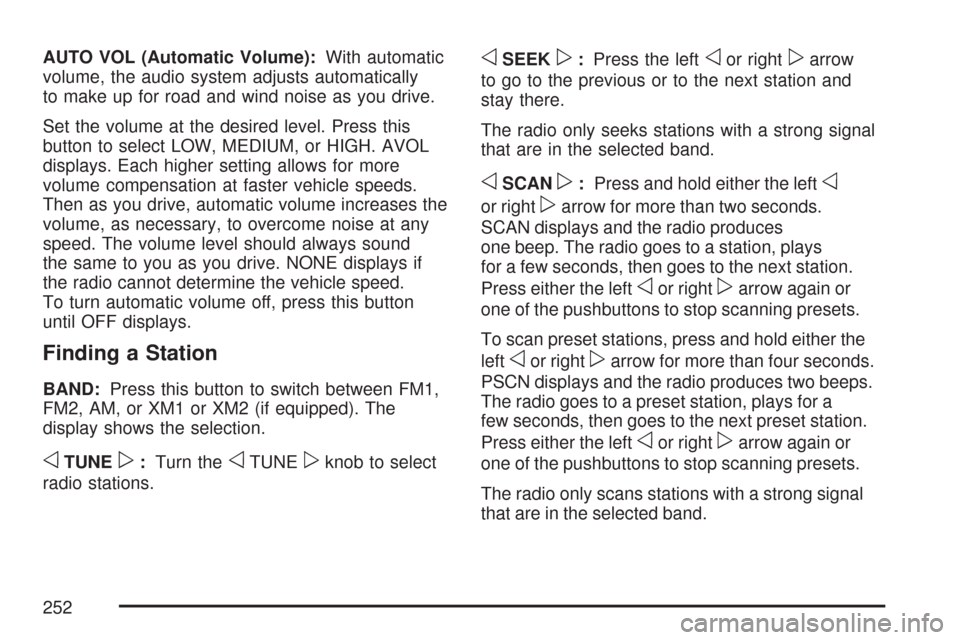
AUTO VOL (Automatic Volume):With automatic
volume, the audio system adjusts automatically
to make up for road and wind noise as you drive.
Set the volume at the desired level. Press this
button to select LOW, MEDIUM, or HIGH. AVOL
displays. Each higher setting allows for more
volume compensation at faster vehicle speeds.
Then as you drive, automatic volume increases the
volume, as necessary, to overcome noise at any
speed. The volume level should always sound
the same to you as you drive. NONE displays if
the radio cannot determine the vehicle speed.
To turn automatic volume off, press this button
until OFF displays.
Finding a Station
BAND:Press this button to switch between FM1,
FM2, AM, or XM1 or XM2 (if equipped). The
display shows the selection.
oTUNEp:Turn theoTUNEpknob to select
radio stations.
oSEEKp:Press the leftoor rightparrow
to go to the previous or to the next station and
stay there.
The radio only seeks stations with a strong signal
that are in the selected band.
oSCANp:Press and hold either the lefto
or rightparrow for more than two seconds.
SCAN displays and the radio produces
one beep. The radio goes to a station, plays
for a few seconds, then goes to the next station.
Press either the left
oor rightparrow again or
one of the pushbuttons to stop scanning presets.
To scan preset stations, press and hold either the
left
oor rightparrow for more than four seconds.
PSCN displays and the radio produces two beeps.
The radio goes to a preset station, plays for a
few seconds, then goes to the next preset station.
Press either the left
oor rightparrow again or
one of the pushbuttons to stop scanning presets.
The radio only scans stations with a strong signal
that are in the selected band.
252
Page 253 of 574
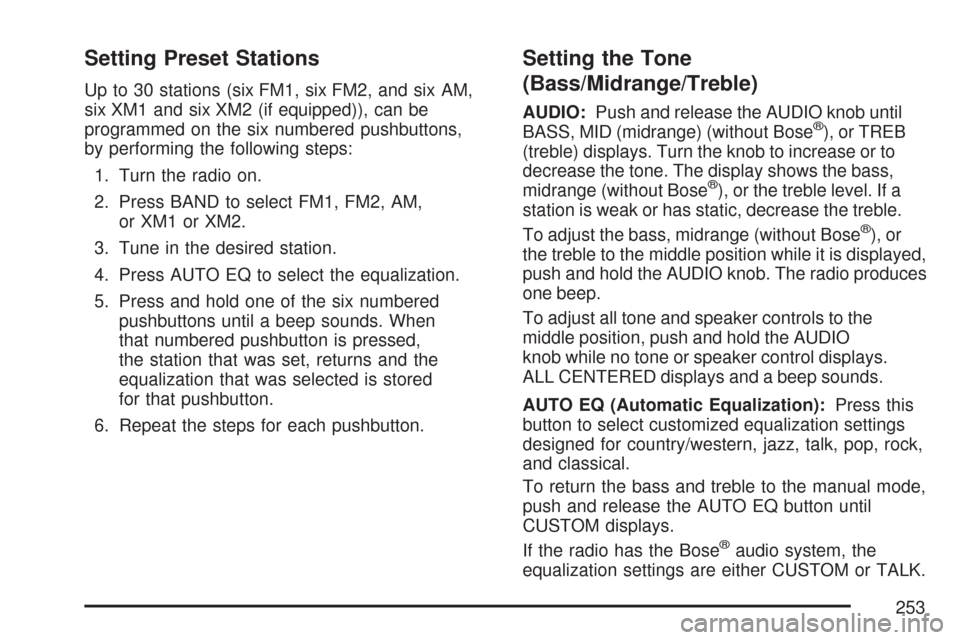
Setting Preset Stations
Up to 30 stations (six FM1, six FM2, and six AM,
six XM1 and six XM2 (if equipped)), can be
programmed on the six numbered pushbuttons,
by performing the following steps:
1. Turn the radio on.
2. Press BAND to select FM1, FM2, AM,
or XM1 or XM2.
3. Tune in the desired station.
4. Press AUTO EQ to select the equalization.
5. Press and hold one of the six numbered
pushbuttons until a beep sounds. When
that numbered pushbutton is pressed,
the station that was set, returns and the
equalization that was selected is stored
for that pushbutton.
6. Repeat the steps for each pushbutton.
Setting the Tone
(Bass/Midrange/Treble)
AUDIO:Push and release the AUDIO knob until
BASS, MID (midrange) (without Bose®), or TREB
(treble) displays. Turn the knob to increase or to
decrease the tone. The display shows the bass,
midrange (without Bose
®), or the treble level. If a
station is weak or has static, decrease the treble.
To adjust the bass, midrange (without Bose
®), or
the treble to the middle position while it is displayed,
push and hold the AUDIO knob. The radio produces
one beep.
To adjust all tone and speaker controls to the
middle position, push and hold the AUDIO
knob while no tone or speaker control displays.
ALL CENTERED displays and a beep sounds.
AUTO EQ (Automatic Equalization):Press this
button to select customized equalization settings
designed for country/western, jazz, talk, pop, rock,
and classical.
To return the bass and treble to the manual mode,
push and release the AUTO EQ button until
CUSTOM displays.
If the radio has the Bose
®audio system, the
equalization settings are either CUSTOM or TALK.
253
Page 262 of 574
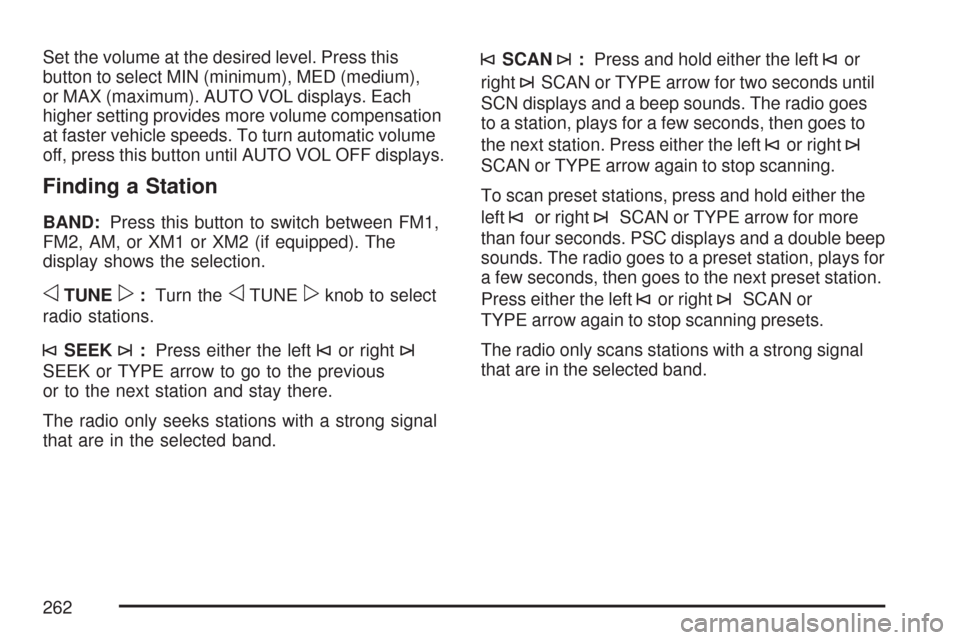
Set the volume at the desired level. Press this
button to select MIN (minimum), MED (medium),
or MAX (maximum). AUTO VOL displays. Each
higher setting provides more volume compensation
at faster vehicle speeds. To turn automatic volume
off, press this button until AUTO VOL OFF displays.
Finding a Station
BAND:Press this button to switch between FM1,
FM2, AM, or XM1 or XM2 (if equipped). The
display shows the selection.
oTUNEp:Turn theoTUNEpknob to select
radio stations.
©SEEK¨:Press either the left©or right¨
SEEK or TYPE arrow to go to the previous
or to the next station and stay there.
The radio only seeks stations with a strong signal
that are in the selected band.
©SCAN¨:Press and hold either the left©or
right
¨SCAN or TYPE arrow for two seconds until
SCN displays and a beep sounds. The radio goes
to a station, plays for a few seconds, then goes to
the next station. Press either the left
©or right¨
SCAN or TYPE arrow again to stop scanning.
To scan preset stations, press and hold either the
left
©or right¨SCAN or TYPE arrow for more
than four seconds. PSC displays and a double beep
sounds. The radio goes to a preset station, plays for
a few seconds, then goes to the next preset station.
Press either the left
©or right¨SCAN or
TYPE arrow again to stop scanning presets.
The radio only scans stations with a strong signal
that are in the selected band.
262
Page 263 of 574
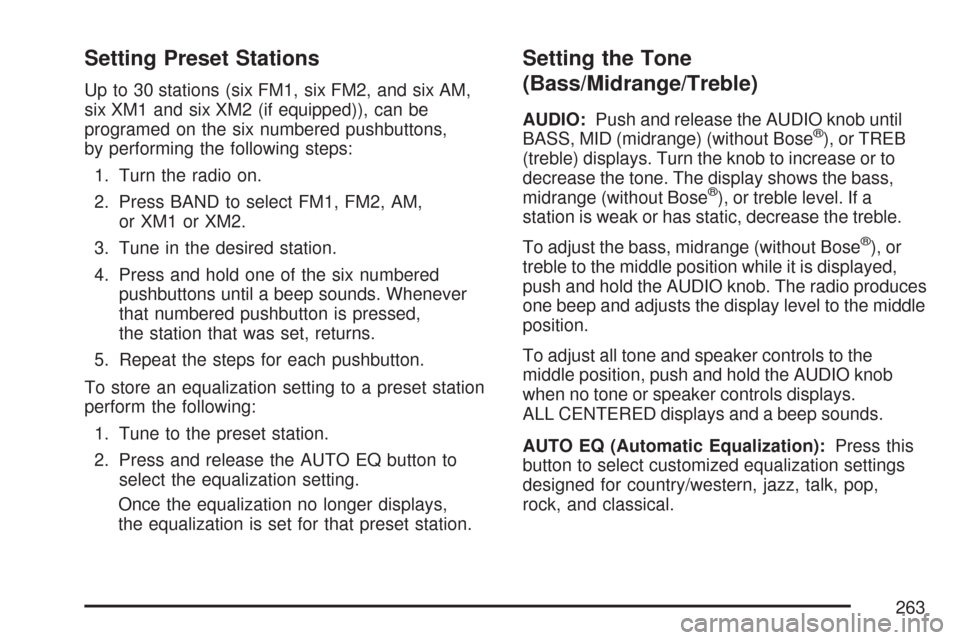
Setting Preset Stations
Up to 30 stations (six FM1, six FM2, and six AM,
six XM1 and six XM2 (if equipped)), can be
programed on the six numbered pushbuttons,
by performing the following steps:
1. Turn the radio on.
2. Press BAND to select FM1, FM2, AM,
or XM1 or XM2.
3. Tune in the desired station.
4. Press and hold one of the six numbered
pushbuttons until a beep sounds. Whenever
that numbered pushbutton is pressed,
the station that was set, returns.
5. Repeat the steps for each pushbutton.
To store an equalization setting to a preset station
perform the following:
1. Tune to the preset station.
2. Press and release the AUTO EQ button to
select the equalization setting.
Once the equalization no longer displays,
the equalization is set for that preset station.
Setting the Tone
(Bass/Midrange/Treble)
AUDIO:Push and release the AUDIO knob until
BASS, MID (midrange) (without Bose®), or TREB
(treble) displays. Turn the knob to increase or to
decrease the tone. The display shows the bass,
midrange (without Bose
®), or treble level. If a
station is weak or has static, decrease the treble.
To adjust the bass, midrange (without Bose
®), or
treble to the middle position while it is displayed,
push and hold the AUDIO knob. The radio produces
one beep and adjusts the display level to the middle
position.
To adjust all tone and speaker controls to the
middle position, push and hold the AUDIO knob
when no tone or speaker controls displays.
ALL CENTERED displays and a beep sounds.
AUTO EQ (Automatic Equalization):Press this
button to select customized equalization settings
designed for country/western, jazz, talk, pop,
rock, and classical.
263
Page 264 of 574
The radio saves separate AUTO EQ settings for
each preset and source.
If the radio has the Bose
®audio system, the
equalization settings are either CUSTOM or TALK.
Adjusting the Speakers (Balance/Fade)
AUDIO:To adjust the balance between the
right and the left speakers, push and release
the AUDIO knob until BAL (balance) displays.
Turn the knob to move the sound toward the
right or the left speakers.
To adjust the fade between the front and rear
speakers, push and release the AUDIO knob
until FAD (fade) displays. Turn the knob to move
the sound toward the front or the rear speakers.
To adjust the balance or fade to the middle
position while it is displayed, push and hold the
AUDIO knob. The radio produces one beep
and adjusts the display level to the middle position.
To adjust all tone and speaker controls to the
middle position, push and hold the AUDIO knob
when no tone or speaker controls display.
ALL CENTERED displays and a beep sounds.
Finding a Program Type (PTY) Station
(RDS and XM™)
To select and nd a desired PTY perform the
following:
1. Press the TYPE button to activate program
type select mode. P-TYPE and the last
selected PTY displays.
2. Turn the TYPE knob or press and release the
TYPE button to select a PTY.
3. Once the desired PTY displays, press either
the left
©or right¨SEEK or TYPE arrow to
select and to go to the PTY’s rst station.
4. To go to another station within that PTY,
press the TYPE button, then press either
the left
©or right¨SEEK or TYPE arrow
once.
5. Press either the left
©or right¨SEEK or
TYPE arrow twice to exit the program type
select mode.
264
Page 265 of 574
SCAN:Scan the stations within a PTY by
performing the following:
1. Press the TYPE button to activate program
type select mode. P-TYPE and the last
selected PTY displays.
2. Turn the TYPE knob or press and release the
TYPE button to select a PTY.
3. Once the desired PTY displays, press and
hold either the left
©or right¨SCAN or
TYPE arrow for two seconds, and the radio
begins scanning the stations in the PTY.
4. Press either the left
©or right¨SCAN or
TYPE arrow to stop scanning.
BAND (Alternate Frequency):Alternate
frequency lets the radio switch to a stronger
station with the same program type. To turn
alternate frequency on, press and hold BAND for
two seconds. AF ON displays. The radio can
switch to stations with a stronger frequency.
To turn alternate frequency off, press and hold
BAND again for two seconds. AF OFF displays.
The radio does not switch to other stations.
This function does not apply for XM™ Satellite
Radio Service.
Setting Preset PTYs (RDS Only)
These pushbuttons have factory PTY presets.
Up to 12 PTYs (six FM1 and six FM2), can
be programmed on the six numbered pushbuttons,
by performing the following steps:
1. Press BAND to select FM1 or FM2.
2. Press the TYPE button to activate program
type select mode. P-TYPE and the last
selected PTY displays.
3. Turn the TYPE knob or press and release the
TYPE button to select a PTY.
4. Press and hold one of the six numbered
pushbuttons until a beep sounds. When
that numbered pushbutton is pressed (while in
PTY mode), the PTY that was set, returns.
5. Repeat the steps for each pushbutton.
265
Page 269 of 574
If the CD is not removed, after 25 seconds,
the CD automatically pulls back into the player.
If CD is pushed back into the player, before
the 25-second time period is complete, the
player senses an error and tries to eject the
CD several times before stopping.
Do not repeatedly press the CD
Zbutton to
eject a CD after you have tried to push it in
manually. The player’s 25-second eject timer
resets at each press of eject, causing the player
to not eject the CD until the 25-second time
period has elapsed.
{REV (Reverse):Press and hold the{REV
button to reverse quickly within a track. You will
hear sound at a reduced volume. Release the
{REV button to play the passage. The elapsed
time of the track displays.
FWD
|(Forward):Press and hold the FWD|
button to advance quickly within a track. You will
hear sound at a reduced volume. Release the
FWD
|button to play the passage. The elapsed
time of the track displays.RPT (Repeat):With the repeat setting, one track
or an entire CD can be repeated.
To use repeat, do the following:
To repeat the track you are listening to, press
and release the RPT button. RPT displays.
Press RPT again to turn off repeat play.
To repeat the CD you are listening to, press
and hold the RPT button for two seconds.
RPT displays. Press RPT again to turn
off repeat play.
RDM (Random):With the random setting, you
can listen to the tracks in random, rather than
sequential, order, on one CD or on all of the CDs.
To use random, do one of the following:
To play the tracks on the CD you are listening
to in random order, press and release the
RDM button. RANDOM ONE displays. Press
RDM again to turn off random play.
To play the tracks on all of the CDs that are
loaded in random order, press and hold
RDM for more than two seconds. A beep
sounds and RANDOM ALL displays. Press
RDM again to turn off random play.
269
Page 280 of 574
XM Radio Messages
If you have a Radio with CD or Radio with Six-Disc CD, you can receive these radio display messages.
Radio Display Message Condition Action Required
XL (Explicit Language
Channels)XL on the radio display,
after the channel name,
indicates content with
explicit language.These channels, or any others, can be blocked at a
customer’s request, by calling 1-800-852-XMXM (9696).
Updating Updating encryption code The encryption code in the receiver is being updated, and
no action is required. This process should take no longer
than 30 seconds.
No Signal Loss of signal The system is functioning correctly, but the vehicle is in a
location that is blocking the XM™ signal. When you move
into an open area, the signal should return.
Loading XM Acquiring channel audio
(after 4 second delay)The audio system is acquiring and processing audio and
text data. No action is needed. This message should
disappear shortly.
CH Off Air Channel not in service This channel is not currently in service. Tune to another
channel.
CH Unavail Channel no longer
availableThis previously assigned channel is no longer assigned.
Tune to another station. If this station was one of the
presets, choose another station for that preset button.
No Info Artist Name/Feature
not availableNo artist information is available at this time on this channel.
The system is working properly.
280
Page 282 of 574
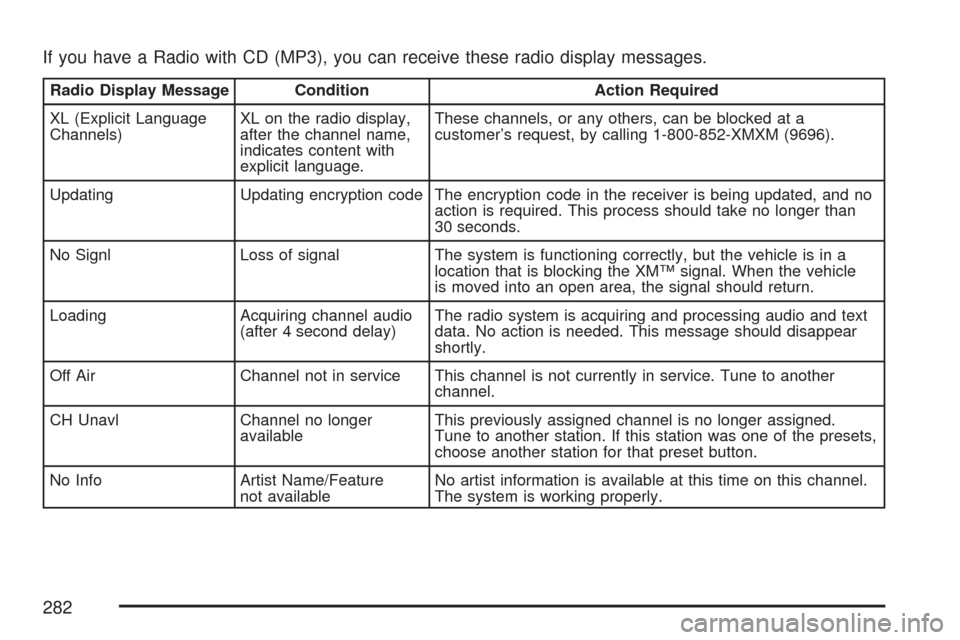
If you have a Radio with CD (MP3), you can receive these radio display messages.
Radio Display Message Condition Action Required
XL (Explicit Language
Channels)XL on the radio display,
after the channel name,
indicates content with
explicit language.These channels, or any others, can be blocked at a
customer’s request, by calling 1-800-852-XMXM (9696).
Updating Updating encryption code The encryption code in the receiver is being updated, and no
action is required. This process should take no longer than
30 seconds.
No Signl Loss of signal The system is functioning correctly, but the vehicle is in a
location that is blocking the XM™ signal. When the vehicle
is moved into an open area, the signal should return.
Loading Acquiring channel audio
(after 4 second delay)The radio system is acquiring and processing audio and text
data. No action is needed. This message should disappear
shortly.
Off Air Channel not in service This channel is not currently in service. Tune to another
channel.
CH Unavl Channel no longer
availableThis previously assigned channel is no longer assigned.
Tune to another station. If this station was one of the presets,
choose another station for that preset button.
No Info Artist Name/Feature
not availableNo artist information is available at this time on this channel.
The system is working properly.
282
Page 286 of 574
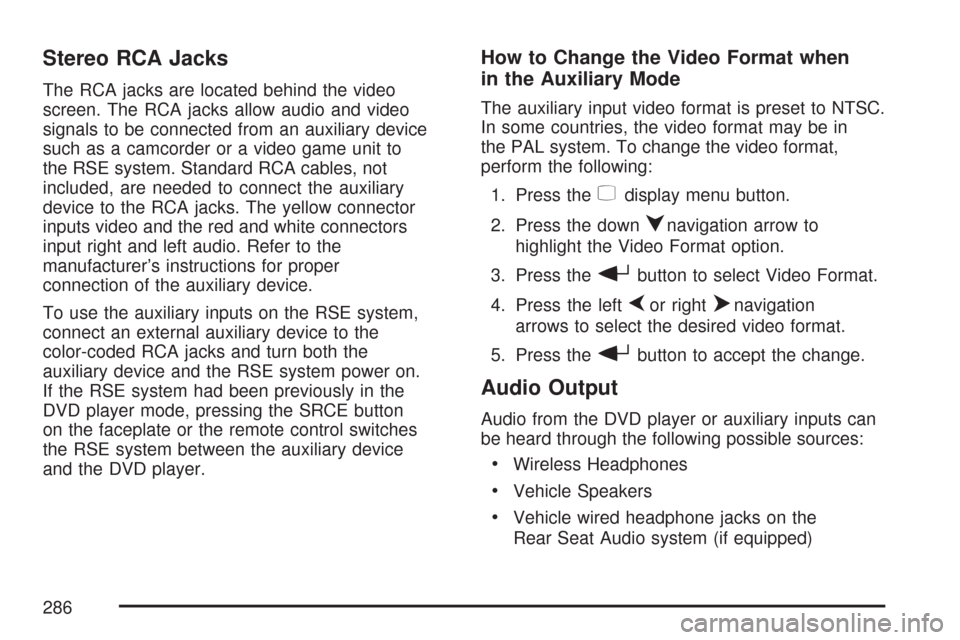
Stereo RCA Jacks
The RCA jacks are located behind the video
screen. The RCA jacks allow audio and video
signals to be connected from an auxiliary device
such as a camcorder or a video game unit to
the RSE system. Standard RCA cables, not
included, are needed to connect the auxiliary
device to the RCA jacks. The yellow connector
inputs video and the red and white connectors
input right and left audio. Refer to the
manufacturer’s instructions for proper
connection of the auxiliary device.
To use the auxiliary inputs on the RSE system,
connect an external auxiliary device to the
color-coded RCA jacks and turn both the
auxiliary device and the RSE system power on.
If the RSE system had been previously in the
DVD player mode, pressing the SRCE button
on the faceplate or the remote control switches
the RSE system between the auxiliary device
and the DVD player.
How to Change the Video Format when
in the Auxiliary Mode
The auxiliary input video format is preset to NTSC.
In some countries, the video format may be in
the PAL system. To change the video format,
perform the following:
1. Press the
zdisplay menu button.
2. Press the down
qnavigation arrow to
highlight the Video Format option.
3. Press the
rbutton to select Video Format.
4. Press the left
por rightonavigation
arrows to select the desired video format.
5. Press the
rbutton to accept the change.
Audio Output
Audio from the DVD player or auxiliary inputs can
be heard through the following possible sources:
Wireless Headphones
Vehicle Speakers
Vehicle wired headphone jacks on the
Rear Seat Audio system (if equipped)
286