steering CHEVROLET TRAILBLAZER 2021 User Guide
[x] Cancel search | Manufacturer: CHEVROLET, Model Year: 2021, Model line: TRAILBLAZER, Model: CHEVROLET TRAILBLAZER 2021Pages: 363, PDF Size: 6.75 MB
Page 92 of 363
Chevrolet Trailblazer Owner Manual (GMNA-Localizing-U.S./Canada-
14400528) - 2021 - CRC - 11/7/19
Instruments and Controls 91
Cluster Menu
There is an interactive display area in the
center of the instrument cluster.
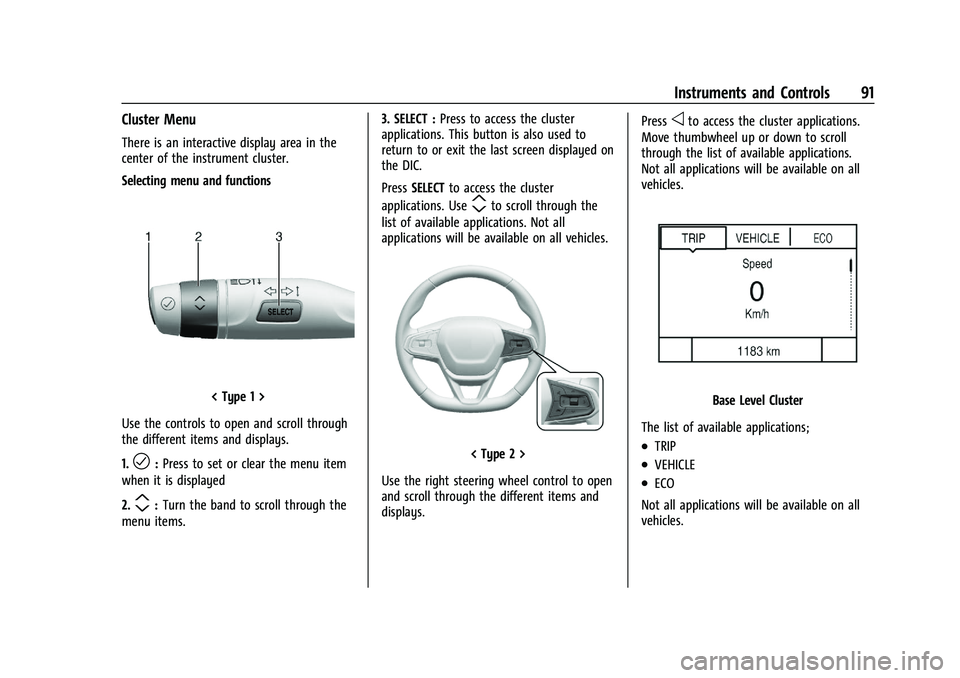
Selecting menu and functions
< Type 1 >
Use the controls to open and scroll through
the different items and displays.
1.
l: Press to set or clear the menu item
when it is displayed
2.
m: Turn the band to scroll through the
menu items. 3. SELECT :
Press to access the cluster
applications. This button is also used to
return to or exit the last screen displayed on
the DIC.
Press SELECT to access the cluster
applications. Use
mto scroll through the
list of available applications. Not all
applications will be available on all vehicles.
< Type 2 >
Use the right steering wheel control to open
and scroll through the different items and
displays. Press
oto access the cluster applications.
Move thumbwheel up or down to scroll
through the list of available applications.
Not all applications will be available on all
vehicles.
Base Level Cluster
The list of available applications;
.TRIP
.VEHICLE
.ECO
Not all applications will be available on all
vehicles.
Page 98 of 363
Chevrolet Trailblazer Owner Manual (GMNA-Localizing-U.S./Canada-
14400528) - 2021 - CRC - 11/7/19
Instruments and Controls 97
Caution
If the vehicle is driven continually with
this light on, the emission control system
may not work as well, the fuel economy
may be lower, and the vehicle may not
run smoothly. This could lead to costly
repairs that might not be covered by the
vehicle warranty.
Caution
Modifications to the engine, transmission,
exhaust, intake, or fuel system, or the
use of replacement tires that do not
meet the original tire specifications, can
cause this light to come on. This could
lead to costly repairs not covered by the
vehicle warranty. This could also affect
the vehicle’s ability to pass an Emissions
Inspection/Maintenance test. See
Accessories and Modifications0245.
If the light is flashing : A malfunction has
been detected that could damage the
emission control system and increase vehicle
emissions. Diagnosis and service may be
required. To help prevent damage, reduce vehicle
speed and avoid hard accelerations and
uphill grades. If towing a trailer, reduce the
amount of cargo being hauled as soon as
possible.
If the light continues to flash, find a safe
place to park. Turn the vehicle off and wait
at least 10 seconds before restarting the
engine. If the light is still flashing, follow
the previous guidelines and see your dealer
for service as soon as possible.
If the light is on steady :
A malfunction has
been detected. Diagnosis and service may be
required.
Check the following:
.A loose or missing fuel cap may cause
the light to come on. The diagnostic
system can detect if the fuel cap has
been left off or improperly installed. This
would allow fuel to evaporate into the
atmosphere. See Filling the Tank0232 A
few driving trips with the cap properly
installed may turn the light off.
.Poor fuel quality can cause inefficient
engine operation and poor driveability,
which may go away once the engine is
warmed up. If this occurs, change the fuel brand. It may require at least one full
tank of the proper fuel to turn the light
off. See
Recommended Fuel 0231.
If the light remains on, see your dealer.
Emissions Inspection and Maintenance
Programs
If the vehicle requires an Emissions
Inspection/Maintenance test, the test
equipment will likely connect to the
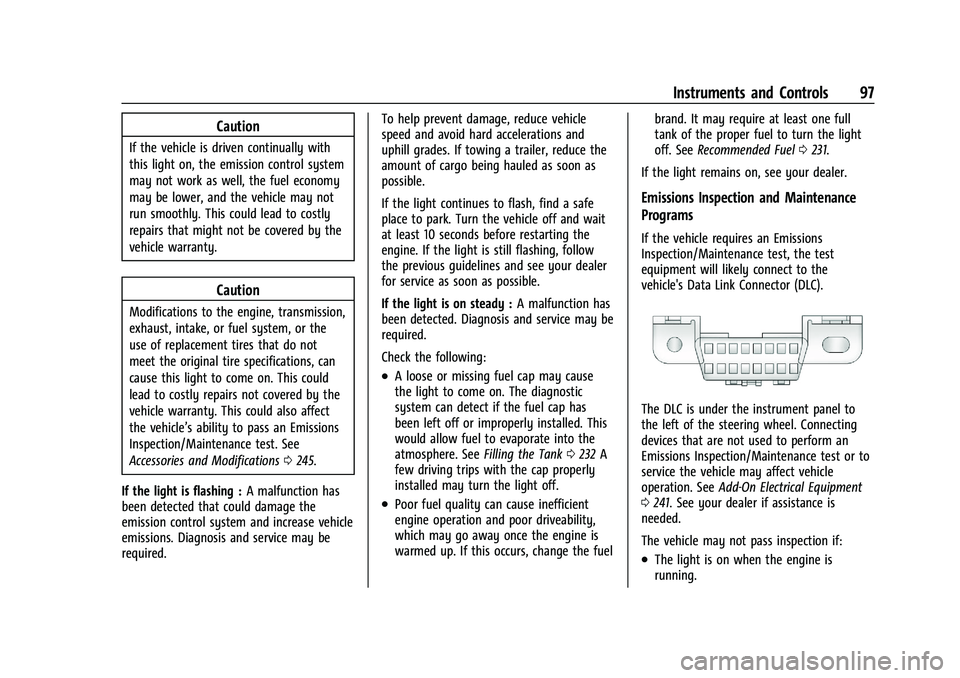
vehicle's Data Link Connector (DLC).
The DLC is under the instrument panel to
the left of the steering wheel. Connecting
devices that are not used to perform an
Emissions Inspection/Maintenance test or to
service the vehicle may affect vehicle
operation. See Add-On Electrical Equipment
0 241. See your dealer if assistance is
needed.
The vehicle may not pass inspection if:
.The light is on when the engine is
running.
Page 101 of 363
Chevrolet Trailblazer Owner Manual (GMNA-Localizing-U.S./Canada-
14400528) - 2021 - CRC - 11/7/19
100 Instruments and Controls
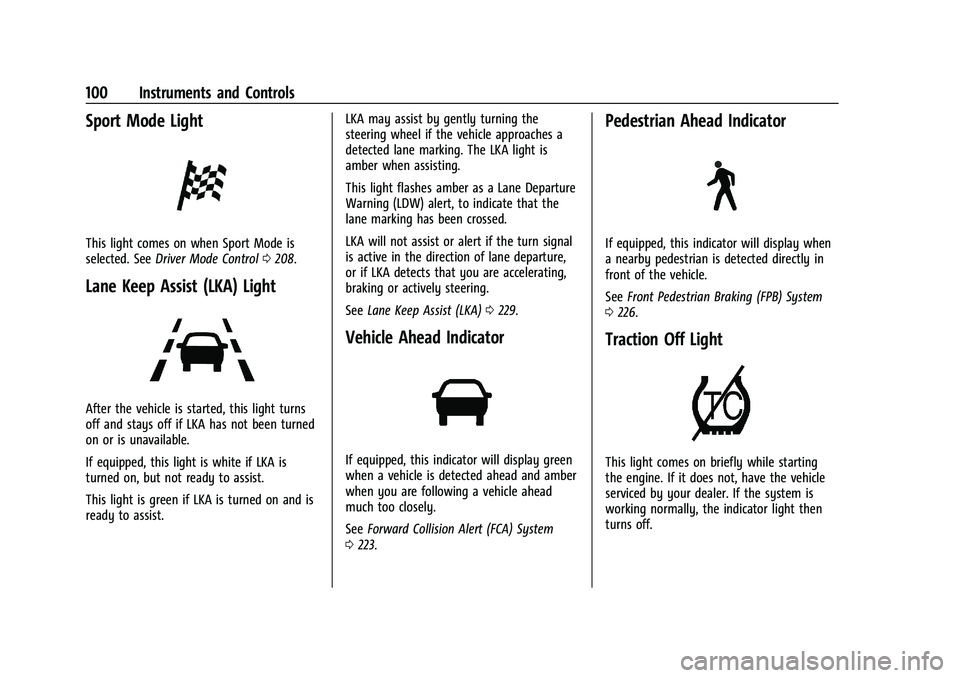
Sport Mode Light
This light comes on when Sport Mode is
selected. SeeDriver Mode Control 0208.
Lane Keep Assist (LKA) Light
After the vehicle is started, this light turns
off and stays off if LKA has not been turned
on or is unavailable.
If equipped, this light is white if LKA is
turned on, but not ready to assist.
This light is green if LKA is turned on and is
ready to assist. LKA may assist by gently turning the
steering wheel if the vehicle approaches a
detected lane marking. The LKA light is
amber when assisting.
This light flashes amber as a Lane Departure
Warning (LDW) alert, to indicate that the
lane marking has been crossed.
LKA will not assist or alert if the turn signal
is active in the direction of lane departure,
or if LKA detects that you are accelerating,
braking or actively steering.
See
Lane Keep Assist (LKA) 0229.
Vehicle Ahead Indicator
If equipped, this indicator will display green
when a vehicle is detected ahead and amber
when you are following a vehicle ahead
much too closely.
See Forward Collision Alert (FCA) System
0 223.
Pedestrian Ahead Indicator
If equipped, this indicator will display when
a nearby pedestrian is detected directly in
front of the vehicle.
See Front Pedestrian Braking (FPB) System
0 226.
Traction Off Light
This light comes on briefly while starting
the engine. If it does not, have the vehicle
serviced by your dealer. If the system is
working normally, the indicator light then
turns off.
Page 108 of 363
Chevrolet Trailblazer Owner Manual (GMNA-Localizing-U.S./Canada-
14400528) - 2021 - CRC - 11/7/19
Instruments and Controls 107
current fuel consumption compared to what
is expected from the vehicle with good and
bad driving habits.
Driver Information Center (DIC)
(Uplevel)
The DIC displays are shown in the center of
the instrument cluster in the Info app. See
Instrument Cluster089. The displays show
the status of many vehicle systems. The
controls for the DIC are on the right steering
wheel control.
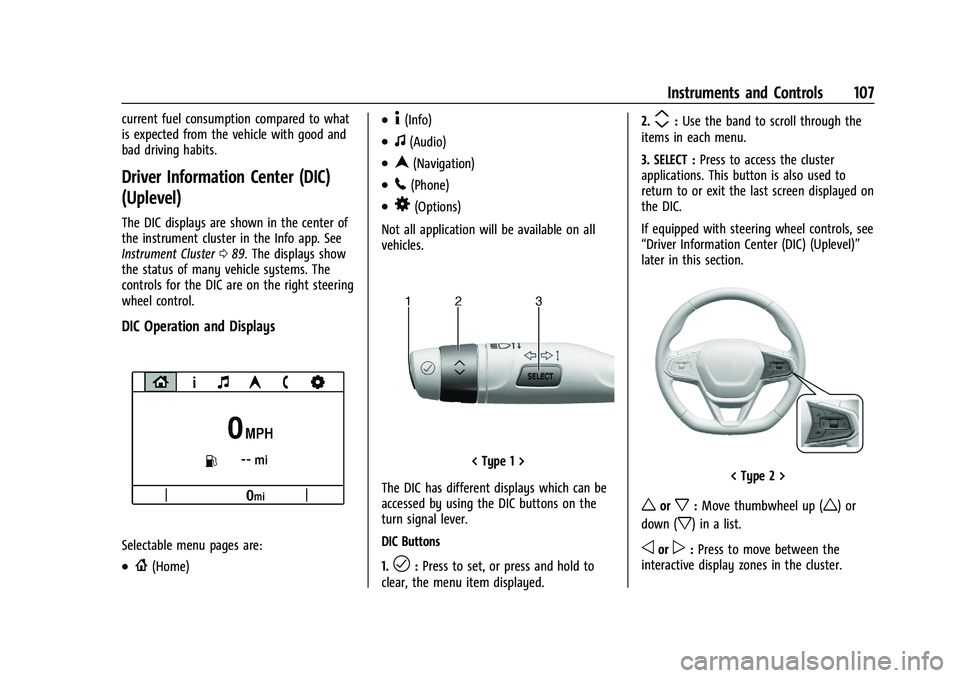
DIC Operation and Displays
Selectable menu pages are:
.{(Home)
.4(Info)
.f(Audio)
.n(Navigation)
.5(Phone)
.8(Options)
Not all application will be available on all
vehicles.
< Type 1 >
The DIC has different displays which can be
accessed by using the DIC buttons on the
turn signal lever.
DIC Buttons
1.
l: Press to set, or press and hold to
clear, the menu item displayed. 2.
m:
Use the band to scroll through the
items in each menu.
3. SELECT : Press to access the cluster
applications. This button is also used to
return to or exit the last screen displayed on
the DIC.
If equipped with steering wheel controls, see
“Driver Information Center (DIC) (Uplevel)”
later in this section.
< Type 2 >
worx: Move thumbwheel up (w) or
down (
x) in a list.
oorp: Press to move between the
interactive display zones in the cluster.
Page 110 of 363
Chevrolet Trailblazer Owner Manual (GMNA-Localizing-U.S./Canada-
14400528) - 2021 - CRC - 11/7/19
Instruments and Controls 109
filter should be replaced at the time of the
next oil change. When the REPLACE SOON
message displays, the engine air filter
should be replaced at the earliest
convenience.
The Air Filter Life display must be reset after
the engine air filter replacement. To reset,
seeEngine Air Filter Life System 0253.
Fuel Economy : Displays average fuel
economy, the best fuel economy over the
selected distance, and a bar graph showing
instantaneous fuel economy.
Following Distance : When Adaptive Cruise
Control (ACC) is not engaged, the current
follow time to the vehicle ahead is displayed
as a time value on this page.
If equipped and when ACC has been
engaged, the display switches to the gap
setting page.
This page shows the current gap setting
along with the vehicle ahead indicator.
Driver Assistance : Displays the states of all
active safety systems.
Top Consumers : List of top comfort
consumers currently switched on is
displayed in descending order. Fuel saving
potential is indicated. During sporadic driving conditions, the
engine will activate the heated rear window
automatically. In this event, the heated rear
window is indicated as one of the top
consumers, without activation by the driver.
Economy Trend :
Shows history of the
Average Fuel Economy from the last 50 km
(30 mi). Each bar represents about 5 km
(3 mi) of driving. During driving the bars will
shift to always reflect the most recent
distance on the right side. Press and hold
the center toggle switch to clear the graph
or press
pto reset through the menu.
ECO Index : Provides feedback on the
efficiency of current driving behavior. The
bar graph shows a value that is based on
current fuel consumption compared to what
is expected from the vehicle with good and
bad driving habits.
Vehicle Messages
Messages displayed on the DIC indicate the
status of the vehicle or some action that
may be needed to correct a condition.
Multiple messages may appear one after
another. The messages that do not require
immediate action can be acknowledged and
cleared by pressing
V. The messages that
require immediate action cannot be cleared
until that action is performed.
All messages should be taken seriously;
clearing the message does not correct the
problem.
If a SERVICE message appears, see your
dealer.
Follow the instructions given in the
messages. The system displays messages
regarding the following topics:
.Service Messages
.Fluid Levels
.Vehicle Security
.Brakes
.Steering
.Ride Control Systems
.Driver Assistance Systems
.Cruise Control
.Lighting and Bulb Replacement
.Wiper/Washer Systems
.Doors and Windows
.Seat Belts
.Airbag Systems
Page 114 of 363
Chevrolet Trailblazer Owner Manual (GMNA-Localizing-U.S./Canada-
14400528) - 2021 - CRC - 11/7/19
Instruments and Controls 113
Remote Door Unlock
This setting specifies whether all doors,
or just the driver door, unlock when pressing
Kon the RKE transmitter.
Touch All Doors or Driver Door.
Remote Start Auto Heat Seats
This setting automatically turns on the
heated seats when using the remote start
function on cold days.
Touch Off or On.
Passive Door Unlock
This setting specifies which doors unlock
when using the button on the driver door
handle to unlock the vehicle.
Touch All Doors or Driver Door Only.
Passive Door Lock
This setting specifies whether the vehicle
will automatically lock, or lock and alert you
after all the doors are closed, and you walk
away from the vehicle with the RKE
transmitter. See Remote Keyless Entry (RKE)
System Operation (Key Access) 09or
Remote Keyless Entry (RKE) System
Operation (Keyless Access) 011.
Touch Off, On with Horn Chirp, or On. Remote Left in Vehicle Alert
This feature sounds an alert when the RKE
transmitter is left in the vehicle. This menu
also enables Remote No Longer in Vehicle
Alert.
Touch Off or On.
Teen Driver
See
Teen Driver 0162.
Valet Mode
This will lock the infotainment system and
steering wheel controls. It may also limit
access to vehicle storage locations,
if equipped.
To enable valet mode:
1. Enter a four-digit code on the keypad.
2. Touch Enter to go to the confirmation screen.
3. Re-enter the four-digit code.
Touch Lock or Unlock to lock or unlock the
system. Touch Back to go back to the
previous menu.
Page 115 of 363
Chevrolet Trailblazer Owner Manual (GMNA-Localizing-U.S./Canada-
14400528) - 2021 - CRC - 11/7/19
114 Lighting
Lighting
Exterior Lighting
Exterior Lamp Controls . . . . . . . . . . . . . . . . . 114
Headlamp High/Low-Beam Changer . . . . 115
Flash-to-Pass . . . . . . . . . . . . . . . . . . . . . . . . . . . 116
Daytime Running Lamps (DRL) . . . . . . . . . 116
Automatic Headlamp System . . . . . . . . . . 116
Hazard Warning Flashers . . . . . . . . . . . . . . . 117
Turn and Lane-Change Signals . . . . . . . . . . 117
Fog Lamps . . . . . . . . . . . . . . . . . . . . . . . . . . . . . 117
Interior Lighting
Instrument Panel IlluminationControl . . . . . . . . . . . . . . . . . . . . . . . . . . . . . . . 118
Courtesy Lamps . . . . . . . . . . . . . . . . . . . . . . . . 118
Dome Lamps . . . . . . . . . . . . . . . . . . . . . . . . . . . 118
Reading Lamps . . . . . . . . . . . . . . . . . . . . . . . . . 118
Lighting Features
Entry Lighting . . . . . . . . . . . . . . . . . . . . . . . . . 119
Exit Lighting . . . . . . . . . . . . . . . . . . . . . . . . . . . 119
Battery Load Management . . . . . . . . . . . . . 119
Battery Power Protection . . . . . . . . . . . . . . 120
Exterior Lighting Battery Saver . . . . . . . . 120
Exterior Lighting
Exterior Lamp Controls
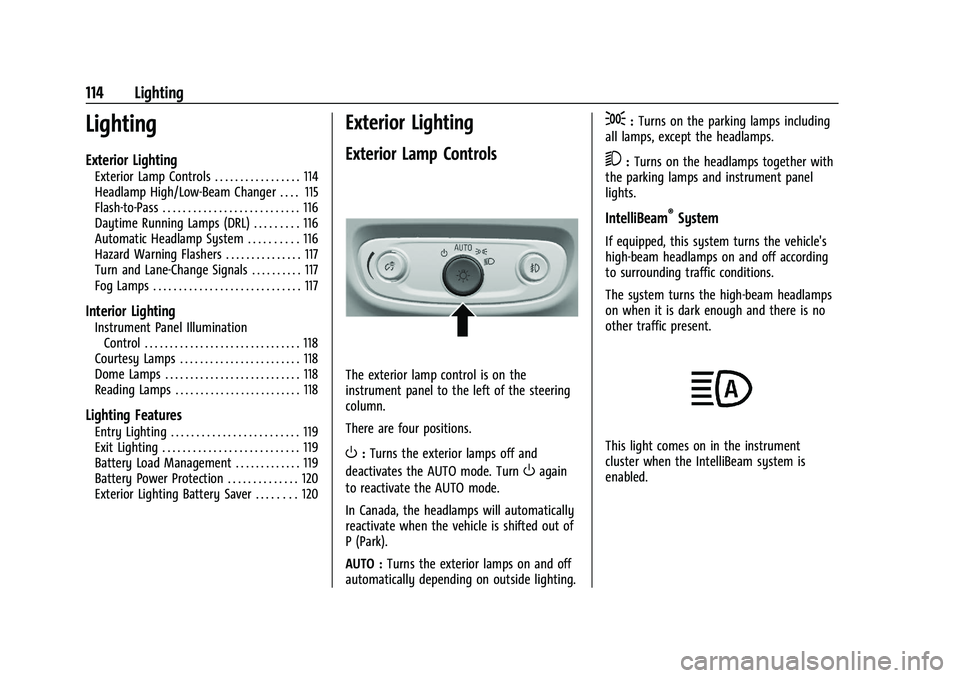
The exterior lamp control is on the
instrument panel to the left of the steering
column.
There are four positions.
O: Turns the exterior lamps off and
deactivates the AUTO mode. Turn
Oagain
to reactivate the AUTO mode.
In Canada, the headlamps will automatically
reactivate when the vehicle is shifted out of
P (Park).
AUTO : Turns the exterior lamps on and off
automatically depending on outside lighting.
;: Turns on the parking lamps including
all lamps, except the headlamps.
5: Turns on the headlamps together with
the parking lamps and instrument panel
lights.
IntelliBeam®System
If equipped, this system turns the vehicle's
high-beam headlamps on and off according
to surrounding traffic conditions.
The system turns the high-beam headlamps
on when it is dark enough and there is no
other traffic present.
This light comes on in the instrument
cluster when the IntelliBeam system is
enabled.
Page 118 of 363
Chevrolet Trailblazer Owner Manual (GMNA-Localizing-U.S./Canada-
14400528) - 2021 - CRC - 11/7/19
Lighting 117
Hazard Warning Flashers
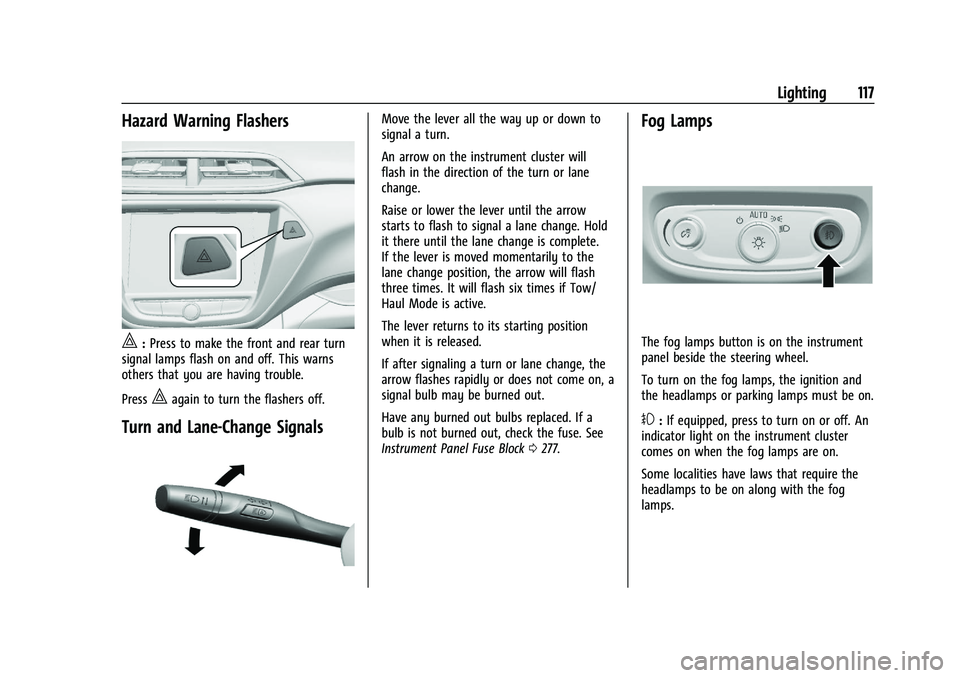
|:Press to make the front and rear turn
signal lamps flash on and off. This warns
others that you are having trouble.
Press
|again to turn the flashers off.
Turn and Lane-Change Signals
Move the lever all the way up or down to
signal a turn.
An arrow on the instrument cluster will
flash in the direction of the turn or lane
change.
Raise or lower the lever until the arrow
starts to flash to signal a lane change. Hold
it there until the lane change is complete.
If the lever is moved momentarily to the
lane change position, the arrow will flash
three times. It will flash six times if Tow/
Haul Mode is active.
The lever returns to its starting position
when it is released.
If after signaling a turn or lane change, the
arrow flashes rapidly or does not come on, a
signal bulb may be burned out.
Have any burned out bulbs replaced. If a
bulb is not burned out, check the fuse. See
Instrument Panel Fuse Block 0277.Fog Lamps
The fog lamps button is on the instrument
panel beside the steering wheel.
To turn on the fog lamps, the ignition and
the headlamps or parking lamps must be on.
#:If equipped, press to turn on or off. An
indicator light on the instrument cluster
comes on when the fog lamps are on.
Some localities have laws that require the
headlamps to be on along with the fog
lamps.
Page 119 of 363
Chevrolet Trailblazer Owner Manual (GMNA-Localizing-U.S./Canada-
14400528) - 2021 - CRC - 11/7/19
118 Lighting
Interior Lighting
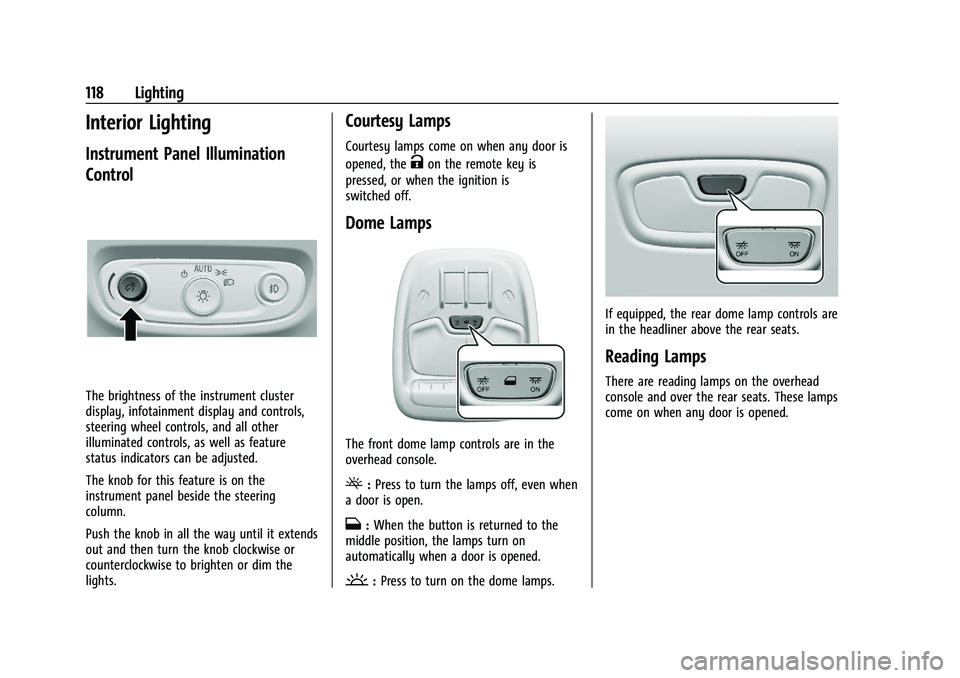
Instrument Panel Illumination
Control
The brightness of the instrument cluster
display, infotainment display and controls,
steering wheel controls, and all other
illuminated controls, as well as feature
status indicators can be adjusted.
The knob for this feature is on the
instrument panel beside the steering
column.
Push the knob in all the way until it extends
out and then turn the knob clockwise or
counterclockwise to brighten or dim the
lights.
Courtesy Lamps
Courtesy lamps come on when any door is
opened, the
Kon the remote key is
pressed, or when the ignition is
switched off.
Dome Lamps
The front dome lamp controls are in the
overhead console.
(: Press to turn the lamps off, even when
a door is open.
H: When the button is returned to the
middle position, the lamps turn on
automatically when a door is opened.
': Press to turn on the dome lamps.
If equipped, the rear dome lamp controls are
in the headliner above the rear seats.
Reading Lamps
There are reading lamps on the overhead
console and over the rear seats. These lamps
come on when any door is opened.
Page 122 of 363
Chevrolet Trailblazer Owner Manual (GMNA-Localizing-U.S./Canada-
14400528) - 2021 - CRC - 11/7/19
Infotainment System 121
Infotainment System
Introduction
Introduction . . . . . . . . . . . . . . . . . . . . . . . . . . . . 121
Overview . . . . . . . . . . . . . . . . . . . . . . . . . . . . . . 122
Steering Wheel Controls . . . . . . . . . . . . . . . 123
Using the System . . . . . . . . . . . . . . . . . . . . . 124
Software Updates . . . . . . . . . . . . . . . . . . . . . 126
Radio
AM-FM Radio . . . . . . . . . . . . . . . . . . . . . . . . . . 126
HD Radio Technology . . . . . . . . . . . . . . . . . . 128
Radio Data System (RDS) . . . . . . . . . . . . . . 128
Satellite Radio . . . . . . . . . . . . . . . . . . . . . . . . . 129
Radio Reception . . . . . . . . . . . . . . . . . . . . . . . 129
Multi-Band Antenna . . . . . . . . . . . . . . . . . . . 129
Audio Players
Avoiding Untrusted Media Devices . . . . 130
USB Port . . . . . . . . . . . . . . . . . . . . . . . . . . . . . . 130
Auxiliary Jack . . . . . . . . . . . . . . . . . . . . . . . . . . 132
Bluetooth Audio . . . . . . . . . . . . . . . . . . . . . . . 133
OnStar System
OnStar System . . . . . . . . . . . . . . . . . . . . . . . . . 133
Navigation
Using the Navigation System . . . . . . . . . . 134
Maps . . . . . . . . . . . . . . . . . . . . . . . . . . . . . . . . . . 137
Navigation Symbols . . . . . . . . . . . . . . . . . . . 138
Destination . . . . . . . . . . . . . . . . . . . . . . . . . . . . 139OnStar System . . . . . . . . . . . . . . . . . . . . . . . . 144
Global Positioning System (GPS) . . . . . . . 145
Vehicle Positioning . . . . . . . . . . . . . . . . . . . . 145
Problems with Route Guidance . . . . . . . . 145
If the System Needs Service . . . . . . . . . . . 146
Map Data Updates . . . . . . . . . . . . . . . . . . . . 146
Database Coverage Explanations . . . . . . . 146
Voice Recognition
Voice Recognition . . . . . . . . . . . . . . . . . . . . . 146
Phone
Bluetooth (Overview) . . . . . . . . . . . . . . . . . . 151
Bluetooth (Pairing and Using a
Phone) . . . . . . . . . . . . . . . . . . . . . . . . . . . . . . . 152
Apple CarPlay and Android Auto . . . . . . . 156
Settings
Settings . . . . . . . . . . . . . . . . . . . . . . . . . . . . . . . . 157
Teen Driver . . . . . . . . . . . . . . . . . . . . . . . . . . . . 162
Trademarks and License Agreements
Trademarks and License Agreements . . . . . . . . . . . . . . . . . . . . . . . . . . 165
Introduction
Read the following pages to become familiar
with the features.
{Warning
Taking your eyes off the road for too
long or too often while using any
infotainment feature can cause a crash.
You or others could be injured or killed.
Do not give extended attention to
infotainment tasks while driving. Limit
your glances at the vehicle displays and
focus your attention on driving. Use voice
commands whenever possible.
The infotainment system has built-in
features intended to help avoid distraction
by disabling some features when driving.
These features may gray out when they are
unavailable. Many infotainment features are
also available through the instrument cluster
and steering wheel controls.
Before driving:
.Become familiar with the operation,
center stack controls, steering wheel
controls, and infotainment display.