ECO CHEVROLET TRAILBLAZER 2021 Service Manual
[x] Cancel search | Manufacturer: CHEVROLET, Model Year: 2021, Model line: TRAILBLAZER, Model: CHEVROLET TRAILBLAZER 2021Pages: 363, PDF Size: 6.75 MB
Page 111 of 363
Chevrolet Trailblazer Owner Manual (GMNA-Localizing-U.S./Canada-
14400528) - 2021 - CRC - 11/7/19
110 Instruments and Controls
.Engine and Transmission
.Tire Pressure
.Battery
Engine Power Messages
ENGINE POWER IS REDUCED
This message displays when the vehicle's
propulsion power is reduced. A reduction in
propulsion power can affect the vehicle's
ability to accelerate. If this message is on,
but there is no observed reduction in
performance, proceed to your destination.
Under certain conditions the performance
may be reduced the next time the vehicle is
driven. The vehicle may be driven while this
message is on, but maximum acceleration
and speed may be reduced. Anytime this
message stays on, or displays repeatedly,
the vehicle should be taken to your dealer
for service as soon as possible.
Under certain operating conditions,
propulsion will be disabled. Try restarting
after the vehicle has been off for
30 seconds.
Vehicle Speed Messages
SPEED LIMITED TO XXX KM/H (MPH)
This message shows that the vehicle speed
has been limited to the speed displayed. The
limited speed is a protection for various
propulsion and vehicle systems, such as
lubrication, thermal, brakes, suspension,
Teen Driver if equipped, or tires.
Vehicle Personalization
The following are all possible vehicle
personalization features. Depending on the
vehicle, some may not be available.
For System and Apps features and functions,
see Settings in infotainment system.
To access the vehicle personalization menu:1. Touch the Settings icon on the Home Page on the infotainment display.
2. Touch the desired category to display a list of available options.
3. Touch to select the desired feature setting.
4. Touch
9or l to turn off or on a
feature. 5. Touch X to go to the top level of the
Settings menu.
The menu may contain the following:
Rear Seat Reminder
This feature allows for a chime and a
message when the rear door has been
opened before or during operation of the
vehicle.
Touch Off or On.
Climate and Air Quality
Touch and the following may display:
.Auto Fan Speed
.Auto Defog
.Auto Rear Defog
Auto Fan Speed
This feature will set the auto fan speed.
Touch Low, Medium, or High.
Auto Defog
When set to On, the front defog will
automatically react to temperature and
humidity conditions that may cause fogging.
Touch Off or On.
Page 113 of 363
Chevrolet Trailblazer Owner Manual (GMNA-Localizing-U.S./Canada-
14400528) - 2021 - CRC - 11/7/19
112 Instruments and Controls
Hands Free Liftgate Control
The liftgate may be operated with a kicking
motion under the left side of the rear
bumper. SeeLiftgate022
Touch Off, On-Open and Close,
or On-Open Only.
Auto Wipe in Reverse Gear
This setting automatically turns on the rear
window wiper when the vehicle is in
R (Reverse) and the front wipers are on.
Touch Off or On.
Extended Hill Start Assist
This allows the duration of the Hill Start
Assist to be changed.
Touch Extended Hold or Standard Hold.
Lighting
Touch and the following may display:
.Vehicle Locator Lights
.Exit Lighting
Vehicle Locator Lights
This feature will flash the exterior lamps
when
Kon the Remote Keyless Entry (RKE)
transmitter is pressed to locate the vehicle.
Touch Off or On. Exit Lighting
This allows the selection of how long the
exterior lamps stay on when leaving the
vehicle when it is dark outside.
Touch Off, 30 Seconds, 60 Seconds, or 120
Seconds.
Power Door Locks
Touch and the following may display:
.Open Door Anti Lock Out
.Auto Door Unlock
.Delayed Door Lock
Open Door Anti Lock Out
This setting prevents the driver door from
locking when the door is open. If this
setting is on, the Delayed Door Lock menu
will not be available.
Touch Off or On.
Auto Door Unlock
This setting allows you to select which
doors will automatically unlock when the
vehicle is shifted into P (Park).
Touch Off, All Doors, or Driver Door. Delayed Door Lock
This setting delays the locking of the doors.
To override the delay, press the power door
lock switch on the door.
Touch Off or On.
Remote Lock, Unlock, Start
Touch and the following may display:
.Remote Unlock Light Feedback
.Remote Lock Feedback
.Remote Door Unlock
.Remote Start Auto Heat Seats
.Passive Door Unlock
.Passive Door Lock
.Remote Left in Vehicle Alert
Remote Unlock Light Feedback
This setting flashes the exterior lamps when
you remotely unlock the vehicle.
Touch Off or Flash Lights.
Remote Lock Feedback
This setting specifies how the vehicle
responds when you remotely lock the
vehicle.
Touch Off, Lights and Horn, Lights Only,
or Horn Only.
Page 120 of 363
Chevrolet Trailblazer Owner Manual (GMNA-Localizing-U.S./Canada-
14400528) - 2021 - CRC - 11/7/19
Lighting 119
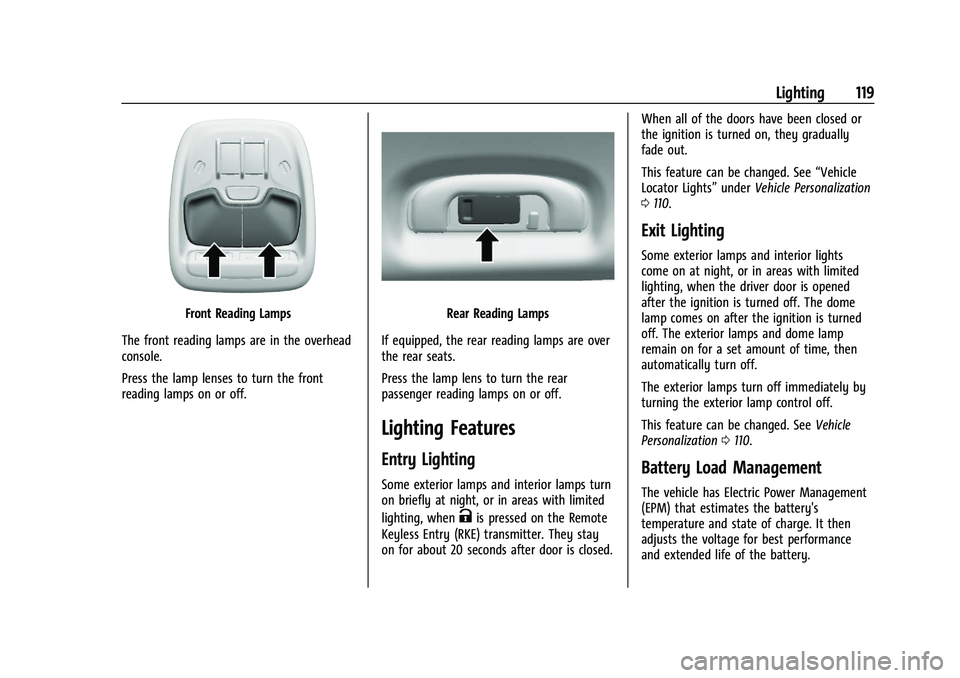
Front Reading Lamps
The front reading lamps are in the overhead
console.
Press the lamp lenses to turn the front
reading lamps on or off.Rear Reading Lamps
If equipped, the rear reading lamps are over
the rear seats.
Press the lamp lens to turn the rear
passenger reading lamps on or off.
Lighting Features
Entry Lighting
Some exterior lamps and interior lamps turn
on briefly at night, or in areas with limited
lighting, when
Kis pressed on the Remote
Keyless Entry (RKE) transmitter. They stay
on for about 20 seconds after door is closed. When all of the doors have been closed or
the ignition is turned on, they gradually
fade out.
This feature can be changed. See
“Vehicle
Locator Lights” underVehicle Personalization
0 110.
Exit Lighting
Some exterior lamps and interior lights
come on at night, or in areas with limited
lighting, when the driver door is opened
after the ignition is turned off. The dome
lamp comes on after the ignition is turned
off. The exterior lamps and dome lamp
remain on for a set amount of time, then
automatically turn off.
The exterior lamps turn off immediately by
turning the exterior lamp control off.
This feature can be changed. See Vehicle
Personalization 0110.
Battery Load Management
The vehicle has Electric Power Management
(EPM) that estimates the battery's
temperature and state of charge. It then
adjusts the voltage for best performance
and extended life of the battery.
Page 121 of 363
Chevrolet Trailblazer Owner Manual (GMNA-Localizing-U.S./Canada-
14400528) - 2021 - CRC - 11/7/19
120 Lighting
When the battery's state of charge is low,
the voltage is raised slightly to quickly bring
the charge back up. When the state of
charge is high, the voltage is lowered
slightly to prevent overcharging. If the
vehicle has a voltmeter gauge or a voltage
display on the Driver Information Center
(DIC), you may see the voltage move up or
down. This is normal. If there is a problem,
an alert will be displayed.
The battery can be discharged at idle if the
electrical loads are very high. This is true for
all vehicles. This is because the generator
(alternator) may not be spinning fast
enough at idle to produce all of the power
needed for very high electrical loads.
A high electrical load occurs when several of
the following are on, such as: headlamps,
high beams, rear window defogger, climate
control fan at high speed, heated seats,
engine cooling fans, trailer loads, and loads
plugged into accessory power outlets.
EPM works to prevent excessive discharge of
the battery. It does this by balancing the
generator's output and the vehicle's
electrical needs. It can increase engine idle
speed to generate more power whenever
needed. It can temporarily reduce the power
demands of some accessories.Normally, these actions occur in steps or
levels, without being noticeable. In rare
cases at the highest levels of corrective
action, this action may be noticeable to the
driver. If so, a DIC message might be
displayed and it is recommended that the
driver reduce the electrical loads as much as
possible.
Battery Power Protection
This feature shuts off the interior lamps if
they are left on for more than 10 minutes
when the ignition is off. This helps to
prevent the battery from running down.
Exterior Lighting Battery Saver
The exterior lamps turn off about 10 minutes
after the ignition is turned off, if the parking
lamps or headlamps have been manually
left on. This protects against draining the
battery. To restart the 10-minute timer, turn
the exterior lamp control to the off position
and then back to the parking lamp or
headlamp position.
To keep the lamps on for more than
10 minutes, the ignition must be on or
in ACC/ACCESSORY.
Page 122 of 363
Chevrolet Trailblazer Owner Manual (GMNA-Localizing-U.S./Canada-
14400528) - 2021 - CRC - 11/7/19
Infotainment System 121
Infotainment System
Introduction
Introduction . . . . . . . . . . . . . . . . . . . . . . . . . . . . 121
Overview . . . . . . . . . . . . . . . . . . . . . . . . . . . . . . 122
Steering Wheel Controls . . . . . . . . . . . . . . . 123
Using the System . . . . . . . . . . . . . . . . . . . . . 124
Software Updates . . . . . . . . . . . . . . . . . . . . . 126
Radio
AM-FM Radio . . . . . . . . . . . . . . . . . . . . . . . . . . 126
HD Radio Technology . . . . . . . . . . . . . . . . . . 128
Radio Data System (RDS) . . . . . . . . . . . . . . 128
Satellite Radio . . . . . . . . . . . . . . . . . . . . . . . . . 129
Radio Reception . . . . . . . . . . . . . . . . . . . . . . . 129
Multi-Band Antenna . . . . . . . . . . . . . . . . . . . 129
Audio Players
Avoiding Untrusted Media Devices . . . . 130
USB Port . . . . . . . . . . . . . . . . . . . . . . . . . . . . . . 130
Auxiliary Jack . . . . . . . . . . . . . . . . . . . . . . . . . . 132
Bluetooth Audio . . . . . . . . . . . . . . . . . . . . . . . 133
OnStar System
OnStar System . . . . . . . . . . . . . . . . . . . . . . . . . 133
Navigation
Using the Navigation System . . . . . . . . . . 134
Maps . . . . . . . . . . . . . . . . . . . . . . . . . . . . . . . . . . 137
Navigation Symbols . . . . . . . . . . . . . . . . . . . 138
Destination . . . . . . . . . . . . . . . . . . . . . . . . . . . . 139OnStar System . . . . . . . . . . . . . . . . . . . . . . . . 144
Global Positioning System (GPS) . . . . . . . 145
Vehicle Positioning . . . . . . . . . . . . . . . . . . . . 145
Problems with Route Guidance . . . . . . . . 145
If the System Needs Service . . . . . . . . . . . 146
Map Data Updates . . . . . . . . . . . . . . . . . . . . 146
Database Coverage Explanations . . . . . . . 146
Voice Recognition
Voice Recognition . . . . . . . . . . . . . . . . . . . . . 146
Phone
Bluetooth (Overview) . . . . . . . . . . . . . . . . . . 151
Bluetooth (Pairing and Using a
Phone) . . . . . . . . . . . . . . . . . . . . . . . . . . . . . . . 152
Apple CarPlay and Android Auto . . . . . . . 156
Settings
Settings . . . . . . . . . . . . . . . . . . . . . . . . . . . . . . . . 157
Teen Driver . . . . . . . . . . . . . . . . . . . . . . . . . . . . 162
Trademarks and License Agreements
Trademarks and License Agreements . . . . . . . . . . . . . . . . . . . . . . . . . . 165
Introduction
Read the following pages to become familiar
with the features.
{Warning
Taking your eyes off the road for too
long or too often while using any
infotainment feature can cause a crash.
You or others could be injured or killed.
Do not give extended attention to
infotainment tasks while driving. Limit
your glances at the vehicle displays and
focus your attention on driving. Use voice
commands whenever possible.
The infotainment system has built-in
features intended to help avoid distraction
by disabling some features when driving.
These features may gray out when they are
unavailable. Many infotainment features are
also available through the instrument cluster
and steering wheel controls.
Before driving:
.Become familiar with the operation,
center stack controls, steering wheel
controls, and infotainment display.
Page 124 of 363
Chevrolet Trailblazer Owner Manual (GMNA-Localizing-U.S./Canada-
14400528) - 2021 - CRC - 11/7/19
Infotainment System 123
.Turn to decrease or increase the
volume.
4.
d:
.Radio: Press and release to fast seek
the next strongest station or channel.
Press and hold to go to the next
station or channel.
.USB/Bluetooth: Press to seek the next
track. Press and hold to fast forward
through a track. Release to return to
playing speed.
5. BACK:
.Press to return to the previous screen
in a menu.
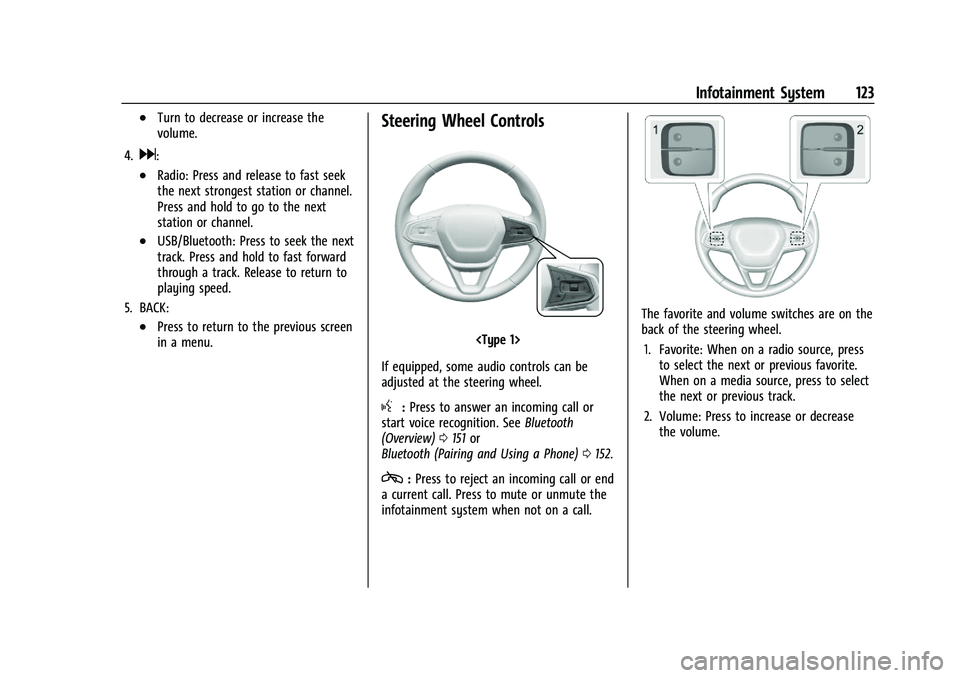
Steering Wheel Controls
If equipped, some audio controls can be
adjusted at the steering wheel.
g: Press to answer an incoming call or
start voice recognition. See Bluetooth
(Overview) 0151 or
Bluetooth (Pairing and Using a Phone) 0152.
c:Press to reject an incoming call or end
a current call. Press to mute or unmute the
infotainment system when not on a call.
The favorite and volume switches are on the
back of the steering wheel.
1. Favorite: When on a radio source, press to select the next or previous favorite.
When on a media source, press to select
the next or previous track.
2. Volume: Press to increase or decrease the volume.
Page 129 of 363
Chevrolet Trailblazer Owner Manual (GMNA-Localizing-U.S./Canada-
14400528) - 2021 - CRC - 11/7/19
128 Infotainment System
Favorites can also be stored by touchingH
in a station or channel list. This will
highlight indicating that it is now saved as a
favorite.
The number of favorites displayed is
automatically adjusted by default, but can
be manually adjusted in Settings in the
System tab under Favorites and then Set
Number of Audio Favorites. It can also be
adjusted in Settings in the Apps tab under
Audio and then Set Number of Audio
Favorites.
HD Radio Technology
If equipped, HD Radio is a free service with
features such as digital quality sound, more
stations available on a single frequency such
as HD2 and HD3, and display information
such as artist and song title.
From the Now Playing display, touch the HD
Radio icon to turn HD on or off.
Station Access
To access HD Radio stations:1. Tune the radio to the station. If HD Radio is turned on and the station is
broadcasting in HD Radio, the radio will
automatically tune to the HD version of
the current channel (HD1) after several seconds. The radio will also display icons
representing additional channels (HD2,
...HD8), that may be available. When the
radio successfully tunes to a HD station,
the HD logo will display and digital
audio will play.
2. Touch the display arrows to tune to the previous or next HD Radio station.
There may be a delay before the station
starts playing.
The HD Radio station number is indicated
next to the HD logo.
HD Radio stations can be saved as favorites.
For a list of all stations, see
www.hdradio.com.
HD Radio Troubleshooting
Digital Audio Delay : Wait for the signal to
process. This can take several seconds.
Volume Change, Audio Skip, Echo, Digital
Audio Lost : Station signal strength may be
weak, the station is out of range, or the
station may be out of alignment. Verify
proper reception on another station.
If the HD Radio signal weakens while
listening to HD1, the radio will automatically
switch to the analog version of the radio
station. If the HD Radio signal loses reception while
listening to stations HD2 to HD8, the radio
mutes until the signal can be recovered or
until the station is changed.
HD Radio can be disabled if driving in a
weak signal area. Touch HD Radio On/Off to
toggle HD Radio reception on and off.
Radio Data System (RDS)
If equipped, RDS features are available for
use only on FM stations that broadcast RDS
information. With RDS, the radio can:
.Group stations by Category (i.e., Program
Type) such as Rock, Jazz, Classical, etc.
.Display messages from radio stations.
This system relies on receiving specific
information from these stations and only
works when the information is available.
It is possible that a radio station could
broadcast incorrect information that causes
the radio features to work improperly. If this
happens, contact the radio station.
When information is broadcast from a RDS
station, the station name or call letters
display on the audio screen. Radio text
supporting the currently playing broadcast
may also appear.
Page 130 of 363
Chevrolet Trailblazer Owner Manual (GMNA-Localizing-U.S./Canada-
14400528) - 2021 - CRC - 11/7/19
Infotainment System 129
Satellite Radio
SiriusXM Radio Service
If equipped, vehicles with a valid SiriusXM
radio subscription can receive SiriusXM
programming.
SiriusXM radio has a wide variety of
programming and commercial-free music,
coast to coast, in digital-quality sound. In
the U.S., see www.siriusxm.com or call
1-888-601-6296. In Canada, see
www.siriusxm.ca or call 1-877-438-9677.
When SiriusXM is active, the channel name,
number, song title, and artist appear on the
display.
SiriusXM with 360L
SiriusXM with 360L interface has enhanced
in-vehicle listening experience for
subscribers. The experience now offers more
categories and system learned
recommendations toward discovering more
personalized content.
To use the full SiriusXM 360L program,
including streaming content and listening
recommendations, OnStar Connected Access
is required. Connected vehicle services varyby model and require a complete working
electrical system, cell reception, and GPS
signal. An active connected plan is required.
Reference the SiriusXM user guide for use
and subscription information.
Radio Reception
Unplug electronic devices from the accessory
power outlets if there is interference or
static in the radio.
FM
FM signals only reach about 16 to 65 km (10
to 40 mi). Although the radio has a built-in
electronic circuit that automatically works to
reduce interference, some static can occur,
especially around tall buildings or hills,
causing the sound to fade in and out.
AM
The range for most AM stations is greater
than for FM, especially at night. The longer
range can cause station frequencies to
interfere with each other. Static can also
occur when things like storms and power
lines interfere with radio reception. When
this happens, try reducing the treble on the
radio.
SiriusXM Satellite Radio Service
If equipped, SiriusXM Satellite Radio Service
provides digital radio reception. Tall
buildings or hills can interfere with satellite
radio signals, causing the sound to fade in
and out. In addition, traveling or standing
under heavy foliage, bridges, garages,
or tunnels may cause loss of the SiriusXM
signal for a period of time. Some cellular
services may interfere with SXM reception
causing loss of signal.
Mobile Device Usage
Mobile device usage, such as making or
receiving calls, charging, or just having the
mobile device on may cause static
interference in the radio. Unplug the mobile
device or turn it off if this happens.
Multi-Band Antenna
The roof antenna is for AM, FM, SXM,
OnStar, and GPS (Global Positioning System).
Keep clear of obstructions for clear
reception. If the vehicle has a sunroof, and it
is open, reception can also be affected.
Page 131 of 363
Chevrolet Trailblazer Owner Manual (GMNA-Localizing-U.S./Canada-
14400528) - 2021 - CRC - 11/7/19
130 Infotainment System
Audio Players
Avoiding Untrusted Media Devices
When using media devices such as SD cards,
USB devices, and mobile devices, consider
the source. Untrusted media devices could
contain files that affect system operation or
performance. Avoid use if the content or
origin cannot be trusted.
USB Port
Audio stored on a USB device may be
listened to.
This vehicle is equipped with two USB ports
in the center stack. These ports are for data
and charging. There may also be two USB
ports for charging only at the rear of the
center console.
Caution
To avoid vehicle damage, unplug all
accessories and disconnect all accessory
cables from the vehicle when not in use.
Accessory cables left plugged into the
vehicle, unconnected to a device, could be
damaged or cause an electrical short if
(Continued)
Caution (Continued)
the unconnected end comes in contact
with liquids or another power source such
as the accessory power outlet.
Playing from a USB
A USB mass storage device can be connected
to the USB port.
Audio extensions supported by the USB are:
.MP3
.AAC
.OGG
.3GP
Gracenote
When plugging in a USB device, Gracenote
service builds voice tags for music. Voice
tags allow artists, albums with hard to
pronounce names, and nicknames to be used
to play music through voice recognition,
if equipped. While indexing, infotainment features may
be available
My Media Library
MyMedia is only available when more than
one indexed device is connected. It allows
access to content from all indexed media
sources. MyMedia will show as an available
source in the Source page.
USB MP3 Player and USB Devices
The USB MP3 players and USB devices
connected must comply with the USB Mass
Storage Class specification (USB MSC).
To play a USB device:
1. Connect the USB.
2. Touch Audio from the Home Page.
3. Touch More and then touch the USB device.
Use the following when playing an active
USB source:
p: Touch to play the current media
source.
j: Touch to pause playback of the current
media source.
Page 136 of 363
Chevrolet Trailblazer Owner Manual (GMNA-Localizing-U.S./Canada-
14400528) - 2021 - CRC - 11/7/19
Infotainment System 135
Predictive Navigation may learn elements
such as:
.Personalized routes based on preferred
streets.
.Search results that provide best matches
at the top of the list.
.Predictive traffic.
.Local map content updating.
Predictive Navigation can also be enabled or
disabled at a later time by touching
A
(Options). While in Options, touch Settings,
then Map and Navigation Settings, and then
Predictive Navigation. See Settings0157.
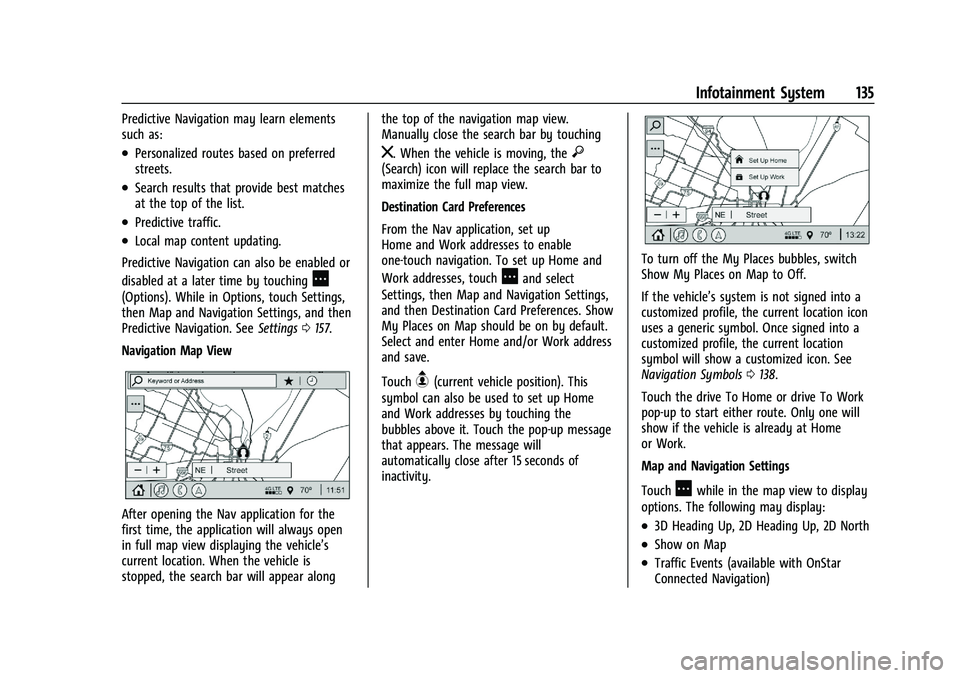
Navigation Map View
After opening the Nav application for the
first time, the application will always open
in full map view displaying the vehicle’s
current location. When the vehicle is
stopped, the search bar will appear along the top of the navigation map view.
Manually close the search bar by touching
z. When the vehicle is moving, the}(Search) icon will replace the search bar to
maximize the full map view.
Destination Card Preferences
From the Nav application, set up
Home and Work addresses to enable
one-touch navigation. To set up Home and
Work addresses, touch
Aand select
Settings, then Map and Navigation Settings,
and then Destination Card Preferences. Show
My Places on Map should be on by default.
Select and enter Home and/or Work address
and save.
Touch
B(current vehicle position). This
symbol can also be used to set up Home
and Work addresses by touching the
bubbles above it. Touch the pop-up message
that appears. The message will
automatically close after 15 seconds of
inactivity.
To turn off the My Places bubbles, switch
Show My Places on Map to Off.
If the vehicle’s system is not signed into a
customized profile, the current location icon
uses a generic symbol. Once signed into a
customized profile, the current location
symbol will show a customized icon. See
Navigation Symbols 0138.
Touch the drive To Home or drive To Work
pop-up to start either route. Only one will
show if the vehicle is already at Home
or Work.
Map and Navigation Settings
Touch
Awhile in the map view to display
options. The following may display:
.3D Heading Up, 2D Heading Up, 2D North
.Show on Map
.Traffic Events (available with OnStar
Connected Navigation)