SPEED DISPLAY CHEVROLET TRAILBLAZER 2023 User Guide
[x] Cancel search | Manufacturer: CHEVROLET, Model Year: 2023, Model line: TRAILBLAZER, Model: CHEVROLET TRAILBLAZER 2023Pages: 360, PDF Size: 6.48 MB
Page 122 of 360
Chevrolet Trailblazer Owner Manual (GMNA-Localizing-U.S./Canada-
16263960) - 2023 - CRC - 2/23/22
Infotainment System 121
.When on, pressOto mute the
system and display a status pane.
Press
Oagain to unmute the system.
.Turn to decrease or increase the
volume.
4.
d:
.Radio: Press and release to fast seek
the next strongest station or channel.
Press and hold to go to the next
station or channel.
.USB/Bluetooth: Press to seek the next
track. Press and hold to fast forward
through a track. Release to return to
playing speed.
5. BACK:
.Press to return to the previous screen
in a menu.
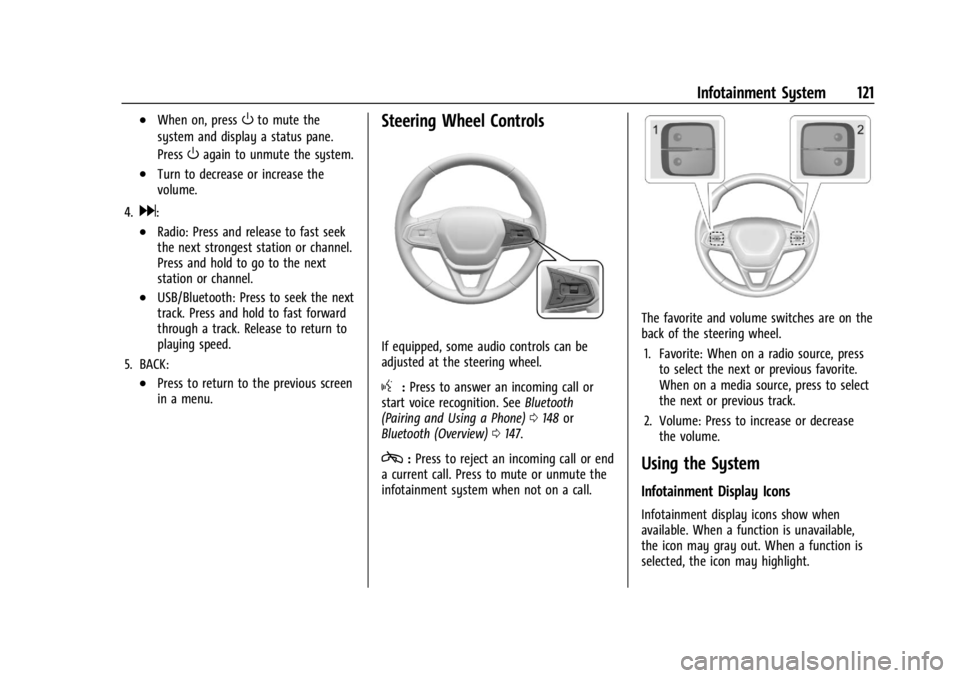
Steering Wheel Controls
If equipped, some audio controls can be
adjusted at the steering wheel.
g: Press to answer an incoming call or
start voice recognition. See Bluetooth
(Pairing and Using a Phone) 0148 or
Bluetooth (Overview) 0147.
c:Press to reject an incoming call or end
a current call. Press to mute or unmute the
infotainment system when not on a call.
The favorite and volume switches are on the
back of the steering wheel.
1. Favorite: When on a radio source, press to select the next or previous favorite.
When on a media source, press to select
the next or previous track.
2. Volume: Press to increase or decrease the volume.
Using the System
Infotainment Display Icons
Infotainment display icons show when
available. When a function is unavailable,
the icon may gray out. When a function is
selected, the icon may highlight.
Page 129 of 360
Chevrolet Trailblazer Owner Manual (GMNA-Localizing-U.S./Canada-
16263960) - 2023 - CRC - 2/23/22
128 Infotainment System
Caution (Continued)
damaged or cause an electrical short if
the unconnected end comes in contact
with liquids or another power source such
as the accessory power outlet.
Playing from a USB
A USB mass storage device can be connected
to the USB port.
Audio extensions supported by the USB may
include:
.MP3
.AAC
.OGG
.3GP
My Media Library
MyMedia is only available when more than
one indexed device is connected. It allows
access to content from all indexed media
sources. MyMedia will show as an available
source in the Source page.
USB MP3 Player and USB Devices
The USB MP3 players and USB devices
connected must comply with the USB Mass
Storage Class specification (USB MSC). To play a USB device:
1. Connect the USB.
2. Touch Audio from the Home Page.
3. Select USB device.
Use the following when playing an active
USB source:
p: Touch to play the current media source.
j: Touch to pause playback of the current
media source.
7:
.Touch to seek the beginning of the
current or previous track.
.Touch and hold to reverse quickly
through playback. Release to return to
playing speed. Elapsed time displays.
6:
.Touch to seek the next track.
.Touch and hold to advance quickly
through playback. Release to return to
playing speed. Elapsed time displays.
Shuffle : Touch the shuffle icon to play
music in random order. USB Sound Menu
See
“Infotainment System Sound Menu”
under AM-FM Radio 0124.
USB Browse Menu
When a list of songs, albums, artists,
or other types of media displays, the up and
down arrows and A-Z appear on the left
side. Select A-Z to view a display that will
show all letters of the alphabet and select
the letter to go to.
Touch the up and down arrows to move the
list up and down.
Touch Browse and the following may
display:
Playlists: 1. Touch to view the playlists stored on the USB.
2. Touch a playlist to view the list of all songs in that playlist.
3. Touch a song from the list to begin playback.
Supported playlist extensions are m3u
and pls.
Page 142 of 360
Chevrolet Trailblazer Owner Manual (GMNA-Localizing-U.S./Canada-
16263960) - 2023 - CRC - 2/23/22
Infotainment System 141
For more information if the GPS is not
functioning properly, seeProblems with
Route Guidance 0141 and
If the System Needs Service 0141.
Vehicle Positioning
At times, the position of the vehicle on the
map could be inaccurate due to one or more
of the following reasons:
.The road system has changed.
.The vehicle is driving on slippery road
surfaces such as sand, gravel, or snow.
.The vehicle is traveling on winding roads
or long, straight roads.
.The vehicle is approaching a tall building
or a large vehicle.
.The surface streets run parallel to a
freeway.
.The vehicle has been transferred by a
vehicle carrier or a ferry.
.The current position calibration is set
incorrectly.
.The vehicle is traveling at high speed.
.The vehicle changes directions more than
once, or the vehicle is turning on a turn
table in a parking lot.
.The vehicle is entering and/or exiting a
parking lot, garage, or a lot with a roof.
.The GPS signal is not received.
.A roof carrier is installed on the vehicle.
.Tire chains are installed on the vehicle.
.The tires are replaced or worn.
.The tire pressure for the tires is incorrect.
.This is the first navigation use after the
map data is updated.
.The 12-volt battery has been disconnected
for several days.
.The vehicle is driving in heavy traffic
where driving is at low speeds, and the
vehicle is stopped and started repeatedly.
Problems with Route Guidance
Inappropriate route guidance can occur
under one or more of the following
conditions:
.The turn was not made on the road
indicated.
.Route guidance might not be available
when using automatic rerouting for the
next right or left turn.
.The route might not be changed when
using automatic rerouting.
.There is no route guidance when turning
at an intersection.
.Plural names of places might be
announced occasionally.
.It could take a long time to operate
automatic rerouting during high-speed
driving.
.Automatic rerouting might display a route
returning to the set waypoint if heading
for a destination without passing through
a set waypoint.
.The route prohibits the entry of a vehicle
due to a regulation by time or season or
any other regulation which may be given.
.Some routes might not be searched.
.The route to the destination might not be
shown if there are new roads, if roads
have recently changed, or if certain roads
are not listed in the map data. See Maps
0 134.
To recalibrate the vehicle's position on the
map, park with the vehicle running for two
to five minutes, until the vehicle position
updates. Make sure the vehicle is parked in
a location that is safe and has a clear view
of the sky and away from large
obstructions.
If the System Needs Service
If the navigation system needs service, see
your dealer.
Page 148 of 360
Chevrolet Trailblazer Owner Manual (GMNA-Localizing-U.S./Canada-
16263960) - 2023 - CRC - 2/23/22
Infotainment System 147
Voice Recognition for the Phone
“Call
stored contact. The command may include
location if the contact has location numbers
stored.
“Call
Mobile,” or“On Other” :Initiate a call to a
stored contact and location at home, at
work, on mobile device, or on another
phone.
“Call
to a cell phone number of seven digits, 10
digits, or three digit emergency numbers.
“Pair Phone” :Begin the Bluetooth pairing
process. Follow the instructions on the
infotainment display.
“Redial” :Initiate a call to the last dialed
number.
“Switch Phone” :Select a different
connected cell phone for outgoing calls.
“Voice Keypad” :Begin a dialog to enter
special numbers like international numbers.
The numbers can be entered in groups of
digits with each group of digits being
repeated back by the system. If the group
of digits is not correct, the command
“Delete” will remove the last group of digits and allow them to be re-entered. Once the
entire number has been entered, the
command
“Call”will start dialing the
number.
Phone Assistant Voice Recognition
Press and holdgon the steering wheel
controls to pass through and launch Google
phone assistant or Siri.
For the low radio, whether connected by
Bluetooth or phone projection, the only
available voice recognition is either Siri
(iPhone) or the Google Assistant (Android).
Phone
Bluetooth (Overview)
The Bluetooth-capable system can be paired
with up to 10 Bluetooth devices and two
active Bluetooth devices, allowing:
.Placement and receipt of calls in a
hands-free mode.
.Sharing of the device’s address book or
contact list with the vehicle. To minimize driver distraction, before
driving, and with the vehicle parked:
.Become familiar with the features of the
mobile device. Organize the phone book
and contact lists clearly and delete
duplicate or rarely used entries.
If possible, program speed dial or other
shortcuts.
.Review the controls and operation of the
infotainment system.
.Pair mobile device(s) to the vehicle. The
system may not work with all mobile
devices. See
“Pairing”later in this section.
Vehicles with a Bluetooth system can use a
Bluetooth-capable mobile device with a
Hands-Free Profile to make and receive
phone calls. The infotainment system and
voice recognition are used to control the
system. The system can be used while the
ignition is on or in accessory mode. The
range of the Bluetooth system can be up to
9.1 m (30 ft). Not all mobile devices support
all functions and not all mobile devices work
with the Bluetooth system. Visit your brand
website for more information about
compatible mobile devices. See Online
Account 0329.
Page 155 of 360
Chevrolet Trailblazer Owner Manual (GMNA-Localizing-U.S./Canada-
16263960) - 2023 - CRC - 2/23/22
154 Infotainment System
Wi-Fi Networks
Shows connected and available Wi-Fi
networks.
If a 4G LTE data package is not active on the
vehicle, the infotainment system can be
connected to an external protected Wi-Fi
network, such as a mobile device or home
hotspot, to utilize connected services.
Wi-Fi Hotspot
Allows adjustment of different Wi-Fi
features.
Privacy
Allows adjustment of the infotainment
privacy settings.
Display
Allows adjustment of the infotainment
display.
Sounds
Allows adjustment of the infotainment
system sounds.
Voice
Allows adjustment of the infotainment voice
recognition features.Favorites
Allows adjustment of the infotainment
favorite settings.
Updates
If equipped, the infotainment system can
download and install select software updates
over a wireless connection. The system will
prompt for certain updates to be
downloaded and installed. There is also an
option to check for updates manually.
To manually check for updates, touch
Settings on the Home Page, followed by
Software Information, and then System
Update. Follow the on-screen prompts. The
steps to check for, download and install
updates may vary by vehicle.
Downloading Over-the-Air vehicle software
updates requires internet connectivity, which
can be accessed through the vehicle’s
built-in 4G LTE connection, if equipped and
active. If required, data plans are provided
by a third party. Optionally, a secure Wi-Fi
hotspot such as a compatible mobile device
hotspot, home hotspot or public hotspot can
be used. Applicable data rates may apply.
To connect the infotainment system to a
secured mobile device hotspot, home
hotspot, or a public hotspot, touch Settingson the Home Page, select the System tab,
followed by Wi-Fi Networks. Select the
appropriate Wi-Fi network, and follow the
on-screen prompts.
Download speeds may vary. On most
compatible mobile devices, activation of the
Wi-Fi hotspot is in the Settings menu under
Mobile Network Sharing, Personal Hotspot,
Mobile Hotspot or similar. Availability of
Over-the-Air software updates varies by
vehicle and country. For more information
on this feature, see
Online Account0329
for details.
Preferences
Allows the infotainment system to disable
or enable the download of new updates in
the background.
About
Shows the infotainment system software
information.
Running Applications
Shows a complete list of applications that
are currently running on the infotainment
system.
Page 158 of 360
Chevrolet Trailblazer Owner Manual (GMNA-Localizing-U.S./Canada-
16263960) - 2023 - CRC - 2/23/22
Infotainment System 157
6. From the Teen Driver menu, touch SetupKeys or Add/Remove Teen Driver Keys.
.If the remote key has not previously
been registered, the option to add
the key displays. Touch Add and a
confirmation message displays. Teen
Driver restrictions will be applied
whenever this remote key is used to
operate the vehicle.
.If the remote key has already been
registered, the option to remove the
key displays. If Remove is touched,
the remote key is no longer
registered. A confirmation message
displays, and Teen Driver restrictions
will not be applied if this remote key
is used to operate the vehicle.
In vehicles with a pushbutton start system,
if a Teen Driver and a non-Teen Driver key
are both present at start up, the vehicle will
recognize the non-Teen Driver key to start
the vehicle. The Teen Driver settings will not
be active.
For a keyed ignition system: 1. Start the vehicle. 2. For automatic transmissions, the vehicle
must be in P (Park). For manual
transmissions, the vehicle must be
stopped with the parking brake set.
3. From the Settings menu, touch Vehicle and then Teen Driver.
4. Enter the PIN.
5. Touch Setup Keys or Add/Remove Teen Driver Keys. The system displays
instructions for registering or
unregistering a key. A confirmation
message displays.
Manage Settings or Teen Driver Settings
Depending on the options of your vehicle,
the following menu items may be displayed:
Buckle to Drive : When turned ON, Buckle to
Drive prevents the driver from shifting out
of P (Park) for a period of time after the
brake pedal is pressed if the driver, or on
some vehicles the detected passenger, has
not buckled their seat belt. On some
vehicles, Buckle to Drive is always ON when
Teen Driver is active and is not configurable.
Audio Volume Limit : Allows a maximum
audio volume to be set. Turn the audio
volume limit on or off. Use the arrows to
choose the maximum allowable level for the
audio volume. On some infotainment systems, touch Set Audio Volume Limit to
choose the maximum allowable audio
volume level.
Set Audio Volume Limit :
Use the arrows to
choose the maximum allowable level for the
audio volume.
Teen Driver Speed Limiter : Limits the
maximum speed of the vehicle. When the
speed limiter is turned on and the vehicle is
started with a Teen Driver key, the DIC
displays a message that the top speed is
limited.
On certain vehicles, when the Speed Limiter
is turned ON, the vehicle’s maximum
acceleration will be limited. The DIC will
display a message that the acceleration is
limited.
Teen Driver Speed Warning : Displays a
warning in the DIC when exceeding a
selectable speed. Turn the speed warning on
or off and choose the desired speed warning
level. The speed warning does not limit the
speed of the vehicle. On some infotainment
systems, touch Set Teen Driver Speed
Warning to set the warning speed.
Page 159 of 360
Chevrolet Trailblazer Owner Manual (GMNA-Localizing-U.S./Canada-
16263960) - 2023 - CRC - 2/23/22
158 Infotainment System
Set Teen Driver Speed Warning :Choose the
desired speed warning level. The speed
warning does not limit the speed of the
vehicle.
SiriusXM Explicit Content Filter : Allows the
SiriusXM Explicit Content Filter to be turned
ON or OFF. When ON, the teen driver will
not be able to listen to SiriusXM stations
that contain explicit content, and the Explicit
Content Filter selection in the Audio Settings
will be unavailable for change.
When Teen Driver is Active:
.If equipped, the radio will mute when the
driver seat belt, and in some vehicles the
front passenger seat belt, is not buckled.
The audio from any device paired to the
vehicle will also be muted.
.An object placed on the front passenger
seat, such as a briefcase, handbag,
grocery bag, laptop, or other electronic
device, could cause the passenger sensing
system to falsely sense an unbuckled
front passenger and mute the radio.
If this happens, remove the object from
the seat. See Passenger Sensing System
0 58.
.Some safety systems, such as Automatic
Emergency Braking, if equipped, cannot
be turned off.
.The gap setting for Adaptive Cruise
Control and alert timing for Forward
Collision Alert, if equipped, cannot be
changed.
.When trying to change a safety feature
that is not configurable in Teen Driver,
the feature may be grayed out or
removed from the infotainment menu,
or the DIC will display a message
indicating that Teen Driver is active and
the action is not available.
.Super Cruise, if equipped, is not available.
.Enhanced Low Fuel Warning (if equipped)
–When the vehicle is low on fuel, the
low fuel light on the instrument cluster
flashes and the DIC low fuel warning
cannot be dismissed.
.Do not tow a trailer if equipped with
Automatic Emergency Braking.
Report Card
The vehicle owner must secure the driver’s
consent to record certain vehicle data when
the vehicle is driven with a registered Teen
Driver key. There is one Report Card per
vehicle. Data is only recorded when a
registered Teen Driver key is used to
operate the vehicle. The Report Card data is collected from the
time Teen Driver is activated or the last
time the Report Card was reset. The
following items may be recorded:
.Distance Driven
–the total distance
driven.
.Maximum Speed –the maximum vehicle
speed detected.
.Overspeed Warnings –the number of
times the speed warning setting was
exceeded.
.Wide Open Throttle –the number of
times the accelerator pedal was pressed
nearly all the way down.
.Forward Collision Alerts (if equipped) –
the number of times the driver was
notified when approaching a vehicle
ahead too quickly and at potential risk for
a crash.
.Forward Automatic Braking, also called
Automatic Emergency Braking (if
equipped) –the number of times the
vehicle detected that a forward collision
was imminent and applied the brakes.
.Reverse Automatic Braking (if equipped) –
the number of times the vehicle detected
that a rearward collision was imminent
and applied the brakes.
Page 171 of 360
Chevrolet Trailblazer Owner Manual (GMNA-Localizing-U.S./Canada-
16263960) - 2023 - CRC - 2/23/22
170 Climate Controls
Automatic Operation
The system automatically controls the fan
speed, air delivery, air conditioning, and
recirculation in order to heat or cool the
vehicle to the desired temperature.
When AUTO is lit, all four functions operate
automatically. Each function can also be
manually set and the selected setting is
displayed.
Functions not manually set will continue to
be automatically controlled, even if the
AUTO indicator is not lit.
For automatic operation:1. Press AUTO.
2. Set the temperature, allow the system time to stabilize, and adjust the
temperature as needed.
Manual Operation
In addition to the controls on the center
stack; the fan, air delivery mode,
temperature, and other climate settings can
be controlled by touching CLIMATE on the
infotainment Home Page or the climate
button in the application tray. ON/OFF :
Press to turn the fan off or on.
When off, no air will flow into the vehicle.
Turning the fan on, pressing any other
button, or turning a knob will turn the
system back on using the current setting.
9: Turn the knob clockwise or
counterclockwise to increase or decrease the
fan speed. The fan speed setting appears on
the main display. Pressing either button
cancels automatic fan control and the fan is
controlled manually. Press AUTO to return
to automatic operation.
Air Delivery Mode Controls : Press any
combination of
z,Y, or6to change the
direction of the airflow. The indicator light
in the button will turn on. The current mode
appears in the display screen.
Pressing any of the three buttons cancels
automatic air delivery control and the
direction of the airflow is controlled
manually. Press AUTO to return to
automatic operation.
To change the current mode, select one or
more of the following:
z: Clears the windows of fog or moisture.
Air is directed to the windshield.
Y: Air is directed to the instrument panel
outlets.
6: Air is directed to the floor outlets.
0MAX : Air is directed to the windshield
and the fan runs at a higher speed. Fog or
frost is cleared from the windshield more
quickly. When the button is pressed again,
the system returns to the previous mode
setting.
For best results, clear all snow and ice from
the windshield before defrosting.
A/C : Press to turn the air conditioning
system on or off. If the climate control
system is turned off or the outside
temperature falls below freezing, the air
conditioner will not run.
Pressing A/C cancels automatic air
conditioning and turns off the air
conditioner. Press AUTO to return to
automatic operation and the air conditioner
runs automatically as needed. When the
indicator light is on, the air conditioner runs
automatically to cool the air inside the
vehicle or to dry the air needed to defog
the windshield faster.
Page 180 of 360
Chevrolet Trailblazer Owner Manual (GMNA-Localizing-U.S./Canada-
16263960) - 2023 - CRC - 2/23/22
Driving and Operating 179
{Warning
Using the brakes to slow the vehicle on a
long downhill slope can cause brake
overheating, can reduce brake
performance, and could result in a loss of
braking. Shift the transmission to a lower
gear to let the engine assist the brakes
on a steep downhill slope.
{Warning
Coasting downhill in N (Neutral) or with
the ignition off is dangerous. This can
cause overheating of the brakes and loss
of steering assist. Always have the engine
running and the vehicle in gear.
.Drive at speeds that keep the vehicle in
its own lane. Do not swing wide or cross
the center line.
.Be alert on top of hills; something could
be in your lane (e.g., stalled car, crash).
.Pay attention to special road signs (e.g.,
falling rocks area, winding roads, long
grades, passing or no-passing zones) and
take appropriate action.
.Select All-Wheel Drive (AWD) Mode. See
Driver Mode Control0202 and
All-Wheel Drive 0197.
Winter Driving
Driving on Snow or Ice
Caution
To avoid damage to the wheels and
brake components, always clear snow and
ice from inside the wheels and
underneath the vehicle before driving.
Snow or ice between the tires and the road
creates less traction or grip, so drive
carefully. Wet ice can occur at about 0 °C
(32 °F) when freezing rain begins to fall.
Avoid driving on wet ice or in freezing rain
until roads can be treated.
For Slippery Road Driving:
.Accelerate gently. Accelerating too quickly
causes the wheels to spin and makes the
surface under the tires slick.
.Turn on Traction Control. See Traction
Control/Electronic Stability Control 0200.
.The Antilock Brake System (ABS) improves
vehicle stability during hard stops, but
the brakes should be applied sooner than
when on dry pavement. See Antilock
Brake System (ABS) 0198.
.Allow greater following distance and
watch for slippery spots. Icy patches can
occur on otherwise clear roads in shaded
areas. The surface of a curve or an
overpass can remain icy when the
surrounding roads are clear. Avoid sudden
steering maneuvers and braking while
on ice.
.Turn off cruise control.
.Select All-Wheel Drive (AWD) Mode for
vehicles equipped with AWD. Select
Snow/Ice Mode for FWD only vehicles.
See Driver Mode Control 0202 and
All-Wheel Drive 0197.
Cold Weather Mode
In very low temperatures, a cold weather
message may display on the Driver
Information Center (DIC). The engine speed,
transmission shift patterns, and cabin fan
speed may operate differently to enable the
vehicle to warm up quicker. You can
manually override the cabin fan speed in
cold weather mode.
Page 189 of 360
Chevrolet Trailblazer Owner Manual (GMNA-Localizing-U.S./Canada-
16263960) - 2023 - CRC - 2/23/22
188 Driving and Operating
Starting Procedure (Key Access)
1. With your foot off the accelerator pedal,turn the ignition key to START. When
the engine starts, let go of the ignition.
The idle speed will go down as the
engine gets warm. Do not race the
engine immediately after starting it.
Operate the engine and transmission
gently to allow the oil to warm up and
lubricate all moving parts.
Caution
Cranking the engine for long periods of
time, by returning the ignition to the
START position immediately after
cranking has ended, can overheat and
damage the cranking motor, and drain
the battery. Wait at least 15 seconds
between each try, to let the cranking
motor cool down.
2. If the engine does not start after five to 10 seconds, especially in very cold
weather (below −18 °C or 0 °F), it could
be flooded with too much gasoline. Try
pushing the accelerator pedal all the way
to the floor and holding it there as you
hold the key in START for up to a
maximum of 15 seconds. Wait at least 15 seconds between each try, to allow
the cranking motor to cool down. When
the engine starts, let go of the key and
the accelerator. If the vehicle starts
briefly but then stops again, do the
same thing. This clears the extra gasoline
from the engine.
Do not race the engine immediately
after starting it.
Operate the engine and transmission
gently until the oil warms up and
lubricates all moving parts.Starting Procedure (Keyless Access)
1. With the Keyless Access system, the
remote key must be in the vehicle. Press
ENGINE START/STOPwith the brake pedal
applied. When the engine begins
cranking, let go of the button.
The idle speed will go down as the
engine gets warm. Do not race the
engine immediately after starting it.
If the remote key is not in the vehicle,
if there is interference, or if the remote
key battery is low, a Driver Information
Center (DIC) will display a message. See
Remote Key Operation (Mechanical Key)
010 or
Remote Key Operation (Remote Key) 013
Caution
Cranking the engine for long periods of
time, by returning the ignition to the
START position immediately after
cranking has ended, can overheat and
damage the cranking motor, and drain
the battery. Wait at least 15 seconds
between each try, to let the cranking
motor cool down.
2. If the engine does not start after five to 10 seconds, especially in very cold
weather (below −18 °C or 0 °F), it could
be flooded with too much gasoline. Try
pushing the accelerator pedal all the way
to the floor and holding it there as you
press ENGINE START/ STOP. Wait at least
15 seconds between each try, to allow
the cranking motor to cool down. When
the engine starts, release the accelerator.
If the vehicle starts briefly but then
stops again, do the same thing. This
clears the extra gasoline from the
engine. Do not race the engine
immediately after starting it. Operate
the engine and transmission gently until
the oil warms up and lubricates all
moving parts.