ECU CHEVROLET TRAILBLAZER 2023 Owner's Guide
[x] Cancel search | Manufacturer: CHEVROLET, Model Year: 2023, Model line: TRAILBLAZER, Model: CHEVROLET TRAILBLAZER 2023Pages: 360, PDF Size: 6.48 MB
Page 79 of 360
Chevrolet Trailblazer Owner Manual (GMNA-Localizing-U.S./Canada-
16263960) - 2023 - CRC - 2/23/22
78 Seats and Restraints
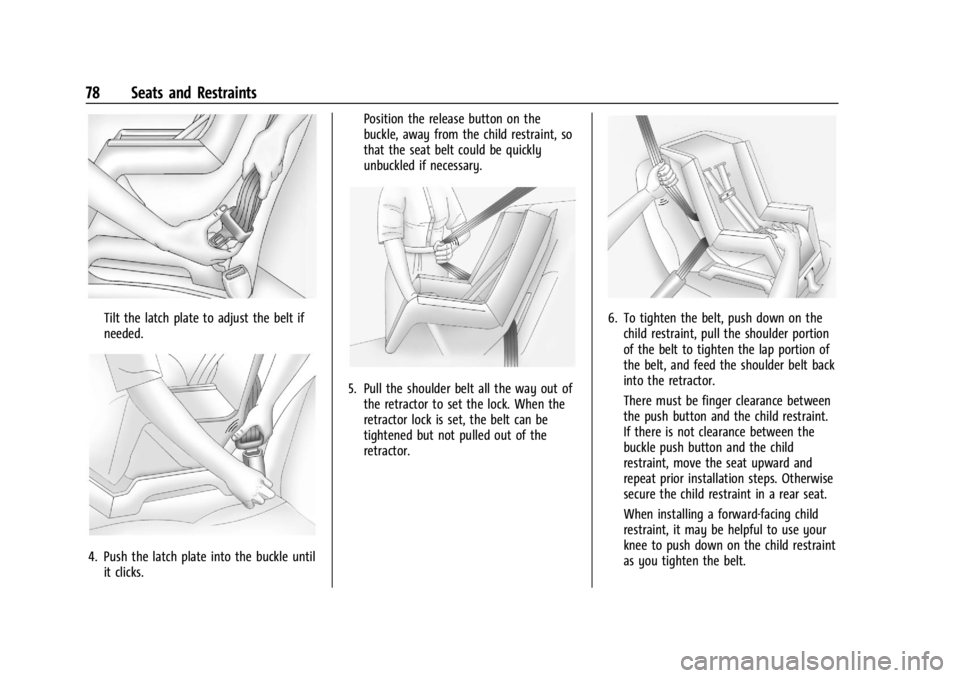
Tilt the latch plate to adjust the belt if
needed.
4. Push the latch plate into the buckle untilit clicks. Position the release button on the
buckle, away from the child restraint, so
that the seat belt could be quickly
unbuckled if necessary.
5. Pull the shoulder belt all the way out of
the retractor to set the lock. When the
retractor lock is set, the belt can be
tightened but not pulled out of the
retractor.
6. To tighten the belt, push down on thechild restraint, pull the shoulder portion
of the belt to tighten the lap portion of
the belt, and feed the shoulder belt back
into the retractor.
There must be finger clearance between
the push button and the child restraint.
If there is not clearance between the
buckle push button and the child
restraint, move the seat upward and
repeat prior installation steps. Otherwise
secure the child restraint in a rear seat.
When installing a forward-facing child
restraint, it may be helpful to use your
knee to push down on the child restraint
as you tighten the belt.
Page 80 of 360
Chevrolet Trailblazer Owner Manual (GMNA-Localizing-U.S./Canada-
16263960) - 2023 - CRC - 2/23/22
Seats and Restraints 79
Try to pull the belt out of the retractor
to make sure the retractor is locked.
If the retractor is not locked, repeat
Steps 5 and 6.
7. Before placing a child in the child restraint, make sure it is securely held in
place. To check, grasp the child restraint
at the seat belt path and attempt to
move it side to side and back and forth.
When the child restraint is properly
installed, there should be no more than
2.5 cm (1 in) of movement.
If the airbags are off, the OFF indicator in
the passenger airbag status indicator will
come on and stay on when the vehicle is
started.
If a child restraint has been installed and
the ON indicator is lit, see “If the On
Indicator Is Lit for a Child Restraint” under
Passenger Sensing System 058.
To remove the child restraint, unbuckle the
vehicle seat belt and let it return to the
stowed position.
Page 84 of 360
Chevrolet Trailblazer Owner Manual (GMNA-Localizing-U.S./Canada-
16263960) - 2023 - CRC - 2/23/22
Storage 83
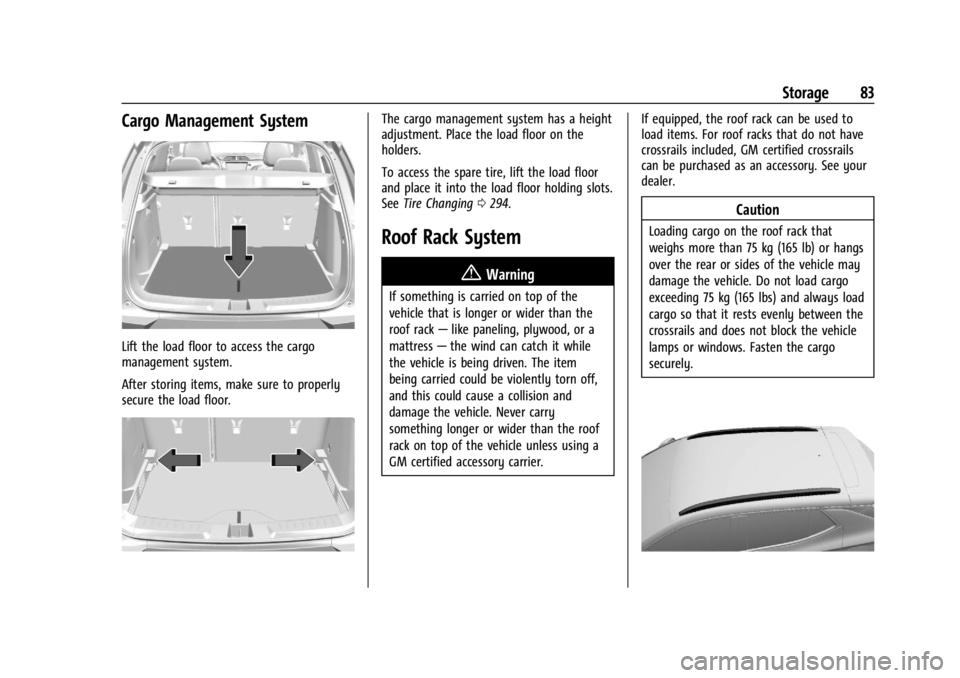
Cargo Management System
Lift the load floor to access the cargo
management system.
After storing items, make sure to properly
secure the load floor.
The cargo management system has a height
adjustment. Place the load floor on the
holders.
To access the spare tire, lift the load floor
and place it into the load floor holding slots.
SeeTire Changing 0294.
Roof Rack System
{
Warning
If something is carried on top of the
vehicle that is longer or wider than the
roof rack—like paneling, plywood, or a
mattress —the wind can catch it while
the vehicle is being driven. The item
being carried could be violently torn off,
and this could cause a collision and
damage the vehicle. Never carry
something longer or wider than the roof
rack on top of the vehicle unless using a
GM certified accessory carrier. If equipped, the roof rack can be used to
load items. For roof racks that do not have
crossrails included, GM certified crossrails
can be purchased as an accessory. See your
dealer.
Caution
Loading cargo on the roof rack that
weighs more than 75 kg (165 lb) or hangs
over the rear or sides of the vehicle may
damage the vehicle. Do not load cargo
exceeding 75 kg (165 lbs) and always load
cargo so that it rests evenly between the
crossrails and does not block the vehicle
lamps or windows. Fasten the cargo
securely.
Page 85 of 360
Chevrolet Trailblazer Owner Manual (GMNA-Localizing-U.S./Canada-
16263960) - 2023 - CRC - 2/23/22
84 Storage
To prevent damage or loss of cargo when
driving, check to make sure crossrails and
cargo are securely fastened. Loading cargo
on the roof rack will make the vehicle’s
center of gravity higher. Avoid high speeds,
sudden starts, sharp turns, sudden braking,
or abrupt maneuvers; otherwise it may
result in loss of control. If driving for a long
distance, on rough roads, or at high speeds,
occasionally stop the vehicle to make sure
the cargo remains in its place. Do not
exceed the maximum vehicle capacity when
loading the vehicle. For more information on
vehicle capacity and loading, seeVehicle
Load Limits 0181.
Page 86 of 360
Chevrolet Trailblazer Owner Manual (GMNA-Localizing-U.S./Canada-
16263960) - 2023 - CRC - 2/23/22
Instruments and Controls 85
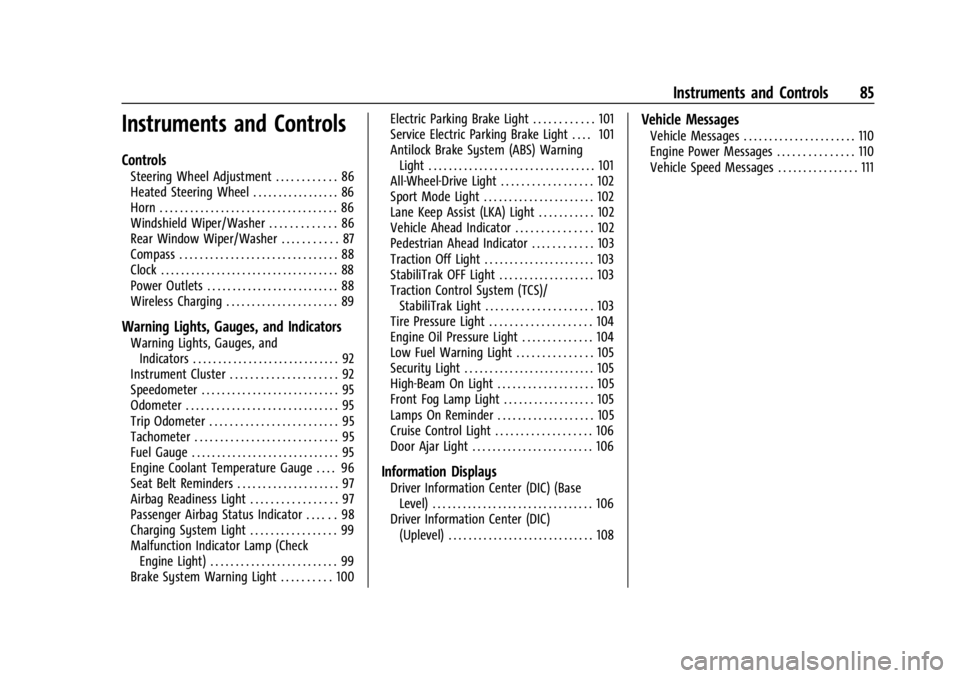
Instruments and Controls
Controls
Steering Wheel Adjustment . . . . . . . . . . . . 86
Heated Steering Wheel . . . . . . . . . . . . . . . . . 86
Horn . . . . . . . . . . . . . . . . . . . . . . . . . . . . . . . . . . . 86
Windshield Wiper/Washer . . . . . . . . . . . . . 86
Rear Window Wiper/Washer . . . . . . . . . . . 87
Compass . . . . . . . . . . . . . . . . . . . . . . . . . . . . . . . 88
Clock . . . . . . . . . . . . . . . . . . . . . . . . . . . . . . . . . . . 88
Power Outlets . . . . . . . . . . . . . . . . . . . . . . . . . . 88
Wireless Charging . . . . . . . . . . . . . . . . . . . . . . 89
Warning Lights, Gauges, and Indicators
Warning Lights, Gauges, andIndicators . . . . . . . . . . . . . . . . . . . . . . . . . . . . . 92
Instrument Cluster . . . . . . . . . . . . . . . . . . . . . 92
Speedometer . . . . . . . . . . . . . . . . . . . . . . . . . . . 95
Odometer . . . . . . . . . . . . . . . . . . . . . . . . . . . . . . 95
Trip Odometer . . . . . . . . . . . . . . . . . . . . . . . . . 95
Tachometer . . . . . . . . . . . . . . . . . . . . . . . . . . . . 95
Fuel Gauge . . . . . . . . . . . . . . . . . . . . . . . . . . . . . 95
Engine Coolant Temperature Gauge . . . . 96
Seat Belt Reminders . . . . . . . . . . . . . . . . . . . . 97
Airbag Readiness Light . . . . . . . . . . . . . . . . . 97
Passenger Airbag Status Indicator . . . . . . 98
Charging System Light . . . . . . . . . . . . . . . . . 99
Malfunction Indicator Lamp (Check Engine Light) . . . . . . . . . . . . . . . . . . . . . . . . . 99
Brake System Warning Light . . . . . . . . . . 100 Electric Parking Brake Light . . . . . . . . . . . . 101
Service Electric Parking Brake Light . . . . 101
Antilock Brake System (ABS) Warning
Light . . . . . . . . . . . . . . . . . . . . . . . . . . . . . . . . . 101
All-Wheel-Drive Light . . . . . . . . . . . . . . . . . . 102
Sport Mode Light . . . . . . . . . . . . . . . . . . . . . . 102
Lane Keep Assist (LKA) Light . . . . . . . . . . . 102
Vehicle Ahead Indicator . . . . . . . . . . . . . . . 102
Pedestrian Ahead Indicator . . . . . . . . . . . . 103
Traction Off Light . . . . . . . . . . . . . . . . . . . . . . 103
StabiliTrak OFF Light . . . . . . . . . . . . . . . . . . . 103
Traction Control System (TCS)/
StabiliTrak Light . . . . . . . . . . . . . . . . . . . . . 103
Tire Pressure Light . . . . . . . . . . . . . . . . . . . . 104
Engine Oil Pressure Light . . . . . . . . . . . . . . 104
Low Fuel Warning Light . . . . . . . . . . . . . . . 105
Security Light . . . . . . . . . . . . . . . . . . . . . . . . . . 105
High-Beam On Light . . . . . . . . . . . . . . . . . . . 105
Front Fog Lamp Light . . . . . . . . . . . . . . . . . . 105
Lamps On Reminder . . . . . . . . . . . . . . . . . . . 105
Cruise Control Light . . . . . . . . . . . . . . . . . . . 106
Door Ajar Light . . . . . . . . . . . . . . . . . . . . . . . . 106
Information Displays
Driver Information Center (DIC) (Base Level) . . . . . . . . . . . . . . . . . . . . . . . . . . . . . . . . 106
Driver Information Center (DIC) (Uplevel) . . . . . . . . . . . . . . . . . . . . . . . . . . . . . 108
Vehicle Messages
Vehicle Messages . . . . . . . . . . . . . . . . . . . . . . 110
Engine Power Messages . . . . . . . . . . . . . . . 110
Vehicle Speed Messages . . . . . . . . . . . . . . . . 111
Page 106 of 360
Chevrolet Trailblazer Owner Manual (GMNA-Localizing-U.S./Canada-
16263960) - 2023 - CRC - 2/23/22
Instruments and Controls 105
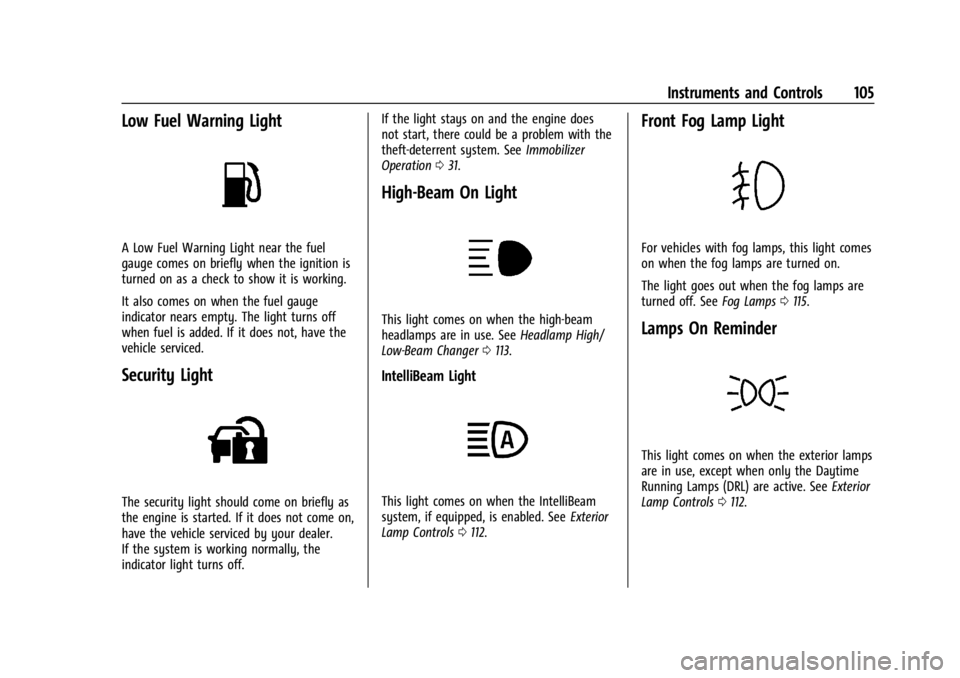
Low Fuel Warning Light
A Low Fuel Warning Light near the fuel
gauge comes on briefly when the ignition is
turned on as a check to show it is working.
It also comes on when the fuel gauge
indicator nears empty. The light turns off
when fuel is added. If it does not, have the
vehicle serviced.
Security Light
The security light should come on briefly as
the engine is started. If it does not come on,
have the vehicle serviced by your dealer.
If the system is working normally, the
indicator light turns off.If the light stays on and the engine does
not start, there could be a problem with the
theft-deterrent system. See
Immobilizer
Operation 031.
High-Beam On Light
This light comes on when the high-beam
headlamps are in use. See Headlamp High/
Low-Beam Changer 0113.
IntelliBeam Light
This light comes on when the IntelliBeam
system, if equipped, is enabled. See Exterior
Lamp Controls 0112.
Front Fog Lamp Light
For vehicles with fog lamps, this light comes
on when the fog lamps are turned on.
The light goes out when the fog lamps are
turned off. See Fog Lamps0115.
Lamps On Reminder
This light comes on when the exterior lamps
are in use, except when only the Daytime
Running Lamps (DRL) are active. See Exterior
Lamp Controls 0112.
Page 107 of 360
Chevrolet Trailblazer Owner Manual (GMNA-Localizing-U.S./Canada-
16263960) - 2023 - CRC - 2/23/22
106 Instruments and Controls
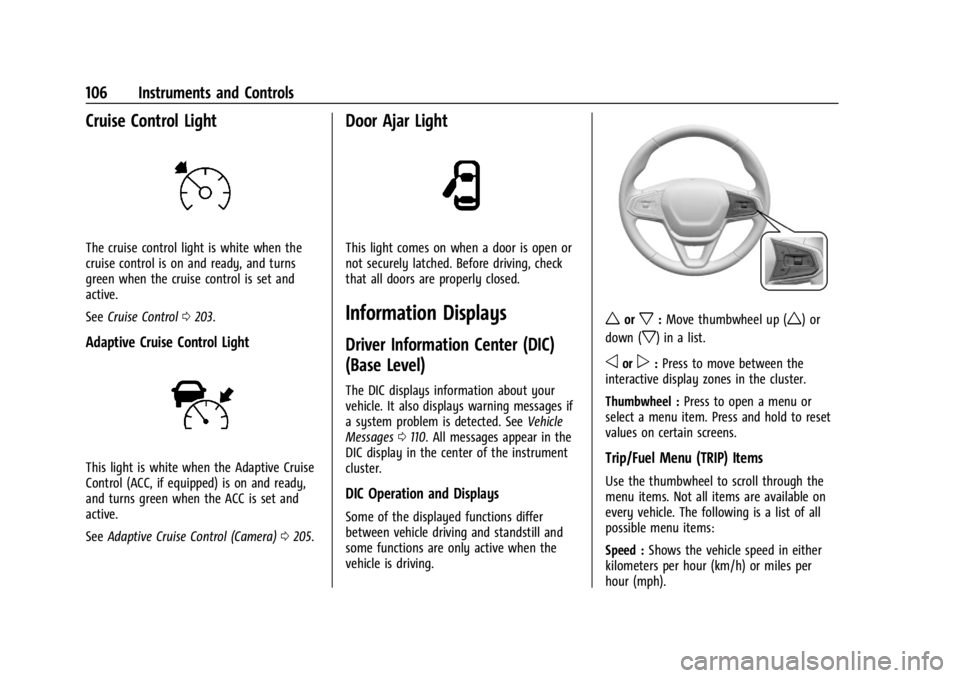
Cruise Control Light
The cruise control light is white when the
cruise control is on and ready, and turns
green when the cruise control is set and
active.
SeeCruise Control 0203.
Adaptive Cruise Control Light
This light is white when the Adaptive Cruise
Control (ACC, if equipped) is on and ready,
and turns green when the ACC is set and
active.
See Adaptive Cruise Control (Camera) 0205.
Door Ajar Light
This light comes on when a door is open or
not securely latched. Before driving, check
that all doors are properly closed.
Information Displays
Driver Information Center (DIC)
(Base Level)
The DIC displays information about your
vehicle. It also displays warning messages if
a system problem is detected. See Vehicle
Messages 0110. All messages appear in the
DIC display in the center of the instrument
cluster.
DIC Operation and Displays
Some of the displayed functions differ
between vehicle driving and standstill and
some functions are only active when the
vehicle is driving.
worx: Move thumbwheel up (w) or
down (
x) in a list.
oorp: Press to move between the
interactive display zones in the cluster.
Thumbwheel : Press to open a menu or
select a menu item. Press and hold to reset
values on certain screens.
Trip/Fuel Menu (TRIP) Items
Use the thumbwheel to scroll through the
menu items. Not all items are available on
every vehicle. The following is a list of all
possible menu items:
Speed : Shows the vehicle speed in either
kilometers per hour (km/h) or miles per
hour (mph).
Page 111 of 360
Chevrolet Trailblazer Owner Manual (GMNA-Localizing-U.S./Canada-
16263960) - 2023 - CRC - 2/23/22
110 Instruments and Controls
Follow Distance :When Adaptive Cruise
Control (ACC) is not engaged, the current
follow time to the vehicle ahead is displayed
as a time value on this page.
If equipped and when ACC has been
engaged, the display switches to the gap
setting page.
This page shows the current gap setting
along with the vehicle ahead indicator.
Driver Assistance : Displays the states of all
active safety systems.
Top Consumers : List of top comfort
consumers currently switched on is
displayed in descending order. Fuel saving
potential is indicated. During sporadic
driving conditions, the engine will activate
the heated rear window automatically. In
this event, the heated rear window is
indicated as one of the top consumers,
without activation by the driver.
Economy Trend : Shows history of the
Average Fuel Economy from the last 50 km
(30 mi). Each bar represents about 5 km
(3 mi) of driving. During driving the bars will
shift to always reflect the most recent
distance on the right side. Press and hold
the center toggle switch to clear the graph
or press
pto reset through the menu. ECO Index :
Provides feedback on the
efficiency of current driving behavior. The
bar graph shows a value that is based on
current fuel consumption compared to what
is expected from the vehicle with good and
bad driving habits.
Vehicle Messages
Messages displayed on the Driver
Information Center (DIC) indicate the status
of the vehicle or some action that may be
needed to correct a condition. Multiple
messages may appear one after another.
The messages that do not require
immediate action can be acknowledged and
cleared by pressing the thumbwheel. The
messages that require immediate action
cannot be cleared until that action is
performed.
All messages should be taken seriously;
clearing the message does not correct the
problem.
If a SERVICE message appears, see your
dealer. Follow the instructions given in the
messages. The system displays messages
regarding the following topics:
.Service Messages
.Fluid Levels
.Vehicle Security
.Brakes
.Steering
.Ride Control Systems
.Driver Assistance Systems
.Cruise Control
.Lighting and Bulb Replacement
.Wiper/Washer Systems
.Doors and Windows
.Seat Belts
.Airbag Systems
.Engine and Transmission
.Tire Pressure
.Battery
Engine Power Messages
ENGINE POWER IS REDUCED
This message displays when the vehicle's
propulsion power is reduced. A reduction in
propulsion power can affect the vehicle's
ability to accelerate. If this message is on,
Page 154 of 360
Chevrolet Trailblazer Owner Manual (GMNA-Localizing-U.S./Canada-
16263960) - 2023 - CRC - 2/23/22
Infotainment System 153
Features are subject to change. For further
information on how to set up Android Auto
and Apple CarPlay in the vehicle, visit your
brand website. SeeOnline Account0329 for
details.
Android Auto is provided by Google and is
subject to Google’s terms and privacy policy.
Apple CarPlay is provided by Apple and is
subject to Apple’s terms and privacy policy.
Data plan rates apply. For Android Auto
support and to see if your phone is
compatible, see https://support.google.com/
androidauto. For Apple CarPlay support and
to see if your phone is compatible, see
www.apple.com/ios/carplay/. Apple or
Google may change or suspend availability
at any time. Android Auto, Android, Google,
Google Play, and other marks are
trademarks of Google Inc.; Apple CarPlay is a
trademark of Apple Inc.
Press
{on the center stack to exit Android
Auto or Apple CarPlay. To enter back into
Android Auto or Apple CarPlay, press and
hold
{on the center stack.
Apple CarPlay and Android Auto can be
disabled from the infotainment system. To
do this, touch Home, Settings, and then touch the Apps tab along the top of the
display. Use the On/Off toggled to turn off
Apple CarPlay or Android Auto.
Settings
Not all vehicles will have all features. Certain
settings can be managed in the Owner
Center sites when an account is established,
and may be modified if other users have
accessed the vehicle or created accounts.
This may result in changes to the security
or functionality of the infotainment system.
Some settings may also be transferred to a
new vehicle, if equipped. For instructions, in
the U.S. see my.chevrolet.com or in Canada
see mychevrolet.ca or monchevrolet.ca.
Refer to the User Terms and Privacy
Statement for important details. To view,
touch the Settings icon on the Home Page
of the infotainment display.
The settings menu may be organized into
four categories. Select the desired category
by touching System, Apps, Vehicle,
or Personal.
To access the menus:
1. Touch the Settings icon on the Home Page on the infotainment display.
2. Touch the desired category to display a list of available options.
3. Touch to select the desired feature setting.
4. Touch the options on the infotainment display to disable or enable a feature.
5. Touch
zto go to the top level of the
Settings menu.
System
The menu may contain the following:
Time / Date
Allows setting of the clock.
Language
Sets the display language used on the
infotainment display. It may also use the
selected language for voice recognition and
audio feedback.
Phones
Allows connecting to a different cell phone
or mobile device source, disconnect a cell
phone or media device, or delete a cell
phone or media device.
Page 155 of 360
Chevrolet Trailblazer Owner Manual (GMNA-Localizing-U.S./Canada-
16263960) - 2023 - CRC - 2/23/22
154 Infotainment System
Wi-Fi Networks
Shows connected and available Wi-Fi
networks.
If a 4G LTE data package is not active on the
vehicle, the infotainment system can be
connected to an external protected Wi-Fi
network, such as a mobile device or home
hotspot, to utilize connected services.
Wi-Fi Hotspot
Allows adjustment of different Wi-Fi
features.
Privacy
Allows adjustment of the infotainment
privacy settings.
Display
Allows adjustment of the infotainment
display.
Sounds
Allows adjustment of the infotainment
system sounds.
Voice
Allows adjustment of the infotainment voice
recognition features.Favorites
Allows adjustment of the infotainment
favorite settings.
Updates
If equipped, the infotainment system can
download and install select software updates
over a wireless connection. The system will
prompt for certain updates to be
downloaded and installed. There is also an
option to check for updates manually.
To manually check for updates, touch
Settings on the Home Page, followed by
Software Information, and then System
Update. Follow the on-screen prompts. The
steps to check for, download and install
updates may vary by vehicle.
Downloading Over-the-Air vehicle software
updates requires internet connectivity, which
can be accessed through the vehicle’s
built-in 4G LTE connection, if equipped and
active. If required, data plans are provided
by a third party. Optionally, a secure Wi-Fi
hotspot such as a compatible mobile device
hotspot, home hotspot or public hotspot can
be used. Applicable data rates may apply.
To connect the infotainment system to a
secured mobile device hotspot, home
hotspot, or a public hotspot, touch Settingson the Home Page, select the System tab,
followed by Wi-Fi Networks. Select the
appropriate Wi-Fi network, and follow the
on-screen prompts.
Download speeds may vary. On most
compatible mobile devices, activation of the
Wi-Fi hotspot is in the Settings menu under
Mobile Network Sharing, Personal Hotspot,
Mobile Hotspot or similar. Availability of
Over-the-Air software updates varies by
vehicle and country. For more information
on this feature, see
Online Account0329
for details.
Preferences
Allows the infotainment system to disable
or enable the download of new updates in
the background.
About
Shows the infotainment system software
information.
Running Applications
Shows a complete list of applications that
are currently running on the infotainment
system.