start stop button CHEVROLET TRAVERSE 2010 1.G User Guide
[x] Cancel search | Manufacturer: CHEVROLET, Model Year: 2010, Model line: TRAVERSE, Model: CHEVROLET TRAVERSE 2010 1.GPages: 448, PDF Size: 6.96 MB
Page 206 of 448
7-20 Infotainment System
It must be manually turned on by
the rear seat occupant through the
remote control power button.
r/j(Play/Pause):Press either
the play or pause icon displayed on
the radio system, to toggle between
pausing or restarting playback of
a DVD.
.If the forward arrow is showing
on display, the system is in
pause mode.
.If the pause icon is showing on
display, the system is in
playback mode.
qGroupr: Press to cycle
through musical groupings on the
DVD-A disc.
Nav (Navigate): Press to display
directional arrows for navigating
through the menus.
e(Audio Stream): Press to cycle
through audio stream formats
located on the DVD-A disc. The
video screen shows the audio
stream changing. Inserting a Disc
To play a disc, gently insert the disc,
with the label side up, into the
loading slot. The DVD player might
not accept some paper labeled
media. The player starts loading the
disc into the system and shows
“Loading Disc”
on the radio display.
At the same time, the radio displays
a softkey menu of option(s). Some
discs automatically play the movie
while others default to the softkey
menu display, which requires the
Play, Enter, or Navigation softkeys
to be pressed; either by the softkey
on the radio or by the rear seat
passenger using the remote control.
It may take up to 30 seconds for a
DVD to begin playing. Stopping and Resuming Playback
To stop playing a DVD without
turning off the system, do one of the
following:
.Presscon the remote control.
.Press the softkey under the stop
or the play/pause icons
displayed on the radio.
.If the radio head is sourced to
something other than DVD-V,
press the DVD/CD AUX button
to make DVD-V the active
source.
To resume DVD playback, do one of
the following:
.Pressr/jon the remote
control.
.Press the softkey under the play/
pause icon displayed on the
radio.
The DVD should resume play from
where it last stopped if the disc has
not been ejected and the stop
button has not been pressed twice
on the remote control. If the disc
Page 225 of 448
Infotainment System 7-39
Notice:Avoid directly touching
the video screen, as damage may
occur. See “Cleaning the Video
Screen” later in this section for
more information.
Remote Control
To use the remote control, aim it at
the transmitter window at the rear of
the overhead console and press the
desired button. Direct sunlight or
very bright light could affect the
ability of the RSE transmitter to
receive signals from the remote
control. If the remote control does
not seem to be working, the
batteries might need to be replaced.
See “Battery Replacement” later in
this section. Objects blocking the
line of sight could also affect the
function of the remote control.
If a CD or DVD is in the Radio DVD
slot, the remote control
Obutton
can be used to turn on the video
screen display and start the disc.
The radio can also turn on the video
screen display. See Operation
on
page 7‑2for more information. Notice:
Storing the remote
control in a hot area or in direct
sunlight can damage it, and the
repairs will not be covered by the
warranty. Storage in extreme cold
can weaken the batteries. Keep
the remote control stored in a
cool, dry place.
Remote Control Buttons
O(Power): Press to turn the
video screen on and off.
P(Illumination): Press to turn the
remote control backlight on. The
backlight automatically times out
after seven to ten seconds if no
other button is pressed while the
backlight is on.
v(Title): Press to return the DVD
to the main menu of the DVD. This
function could vary for each disc.
y(Main Menu): Press to access
the DVD menu. The DVD menu is
different on every DVD. Use the
navigation arrows to move the
cursor around the DVD menu. After making a selection press the enter
button. This button only operates
when using a DVD.
n,q,p,o(Menu Navigation
Arrows): Use the arrow buttons to
navigate through a menu.
r(Enter): Press to select the
choice that is highlighted in
any menu.
z(Display Menu): Press to adjust
the brightness, screen display mode
(normal, full, or zoom), and display
the language menu.
q(Return): Press to exit the
current active menu and return to
the previous menu. This button
operates only when the display
menu or a DVD menu is active.
c(Stop): Press to stop playing,
rewinding, or fast forwarding a DVD.
Press twice to return to the
beginning of the DVD.
s(Play/Pause): Press to start
playing a DVD. Press while a DVD
is playing to pause it. Press again to
continue playing the DVD.
Page 226 of 448
7-40 Infotainment System
When the DVD is playing,
depending on the radio, play may
be slowed down by pressing
s
then[. The DVD continues playing
in a slow play mode. Depending on
the radio, perform reverse slow play
by pressing
sthenr. To cancel
slow play mode, press
sagain.
t(Previous Track/Chapter):
Press to return to the start of the
current track or chapter. Press again
to go to the previous track or
chapter. This button might not work
when the DVD is playing the
copyright information or the
previews.
u(Next Track/Chapter): Press to
go to the beginning of the next
chapter or track. This button might
not work when the DVD is playing
the copyright information or the
previews.
r(Fast Reverse): Press to
quickly reverse the DVD or CD. To
stop fast reversing a DVD video,
press
s. To stop fast reversing a DVD audio or CD, release
r. This
button might not work when the
DVD is playing the copyright
information or the previews.
[(Fast Forward): Press to fast
forward the DVD or CD. To stop fast
forwarding a DVD video, press
s.
To stop fast forwarding a DVD audio
or CD, release
[. This button might
not work when the DVD is playing
the copyright information or the
previews.
e(Audio): Press to change audio
tracks on DVDs that have this
feature when the DVD is playing.
The format and content of this
function vary for each disc.
{(Subtitles): Press to turn ON/
OFF subtitles and to move through
subtitle options when a DVD is
playing. The format and content of
this function vary for each disc.
AUX (Auxiliary): Press to switch
the system between the DVD player
and an auxiliary source.
d(Camera): Press to change
camera angles on DVDs that have
this feature when a DVD is playing.
The format and content of this
function vary for each disc.
1 through 0 (Numeric Keypad):
The numeric keypad provides the
capability of direct chapter or track
number selection.
\(Clear): Press within
three seconds after entering a
numeric selection, to clear all
numerical inputs.
}10 (Double Digit Entries): Press
to select chapter or track numbers
greater than nine. Press this button
before entering the number.
If the remote control becomes lost
or damaged, a new universal
remote control can be purchased.
If this happens, make sure the
universal remote control uses a
Toshiba
®code set.
Page 228 of 448
7-42 Infotainment System
Tips and Troubleshooting Chart (cont'd)
ProblemRecommended Action
After stopping the player, I push
Play but sometimes the DVD starts
where I left off and sometimes at the
beginning. If the stop button was pressed one
time, the DVD player resumes
playing where the DVD was
stopped. If the stop button was
pressed two times the DVD player
begins to play from the beginning of
the DVD.
The auxiliary source is running but
there is no picture or sound. Check that the RSE video screen is
in the auxiliary source mode.
Check the auxiliary input
connections at both devices.
Sometimes the wireless headphone
audio cuts out or buzzes. Check for obstructions, low
batteries, reception range, and
interference from cellular telephone
towers or by using a cellular
telephone in the vehicle.
Check that the headphones are on
correctly using the L (left) and R
(right) on the headphones.
I lost the remote and/or the
headphones. See your dealer for assistance.
The DVD is playing, but there is no
picture or sound. Check that the RSE video screen is
sourced to the DVD player.
DVD Display Error Messages
The DVD display error message
depends on which radio the vehicle
has. The video screen might display
one of the following:
Disc Load/Eject Error:
This
message displays when there are
disc load or eject problems.
Disc Format Error: This message
displays if the disc is inserted with
the disc label wrong side up, or if
the disc is damaged.
Disc Region Error: This message
displays if the disc is not from a
correct region.
No Disc Inserted: This message
displays if no disc is present when
the
ZEJECT button is pressed on
the radio.
Page 230 of 448
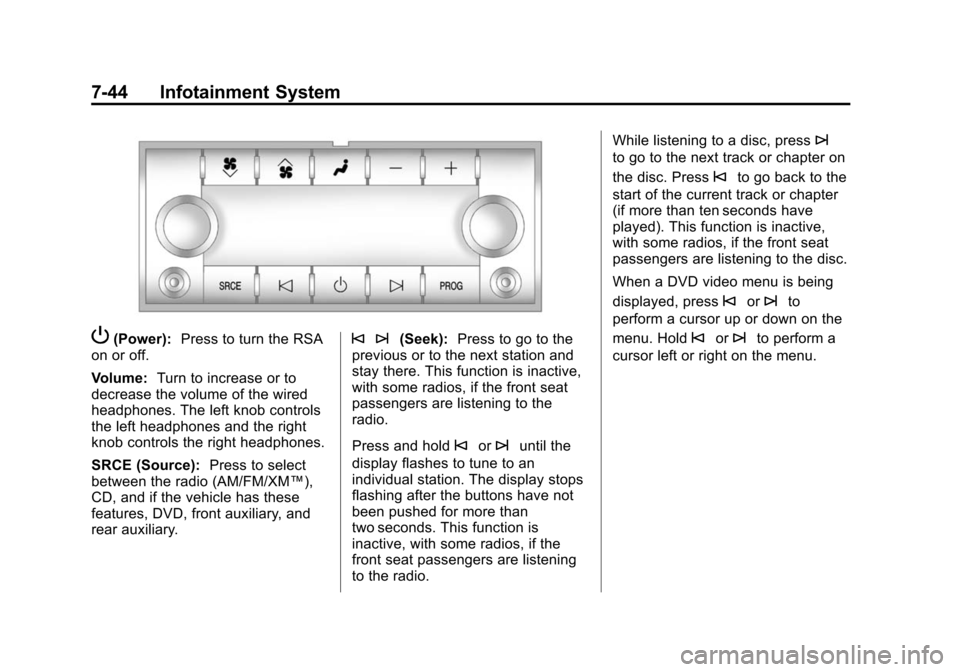
7-44 Infotainment System
P(Power):Press to turn the RSA
on or off.
Volume: Turn to increase or to
decrease the volume of the wired
headphones. The left knob controls
the left headphones and the right
knob controls the right headphones.
SRCE (Source): Press to select
between the radio (AM/FM/XM™),
CD, and if the vehicle has these
features, DVD, front auxiliary, and
rear auxiliary.© ¨(Seek): Press to go to the
previous or to the next station and
stay there. This function is inactive,
with some radios, if the front seat
passengers are listening to the
radio.
Press and hold
©or¨until the
display flashes to tune to an
individual station. The display stops
flashing after the buttons have not
been pushed for more than
two seconds. This function is
inactive, with some radios, if the
front seat passengers are listening
to the radio. While listening to a disc, press
¨
to go to the next track or chapter on
the disc. Press
©to go back to the
start of the current track or chapter
(if more than ten seconds have
played). This function is inactive,
with some radios, if the front seat
passengers are listening to the disc.
When a DVD video menu is being
displayed, press
©or¨to
perform a cursor up or down on the
menu. Hold
©or¨to perform a
cursor left or right on the menu.
Page 276 of 448
9-24 Driving and Operating
the shift lever button before shifting
from P (Park) when the ignition key
is in ON/RUN. If you cannot shift out
of P (Park), ease pressure on the
shift lever, then push the shift lever
all the way into P (Park) as you
maintain brake application. Then
press the shift lever button and
move the shift lever into another
gear. SeeShifting Out of Park
on
page 9‑21.
R (Reverse): Use this gear to
back up.
Notice: Shifting to R (Reverse)
while the vehicle is moving
forward could damage the
transmission. The repairs would
not be covered by the vehicle
warranty. Shift to R (Reverse) only
after the vehicle is stopped.
To rock the vehicle back and forth to
get out of snow, ice or sand without
damaging the transmission, see If
the Vehicle is Stuck on page 9‑11.
N (Neutral): In this position, the
engine does not connect with the
wheels. To restart the engine when the vehicle is already moving, use
N (Neutral) only. Also, use
N (Neutral) when the vehicle is
being towed.
{WARNING
Shifting into a drive gear while the
engine is running at high speed is
dangerous. Unless your foot is
firmly on the brake pedal, the
vehicle could move very rapidly.
You could lose control and hit
people or objects. Do not shift
into a drive gear while the engine
is running at high speed.
Notice: Shifting out of P (Park) or
N (Neutral) with the engine
running at high speed may
damage the transmission. The
repairs would not be covered by
the vehicle warranty. Be sure the
engine is not running at high
speed when shifting the vehicle. D (Drive):
This position is for
normal driving. It provides the best
fuel economy. If you need more
power for passing, and you are:
.Going less than 56 km/h
(35 mph), push the accelerator
pedal about halfway down.
.Going about 56 km/h (35 mph) or
more, push the accelerator all
the way down.
Notice: If the vehicle seems to
accelerate slowly or not shift
gears when you go faster, and
you continue to drive the vehicle
that way, you could damage the
transmission. Have the vehicle
serviced right away. You can
drive in L (Low) when you are
driving less than 56 km/h (35 mph)
and D (Drive) for higher speeds
until then.
If the vehicle is stopped on a hill,
with your foot off the brake pedal,
the vehicle may roll. This is normal
and is due to the torque converter
designed to improve fuel economy
Page 299 of 448
Driving and Operating 9-47
Tow/Haul Mode
Tow/Haul assists when pulling a
heavy trailer or a large or heavy
load. The purpose of the Tow/Haul
mode is to:
.Reduce the frequency and
improve the predictability of
transmission shifts.
.Provide the same solid shift feel
as when the vehicle is unloaded.
.Improve control of vehicle speed
while requiring less throttle pedal
activity.
.Increase the charging system
voltage to assist in recharging a
battery installed in a trailer.
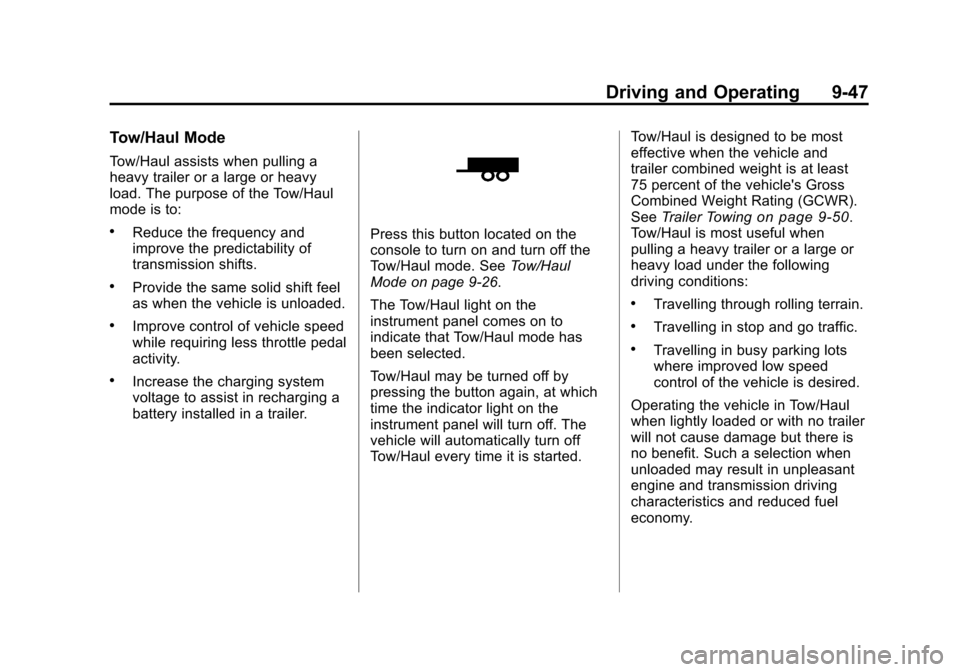
Press this button located on the
console to turn on and turn off the
Tow/Haul mode. SeeTow/Haul
Mode on page 9‑26.
The Tow/Haul light on the
instrument panel comes on to
indicate that Tow/Haul mode has
been selected.
Tow/Haul may be turned off by
pressing the button again, at which
time the indicator light on the
instrument panel will turn off. The
vehicle will automatically turn off
Tow/Haul every time it is started. Tow/Haul is designed to be most
effective when the vehicle and
trailer combined weight is at least
75 percent of the vehicle's Gross
Combined Weight Rating (GCWR).
See
Trailer Towing
on page 9‑50.
Tow/Haul is most useful when
pulling a heavy trailer or a large or
heavy load under the following
driving conditions:
.Travelling through rolling terrain.
.Travelling in stop and go traffic.
.Travelling in busy parking lots
where improved low speed
control of the vehicle is desired.
Operating the vehicle in Tow/Haul
when lightly loaded or with no trailer
will not cause damage but there is
no benefit. Such a selection when
unloaded may result in unpleasant
engine and transmission driving
characteristics and reduced fuel
economy.
Page 353 of 448
Vehicle Care 10-45
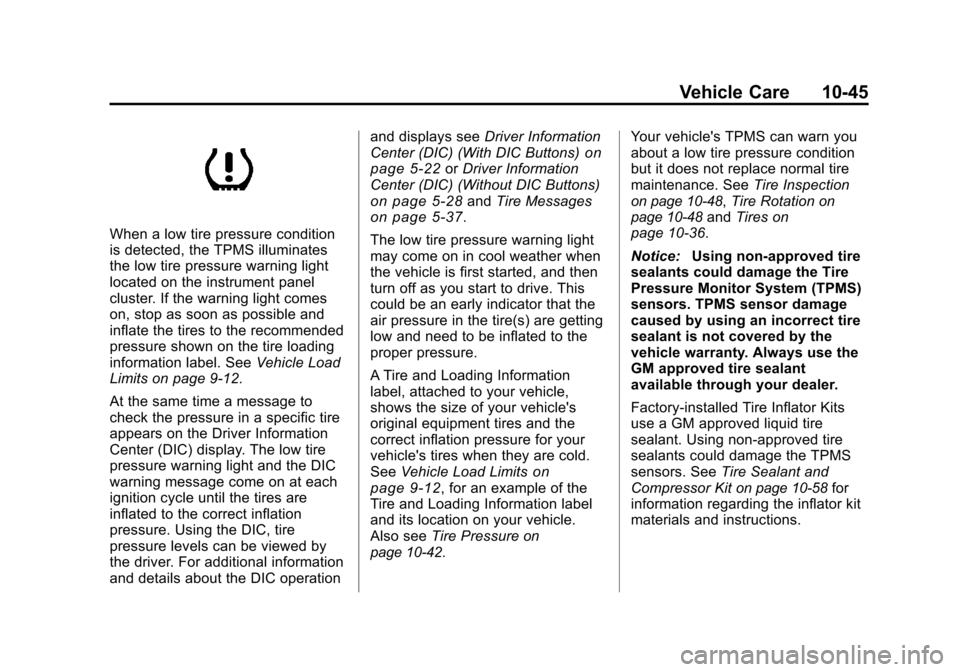
When a low tire pressure condition
is detected, the TPMS illuminates
the low tire pressure warning light
located on the instrument panel
cluster. If the warning light comes
on, stop as soon as possible and
inflate the tires to the recommended
pressure shown on the tire loading
information label. SeeVehicle Load
Limits on page 9‑12.
At the same time a message to
check the pressure in a specific tire
appears on the Driver Information
Center (DIC) display. The low tire
pressure warning light and the DIC
warning message come on at each
ignition cycle until the tires are
inflated to the correct inflation
pressure. Using the DIC, tire
pressure levels can be viewed by
the driver. For additional information
and details about the DIC operation and displays see
Driver Information
Center (DIC) (With DIC Buttons)
on
page 5‑22or Driver Information
Center (DIC) (Without DIC Buttons)
on page 5‑28and Tire Messageson page 5‑37.
The low tire pressure warning light
may come on in cool weather when
the vehicle is first started, and then
turn off as you start to drive. This
could be an early indicator that the
air pressure in the tire(s) are getting
low and need to be inflated to the
proper pressure.
A Tire and Loading Information
label, attached to your vehicle,
shows the size of your vehicle's
original equipment tires and the
correct inflation pressure for your
vehicle's tires when they are cold.
See Vehicle Load Limits
on
page 9‑12, for an example of the
Tire and Loading Information label
and its location on your vehicle.
Also see Tire Pressure
on
page 10‑42. Your vehicle's TPMS can warn you
about a low tire pressure condition
but it does not replace normal tire
maintenance. See
Tire Inspection
on page 10‑48,Tire Rotationon
page 10‑48and Tires on
page 10‑36.
Notice: Using non‐approved tire
sealants could damage the Tire
Pressure Monitor System (TPMS)
sensors. TPMS sensor damage
caused by using an incorrect tire
sealant is not covered by the
vehicle warranty. Always use the
GM approved tire sealant
available through your dealer.
Factory-installed Tire Inflator Kits
use a GM approved liquid tire
sealant. Using non-approved tire
sealants could damage the TPMS
sensors. See Tire Sealant and
Compressor Kit
on page 10‑58for
information regarding the inflator kit
materials and instructions.
Page 355 of 448
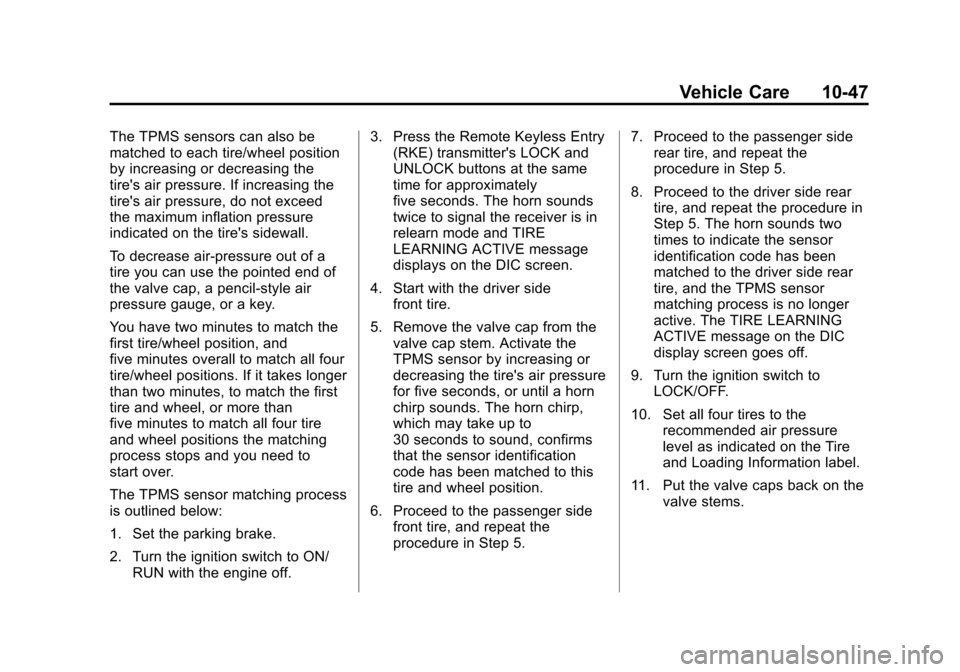
Vehicle Care 10-47
The TPMS sensors can also be
matched to each tire/wheel position
by increasing or decreasing the
tire's air pressure. If increasing the
tire's air pressure, do not exceed
the maximum inflation pressure
indicated on the tire's sidewall.
To decrease air-pressure out of a
tire you can use the pointed end of
the valve cap, a pencil-style air
pressure gauge, or a key.
You have two minutes to match the
first tire/wheel position, and
five minutes overall to match all four
tire/wheel positions. If it takes longer
than two minutes, to match the first
tire and wheel, or more than
five minutes to match all four tire
and wheel positions the matching
process stops and you need to
start over.
The TPMS sensor matching process
is outlined below:
1. Set the parking brake.
2. Turn the ignition switch to ON/RUN with the engine off. 3. Press the Remote Keyless Entry
(RKE) transmitter's LOCK and
UNLOCK buttons at the same
time for approximately
five seconds. The horn sounds
twice to signal the receiver is in
relearn mode and TIRE
LEARNING ACTIVE message
displays on the DIC screen.
4. Start with the driver side front tire.
5. Remove the valve cap from the valve cap stem. Activate the
TPMS sensor by increasing or
decreasing the tire's air pressure
for five seconds, or until a horn
chirp sounds. The horn chirp,
which may take up to
30 seconds to sound, confirms
that the sensor identification
code has been matched to this
tire and wheel position.
6. Proceed to the passenger side front tire, and repeat the
procedure in Step 5. 7. Proceed to the passenger side
rear tire, and repeat the
procedure in Step 5.
8. Proceed to the driver side rear tire, and repeat the procedure in
Step 5. The horn sounds two
times to indicate the sensor
identification code has been
matched to the driver side rear
tire, and the TPMS sensor
matching process is no longer
active. The TIRE LEARNING
ACTIVE message on the DIC
display screen goes off.
9. Turn the ignition switch to LOCK/OFF.
10. Set all four tires to the recommended air pressure
level as indicated on the Tire
and Loading Information label.
11. Put the valve caps back on the valve stems.