lock CHEVROLET TRAVERSE 2010 1.G Manual PDF
[x] Cancel search | Manufacturer: CHEVROLET, Model Year: 2010, Model line: TRAVERSE, Model: CHEVROLET TRAVERSE 2010 1.GPages: 448, PDF Size: 6.96 MB
Page 196 of 448
7-10 Infotainment System
4. Press FAV, or let the menu timeout, to return to the original main
radio screen showing the radio
station frequency tabs and to
begin the process of
programming favorites for the
chosen amount of numbered
pages.
XM™ Radio Messages
XL (Explicit Language
Channels): These channels, or any
others, can be blocked at a
customer's request, by calling
1-800-852-XMXM (9696).
XM Updating: The encryption code
in the receiver is being updated, and
no action is required. This process
should take no longer than
30 seconds.
No XM Signal: The system is
functioning correctly, but the vehicle
is in a location that is blocking the
XM™ signal. When the vehicle is
moved into an open area, the signal
should return. Loading XM:
The audio system is
acquiring and processing audio and
text data. No action is needed. This
message should disappear shortly.
Channel Off Air: This channel is
not currently in service. Tune in to
another channel.
Channel Unauth : This channel is
blocked or cannot be received with
your XM Subscription package.
Channel Unavail: This previously
assigned channel is no longer
assigned. Tune to another station.
If this station was one of the
presets, choose another station for
that preset button.
No Artist Info: No artist
information is available at this time
on this channel. The system is
working properly.
No Title Info: No song title
information is available at this time
on this channel. The system is
working properly. No CAT Info:
No category
information is available at this time
on this channel. The system is
working properly.
No Information: No text or
informational messages are
available at this time on this
channel. The system is working
properly.
CAT Not Found: There are no
channels available for the selected
category. The system is working
properly.
XM Theftlocked: The XM receiver
in the vehicle could have previously
been in another vehicle. For security
purposes, XM receivers cannot be
swapped between vehicles. If this
message is received after having
the vehicle serviced, check with
your dealer.
XM Radio ID: If tuned to channel 0,
this message alternates with the
XM™ Radio 8 digit radio ID label.
This label is needed to activate the
service.
Page 204 of 448
7-18 Infotainment System
Using the DVD Player
The DVD player can be controlled
by the buttons on the remote
control, the RSA system, or by the
buttons on the radio faceplate. See
“Remote Control”, underRear Seat
Entertainment (RSE) System
on
page 7‑35and Rear Seat Audio
(RSA) Systemon page 7‑43for
more information.
The DVD player is only compatible
with DVDs of the appropriate region
code that is printed on the jacket of
most DVDs.
The DVD slot of the radio is
compatible with most audio CDs,
CD-R, CD-RW, DVD-Video,
DVD-Audio, DVD-R/RW, DVD+R/
RW media along with MP3 and
WMA formats.
If an error message displays on the
video screen or the radio, see “DVD
Display Error Messages” under,
Rear Seat Entertainment (RSE)
System
on page 7‑35and “DVD
Radio Error Messages” in this
section for more information. Playing a DVD
f(Tune):
Turn to change tracks on
a CD or DVD, to manually tune a
radio station, or to change clock or
date settings, while in the clock or
date setting mode. See the
information given earlier in this
section specific to the radio, CD,
and the DVD. Also, see “Setting the
Clock” in the index, for setting the
clock and date.
©SEEK (Previous Track/
Chapter): Press to return to the
start of the current track or chapter.
Press
©again to go to the
previous track or chapter. This
button may not work when the DVD
is playing the copyright information
or the previews.
SEEK
¨(Next Track/Chapter):
Press to go to the next track or
chapter. This button may not work
when the DVD is playing the
copyright information or the
previews.
sREV (Fast Reverse): Press to
quickly reverse the DVD at
five times the normal speed. The
radio displays the elapsed time
while in fast reverse. To stop fast
reversing, press again. This button
may not work when the DVD is
playing the copyright information or
the previews.
\FWD (Fast Forward): Press to
fast forward the DVD. The radio
displays the elapsed time and fast
forwards five times the normal
speed. To stop fast forwarding,
press again. This button may not
work when the DVD is playing the
copyright information or the
previews.
Z(Eject): Press to eject a DVD.
If the DVD is ejected, but not
removed, the player automatically
pulls it back in after 15 seconds.
If loading and reading of a DVD
cannot be completed, because of an
unknown format, etc., and the disc
Page 220 of 448
7-34 Infotainment System
To use an auxiliary input device,
connect a 3.5 mm (1/8 in) cable to
the radio's front auxiliary input jack.
O(Power/Volume):Turn
clockwise or counterclockwise to
increase or decrease the volume of
the portable player. Additional
volume adjustments might have to
be made from the portable device if
the volume is not loud or soft
enough.
BAND: Press to listen to the radio
when a portable audio device is
playing. The portable audio device
continues playing, so you might
want to stop it or turn it off.
CD/AUX (CD/Auxiliary): Press to
select between CD, or Auxiliary.
.When a CD is in the player the
CD icon and a message
showing the disc and/or track
number displays.
.If an auxiliary input device is not
connected, “No Input Device
Found” displays. DVD/CD AUX (Auxiliary):
Press to
select between DVD, CD,
or Auxiliary.
.If an auxiliary input device is not
connected, “No Aux Input
Device” displays.
.When a disc is in either slot, the
DVD/CD text tab and a message
showing the track or chapter
number displays.
.If an auxiliary input device is not
connected, and a disc is in both
the DVD slot and the CD slot the
DVD/CD AUX button only cycles
between the two sources and
does not indicate “No Aux Input
Device”.
.If a front auxiliary input device is
connected, the DVD/CD AUX
button cycles through all
available options.
If a disc is inserted into top DVD
slot, the rear seat operator can turn
on the video screen and use the remote control to only navigate the
CD tracks through the remote
control.
See
“Using the Auxiliary Input
Jack(s)” later in this section,
or “Audio/Video (A/V) Jacks” under,
Rear Seat Entertainment (RSE)
System
on page 7‑35for more
information.
Using the USB Port
For vehicles with a USB port, the
connector is located in the center
console.
Radios with a USB port can control
a USB storage device or an iPod
®
using the radio buttons and knobs.
See MP3 (Radio with CD and Radio
with CD/USB)
on page 7‑21or
MP3 (Radio with CD/DVD)on
page 7‑27for information about
how to connect and control a USB
storage device or an iPod.
Page 221 of 448
Infotainment System 7-35
USB Supported Devices
.USB Flash Drives
.Portable USB Hard Drives
.Fifth generation or later iPod
.iPod nanos
.iPod touch
.iPod classic
Not all iPods and USB Drives are
compatible with the USB port.
Make sure the iPod has the latest
firmware from Apple
®for proper
operation. iPod firmware can be
updated using the latest iTunes
®
application. See www.apple.com/
itunes.
For help with identifying your iPod,
go to www.apple.com/support.
Rear Seat
Infotainment
Rear Seat Entertainment
(RSE) System
The vehicle may have a DVD Rear
Seat Entertainment (RSE) system.
The RSE system works with the
vehicle's audio system. The DVD
player is part of the front radio. The
RSE system includes a radio with a
DVD player, a video display screen,
audio/video jacks, two wireless
headphones, and a remote control.
See Operation
on page 7‑2for
more information on the vehicle's
audio/DVD system.
Before Driving
The RSE is designed for rear seat
passengers only. The driver cannot
safely view the video screen while
driving and should not try to do so. In severe or extreme weather
conditions the RSE system might or
might not work until the temperature
is within the operating range. The
operating range for the RSE system
is above
−4°F (−20°C) or below
140°F (60°C). If the temperature of
the vehicle is outside of this range,
heat or cool the vehicle until the
temperature is within the operating
range of the RSE system.
Parental Control
The RSE system may have a
Parental Control feature, depending
on the radio. To enable Parental
Control, press and hold the radio
power button for more than
two seconds to stop all system
features such as: radio, video
screen, RSA, DVD and/or CD. While
Parental Control is on,
Qdisplays.
When the radio is turned back on,
Parental Control is unlocked.
Page 224 of 448
7-38 Infotainment System
How to Change the RSE Video
Screen Settings
The screen display mode (normal,
full, and zoom), screen brightness,
and setup menu language can be
changed from the on screen setup
menu by using the remote control.
To change a setting:
1. Press
z.
2. Use
n,q,p,oandrto
navigate and use the
setup menu.
3. Press
zagain to remove the
setup menu from the screen.
Audio Output
Audio from the DVD player or
auxiliary inputs can be heard
through the following sources:
.Wireless Headphones
.Vehicle Speakers
.Vehicle wired headphone jacks
on the rear seat audio system,
if the vehicle has this feature. The RSE system always transmits
the audio signal to the wireless
headphones, if there is audio
available. See
“Headphones” earlier
in this section for more information.
The DVD player is capable of
outputting audio to the wired
headphone jacks on the RSA
system, if the vehicle has this
feature. The DVD player can be
selected as an audio source on the
RSA system. See Rear Seat Audio
(RSA) System
on page 7‑43for
more information.
When a device is connected to the
A/V jacks, or the radio's auxiliary
input jack, if the vehicle has this
feature, the rear seat passengers
are able to hear audio from the
auxiliary device through the wireless
or wired headphones. The front seat
passengers are able to listen to
playback from this device through
the vehicle speakers by selecting
AUX as the source on the radio.
Video Screen
The video screen is located in the
overhead console. When the video
screen is not in use, push it up into
its locked position.
To use the video screen:
1. Push the release button located on the overhead console.
2. Move the screen to the desired position.
If a DVD is playing and the screen
is raised to its locked position, the
screen remains on; this is normal,
and the DVD continues to play
through the previous audio source.
Press
Pon the remote control or
eject the disc to turn off the screen.
The infrared receivers for the
wireless headphones and the
remote control are located at the
rear of the overhead console.
Page 225 of 448
Infotainment System 7-39
Notice:Avoid directly touching
the video screen, as damage may
occur. See “Cleaning the Video
Screen” later in this section for
more information.
Remote Control
To use the remote control, aim it at
the transmitter window at the rear of
the overhead console and press the
desired button. Direct sunlight or
very bright light could affect the
ability of the RSE transmitter to
receive signals from the remote
control. If the remote control does
not seem to be working, the
batteries might need to be replaced.
See “Battery Replacement” later in
this section. Objects blocking the
line of sight could also affect the
function of the remote control.
If a CD or DVD is in the Radio DVD
slot, the remote control
Obutton
can be used to turn on the video
screen display and start the disc.
The radio can also turn on the video
screen display. See Operation
on
page 7‑2for more information. Notice:
Storing the remote
control in a hot area or in direct
sunlight can damage it, and the
repairs will not be covered by the
warranty. Storage in extreme cold
can weaken the batteries. Keep
the remote control stored in a
cool, dry place.
Remote Control Buttons
O(Power): Press to turn the
video screen on and off.
P(Illumination): Press to turn the
remote control backlight on. The
backlight automatically times out
after seven to ten seconds if no
other button is pressed while the
backlight is on.
v(Title): Press to return the DVD
to the main menu of the DVD. This
function could vary for each disc.
y(Main Menu): Press to access
the DVD menu. The DVD menu is
different on every DVD. Use the
navigation arrows to move the
cursor around the DVD menu. After making a selection press the enter
button. This button only operates
when using a DVD.
n,q,p,o(Menu Navigation
Arrows): Use the arrow buttons to
navigate through a menu.
r(Enter): Press to select the
choice that is highlighted in
any menu.
z(Display Menu): Press to adjust
the brightness, screen display mode
(normal, full, or zoom), and display
the language menu.
q(Return): Press to exit the
current active menu and return to
the previous menu. This button
operates only when the display
menu or a DVD menu is active.
c(Stop): Press to stop playing,
rewinding, or fast forwarding a DVD.
Press twice to return to the
beginning of the DVD.
s(Play/Pause): Press to start
playing a DVD. Press while a DVD
is playing to pause it. Press again to
continue playing the DVD.
Page 241 of 448
Climate Controls 8-1
Climate Controls
Climate Control Systems
Climate Control Systems . . . . . . 8-1
Dual Automatic Climate ControlSystem . . . . . . . . . . . . . . . . . . . . . . 8-4
Rear Climate Control System (Rear Climate
Control Only) . . . . . . . . . . . . . . . 8-10
Rear Climate Control System (Rear Climate with Rear Seat
Audio) . . . . . . . . . . . . . . . . . . . . . . 8-11
Air Vents
Air Vents . . . . . . . . . . . . . . . . . . . . . 8-12
Climate Control Systems
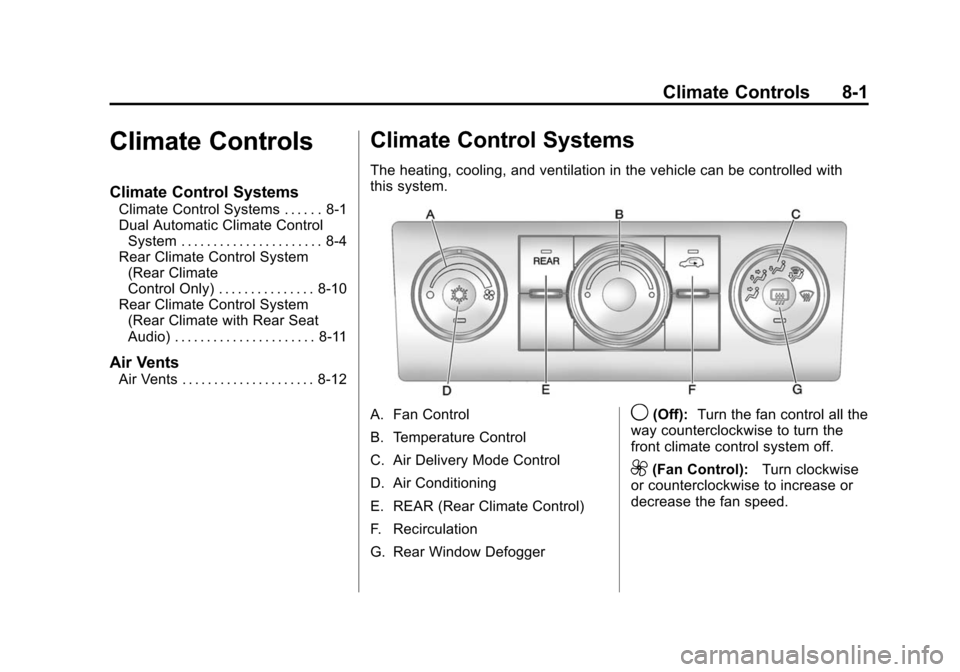
The heating, cooling, and ventilation in the vehicle can be controlled with
this system.
A. Fan Control
B. Temperature Control
C. Air Delivery Mode Control
D. Air Conditioning
E. REAR (Rear Climate Control)
F. Recirculation
G. Rear Window Defogger9(Off): Turn the fan control all the
way counterclockwise to turn the
front climate control system off.
9(Fan Control): Turn clockwise
or counterclockwise to increase or
decrease the fan speed.
Page 242 of 448
8-2 Climate Controls
Temperature Control:Turn
clockwise or counterclockwise to
increase or decrease the
temperature of the air flowing from
the system.
Air Delivery Mode Control: Turn
clockwise or counterclockwise to
change the current airflow mode.
By positioning the right knob
between two modes, a combination
of those two modes is selected.
H(Vent): Air is directed to the
instrument panel outlets.
)(Bi-Level): Air is divided
between the instrument panel and
floor outlets. Some air is directed
towards the windshield and side
window outlets. Cooler air is
directed to the upper outlets and
warmer air to the floor outlets.
6(Floor): Air is directed to the
floor outlets, with some of the air
directed to the windshield, side
window, and second row floor
outlets. In this mode, the system automatically selects outside air.
Recirculation cannot be selected
while in floor mode.
-(Defog):
This clears the
windows of fog or moisture. Air is
directed to the windshield, floor
outlets, and side window vents.
When this mode is selected, the
system turns off recirculation and
runs the air conditioning unless the
outside temperature is less than 4°C
(40°F). Recirculation cannot be
selected while in the defog mode.
Do not drive the vehicle until all the
windows are clear.
0(Defrost): This clears the
windshield of fog or frost, more
quickly. Air is directed to the
windshield and side window vents,
with some to the floor vents. In this
mode, outside air is pulled inside
the vehicle. Recirculation cannot be
selected while in the defrost mode.
The air conditioning system runs
automatically in this setting, unless
the outside temperature is less than
4°C (40°F). Do not drive the vehicle
until all the windows are clear.
#(Air Conditioning): Press to
turn the air conditioning system on
or off. An indicator light comes on
when A/C is on. The air conditioning
system does not operate when the
outside temperature is below 4°C
(40°F). The indicator light flashes
three times and turns off when
outside conditions affect air
conditioning operation. This is
normal.
For quicker cool down on hot days:
1. Open the windows to let hot air escape.
2. Select
Hmode.
3. Select
#.
4. Select the coolest temperature.
5. Select the highest fan speed.
6. Close the windows after the hot air has escaped.
7. Once the vehicle's interior temperature is below the outside
temperature, select
@mode
for faster cooling.
Page 250 of 448
8-10 Climate Controls
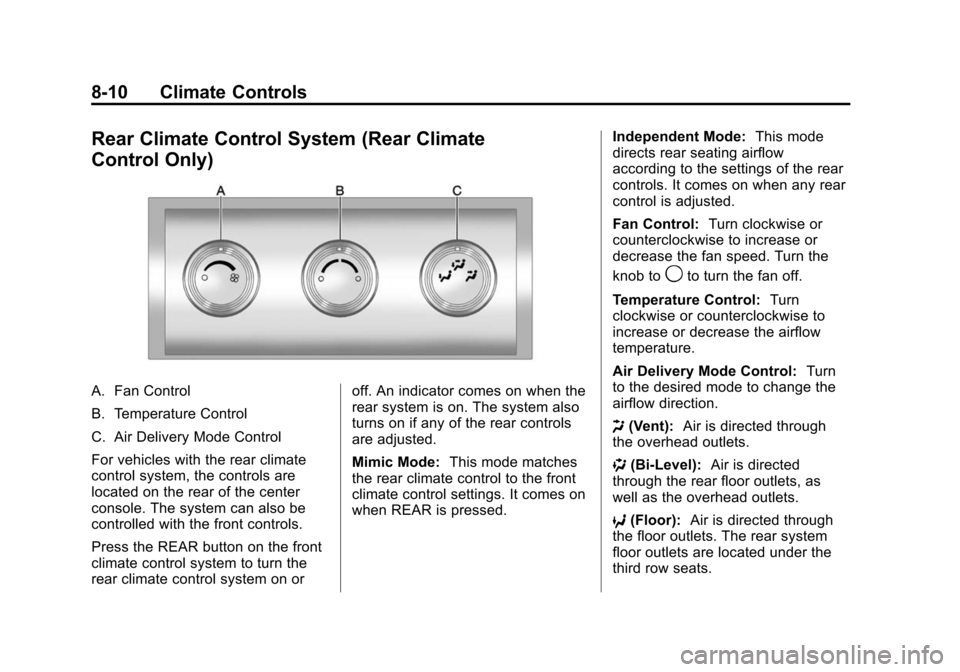
Rear Climate Control System (Rear Climate
Control Only)
A. Fan Control
B. Temperature Control
C. Air Delivery Mode Control
For vehicles with the rear climate
control system, the controls are
located on the rear of the center
console. The system can also be
controlled with the front controls.
Press the REAR button on the front
climate control system to turn the
rear climate control system on oroff. An indicator comes on when the
rear system is on. The system also
turns on if any of the rear controls
are adjusted.
Mimic Mode:
This mode matches
the rear climate control to the front
climate control settings. It comes on
when REAR is pressed. Independent Mode:
This mode
directs rear seating airflow
according to the settings of the rear
controls. It comes on when any rear
control is adjusted.
Fan Control: Turn clockwise or
counterclockwise to increase or
decrease the fan speed. Turn the
knob to
9to turn the fan off.
Temperature Control: Turn
clockwise or counterclockwise to
increase or decrease the airflow
temperature.
Air Delivery Mode Control: Turn
to the desired mode to change the
airflow direction.
H (Vent): Air is directed through
the overhead outlets.
) (Bi-Level): Air is directed
through the rear floor outlets, as
well as the overhead outlets.
6 (Floor): Air is directed through
the floor outlets. The rear system
floor outlets are located under the
third row seats.
Page 252 of 448
8-12 Climate Controls
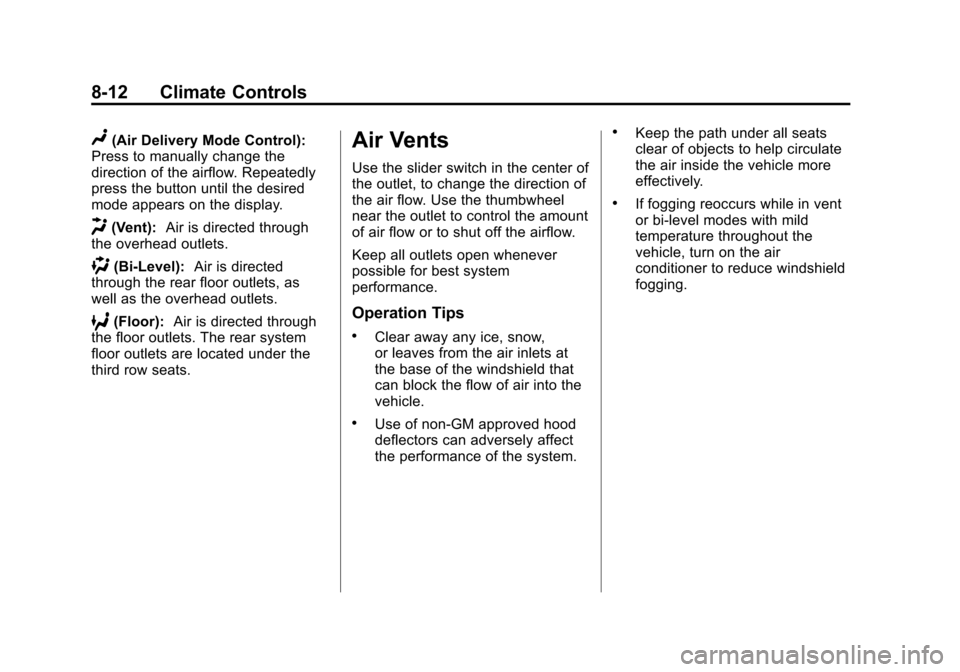
N(Air Delivery Mode Control):
Press to manually change the
direction of the airflow. Repeatedly
press the button until the desired
mode appears on the display.
H(Vent): Air is directed through
the overhead outlets.
)(Bi-Level): Air is directed
through the rear floor outlets, as
well as the overhead outlets.
6(Floor): Air is directed through
the floor outlets. The rear system
floor outlets are located under the
third row seats.
Air Vents
Use the slider switch in the center of
the outlet, to change the direction of
the air flow. Use the thumbwheel
near the outlet to control the amount
of air flow or to shut off the airflow.
Keep all outlets open whenever
possible for best system
performance.
Operation Tips
.Clear away any ice, snow,
or leaves from the air inlets at
the base of the windshield that
can block the flow of air into the
vehicle.
.Use of non-GM approved hood
deflectors can adversely affect
the performance of the system.
.Keep the path under all seats
clear of objects to help circulate
the air inside the vehicle more
effectively.
.If fogging reoccurs while in vent
or bi-level modes with mild
temperature throughout the
vehicle, turn on the air
conditioner to reduce windshield
fogging.