buttons CHEVROLET TRAVERSE 2011 1.G Owner's Manual
[x] Cancel search | Manufacturer: CHEVROLET, Model Year: 2011, Model line: TRAVERSE, Model: CHEVROLET TRAVERSE 2011 1.GPages: 454, PDF Size: 6.56 MB
Page 134 of 454
Black plate (6,1)Chevrolet Traverse Owner Manual - 2011
5-6 Instruments and Controls
Rear Window Wiper/
Washer
The rear wiper and rear wash button
is located on the instrument panel
below the climate control system.
Z(Rear Wiper): Press to turn the
rear wiper on and off. The wiper
speed cannot be changed.
Y (Wash): Press to spray washer
fluid on the rear window. The
window wiper will also come on.
Release the button when enough
fluid has been sprayed on the
window. The rear wiper will run a
few more cycles after it is released.
If the rear wiper function was
already on, prior to pressing the
wash button, it stays on until the
wiper button is pressed again.
The rear window washer uses the
same fluid that is in the windshield
washer reservoir. See Washer Fluid
on page 10‑22.
Compass
Your vehicle may have a compass
in the Driver Information Center
(DIC). SeeDriver Information
Center (DIC) (With DIC Buttons)
on
page 5‑24or Driver Information
Center (DIC) (Without DIC Buttons)
on page 5‑29for more information
about the DIC.
Compass Zone
The zone is set to zone eight upon
leaving the factory. Your dealer will
set the correct zone for your
location.
Under certain circumstances, such
as during a long distance
cross-country trip or moving to a
new state or province, it will be
necessary to compensate for
compass variance by resetting the
zone through the DIC if the zone is
not set correctly. Compass variance is the difference
between the earth's magnetic north
and true geographic north. If the
compass is not set to the zone
where you live, the compass may
give false readings. The compass
must be set to the variance zone in
which the vehicle is traveling.
To adjust for compass variance, use
the following procedure:
Compass Variance (Zone)
Procedure
1. Do not set the compass zone
when the vehicle is moving.
Only set it when the vehicle is
in P (Park).
Press the vehicle information
button until PRESS
VTO
CHANGE COMPASS ZONE
displays.
Page 152 of 454
Black plate (24,1)Chevrolet Traverse Owner Manual - 2011
5-24 Instruments and Controls
Information Displays
Driver Information Center
(DIC) (With DIC Buttons)
If your vehicle has DIC buttons, the
information below explains the
operation of this system.
The DIC displays information about
your vehicle. It also displays
warning messages if a system
problem is detected.
All messages will appear in the
DIC display located at the top of
the instrument panel cluster.
The DIC comes on when the ignition
is on. After a short delay, the DIC
will display the information that was
last displayed before the engine
was turned off.
The DIC also displays a shift lever
position indicator on the bottom line
of the display. SeeAutomatic
Transmission
on page 9‑24for
more information. The outside air temperature and
compass, if equipped, also display
on the DIC when viewing the trip
and fuel information. The outside air
temperature automatically appears
in the top right corner of the
DIC display. If there is a problem
with the system that controls the
temperature display, the numbers
will be replaced with dashes. If this
occurs, have the vehicle serviced.
The compass will be shown in
the bottom right corner of the
DIC display. See
Compass
on
page 5‑6for more information.
The DIC has different displays
which can be accessed by pressing
the DIC buttons located on the
instrument panel.
The DIC also allows some features
to be customized. See Vehicle
Personalization (With DIC Buttons)
on page 5‑41for more information.
If your vehicle has DIC buttons, you
can also use the trip odometer reset
stem to view the odometer and trip
odometers. DIC Buttons
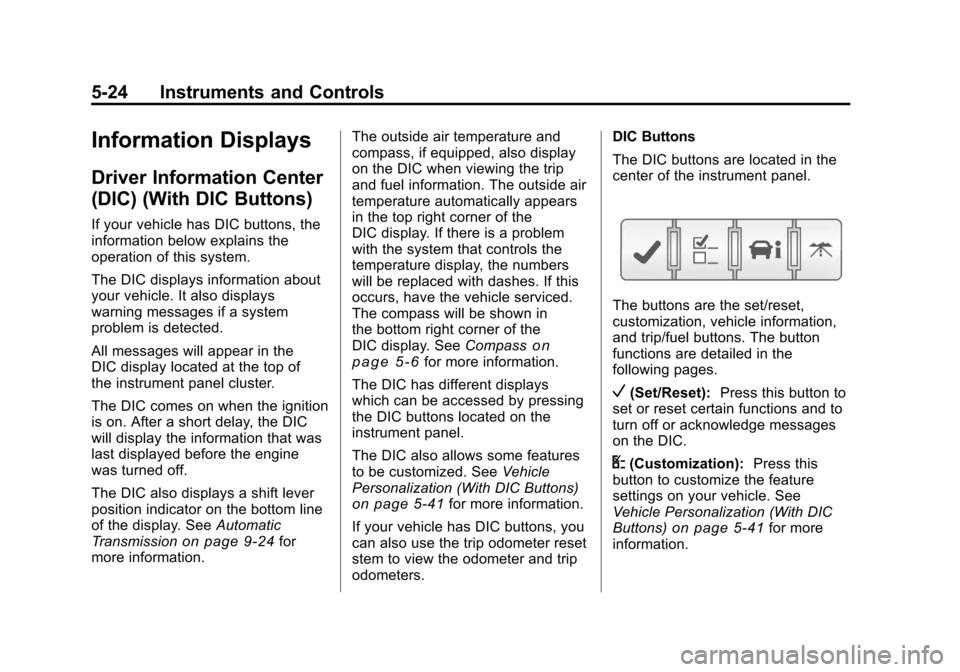
The DIC buttons are located in the
center of the instrument panel.
The buttons are the set/reset,
customization, vehicle information,
and trip/fuel buttons. The button
functions are detailed in the
following pages.
V(Set/Reset):
Press this button to
set or reset certain functions and to
turn off or acknowledge messages
on the DIC.
U(Customization): Press this
button to customize the feature
settings on your vehicle. See
Vehicle Personalization (With DIC
Buttons)
on page 5‑41for more
information.
Page 157 of 454
Black plate (29,1)Chevrolet Traverse Owner Manual - 2011
Instruments and Controls 5-29
Driver Information
Center (DIC)
(Without DIC Buttons)
If your vehicle does not have
DIC buttons, the information below
explains the operation of this
system.
The DIC has different displays
which can be accessed by pressing
the trip odometer reset stem located
on the instrument panel cluster.
Pressing the trip odometer reset
stem will also turn off,
or acknowledge, DIC messages.
The DIC displays trip and vehicle
system information, and warning
messages if a system problem is
detected.
If your vehicle does not have
DIC buttons, you can use the trip
odometer reset stem to view the
following displays: odometer, trip
odometers, oil life, park assist menu
for vehicles with the Ultrasonic Rear
Parking Assist (URPA) system,
units, and display language.If your vehicle has DIC buttons, you
can use the trip odometer reset
stem to view the following displays:
odometer and trip odometers.Trip Odometer Reset Stem
Menu Items
ODOMETER
Press the trip odometer reset stem
until ODOMETER displays. This
display shows the distance the
vehicle has been driven in either
kilometers (km) or miles (mi).
To switch between English and
metric measurements, see
“UNITS”
later in this section.
TRIP A or TRIP B
Press the trip odometer reset stem
until TRIP A or TRIP B displays. This
display shows the current distance
traveled in either kilometers (km) or
miles (mi) since the last reset for
each trip odometer. Both trip
odometers can be used at the
same time. Each trip odometer can be reset to
zero separately by pressing and
holding the trip odometer reset stem
while the desired trip odometer is
displayed.
The trip odometer has a feature
called the retro-active reset. This
can be used to set the trip odometer
to the number of kilometers (miles)
driven since the ignition was last
turned on. This can be used if the
trip odometer is not reset at the
beginning of the trip.
To use the retro-active reset feature,
press and hold the trip odometer
reset stem for at least four seconds.
The trip odometer will display the
number of kilometers (km) or
miles (mi) driven since the ignition
was last turned on and the vehicle
was moving. Once the vehicle
begins moving, the trip odometer
will accumulate mileage. For
example, if the vehicle was driven
8 km (5 miles) before it is started
again, and then the retro-active
reset feature is activated, the
display will show 8 km (5 miles).
Page 159 of 454
Black plate (31,1)Chevrolet Traverse Owner Manual - 2011
Instruments and Controls 5-31
UNITS
To access this display, the vehicle
must be in P (Park). Press the trip
odometer reset stem until UNITS
displays. This display allows you to
select between Metric or English
units of measurement. Once in this
display, press and hold the trip
odometer reset stem to select
between METRIC or ENGLISH
units. All of the vehicle information
will then be displayed in the unit of
measurement selected.DISPLAY LANGUAGE
To access this display, the vehicle
must be in P (Park). This display
allows you to select the language in
which the DIC messages will
appear. To select a language:
1. Press the trip odometer reset
stem until DISPLAY LANGUAGE
displays.
2. Continue to press and hold the trip odometer reset stem to scroll
through all of the available
languages.
The available languages are
ENGLISH (default), FRANCAIS
(French), ESPANOL (Spanish),
and NO CHANGE.
3. Once the desired language is displayed, release the trip
odometer reset stem to set
your choice.Vehicle Messages
Messages are displayed on the DIC
to notify the driver that the status of
the vehicle has changed and that
some action may be needed by the
driver to correct the condition.
Multiple messages may appear one
after another.
Some messages may not require
immediate action, but you can press
any of the DIC buttons on the
instrument panel or the trip
odometer reset stem on the
instrument panel cluster to
acknowledge that you received the
messages and to clear them from
the display.
Some messages cannot be cleared
from the DIC display because they
are more urgent. These messages
require action before they can be
cleared. You should take any
messages that appear on the
display seriously and remember that
clearing the messages will only
make the messages disappear, not
correct the problem.
Page 166 of 454
Black plate (38,1)Chevrolet Traverse Owner Manual - 2011
5-38 Instruments and Controls
Service Vehicle Messages
SERVICE A/C
(Air Conditioning) SYSTEM
This message displays when the
electronic sensors that control the
air conditioning and heating
systems are no longer working.
Have the climate control system
serviced by your dealer if you notice
a drop in heating and air
conditioning efficiency.
SERVICE POWER STEERING
This message displays when a
problem is detected with the power
steering system. When this
message is displayed, you may
notice that the effort required to
steer the vehicle increases or feels
heavier, but you will still be able to
steer the vehicle. Have your vehicle
serviced by your dealer immediately.
SERVICE VEHICLE SOON
This message displays when a
non-emissions related malfunction
occurs. Have the vehicle serviced
by your dealer as soon as possible.
STARTING DISABLED
SERVICE THROTTLE
This message displays when your
vehicle's throttle system is not
functioning properly. Have your
vehicle serviced by your dealer.
Tire Messages
TIRE LOW ADD AIR TO TIRE
On vehicles with the Tire Pressure
Monitor System (TPMS), this
message displays when the
pressure in one or more of the
vehicle's tires is low.
This message also displays
LEFT FRT (left front), RIGHT FRT
(right front), LEFT RR (left rear),
or RIGHT RR (right rear) to indicate
the location of the low tire.The low tire pressure warning light
will also come on. See
Tire
Pressure Light on page 5‑21.
If a tire pressure message appears
on the DIC, stop as soon as you
can. Inflate the tires by adding air
until the tire pressure is equal to the
values shown on the Tire Loading
Information label. See Tires
on
page 10‑38, Vehicle Load Limitson
page 9‑12, and Tire Pressureon
page 10‑44.
You can receive more than one tire
pressure message at a time. To
read the other messages that may
have been sent at the same time,
press the set/reset button or the trip
odometer reset stem. The DIC also
shows the tire pressure values. See
Driver Information Center (DIC)
(With DIC Buttons)
on page 5‑24or
Driver Information Center (DIC)
(Without DIC Buttons)
on
page 5‑29.
Page 169 of 454
Black plate (41,1)Chevrolet Traverse Owner Manual - 2011
Instruments and Controls 5-41
Vehicle
Personalization
Vehicle Personalization
(With DIC Buttons)
Your vehicle may have
customization capabilities that allow
you to program certain features to
one preferred setting. Customization
features can only be programmed
to one setting on the vehicle and
cannot be programmed to a
preferred setting for two different
drivers.
All of the customization options may
not be available on your vehicle.
Only the options available will be
displayed on the DIC.
The default settings for the
customization features were set
when your vehicle left the factory,
but may have been changed from
their default state since then.The customization preferences are
automatically recalled.
To change customization
preferences, use the following
procedure.Entering the Feature
Settings Menu
1. Turn the ignition on and place
the vehicle in P (Park).
To avoid excessive drain on the
battery, it is recommended that
the headlamps are turned off.
2. Press the customization button to enter the feature
settings menu.
If the menu is not available,
FEATURE SETTINGS
AVAILABLE IN PARK will
display. Before entering the
menu, make sure the vehicle is
in P (Park).
Feature Settings Menu Items
The following are customization
features that allow you to program
settings to the vehicle:
DISPLAY IN ENGLISH
This feature will only display if a
language other than English has
been set. This feature allows you to
change the language in which the
DIC messages appear to English.
Press the customization button until
the PRESS
VTO DISPLAY IN
ENGLISH screen appears on the
DIC display. Press the set/reset
button once to display all DIC
messages in English.
DISPLAY LANGUAGE
This feature allows you to
select the language in which the
DIC messages will appear.
Page 170 of 454
Black plate (42,1)Chevrolet Traverse Owner Manual - 2011
5-42 Instruments and Controls
Press the customization button until
the DISPLAY LANGUAGE screen
appears on the DIC display. Press
the set/reset button once to access
the settings for this feature. Then
press the customization button to
scroll through the following settings:
ENGLISH (default):All messages
will appear in English.
FRANCAIS: All messages will
appear in French.
ESPANOL: All messages will
appear in Spanish.
NO CHANGE: No change will be
made to this feature. The current
setting will remain.
To select a setting, press the
set/reset button while the desired
setting is displayed on the DIC.
You can also change the language
by pressing the trip odometer reset
stem. See “Language” under Driver
Information Center (Without DIC
Buttons) earlier in this section for
more information. AUTO DOOR LOCK
This feature allows you to select
when the vehicle's doors will
automatically lock. See
Automatic
Door Locks
on page 2‑8for more
information.
Press the customization button until
AUTO DOOR LOCK appears on the
DIC display. Press the set/reset
button once to access the settings
for this feature. Then press the
customization button to scroll
through the following settings:
SHIFT OUT OF PARK (default):
The doors will automatically lock
when the vehicle is shifted out of
P (Park).
AT VEHICLE SPEED: The doors
will automatically lock when the
vehicle speed is above 13 km/h
(8 mph) for three seconds.
NO CHANGE: No change will be
made to this feature. The current
setting will remain. To select a setting, press the
set/reset button while the desired
setting is displayed on the DIC.
AUTO DOOR UNLOCK
This feature allows you to select
whether or not to turn off the
automatic door unlocking feature.
It also allows you to select which
doors and when the doors will
automatically unlock. See
Automatic
Door Locks
on page 2‑8for more
information.
Press the customization button until
AUTO DOOR UNLOCK appears on
the DIC display. Press the set/reset
button once to access the settings
for this feature. Then press the
customization button to scroll
through the following settings:
OFF: None of the doors will
automatically unlock.
Page 175 of 454
Black plate (47,1)Chevrolet Traverse Owner Manual - 2011
Instruments and Controls 5-47
Press the customization button until
EASY EXIT SEAT appears on the
DIC display. Press the set/reset
button once to access the settings
for this feature. Then press the
customization button to scroll
through the following settings:
OFF (default):No automatic seat
exit recall will occur.
ON: The driver's seat will move
back when the key is removed from
the ignition.
The automatic easy exit seat
movement will only occur one time
after the key is removed from the
ignition. If the automatic movement
has already occurred, and you put
the key back in the ignition and
remove it again, the seat and
steering column will stay in the
original exit position, unless a
memory recall took place prior to
removing the key again.
NO CHANGE: No change will be
made to this feature. The current
setting will remain. To select a setting, press the
set/reset button while the desired
setting is displayed on the DIC.
MEMORY SEAT RECALL
If your vehicle has this feature, it
allows you to select your preference
for the remote memory seat recall
feature. See
Delayed Locking
on
page 2‑8for more information.
Press the customization button until
MEMORY SEAT RECALL appears
on the DIC display. Press the
set/reset button once to access
the settings for this feature. Then
press the customization button to
scroll through the following settings:
OFF (default): No remote memory
seat recall will occur.
ON: The driver's seat and outside
mirrors will automatically move to
the stored driving position when the
unlock button on the Remote
Keyless Entry (RKE) transmitter is
pressed. See “Relearn Remote Key”
under Driver Information Center
(DIC) (With DIC Buttons)
on page 5‑24
or
Driver Information
Center (DIC) (Without DIC Buttons)
on page 5‑29for more information
on matching transmitters to driver ID
numbers.
NO CHANGE: No change will be
made to this feature. The current
setting will remain.
To select a setting, press the
set/reset button while the desired
setting is displayed on the DIC.
FACTORY SETTINGS
This feature allows you to set all of
the customization features back to
their factory default settings.
Press the customization button until
FACTORY SETTINGS appears on
the DIC display. Press the set/reset
button once to access the settings
for this feature. Then press the
customization button to scroll
through the following settings:
RESTORE ALL (default): The
customization features will be set to
their factory default settings.
Page 176 of 454
Black plate (48,1)Chevrolet Traverse Owner Manual - 2011
5-48 Instruments and Controls
DO NOT RESTORE:The
customization features will not be
set to their factory default settings.
To select a setting, press the set/
reset button while the desired
setting is displayed on the DIC.
EXIT FEATURE SETTINGS
This feature allows you to exit the
feature settings menu.
Press the customization button until
FEATURE SETTINGS PRESS
V
TO EXIT appears in the DIC display.
Press the set/reset button once to
exit the menu.
If you do not exit, pressing the
customization button again will
return you to the beginning of the
feature settings menu.
Exiting the Feature
Settings Menu
The feature settings menu will be
exited when any of the following
occurs:
.The vehicle is shifted out of
P (Park).
.The vehicle is no longer in
ON/RUN.
.The trip/fuel or vehicle
information DIC buttons are
pressed.
.The end of the feature settings
menu is reached and exited.
.A 40 second time period has
elapsed with no selection made.
Universal Remote
System
See Radio Frequency Statementon
page 13‑19for information regarding
Part 15 of the Federal
Communications Commission (FCC)
rules and Industry Canada
Standards RSS-210/220/310.
Universal Remote System
Programming
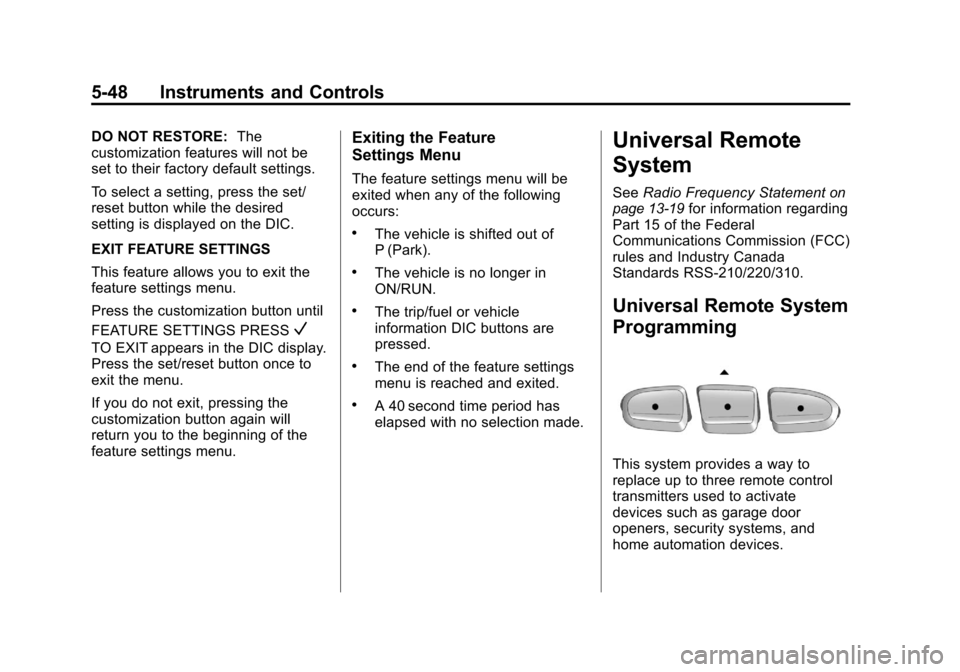
This system provides a way to
replace up to three remote control
transmitters used to activate
devices such as garage door
openers, security systems, and
home automation devices.
Page 177 of 454
Black plate (49,1)Chevrolet Traverse Owner Manual - 2011
Instruments and Controls 5-49
Do not use the Universal Home
Remote with any garage door
opener that does not have the stop
and reverse feature. This includes
any garage door opener model
manufactured before April 1, 1982.
Read the instructions completely
before attempting to program the
Universal Home Remote. Because
of the steps involved, it may be
helpful to have another person
available to assist you with
programming the Universal Home
Remote.
Keep the original hand-held
transmitter for use in other vehicles
as well as for future Universal Home
Remote programming. It is also
recommended that upon the sale of
the vehicle, the programmed
Universal Home Remote buttons
should be erased for security
purposes. See“Erasing Universal
Home Remote Buttons” later in this
section. When programming a garage door,
park outside of the garage. Park
directly in line with and facing the
garage door opener motor-head or
gate motor-head. Be sure that
people and objects are clear of the
garage door or gate that is being
programmed.
It is recommended that a new
battery be installed in your
hand-held transmitter for quicker
and more accurate transmission of
the radio-frequency signal.
Programming the Universal
Home Remote System
For questions or help programming
the Universal Home Remote
System, call 1‐800‐355‐3515 or go
to www.homelink.com.
Programming a garage door opener
involves time-sensitive actions, so
read the entire procedure before
starting. Otherwise, the device will
time out and the procedure will have
to be repeated.To program up to three devices:
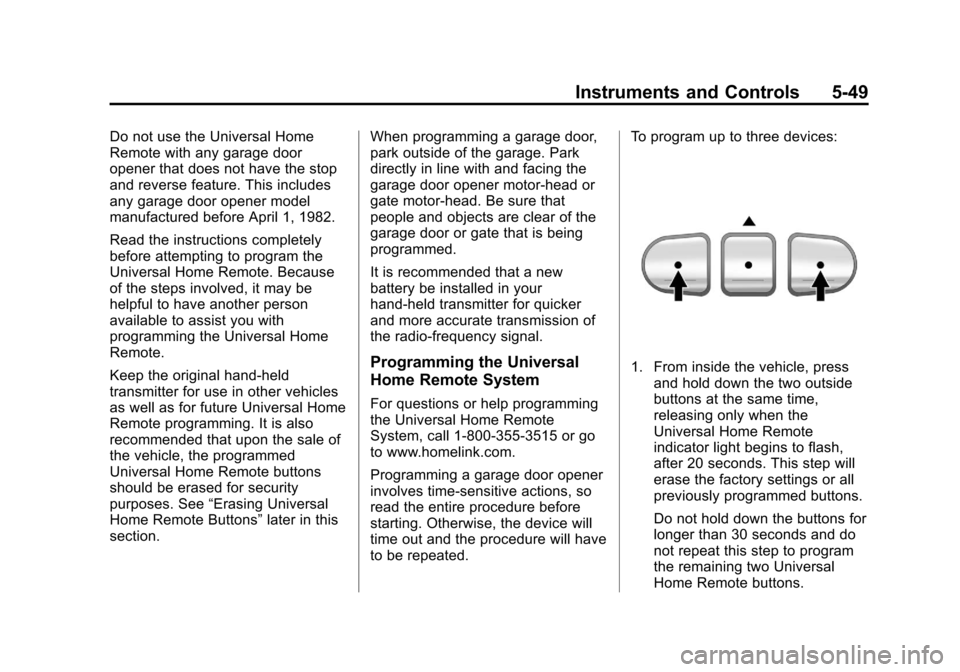
1. From inside the vehicle, press
and hold down the two outside
buttons at the same time,
releasing only when the
Universal Home Remote
indicator light begins to flash,
after 20 seconds. This step will
erase the factory settings or all
previously programmed buttons.
Do not hold down the buttons for
longer than 30 seconds and do
not repeat this step to program
the remaining two Universal
Home Remote buttons.