remote control CHEVROLET TRAVERSE 2011 1.G Owner's Manual
[x] Cancel search | Manufacturer: CHEVROLET, Model Year: 2011, Model line: TRAVERSE, Model: CHEVROLET TRAVERSE 2011 1.GPages: 454, PDF Size: 6.56 MB
Page 178 of 454
Black plate (50,1)Chevrolet Traverse Owner Manual - 2011
5-50 Instruments and Controls
2. Hold the end of your hand-heldtransmitter about 3 to 8 cm
(1 to 3 inches) away from the
Universal Home Remote buttons
while keeping the indicator light
in view. The hand-held
transmitter was supplied by the
manufacturer of your garage
door opener receiver (motor
head unit).
3. At the same time, press and hold both the Universal Home
Remote button to be used to
control the garage door and the
hand-held transmitter button. Do
not release the Universal Home
Remote button or the hand-held
transmitter button until Step 4
has been completed.
Some entry gates and garage
door openers may require
substitution of Step 3 with the
procedure noted in “Gate
Operator and Canadian
Programming” later in this
section. 4. The indicator light on the
Universal Home Remote will
flash slowly at first and then
rapidly after Universal Home
Remote successfully receives
the frequency signal from the
hand-held transmitter. Release
both buttons.
5. Press and hold the newly-trained Universal Home Remote button
and observe the indicator light.
.If the indicator light stays on
continuously, the
programming is complete
and the garage door should
move when the Universal
Home Remote button is
pressed and released.
There is no need to
continue programming
Steps 6 through 8.
.If the Universal Home
Remote indicator light
blinks rapidly for
two seconds and then turns to a constant light, continue
with the programming
Steps 6 through 8.
It may be helpful to have
another person assist with
the remaining steps.
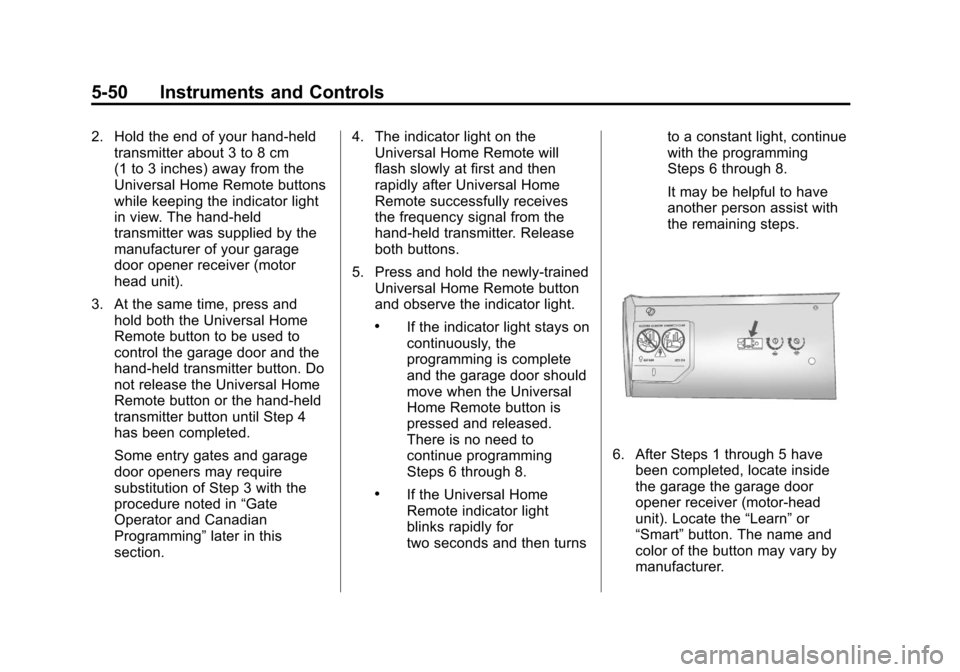
6. After Steps 1 through 5 have
been completed, locate inside
the garage the garage door
opener receiver (motor-head
unit). Locate the “Learn”or
“Smart” button. The name and
color of the button may vary by
manufacturer.
Page 179 of 454
Black plate (51,1)Chevrolet Traverse Owner Manual - 2011
Instruments and Controls 5-51
7. Firmly press and release the“Learn” or“Smart” button. After
you press this button, you will
have 30 seconds to complete
Step 8.
8. Immediately return to the vehicle. Firmly press and hold
the Universal Home Remote
button, selected in Step 3 to
control the garage door, for
two seconds, and then release
it. If the garage door does not
move, press and hold the same
button a second time for
two seconds, and then release
it. Again, if the door does not
move, press and hold the same
button a third time for
two seconds, and then release.
The Universal Home Remote
should now activate the
garage door. To program the remaining two
Universal Home Remote buttons,
begin with Step 2 of
“Programming
the Universal Home Remote
System.” Do not repeat Step 1, as
this will erase all previous
programming from the Universal
Home Remote buttons.
Gate Operator and Canadian
Programming
If you have questions or need help
programming the Universal Home
Remote System, call
1-800-355-3515 or go to
www.homelink.com.
Canadian radio-frequency laws
require transmitter signals to time
out or quit after several seconds of
transmission. This may not be
long enough for Universal Home
Remote to pick up the signal during
programming. Similarly, some
U.S. gate operators are
manufactured to time out in
the same manner. If you live in Canada, or you are
having difficulty programming a gate
operator or garage door opener by
using the
“Programming Universal
Home Remote” procedures,
regardless of where you live,
replace Step 3 under “Programming
Universal Home Remote” with the
following:
Continue to press and hold the
Universal Home Remote button
while you press and release every
two seconds (cycle) the hand-held
transmitter button until the
frequency signal has been
successfully accepted by the
Universal Home Remote. The
Universal Home Remote indicator
light will flash slowly at first and then
rapidly. Proceed with Step 4 under
“Programming Universal Home
Remote” to complete the training
procedure.
Page 180 of 454
Black plate (52,1)Chevrolet Traverse Owner Manual - 2011
5-52 Instruments and Controls
Universal Remote System
Operation
Using Universal Remote
Press and hold the appropriate
Universal Remote button for at least
half of a second. The indicator light
will come on while the signal is
being transmitted.
Erasing Universal Remote
Buttons
All programmed buttons should be
erased when the vehicle is sold or
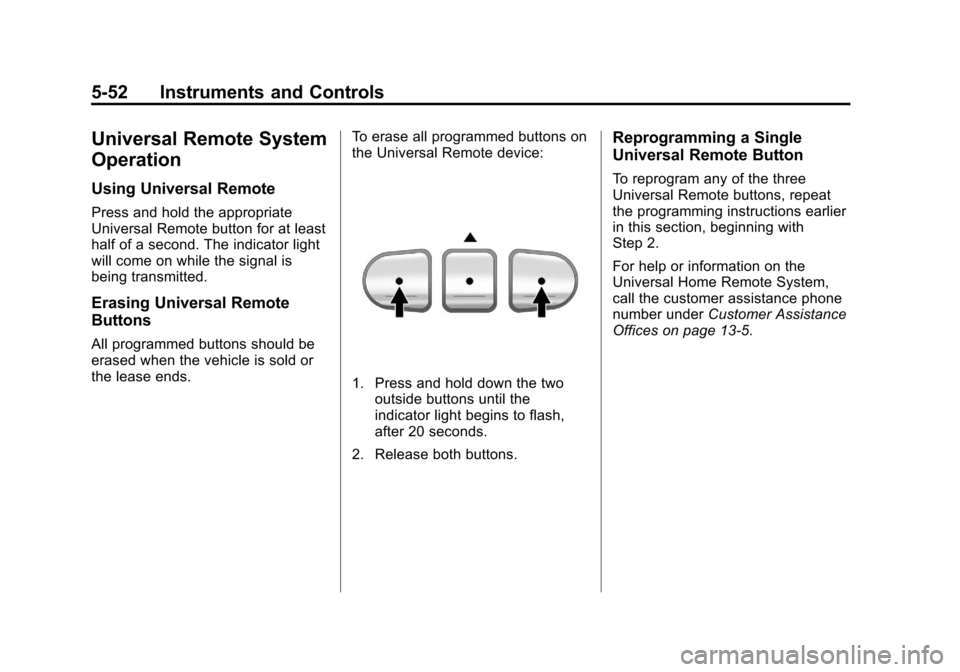
the lease ends.To erase all programmed buttons on
the Universal Remote device:
1. Press and hold down the two
outside buttons until the
indicator light begins to flash,
after 20 seconds.
2. Release both buttons.
Reprogramming a Single
Universal Remote Button
To reprogram any of the three
Universal Remote buttons, repeat
the programming instructions earlier
in this section, beginning with
Step 2.
For help or information on the
Universal Home Remote System,
call the customer assistance phone
number under Customer Assistance
Offices on page 13‑5.
Page 185 of 454
Black plate (5,1)Chevrolet Traverse Owner Manual - 2011
Lighting 6-5
Courtesy Lamps
The courtesy lamps automatically
come on when a door is opened.
The lamps can also be turned on
manually by fully turning the
instrument panel brightness control
clockwise.
The reading lamps, located on the
headliner above the rearview mirror,
can be turned on or off independent
of the automatic courtesy lamps,
when the doors are closed.
Dome Lamps
The dome lamps are located in the
overhead console and above the
rear seat passengers.
The dome lamps come on when a
door is opened, unless the dome
lamp override button is pressed in.
The lamps can also be turned on
and off by turning the instrument
panel brightness control clockwise
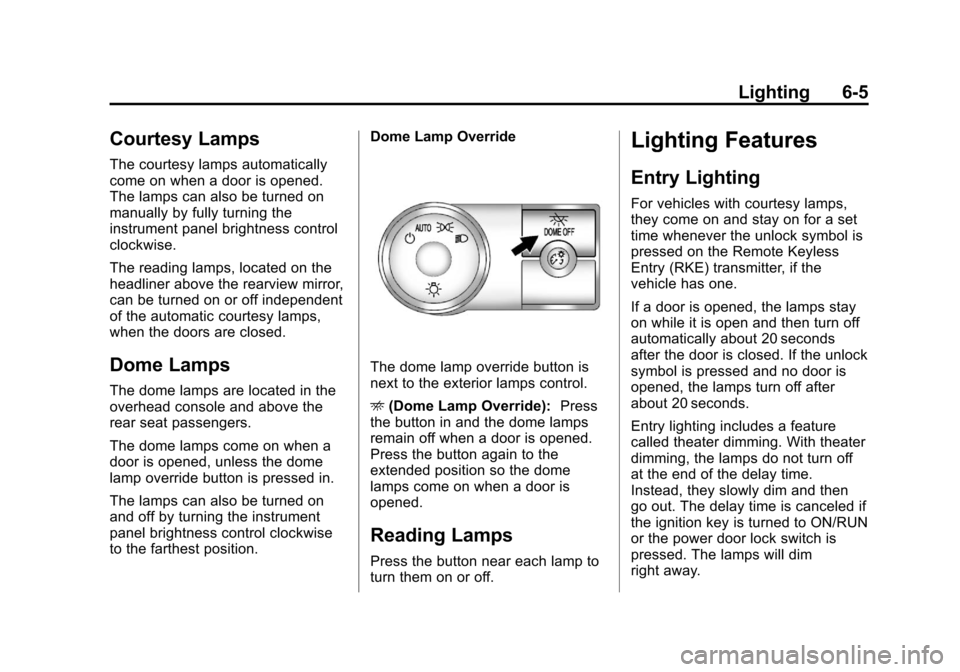
to the farthest position.Dome Lamp Override
The dome lamp override button is
next to the exterior lamps control.
E
(Dome Lamp Override): Press
the button in and the dome lamps
remain off when a door is opened.
Press the button again to the
extended position so the dome
lamps come on when a door is
opened.
Reading Lamps
Press the button near each lamp to
turn them on or off.
Lighting Features
Entry Lighting
For vehicles with courtesy lamps,
they come on and stay on for a set
time whenever the unlock symbol is
pressed on the Remote Keyless
Entry (RKE) transmitter, if the
vehicle has one.
If a door is opened, the lamps stay
on while it is open and then turn off
automatically about 20 seconds
after the door is closed. If the unlock
symbol is pressed and no door is
opened, the lamps turn off after
about 20 seconds.
Entry lighting includes a feature
called theater dimming. With theater
dimming, the lamps do not turn off
at the end of the delay time.
Instead, they slowly dim and then
go out. The delay time is canceled if
the ignition key is turned to ON/RUN
or the power door lock switch is
pressed. The lamps will dim
right away.
Page 192 of 454
Black plate (4,1)Chevrolet Traverse Owner Manual - 2011
7-4 Infotainment System
prevents the rear seat occupant
from operating the Rear Seat Audio
(RSA) system or remote control.
A lock symbol displays next to the
clock display while the parental
control feature is being used.
The feature remains on until
Ois
pressed and held for more than
two seconds, or the driver turns the
ignition off and exits the vehicle.
4(Information): Press to switch
the display between the radio
station frequency and the time.
When the ignition is in the OFF
position, press
4to display the time.
For vehicles with XM, MP3, WMA or
RDS features, press
4to display
additional text information related to
the current FM-RDS or XM station;
or CD, MP3 or WMA song.
If information is available during
XM, CD, MP3 or WMA playback, the
song title information displays on
the top line of the display and artist
information displays on the bottom
line. When information is not
available, “NO INFO” is displayed. Auto Text (Satellite Radio Service,
CD, MP3, and WMA features):
If
additional information is available
for the current song being played,
Auto Text will automatically page/
scroll the information every
five seconds above the FAV presets
on the radio display.
To activate Auto Text:
1. Press MENU to display the radio setup menu.
2. Press the softkey under AUTO TXT tab on the radio display.
3. Press the softkey under the ON tab on the radio display.
If4is pressed and the song title or
artist information is longer than
what can be displayed, the extra
information will page every
five seconds when Auto Text is
activated.
Speed Compensated Volume
(SCV): The Speed Compensated
Volume (SCV) feature automatically
adjusts the radio volume to
compensate for road and wind noise as the vehicle speeds up or slows
down, so that the volume level is
consistent.
To activate SCV:
1. Set the radio volume.
2. Press the MENU button to
display the radio setup menu.
3. Press the softkey under the AUTO VOLUM (automatic
volume) tab on the radio display.
4. Press the softkey under the Speed Compensated Volume
setting (OFF, Low, Med, or High)
to select the level of radio
volume compensation.
Press the softkey located
below the BACK tab on the
MENU SETUP display or
let the display time out after
approximately 10 seconds.
Each higher setting allows
for more radio volume
compensation at faster
vehicle speeds.
Page 204 of 454
Black plate (16,1)Chevrolet Traverse Owner Manual - 2011
7-16 Infotainment System
If a disc is inserted into the top DVD
slot, the rear seat operator can turn
on the video screen and use the
remote control to only navigate the
CD tracks through the remote
control.
See“Using the Auxiliary Input
Jack(s)” later in this section,
or “Audio/Video (A/V) Jacks” under,
Rear Seat Entertainment (RSE)
System
on page 7‑35for more
information.
Care of CDs and DVDs
If playing a CD-R, the sound quality
can be reduced due to CD-R or
CD-RW quality, the method of
recording, the quality of the music
that has been recorded, and the
way the CD-R or CD-RW has been
handled. Handle them carefully.
Store CD-R(s) or CD-RW(s) in their
original cases or other protective
cases and away from direct sunlight
and dust. The CD or DVD player
scans the bottom surface of the
disc. If the surface of a CD is damaged, such as cracked, broken,
or scratched, the CD does not play
properly or not at all. Do not touch
the bottom side of a CD while
handling it; this could damage the
surface. Pick up CDs by grasping
the outer edges or the edge of the
hole and the outer edge.
If the surface of a CD is soiled, take
a soft, lint free cloth or dampen a
clean, soft cloth in a mild, neutral
detergent solution mixed with water,
and clean it. Make sure the wiping
process starts from the center to
the edge.
Care of the CD and DVD Player
Do not add any label to a CD, it
could get caught in the CD or DVD
player. If a CD is recorded on a
personal computer and a description
label is needed, try labeling the top
of the recorded CD with a
marking pen.
The use of CD lens cleaners for
CDs is not advised.
Notice:
If a label is added to a
CD, or more than one CD is
inserted into the slot at a time,
or an attempt is made to play
scratched or damaged CDs, the
CD player could be damaged.
While using the CD player, use
only CDs in good condition
without any label, load one CD at
a time, and keep the CD player
and the loading slot free of
foreign materials, liquids,
and debris.
If an error displays, see “CD
Messages” later in this section.
Radios with CD and DVD
Audio Output
Only one audio source can be heard
through the speakers at one time.
An audio source is defined as DVD
slot, CD slot, XM, FM/AM, Front
Auxiliary Jack, or Rear
Auxiliary Jack.
Press
Oto turn the radio on. The
radio can be heard through all of the
vehicle speakers.
Page 206 of 454
Black plate (18,1)Chevrolet Traverse Owner Manual - 2011
7-18 Infotainment System
Using the DVD Player
The DVD player can be controlled
by the buttons on the remote
control, the RSA system, or by the
buttons on the radio faceplate. See
“Remote Control”, underRear Seat
Entertainment (RSE) System
on
page 7‑35and Rear Seat Audio
(RSA) Systemon page 7‑44for
more information.
The DVD player is only compatible
with DVDs of the appropriate region
code that is printed on the jacket of
most DVDs.
The DVD slot of the radio is
compatible with most audio CDs,
CD-R, CD-RW, DVD-Video,
DVD-Audio, DVD-R/RW, DVD+R/
RW media along with MP3 and
WMA formats.
If an error message displays on
the video screen or the radio, see
“DVD Display Error Messages”
under, Rear Seat Entertainment
(RSE) System
on page 7‑35and
“DVD Radio Error Messages” in this
section for more information. Playing a DVD
f(Tune):
Turn to change tracks on
a CD or DVD, to manually tune a
radio station, or to change clock or
date settings, while in the clock or
date setting mode. See the
information given earlier in this
section specific to the radio, CD,
and the DVD. Also, see “Setting the
Clock” in the index, for setting the
clock and date.
©SEEK (Previous Track/
Chapter): Press to return to the
start of the current track or chapter.
Press
©again to go to the previous
track or chapter. This button may
not work when the DVD is playing
the copyright information or the
previews.
SEEK
¨(Next Track/Chapter):
Press to go to the next track or
chapter. This button may not work
when the DVD is playing the
copyright information or the
previews.
sREV (Fast Reverse): Press
to quickly reverse the DVD at
five times the normal speed. The
radio displays the elapsed time
while in fast reverse. To stop fast
reversing, press again. This button
may not work when the DVD is
playing the copyright information or
the previews.
\FWD (Fast Forward): Press to
fast forward the DVD. The radio
displays the elapsed time and fast
forwards five times the normal
speed. To stop fast forwarding,
press again. This button may not
work when the DVD is playing the
copyright information or the
previews.
Z(Eject): Press to eject a DVD.
If the DVD is ejected, but not
removed, the player automatically
pulls it back in after 15 seconds.
If loading and reading of a DVD
cannot be completed, because of an
unknown format, etc., and the disc
Page 207 of 454
Black plate (19,1)Chevrolet Traverse Owner Manual - 2011
Infotainment System 7-19
fails to eject, press and hold for
more than five seconds to force the
disc to eject.
DVD-V (Video) Display Buttons
Once a DVD-V is inserted, the radio
display menu shows several icons.
Press the softkeys under any icon
during DVD playback. See the icon
list below for more information.
The rear seat passenger can
navigate the DVD-V menus and
controls through the remote control.
See“Remote Control”, under Rear
Seat Entertainment (RSE) System
on page 7‑35for more information.
The Video Screen automatically
turns on when the DVD-V is
inserted into the DVD slot.
r/j(Play/Pause): Press either
the play or pause icon displayed on
the radio system, to toggle between
pausing or restarting playback of
a DVD.
.If the forward arrow is showing
on display, the system is in
pause mode.
.If the pause icon is showing on
display, the system is in
playback mode.
.If the DVD screen is off, press
the play button to turn the
screen on.
Some DVDs begin playing after the
previews have finished, although
there could be a delay of up to
30 seconds. If the DVD does not
begin playing the movie
automatically, press the softkey
under the play/pause icon displayed
on the radio. If the DVD still does
not play, refer to the on-screen
instructions, if available.
c(Stop): Press to stop playing,
rewinding, or fast forwarding a DVD.
r(Enter): Press to select the
choices that are highlighted in
any menu.
y(Menu): Press to access the
DVD menu. The DVD menu is
different on every DVD. Use the
softkeys under the navigation
arrows to navigate the cursor
through the DVD menu. After making a selection press this
button. This button only operates
when using a DVD.
Nav (Navigate):
Press to display
directional arrows for navigating
through the menus.
q(Return): Press to exit the
current active menu and return to
the previous menu. This button
operates only when a DVD is
playing and a menu is active.
DVD-A (Audio) Display Buttons
Once a DVD-A is inserted, the radio
display menu shows several icons.
Press the softkeys under any icon
during DVD playback. See the icon
list below for more information.
The rear seat operator can navigate
the DVD-A menus and controls
through the remote control. See
“Remote Control”, under Rear Seat
Entertainment (RSE) System
on
page 7‑35for more information.
The Video Screen does not
automatically power on when the
DVD-A is inserted into the DVD slot.
Page 208 of 454
Black plate (20,1)Chevrolet Traverse Owner Manual - 2011
7-20 Infotainment System
It must be manually turned on by
the rear seat occupant through the
remote control power button.
r/j(Play/Pause):Press either
the play or pause icon displayed on
the radio system, to toggle between
pausing or restarting playback of
a DVD.
.If the forward arrow is showing
on display, the system is in
pause mode.
.If the pause icon is showing on
display, the system is in
playback mode.
qGroupr: Press to cycle
through musical groupings on the
DVD-A disc.
Nav (Navigate): Press to display
directional arrows for navigating
through the menus.
e(Audio Stream): Press to cycle
through audio stream formats
located on the DVD-A disc. The
video screen shows the audio
stream changing. Inserting a Disc
To play a disc, gently insert the
disc, with the label side up, into the
loading slot. The DVD player might
not accept some paper labeled
media. The player starts loading the
disc into the system and shows
“Loading Disc”
on the radio display.
At the same time, the radio displays
a softkey menu of option(s). Some
discs automatically play the movie
while others default to the softkey
menu display, which requires the
Play, Enter, or Navigation softkeys
to be pressed; either by the softkey
on the radio or by the rear seat
passenger using the remote control.
It may take up to 30 seconds for a
DVD to begin playing. Stopping and Resuming Playback
To stop playing a DVD without
turning off the system, do one of
the following:
.Presscon the remote control.
.Press the softkey under the stop
or the play/pause icons
displayed on the radio.
.If the radio head is sourced to
something other than DVD-V,
press the DVD/CD AUX button
to make DVD-V the active
source.
To resume DVD playback, do one of
the following:
.Pressr/jon the remote
control.
.Press the softkey under the
play/pause icon displayed on
the radio.
The DVD should resume play from
where it last stopped if the disc has
not been ejected and the stop
button has not been pressed
twice on the remote control.
Page 209 of 454
Black plate (21,1)Chevrolet Traverse Owner Manual - 2011
Infotainment System 7-21
If the disc has been ejected or the
stop button has been pressed twice
on the remote control, the disc
resumes playing at the beginning of
the disc.
Ejecting a Disc
Press
ZDVD on the radio to eject
the disc. If a disc is ejected from the
radio, but not removed, the radio
reloads the disc after a short period
of time. The disc is stored in the
radio. The radio does not resume
play of the disc automatically. If the
movie is reloaded and the RSA
system is sourced to the DVD, the
player begins to play again.
If loading and reading a DVD or
CD cannot be completed, and the
disc fails to eject, press and hold
ZDVD for more than five seconds
to force the disc to eject.
DVD Error Messages
Player Error: This message
displays when there are disc load or
eject problems. Disc Format Error:
This message
displays, if the disc is inserted with
the disc label wrong side up, or if
the disc is damaged.
Disc Region Error: This message
displays, if the disc is not from a
correct region.
No Disc Inserted: This message
displays, if no disc is present when
ZDVD or DVD/CD AUX is
pressed on the radio.
MP3 (Radio with CD and
Radio with CD/USB)
Format
Radios that have the capability of
playing MP3s can play .mp3 or
.wma files that were recorded
onto a CD-R or CD-RW disc.
The files can be recorded with the
following fixed bit rates: 32 kbps,
40 kbps, 56 kbps, 64 kbps, 80 kbps,
96 kbps, 112 kbps, 128 kbps,
160 kbps, 192 kbps, 224 kbps,
256 kbps, and 320 kbps or a
variable bit rate. Radios that have a USB port can
play .mp3 and .wma files that are
stored on a USB storage device
as well as AAC files that are stored
on an iPod
®.
Compressed Audio or
Mixed Mode Discs
The radio can play discs that
contain both uncompressed CD
audio and MP3/WMA files. If both
formats are on the disc, the radio
plays both file formats in the order in
which they were recorded to
the disc.
CD‐R or CD‐RW Supported File
and Folder Structure
The radio supports:
.Up to 50 folders.
.Up to 8 folders in depth.
.Up to 15 playlists.
.Up to 512 files and folders.