navigation system CHEVROLET TRAVERSE 2011 1.G Owners Manual
[x] Cancel search | Manufacturer: CHEVROLET, Model Year: 2011, Model line: TRAVERSE, Model: CHEVROLET TRAVERSE 2011 1.GPages: 454, PDF Size: 6.56 MB
Page 7 of 454
Black plate (1,1)Chevrolet Traverse Owner Manual - 2011
In Brief 1-1
In Brief
Instrument Panel
Instrument Panel . . . . . . . . . . . . . . 1-2
Initial Drive Information
Initial Drive Information . . . . . . . . 1-4
Remote Keyless Entry (RKE)System . . . . . . . . . . . . . . . . . . . . . . 1-4
Remote Vehicle Start . . . . . . . . . 1-4
Door Locks . . . . . . . . . . . . . . . . . . . 1-5
Liftgate . . . . . . . . . . . . . . . . . . . . . . . . 1-5
Windows . . . . . . . . . . . . . . . . . . . . . . 1-6
Seat Adjustment . . . . . . . . . . . . . . 1-6
Memory Features . . . . . . . . . . . . . 1-7
Second Row Seats . . . . . . . . . . . 1-8
Third Row Seats . . . . . . . . . . . . . . 1-9
Heated Seats . . . . . . . . . . . . . . . . . 1-9
Heated and Ventilated Seats . . . . . . . . . . . . . . . . . . . . . . . . 1-9
Head Restraint Adjustment . . . . 1-9
Safety Belt . . . . . . . . . . . . . . . . . . . 1-10 Sensing System for
Passenger Airbag . . . . . . . . . . 1-10
Mirror Adjustment . . . . . . . . . . . . 1-11
Steering Wheel Adjustment . . . . . . . . . . . . . . . . . 1-12
Interior Lighting . . . . . . . . . . . . . . 1-12
Exterior Lighting . . . . . . . . . . . . . 1-13
Windshield Wiper/Washer . . . . 1-13
Climate Controls . . . . . . . . . . . . . 1-14
Transmission . . . . . . . . . . . . . . . . 1-16
Vehicle Features
Radio(s) . . . . . . . . . . . . . . . . . . . . . 1-16
Satellite Radio . . . . . . . . . . . . . . . 1-17
Portable Audio Devices . . . . . . 1-18
Bluetooth
®. . . . . . . . . . . . . . . . . . . 1-18
Steering Wheel Controls . . . . . 1-18
Cruise Control . . . . . . . . . . . . . . . 1-19
Navigation System . . . . . . . . . . . 1-19
Driver Information Center
(DIC) (With DIC Buttons) . . . 1-19
Storage Compartments . . . . . . 1-20
Power Outlets . . . . . . . . . . . . . . . 1-20
Sunroof . . . . . . . . . . . . . . . . . . . . . . 1-21
Performance and Maintenance
StabiliTrak®System . . . . . . . . . 1-21
Tire Pressure Monitor . . . . . . . . 1-21
Tire Sealant and Compressor Kit . . . . . . . . . . . . . 1-22
Engine Oil Life System . . . . . . 1-22
Driving for Better Fuel
Economy . . . . . . . . . . . . . . . . . . . 1-23
Roadside Assistance Program . . . . . . . . . . . . . . . . . . . . 1-23
OnStar
®. . . . . . . . . . . . . . . . . . . . . 1-24
Page 25 of 454
Black plate (19,1)Chevrolet Traverse Owner Manual - 2011
In Brief 1-19
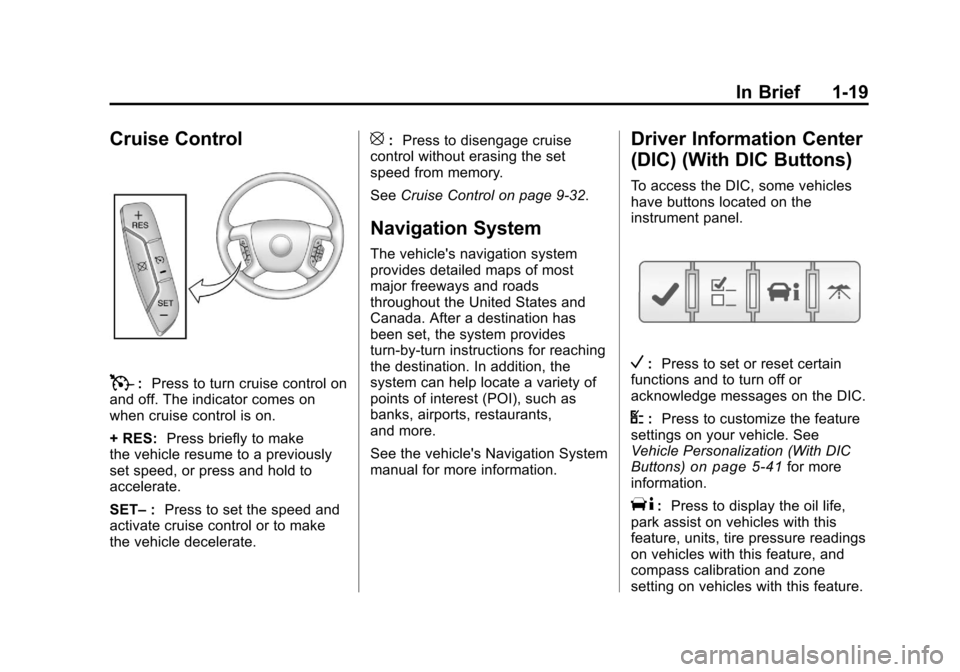
Cruise Control
T:Press to turn cruise control on
and off. The indicator comes on
when cruise control is on.
+ RES: Press briefly to make
the vehicle resume to a previously
set speed, or press and hold to
accelerate.
SET– :Press to set the speed and
activate cruise control or to make
the vehicle decelerate.
[: Press to disengage cruise
control without erasing the set
speed from memory.
See Cruise Control on page 9‑32.
Navigation System
The vehicle's navigation system
provides detailed maps of most
major freeways and roads
throughout the United States and
Canada. After a destination has
been set, the system provides
turn-by-turn instructions for reaching
the destination. In addition, the
system can help locate a variety of
points of interest (POI), such as
banks, airports, restaurants,
and more.
See the vehicle's Navigation System
manual for more information.
Driver Information Center
(DIC) (With DIC Buttons)
To access the DIC, some vehicles
have buttons located on the
instrument panel.
V:Press to set or reset certain
functions and to turn off or
acknowledge messages on the DIC.
U: Press to customize the feature
settings on your vehicle. See
Vehicle Personalization (With DIC
Buttons)
on page 5‑41for more
information.
T: Press to display the oil life,
park assist on vehicles with this
feature, units, tire pressure readings
on vehicles with this feature, and
compass calibration and zone
setting on vehicles with this feature.
Page 30 of 454
Black plate (24,1)Chevrolet Traverse Owner Manual - 2011
1-24 In Brief
OnStar®
For vehicles with an active OnStar
subscription, OnStar uses several
innovative technologies and live
advisors to provide a wide range
of safety, security, navigation,
diagnostics, and calling services.
Automatic Crash Response
In a crash, built‐in sensors can
automatically alert an OnStar
advisor who is immediately
connected to the vehicle to see if
you need help.
How OnStar Service Works
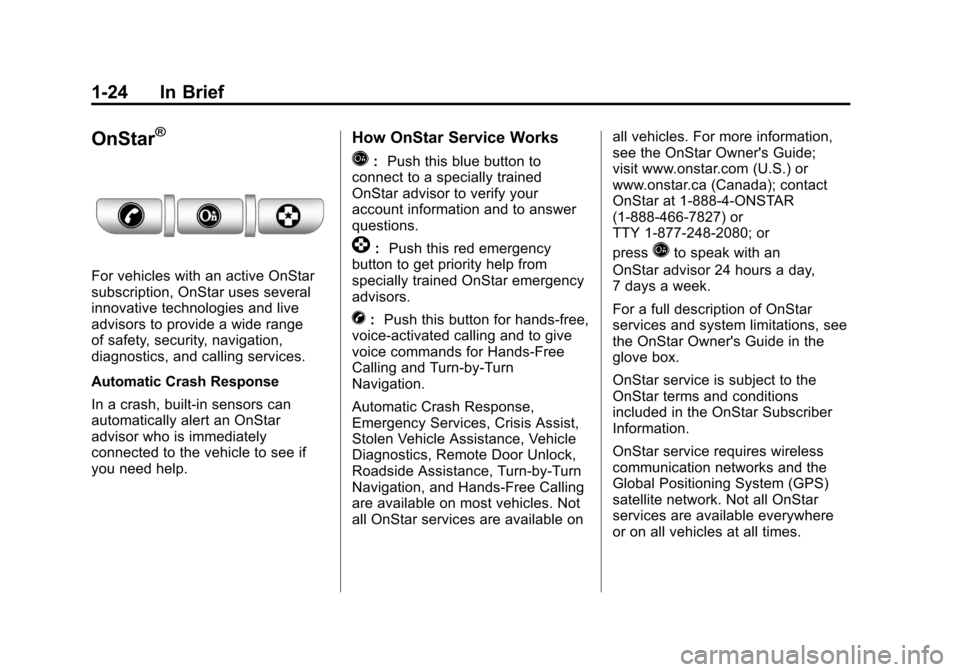
Q:Push this blue button to
connect to a specially trained
OnStar advisor to verify your
account information and to answer
questions.
]: Push this red emergency
button to get priority help from
specially trained OnStar emergency
advisors.
X: Push this button for hands‐free,
voice‐activated calling and to give
voice commands for Hands‐Free
Calling and Turn‐by‐Turn
Navigation.
Automatic Crash Response,
Emergency Services, Crisis Assist,
Stolen Vehicle Assistance, Vehicle
Diagnostics, Remote Door Unlock,
Roadside Assistance, Turn‐by‐Turn
Navigation, and Hands‐Free Calling
are available on most vehicles. Not
all OnStar services are available on all vehicles. For more information,
see the OnStar Owner's Guide;
visit www.onstar.com (U.S.) or
www.onstar.ca (Canada); contact
OnStar at 1-888-4-ONSTAR
(1‐888‐466‐7827) or
TTY 1‐877‐248‐2080; or
press
Qto speak with an
OnStar advisor 24 hours a day,
7 days a week.
For a full description of OnStar
services and system limitations, see
the OnStar Owner's Guide in the
glove box.
OnStar service is subject to the
OnStar terms and conditions
included in the OnStar Subscriber
Information.
OnStar service requires wireless
communication networks and the
Global Positioning System (GPS)
satellite network. Not all OnStar
services are available everywhere
or on all vehicles at all times.
Page 131 of 454
Black plate (3,1)Chevrolet Traverse Owner Manual - 2011
Instruments and Controls 5-3
To select preset or favorite radio
stations:
.Press and releaseworxto go
to the next or previous radio
station stored as a preset or
favorite.
To select tracks on a CD/DVD:
Press and release
worxto go to
the next or previous track.
To select tracks on an iPod or
USB device for vehicles without a
navigation system:
1. Press and hold
worxwhile
listening to a song until the
contents of the current folder
display on the radio display.
2. Press and release
worxto
scroll up or down the list, then
press and hold
w, or press¨to
play the highlighted track. To select tracks on an iPod or
USB device for vehicles with a
navigation system:
1. Press and hold
worxwhile
listening to a song listed in the
main audio page, to quickly
move forward or in reverse
through the tracks. See the
separate Navigation System
manual for more information.
Track information is displayed on
the screen. Release
worx
when the desired track is
reached.
2. Press and release
xto begin
playing the track shown in the
display. To navigate folders on an iPod or
USB device for vehicles without a
navigation system:
1. Press and hold
worxwhile
listening to a song until the
contents of the current folder
display on the radio display.
2. Press and hold
xto go back to
the previous folder list.
3. Press and release
worxto
scroll up or down the list.
.To select a folder, press
and hold
w, or press¨
when the folder is
highlighted.
.To go back further in the
folder list, press and
hold
x.
Page 132 of 454
Black plate (4,1)Chevrolet Traverse Owner Manual - 2011
5-4 Instruments and Controls
To navigate folders on an iPod or
USB device for vehicles with a
navigation system:
1. Go to the Music Navigator byfirst touching the center touch
screen folder button in the main
audio page.
2. While in Music Navigator, select the folder/artist/genre/category,
etc. using the touch screen.
3. Press and release
xto scroll
through the selected music list.
Touch the track label on the
touch screen to highlight and
begin playing the track from
that list.
4. Press and hold
xto quickly
scroll through the selected
music list
b g(Mute/Push to Talk): Press to
silence the vehicle speakers only.
Press again to turn the sound on.
For vehicles with Bluetooth or
OnStar
®systems, press and hold
for longer than two seconds to interact with those systems. See
Bluetooth
on page 7‑46and the
OnStar Owner's Guide for more
information.
c(End): Press to reject an
incoming call, or end a current call.
SRCE (Source/Voice
Recognition): Press to switch
between the radio, CD, and for
vehicles with, DVD, front auxiliary,
and rear auxiliary.
For vehicles with the navigation
system, press and hold this button
for longer than one second to
initiate voice recognition. See “Voice
Recognition” in the Navigation
System manual for more
information.
¨(Seek): Press to go to the
next radio station while in AM,
FM, or XM™.
For vehicles with or without a
navigation system:
Press
¨to go to the next track or
chapter while sourced to the CD or
DVD slot. Press
¨to select a track or a
folder when navigating folders on
an iPod or USB device.
For vehicles with a navigation
system:
1. Press and hold
¨until a beep is
heard, to place the radio into
SCAN mode, a station will play
for five seconds before moving
to the next station.
2. To stop the SCAN function, press
¨again.
3. In CD/DVD, iPod, or AUX USB, press and hold to quickly move
forward through the tracks.
Release to stop on the desired
track.
+
e−e(Volume): Press to
increase or to decrease the volume.
Horn
Press near the horn symbols or
press on the steering wheel pad to
sound the horn.
Page 190 of 454
Black plate (2,1)Chevrolet Traverse Owner Manual - 2011
7-2 Infotainment System
For more information, seeDefensive
Driving on page 9‑2.
The vehicle has Retained
Accessory Power (RAP). With RAP,
the audio system can be played
even after the ignition is turned off.
See Retained Accessory Power
(RAP)
on page 9‑18for more
information.
Navigation/Radio System
For vehicles with a navigation radio
system, see the separate Navigation
System manual.
Theft-Deterrent Feature
THEFTLOCK®is designed to
discourage theft of the vehicle's
radio by learning a portion of the
Vehicle Identification Number (VIN).
The radio does not operate if it is
stolen or moved to a different
vehicle.
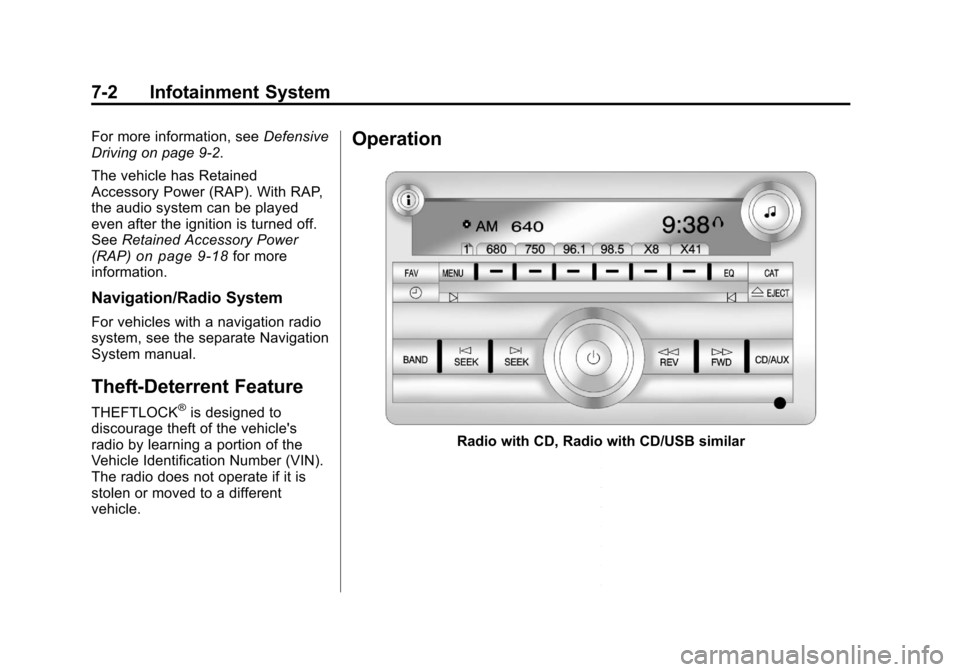
Operation
Radio with CD, Radio with CD/USB similar
Page 207 of 454
Black plate (19,1)Chevrolet Traverse Owner Manual - 2011
Infotainment System 7-19
fails to eject, press and hold for
more than five seconds to force the
disc to eject.
DVD-V (Video) Display Buttons
Once a DVD-V is inserted, the radio
display menu shows several icons.
Press the softkeys under any icon
during DVD playback. See the icon
list below for more information.
The rear seat passenger can
navigate the DVD-V menus and
controls through the remote control.
See“Remote Control”, under Rear
Seat Entertainment (RSE) System
on page 7‑35for more information.
The Video Screen automatically
turns on when the DVD-V is
inserted into the DVD slot.
r/j(Play/Pause): Press either
the play or pause icon displayed on
the radio system, to toggle between
pausing or restarting playback of
a DVD.
.If the forward arrow is showing
on display, the system is in
pause mode.
.If the pause icon is showing on
display, the system is in
playback mode.
.If the DVD screen is off, press
the play button to turn the
screen on.
Some DVDs begin playing after the
previews have finished, although
there could be a delay of up to
30 seconds. If the DVD does not
begin playing the movie
automatically, press the softkey
under the play/pause icon displayed
on the radio. If the DVD still does
not play, refer to the on-screen
instructions, if available.
c(Stop): Press to stop playing,
rewinding, or fast forwarding a DVD.
r(Enter): Press to select the
choices that are highlighted in
any menu.
y(Menu): Press to access the
DVD menu. The DVD menu is
different on every DVD. Use the
softkeys under the navigation
arrows to navigate the cursor
through the DVD menu. After making a selection press this
button. This button only operates
when using a DVD.
Nav (Navigate):
Press to display
directional arrows for navigating
through the menus.
q(Return): Press to exit the
current active menu and return to
the previous menu. This button
operates only when a DVD is
playing and a menu is active.
DVD-A (Audio) Display Buttons
Once a DVD-A is inserted, the radio
display menu shows several icons.
Press the softkeys under any icon
during DVD playback. See the icon
list below for more information.
The rear seat operator can navigate
the DVD-A menus and controls
through the remote control. See
“Remote Control”, under Rear Seat
Entertainment (RSE) System
on
page 7‑35for more information.
The Video Screen does not
automatically power on when the
DVD-A is inserted into the DVD slot.
Page 208 of 454
Black plate (20,1)Chevrolet Traverse Owner Manual - 2011
7-20 Infotainment System
It must be manually turned on by
the rear seat occupant through the
remote control power button.
r/j(Play/Pause):Press either
the play or pause icon displayed on
the radio system, to toggle between
pausing or restarting playback of
a DVD.
.If the forward arrow is showing
on display, the system is in
pause mode.
.If the pause icon is showing on
display, the system is in
playback mode.
qGroupr: Press to cycle
through musical groupings on the
DVD-A disc.
Nav (Navigate): Press to display
directional arrows for navigating
through the menus.
e(Audio Stream): Press to cycle
through audio stream formats
located on the DVD-A disc. The
video screen shows the audio
stream changing. Inserting a Disc
To play a disc, gently insert the
disc, with the label side up, into the
loading slot. The DVD player might
not accept some paper labeled
media. The player starts loading the
disc into the system and shows
“Loading Disc”
on the radio display.
At the same time, the radio displays
a softkey menu of option(s). Some
discs automatically play the movie
while others default to the softkey
menu display, which requires the
Play, Enter, or Navigation softkeys
to be pressed; either by the softkey
on the radio or by the rear seat
passenger using the remote control.
It may take up to 30 seconds for a
DVD to begin playing. Stopping and Resuming Playback
To stop playing a DVD without
turning off the system, do one of
the following:
.Presscon the remote control.
.Press the softkey under the stop
or the play/pause icons
displayed on the radio.
.If the radio head is sourced to
something other than DVD-V,
press the DVD/CD AUX button
to make DVD-V the active
source.
To resume DVD playback, do one of
the following:
.Pressr/jon the remote
control.
.Press the softkey under the
play/pause icon displayed on
the radio.
The DVD should resume play from
where it last stopped if the disc has
not been ejected and the stop
button has not been pressed
twice on the remote control.
Page 228 of 454

Black plate (40,1)Chevrolet Traverse Owner Manual - 2011
7-40 Infotainment System
v(Title):Press to return the DVD
to the main menu of the DVD. This
function could vary for each disc.
y(Main Menu): Press to access
the DVD menu. The DVD menu is
different on every DVD. Use the
navigation arrows to move the
cursor around the DVD menu. After
making a selection press the enter
button. This button only operates
when using a DVD.
n,q,p,o(Menu Navigation
Arrows): Use the arrow buttons to
navigate through a menu.
r(Enter): Press to select the
choice that is highlighted in
any menu.
z(Display Menu): Press to adjust
the brightness, screen display mode
(normal, full, or zoom), and display
the language menu.
q(Return): Press to exit the
current active menu and return to
the previous menu. This button
operates only when the display
menu or a DVD menu is active.
c(Stop): Press to stop playing,
rewinding, or fast forwarding a DVD.
Press twice to return to the
beginning of the DVD.
s(Play/Pause): Press to start
playing a DVD. Press while a DVD
is playing to pause it. Press again to
continue playing the DVD.
When the DVD is playing,
depending on the radio, play may
be slowed down by pressing
s
then[. The DVD continues playing
in a slow play mode. Depending on
the radio, perform reverse slow play
by pressing
sthenr. To cancel
slow play mode, press
sagain.
t(Previous Track/Chapter):
Press to return to the start of the
current track or chapter. Press again
to go to the previous track or
chapter. This button might not work
when the DVD is playing the
copyright information or the
previews.
u(Next Track/Chapter): Press to
go to the beginning of the next
chapter or track. This button might
not work when the DVD is playing
the copyright information or the
previews.
r(Fast Reverse): Press to
quickly reverse the DVD or CD.
To stop fast reversing a DVD video,
press
s. To stop fast reversing a
DVD audio or CD, release
r. This
button might not work when the
DVD is playing the copyright
information or the previews.
Page 288 of 454
Black plate (36,1)Chevrolet Traverse Owner Manual - 2011
9-36 Driving and Operating
Rear Vision
Camera (RVC)
The vehicle may have a Rear Vision
Camera system. Read this entire
section before using it.
{WARNING
The Rear Vision Camera (RVC)
system does not replace driver
vision. RVC does not:
.Detect objects that are
outside the camera's field of
view, below the bumper,
or underneath the vehicle.
.Detect children, pedestrians,
bicyclists, or pets.(Continued)
WARNING (Continued)
Do not back the vehicle by only
looking at the RVC screen, or use
the screen during longer, higher
speed backing maneuvers or
where there could be cross-traffic.
Your judged distances using the
screen will differ from actual
distances.
If you do not use proper care
before backing up, you could hit a
vehicle, child, pedestrian,
bicyclist, or pet, resulting in
vehicle damage, injury, or death.
Even though the vehicle has the
RVC system, always check
carefully before backing up by
checking behind and around
the vehicle.
Vehicles Without Navigation
System
The rear vision camera system is
designed to help the driver when
backing up by displaying a view of
the area behind the vehicle. When
the key is in the ON/RUN position
and the driver shifts the vehicle into
R (Reverse), the video image
automatically appears on the inside
rear view mirror. Once the driver
shifts out of R (Reverse), the video
image automatically disappears
from the inside rear view mirror.