USB CHEVROLET TRAVERSE 2012 1.G User Guide
[x] Cancel search | Manufacturer: CHEVROLET, Model Year: 2012, Model line: TRAVERSE, Model: CHEVROLET TRAVERSE 2012 1.GPages: 450, PDF Size: 6.69 MB
Page 194 of 450
Black plate (14,1)Chevrolet Traverse Owner Manual - 2012
7-14 Infotainment System
BAND:Press to listen to the radio
when a CD is playing. The CD
remains inside the radio for future
listening.
CD/AUX (CD/Auxiliary): Press to
select between CD, or Auxiliary.
.When a CD is in the player,
the CD icon and a message
showing the disc and/or track
number display.
.If an auxiliary input device is not
connected, “No Input Device
Found” displays.
Care of CDs
If playing a CD-R, the sound quality
can be reduced due to CD-R or
CD-RW quality, the method of
recording, the quality of the music
that has been recorded, and the
way the CD-R or CD-RW has been
handled. Handle them carefully.
Store CD-R(s) or CD-RW(s) in their
original cases or other protective
cases and away from direct sunlight
and dust. The CD player scans the
bottom surface of the disc. If the surface of a CD is damaged, such
as cracked, broken, or scratched,
the CD does not play properly or not
at all. Do not touch the bottom side
of a CD while handling it; this could
damage the surface. Pick up CDs
by grasping the outer edges or the
edge of the hole and the outer edge.
If the surface of a CD is soiled, take
a soft, lint‐free cloth or dampen a
clean, soft cloth in a mild, neutral
detergent solution mixed with water,
and clean it. Make sure the wiping
process starts from the center to
the edge.
Care of the CD Player
Do not add any label to a CD; it
could get caught in the CD player.
If a CD is recorded on a personal
computer and a description label is
needed, try labeling the top of the
recorded CD with a marking pen.
The use of CD lens cleaners for
CDs is not advised.
Notice:
If a label is added to a
CD, more than one CD is inserted
into the slot at a time, or an
attempt is made to play scratched
or damaged CDs, the CD player
could be damaged. While using
the CD player, use only CDs in
good condition without any label,
load one CD at a time, and keep
the CD player and the loading slot
free of foreign materials, liquids,
and debris.
If an error displays, see “CD
Messages” later in this section.
Playing an MP3/WMA CD-R or
CD-RW Disc
The radio has the capability of
playing an MP3/WMA CD-R or
CD-RW disc. For more information
on how to play an MP3/WMA CD-R
or CD-RW disc, see MP3 (Radios
with CD/USB) on page 7‑22 orMP3
(Radios with CD/DVD) on
page 7‑28.
Page 198 of 450
Black plate (18,1)Chevrolet Traverse Owner Manual - 2012
7-18 Infotainment System
Front seat passengers can listen
to the radio (AM, FM, or XM) by
pressing BAND or DVD/CD AUX to
select the CD slot, DVD slot, front or
rear auxiliary input (if available).
If a playback device is plugged into
the radio’s front auxiliary input jack
or the rear auxiliary jack, the front
seat passengers are able to listen to
playback from this source through
the vehicle speakers. SeeAuxiliary
Devices on page 7‑34 or“Audio/
Video (A/V) Jacks” under,Rear Seat
Entertainment (RSE) System on
page 7‑36 for more information.
In some vehicles, depending on
audio options, the rear speakers
can be muted when the RSA power
is turned on. See Rear Seat Audio
(RSA) System on page 7‑45 for
more information.
Playing an MP3/WMA CD-R or
CD-RW Disc
The radio has the capability of
playing an MP3/WMA CD-R or
CD-RW disc. For more information
on how to play an MP3/WMA CD-R or CD-RW disc, see
MP3 (Radios
with CD/USB) on page 7‑22 orMP3
(Radios with CD/DVD) on
page 7‑28.
CD Messages
Optical Error: The disc was
inserted upside down.
Disk Read Error: A disc was
inserted with an invalid or unknown
format.
Player Error: There are disc LOAD
or disc EJECT problems.
.It is very hot. When the
temperature returns to normal,
the CD should play.
.The road is very rough. When
the road becomes smoother, the
CD should play.
.The CD is dirty, scratched, wet,
or upside down.
.The air is very humid. If so, wait
about an hour and try again.
.There was a problem while
burning the CD.
.The label is caught in the CD
player.
If the CD is not playing correctly for
any other reason, try a known
good CD.
If any error occurs repeatedly or if
an error cannot be corrected,
contact your dealer. If the radio
displays an error message, write it
down and provide it to your dealer
when reporting the problem.
Using the DVD Player
The DVD player can be controlled
by the buttons on the remote
control, the RSA system, or by the
buttons on the radio faceplate. See
“Remote Control” underRear Seat
Entertainment (RSE) System on
page 7‑36 andRear Seat Audio
(RSA) System on page 7‑45 for
more information.
Page 202 of 450
Black plate (22,1)Chevrolet Traverse Owner Manual - 2012
7-22 Infotainment System
of time. The disc is stored in the
radio. The radio does not resume
play of the disc automatically. If the
movie is reloaded and the RSA
system is sourced to the DVD, the
player begins to play again. If
loading and reading a DVD or
CD cannot be completed, and
the disc fails to eject, press and
hold
ZDVD for more than
five seconds to force the disc to
eject.
DVD Error Messages
Player Error: This message
displays when there are disc load or
eject problems.
Disc Format Error: This message
displays if the disc is inserted with
the disc label wrong side up, or if
the disc is damaged.
Disc Region Error: This message
displays if the disc is not from a
correct region. No Disc Inserted:
This message
displays if no disc is present
when
ZDVD or DVD/CD/AUX is
pressed on the radio.
MP3 (Radios with
CD/USB)
Format
Radios that have the capability of
playing MP3s can play .mp3 or .wma
files that were recorded onto a
CD-R or CD-RW disc. The files
can be recorded with the following
fixed bit rates: 32 kbps, 40 kbps,
56 kbps, 64 kbps, 80 kbps, 96 kbps,
112 kbps, 128 kbps, 160 kbps,
192 kbps, 224 kbps, 256 kbps, and
320 kbps or a variable bit rate.
Radios that have a USB port can
play .mp3 and .wma files stored on a
USB storage device as well as AAC
files that are stored on an iPod. Compressed Audio or Mixed Mode
Discs
The radio can play discs that
contain both uncompressed CD
audio and MP3/WMA files. If both
formats are on the disc, the radio
plays both file formats in the order
in which they were recorded to
the disc.
CD‐R or CD‐RW Supported File
and Folder Structure
The radio supports:
.Up to 50 folders.
.Up to eight folders in depth.
.Up to 15 playlists.
.Up to 512 files and folders.
.Playlists with an .m3u or .wpl
extension.
.Files with an .mp3, .wma, or .cda
file extension.
Page 203 of 450
Black plate (23,1)Chevrolet Traverse Owner Manual - 2012
Infotainment System 7-23
USB Supported File and Folder
Structure
The radio supports:
.Up to 700 folders.
.Up to eight folders in depth.
.Up to 65,535 files.
.Folder and file names up to
64 bytes.
.Files with an .mp3 or .wma file
extension.
.AAC files stored on an iPod.
.FAT16
.FAT32
Root Directory
The root directory of the disc is
treated as a folder. If the root
directory has compressed audio
files, the directory displays on the
radio as the CD label.
If a disc contains both
uncompressed CD audio and
MP3/WMA files, a folder under the root directory called CD accesses
all of the CD audio tracks on
the disc.
Empty Folder
Folders that do not contain files are
skipped, and the player advances to
the next folder that contains files.
Order of Play
Compressed audio files are
accessed in the following order:
.Playlists (Px).
.Files stored in the root directory.
.Files stored in folders in the root
directory.
Tracks are played in the following
order:
.Play begins from the first track in
the first playlist and continues
sequentially through all tracks in
each playlist. When the last
track of the last playlist has
played, play continues from the
first track of the first playlist.
.Play begins from the first track in
the first folder and continues
sequentially through all tracks in
each folder. When the last track
of the last folder has played,
play continues from the first
track of the first folder.
When play enters a new folder, the
display does not automatically show
the new folder name unless the
folder mode has been chosen as
the default display. The new track
name displays.
File System and Naming
The song name that displays is the
song name contained in the ID3 tag.
If the song name is not present in
the ID3 tag, the radio displays the
file name without the extension
(such as .mp3) as the track name.
Track names longer than
32 characters or four pages are
shortened. Parts of words on the
last page of text and the extension
of the filename do not display.
Page 204 of 450
Black plate (24,1)Chevrolet Traverse Owner Manual - 2012
7-24 Infotainment System
Preprogrammed Playlists
Preprogrammed playlists that
were created using WinAmp™,
MusicMatch™, or Real Jukebox™
software can be accessed; however,
they cannot be edited using the
radio. These playlists are treated
as special folders containing
compressed audio song files.
Playlists that have an .m3u or .pls
file extension and are stored on a
USB device may be supported by
the radio with a USB port.
Playing a CD-R or CD-RW MP3
f(Tune):Turn to select MP3/WMA
files.
©SEEK: Press to go to the start of
the track, if more than 10 seconds
have played. Press and hold or
press multiple times to continue
moving backward through tracks.
¨SEEK: Press to go to the next
track. Press and hold or press
multiple times to continue moving
forward through tracks.
sREV (Reverse): Press and hold
to reverse playback quickly. Sound
is heard at a reduced volume and
the elapsed time of the file displays.
Release
sREV to resume playing.
\FWD (Fast Forward): Press
and hold to advance playback
quickly. Sound is heard at a reduced
volume and the elapsed time of the
file displays. Release
\FWD to
resume playing. The elapsed time of
the file displays.
S c(Previous Folder): Press
the softkey below
S cto go to the
first track in the previous folder.
cT (Next Folder): Press the
softkey below
cT to go to the first
track in the next folder.
RDM (Random): Files on the disc
can be listened to in random, rather
than sequential order. To use
random, press the softkey under the
RDM tab until Random Current Disc displays to play songs in random
order. Press the same softkey again
to turn off random play.
h(Music Navigator):
Press the
softkey below
hto play files in
order by artist or album.
The player scans the disc to sort the
files by artist and album ID3 tag
information. It can take several
minutes to scan the disc depending
on the number of files on the disc.
The radio may begin playing while it
is scanning in the background.
When the scan is finished, the disc
begins playing files in order by
artist. The current artist playing is
shown on the second line of the
display. Once all songs by that artist
are played, the player moves to the
next artist in alphabetical order and
begins playing files by that artist.
To listen to files by another artist,
press the softkey below either arrow
tab. The disc goes to the next or
previous artist in alphabetical order.
Page 205 of 450
Black plate (25,1)Chevrolet Traverse Owner Manual - 2012
Infotainment System 7-25
Continue pressing either softkey
below the arrow tab until the artist
displays.
To change from playback by artist to
playback by album:
1. Press the softkey below the SortBy tab.
2. Press one of the softkeys below the Album tab from the sort
screen.
3. Press the softkey below the Back tab to return to the main
music navigator screen.
The album name displays on the
second line between the arrows
and songs from the current album
begins to play. Once all songs from
that album have played, the player
moves to the next album in
alphabetical order on the CD and
begins playing MP3 files from that
album.
To exit music navigator mode, press
the softkey below the Back tab to
return to normal MP3 playback.Connecting a USB Storage
Device or iPod®
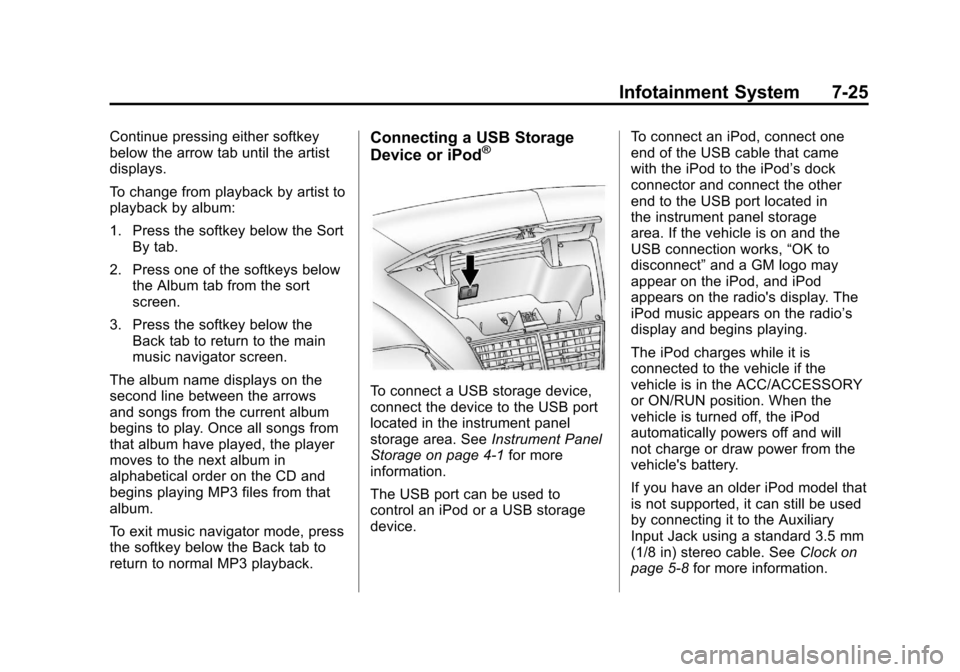
To connect a USB storage device,
connect the device to the USB port
located in the instrument panel
storage area. See Instrument Panel
Storage on page 4‑1 for more
information.
The USB port can be used to
control an iPod or a USB storage
device. To connect an iPod, connect one
end of the USB cable that came
with the iPod to the iPod’s dock
connector and connect the other
end to the USB port located in
the instrument panel storage
area. If the vehicle is on and the
USB connection works,
“OK to
disconnect” and a GM logo may
appear on the iPod, and iPod
appears on the radio's display. The
iPod music appears on the radio’s
display and begins playing.
The iPod charges while it is
connected to the vehicle if the
vehicle is in the ACC/ACCESSORY
or ON/RUN position. When the
vehicle is turned off, the iPod
automatically powers off and will
not charge or draw power from the
vehicle's battery.
If you have an older iPod model that
is not supported, it can still be used
by connecting it to the Auxiliary
Input Jack using a standard 3.5 mm
(1/8 in) stereo cable. See Clock on
page 5‑8 for more information.
Page 206 of 450
Black plate (26,1)Chevrolet Traverse Owner Manual - 2012
7-26 Infotainment System
Using the Radio to Control a
USB Storage Device or iPod
The radio can control a USB
storage device or an iPod using the
radio buttons and knobs and display
song information on the radio’s
display.
f(Tune):Turn to select files.
©SEEK:Press to go to the start of
the track, if more than 10 seconds
have played. Press and hold or
press multiple times to continue
moving backward through tracks.
¨SEEK: Press to go to the next
track. Press and hold or press
multiple times to continue moving
forward through tracks.
sREV (Reverse): Press and hold
to reverse playback quickly. Sound
is heard at a reduced volume.
Release
sREV to resume playing.
The elapsed time of the file
displays.
\FWD (Fast Forward): Press
and hold to advance playback
quickly. Sound is heard at a reduced
volume. Release
\FWD to
resume playing. The elapsed time of
the file displays.
4(Information): Press to display
additional information about the
selected track.
Using Softkeys to Control a
USB Storage Device or iPod
The five softkeys below the radio
display are used to control the
functions listed below.
To use the softkeys:
1. Press the first or fifth softkey below the radio display to
display the functions listed
below, or press the softkey
below the function if it is
currently displayed.
2. Press the softkey below the tab with the function on it to use that
function.
j(Pause): Press the softkey
below
jto pause the track. The tab
appears raised when pause is being
used. Press the softkey below
j
again to resume playback.
Back: Press the softkey below the
Back tab to go back to the main
display screen on an iPod, or the
root directory on a USB storage
device.
c(Folder View): Press the
softkey below
cto view the
contents of the current folder on the
USB drive. To browse and select
files:
1. Press the softkey below
c.
2. Turn
fto scroll through the list
of folders.
3. Press
fto select the folder.
If there is more than one folder,
repeat Steps 1 and 2 until the
folder is reached.
4. Turn
fto scroll through the files
in the selected folder.
Page 207 of 450
Black plate (27,1)Chevrolet Traverse Owner Manual - 2012
Infotainment System 7-27
5. Pressfto select the file to be
played.
To skip through large lists, the five
softkeys can be used to navigate in
the following order:
.First softkey, first item in the list.
.Second softkey, 1% through the
list each time the softkey is
pressed.
.Third softkey, 5% through the list
each time the softkey is pressed.
.Fourth softkey, 10% through the
list each time the softkey is
pressed.
.Fifth softkey, end of the list.
h(Music Navigator): Press the
softkey below
hto view and
select a file on an iPod, using the
iPod's menu system. Files are
sorted by:
.Playlists
.Artists
.Albums
.Genres
.Songs
.Composers
To select files:
1. Press the softkey below
h.
2. Turn
fto scroll through the list
of menus.
3. Press
fto select the menu.
4. Turn
fto scroll through the
folders or files in the
selected menu.
5. Press
fto select the file to be
played.
To skip through large lists, the five
softkeys can be used to navigate in
the following order:
.First softkey, first item in the list.
.Second softkey, 1% through the
list each time the softkey is
pressed.
.Third softkey, 5% through the list
each time the softkey is pressed.
.Fourth softkey, 10% through the
list each time the softkey is
pressed.
.Fifth softkey, end of the list.
Repeat Functionality
To use Repeat:
Press the softkey below
"or'
to select between Repeat All and
Repeat Track.
"(Repeat All): Press the softkey
below
"to repeat all tracks. The
tab appears lowered when Repeat
All is being used. This is the default
mode when a USB storage device
or iPod is first connected.
'(Repeat Track): Press the
softkey below
'to repeat one
track. The tab appears raised when
Repeat Track is being used.
Page 208 of 450
Black plate (28,1)Chevrolet Traverse Owner Manual - 2012
7-28 Infotainment System
Shuffle Functionality
To use Shuffle:
Press the softkey below
>,2,
C, or=to select between
Shuffle Off, Shuffle All Songs/
Shuffle Songs, Shuffle Album,
or Shuffle Folder.
>(Shuffle Off): This is the
default mode when a USB storage
device or iPod is first connected.
2(Shuffle All Songs/Shuffle
Songs): Shuffles all songs on the
USB storage device or iPod.
C(Shuffle Album): Shuffles
all songs in the current album on
an iPod.
=(Shuffle Folder): Shuffles all
songs in the current folder on a USB
storage device.
MP3 (Radios with
CD/DVD)
Format
The radio can play .mp3 or .wma
files that were recorded onto a
CD-R or CD-RW disc.
The USB port can play .mp3
and .wma files stored on a USB
storage device as well as AAC files
stored on an iPod.
Compressed Audio or Mixed Mode
Discs
The radio plays discs that contain
both uncompressed CD audio and
MP3/WMA files depending on which
slot the disc is loaded into.
The DVD Player only reads
uncompressed audio and ignores
MP3/WMA files on a mixed
mode disc.
The CD Player reads both
uncompressed audio and MP3/
WMA files on a mixed mode disc.
Uncompressed audio is played
before MP3/WMA files. Press the CAT (category) button to toggle
between uncompressed audio and
MP3/WMA files.
CD‐R or CD‐RW Supported File
and Folder Structure
The DVD Player supports:
.Up to 255 folders.
.Up to eight folders in depth.
.Up to 15 playlists.
.Up to 40 sessions.
.Playlists with an .m3u or .wpl
extension.
.Files with an .mp3, .wma, or .cda
file extension.
The CD Player supports:
.Up to 512 files and folders.
.Up to eight folders in depth.
.Playlists with an .m3u or .wpl
extension.
.Files with an .mp3, .wma, or .cda
file extension.
Page 209 of 450
Black plate (29,1)Chevrolet Traverse Owner Manual - 2012
Infotainment System 7-29
USB Supported File and Folder
Structure
The radio supports:
.Up to 700 folders.
.Up to eight folders in depth.
.Up to 65,535 files.
.Folder and file names up to
64 bytes.
.Files with an .mp3 or .wma file
extension.
.AAC files stored on an iPod.
.FAT16
.FAT32
Root Directory
The root directory of the disc is
treated as a folder. If the root
directory has compressed audio
files, the directory displays as
F1 ROOT on the radio.
If a disc contains both
uncompressed CD audio and
MP3/WMA files, a folder under the root directory called CD accesses
all of the CD audio tracks on
the disc.
Empty Folder
Folders that do not contain files are
skipped, and the player advances to
the next folder that contains files.
No Folder
When the disc contains only
compressed files, the files are
located under the root folder. The
next and previous folder function
does not function on a disc that was
recorded without folders or playlists.
When displaying the name of the
folder the radio displays ROOT.
When the disc contains only
playlists and compressed audio
files, but no folders, all files are
located under the root folder. The
folder down and the folder up
buttons search playlists first and
then go to the root folder. When the
radio displays the name of the folder
the radio displays ROOT.Order of Play
Compressed audio files are
accessed in the following order:
.Playlists.
.Files stored in the root directory.
.Files stored in folders in the root
directory.
Tracks are played in the following
order:
.Play begins from the first track in
the first playlist and continues
sequentially through all tracks in
each playlist. When the last
track of the last playlist has
played, play continues from the
first track of the first playlist.
.Play begins from the first track in
the first folder and continues
sequentially through all tracks in
each folder. When the last track
of the last folder has played,
play continues from the first
track of the first folder.