phone CHEVROLET TRAVERSE 2013 1.G User Guide
[x] Cancel search | Manufacturer: CHEVROLET, Model Year: 2013, Model line: TRAVERSE, Model: CHEVROLET TRAVERSE 2013 1.GPages: 444
Page 190 of 444
Black plate (10,1)Chevrolet Traverse Owner Manual - 2013 - CRC 2nd Edition - 11/13/12
7-10 Infotainment System
Now Playing:Press to display the
active source page. The sources
available are AM, FM, XM (if
equipped), CD, USB, Bluetooth,
or AUX Input.
}(Navigation): Press to display
the OnStar®Turn-by-Turn
Navigation. See OnStar Overview
on page 14‑1.
5(Phone): Press to display the
Phone main page. See Bluetooth on
page 7‑46.
Settings: Press to display the
Settings menu. See Settings on
page 7‑53.
Tone : Press to display the Tone
Settings menu. The following may
display: Tone Settings:
Press to adjust the
tone settings. The following may
display:
.EQ: Pressoorpto adjust the
equalizer.
.Bass: Press + or −to adjust
the bass.
.Middle: Press + or −to adjust
the middle.
.Treble: Press + or −to adjust the
treble.
.Balance: Press L to hear more
sound from the left speakers or
R for more sound from the right
speakers. The middle position
balances the sound between the
left and right speakers.
.Fade: Press F for more sound
from the front speakers or R for
more sound from the rear
speakers. The middle position
balances the sound between the
front and rear speakers. DSP Mode:
Press
oorpto adjust
the DSP mode (if equipped).
Language
To change the language of the
screens. See Vehicle
Personalization (With DIC Buttons)
on page 5‑41.
English or Metric Units
To change the screens from English
or metric. See Driver Information
Center (DIC) (Without DIC Buttons)
on page 5‑29 orDriver Information
Center (DIC) (With DIC Buttons) on
page 5‑24.
Page 200 of 444
Black plate (20,1)Chevrolet Traverse Owner Manual - 2013 - CRC 2nd Edition - 11/13/12
7-20 Infotainment System
Channel Unavailable:This
previously assigned station is no
longer assigned.
No Artist Info: No artist
information is available at this time
on this station.
No Title Info: No song title
information is available at this time
on this station.
No CAT Info: No category
information is available at this time
on this station.
No Information: No text or
informational messages are
available at this time on this station.
No XM Signal: The vehicle may be
in a location where the SiriusXM
signal is being blocked. When the
vehicle is moved into an open area,
the signal should return.
CAT Not Found: There are no
stations available for the selected
category. XM Radio ID:
If tuned to station 0,
this message alternates with the
SiriusXM radio eight-digit radio ID
label. This label is needed to
activate the service.
Unknown: If this message is
received when tuned to station 0,
there could be a receiver fault.
Consult with your dealer.
XM Not Available: If this message
does not clear within a short period
of time, the receiver could have a
fault. Consult with your dealer.
Radio Reception
Frequency interference and static
can occur during normal radio
reception if items such as phone
chargers, vehicle convenience
accessories, and external electronic
devices are plugged into the
accessory power outlet. If there is
interference or static, unplug the
item from the accessory power
outlet.
FM
FM signals only reach about
16 to 65 km (10 to 40 mi). Although
the radio has a built-in electronic
circuit that automatically works to
reduce interference, some static can
occur, especially around tall
buildings or hills, causing the sound
to fade in and out.
AM
The range for most AM stations is
greater than for FM, especially at
night. The longer range can cause
station frequencies to interfere with
each other. Static can also occur
when things like storms and power
lines interfere with radio reception.
When this happens, try reducing the
treble on the radio.
Page 201 of 444
Black plate (21,1)Chevrolet Traverse Owner Manual - 2013 - CRC 2nd Edition - 11/13/12
Infotainment System 7-21
SiriusXM Satellite Radio
Service
SiriusXM Satellite Radio Service
provides digital radio reception. Tall
buildings or hills can interfere with
satellite radio signals, causing the
sound to fade in and out. In
addition, traveling or standing under
heavy foliage, bridges, garages,
or tunnels may cause loss of the
SiriusXM signal for a period of time.
Cell Phone Usage
Cell phone usage, such as making
or receiving phone calls, charging,
or just having the phone on may
cause static interference in the
radio. Unplug the phone or turn it off
if this happens.
Multi-Band Antenna
The multi-band antenna is located
on the roof of the vehicle. This type
of antenna is used with the AM/FM
radio, as well as OnStar and the
SiriusXM Satellite Radio Service
System, if the vehicle has these
features. Keep this antenna clear of
snow and ice build up for clear radio
reception. If the vehicle has a
sunroof, the performance of the
radio system may be affected if the
sunroof is open. Loading items onto
the roof of the vehicle can interfere
with the performance of the radio
system and, if the vehicle has this
feature, OnStar. Make sure the
multi-band antenna is not
obstructed.
Audio Players
CD Player (Radio without
Touchscreen)
Playing a CD
Insert a CD partway into the slot,
label side up. The player pulls it in
and the CD should begin playing.
ZEJECT:Press and release to
eject the disc that is currently
playing. A beep sounds and
Ejecting Disc displays. Once the
disc is ejected, Remove Disc
displays. The disc can be removed.
If the disc is not removed, after
several seconds, the disc
automatically pulls back into the
player.
f(Tune): Turn to select tracks on
the CD that is currently playing.
©SEEK or¨SEEK: Press©SEEK to go to the start of the
current track, if more than
Page 215 of 444
Black plate (35,1)Chevrolet Traverse Owner Manual - 2013 - CRC 2nd Edition - 11/13/12
Infotainment System 7-35
Shuffle Functionality
To use Shuffle:
Press the softkey below
>,2,
C, or=to select between
Shuffle Off, Shuffle All Songs/
Shuffle Songs, Shuffle Album,
or Shuffle Folder.
>(Shuffle Off): This is the
default mode when a USB storage
device or iPod is first connected.
2(Shuffle All Songs/Shuffle
Songs): Shuffles all songs on the
USB storage device or iPod.
C(Shuffle Album): Shuffles all
songs in the current album on
an iPod.
=(Shuffle Folder): Shuffles all
songs in the current folder on a USB
storage device.
Auxiliary Devices
The vehicle may have a 3.5 mm
(1/8 in) auxiliary input jack on the
faceplate. For vehicles with a USB
port, it is in the instrument panel
storage area.
Using the 3.5 mm (1/8 in)
Auxiliary Input Jack
This is not an audio output; do not
plug a headphone set into the front
auxiliary input jack. Connect an
auxiliary input device such as an
iPod, laptop computer, MP3 player,
CD player, or cassette tape player
to the auxiliary input jack for use as
another source for audio listening.
Drivers are encouraged to set up
any auxiliary device while the
vehicle is in P (Park). See
Defensive Driving on page 9‑2 for
more information on driver
distraction. To use an auxiliary input device,
connect a 3.5 mm (1/8 in) cable to
the radio's front auxiliary input jack.
Press CD/AUX or SRCE to select
the device.
Using the USB Port
For vehicles with a USB port, the
connector is in the instrument panel
storage area. See
Instrument Panel
Storage on page 4‑1.
Radios with a USB port can control
a USB storage device or an iPod
using the radio buttons and knobs.
See MP3 (Radio with Touchscreen)
on page 7‑25 orMP3 (Radio without
Touchscreen) on page 7‑29 for
information about how to connect
and control a USB storage device or
an iPod.
Page 216 of 444
Black plate (36,1)Chevrolet Traverse Owner Manual - 2013 - CRC 2nd Edition - 11/13/12
7-36 Infotainment System
USB Supported Devices
.USB Flash Drives
.Portable USB Hard Drives
.Fifth generation or later iPod
.iPod nano®
.iPod touch®
.iPod classic®
Not all iPods and USB drives are
compatible with the USB port.
Make sure the iPod has the latest
firmware from Apple
®for proper
operation. iPod firmware can be
updated using the latest iTunes
®
application. See www.apple.com/
itunes.
For help identifying your iPod, go to
www.apple.com/support.
Rear Seat
Infotainment
Rear Seat Audio (RSA)
System
The vehicle may have a DVD Rear
Seat Entertainment (RSE) system.
The RSE system works with the
vehicle's audio system. The DVD
player is part of the front radio. The
RSE system includes a radio with a
DVD player, a video display screen,
audio/video jacks, two wireless
headphones, and a remote control.
See Operation (Radio without
Touchscreen) on page 7‑6 or
Operation (Radio with Touchscreen)
on page 7‑8 for more information on
the vehicle's infotainment system.
Before Driving
The RSE is designed for rear seat
passengers only. The driver cannot
safely view the video screen while
driving and should not try to do so. In severe or extreme weather
conditions, the RSE system might or
might not work until the temperature
is within the operating range. The
operating range for the RSE system
is above
−20°C (−4°F) or below
60°C (140°F). If the temperature of
the vehicle is outside of this range,
heat or cool the vehicle until the
temperature is within the operating
range of the RSE system.
Parental Control
The RSE system may have a
Parental Control feature, depending
on the radio. To enable Parental
Control, press and hold the radio
power button for more than
two seconds to stop all system
features such as: radio, video
screen, RSA, DVD and/or CD. While
Parental Control is on,
Qdisplays.
When the radio is turned back on,
Parental Control is unlocked.
Page 217 of 444
Black plate (37,1)Chevrolet Traverse Owner Manual - 2013 - CRC 2nd Edition - 11/13/12
Infotainment System 7-37
Headphones
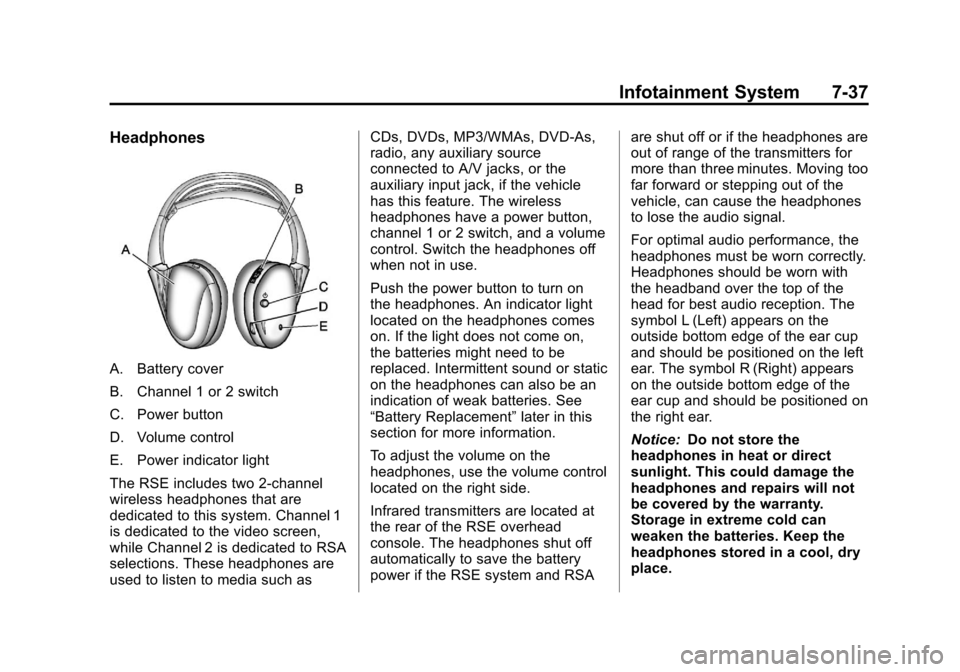
A. Battery cover
B. Channel 1 or 2 switch
C. Power button
D. Volume control
E. Power indicator light
The RSE includes two 2-channel
wireless headphones that are
dedicated to this system. Channel 1
is dedicated to the video screen,
while Channel 2 is dedicated to RSA
selections. These headphones are
used to listen to media such asCDs, DVDs, MP3/WMAs, DVD-As,
radio, any auxiliary source
connected to A/V jacks, or the
auxiliary input jack, if the vehicle
has this feature. The wireless
headphones have a power button,
channel 1 or 2 switch, and a volume
control. Switch the headphones off
when not in use.
Push the power button to turn on
the headphones. An indicator light
located on the headphones comes
on. If the light does not come on,
the batteries might need to be
replaced. Intermittent sound or static
on the headphones can also be an
indication of weak batteries. See
“Battery Replacement”
later in this
section for more information.
To adjust the volume on the
headphones, use the volume control
located on the right side.
Infrared transmitters are located at
the rear of the RSE overhead
console. The headphones shut off
automatically to save the battery
power if the RSE system and RSA are shut off or if the headphones are
out of range of the transmitters for
more than three minutes. Moving too
far forward or stepping out of the
vehicle, can cause the headphones
to lose the audio signal.
For optimal audio performance, the
headphones must be worn correctly.
Headphones should be worn with
the headband over the top of the
head for best audio reception. The
symbol L (Left) appears on the
outside bottom edge of the ear cup
and should be positioned on the left
ear. The symbol R (Right) appears
on the outside bottom edge of the
ear cup and should be positioned on
the right ear.
Notice:
Do not store the
headphones in heat or direct
sunlight. This could damage the
headphones and repairs will not
be covered by the warranty.
Storage in extreme cold can
weaken the batteries. Keep the
headphones stored in a cool, dry
place.
Page 218 of 444
Black plate (38,1)Chevrolet Traverse Owner Manual - 2013 - CRC 2nd Edition - 11/13/12
7-38 Infotainment System
If the foam ear pads attached to the
headphones become worn or
damaged, the pads can be replaced
separately from the headphone set.
To purchase replacement ear pads,
call 1‐888‐293‐3332, then prompt
zero (0), or contact your dealer.
Headphones should be stored in the
front floor console and not in the
front seat back pocket. Headphone
damage can occur when the second
row seats are folded forward.
Battery Replacement
To change the batteries on the
headphones:
1. Turn the screw to loosen thebattery door located on the left
side of the headphones. Slide
the battery door open.
2. Replace the two batteries in the compartment. Make sure that
they are installed correctly, using
the diagram on the inside of the
battery compartment.
3. Replace the battery door and tighten the door screw. If the headphones are to be stored
for a long period of time, remove the
batteries and keep them in a cool,
dry place.
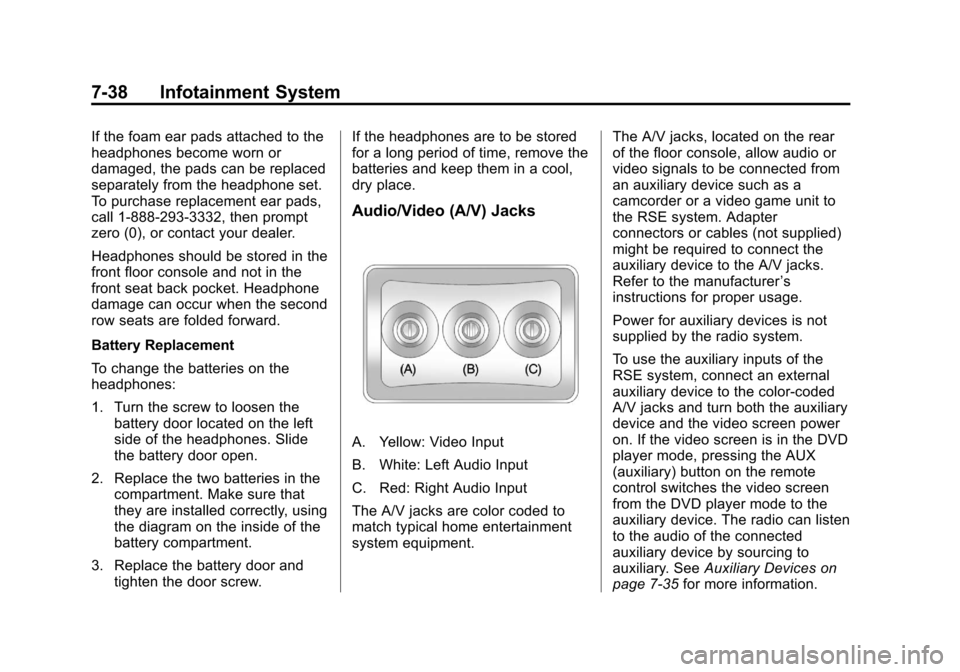
Audio/Video (A/V) Jacks
A. Yellow: Video Input
B. White: Left Audio Input
C. Red: Right Audio Input
The A/V jacks are color coded to
match typical home entertainment
system equipment.
The A/V jacks, located on the rear
of the floor console, allow audio or
video signals to be connected from
an auxiliary device such as a
camcorder or a video game unit to
the RSE system. Adapter
connectors or cables (not supplied)
might be required to connect the
auxiliary device to the A/V jacks.
Refer to the manufacturer
’s
instructions for proper usage.
Power for auxiliary devices is not
supplied by the radio system.
To use the auxiliary inputs of the
RSE system, connect an external
auxiliary device to the color-coded
A/V jacks and turn both the auxiliary
device and the video screen power
on. If the video screen is in the DVD
player mode, pressing the AUX
(auxiliary) button on the remote
control switches the video screen
from the DVD player mode to the
auxiliary device. The radio can listen
to the audio of the connected
auxiliary device by sourcing to
auxiliary. See Auxiliary Devices on
page 7‑35 for more information.
Page 219 of 444
Black plate (39,1)Chevrolet Traverse Owner Manual - 2013 - CRC 2nd Edition - 11/13/12
Infotainment System 7-39
How to Change the RSE Video
Screen Settings
The screen display mode (normal,
full, and zoom), screen brightness,
and setup menu language can be
changed from the on screen setup
menu by using the remote control.
To change a setting:
1. Press
z.
2. Use
n,q,p,oandrto
navigate and use the
setup menu.
3. Press
zagain to remove the
setup menu from the screen.
Audio Output
Audio from the DVD player or
auxiliary inputs can be heard
through the following sources:
.Wireless headphones
.Vehicle speakers
.Vehicle‐wired headphone jacks
on the RSA system, if the
vehicle has this feature. The RSE system always transmits
the audio signal to the wireless
headphones, if there is audio
available. See
“Headphones” earlier
in this section for more information.
The DVD player is capable of
outputting audio to the wired
headphone jacks on the RSA
system, if the vehicle has this
feature. The DVD player can be
selected as an audio source on the
RSA system. See Rear Seat Audio
(RSA) System on page 7‑36 for
more information.
When a device is connected to the
A/V jacks, or the radio's auxiliary
input jack, if the vehicle has this
feature, the rear seat passengers
are able to hear audio from the
auxiliary device through the wireless
or wired headphones. The front seat
passengers are able to listen to
playback from this device through
the vehicle speakers by selecting
AUX as the source on the radio.
Video Screen
The video screen is located in the
overhead console. When the video
screen is not in use, push it up into
its locked position.
To use the video screen:
1. Push the release button located on the overhead console.
2. Move the screen to the desired position.
If a DVD is playing and the screen
is raised to its locked position, the
screen remains on; this is normal,
and the DVD continues to play
through the previous audio source.
Press
Pon the remote control or
eject the disc to turn off the screen.
The infrared receivers for the
wireless headphones and the
remote control are located at the
rear of the overhead console.
Page 224 of 444
Black plate (44,1)Chevrolet Traverse Owner Manual - 2013 - CRC 2nd Edition - 11/13/12
7-44 Infotainment System
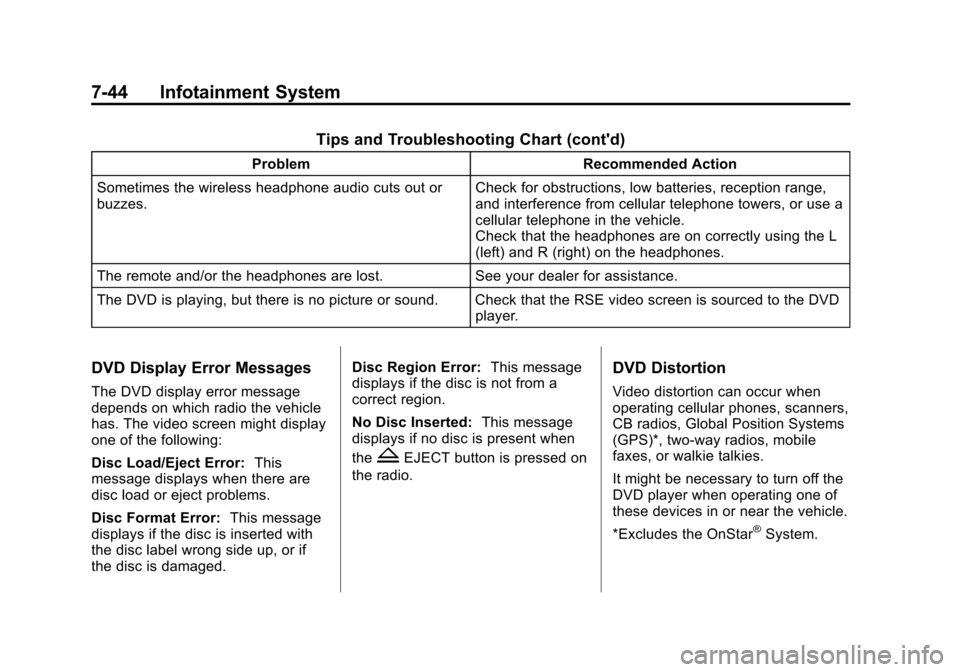
Tips and Troubleshooting Chart (cont'd)
ProblemRecommended Action
Sometimes the wireless headphone audio cuts out or
buzzes. Check for obstructions, low batteries, reception range,
and interference from cellular telephone towers, or use a
cellular telephone in the vehicle.
Check that the headphones are on correctly using the L
(left) and R (right) on the headphones.
The remote and/or the headphones are lost. See your dealer for assistance.
The DVD is playing, but there is no picture or sound. Check that the RSE video screen is sourced to the DVD player.
DVD Display Error Messages
The DVD display error message
depends on which radio the vehicle
has. The video screen might display
one of the following:
Disc Load/Eject Error:This
message displays when there are
disc load or eject problems.
Disc Format Error: This message
displays if the disc is inserted with
the disc label wrong side up, or if
the disc is damaged. Disc Region Error:
This message
displays if the disc is not from a
correct region.
No Disc Inserted: This message
displays if no disc is present when
the
ZEJECT button is pressed on
the radio.
DVD Distortion
Video distortion can occur when
operating cellular phones, scanners,
CB radios, Global Position Systems
(GPS)*, two-way radios, mobile
faxes, or walkie talkies.
It might be necessary to turn off the
DVD player when operating one of
these devices in or near the vehicle.
*Excludes the OnStar
®System.
Page 226 of 444
Black plate (46,1)Chevrolet Traverse Owner Manual - 2013 - CRC 2nd Edition - 11/13/12
7-46 Infotainment System
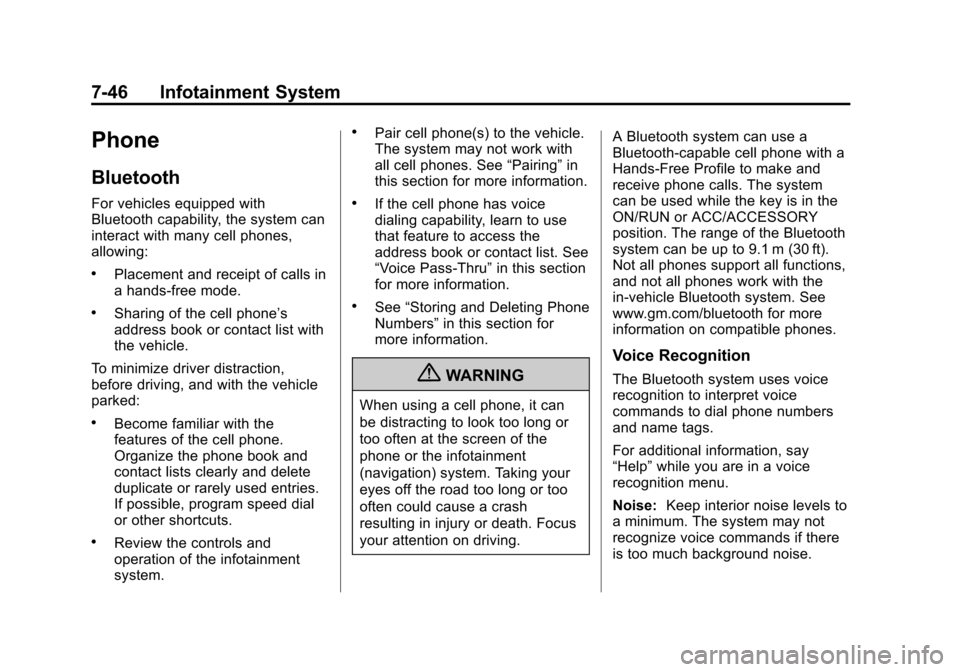
Phone
Bluetooth
For vehicles equipped with
Bluetooth capability, the system can
interact with many cell phones,
allowing:
.Placement and receipt of calls in
a hands-free mode.
.Sharing of the cell phone’s
address book or contact list with
the vehicle.
To minimize driver distraction,
before driving, and with the vehicle
parked:
.Become familiar with the
features of the cell phone.
Organize the phone book and
contact lists clearly and delete
duplicate or rarely used entries.
If possible, program speed dial
or other shortcuts.
.Review the controls and
operation of the infotainment
system.
.Pair cell phone(s) to the vehicle.
The system may not work with
all cell phones. See “Pairing”in
this section for more information.
.If the cell phone has voice
dialing capability, learn to use
that feature to access the
address book or contact list. See
“Voice Pass-Thru” in this section
for more information.
.See “Storing and Deleting Phone
Numbers” in this section for
more information.
{WARNING
When using a cell phone, it can
be distracting to look too long or
too often at the screen of the
phone or the infotainment
(navigation) system. Taking your
eyes off the road too long or too
often could cause a crash
resulting in injury or death. Focus
your attention on driving. A Bluetooth system can use a
Bluetooth-capable cell phone with a
Hands-Free Profile to make and
receive phone calls. The system
can be used while the key is in the
ON/RUN or ACC/ACCESSORY
position. The range of the Bluetooth
system can be up to 9.1 m (30 ft).
Not all phones support all functions,
and not all phones work with the
in-vehicle Bluetooth system. See
www.gm.com/bluetooth for more
information on compatible phones.
Voice Recognition
The Bluetooth system uses voice
recognition to interpret voice
commands to dial phone numbers
and name tags.
For additional information, say
“Help”
while you are in a voice
recognition menu.
Noise: Keep interior noise levels to
a minimum. The system may not
recognize voice commands if there
is too much background noise.