key CHEVROLET TRAVERSE 2013 Workshop Manual
[x] Cancel search | Manufacturer: CHEVROLET, Model Year: 2013, Model line: TRAVERSE, Model: CHEVROLET TRAVERSE 2013Pages: 444, PDF Size: 7.45 MB
Page 192 of 444
Black plate (12,1)Chevrolet Traverse Owner Manual - 2013 - CRC 2nd Edition - 11/13/12
7-12 Infotainment System
To set up the number of favorites
pages:
1. Press MENU to display the radiosetup menu.
2. Press the softkey below the FAV 1-6 tab.
3. Select the desired number of favorites pages by pressing the
softkey below the displayed
page numbers.
4. Press FAV, or let the menu time out, to return to the original main
radio screen showing the radio
station frequency tabs and to
begin the process of
programming favorites for the
chosen number of favorites
pages.AM-FM Radio (Radio with
Touchscreen)
Playing the Radio
PUSH/O(Power/Volume):
.Press to turn the radio on or off.
.Turn to increase or decrease the
volume of the active source.
The steering wheel controls can
also be used to adjust the volume.
See Steering Wheel Controls on
page 5‑2.
Audio Source
To access AM, FM, or SiriusXM
®if
equipped, do one of the following:
.Press the AM, FM, or XM (if
equipped) screen button.
.Press the SRCE radio button to
scroll through the options.
A source ribbon will appear at
the bottom of the screen
allowing you to select the one
you want.
Infotainment System Settings
Tone Settings
To access the tone settings, press
the Tone Settings button on the
Home Page.
To adjust the settings:
.Bass: Press + or −to change
the level.
.Middle: Press + or −to change
the level.
.Treble: Press + or −to change
the level.
.EQ: Pressoorpto scroll
through the preset EQ options.
.DSP Mode: Pressoorpto
scroll through the preset DSP
modes.
.Fade: Press the F or R button
for more sound from the front or
rear speakers. The middle
position balances the sound
between the front and rear
speakers.
ProCarManuals.com
Page 196 of 444
Black plate (16,1)Chevrolet Traverse Owner Manual - 2013 - CRC 2nd Edition - 11/13/12
7-16 Infotainment System
Finding a Station
BAND:Press to switch between
AM, FM, or SiriusXM. The selection
displays.
f(Tune): Turn to select radio
stations.
©SEEK and¨SEEK: Press to go
to the previous or next station and
stay there.
To scan stations, press and hold
©
or¨until a beep sounds. The radio
goes to a station, plays for a few
seconds, then goes to the next
station. Press either arrow again to
stop scanning.
The radio only seeks and scans
stations with a strong signal that are
in the selected band.
Finding a Category (CAT)
Station
CAT (Category): The CAT button is
used to find SiriusXM stations when
the radio is in the XM mode. To find
SiriusXM channels within a desired
category:
1. Press BAND until the SiriusXM frequency displays.
2. Press CAT to display the category tabs.
3. Continue pressing CAT until the desired category name displays.
.Radios with CD and DVD
can also navigate the
category list by pressing
s
REV or\FWD.
4. Press either of the two buttons below the desired category tab
to immediately tune to the first
SiriusXM station associated with
that category. 5. To go to the next or previous
SiriusXM station within the
selected category, do one of the
following:
.Turnf.
.Press the buttons below the
right or left arrows on the
display.
.Press either SEEK arrow.
6. To exit the category search mode, press the FAV button or
BAND button to display the
favorites again.
Undesired SiriusXM categories can
be removed through the setup
menu. To remove an undesired
category, perform the following:
1. Press MENU to display the radio setup menu.
2. Press the softkey below the XM CAT tab.
3. Turn
fto display the category to
be removed.
ProCarManuals.com
Page 197 of 444
Black plate (17,1)Chevrolet Traverse Owner Manual - 2013 - CRC 2nd Edition - 11/13/12
Infotainment System 7-17
4. Press the softkey under theRemove tab until the category
name along with the word
Removed displays.
5. Repeat the steps to remove more categories.
Removed categories can be
restored by pressing the softkey
under the Add tab when a removed
category is displayed or by pressing
the softkey under the Restore
All tab.
Categories cannot be removed or
added while the vehicle is moving
faster than 8 km/h (5 mph).
Storing a Radio Station as a
Favorite
Drivers are encouraged to set up
their radio station favorites while the
vehicle is in P (Park). Tune to
favorite stations using the presets,
favorites button, and steering wheel
controls. See Steering Wheel
Controls on page 5‑2. FAV (Favorites):
A maximum of
36 stations can be programmed as
favorites using the six softkeys
below the radio station frequency
tabs and by using the radio favorites
page button (FAV button). Press to
go through up to six pages of
favorites, each having six favorite
stations available per page. Each
page of favorites can contain any
combination of AM, FM, or SiriusXM
stations.
The balance/fade and tone settings
that were previously adjusted are
stored with the favorite stations.
To store a station as a favorite:
1. Tune to the desired radio station.
2. Press FAV to display the page to
store the station.
3. Press and hold one of the six softkeys until a beep sounds.
When that softkey is pressed
and released, the station that
was set returns.
4. Repeat the steps for each radio station to be stored as a favorite. To set up the number of favorites
pages:
1. Press MENU to display the radio
setup menu.
2. Press the softkey below the FAV 1-6 tab.
3. Select the desired number of favorites pages by pressing the
softkey below the displayed
page numbers.
4. Press FAV, or let the menu time out, to return to the original main
radio screen showing the radio
station frequency tabs and to
begin the process of
programming favorites for the
chosen number of favorites
pages.SiriusXM Radio Messages
XL (Explicit Language
Channels): These channels, or any
others, can be blocked at a
customer's request, by calling
1-866-635-2349 (U.S) and
1-877-209-0079 (Canada).
ProCarManuals.com
Page 202 of 444
Black plate (22,1)Chevrolet Traverse Owner Manual - 2013 - CRC 2nd Edition - 11/13/12
7-22 Infotainment System
10 seconds on the CD have played.
Press
¨SEEK to go to the next
track.
If either arrow is held, or pressed
multiple times, the player continues
moving backward or forward
through the tracks on the CD.
sREV (Fast Reverse): Press
and hold to reverse playback quickly
within a track. Sound will be heard
at a reduced volume. Release to
resume playing the track. The
elapsed time of the track displays.
\FWD (Fast Forward): Press
and hold to advance playback
quickly within a track. Sound will be
heard at a reduced volume. Release
to resume playing the track. The
elapsed time of the track displays.
RDM (Random): CD tracks can be
listened to in random, rather than
sequential order with the random
setting. To use random, press the
softkey under the RDM label until
Random Current Disc displays.
Press the softkey again to turn off
random play. BAND:
Press to listen to the radio
when a CD is playing. The CD
remains inside the radio for future
listening.
CD/AUX (CD/Auxiliary): Press to
select between CD, or Auxiliary.
.When a CD is in the player, the
CD icon and a message
showing the disc and/or track
number display.
.If an auxiliary input device is not
connected, “No Input Device
Found” displays.
Care of CDs
If playing a CD-R, the sound quality
can be reduced due to CD-R or
CD-RW quality, the method of
recording, the quality of the music
that has been recorded, and the
way the CD-R or CD-RW has been
handled. Handle them carefully.
Store CD-R(s) or CD-RW(s) in their
original cases or other protective
cases and away from direct sunlight
and dust. The CD player scans the
bottom surface of the disc. If the surface of a CD is damaged, such
as cracked, broken, or scratched,
the CD does not play properly or not
at all. Do not touch the bottom side
of a CD while handling it; this could
damage the surface. Pick up CDs
by grasping the outer edges or the
edge of the hole and the outer edge.
If the surface of a CD is soiled, take
a soft, lint‐free cloth or dampen a
clean, soft cloth in a mild, neutral
detergent solution mixed with water,
and clean it. Make sure the wiping
process starts from the center to
the edge.
Care of the CD Player
Do not add any label to a CD; it
could get caught in the CD player.
If a CD is recorded on a personal
computer and a description label is
needed, try labeling the top of the
recorded CD with a marking pen.
The use of CD lens cleaners for
CDs is not advised.
ProCarManuals.com
Page 211 of 444
Black plate (31,1)Chevrolet Traverse Owner Manual - 2013 - CRC 2nd Edition - 11/13/12
Infotainment System 7-31
Track names longer than 32
characters or four pages are
shortened. Parts of words on the
last page of text and the extension
of the filename do not display.
Preprogrammed Playlists
Preprogrammed playlists that were
created using WinAmp™,
MusicMatch™, or Real Jukebox™
software can be accessed; however,
they cannot be edited using the
radio. These playlists are treated as
special folders containing
compressed audio song files.
Playlists that have an .m3u or .pls
file extension and are stored on a
USB device may be supported by
the radio with a USB port.
Playing a CD-R or CD-RW MP3
f(Tune):Turn to select MP3/WMA
files.
©SEEK: Press to go to the start of
the track, if more than 10 seconds
have played. Press and hold or
press multiple times to continue
moving backward through tracks.
¨SEEK: Press to go to the next
track. Press and hold or press
multiple times to continue moving
forward through tracks.
sREV (Reverse): Press and hold
to reverse playback quickly. Sound
is heard at a reduced volume and
the elapsed time of the file displays.
Release
sREV to resume playing.
\FWD (Fast Forward): Press
and hold to advance playback
quickly. Sound is heard at a reduced
volume and the elapsed time of the
file displays. Release
\FWD to
resume playing. The elapsed time of
the file displays.
S c(Previous Folder): Press
the softkey below
S cto go to the
first track in the previous folder.
cT (Next Folder): Press the
softkey below
cT to go to the first
track in the next folder.
RDM (Random): Files on the disc
can be listened to in random, rather
than sequential order. To use random, press the softkey under the
RDM tab until Random Current Disc
displays to play songs in random
order. Press the same softkey again
to turn off random play.
h(Music Navigator):
Press the
softkey below
hto play files in
order by artist or album.
The player scans the disc to sort the
files by artist and album ID3 tag
information. It can take several
minutes to scan the disc depending
on the number of files on the disc.
The radio may begin playing while it
is scanning in the background.
When the scan is finished, the disc
begins playing files in order by
artist. The current artist playing is
shown on the second line of the
display. Once all songs by that artist
are played, the player moves to the
next artist in alphabetical order and
begins playing files by that artist.
To listen to files by another artist,
press the softkey below either arrow
tab. The disc goes to the next or
previous artist in alphabetical order.
ProCarManuals.com
Page 212 of 444
Black plate (32,1)Chevrolet Traverse Owner Manual - 2013 - CRC 2nd Edition - 11/13/12
7-32 Infotainment System
Continue pressing either softkey
below the arrow tab until the artist
displays.
To change from playback by artist to
playback by album:
1. Press the softkey below the SortBy tab.
2. Press one of the softkeys below the Album tab from the sort
screen.
3. Press the softkey below the Back tab to return to the main
music navigator screen.
The album name displays on the
second line between the arrows and
songs from the current album
begins to play. Once all songs from
that album have played, the player
moves to the next album in
alphabetical order on the CD and
begins playing MP3 files from that
album.
To exit music navigator mode, press
the softkey below the Back tab to
return to normal MP3 playback.Connecting a USB Storage
Device or iPod®
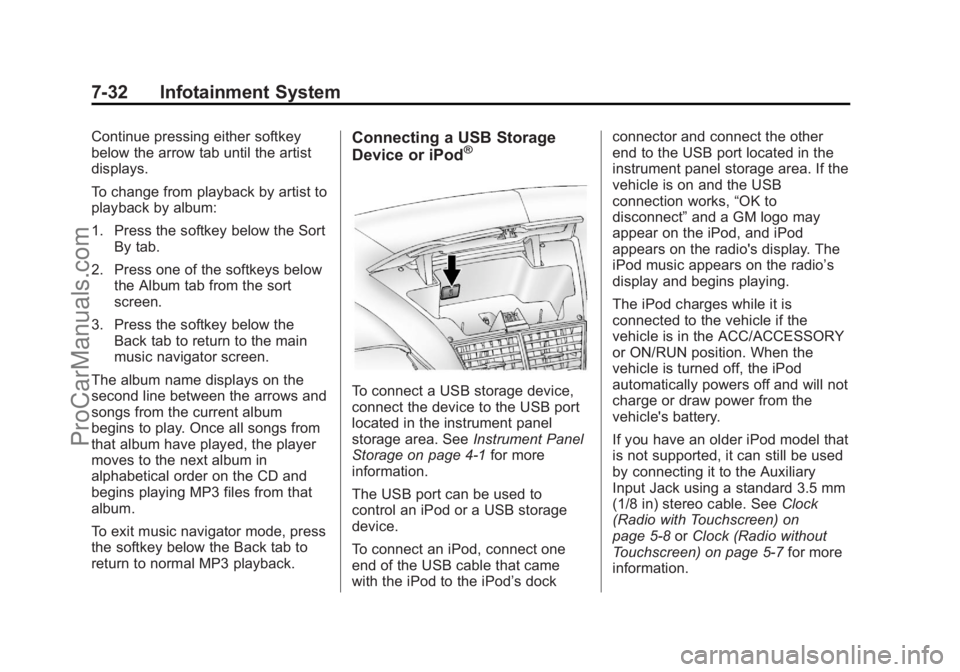
To connect a USB storage device,
connect the device to the USB port
located in the instrument panel
storage area. See Instrument Panel
Storage on page 4‑1 for more
information.
The USB port can be used to
control an iPod or a USB storage
device.
To connect an iPod, connect one
end of the USB cable that came
with the iPod to the iPod’s dock connector and connect the other
end to the USB port located in the
instrument panel storage area. If the
vehicle is on and the USB
connection works,
“OK to
disconnect” and a GM logo may
appear on the iPod, and iPod
appears on the radio's display. The
iPod music appears on the radio’s
display and begins playing.
The iPod charges while it is
connected to the vehicle if the
vehicle is in the ACC/ACCESSORY
or ON/RUN position. When the
vehicle is turned off, the iPod
automatically powers off and will not
charge or draw power from the
vehicle's battery.
If you have an older iPod model that
is not supported, it can still be used
by connecting it to the Auxiliary
Input Jack using a standard 3.5 mm
(1/8 in) stereo cable. See Clock
(Radio with Touchscreen) on
page 5‑8 orClock (Radio without
Touchscreen) on page 5‑7 for more
information.
ProCarManuals.com
Page 213 of 444
Black plate (33,1)Chevrolet Traverse Owner Manual - 2013 - CRC 2nd Edition - 11/13/12
Infotainment System 7-33
Using the Radio to Control a
USB Storage Device or iPod
The radio can control a USB
storage device or an iPod using the
radio buttons and knobs and display
song information on the radio’s
display.
f(Tune):Turn to select files.
©SEEK:Press to go to the start of
the track, if more than 10 seconds
have played. Press and hold or
press multiple times to continue
moving backward through tracks.
¨SEEK: Press to go to the next
track. Press and hold or press
multiple times to continue moving
forward through tracks.
sREV (Reverse): Press and hold
to reverse playback quickly. Sound
is heard at a reduced volume.
Release
sREV to resume playing.
The elapsed time of the file
displays.
\FWD (Fast Forward): Press
and hold to advance playback
quickly. Sound is heard at a reduced volume. Release
\FWD to
resume playing. The elapsed time of
the file displays.
4(Information): Press to display
additional information about the
selected track.
Using Softkeys to Control a
USB Storage Device or iPod
The five softkeys below the radio
display are used to control the
functions listed below.
To use the softkeys:
1. Press the first or fifth softkey
below the radio display to
display the functions listed
below, or press the softkey
below the function if it is
currently displayed.
2. Press the softkey below the tab with the function on it to use that
function.
j(Pause): Press the softkey belowjto pause the track. The tab
appears raised when pause is being
used. Press the softkey below
j
again to resume playback.
Back: Press the softkey below the
Back tab to go back to the main
display screen on an iPod, or the
root directory on a USB storage
device.
c(Folder View): Press the
softkey below
cto view the
contents of the current folder on the
USB drive. To browse and select
files:
1. Press the softkey below
c.
2. Turn
fto scroll through the list
of folders.
3. Press
fto select the folder.
If there is more than one folder,
repeat Steps 1 and 2 until the
folder is reached.
4. Turn
fto scroll through the files
in the selected folder.
ProCarManuals.com
Page 214 of 444
Black plate (34,1)Chevrolet Traverse Owner Manual - 2013 - CRC 2nd Edition - 11/13/12
7-34 Infotainment System
5. Pressfto select the file to be
played.
To skip through large lists, the five
softkeys can be used to navigate in
the following order:
.First softkey, first item in the list.
.Second softkey, 1% through the
list each time the softkey is
pressed.
.Third softkey, 5% through the list
each time the softkey is pressed.
.Fourth softkey, 10% through the
list each time the softkey is
pressed.
.Fifth softkey, end of the list.
h(Music Navigator): Press the
softkey below
hto view and
select a file on an iPod, using the
iPod's menu system. Files are
sorted by:
.Playlists
.Artists
.Albums
.Genres
.Songs
.Composers
To select files:
1. Press the softkey below
h.
2. Turn
fto scroll through the list
of menus.
3. Press
fto select the menu.
4. Turn
fto scroll through the
folders or files in the
selected menu.
5. Press
fto select the file to be
played.
To skip through large lists, the five
softkeys can be used to navigate in
the following order:
.First softkey, first item in the list.
.Second softkey, 1% through the
list each time the softkey is
pressed.
.Third softkey, 5% through the list
each time the softkey is pressed.
.Fourth softkey, 10% through the
list each time the softkey is
pressed.
.Fifth softkey, end of the list.
Repeat Functionality
To use Repeat:
Press the softkey below
"or'
to select between Repeat All and
Repeat Track.
"(Repeat All): Press the softkey
below
"to repeat all tracks. The
tab appears lowered when Repeat
All is being used. This is the default
mode when a USB storage device
or iPod is first connected.
'(Repeat Track): Press the
softkey below
'to repeat one
track. The tab appears raised when
Repeat Track is being used.
ProCarManuals.com
Page 215 of 444
Black plate (35,1)Chevrolet Traverse Owner Manual - 2013 - CRC 2nd Edition - 11/13/12
Infotainment System 7-35
Shuffle Functionality
To use Shuffle:
Press the softkey below
>,2,
C, or=to select between
Shuffle Off, Shuffle All Songs/
Shuffle Songs, Shuffle Album,
or Shuffle Folder.
>(Shuffle Off): This is the
default mode when a USB storage
device or iPod is first connected.
2(Shuffle All Songs/Shuffle
Songs): Shuffles all songs on the
USB storage device or iPod.
C(Shuffle Album): Shuffles all
songs in the current album on
an iPod.
=(Shuffle Folder): Shuffles all
songs in the current folder on a USB
storage device.
Auxiliary Devices
The vehicle may have a 3.5 mm
(1/8 in) auxiliary input jack on the
faceplate. For vehicles with a USB
port, it is in the instrument panel
storage area.
Using the 3.5 mm (1/8 in)
Auxiliary Input Jack
This is not an audio output; do not
plug a headphone set into the front
auxiliary input jack. Connect an
auxiliary input device such as an
iPod, laptop computer, MP3 player,
CD player, or cassette tape player
to the auxiliary input jack for use as
another source for audio listening.
Drivers are encouraged to set up
any auxiliary device while the
vehicle is in P (Park). See
Defensive Driving on page 9‑2 for
more information on driver
distraction. To use an auxiliary input device,
connect a 3.5 mm (1/8 in) cable to
the radio's front auxiliary input jack.
Press CD/AUX or SRCE to select
the device.
Using the USB Port
For vehicles with a USB port, the
connector is in the instrument panel
storage area. See
Instrument Panel
Storage on page 4‑1.
Radios with a USB port can control
a USB storage device or an iPod
using the radio buttons and knobs.
See MP3 (Radio with Touchscreen)
on page 7‑25 orMP3 (Radio without
Touchscreen) on page 7‑29 for
information about how to connect
and control a USB storage device or
an iPod.
ProCarManuals.com
Page 221 of 444
Black plate (41,1)Chevrolet Traverse Owner Manual - 2013 - CRC 2nd Edition - 11/13/12
Infotainment System 7-41
z(Display Menu):Press to adjust
the brightness, screen display mode
(normal, full, or zoom), and display
the language menu.
q(Return): Press to exit the
current active menu and return to
the previous menu. This button
operates only when the display
menu or a DVD menu is active.
c(Stop): Press to stop playing,
rewinding, or fast forwarding a DVD.
Press twice to return to the
beginning of the DVD.
s(Play/Pause): Press to start
playing a DVD. Press while a DVD
is playing to pause it. Press again to
continue playing the DVD.
When the DVD is playing,
depending on the radio, play may
be slowed down by pressing
s
then[. The DVD continues playing
in a slow play mode. Depending on
the radio, perform reverse slow play
by pressing
sthenr. To cancel
slow play mode, press
sagain.
t(Previous Track/Chapter):
Press to return to the start of the
current track or chapter. Press again
to go to the previous track or
chapter. This button might not work
when the DVD is playing the
copyright information or the
previews.
u(Next Track/Chapter): Press to
go to the beginning of the next
chapter or track. This button might
not work when the DVD is playing
the copyright information or the
previews.
r(Fast Reverse): Press to
quickly reverse the DVD or CD. To
stop fast reversing a DVD video,
press
s. To stop fast reversing a
DVD audio or CD, release
r. This
button might not work when the
DVD is playing the copyright
information or the previews.
[(Fast Forward): Press to fast
forward the DVD or CD. To stop fast
forwarding a DVD video, press
s.
To stop fast forwarding a DVD audio or CD, release
[. This button might
not work when the DVD is playing
the copyright information or the
previews.
e(Audio): Press to change audio
tracks on DVDs that have this
feature when the DVD is playing.
The format and content of this
function vary for each disc.
{(Subtitles): Press to turn ON/
OFF subtitles and to move through
subtitle options when a DVD is
playing. The format and content of
this function vary for each disc.
AUX (Auxiliary): Press to switch
the system between the DVD player
and an auxiliary source.
2(Camera): Press to change
camera angles on DVDs that have
this feature when a DVD is playing.
The format and content of this
function vary for each disc.
1 through 0 (Numeric Keypad):
The numeric keypad provides the
capability of direct chapter or track
number selection.
ProCarManuals.com