audio CHEVROLET TRAVERSE 2015 1.G User Guide
[x] Cancel search | Manufacturer: CHEVROLET, Model Year: 2015, Model line: TRAVERSE, Model: CHEVROLET TRAVERSE 2015 1.GPages: 434, PDF Size: 5.84 MB
Page 185 of 434
Black plate (1,1)Chevrolet Traverse Owner Manual (GMNA-Localizing-U.S./Canada/Mexico-
7576032) - 2015 - CRC - 8/19/14
Infotainment System 7-1
Infotainment
System
Introduction
Infotainment . . . . . . . . . . . . . . . . . . . 7-1
Theft-Deterrent Feature . . . . . . . 7-2
Overview (Radio withoutTouchscreen) . . . . . . . . . . . . . . . . 7-3
Overview (Radio with Touchscreen) . . . . . . . . . . . . . . . . 7-5
Operation (Radio without Touchscreen) . . . . . . . . . . . . . . . . 7-5
Operation (Radio with Touchscreen) . . . . . . . . . . . . . . . . 7-8
Radio
AM-FM Radio (Radio withoutTouchscreen) . . . . . . . . . . . . . . . 7-10
AM-FM Radio (Radio with Touchscreen) . . . . . . . . . . . . . . . 7-12
Satellite Radio (Radio without Touchscreen) . . . . . . . . . . . . . . . 7-15
Satellite Radio (Radio with Touchscreen) . . . . . . . . . . . . . . . 7-18
Radio Reception . . . . . . . . . . . . . 7-19
Multi-Band Antenna . . . . . . . . . . 7-19
Audio Players
CD Player (Radio without Touchscreen) . . . . . . . . . . . . . . . 7-20
CD Player (Radio with Touchscreen) . . . . . . . . . . . . . . . 7-22
MP3 (Radio without
Touchscreen) . . . . . . . . . . . . . . . 7-24
MP3 (Radio with Touchscreen) . . . . . . . . . . . . . . . 7-29
Auxiliary Devices . . . . . . . . . . . . 7-31
Rear Seat Infotainment
Rear Seat Audio (RSA) System . . . . . . . . . . . . . . . . . . . . . 7-32
Phone
Bluetooth . . . . . . . . . . . . . . . . . . . . 7-34
Settings
Settings . . . . . . . . . . . . . . . . . . . . . . 7-41
Trademarks and License
Agreements
Trademarks and LicenseAgreements . . . . . . . . . . . . . . . . 7-43
Introduction
Infotainment
Base radio information is included in
this manual. See the infotainment
manual for information on other
available infotainment systems.
Read the following pages to
become familiar with these features.
{Warning
Taking your eyes off the road for
too long or too often while using
any infotainment feature can
cause a crash. You or others
could be injured or killed. Do not
give extended attention to
infotainment tasks while driving.
Limit your glances at the vehicle
displays and focus your attention
on driving. Use voice commands
whenever possible.
Page 186 of 434
Black plate (2,1)Chevrolet Traverse Owner Manual (GMNA-Localizing-U.S./Canada/Mexico-
7576032) - 2015 - CRC - 8/19/14
7-2 Infotainment System
The infotainment system has built-in
features intended to help avoid
distraction by disabling some
functions when driving. These
functions may gray out when they
are unavailable. Many infotainment
features are also available through
the instrument cluster and steering
wheel controls.
Before driving:
.Become familiar with the
operation, faceplate buttons, and
screen buttons.
.Set up the audio by presetting
favorite stations, setting the
tone, and adjusting the
speakers.
.Set up phone numbers in
advance so they can be called
easily by pressing a single
button or by using a single voice
command if equipped with
Bluetooth phone capability.
See Defensive Driving on page 9-3.
To play the infotainment system with
the ignition off, see Retained
Accessory Power (RAP) on
page 9-19.
Theft-Deterrent Feature
TheftLock®is designed to
discourage theft of the vehicle's
radio by learning a portion of the
Vehicle Identification Number (VIN).
The radio does not operate if it is
stolen or moved to a different
vehicle.
Page 188 of 434

Black plate (4,1)Chevrolet Traverse Owner Manual (GMNA-Localizing-U.S./Canada/Mexico-
7576032) - 2015 - CRC - 8/19/14
7-4 Infotainment System
9. BAND
.Press to scroll through the
available bands AM, FM,
or SiriusXM if equipped.
10.
©SEEK
.Seeks the previous station
or track.
11.
¨SEEK
.Seeks the next station or
track. 12.
P(Power/Volume)
.Press to turn the
infotainment system on
or off.
.Turn to adjust the volume.
13.
sREV (Reverse)
.Press and hold to go
backward fast through a
track.
14.
\FWD (Forward)
.Press and hold to fast
forward through a track. 15. CD/AUX
.Press to scroll through
selecting the CD or an
auxiliary device.
16. Auxiliary Input Jack
.Use to connect external
audio devices.
17.
ZEJECT
.Press to eject the
loaded CD.
Page 191 of 434
Black plate (7,1)Chevrolet Traverse Owner Manual (GMNA-Localizing-U.S./Canada/Mexico-
7576032) - 2015 - CRC - 8/19/14
Infotainment System 7-7
2. Continue pressingfto highlight
the tab, or press the softkey
under the tab.
3. To adjust the highlighted setting, do one of the following until the
levels are obtained:
.Turnfclockwise or
counterclockwise.
.Press\FWD, orsREV.
If a station's frequency is weak or if
there is static, decrease the treble.
To quickly adjust bass, midrange,
or treble to the middle position,
press the softkey under the BASS,
MID, or TREB tab for more than
two seconds. A beep sounds and
the level adjusts to the middle
position.
To quickly adjust all tone and
speaker controls to the middle
position when in the Tone menu,
press
ffor more than two seconds
until a beep sounds. EQ (Equalization):
Press to
choose bass and treble equalization
settings designed for different types
of music. The choices are pop, rock,
country, talk, jazz, and classical.
Selecting MANUAL or changing
bass or treble, returns the EQ to the
manual bass and treble settings.
Unique EQ settings can be saved
for each source.
If the radio has a Bose
®audio
system, the EQ settings are either
MANUAL or TALK.
Adjusting the Speakers
(Balance/Fade)
BAL/FADE (Balance/Fade): To
adjust the balance or fade:
1. Press
funtil the speaker control
tabs display.
2. Continue pressing
fto highlight
the tab, or press the softkey
under the tab. 3. To adjust the highlighted setting,
do one of the following until the
levels are obtained:
.Turnfclockwise or
counterclockwise.
.Press\FWD, orsREV.
To quickly adjust balance or fade to
the middle position, press the
softkey under the BAL or FADE tab
for more than two seconds. A beep
sounds and the level adjusts to the
middle position.
To quickly adjust all speaker and
tone controls to the middle position,
press
ffor more than two seconds
until a beep sounds.
Radio Messages
Calibration Error: The audio
system has been calibrated for the
vehicle from the factory. If the
message displays, it means that the
radio has not been configured
properly for the vehicle and it must
be returned to your dealer for
service.
Page 192 of 434
Black plate (8,1)Chevrolet Traverse Owner Manual (GMNA-Localizing-U.S./Canada/Mexico-
7576032) - 2015 - CRC - 8/19/14
7-8 Infotainment System
Locked:This message displays
when the TheftLock®system has
locked up the radio. Take the
vehicle to your dealer for service.
If any error occurs repeatedly or if
an error cannot be corrected,
contact your dealer.
Operation (Radio with
Touchscreen)
Infotainment Controls
PUSH/O(Volume/Power):
.Press to turn the system on
and off.
.Turn to adjust the volume.
Z(Eject): Press to eject a disc
from the CD player. See CD Player
(Radio with Touchscreen) on
page 7-22 orCD Player (Radio
without Touchscreen) on page 7-20.
AUX Port: 3.5 mm (1/8 in)
connection for external audio
devices. PUSH/SEL(Select):
.Turn to manually find a station or
highlight a menu selection.
.Press to select a highlighted
selection.
D(Home Page):
Press to go to
the Home Page. See “Home Page”
in this section.
SRCE (Source): Press to switch
between AM, FM, CD, and if
equipped, SiriusXM
®, front auxiliary,
rear auxiliary, and iPod/USB.
Press and hold to mute/pause the
system. Press and hold again to
unmute/resume the system.
FAV (Favorites Menu): In AM, FM,
or SiriusXM, press to change the
current favorite page number above
the preset buttons. Keep pressing to
scroll through the favorites pages.
The stored stations for each list
display on the bottom of the screen.
The number of preset Favorite
Pages can be changed by pressing
the Settings button on a Home Page, then pressing Favorites
Pages, and then selecting the
number of Favorite Pages.
©SEEK (Previous/Reverse):
.AM, FM, SiriusXM (if equipped):
Press to seek to the previous
strong station. Press and hold
for Scan. Press
©again to stop
the scan.
.CD, USB: Press to seek to the
beginning of the current or
previous track.
.CD, USB: Press and hold to
quickly reverse through a track.
Release the button to return to
playing speed. See CD Player
(Radio with Touchscreen) on
page 7-22 orCD Player (Radio
without Touchscreen) on
page 7-20 andAuxiliary Devices
on page 7-31.
Page 196 of 434
Black plate (12,1)Chevrolet Traverse Owner Manual (GMNA-Localizing-U.S./Canada/Mexico-
7576032) - 2015 - CRC - 8/19/14
7-12 Infotainment System
AM-FM Radio (Radio with
Touchscreen)
Playing the Radio
PUSH/O(Power/Volume):
.Press to turn the radio on or off.
.Turn to increase or decrease the
volume of the active source.
The steering wheel controls can
also be used to adjust the volume.
See Steering Wheel Controls (Radio
with Touchscreen) on page 5-3 or
Steering Wheel Controls (Radio
without Touchscreen) on page 5-2.
Audio Source
To access AM, FM, or SiriusXM
®if
equipped, do one of the following:
.Press the AM, FM, or XM (if
equipped) screen button on the
Home Page.
.Press the SRCE radio button to
scroll through the options.
A source ribbon will appear at the bottom of the screen
allowing you to select the one
you want.
Infotainment System Settings
Tone Settings
To access the tone settings, press
the Tone Settings button on the
Home Page.
To adjust the settings:
.Bass: Press + or
−to change
the level.
.Middle: Press + or −to change
the level.
.Treble: Press + or −to change
the level.
.EQ: Pressoorpto scroll
through the preset EQ options.
.DSP Mode: Pressoorpto
scroll through the preset DSP
modes.
.Fade: Press the F or R button
for more sound from the front or
rear speakers. The middle position balances the sound
between the front and rear
speakers.
.Balance: Press the L or R button
for more sound from the left or
right speakers. The middle
position balances the sound
between the left and right
speakers.
Finding a Station
Press SRCE to select AM, FM,
or SiriusXM (if equipped).
Turn the PUSH/SEL knob to find a
radio station. To select a preset
station, press FAV to scroll through
the favorite pages and then press a
preset button on the radio or the
screen button.
Seeking a Station
Press
©SEEK or SEEK¨to search
for a station. You may also use
the
¨on the steering wheel controls.
Page 198 of 434
Black plate (14,1)Chevrolet Traverse Owner Manual (GMNA-Localizing-U.S./Canada/Mexico-
7576032) - 2015 - CRC - 8/19/14
7-14 Infotainment System
SiriusXM (If Equipped)
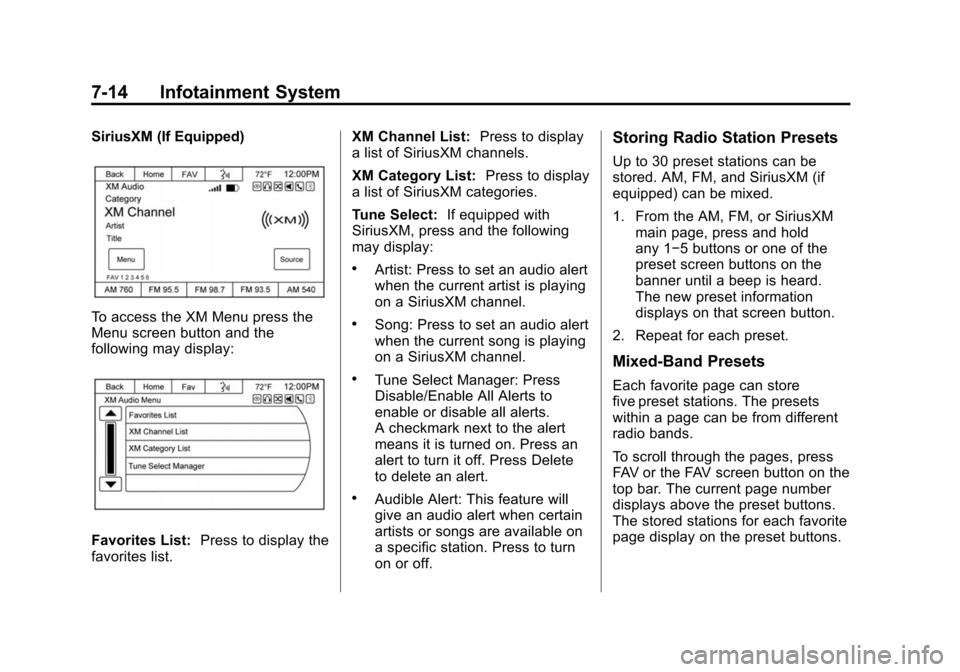
To access the XM Menu press the
Menu screen button and the
following may display:
Favorites List:Press to display the
favorites list. XM Channel List:
Press to display
a list of SiriusXM channels.
XM Category List: Press to display
a list of SiriusXM categories.
Tune Select: If equipped with
SiriusXM, press and the following
may display:
.Artist: Press to set an audio alert
when the current artist is playing
on a SiriusXM channel.
.Song: Press to set an audio alert
when the current song is playing
on a SiriusXM channel.
.Tune Select Manager: Press
Disable/Enable All Alerts to
enable or disable all alerts.
A checkmark next to the alert
means it is turned on. Press an
alert to turn it off. Press Delete
to delete an alert.
.Audible Alert: This feature will
give an audio alert when certain
artists or songs are available on
a specific station. Press to turn
on or off.
Storing Radio Station Presets
Up to 30 preset stations can be
stored. AM, FM, and SiriusXM (if
equipped) can be mixed.
1. From the AM, FM, or SiriusXM
main page, press and hold
any 1−5 buttons or one of the
preset screen buttons on the
banner until a beep is heard.
The new preset information
displays on that screen button.
2. Repeat for each preset.
Mixed-Band Presets
Each favorite page can store
five preset stations. The presets
within a page can be from different
radio bands.
To scroll through the pages, press
FAV or the FAV screen button on the
top bar. The current page number
displays above the preset buttons.
The stored stations for each favorite
page display on the preset buttons.
Page 201 of 434
Black plate (17,1)Chevrolet Traverse Owner Manual (GMNA-Localizing-U.S./Canada/Mexico-
7576032) - 2015 - CRC - 8/19/14
Infotainment System 7-17
To store a station as a favorite:
1. Tune to the desired radio station.
2. Press FAV to display the page tostore the station.
3. Press and hold one of the six softkeys until a beep sounds.
When that softkey is pressed
and released, the station that
was set returns.
4. Repeat the steps for each radio station to be stored as a favorite.
To set up the number of favorites
pages:
1. Press MENU to display the radio setup menu.
2. Press the softkey below the FAV 1-6 tab.
3. Select the desired number of favorites pages by pressing the
softkey below the displayed
page numbers.
4. Press FAV, or let the menu time out, to return to the original main
radio screen showing the radio
station frequency tabs and to begin the process of
programming favorites for the
chosen number of favorites
pages.
SiriusXM Radio Messages
XL (Explicit Language
Channels):
These channels, or any
others, can be blocked at a
customer's request, by calling
1-866-635-2349 (U.S) and
1-877-209-0079 (Canada).
XM Updating: The encryption code
in the receiver is being updated, and
no action is required. This process
should take no longer than
30 seconds.
No XM Signal: The system is
functioning correctly, but the vehicle
is in a location that is blocking the
SiriusXM signal. When the vehicle is
moved into an open area, the signal
should return.
Loading XM: The audio system is
acquiring and processing audio and
text data. No action is needed. This
message should disappear shortly. Channel Off Air:
This channel is
not currently in service. Tune in to
another channel.
Channel Unauth: This channel is
blocked or cannot be received with
your SiriusXM subscription package.
Channel Unavail: This previously
assigned channel is no longer
assigned. Tune to another station.
If this station was one of the
presets, choose another station for
that preset button.
No Artist Info: No artist
information is available at this time
on this channel. The system is
working properly.
No Title Info: No song title
information is available at this time
on this channel. The system is
working properly.
No CAT Info: No category
information is available at this time
on this channel. The system is
working properly.
Page 204 of 434
Black plate (20,1)Chevrolet Traverse Owner Manual (GMNA-Localizing-U.S./Canada/Mexico-
7576032) - 2015 - CRC - 8/19/14
7-20 Infotainment System
Audio Players
CD Player (Radio without
Touchscreen)
Playing a CD
Insert a CD partway into the slot,
label side up. The player pulls it in
and the CD should begin playing.
ZEJECT:Press and release to
eject the disc that is currently
playing. A beep sounds and
Ejecting Disc displays. Once the
disc is ejected, Remove Disc
displays. The disc can be removed.
If the disc is not removed, after
several seconds, the disc
automatically pulls back into the
player.
f(Tune): Turn to select tracks on
the CD that is currently playing.
©SEEK or¨SEEK:
Press
©SEEK to go to the start of
the current track, if more than
10 seconds on the track have played, otherwise goes to the
previous track. Press
¨SEEK to go
to the next track.
If either arrow is held, or pressed
multiple times, the player continues
moving backward or forward
through the tracks on the CD.
sREV (Fast Reverse): Press
and hold to reverse playback quickly
within a track. Sound will be heard
at a reduced volume. Release to
resume playing the track. The
elapsed time of the track displays.
\FWD (Fast Forward): Press
and hold to advance playback
quickly within a track. Sound will be
heard at a reduced volume. Release
to resume playing the track. The
elapsed time of the track displays.
RDM (Random): CD tracks can be
listened to in random, rather than
sequential order with the random
setting. To use random, press the
softkey under the RDM label until
Random Current Disc displays.
Press the softkey again to turn off
random play. BAND:
Press to listen to the radio
when a CD is playing. The CD
remains inside the radio for future
listening.
CD/AUX (CD/Auxiliary): Press to
select between CD, Auxiliary,
or USB.
.When a CD is in the player, the
CD icon and a message
showing the disc and/or track
number display.
.If an auxiliary input device is not
connected or a CD is not
installed an error message will
display.
Care of CDs
If playing a CD-R, the sound quality
can be reduced due to CD-R or
CD-RW quality, the method of
recording, the quality of the music
that has been recorded, and the
way the CD-R or CD-RW has been
handled. Handle them carefully.
Store CD-R(s) or CD-RW(s) in their
original cases or other protective
cases and away from direct sunlight
Page 206 of 434
Black plate (22,1)Chevrolet Traverse Owner Manual (GMNA-Localizing-U.S./Canada/Mexico-
7576032) - 2015 - CRC - 8/19/14
7-22 Infotainment System
Player Error:There are disc LOAD
or disc EJECT problems.
.It is very hot. When the
temperature returns to normal,
the CD should play.
.The road is very rough. When
the road becomes smoother, the
CD should play.
.The CD is dirty, scratched, wet,
or upside down.
.The air is very humid. If so, wait
about an hour and try again.
.There was a problem while
burning the CD.
.The label is caught in the CD
player.
If the CD is not playing correctly for
any other reason, try a known
good CD.
If any error occurs repeatedly or if
an error cannot be corrected,
contact your dealer. If the radio
displays an error message, write it
down and provide it to your dealer
when reporting the problem.
CD Player (Radio with
Touchscreen)
The player can be used for CD and
MP3 audio.
With the vehicle on, insert a disc
into the slot, label side up. The
player pulls it in and begins playing.
The system is capable of playing:
.Most audio CDs
.CD-R
.CD-RW
.MP3 or unprotected WMA
formats
When playing any compatible
recordable disc, the sound quality
can be reduced due to disc quality,
the method of recording, the quality
of the music that has been
recorded, or the way the disc has
been handled.
There can be increased skipping,
difficulty in recording tracks,
difficulty in finding tracks, and/or
difficulty in loading and ejecting. If these problems occur, check the
disc for damage or try a known
good disc.
To avoid damage to the CD player:
.Do not use scratched or
damaged discs.
.Do not apply labels to discs. The
labels could get caught in the
player.
.Insert only one disc at a time.
.Keep the loading slot free of
foreign materials, liquids, and
debris.
.Use a marking pen to label the
top of the disc.
Loading and Ejecting Discs
To load a disc:
1. Turn the radio on.
2. Insert a disc into the slot, label
side up. The player pulls it in the
rest of the way. If the disc is
damaged or improperly loaded,
there is an error and the disc
ejects.