display CHEVROLET TRAVERSE 2016 1.G Manual PDF
[x] Cancel search | Manufacturer: CHEVROLET, Model Year: 2016, Model line: TRAVERSE, Model: CHEVROLET TRAVERSE 2016 1.GPages: 392, PDF Size: 6.66 MB
Page 188 of 392
Chevrolet Traverse Owner Manual (GMNA-Localizing-U.S./Canada/Mexico-
9159264) - 2016 - crc - 8/17/15
Infotainment System 187
RDM (Random) :Files on the disc
can be listened to in random, rather
than sequential order. To use
random, press the softkey under the
RDM tab until Random Current Disc
displays to play songs in random
order. Press the same softkey again
to turn off random play.
h(Music Navigator) : Press the
softkey below
hto play files in
order by artist or album.
The player scans the disc to sort the
files by artist and album ID3 tag
information. It can take several
minutes to scan the disc depending
on the number of files on the disc.
The radio may begin playing while it
is scanning in the background.
When the scan is finished, the disc
begins playing files in order by
artist. The current artist playing is
shown on the second line of the
display. Once all songs by that artist
are played, the player moves to the
next artist in alphabetical order and
begins playing files by that artist.
To listen to files by another artist,
press the softkey below either arrow
tab. The disc goes to the next or previous artist in alphabetical order.
Continue pressing either softkey
below the arrow tab until the artist
displays.
To change from playback by artist to
playback by album:
1. Press the softkey below the Sort tab.
2. Press the softkeys below the By Album tab.
3. Press the softkey below the Back tab to return to the main
music navigator screen.
The album name displays on the
second line between the arrows and
songs from the current album
begins to play. Once all songs from
that album have played, the player
moves to the next album in
alphabetical order on the CD and
begins playing MP3 files from that
album.
To exit music navigator mode, press
the softkey below the Back tab to
return to normal MP3 playback.
Connecting a USB Storage
Device or iPod®
To connect a USB storage device,
connect the device to the USB port
on the center stack.
The USB port can be used to
control an iPod or a USB storage
device.
To connect an iPod, connect one
end of the USB cable that came
with the iPod to the iPod’s dock
connector and connect the other
end to the USB port located in the
instrument panel storage area. If the
vehicle is on and the USB
connection works, “OK to
disconnect” and a GM logo may
appear on the iPod, and iPod
appears on the radio's display. The
iPod music appears on the radio’s
display and begins playing.
The iPod charges while it is
connected to the vehicle if the
vehicle is in the ACC/ACCESSORY
or ON/RUN position. When the
vehicle is turned off, the iPod
automatically powers off and will not
charge or draw power from the
vehicle's battery.
Page 189 of 392
Chevrolet Traverse Owner Manual (GMNA-Localizing-U.S./Canada/Mexico-
9159264) - 2016 - crc - 8/17/15
188 Infotainment System
If you have an older iPod model that
is not supported, it can still be used
by connecting it to the auxiliary
input jack using a standard 3.5 mm
(1/8 in) stereo cable. SeeClock
(Radio without Touchscreen) 0113
iior Clock (Radio with Touchscreen)
0 114ii.
Using the Radio to Control a
USB Storage Device or iPod
The radio can control a USB
storage device or an iPod using the
radio buttons and knobs and display
song information on the radio’s
display.
f(Tune) : Turn to select files.
©SEEK :Press to go to the start of
the current track, if more than
10 seconds on the track have
played, otherwise goes to the
previous track. Press and hold or
press multiple times to continue
moving backward through tracks.
¨SEEK : Press to go to the next
track. Press and hold or press
multiple times to continue moving
forward through tracks.
sREV (Reverse) : Press and hold
to reverse playback quickly. Sound
is heard at a reduced volume.
Release
sREV to resume playing.
The elapsed time of the file
displays.
\FWD (Fast Forward) : Press
and hold to advance playback
quickly. Sound is heard at a reduced
volume. Release
\FWD to
resume playing. The elapsed time of
the file displays.
4(Information) : Press to display
additional information about the
selected track.
Using Softkeys to Control a
USB Storage Device or iPod
The five softkeys below the radio
display are used to control the
functions listed below.
To use the softkeys:
1. Press the first or fifth softkey below the radio display to
display the functions listed
below, or press the softkey
below the function if it is
currently displayed. 2. Press the softkey below the tab
with the function on it to use
that function.
j(Pause) : Press the softkey belowjto pause the track. The tab
appears raised when pause is being
used. Press the softkey below
j
again to resume playback.
Back : Press the softkey below the
Back tab to go back to the main
display screen on an iPod, or the
root directory on a USB storage
device.
c(Folder View) : Press the
softkey below
cto view the
contents of the current folder on the
USB drive. To browse and select
files:
1. Press the softkey below
c.
2. Turn
fto scroll through the list
of folders.
3. Press
fto select the folder.
If there is more than one folder,
repeat Steps 1 and 2 until the
folder is reached.
Page 192 of 392
Chevrolet Traverse Owner Manual (GMNA-Localizing-U.S./Canada/Mexico-
9159264) - 2016 - crc - 8/17/15
Infotainment System 191
folder. There might be a delay
before the list displays. Select a
song from the list to begin playback.
Playlists :Press to view the
playlists stored on the disc. Select a
playlist to view the list of all songs in
that playlist. There might be a delay
before the list displays. Select a
song from the list to begin playback.
Artists : Press to view the list of
artists stored on the disc. Select an
artist name to view a list of all songs
by the artist. There might be a delay
before the list displays. Select a
song from the list to begin playback.
Genres : Press to view the genres.
Select a genre to view a list of all
songs of that genre. Select a song
from the list to begin playback.
Albums : Press to view the albums
on the disc. Select the album to
view a list of all songs on the album.
There might be a delay before the
list displays. Select a song from the
list to begin playback.
Composers : Press to view the
Composers stored on the disc.
There might be a delay before the list displays. The Composers menu
displays. Select a composer to
display a list of albums from the
composer.
Tracks (Song Titles) :
Press to
display a list of all songs on the
disc. Songs are displayed as stored
on the disc. There might be a delay
before the list displays. To begin
playback, select a song from the list.
Root Directory
The root directory is treated as a
folder. All files contained directly
under the root directory are
accessed prior to any root directory
folders.
Empty Folders
If a root directory or folder is empty
or contains only folders, the player
advances to the next folder in the
file structure that contains a
compressed audio file. The empty
folder(s) are not displayed or
numbered. No Folder
When the CD only contains
compressed audio files without any
folders or playlists, all files are
under the root folder.
File System and Naming
The song titles, artists, albums, and
genres are taken from the file's ID3
tag and are only displayed if present
in the tag. If a song title is not
present in the ID3 tag, the radio
displays the file name as the
track name.
Preprogrammed Playlists
The radio recognizes
preprogrammed playlists; however,
there is no editing capability. These
playlists are treated as special
folders containing compressed
audio song files.
Page 195 of 392
Chevrolet Traverse Owner Manual (GMNA-Localizing-U.S./Canada/Mexico-
9159264) - 2016 - crc - 8/17/15
194 Infotainment System
The RSA functions operate even
when the main radio is off. The front
audio system displays
Xwhen the
RSA is on, and disappears from the
display when it is off.
Audio can be heard through wired
headphones (not included) plugged
into the jacks on the RSA. If the
vehicle has this feature, audio can
also be heard on Channel 2 of the
wireless headphones.
The audio system mutes the rear
speakers when the RSA audio is
active through the headphones.
To listen to an iPod or portable
audio device through the RSA,
attach the iPod or portable audio
device to the front auxiliary input (if
available), located on the front audio
system. Turn the iPod on, then
choose the front auxiliary input with
the RSA SRCE button.
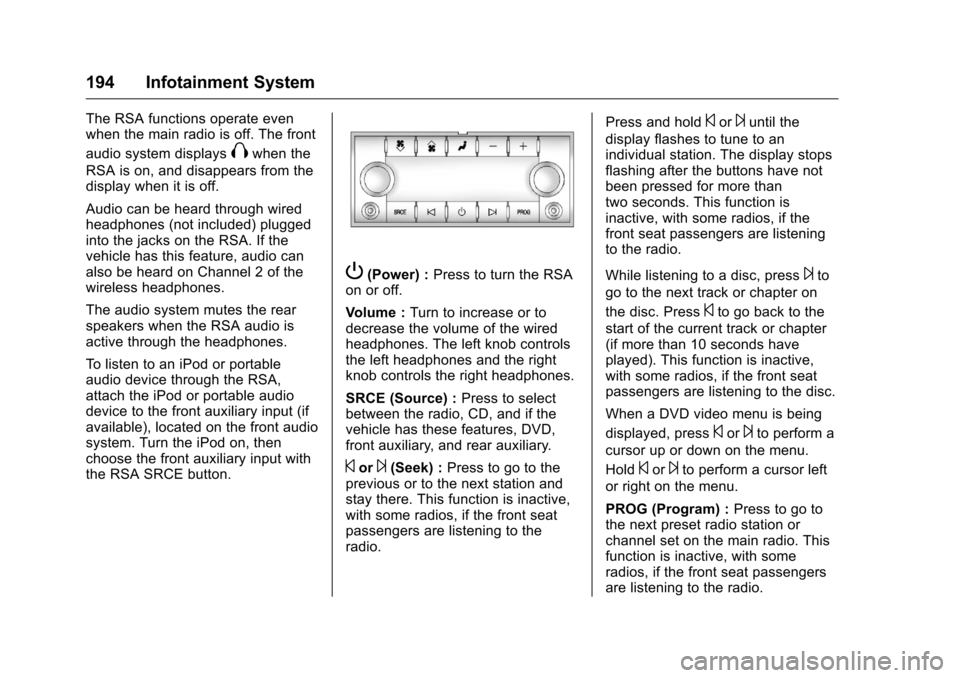
P(Power) : Press to turn the RSA
on or off.
Volume : Turn to increase or to
decrease the volume of the wired
headphones. The left knob controls
the left headphones and the right
knob controls the right headphones.
SRCE (Source) : Press to select
between the radio, CD, and if the
vehicle has these features, DVD,
front auxiliary, and rear auxiliary.
©or¨(Seek) : Press to go to the
previous or to the next station and
stay there. This function is inactive,
with some radios, if the front seat
passengers are listening to the
radio. Press and hold
©or¨until the
display flashes to tune to an
individual station. The display stops
flashing after the buttons have not
been pressed for more than
two seconds. This function is
inactive, with some radios, if the
front seat passengers are listening
to the radio.
While listening to a disc, press
¨to
go to the next track or chapter on
the disc. Press
©to go back to the
start of the current track or chapter
(if more than 10 seconds have
played). This function is inactive,
with some radios, if the front seat
passengers are listening to the disc.
When a DVD video menu is being
displayed, press
©or¨to perform a
cursor up or down on the menu.
Hold
©or¨to perform a cursor left
or right on the menu.
PROG (Program) : Press to go to
the next preset radio station or
channel set on the main radio. This
function is inactive, with some
radios, if the front seat passengers
are listening to the radio.
Page 196 of 392
Chevrolet Traverse Owner Manual (GMNA-Localizing-U.S./Canada/Mexico-
9159264) - 2016 - crc - 8/17/15
Infotainment System 195
When a CD or DVD audio disc is
playing, press PROG to go to the
beginning of the CD or DVD audio.
This function is inactive, with some
radios, if the front seat passengers
are listening to the disc.
When a disc is playing in the CD or
DVD changer, press PROG to
select the next disc if multiple discs
are loaded. This function is inactive,
with some radios, if the front seat
passengers are listening to the disc.
When a DVD video menu is being
displayed, press PROG to perform
the ENTER menu function.Phone
Bluetooth
For vehicles equipped with
Bluetooth capability, the system can
interact with many cell phones,
allowing:
.Placement and receipt of calls in
a hands-free mode.
. Sharing of the cell phone’s
address book or contact list with
the vehicle.
To minimize driver distraction,
before driving, and with the vehicle
parked:
. Become familiar with the
features of the cell phone.
Organize the phone book and
contact lists clearly and delete
duplicate or rarely used entries.
If possible, program speed dial
or other shortcuts.
. Review the controls and
operation of the infotainment
system. .
Pair cell phone(s) to the vehicle.
The system may not work with
all cell phones. See “Pairing”in
this section.
. If the cell phone has voice
dialing capability, learn to use
that feature to access the
address book or contact list. See
“Voice Pass-Thru” in this
section.
. See “Storing and Deleting Phone
Numbers” in this section.
{Warning
When using a cell phone, it can
be distracting to look too long or
too often at the screen of the
phone or the infotainment system.
Taking your eyes off the road too
long or too often could cause a
crash resulting in injury or death.
Focus your attention on driving.
A Bluetooth system can use a
Bluetooth-capable cell phone with a
Hands-Free Profile to make and
receive phone calls. The system
can be used while the key is in the
Page 203 of 392
Chevrolet Traverse Owner Manual (GMNA-Localizing-U.S./Canada/Mexico-
9159264) - 2016 - crc - 8/17/15
202 Infotainment System
Settings
Press Settings on the Home Page
to adjust features and preferences,
such as Favorite Pages, Display,
Time, and Date, etc.1. Press the Settings screen button on the Home Page.
2. Touch-tap the scroll bar until the desired option displays.
Select the desired settings to
change.
A few of the setting options change
the way the navigation system
displays or reacts while in use.
Favorite Pages : Press to select
the number of favorite pages
displayed on the screen. The choice
is 1–6 pages.
Display : Press to adjust the screen
settings.
. Display Off: Select to turn the
screen off. Touch the screen to
turn the screen back on.
. Rear Camera: Select Symbols
and/or Guidelines to have them
display on the rear camera
screen. .
Brightness: Select to adjust the
screen brightness.
Speed Compensated Volume :
Select OFF, Low, Medium, or High
sensitivity to automatically adjust
the volume to minimize the effects
of unwanted background noise that
can result from changing road
surfaces, driving speeds, or open
windows. This feature works best at
lower volume settings where
background noise is typically louder
than the sound system volume.
Audible Touch Feedback : Select
to adjust the volume of the beep
that is played after touching a
screen button.
Notification Prompt Volume :
Select to adjust the volume of the
notification prompts.
Set Time:
. Press the up or down arrows to
change the Hours, Minutes, AM,
PM, or 24 hour setting on the
clock.
. Press and hold to quickly
increase or decrease the time
settings. .
Press OK to save the
adjustments.
. Press the Back or Cancel screen
button to cancel the
adjustments.
Set Date:
. Press the up or down arrows to
increase or decrease the Month,
Day, and Year settings.
. Press and hold to quickly
increase or decrease the date
settings.
. Press OK to save the
adjustments.
. Press the Back or Cancel screen
button to cancel the
adjustments.
XM Categories : If equipped, press
to customize which available XM
Categories are displayed and used
in the system.
Create “AS IS” Infotainment
File : This is used for dealer
troubleshooting.
Open Source Software : Select to
view software website information.
Page 204 of 392
Chevrolet Traverse Owner Manual (GMNA-Localizing-U.S./Canada/Mexico-
9159264) - 2016 - crc - 8/17/15
Infotainment System 203
Rear Vision Camera (If
Equipped)
The rear vision camera can assist
the driver when backing up by
displaying a view of the area behind
the vehicle.
To access the rear camera display
settings, press Display from the
Home screen, then press the Rear
Camera screen button. The
following options are available:
Symbols :Press to enable or
disable the Rear Park Assist (RPA)
symbols presented over the rear
camera video.
Guidelines : Press to enable or
disable the RPA dynamic guidelines
presented over the rear camera
video.
See Rear Vision Camera (RVC)
0 243
ii.
Screen Brightness
To adjust the screen brightness,
touch the screen, then press + or −
on the brightness control.
Trademarks and
License Agreements
Manufactured under license under
U.S. Patent #'s: 5,451,942;
5,956,674; 5,974,380; 5,978,762;
6,487,535 & other U.S. and
worldwide patents issued &
pending. DTS and DTS Digital
Surround are registered trademarks
and the DTS logos and Symbol are
trademarks of DTS, Inc.©
1996-2010 DTS, Inc. All Rights
Reserved.
Manufactured under license from
Dolby Laboratories. Dolby and the
double-D symbol are trademarks of
Dolby Laboratories. Copyright
1992-2010 Dolby Laboratories. All
rights reserved.
Page 208 of 392
Chevrolet Traverse Owner Manual (GMNA-Localizing-U.S./Canada/Mexico-
9159264) - 2016 - crc - 8/17/15
Climate Controls 207
Dual Automatic Climate Control System
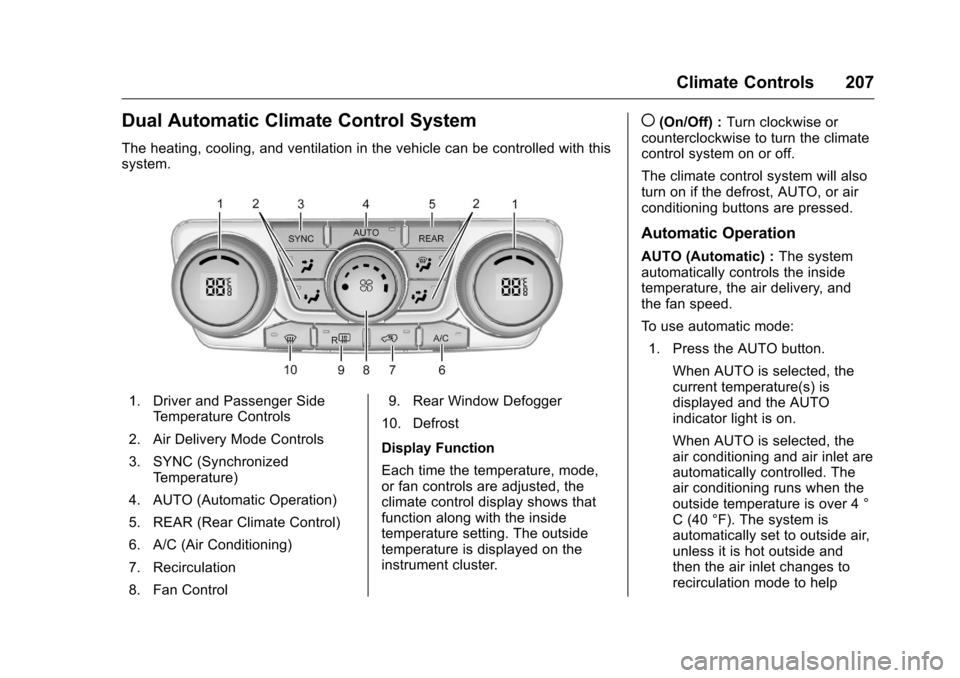
The heating, cooling, and ventilation in the vehicle can be controlled with this
system.
1. Driver and Passenger SideTemperature Controls
2. Air Delivery Mode Controls
3. SYNC (Synchronized Temperature)
4. AUTO (Automatic Operation)
5. REAR (Rear Climate Control)
6. A/C (Air Conditioning)
7. Recirculation
8. Fan Control 9. Rear Window Defogger
10. Defrost
Display Function
Each time the temperature, mode,
or fan controls are adjusted, the
climate control display shows that
function along with the inside
temperature setting. The outside
temperature is displayed on the
instrument cluster.
((On/Off) : Turn clockwise or
counterclockwise to turn the climate
control system on or off.
The climate control system will also
turn on if the defrost, AUTO, or air
conditioning buttons are pressed.
Automatic Operation
AUTO (Automatic) : The system
automatically controls the inside
temperature, the air delivery, and
the fan speed.
To use automatic mode:
1. Press the AUTO button.
When AUTO is selected, the
current temperature(s) is
displayed and the AUTO
indicator light is on.
When AUTO is selected, the
air conditioning and air inlet are
automatically controlled. The
air conditioning runs when the
outside temperature is over 4 °
C (40 °F). The system is
automatically set to outside air,
unless it is hot outside and
then the air inlet changes to
recirculation mode to help
Page 209 of 392
Chevrolet Traverse Owner Manual (GMNA-Localizing-U.S./Canada/Mexico-
9159264) - 2016 - crc - 8/17/15
208 Climate Controls
quickly cool the vehicle. The
recirculation indicator light will
come on.
2. Set the temperature for the driver and passenger.
To find a comfortable setting,
start with a 22 °C (73 °F)
temperature setting and allow
about 20 minutes for the
system to regulate. Use the
driver side or passenger side
temperature control to adjust
the temperature setting as
necessary. The system will
remain at the selected setting.
Choosing the warmest or
coolest temperatures does not
cause the vehicle to heat or
cool more quickly.
To avoid blowing cold air in
cold weather, the system
delays turning on the fan until
warm air is available. Turn the
fan knob to override this delay
and select the fan speed. Temperature Control
The driver and passenger side
temperature controls are used to
adjust the temperature of the air
coming through the system. The
temperature can be adjusted even if
the system is turned off since
outside air still enters the vehicle,
unless the recirculation mode is
selected. See
“Recirculation” later in
this section.
Driver Side Temperature
Control : Turn clockwise or
counterclockwise to increase or
decrease the driver side
temperature. The driver side
temperature display will show the
temperature setting.
Passenger Side Temperature
Control : Turn clockwise or
counterclockwise to increase or
decrease the passenger side
temperature. The passenger side
display will show the temperature
setting.
SYNC (Synchronized
Temperature) : Press to set the
passenger temperature to match the
driver temperature setting.Manual Operation
The air delivery mode or fan speed
can be manually adjusted.
9(Fan Control) : Turn the knob
clockwise or counterclockwise to
increase or decrease the fan speed.
Turning the fan control knob while in
automatic control places the fan
speed under manual control.
The air delivery mode remains in
automatic control. The fan setting
displays momentarily and then no
longer displays.
Air Delivery Modes : Press
H,),
6, or-to change the direction of
the airflow in the vehicle. An
indicator light comes on in the
selected mode button. Pressing a
mode button while the system is off
changes the air delivery mode
without turning the system on.
Changing the air delivery mode
while in automatic control places the
system into manual control. The air
delivery mode button indicator
displays, and the AUTO button
indicator light turns off.
Page 211 of 392
Chevrolet Traverse Owner Manual (GMNA-Localizing-U.S./Canada/Mexico-
9159264) - 2016 - crc - 8/17/15
210 Climate Controls
The recirculation mode cannot be
used with floor, defog, or defrosting
modes. If recirculation is selected in
these modes, the indicator flashes
three times and turns off. While in
recirculation mode the windows can
fog when the weather is cold and
damp. To clear the fog, select either
the defog or defrost mode and
increase the fan speed.
REAR :Press to turn the rear
heating and air conditioning on or
off. See Rear Climate Control
System 0211
iior Rear Climate
Control System (with Rear Seat
Audio) 0212
ii.
Rear Window Defogger
The rear window defogger uses a
warming grid to remove fog from the
rear window.
R
1(Rear Window Defogger) :
Press to turn the rear window
defogger on or off. An indicator light
on the button comes on to show that
the rear window defogger is on. Do
not drive the vehicle until all the
windows are clear. The defogger only works when the
vehicle is in ON/RUN. The defogger
will turn off if the vehicle is
turned off.
If equipped with heated outside
rearview mirrors, fog or frost is
cleared from the surface of the
mirror when the rear window defog
button is pressed.
Caution
Using a razor blade or sharp
object to clear the inside rear
window can damage the rear
window defogger. Repairs would
not be covered by the vehicle
warranty. Do not clear the inside
rear window with sharp objects.
Sensors
The solar sensor in the defrost grille
in the middle of the instrument
panel, monitors the solar heat. Do
not cover the solar sensor or the
system will not work properly.
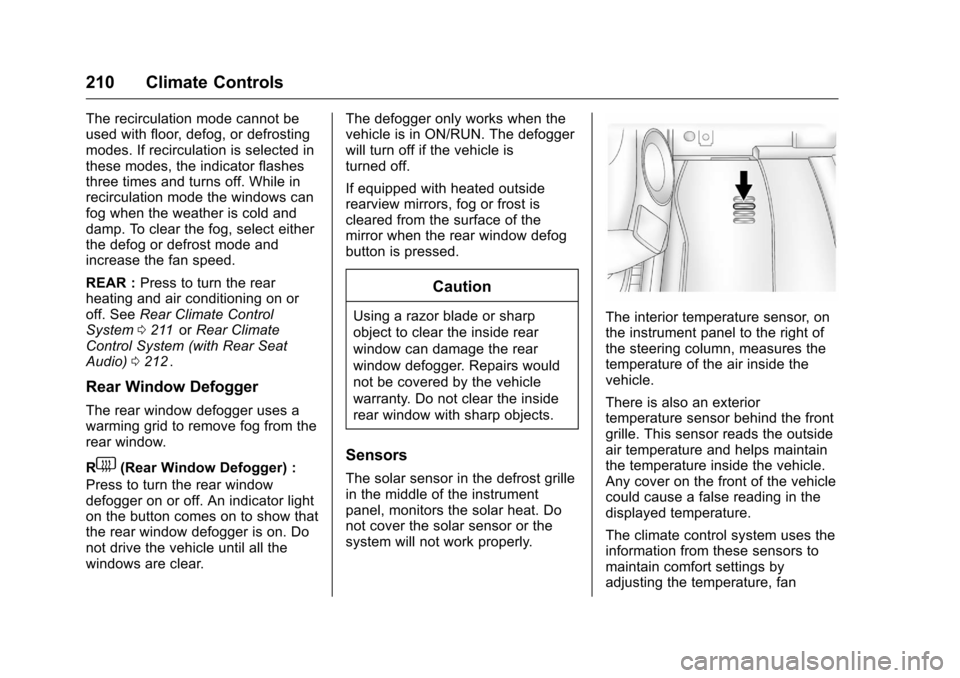
The interior temperature sensor, on
the instrument panel to the right of
the steering column, measures the
temperature of the air inside the
vehicle.
There is also an exterior
temperature sensor behind the front
grille. This sensor reads the outside
air temperature and helps maintain
the temperature inside the vehicle.
Any cover on the front of the vehicle
could cause a false reading in the
displayed temperature.
The climate control system uses the
information from these sensors to
maintain comfort settings by
adjusting the temperature, fan