reset CHEVROLET TRAVERSE 2017 1.G User Guide
[x] Cancel search | Manufacturer: CHEVROLET, Model Year: 2017, Model line: TRAVERSE, Model: CHEVROLET TRAVERSE 2017 1.GPages: 394, PDF Size: 6.47 MB
Page 113 of 394
Chevrolet Traverse Owner Manual (GMNA-Localizing-U.S./Canada/Mexico-
9955676) - 2017 - crc - 3/29/16
112 Instruments and Controls
Heavy snow or ice can overload the
wipers. A circuit breaker stops them
until the motor cools.
Windshield Washer
JFRONT :Press the button at the
end of the lever to spray washer
fluid on the windshield. The wipers
clear the windshield and either stop
or return to the preset speed. The
ignition key must be in ACC/
ACCESSORY or ON/RUN for this to
work. See Washer Fluid 0282.
{Warning
In freezing weather, do not use
the washer until the windshield is
warmed. Otherwise the washer
fluid can form ice on the
windshield, blocking your vision.
WASHER FLUID LOW ADD FLUID
is displayed on the Driver
Information Center (DIC) when the
washer fluid is low. See Washer
Fluid Messages 0146.
Rear Window Wiper/
Washer
The rear window wiper/washer
button is on the center stack below
the climate control system.
Z:Press to turn the rear wiper on
and off. The wiper speed cannot be
changed.
Y: Press to spray washer fluid on
the rear window. The window wiper
will also come on. Release the
button when enough fluid has been
sprayed on the window. The rear
wiper will run a few more cycles
after it is released. If the rear wiper
function was already on prior to
pressing the wash button, it stays
on until the wiper button is pressed
again.
The rear window washer uses the
same fluid that is in the windshield
washer reservoir. See Washer
Fluid 0282.
Compass
Your vehicle may have a compass
in the Driver Information Center
(DIC). See Driver Information
Center (DIC) (With DIC Buttons)
0 130 orDriver Information Center
(DIC) (Without DIC Buttons) 0135
for more information about the DIC.
Compass Zone
The zone is set to zone eight upon
leaving the factory. Your dealer will
set the correct zone for your
location.
Under certain circumstances, such
as during a long distance
cross-country trip or moving to a
new state or province, it will be
necessary to compensate for
compass variance by resetting the
zone through the DIC if the zone is
not set correctly.
Compass variance is the difference
between the earth's magnetic north
and true geographic north. If the
compass is not set to the zone
where you live, the compass may
Page 114 of 394
Chevrolet Traverse Owner Manual (GMNA-Localizing-U.S./Canada/Mexico-
9955676) - 2017 - crc - 3/29/16
Instruments and Controls 113
give false readings. The compass
must be set to the variance zone in
which the vehicle is traveling.
To adjust for compass variance, use
the following procedure:
Compass Variance (Zone)
Procedure1. Do not set the compass zone when the vehicle is moving.
Only set it when the vehicle is
in P (Park).
Press the vehicle information
button until PRESS
VTO
CHANGE COMPASS ZONE
displays.
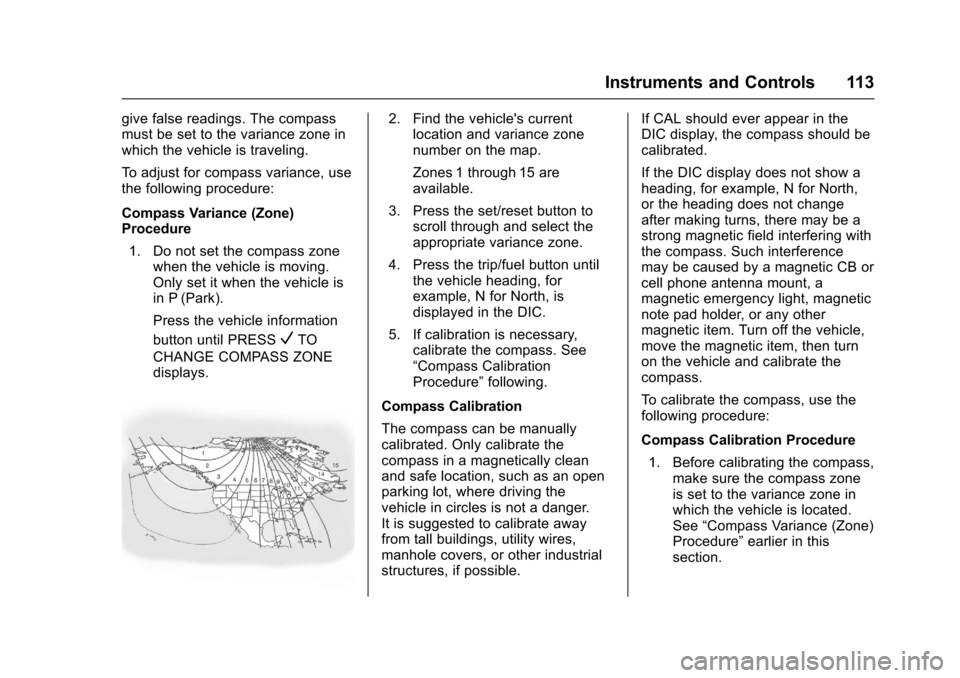
2. Find the vehicle's current location and variance zone
number on the map.
Zones 1 through 15 are
available.
3. Press the set/reset button to scroll through and select the
appropriate variance zone.
4. Press the trip/fuel button until the vehicle heading, for
example, N for North, is
displayed in the DIC.
5. If calibration is necessary, calibrate the compass. See
“Compass Calibration
Procedure” following.
Compass Calibration
The compass can be manually
calibrated. Only calibrate the
compass in a magnetically clean
and safe location, such as an open
parking lot, where driving the
vehicle in circles is not a danger.
It is suggested to calibrate away
from tall buildings, utility wires,
manhole covers, or other industrial
structures, if possible. If CAL should ever appear in the
DIC display, the compass should be
calibrated.
If the DIC display does not show a
heading, for example, N for North,
or the heading does not change
after making turns, there may be a
strong magnetic field interfering with
the compass. Such interference
may be caused by a magnetic CB or
cell phone antenna mount, a
magnetic emergency light, magnetic
note pad holder, or any other
magnetic item. Turn off the vehicle,
move the magnetic item, then turn
on the vehicle and calibrate the
compass.
To calibrate the compass, use the
following procedure:
Compass Calibration Procedure
1. Before calibrating the compass, make sure the compass zone
is set to the variance zone in
which the vehicle is located.
See “Compass Variance (Zone)
Procedure” earlier in this
section.
Page 115 of 394
Chevrolet Traverse Owner Manual (GMNA-Localizing-U.S./Canada/Mexico-
9955676) - 2017 - crc - 3/29/16
114 Instruments and Controls
Do not operate any switches
such as window, sunroof,
climate controls, seats, etc.
during the calibration
procedure.
2. Press the vehicle information button until PRESS
VTO
CALIBRATE COMPASS
displays.
3. Press the set/reset button to start the compass calibration.
4. The DIC will display CALIBRATING: DRIVE IN
CIRCLES. Drive the vehicle in
tight circles at less than 8 km/h
(5 mph) to complete the
calibration. The DIC will display
CALIBRATION COMPLETE for
a few seconds when the
calibration is complete. The
DIC display will then return to
the previous menu.
Clock (Radio without
Touchscreen)
To adjust the time and date:
1. Turn the ignition key to ACC/ ACCESSORY or ON/RUN,
then press
Oto turn the
radio on.
2. Press
Hto display HR, MIN,
MM, DD, YYYY (hour, minute,
month, day, and year).
3. Press the pushbutton located under any one of the labels to
be changed.
4. To increase the time or date, do one of the following:
.Press the pushbutton below
the selected label.
. Press
¨SEEK.
. Press
\FWD.
. Turn
fclockwise.
5. To decrease the time or date, do one of the following:
.Press
©SEEK. .
Press
sREV.
. Turn
fcounterclockwise.
To change the time default setting
from 12 hour to 24 hour or to
change the date default setting from
month/day/year to day/month/year:
1. Press
Hand then the
pushbutton located under the
forward arrow that displays on
the radio screen until the time
12H (hour) and 24H (hour), and
the date MM/DD (month and
day) and DD/MM (day and
month) display.
2. Press the pushbutton located under the desired option.
3. Press
Hagain to apply the
selected default, or let the
screen time out.
Page 117 of 394
Chevrolet Traverse Owner Manual (GMNA-Localizing-U.S./Canada/Mexico-
9955676) - 2017 - crc - 3/29/16
116 Instruments and Controls
When adding electrical equipment,
be sure to follow the proper
installation instructions included with
the equipment. SeeAdd-On
Electrical Equipment 0264.
Caution
Hanging heavy equipment from
the power outlet can cause
damage not covered by the
vehicle warranty. The power
outlets are designed for
accessory power plugs only, such
as cell phone charge cords.
Power Outlet 110V/120V
Alternating Current
If equipped with this power outlet it
can be used to plug in electrical
equipment that uses a maximum
limit of 150 watts.
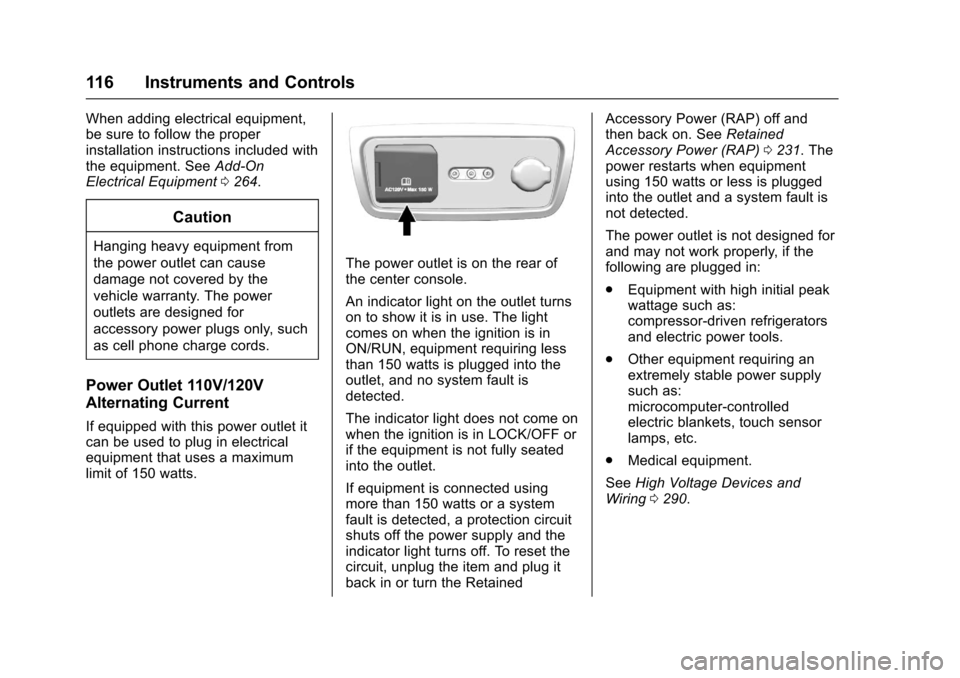
The power outlet is on the rear of
the center console.
An indicator light on the outlet turns
on to show it is in use. The light
comes on when the ignition is in
ON/RUN, equipment requiring less
than 150 watts is plugged into the
outlet, and no system fault is
detected.
The indicator light does not come on
when the ignition is in LOCK/OFF or
if the equipment is not fully seated
into the outlet.
If equipment is connected using
more than 150 watts or a system
fault is detected, a protection circuit
shuts off the power supply and the
indicator light turns off. To reset the
circuit, unplug the item and plug it
back in or turn the Retained Accessory Power (RAP) off and
then back on. See
Retained
Accessory Power (RAP) 0231. The
power restarts when equipment
using 150 watts or less is plugged
into the outlet and a system fault is
not detected.
The power outlet is not designed for
and may not work properly, if the
following are plugged in:
. Equipment with high initial peak
wattage such as:
compressor-driven refrigerators
and electric power tools.
. Other equipment requiring an
extremely stable power supply
such as:
microcomputer-controlled
electric blankets, touch sensor
lamps, etc.
. Medical equipment.
See High Voltage Devices and
Wiring 0290.
Page 128 of 394
Chevrolet Traverse Owner Manual (GMNA-Localizing-U.S./Canada/Mexico-
9955676) - 2017 - crc - 3/29/16
Instruments and Controls 127
If the light stays on, turn the ignition
to LOCK/OFF. If the light comes on
while driving, stop as soon as
possible and turn the ignition off.
Then start the engine again to reset
the system. If the light still stays on,
or comes on again while driving, the
vehicle needs service. If the regular
brake system warning light is not
on, there are still brakes, but no
antilock brakes. If the regular brake
system warning light is also on,
there are no antilock brakes and
there is a problem with the regular
brakes. SeeBrake System Warning
Light 0126.
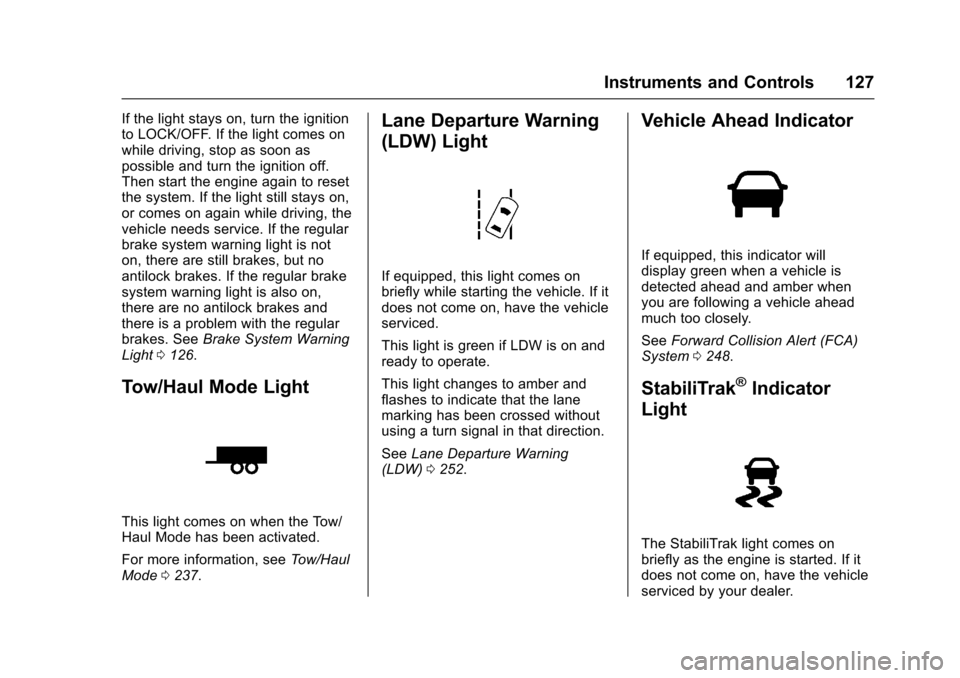
Tow/Haul Mode Light
This light comes on when the Tow/
Haul Mode has been activated.
For more information, see Tow/Haul
Mode 0237.
Lane Departure Warning
(LDW) Light
If equipped, this light comes on
briefly while starting the vehicle. If it
does not come on, have the vehicle
serviced.
This light is green if LDW is on and
ready to operate.
This light changes to amber and
flashes to indicate that the lane
marking has been crossed without
using a turn signal in that direction.
See Lane Departure Warning
(LDW) 0252.
Vehicle Ahead Indicator
If equipped, this indicator will
display green when a vehicle is
detected ahead and amber when
you are following a vehicle ahead
much too closely.
See Forward Collision Alert (FCA)
System 0248.
StabiliTrak®Indicator
Light
The StabiliTrak light comes on
briefly as the engine is started. If it
does not come on, have the vehicle
serviced by your dealer.
Page 131 of 394
Chevrolet Traverse Owner Manual (GMNA-Localizing-U.S./Canada/Mexico-
9955676) - 2017 - crc - 3/29/16
130 Instruments and Controls
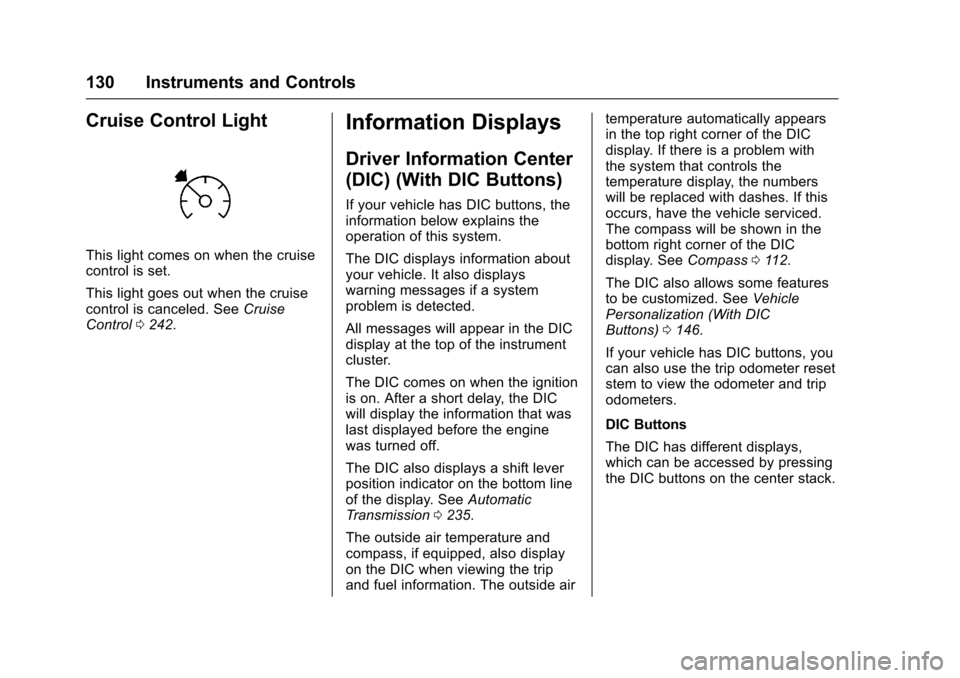
Cruise Control Light
This light comes on when the cruise
control is set.
This light goes out when the cruise
control is canceled. SeeCruise
Control 0242.
Information Displays
Driver Information Center
(DIC) (With DIC Buttons)
If your vehicle has DIC buttons, the
information below explains the
operation of this system.
The DIC displays information about
your vehicle. It also displays
warning messages if a system
problem is detected.
All messages will appear in the DIC
display at the top of the instrument
cluster.
The DIC comes on when the ignition
is on. After a short delay, the DIC
will display the information that was
last displayed before the engine
was turned off.
The DIC also displays a shift lever
position indicator on the bottom line
of the display. See Automatic
Transmission 0235.
The outside air temperature and
compass, if equipped, also display
on the DIC when viewing the trip
and fuel information. The outside air temperature automatically appears
in the top right corner of the DIC
display. If there is a problem with
the system that controls the
temperature display, the numbers
will be replaced with dashes. If this
occurs, have the vehicle serviced.
The compass will be shown in the
bottom right corner of the DIC
display. See
Compass0112.
The DIC also allows some features
to be customized. See Vehicle
Personalization (With DIC
Buttons) 0146.
If your vehicle has DIC buttons, you
can also use the trip odometer reset
stem to view the odometer and trip
odometers.
DIC Buttons
The DIC has different displays,
which can be accessed by pressing
the DIC buttons on the center stack.
Page 132 of 394
Chevrolet Traverse Owner Manual (GMNA-Localizing-U.S./Canada/Mexico-
9955676) - 2017 - crc - 3/29/16
Instruments and Controls 131
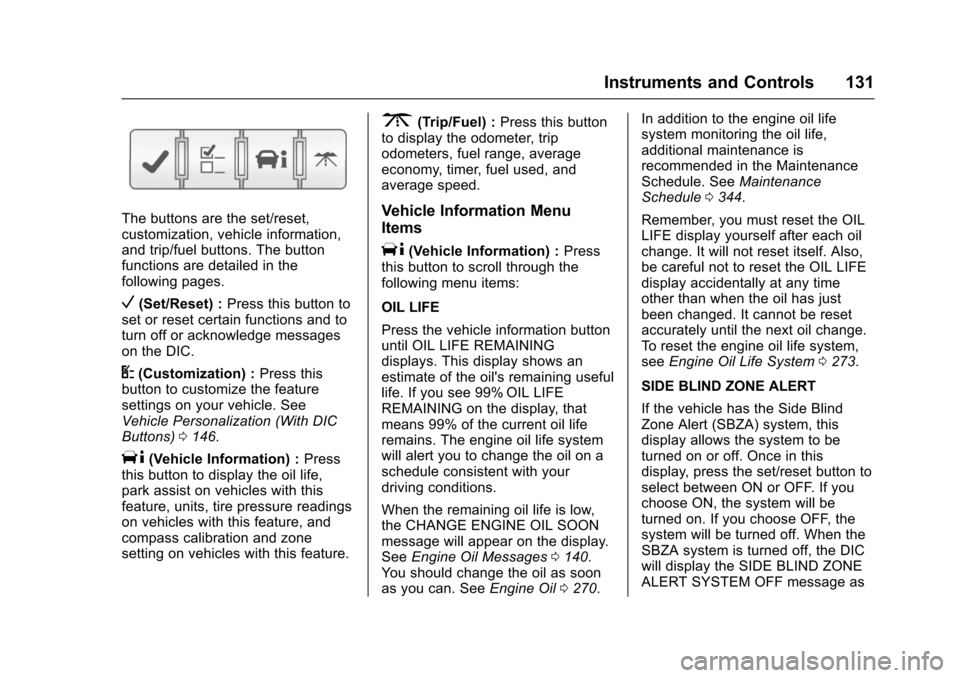
The buttons are the set/reset,
customization, vehicle information,
and trip/fuel buttons. The button
functions are detailed in the
following pages.
V(Set/Reset) :Press this button to
set or reset certain functions and to
turn off or acknowledge messages
on the DIC.
U(Customization) : Press this
button to customize the feature
settings on your vehicle. See
Vehicle Personalization (With DIC
Buttons) 0146.
T(Vehicle Information) : Press
this button to display the oil life,
park assist on vehicles with this
feature, units, tire pressure readings
on vehicles with this feature, and
compass calibration and zone
setting on vehicles with this feature.
3(Trip/Fuel) : Press this button
to display the odometer, trip
odometers, fuel range, average
economy, timer, fuel used, and
average speed.
Vehicle Information Menu
Items
T(Vehicle Information) : Press
this button to scroll through the
following menu items:
OIL LIFE
Press the vehicle information button
until OIL LIFE REMAINING
displays. This display shows an
estimate of the oil's remaining useful
life. If you see 99% OIL LIFE
REMAINING on the display, that
means 99% of the current oil life
remains. The engine oil life system
will alert you to change the oil on a
schedule consistent with your
driving conditions.
When the remaining oil life is low,
the CHANGE ENGINE OIL SOON
message will appear on the display.
See Engine Oil Messages 0140.
You should change the oil as soon
as you can. See Engine Oil0270. In addition to the engine oil life
system monitoring the oil life,
additional maintenance is
recommended in the Maintenance
Schedule. See
Maintenance
Schedule 0344.
Remember, you must reset the OIL
LIFE display yourself after each oil
change. It will not reset itself. Also,
be careful not to reset the OIL LIFE
display accidentally at any time
other than when the oil has just
been changed. It cannot be reset
accurately until the next oil change.
To reset the engine oil life system,
see Engine Oil Life System 0273.
SIDE BLIND ZONE ALERT
If the vehicle has the Side Blind
Zone Alert (SBZA) system, this
display allows the system to be
turned on or off. Once in this
display, press the set/reset button to
select between ON or OFF. If you
choose ON, the system will be
turned on. If you choose OFF, the
system will be turned off. When the
SBZA system is turned off, the DIC
will display the SIDE BLIND ZONE
ALERT SYSTEM OFF message as
Page 133 of 394
Chevrolet Traverse Owner Manual (GMNA-Localizing-U.S./Canada/Mexico-
9955676) - 2017 - crc - 3/29/16
132 Instruments and Controls
a reminder that the system has
been turned off. SeeObject
Detection System Messages 0141
and Side Blind Zone Alert
(SBZA) 0250.
PARK ASSIST
If your vehicle has the Rear Parking
Assist (RPA) system, press the
vehicle information button until
PARK ASSIST displays. This
display allows the system to be
turned on or off. Once in this
display, press the set/reset button to
select between ON or OFF. If you
choose ON, the system will be
turned on. If you choose OFF, the
system will be turned off. The RPA
system automatically turns back on
after each vehicle start. When the
RPA system is turned off and the
vehicle is shifted out of P (Park), the
DIC will display the PARK ASSIST
OFF message as a reminder that
the system has been turned off. See
Object Detection System Messages
0 141 andParking Assist 0247. REAR CROSS TRAFFIC ALERT
If the vehicle has the Rear Cross
Traffic Alert (RCTA) system, this
display allows the system to be
turned on or off. Once in this
display, press the set/reset button to
select between ON or OFF. If you
choose ON, the system will be
turned on. If you choose OFF, the
system will be turned off. When the
RCTA system is turned off, the DIC
will display the REAR CROSS
TRAFFIC ALERT SYSTEM OFF
message as a reminder that the
system has been turned off. See
Object Detection System Messages
0
141 andRear Vision Camera
(RVC) 0244.
UNITS
Press the vehicle information button
until UNITS displays. This display
allows you to select between metric
or English units of measurement.
Once in this display, press the set/
reset button to select between
METRIC or ENGLISH units. All of
the vehicle information will then be
displayed in the unit of
measurement selected. FRONT TIRES or REAR TIRES
On vehicles with the Tire Pressure
Monitor System (TPMS), the
pressure for each tire can be viewed
in the DIC. The tire pressure will be
shown in either kilopascals (kPa) or
pounds per square inch (psi). Press
the vehicle information button until
the DIC displays FRONT
TIRES kPa (PSI) LEFT ##
RIGHT ##. Press the vehicle
information button again until the
DIC displays REAR TIRES kPa
(PSI) LEFT ## RIGHT ##.
If a low tire pressure condition is
detected by the system while
driving, a message advising you to
add air to a specific tire will appear
in the display. See
Tire Pressure
0 304 andTire Messages 0144.
If the tire pressure display shows
dashes instead of a value, there
may be a problem with your vehicle.
If this consistently occurs, see your
dealer for service.
Page 134 of 394
Chevrolet Traverse Owner Manual (GMNA-Localizing-U.S./Canada/Mexico-
9955676) - 2017 - crc - 3/29/16
Instruments and Controls 133
COMPASS ZONE SETTING
This display will be available if the
vehicle has a compass. See
Compass0112.
COMPASS RECALIBRATION
This display will be available if the
vehicle has a compass. See
Compass 0112.
Blank Display
This display shows no information.
Trip/Fuel Menu Items
3(Trip/Fuel) : Press this button
to scroll through the following menu
items:
ODOMETER
Press the trip/fuel button until
ODOMETER displays. This display
shows the distance the vehicle has
been driven in either kilometers (km)
or miles (mi). Pressing the trip
odometer reset stem will also
display the odometer.
To switch between English and
metric measurements, see “UNITS”
earlier in this section. TRIP A and TRIP B
Press the trip/fuel button until
TRIP A or TRIP B displays. This
display shows the current distance
traveled in either kilometers (km) or
miles (mi) since the last reset for
each trip odometer. Both trip
odometers can be used at the same
time. Pressing the trip odometer
reset stem will also display the trip
odometers.
Each trip odometer can be reset to
zero separately by pressing the set/
reset button or the trip odometer
reset stem while the desired trip
odometer is displayed.
The trip odometer has a feature
called retroactive reset. This can be
used to set the trip odometer to the
number of kilometers (miles) driven
since the ignition was last turned on.
This can be used if the trip
odometer is not reset at the
beginning of the trip.
To use the retroactive reset feature,
press and hold the set/reset button
for at least four seconds. The trip
odometer will display the number of
kilometers (km) or miles (mi) drivensince the ignition was last turned on
and the vehicle was moving. Once
the vehicle begins moving, the trip
odometer will accumulate mileage.
For example, if the vehicle was
driven 8 km (5 mi) before it is started
again, and then the retroactive reset
feature is activated, the display will
show 8 km (5 mi). As the vehicle
begins moving, the display will then
increase to 8.2 km (5.1 mi), 8.4 km
(5.2 mi), etc.
If the retroactive reset feature is
activated after the vehicle is started,
but before it begins moving, the
display will show the number of
kilometers (km) or miles (mi) driven
during the last ignition cycle.
RANGE
Press the trip/fuel button until
RANGE displays. This display
shows the approximate number of
remaining kilometers (km) or
miles (mi) the vehicle can be driven
without refueling. The display will
show LOW if the fuel level is low.
The fuel range estimate is based on
an average of the vehicle's fuel
economy over recent driving history
Page 135 of 394
Chevrolet Traverse Owner Manual (GMNA-Localizing-U.S./Canada/Mexico-
9955676) - 2017 - crc - 3/29/16
134 Instruments and Controls
and the amount of fuel remaining in
the fuel tank. This estimate will
change if driving conditions change.
For example, if driving in traffic and
making frequent stops, this display
may read one number, but if the
vehicle is driven on a freeway, the
number may change even though
the same amount of fuel is in the
fuel tank. This is because different
driving conditions produce different
fuel economies. Generally, freeway
driving produces better fuel
economy than city driving. Fuel
range cannot be reset.
AVG (Average) ECONOMY
Press the trip/fuel button until AVG
ECONOMY displays. This display
shows the approximate average
liters per 100 kilometers (L/100 km)
or miles per gallon (mpg). This
number reflects only the
approximate average fuel economy
that the vehicle has right now, and
will change as driving conditions
change. This number is calculated
based on the number of L/100 km
(mpg) recorded since the last timethis menu item was reset. To reset
AVG ECONOMY, press and hold the
set/reset button.
FUEL ECONOMY
Press the trip/fuel button until FUEL
ECONOMY displays. The FUEL
ECONOMY display shows an
approximate estimate of the vehicle
fuel economy under a given driving
condition at a specific moment. For
example, if the vehicle is
accelerating and achieving low fuel
efficiency this display will show
fewer bars, but if the vehicle is
cruising on a flat freeway and
getting high fuel efficiency, the
display will show more bars. Fuel
economy cannot be reset.
TIMER
Press the trip/fuel button until
TIMER displays. This display can be
used as a timer.
To start the timer, press the set/
reset button while TIMER is
displayed. The display will show the
amount of time that has passed
since the timer was last reset, not
including time the ignition is off.Time will continue to be counted as
long as the ignition is on, even if
another display is being shown on
the DIC. The timer will record up to
99 hours, 59 minutes and
59 seconds (99:59:59) after which
the display will return to zero.
To stop the timer, press the set/reset
button briefly while TIMER is
displayed.
To reset the timer to zero, press and
hold the set/reset button while
TIMER is displayed.
FUEL USED
Press the trip/fuel button until FUEL
USED displays. This display shows
the number of liters (L) or
gallons (gal) of fuel used since the
last reset of this menu item. To reset
the fuel used information, press and
hold the set/reset button while FUEL
USED is displayed.
AVG (Average) SPEED
Press the trip/fuel button until AVG
SPEED displays. This display
shows the average speed of the
vehicle in kilometers per hour (km/h)
or miles per hour (mph). This