change time CHEVROLET TRAVERSE 2017 1.G Owner's Manual
[x] Cancel search | Manufacturer: CHEVROLET, Model Year: 2017, Model line: TRAVERSE, Model: CHEVROLET TRAVERSE 2017 1.GPages: 394, PDF Size: 6.47 MB
Page 175 of 394
Chevrolet Traverse Owner Manual (GMNA-Localizing-U.S./Canada/Mexico-
9955676) - 2017 - crc - 4/4/16
174 Infotainment System
tabs and by using the radio favorites
page button (FAV button). Press to
go through up to six pages of
favorites, each having six favorite
stations available per page. Each
page of favorites can contain any
combination of AM, FM, or SiriusXM
stations (if equipped).
The balance/fade and tone settings
that were previously adjusted are
stored with the favorite stations.
To store a station as a favorite:1. Tune to the desired radio station.
2. Press FAV to display the page to store the station.
3. Press and hold one of the six softkeys until a beep
sounds. When that softkey is
pressed and released, the
station that was set returns.
4. Repeat the steps for each radio station to be stored as a
favorite. To set up the number of favorites
pages:
1. Press MENU to display the radio setup menu.
2. Press the softkey below the FAV 1-6 tab.
3. Select the desired number of favorites pages by pressing the
softkey below the displayed
page numbers.
4. Press FAV, or let the menu time out, to return to the original
main radio screen showing the
radio station frequency tabs
and to begin the process of
programming favorites for the
chosen number of favorites
pages.
AM-FM Radio (Radio with
Touchscreen)
Playing the Radio
PUSH/O(Power/Volume):
. Press to turn the radio on or off.
. Turn to increase or decrease the
volume of the active source. The steering wheel controls can
also be used to adjust the volume.
See
Steering Wheel Controls (Radio
with Touchscreen) 0110 orSteering
Wheel Controls (Radio without
Touchscreen) 0109.
Audio Source
To access AM, FM, or SiriusXM
®if
equipped, do one of the following:
. Press the AM, FM, or SXM (if
equipped) screen button on the
Home Page.
. Press the SRCE radio button to
scroll through the options.
A source ribbon will appear at
the bottom of the screen
allowing you to select the one
you want.
Infotainment System Settings
Tone Settings
To access the tone settings, press
the Tone Settings button on the
Home Page.
To adjust the settings:
.Bass: Press + or −to change
the level.
Page 198 of 394
Chevrolet Traverse Owner Manual (GMNA-Localizing-U.S./Canada/Mexico-
9955676) - 2017 - crc - 4/4/16
Infotainment System 197
ON/RUN or ACC/ACCESSORY
position. The range of the Bluetooth
system can be up to 9.1 m (30 ft).
Not all phones support all functions,
and not all phones work with the
in-vehicle Bluetooth system. See
www.gm.com/bluetooth for more
information on compatible phones.
Voice Recognition
The Bluetooth system uses voice
recognition to interpret voice
commands to dial phone numbers
and name tags.
For additional information, say
“Help”while you are in a voice
recognition menu.
Noise : Keep interior noise levels to
a minimum. The system may not
recognize voice commands if there
is too much background noise.
When to Speak : A short tone
sounds after the system responds
indicating when it is waiting for a
voice command. Wait until the tone
and then speak.
How to Speak : Speak clearly in a
calm and natural voice.
Audio System
When using the in-vehicle Bluetooth
system, sound comes through the
vehicle's front audio system
speakers and overrides the audio
system. Use the audio system
volume knob, during a call, to
change the volume level. The
adjusted volume level remains in
memory for later calls. To prevent
missed calls, a minimum volume
level is used if the volume is turned
down too low.
Bluetooth Controls
Use the buttons located on the
steering wheel to operate the
in-vehicle Bluetooth system. See
Steering Wheel Controls (Radio with
Touchscreen) 0110 orSteering
Wheel Controls (Radio without
Touchscreen) 0109.
b/g:Press to answer incoming
calls, confirm system information,
and start speech recognition.
c/x: Press to end a call, reject
a call, or cancel an operation.
Pairing
A Bluetooth enabled cell phone
must be paired to the Bluetooth
system and then connected to the
vehicle before it can be used. See
the cell phone manufacturer's user
guide for Bluetooth functions before
pairing the cell phone. If a Bluetooth
phone is not connected, calls will be
made using OnStar Hands-Free
Calling, if equipped. See “OnStar”if
equipped.
Pairing Information
. A Bluetooth phone with MP3
capability cannot be paired to
the vehicle as a phone and an
MP3 player at the same time.
. Up to five cell phones can be
paired to the Bluetooth system.
. The pairing process is disabled
when the vehicle is moving.
. Pairing only needs to be
completed once, unless the
pairing information on the cell
phone changes or the cell phone
is deleted from the system.
Page 200 of 394
Chevrolet Traverse Owner Manual (GMNA-Localizing-U.S./Canada/Mexico-
9955676) - 2017 - crc - 4/4/16
Infotainment System 199
3. Say“Change phone.”
. If another cell phone is
found, the response will be
“
connected.”
. If another cell phone is not
found, the original phone
remains connected.
Storing and Deleting Phone
Numbers
The system can store up to 30
phone numbers as name tags in the
Hands-Free Directory that is shared
between the Bluetooth and OnStar
systems, if equipped.
The following commands are used
to delete and store phone numbers.
Store : This command will store a
phone number, or a group of
numbers as a name tag.
Digit Store : This command allows
a phone number to be stored as a
name tag by entering the digits one
at a time.
Delete : This command is used to
delete individual name tags. Delete All Name Tags :
This
command deletes all stored name
tags in the Hands-Free Calling
Directory and the OnStar
Turn-by-Turn Destinations Directory,
if equipped.
Using the “Store”Command
1. Press
b/g.
2. Say “Store.”
3. Say the phone number or group of numbers you want to
store all at once with no
pauses, then follow the
directions given by the system
to save a name tag for this
number.
Using the “Digit Store” Command
If an unwanted number is
recognized by the system, say
“Clear” at any time to clear the last
number.
To hear all of the numbers
recognized by the system, say
“Verify” at any time.
1. Press
b/g.
2. Say “Digit Store.” 3. Say each digit, one at a time,
that you want to store. After
each digit is entered, the
system repeats back the digit it
heard followed by a tone. After
the last digit has been entered,
say “Store,” and then follow the
directions given by the system
to save a name tag for this
number.
Using the “Delete”Command
1. Press
b/g.
2. Say “Delete.”
3. Say the name tag you want to delete.
Using the “Delete All Name Tags”
Command
This command deletes all stored
name tags in the Hands-Free
Calling Directory and the OnStar
Turn-by-Turn Destinations Directory,
if equipped.
To delete all name tags:
1. Press
b/g.
2. Say “Delete all name tags.”
Page 201 of 394
Chevrolet Traverse Owner Manual (GMNA-Localizing-U.S./Canada/Mexico-
9955676) - 2017 - crc - 4/4/16
200 Infotainment System
Listing Stored Numbers
The list command will list all stored
numbers and name tags.
Using the“List”Command
1. Press
b/g.
2. Say “Directory.”
3. Say “Hands-Free Calling.”
4. Say “List.”
Making a Call
Calls can be made using the
following commands.
Dial or Call : The dial or call
command can be used
interchangeably to dial a phone
number or a stored name tag.
Digit Dial : This command allows a
phone number to be dialed by
entering the digits one at a time.
Re-dial : This command is used to
dial the last number used on the cell
phone.
Using the “Dial”or“Call”
Command
1. Press
b/g. 2. Say
“Dial”or“Call.”
3. Say the entire number without pausing, or say the name tag.
Once connected, the person called
will be heard through the audio
speakers.
Calling Emergency
1. Press
b/g.
2. Say “Dial”or“Call.”
3. Say “911”for the U.S. and
Canada or “066”for Mexico.
4. Say “Dial”or“Call.”
Using the “Digit Dial” Command
The digit dial command allows a
phone number to be dialed by
entering the digits one at a time.
After each digit is entered, the
system repeats back the digit it
heard followed by a tone.
If an unwanted number is
recognized by the system, say
“Clear” at any time to clear the last
number. To hear all of the numbers
recognized by the system, say
“Verify”
at any time.
1. Press
b/g.
2. Say “Digit Dial.”
3. Say each digit, one at a time, that you want to dial. After
each digit is entered, the
system repeats back the digit it
heard followed by a tone. After
the last digit has been entered,
say “Dial.”
Once connected, the person called
will be heard through the audio
speakers.
Using the “Re-dial”Command
1. Press
b/g.
2. After the tone, say “Re-dial.”
Once connected, the person called
will be heard through the audio
speakers.
Receiving a Call
When an incoming call is received,
the audio system mutes and a ring
tone is heard in the vehicle.
Page 203 of 394
Chevrolet Traverse Owner Manual (GMNA-Localizing-U.S./Canada/Mexico-
9955676) - 2017 - crc - 4/4/16
202 Infotainment System
To access contacts stored in the cell
phone:1. Press
b/g.
2. Say “Bluetooth.” This command
can be skipped.
3. Say “Voice.”The system
responds “OK, accessing
The cell phone's normal prompt
messages will go through their cycle
according to the phone's operating
instructions.
Dual Tone Multi-Frequency
(DTMF) Tones
The Bluetooth system can send
numbers and the numbers stored as
name tags during a call. You can
use this feature when calling a
menu-driven phone system.
Account numbers can also be
stored for use.
Sending a Number or Name Tag
During a Call
1. Press
b/g. The system
responds “Ready,”followed by
a tone. 2. Say
“Dial.”
3. Say the number or name tag to send.
Clearing the System
Unless information is deleted out of
the in-vehicle Bluetooth system, it
will be retained indefinitely. This
includes all saved name tags in the
phone book and phone pairing
information. For information on how
to delete this information, see the
previous section “Deleting a Paired
Phone” and the previous sections
on deleting name tags.
Other Information
The Bluetooth®word mark and
logos are owned by the Bluetooth®
SIG, Inc. and any use of such marks
by General Motors is under license.
Other trademarks and trade names
are those of their respective owners.
See Radio Frequency
Statement 0369.
Settings
Press Settings on the Home Page
to adjust features and preferences,
such as Favorite Pages, Display,
Time, and Date, etc.
1. Press the Settings screen button on the Home Page.
2. Touch-tap the scroll bar until the desired option displays.
Select the desired settings to
change.
A few of the setting options change
the way the navigation system
displays or reacts while in use.
Favorite Pages : Press to select
the number of favorite pages
displayed on the screen. The choice
is 1–6 pages.
Display : Press to adjust the screen
settings.
. Display Off: Select to turn the
screen off. Touch the screen to
turn the screen back on.
. Rear Camera: Select Symbols
and/or Guidelines to have them
display on the rear camera
screen.
Page 204 of 394
Chevrolet Traverse Owner Manual (GMNA-Localizing-U.S./Canada/Mexico-
9955676) - 2017 - crc - 4/4/16
Infotainment System 203
.Brightness: Select to adjust the
screen brightness.
Speed Compensated Volume :
Select OFF, Low, Medium, or High
sensitivity to automatically adjust
the volume to minimize the effects
of unwanted background noise that
can result from changing road
surfaces, driving speeds, or open
windows. This feature works best at
lower volume settings where
background noise is typically louder
than the sound system volume.
Audible Touch Feedback : Select
to adjust the volume of the beep
that is played after touching a
screen button.
Notification Prompt Volume :
Select to adjust the volume of the
notification prompts.
Set Time:
. Press the up or down arrows to
change the Hours, Minutes, AM,
PM, or 24 hour setting on the
clock.
. Press and hold to quickly
increase or decrease the time
settings. .
Press OK to save the
adjustments.
. Press the Back or Cancel screen
button to cancel the
adjustments.
Set Date:
. Press the up or down arrows to
increase or decrease the Month,
Day, and Year settings.
. Press and hold to quickly
increase or decrease the date
settings.
. Press OK to save the
adjustments.
. Press the Back or Cancel screen
button to cancel the
adjustments.
XM Categories : If equipped, press
to customize which available XM
Categories are displayed and used
in the system.
Create “AS IS” Infotainment
File : This is used for dealer
troubleshooting.
Open Source Software : Select to
view software website information.Rear Vision Camera
(If Equipped)
The rear vision camera can assist
the driver when backing up by
displaying a view of the area behind
the vehicle.
To access the rear camera display
settings, press Display from the
Home screen, then press the Rear
Camera screen button. The
following options are available:
Symbols : Press to enable or
disable the Rear Park Assist (RPA)
symbols presented over the rear
camera video.
Guidelines : Press to enable or
disable the RPA dynamic guidelines
presented over the rear camera
video.
See Rear Vision Camera
(RVC) 0244.
Screen Brightness
To adjust the screen brightness,
touch the screen, then press + or −
on the brightness control.
Page 207 of 394
Chevrolet Traverse Owner Manual (GMNA-Localizing-U.S./Canada/Mexico-
9955676) - 2017 - crc - 3/29/16
206 Climate Controls
Air Delivery Mode Control :Turn
clockwise or counterclockwise to
change the current airflow mode.
By positioning the right knob
between two modes, a combination
of those two modes is selected.
H: Air is directed to the instrument
panel outlets.
): Air is divided between the
instrument panel and floor outlets.
Some air is directed toward the
windshield and side window outlets.
Cooler air is directed to the upper
outlets and warmer air to the floor
outlets.
6: Air is directed to the floor
outlets, with some of the air directed
to the windshield, side window, and
second row floor outlets. In this
mode, the system automatically
selects outside air. Recirculation
cannot be selected while in
floor mode.
-: This clears the windows of fog
or moisture. Air is directed to the
windshield, floor outlets, and side
window vents. When this mode is
selected, the system turns off recirculation and runs the air
conditioning unless the outside
temperature is less than 4 °C (40 °
F). Recirculation cannot be selected
while in the defog mode. Do not
drive the vehicle until all the
windows are clear.
0:
This clears the windshield of
fog or frost more quickly. Air is
directed to the windshield and side
window vents, with some to the floor
vents. In this mode, outside air is
pulled inside the vehicle.
Recirculation cannot be selected
while in the defrost mode. The air
conditioning system runs
automatically in this setting, unless
the outside temperature is less than
4 °C (40 °F). Do not drive the
vehicle until all windows are clear.
#: Press to turn the air
conditioning system on or off. An
indicator light comes on when A/C is
on. The air conditioning system
does not operate when the outside
temperature is below 4 °C (40 °F).
The indicator light flashes three
times and turns off when outside
conditions affect air conditioning
operation. This is normal. For quicker cool down on hot days:
1. Open the windows to let hot air escape.
2. Select
Hmode.
3. Select
#.
4. Select the coolest temperature.
5. Select the highest fan speed.
6. Close the windows after the hot air has escaped.
7. Once the vehicle's interior temperature is below the
outside temperature, select
@mode for faster cooling.
Using recirculation for long periods
of time could cause the air inside
the vehicle to become too dry. To
prevent this from happening, after
the inside of the vehicle has cooled,
turn the recirculation mode off.
The air conditioning system
removes moisture from the air, so
water might drip under the vehicle
while idling or after turning off the
engine. This is normal.
Page 230 of 394
Chevrolet Traverse Owner Manual (GMNA-Localizing-U.S./Canada/Mexico-
9955676) - 2017 - crc - 4/1/16
Driving and Operating 229
R(ON/RUN) :This position can be
used to operate the electrical
accessories and to display some
instrument panel warning and
indicator lights. This position can
also be used for service and
diagnostics, and to verify the proper
operation of the malfunction
indicator lamp as may be required
for emission inspection purposes.
The switch stays in this position
when the engine is running. The
transmission is also unlocked in this
position. If you leave the key in the
ACC/ACCESSORY or ON/RUN
position with the engine off, the
battery could be drained. You may
not be able to start the vehicle if the
battery is allowed to drain for an
extended period of time.
/(START) : This is the position
that starts the engine. When the
engine starts, release the key. The
ignition switch will return to ON/RUN
for driving.
Key Lock Release
The vehicle has an electronic key
lock release system. This system is
to prevent ignition key removal
unless the shift lever is in P (Park).
The key lock release will not work if
the battery is charged less than
9-volts, or uncharged. Try charging
or jump starting the battery. See
Jump Starting - North
America 0326
Starting the Engine
Move the shift lever to P (Park) or
N (Neutral). The engine will not start
in any other position. To restart the
engine when the vehicle is already
moving, use N (Neutral) only.
Caution
Do not try to shift to P (Park) if the
vehicle is moving. If you do, you
could damage the transmission.
Shift to P (Park) only when the
vehicle is stopped.
Caution
If you add electrical parts or
accessories, you could change
the way the engine operates. Any
resulting damage would not be
covered by the vehicle warranty.
See Add-On Electrical
Equipment 0264.
Caution
If the steering wheel is turned
until it reaches the end of its
travel, and is held in that position
while starting the vehicle, damage
may occur to the hydraulic power
steering system and there may be
loss of power steering assist.
Starting Procedure 1. With your foot off the accelerator pedal, turn the
ignition to START. When the
engine starts, let go of the key.
The idle speed will slow down
as the engine warms. Do not
Page 240 of 394
Chevrolet Traverse Owner Manual (GMNA-Localizing-U.S./Canada/Mexico-
9955676) - 2017 - crc - 4/1/16
Driving and Operating 239
If driving safely on a wet road and it
becomes necessary to slam on the
brakes and continue braking to
avoid a sudden obstacle, a
computer senses the wheels are
slowing down. If one of the wheels
is about to stop rolling, the computer
will separately work the brakes at
each wheel.
ABS can change the brake pressure
to each wheel, as required, faster
than any driver could. This can help
you steer around the obstacle while
braking hard.
As the brakes are applied, the
computer keeps receiving updates
on wheel speed and controls
braking pressure accordingly.
Remember: ABS does not change
the time needed to get a foot up to
the brake pedal or always decrease
stopping distance. If you get too
close to the vehicle in front of you,
there will not be enough time to
apply the brakes if that vehicle
suddenly slows or stops. Always
leave enough room up ahead to
stop, even with ABS.Using ABS
Do not pump the brakes. Just hold
the brake pedal down firmly and let
ABS work. You may hear the ABS
pump or motor operating and feel
the brake pedal pulsate. This is
normal.
Braking in Emergencies
ABS allows you to steer and brake
at the same time. In many
emergencies, steering can help
more than even the very best
braking.
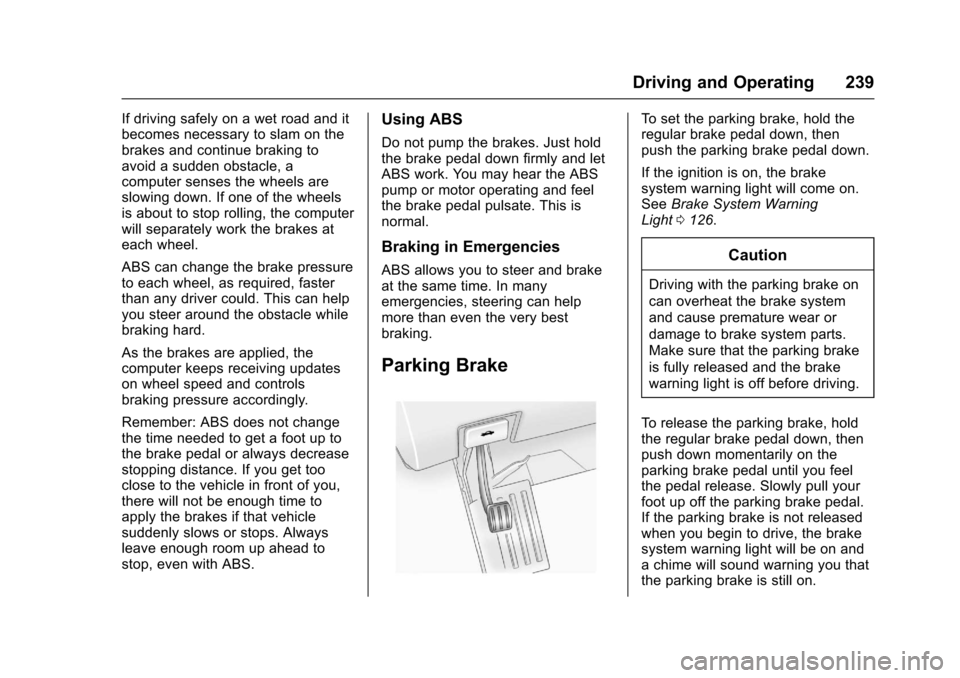
Parking Brake
To set the parking brake, hold the
regular brake pedal down, then
push the parking brake pedal down.
If the ignition is on, the brake
system warning light will come on.
SeeBrake System Warning
Light 0126.
Caution
Driving with the parking brake on
can overheat the brake system
and cause premature wear or
damage to brake system parts.
Make sure that the parking brake
is fully released and the brake
warning light is off before driving.
To release the parking brake, hold
the regular brake pedal down, then
push down momentarily on the
parking brake pedal until you feel
the pedal release. Slowly pull your
foot up off the parking brake pedal.
If the parking brake is not released
when you begin to drive, the brake
system warning light will be on and
a chime will sound warning you that
the parking brake is still on.
Page 248 of 394
Chevrolet Traverse Owner Manual (GMNA-Localizing-U.S./Canada/Mexico-
9955676) - 2017 - crc - 4/1/16
Driving and Operating 247
.Ice, snow, mud, or anything else
builds up on the camera lens.
Clean the lens, rinse it with
water, and wipe it with a soft
cloth.
. The back of the vehicle is in an
accident. The position and
mounting angle of the camera
can change or the camera can
be affected. Be sure to have the
camera and its position and
mounting angle checked at your
dealer.
. There are extreme temperature
changes.
The RVC system display in the
rearview mirror may turn off or not
appear as expected due to one of
the following conditions. If this
occurs the left indicator light on the
mirror will flash.
. A slow flash may indicate a loss
of video signal, or no video
signal present during the reverse
cycle.
. A fast flash may indicate that the
display has been on for the
maximum allowable time during a reverse cycle, or the display
has reached an Over
Temperature limit.
The fast flash conditions are
used to protect the video device
from high temperature
conditions. Once conditions
return to normal the device will
reset and the green indicator will
stop flashing.
During any of these fault conditions,
the display will be blank and the
indicator will continue to flash as
long as the vehicle is in R (Reverse)
or until the conditions return to
normal.
Pressing and holding
zwhen the
left indicator light is flashing will turn
off the video display along with the
left indicator light.
Parking Assist
If available, the Rear Parking Assist
(RPA) system assists the driver with
parking and avoiding objects while
in R (Reverse). RPA operates at
speeds less than 8 km/h (5 mph).
The sensors on the rear bumper are used to detect objects up to
2.5 m (8 ft) behind the vehicle, and
at least 25 cm (10 in) off the ground
and below liftgate level. Detection
distances may be less during
warmer or humid weather.
{Warning
The parking assist system does
not detect children, pedestrians,
bicyclists, animals, or objects
below the bumper or that are too
close or too far from the vehicle.
It is not available at speeds
greater than 8 km/h (5 mph). To
prevent injury, death, or vehicle
damage, even with parking assist,
always check the area around the
vehicle and check all mirrors
before backing.
How the System Works
RPA comes on automatically when
the shift lever is moved into
R (Reverse). A single beep sounds
to indicate the system is working.