display CHEVROLET TRAVERSE 2017 1.G Workshop Manual
[x] Cancel search | Manufacturer: CHEVROLET, Model Year: 2017, Model line: TRAVERSE, Model: CHEVROLET TRAVERSE 2017 1.GPages: 394, PDF Size: 6.47 MB
Page 164 of 394
Chevrolet Traverse Owner Manual (GMNA-Localizing-U.S./Canada/Mexico-
9955676) - 2017 - crc - 3/29/16
Lighting 163
A high electrical load occurs when
several of the following are on, such
as: headlamps, high beams, rear
window defogger, climate control fan
at high speed, heated seats, engine
cooling fans, trailer loads, and loads
plugged into accessory power
outlets.
EPM works to prevent excessive
discharge of the battery. It does this
by balancing the generator's output
and the vehicle's electrical needs.
It can increase engine idle speed to
generate more power whenever
needed. It can temporarily reduce
the power demands of some
accessories.
Normally, these actions occur in
steps or levels, without being
noticeable. In rare cases at the
highest levels of corrective action,
this action may be noticeable to the
driver. If so, a DIC battery voltage
and charging message displays, it is
recommended that the driver reduce
the electrical loads as much aspossible. See
Battery Voltage and
Charging Messages 0138 and
Driver Information Center (DIC)
(With DIC Buttons) 0130 orDriver
Information Center (DIC) (Without
DIC Buttons) 0135.
Battery Power Protection
This feature helps prevent the
battery from being drained, if the
interior courtesy lamps or reading
lamps are accidentally left on. If any
of these lamps are left on, they
automatically turn off after
10 minutes, if the ignition is off. The
lamps will not come back on again
until one of the following occurs:
.
The ignition is turned on.
. The exterior lamps control is
turned off, then on again.
The headlamps will time out after
10 minutes, if they are manually
turned on while the ignition is on
or off.
Page 165 of 394
Chevrolet Traverse Owner Manual (GMNA-Localizing-U.S./Canada/Mexico-
9955676) - 2017 - crc - 4/4/16
164 Infotainment System
Infotainment
System
Introduction
Infotainment . . . . . . . . . . . . . . . . . . 164
Theft-Deterrent Feature . . . . . . 165
Overview (Radio withoutTouchscreen) . . . . . . . . . . . . . . . 166
Overview (Radio with Touchscreen) . . . . . . . . . . . . . . . 168
Operation (Radio without Touchscreen) . . . . . . . . . . . . . . . 168
Operation (Radio with Touchscreen) . . . . . . . . . . . . . . . 170
Radio
AM-FM Radio (Radio withoutTouchscreen) . . . . . . . . . . . . . . . 173
AM-FM Radio (Radio with Touchscreen) . . . . . . . . . . . . . . . 174
Satellite Radio (Radio without Touchscreen) . . . . . . . . . . . . . . . 177
Satellite Radio (Radio with Touchscreen) . . . . . . . . . . . . . . . 180
Radio Reception . . . . . . . . . . . . . . 181
Multi-Band Antenna . . . . . . . . . . 182
Audio Players
CD Player (Radio without Touchscreen) . . . . . . . . . . . . . . . 182
CD Player (Radio with Touchscreen) . . . . . . . . . . . . . . . 184
MP3 (Radio without
Touchscreen) . . . . . . . . . . . . . . . 186
MP3 (Radio with Touchscreen) . . . . . . . . . . . . . . . 191
Auxiliary Devices . . . . . . . . . . . . . 193
OnStar System
OnStar System . . . . . . . . . . . . . . . 194
Rear Seat Infotainment
Rear Seat Audio (RSA) System . . . . . . . . . . . . . . . . . . . . . . 194
Phone
Bluetooth . . . . . . . . . . . . . . . . . . . . . 196
Settings
Settings . . . . . . . . . . . . . . . . . . . . . . 202
Trademarks and License
Agreements
Trademarks and LicenseAgreements . . . . . . . . . . . . . . . . . 204
Introduction
Infotainment
Base radio information is included in
this manual. See the infotainment
manual for information on other
available infotainment systems.
Read the following pages to
become familiar with these features.
{Warning
Taking your eyes off the road for
too long or too often while using
any infotainment feature can
cause a crash. You or others
could be injured or killed. Do not
give extended attention to
infotainment tasks while driving.
Limit your glances at the vehicle
displays and focus your attention
on driving. Use voice commands
whenever possible.
The infotainment system has built-in
features intended to help avoid
distraction by disabling some
functions when driving. These
Page 167 of 394
Chevrolet Traverse Owner Manual (GMNA-Localizing-U.S./Canada/Mexico-
9955676) - 2017 - crc - 4/4/16
166 Infotainment System
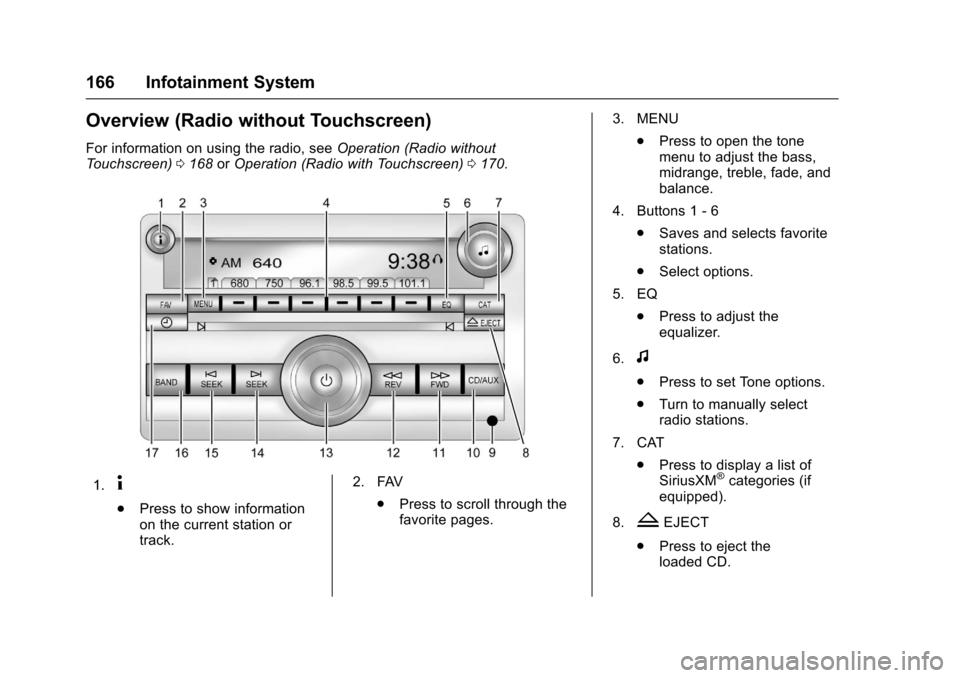
Overview (Radio without Touchscreen)
For information on using the radio, seeOperation (Radio without
Touchscreen) 0168 orOperation (Radio with Touchscreen) 0170.
1.4
.
Press to show information
on the current station or
track. 2. FAV
.Press to scroll through the
favorite pages. 3. MENU
.Press to open the tone
menu to adjust the bass,
midrange, treble, fade, and
balance.
4. Buttons 1 - 6 .Saves and selects favorite
stations.
. Select options.
5. EQ .Press to adjust the
equalizer.
6.
f
. Press to set Tone options.
. Turn to manually select
radio stations.
7. CAT .Press to display a list of
SiriusXM
®categories (if
equipped).
8.
ZEJECT
. Press to eject the
loaded CD.
Page 169 of 394
Chevrolet Traverse Owner Manual (GMNA-Localizing-U.S./Canada/Mexico-
9955676) - 2017 - crc - 4/4/16
168 Infotainment System
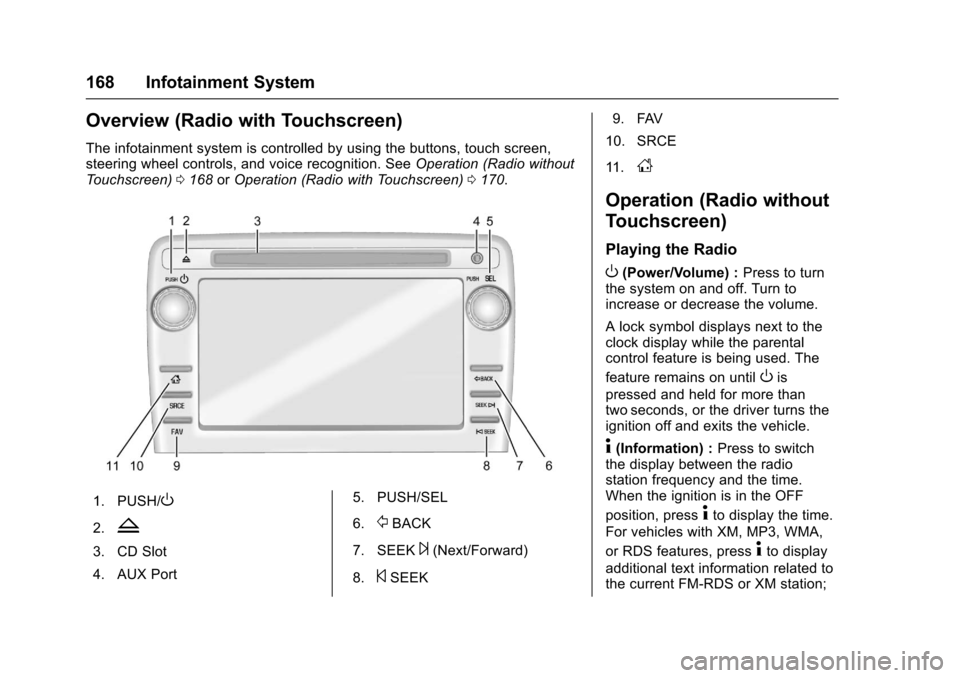
Overview (Radio with Touchscreen)
The infotainment system is controlled by using the buttons, touch screen,
steering wheel controls, and voice recognition. SeeOperation (Radio without
Touchscreen) 0168 orOperation (Radio with Touchscreen) 0170.
1. PUSH/O
2.Z
3. CD Slot
4. AUX Port 5. PUSH/SEL
6.
/BACK
7. SEEK
¨(Next/Forward)
8.
©SEEK 9. FAV
10. SRCE
11.
D
Operation (Radio without
Touchscreen)
Playing the Radio
O(Power/Volume) : Press to turn
the system on and off. Turn to
increase or decrease the volume.
A lock symbol displays next to the
clock display while the parental
control feature is being used. The
feature remains on until
Ois
pressed and held for more than
two seconds, or the driver turns the
ignition off and exits the vehicle.
4(Information) : Press to switch
the display between the radio
station frequency and the time.
When the ignition is in the OFF
position, press
4to display the time.
For vehicles with XM, MP3, WMA,
or RDS features, press
4to display
additional text information related to
the current FM-RDS or XM station;
Page 170 of 394
Chevrolet Traverse Owner Manual (GMNA-Localizing-U.S./Canada/Mexico-
9955676) - 2017 - crc - 4/4/16
Infotainment System 169
or CD, MP3, or WMA song.
If information is available during XM,
CD, MP3, or WMA playback, the
song title information displays on
the top line of the display and artist
information displays on the bottom
line. When information is not
available,“NO INFO” displays.
Auto Text (Satellite Radio Service
(if equipped), CD, MP3, and WMA
features) : If additional information
is available for the current song
being played, Auto Text will
automatically page/scroll the
information every five seconds
above the FAV presets on the radio
display.
To activate Auto Text:
1. Press MENU to display the radio setup menu.
2. Press the softkey under the AUTO TXT tab on the radio
display.
3. Press the softkey under the ON tab on the radio display.
If
4is pressed and the song title or
artist information is longer than what
can be displayed, the extra information will page every
five seconds when Auto Text is
activated.
Speed Compensated Volume
(SCV) :
The SCV feature
automatically adjusts the radio
volume to compensate for road and
wind noise as the vehicle speeds up
or slows down, so that the volume
level is consistent.
To activate SCV:
1. Set the radio volume.
2. Press the MENU button to display the radio setup menu.
3. Press the softkey under the AUTO VOLUM (automatic
volume) tab on the radio
display.
4. Press the softkey under the Speed Compensated Volume
setting (OFF, Low, Med,
or High) to select the level of
radio volume compensation.
Press the softkey located
below the BACK tab on the
MENU SETUP display or let
the display time out after
approximately 10 seconds. Each higher setting allows for
more radio volume
compensation at faster vehicle
speeds.
Setting the Tone (Bass/
Midrange/Treble)
BASS/MID/TREB (Bass, Midrange,
or Treble) :
To adjust bass,
midrange, or treble:
1. Press
funtil the tone control
tabs display.
2. Continue pressing
fto
highlight the tab, or press the
softkey under the tab.
3. To adjust the highlighted setting, do one of the following
until the levels are obtained:
.Turn
fclockwise or
counterclockwise.
. Press
\FWD, orsREV.
If a station's frequency is weak or if
there is static, decrease the treble.
To quickly adjust bass, midrange,
or treble to the middle position,
press the softkey under the BASS,
Page 171 of 394
Chevrolet Traverse Owner Manual (GMNA-Localizing-U.S./Canada/Mexico-
9955676) - 2017 - crc - 4/4/16
170 Infotainment System
MID, or TREB tab for more than
two seconds. A beep sounds and
the level adjusts to the middle
position.
To quickly adjust all tone and
speaker controls to the middle
position when in the Tone menu,
press
ffor more than two seconds
until a beep sounds.
EQ (Equalization) : Press to
choose bass and treble equalization
settings designed for different types
of music. The choices are pop, rock,
country, talk, jazz, and classical.
Selecting MANUAL or changing
bass or treble, returns the EQ to the
manual bass and treble settings.
Unique EQ settings can be saved
for each source.
If the radio has a Bose
®audio
system, the EQ settings are either
MANUAL or TALK.
Adjusting the Speakers
(Balance/Fade)
BAL/FADE (Balance/Fade) : To
adjust the balance or fade:
1. Press
funtil the speaker
control tabs display.
2. Continue pressing
fto
highlight the tab, or press the
softkey under the tab.
3. To adjust the highlighted setting, do one of the following
until the levels are obtained:
.Turn
fclockwise or
counterclockwise.
. Press
\FWD, orsREV.
To quickly adjust balance or fade to
the middle position, press the
softkey under the BAL or FADE tab
for more than two seconds. A beep
sounds and the level adjusts to the
middle position.
To quickly adjust all speaker and
tone controls to the middle position,
press
ffor more than two seconds
until a beep sounds.
Radio Messages
Calibration Error : The audio
system has been calibrated for the
vehicle from the factory. If the
message displays, it means that the
radio has not been configured
properly for the vehicle and it must
be returned to your dealer for
service.
Locked : This message displays
when the TheftLock
®system has
locked up the radio. Take the
vehicle to your dealer for service.
If any error occurs repeatedly or if
an error cannot be corrected,
contact your dealer.
Operation (Radio with
Touchscreen)
Infotainment Controls
PUSH/O(Volume/Power):
. Press to turn the system on
and off.
. Turn to adjust the volume.
Page 172 of 394
Chevrolet Traverse Owner Manual (GMNA-Localizing-U.S./Canada/Mexico-
9955676) - 2017 - crc - 4/4/16
Infotainment System 171
Z(Eject) :Press to eject a disc
from the CD player. See CD Player
(Radio without Touchscreen) 0182
or CD Player (Radio with
Touchscreen) 0184.
AUX Port : 3.5 mm (1/8 in)
connection for external audio
devices.
PUSH/SEL (Select):
. Turn to manually find a station or
highlight a menu selection.
. Press to select a highlighted
selection.
D(Home Page) : Press to go to
the Home Page. See “Home Page”
later in this section.
SRCE (Source) : Press to switch
between AM, FM, CD, and if
equipped, SiriusXM
®, front auxiliary,
rear auxiliary, and iPod/USB.
Press and hold to mute/pause the
system. Press and hold again to
unmute/resume the system.
FAV (Favorites Menu) : In AM, FM,
or SiriusXM (if equipped), press to
change the current favorite page
number above the preset buttons. Keep pressing to scroll through the
favorites pages. The stored stations
for each list display on the bottom of
the screen. The number of preset
Favorite Pages can be changed by
pressing the Settings button on a
Home Page, then pressing
Favorites Pages, and then selecting
the number of Favorite Pages.
©SEEK (Previous/Reverse):
. AM, FM, SiriusXM (if equipped):
Press to seek to the previous
strong station. Press and hold
for Scan. Press
©again to stop
the scan.
. CD, USB: Press to seek to the
beginning of the current or
previous track.
. CD, USB: Press and hold to
quickly reverse through a track.
Release the button to return to
playing speed. See CD Player
(Radio without Touchscreen)
0 182 orCD Player (Radio with
Touchscreen) 0184 and
Auxiliary Devices 0193. SEEK
¨(Next/Forward):
. AM, FM, SiriusXM (if equipped):
Press to seek to the next strong
station. Press and hold for Scan.
Press
¨again to stop the scan.
. CD, USB: Press to seek or skip
the next track or program.
. CD, USB: Press and hold to fast
forward through a track. Release
the button to return to playing
speed. See CD Player (Radio
without Touchscreen) 0182 or
CD Player (Radio with
Touchscreen) 0184 and
Auxiliary Devices 0193.
/BACK : Press to return to the
previous screen in a menu.
Touchscreen Buttons
Touchscreen buttons are visible on
the screen when available. When a
function is unavailable, the button
may gray out. When a function is
selected, the button may highlight or
animate.
Page 173 of 394
Chevrolet Traverse Owner Manual (GMNA-Localizing-U.S./Canada/Mexico-
9955676) - 2017 - crc - 4/4/16
172 Infotainment System
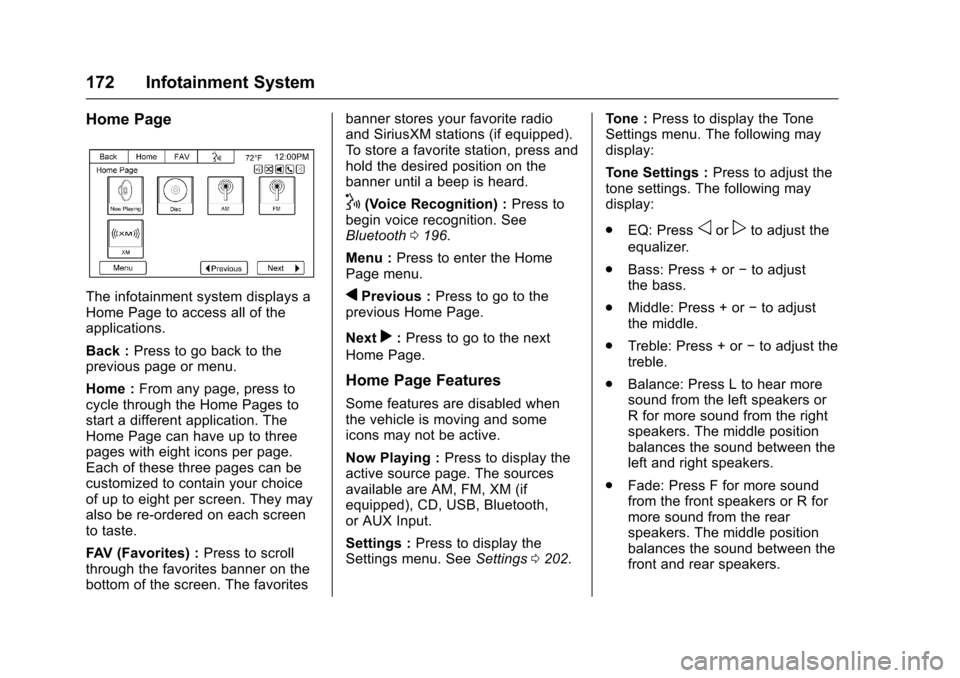
Home Page
The infotainment system displays a
Home Page to access all of the
applications.
Back :Press to go back to the
previous page or menu.
Home : From any page, press to
cycle through the Home Pages to
start a different application. The
Home Page can have up to three
pages with eight icons per page.
Each of these three pages can be
customized to contain your choice
of up to eight per screen. They may
also be re-ordered on each screen
to taste.
FAV (Favorites) : Press to scroll
through the favorites banner on the
bottom of the screen. The favorites banner stores your favorite radio
and SiriusXM stations (if equipped).
To store a favorite station, press and
hold the desired position on the
banner until a beep is heard.
!(Voice Recognition) :
Press to
begin voice recognition. See
Bluetooth 0196.
Menu : Press to enter the Home
Page menu.
qPrevious : Press to go to the
previous Home Page.
Next
r: Press to go to the next
Home Page.
Home Page Features
Some features are disabled when
the vehicle is moving and some
icons may not be active.
Now Playing : Press to display the
active source page. The sources
available are AM, FM, XM (if
equipped), CD, USB, Bluetooth,
or AUX Input.
Settings : Press to display the
Settings menu. See Settings0202. Tone :
Press to display the Tone
Settings menu. The following may
display:
Tone Settings : Press to adjust the
tone settings. The following may
display:
. EQ: Press
oorpto adjust the
equalizer.
. Bass: Press + or −to adjust
the bass.
. Middle: Press + or −to adjust
the middle.
. Treble: Press + or −to adjust the
treble.
. Balance: Press L to hear more
sound from the left speakers or
R for more sound from the right
speakers. The middle position
balances the sound between the
left and right speakers.
. Fade: Press F for more sound
from the front speakers or R for
more sound from the rear
speakers. The middle position
balances the sound between the
front and rear speakers.
Page 174 of 394
Chevrolet Traverse Owner Manual (GMNA-Localizing-U.S./Canada/Mexico-
9955676) - 2017 - crc - 4/4/16
Infotainment System 173
DSP Mode :Pressoorpto adjust
the DSP mode, if equipped.
Language
To change the language of the
screens, see Vehicle
Personalization (With DIC
Buttons) 0146.
English or Metric Units
To change the screens from English
or metric, see Driver Information
Center (DIC) (With DIC Buttons)
0 130 orDriver Information Center
(DIC) (Without DIC Buttons) 0135.
Radio
AM-FM Radio (Radio
without Touchscreen)
Radio Data System (RDS)
The RDS feature is available for use
only on FM stations that broadcast
RDS information. This system relies
upon receiving specific information
from these stations and only works
when the information is available.
While the radio is tuned to an
FM-RDS station, the station name
or call letters display. In rare cases,
a radio station could broadcast
incorrect information that causes the
radio features to work improperly.
If this happens, contact the radio
station.
Finding a Station
BAND : Press to switch between
AM, FM, or SiriusXM®(if equipped).
The selection displays.
f(Tune) : Turn to select radio
stations.
©SEEK and¨SEEK : Press to go
to the previous or next station and
stay there.
To scan stations, press and hold
©
SEEK or¨SEEK until a beep
sounds. The radio goes to a station,
plays for a few seconds, then goes
to the next station. Press either
arrow again to stop scanning.
The radio only seeks and scans
stations with a strong signal that are
in the selected band.
Storing a Radio Station as a
Favorite
Drivers are encouraged to set up
their radio station favorites while the
vehicle is in P (Park). Tune to
favorite stations using the presets,
favorites button, and steering wheel
controls. See Steering Wheel
Controls (Radio with Touchscreen)
0 110 orSteering Wheel Controls
(Radio without Touchscreen) 0109.
FAV (Favorites) : A maximum of
36 stations can be programmed as
favorites using the six softkeys
below the radio station frequency
Page 175 of 394
Chevrolet Traverse Owner Manual (GMNA-Localizing-U.S./Canada/Mexico-
9955676) - 2017 - crc - 4/4/16
174 Infotainment System
tabs and by using the radio favorites
page button (FAV button). Press to
go through up to six pages of
favorites, each having six favorite
stations available per page. Each
page of favorites can contain any
combination of AM, FM, or SiriusXM
stations (if equipped).
The balance/fade and tone settings
that were previously adjusted are
stored with the favorite stations.
To store a station as a favorite:1. Tune to the desired radio station.
2. Press FAV to display the page to store the station.
3. Press and hold one of the six softkeys until a beep
sounds. When that softkey is
pressed and released, the
station that was set returns.
4. Repeat the steps for each radio station to be stored as a
favorite. To set up the number of favorites
pages:
1. Press MENU to display the radio setup menu.
2. Press the softkey below the FAV 1-6 tab.
3. Select the desired number of favorites pages by pressing the
softkey below the displayed
page numbers.
4. Press FAV, or let the menu time out, to return to the original
main radio screen showing the
radio station frequency tabs
and to begin the process of
programming favorites for the
chosen number of favorites
pages.
AM-FM Radio (Radio with
Touchscreen)
Playing the Radio
PUSH/O(Power/Volume):
. Press to turn the radio on or off.
. Turn to increase or decrease the
volume of the active source. The steering wheel controls can
also be used to adjust the volume.
See
Steering Wheel Controls (Radio
with Touchscreen) 0110 orSteering
Wheel Controls (Radio without
Touchscreen) 0109.
Audio Source
To access AM, FM, or SiriusXM
®if
equipped, do one of the following:
. Press the AM, FM, or SXM (if
equipped) screen button on the
Home Page.
. Press the SRCE radio button to
scroll through the options.
A source ribbon will appear at
the bottom of the screen
allowing you to select the one
you want.
Infotainment System Settings
Tone Settings
To access the tone settings, press
the Tone Settings button on the
Home Page.
To adjust the settings:
.Bass: Press + or −to change
the level.