steering CHEVROLET TRAVERSE 2018 Owner's Guide
[x] Cancel search | Manufacturer: CHEVROLET, Model Year: 2018, Model line: TRAVERSE, Model: CHEVROLET TRAVERSE 2018Pages: 419, PDF Size: 5.92 MB
Page 124 of 419
Chevrolet Traverse Owner Manual (GMNA-Localizing-U.S./Canada/Mexico-
10603118) - 2018 - CRC - 1/29/18
Instruments and Controls 123
Instruments and
Controls
Controls
Steering Wheel Adjustment . . . 124
Steering Wheel Controls . . . . . . 124
Heated Steering Wheel . . . . . . . 125
Horn . . . . . . . . . . . . . . . . . . . . . . . . . . 125
Windshield Wiper/Washer . . . . 125
Rear Window Wiper/Washer . . . . . . . . . . . . . . . . . . . . . 126
Compass . . . . . . . . . . . . . . . . . . . . . 127
Clock . . . . . . . . . . . . . . . . . . . . . . . . . 128
Power Outlets . . . . . . . . . . . . . . . . 129
Wireless Charging . . . . . . . . . . . . 131
Warning Lights, Gauges, and
Indicators
Warning Lights, Gauges, and Indicators . . . . . . . . . . . . . . . . . . . 133
Instrument Cluster . . . . . . . . . . . . 134
Speedometer . . . . . . . . . . . . . . . . . 137
Odometer . . . . . . . . . . . . . . . . . . . . . 137
Trip Odometer . . . . . . . . . . . . . . . . 137
Tachometer . . . . . . . . . . . . . . . . . . . 137
Fuel Gauge . . . . . . . . . . . . . . . . . . . 138
Engine Coolant Temperature
Gauge . . . . . . . . . . . . . . . . . . . . . . 138 Seat Belt Reminders . . . . . . . . . 139
Airbag Readiness Light . . . . . . . 140
Passenger Airbag Status
Indicator . . . . . . . . . . . . . . . . . . . . 140
Charging System Light . . . . . . . 141
Malfunction Indicator Lamp
(Check Engine Light) . . . . . . . . 141
Brake System Warning Light . . . . . . . . . . . . . . . . . . . . . . . . 143
Electric Parking Brake Light . . . . . . . . . . . . . . . . . . . . . . . . 144
Service Electric Parking Brake Light (Uplevel Only) . . . . . . . . . 144
Antilock Brake System (ABS) Warning Light . . . . . . . . . . . . . . . 144
Lane Keep Assist (LKA) Light . . . . . . . . . . . . . . . . . . . . . . . . 145
Vehicle Ahead Indicator . . . . . . 145
Pedestrian Ahead Indicator . . . 145
Traction Off Light . . . . . . . . . . . . . 145
StabiliTrak OFF Light . . . . . . . . . 146
Traction Control System (TCS)/ StabiliTrak Light . . . . . . . . . . . . . 146
Tire Pressure Light . . . . . . . . . . . 146
Engine Oil Pressure Light . . . . 147
Low Fuel Warning Light (Base Level) . . . . . . . . . . . . . . . . . . . . . . . 148
Low Fuel Warning Light (Uplevel) . . . . . . . . . . . . . . . . . . . . 148
Security Light . . . . . . . . . . . . . . . . . 148 High-Beam On Light . . . . . . . . . . 148
Front Fog Lamp Light . . . . . . . . . 149
Lamps On Reminder . . . . . . . . . 149
Cruise Control Light . . . . . . . . . . 149
Door Ajar Light . . . . . . . . . . . . . . . 149
Information Displays
Driver Information
Center (DIC) . . . . . . . . . . . . . . . . 150
Vehicle Messages
Vehicle Messages . . . . . . . . . . . . 153
Engine Power Messages . . . . . 153
Vehicle Speed Messages . . . . . 153
Vehicle Personalization
Vehicle Personalization . . . . . . . 154
Universal Remote System
Universal Remote System . . . . 162
Universal Remote SystemProgramming . . . . . . . . . . . . . . . 162
Universal Remote System Operation . . . . . . . . . . . . . . . . . . . 165
Page 125 of 419
Chevrolet Traverse Owner Manual (GMNA-Localizing-U.S./Canada/Mexico-
10603118) - 2018 - CRC - 1/29/18
124 Instruments and Controls
Controls
Steering Wheel
Adjustment
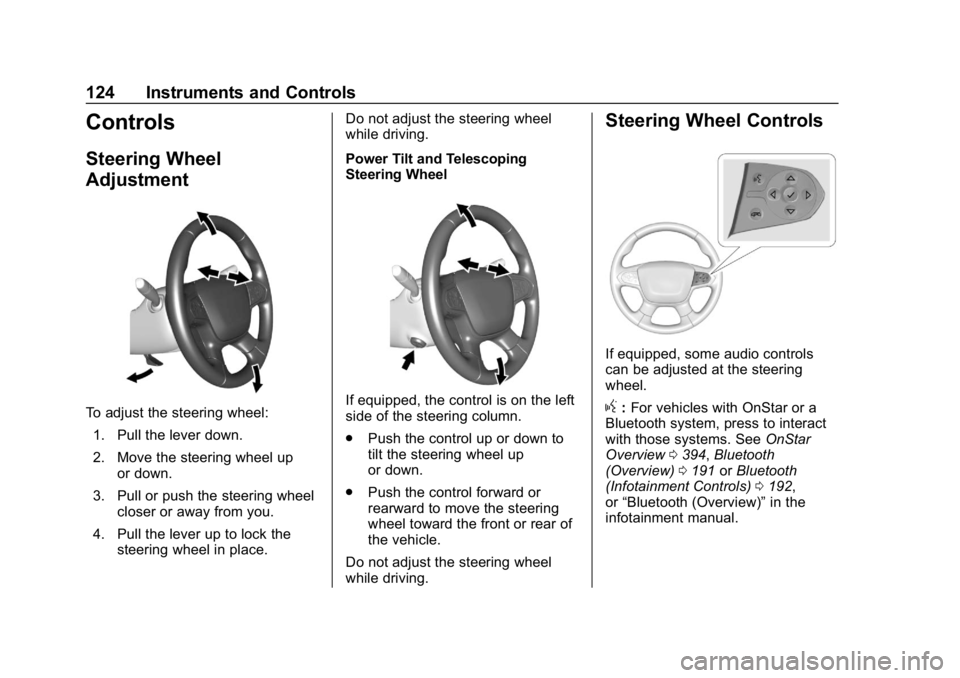
To adjust the steering wheel:1. Pull the lever down.
2. Move the steering wheel up or down.
3. Pull or push the steering wheel closer or away from you.
4. Pull the lever up to lock the steering wheel in place. Do not adjust the steering wheel
while driving.
Power Tilt and Telescoping
Steering WheelIf equipped, the control is on the left
side of the steering column.
.
Push the control up or down to
tilt the steering wheel up
or down.
. Push the control forward or
rearward to move the steering
wheel toward the front or rear of
the vehicle.
Do not adjust the steering wheel
while driving.
Steering Wheel Controls
If equipped, some audio controls
can be adjusted at the steering
wheel.
g: For vehicles with OnStar or a
Bluetooth system, press to interact
with those systems. See OnStar
Overview 0394, Bluetooth
(Overview) 0191 orBluetooth
(Infotainment Controls) 0192,
or “Bluetooth (Overview)” in the
infotainment manual.
Page 126 of 419
Chevrolet Traverse Owner Manual (GMNA-Localizing-U.S./Canada/Mexico-
10603118) - 2018 - CRC - 1/29/18
Instruments and Controls 125
i:Press to reject an incoming
call or end a current call. Press to
mute or unmute the infotainment
system when not on a call.
oorp: Press to go to the
previous or next menu option.
worx: Press to go to the next or
previous selection.
V: Press to select a highlighted
menu option.
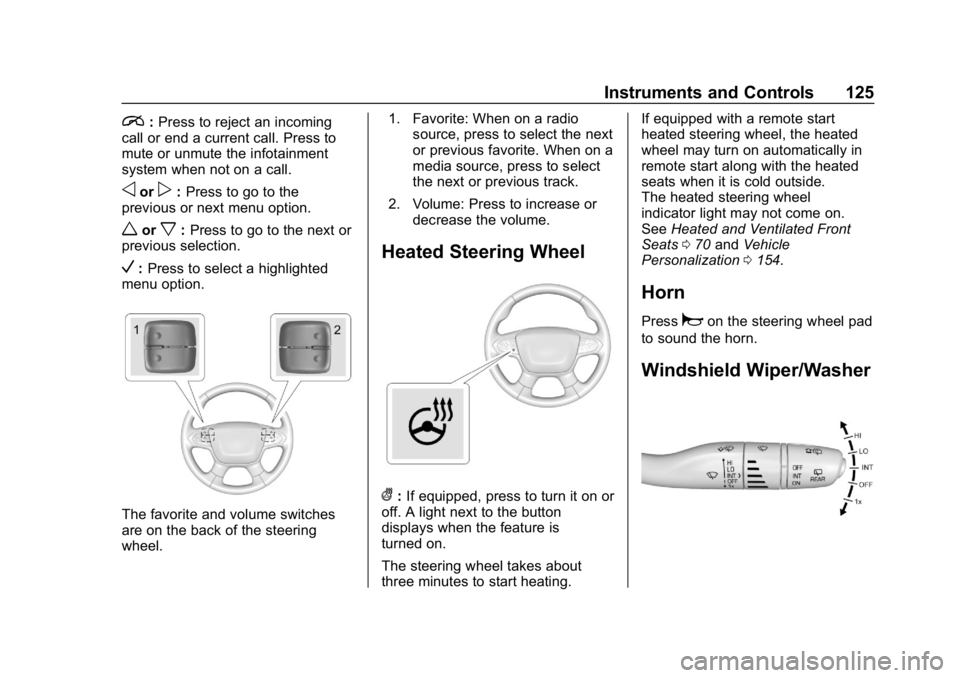
The favorite and volume switches
are on the back of the steering
wheel. 1. Favorite: When on a radio
source, press to select the next
or previous favorite. When on a
media source, press to select
the next or previous track.
2. Volume: Press to increase or decrease the volume.
Heated Steering Wheel
(:If equipped, press to turn it on or
off. A light next to the button
displays when the feature is
turned on.
The steering wheel takes about
three minutes to start heating. If equipped with a remote start
heated steering wheel, the heated
wheel may turn on automatically in
remote start along with the heated
seats when it is cold outside.
The heated steering wheel
indicator light may not come on.
See
Heated and Ventilated Front
Seats 070 and Vehicle
Personalization 0154.
Horn
Pressaon the steering wheel pad
to sound the horn.
Windshield Wiper/Washer
Page 137 of 419
Chevrolet Traverse Owner Manual (GMNA-Localizing-U.S./Canada/Mexico-
10603118) - 2018 - CRC - 1/29/18
136 Instruments and Controls
Cluster Menu
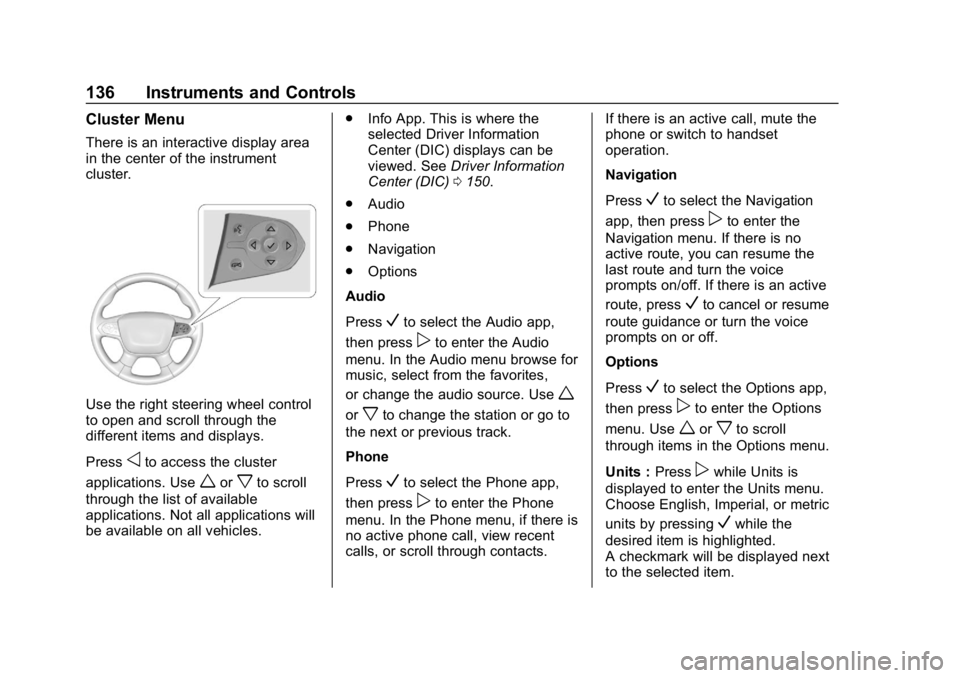
There is an interactive display area
in the center of the instrument
cluster.
Use the right steering wheel control
to open and scroll through the
different items and displays.
Press
oto access the cluster
applications. Use
worxto scroll
through the list of available
applications. Not all applications will
be available on all vehicles. .
Info App. This is where the
selected Driver Information
Center (DIC) displays can be
viewed. See Driver Information
Center (DIC) 0150.
. Audio
. Phone
. Navigation
. Options
Audio
Press
Vto select the Audio app,
then press
pto enter the Audio
menu. In the Audio menu browse for
music, select from the favorites,
or change the audio source. Use
w
orxto change the station or go to
the next or previous track.
Phone
Press
Vto select the Phone app,
then press
pto enter the Phone
menu. In the Phone menu, if there is
no active phone call, view recent
calls, or scroll through contacts. If there is an active call, mute the
phone or switch to handset
operation.
Navigation
Press
Vto select the Navigation
app, then press
pto enter the
Navigation menu. If there is no
active route, you can resume the
last route and turn the voice
prompts on/off. If there is an active
route, press
Vto cancel or resume
route guidance or turn the voice
prompts on or off.
Options
Press
Vto select the Options app,
then press
pto enter the Options
menu. Use
worxto scroll
through items in the Options menu.
Units : Press
pwhile Units is
displayed to enter the Units menu.
Choose English, Imperial, or metric
units by pressing
Vwhile the
desired item is highlighted.
A checkmark will be displayed next
to the selected item.
Page 144 of 419
Chevrolet Traverse Owner Manual (GMNA-Localizing-U.S./Canada/Mexico-
10603118) - 2018 - CRC - 1/29/18
Instruments and Controls 143
If the light remains on, see your
dealer.
Emissions Inspection and
Maintenance Programs
If the vehicle requires an Emissions
Inspection/Maintenance test, the
test equipment will likely connect to
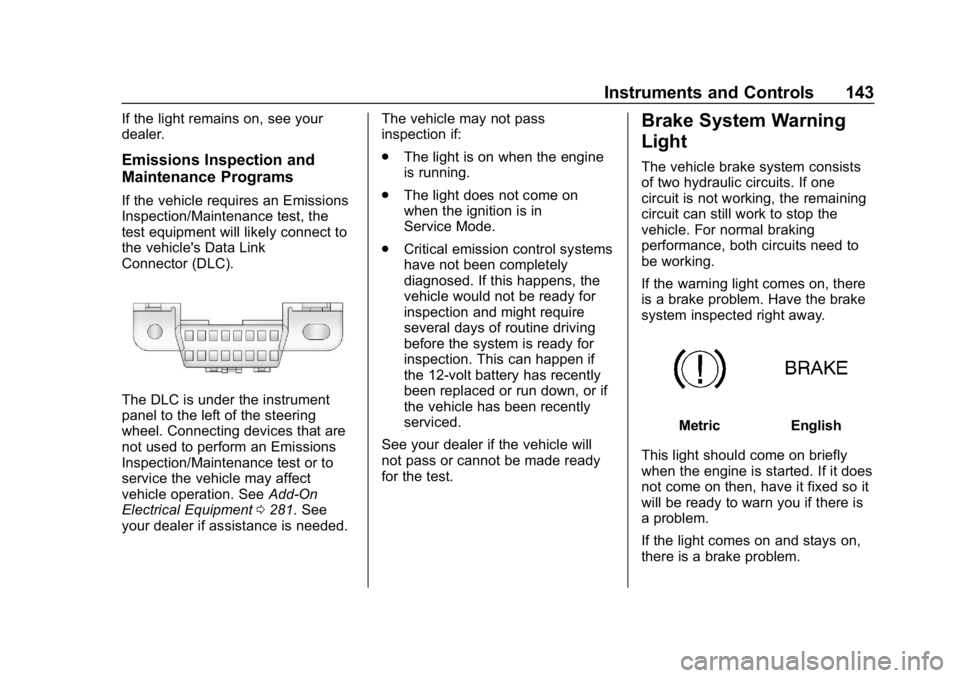
the vehicle's Data Link
Connector (DLC).
The DLC is under the instrument
panel to the left of the steering
wheel. Connecting devices that are
not used to perform an Emissions
Inspection/Maintenance test or to
service the vehicle may affect
vehicle operation. SeeAdd-On
Electrical Equipment 0281. See
your dealer if assistance is needed. The vehicle may not pass
inspection if:
.
The light is on when the engine
is running.
. The light does not come on
when the ignition is in
Service Mode.
. Critical emission control systems
have not been completely
diagnosed. If this happens, the
vehicle would not be ready for
inspection and might require
several days of routine driving
before the system is ready for
inspection. This can happen if
the 12-volt battery has recently
been replaced or run down, or if
the vehicle has been recently
serviced.
See your dealer if the vehicle will
not pass or cannot be made ready
for the test.
Brake System Warning
Light
The vehicle brake system consists
of two hydraulic circuits. If one
circuit is not working, the remaining
circuit can still work to stop the
vehicle. For normal braking
performance, both circuits need to
be working.
If the warning light comes on, there
is a brake problem. Have the brake
system inspected right away.
MetricEnglish
This light should come on briefly
when the engine is started. If it does
not come on then, have it fixed so it
will be ready to warn you if there is
a problem.
If the light comes on and stays on,
there is a brake problem.
Page 146 of 419
Chevrolet Traverse Owner Manual (GMNA-Localizing-U.S./Canada/Mexico-
10603118) - 2018 - CRC - 1/29/18
Instruments and Controls 145
If both the ABS and the brake
system warning light are on, the
vehicle's antilock brakes are not
functioning and there is a problem
with the regular brakes. See your
dealer for service.
SeeBrake System Warning Light
0 143.
Lane Keep Assist (LKA)
Light
If equipped, this light is green if LKA
is available to assist.
LKA may assist by gently turning
the steering wheel if the vehicle
approaches a detected lane marking
without using the turn signal in that
direction. The LKA light will turn
amber. This light is amber and flashes as a
Lane Departure Warning (LDW)
alert, to indicate that the lane
marking has been crossed.
See
Lane Keep Assist (LKA) 0267.
Vehicle Ahead Indicator
If equipped, this indicator will
display green when a vehicle is
detected ahead and amber when
you are following a vehicle ahead
much too closely.
See Forward Collision Alert (FCA)
System 0259.
Pedestrian Ahead
Indicator
If equipped, this indicator will
display amber when a nearby
pedestrian is detected directly in
front of the vehicle.
See Front Pedestrian Braking (FPB)
System 0263.
Traction Off Light
This light comes on briefly while
starting the engine. If it does not,
have the vehicle serviced by your
Page 151 of 419
Chevrolet Traverse Owner Manual (GMNA-Localizing-U.S./Canada/Mexico-
10603118) - 2018 - CRC - 1/29/18
150 Instruments and Controls
Information Displays
Driver Information
Center (DIC)
The DIC displays are shown in the
center of the instrument cluster in
the Info app. SeeInstrument Cluster
0 134. The displays show the status
of many vehicle systems. The
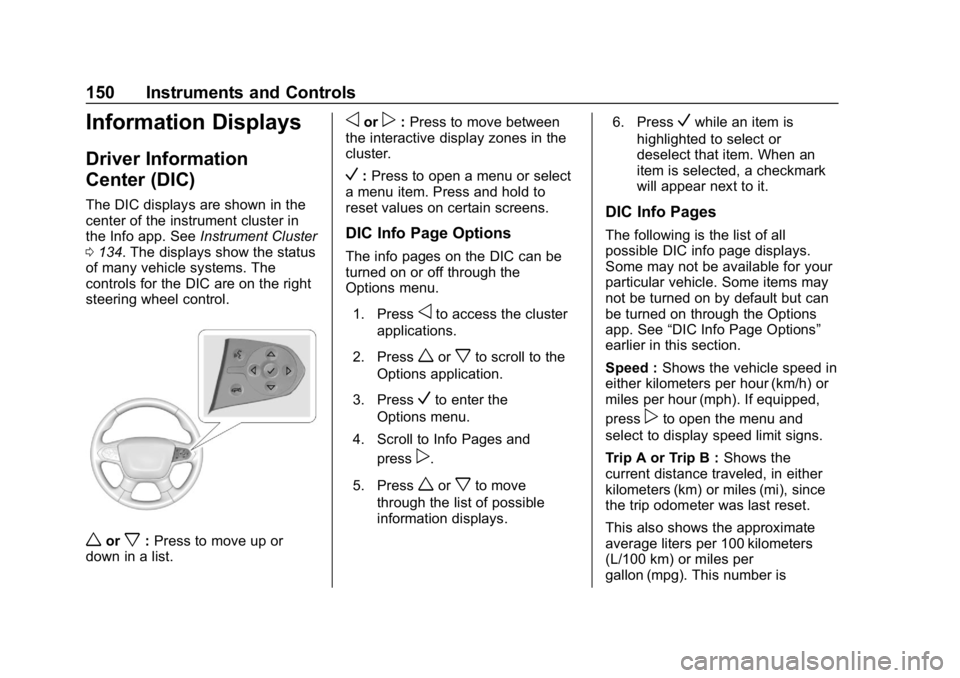
controls for the DIC are on the right
steering wheel control.
worx: Press to move up or
down in a list.
oorp: Press to move between
the interactive display zones in the
cluster.
V: Press to open a menu or select
a menu item. Press and hold to
reset values on certain screens.
DIC Info Page Options
The info pages on the DIC can be
turned on or off through the
Options menu.
1. Press
oto access the cluster
applications.
2. Press
worxto scroll to the
Options application.
3. Press
Vto enter the
Options menu.
4. Scroll to Info Pages and press
p.
5. Press
worxto move
through the list of possible
information displays. 6. Press
Vwhile an item is
highlighted to select or
deselect that item. When an
item is selected, a checkmark
will appear next to it.
DIC Info Pages
The following is the list of all
possible DIC info page displays.
Some may not be available for your
particular vehicle. Some items may
not be turned on by default but can
be turned on through the Options
app. See “DIC Info Page Options”
earlier in this section.
Speed : Shows the vehicle speed in
either kilometers per hour (km/h) or
miles per hour (mph). If equipped,
press
pto open the menu and
select to display speed limit signs.
Trip A or Trip B : Shows the
current distance traveled, in either
kilometers (km) or miles (mi), since
the trip odometer was last reset.
This also shows the approximate
average liters per 100 kilometers
(L/100 km) or miles per
gallon (mpg). This number is
Page 153 of 419
Chevrolet Traverse Owner Manual (GMNA-Localizing-U.S./Canada/Mexico-
10603118) - 2018 - CRC - 1/29/18
152 Instruments and Controls
Fuel Economy :The center
displays the approximate
instantaneous fuel economy as a
number and bar graph. Displayed
above the bar graph is a running
average of fuel economy for the
most recently traveled selected
distance. Displayed below the bar
graph is the best average fuel
economy that has been achieved for
the selected distance. The selected
distance is displayed at the top of
the page as “last xxx mi/km.”
Press
pto select the distance or
reset best value. Use
wandxto
choose the distance and press
V.
Press
wandxto select “Reset
Best Score.” Press
Vto reset the
best average fuel economy. After
reset, the best value displays “-,-”
until the selected distance has been
traveled. The display provides information on
how current driving behavior affects
the running average and how well
recent driving compares to the best
that has been achieved for the
selected distance.
Timer :
This display can be used as
a timer. To start the timer, press
V
while this display is active. The
display will show the amount of time
that has passed since the timer was
last reset. To stop the timer, press
V
briefly while this display is active
and the timer is running. To reset
the timer to zero, press and hold
V
while this display is active, or
press
pand select reset.
Battery Voltage : Displays the
current battery voltage, if equipped.
Battery voltage changes are normal
while driving. See Charging System
Light 0141. If there is a problem
with the battery charging system,
the DIC will display a message. Transmission Fluid
Temperature :
Shows the
temperature of the automatic
transmission fluid in either degrees
Celsius (°C) or degrees
Fahrenheit (°F).
Off Road Page : This page shows
the traction, four wheel drive, and
steering angle states. When the
front or rear axles are locked, a lock
icon is displayed.
Blank Page : Shows no
information.
Page 156 of 419
Chevrolet Traverse Owner Manual (GMNA-Localizing-U.S./Canada/Mexico-
10603118) - 2018 - CRC - 1/29/18
Instruments and Controls 155
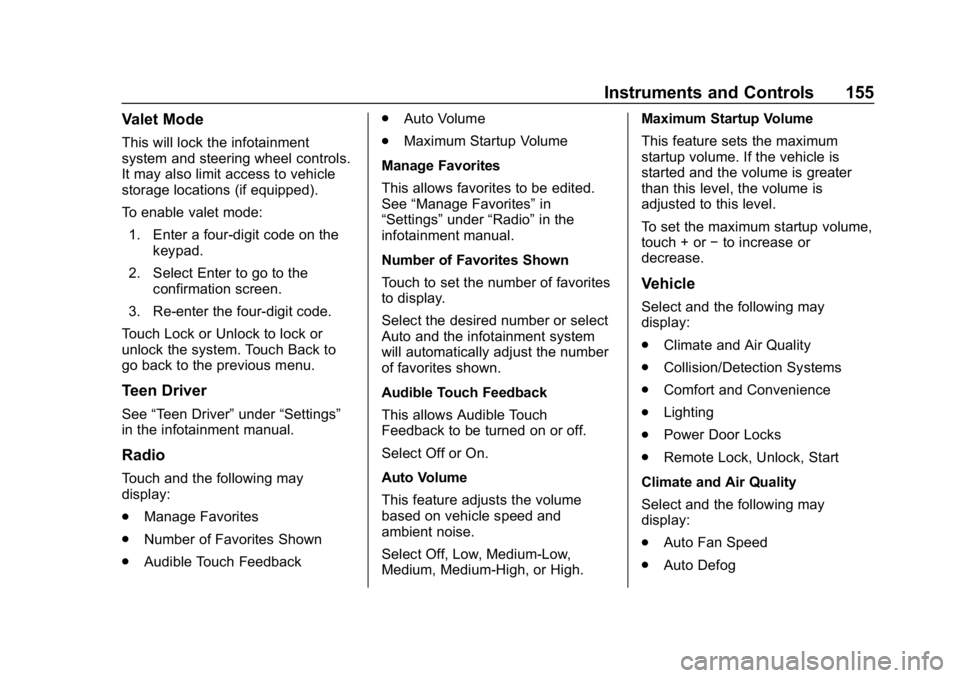
Valet Mode
This will lock the infotainment
system and steering wheel controls.
It may also limit access to vehicle
storage locations (if equipped).
To enable valet mode:1. Enter a four-digit code on the keypad.
2. Select Enter to go to the confirmation screen.
3. Re-enter the four-digit code.
Touch Lock or Unlock to lock or
unlock the system. Touch Back to
go back to the previous menu.
Teen Driver
See “Teen Driver” under“Settings”
in the infotainment manual.
Radio
Touch and the following may
display:
. Manage Favorites
. Number of Favorites Shown
. Audible Touch Feedback .
Auto Volume
. Maximum Startup Volume
Manage Favorites
This allows favorites to be edited.
See “Manage Favorites” in
“Settings” under“Radio” in the
infotainment manual.
Number of Favorites Shown
Touch to set the number of favorites
to display.
Select the desired number or select
Auto and the infotainment system
will automatically adjust the number
of favorites shown.
Audible Touch Feedback
This allows Audible Touch
Feedback to be turned on or off.
Select Off or On.
Auto Volume
This feature adjusts the volume
based on vehicle speed and
ambient noise.
Select Off, Low, Medium-Low,
Medium, Medium-High, or High. Maximum Startup Volume
This feature sets the maximum
startup volume. If the vehicle is
started and the volume is greater
than this level, the volume is
adjusted to this level.
To set the maximum startup volume,
touch + or
−to increase or
decrease.
Vehicle
Select and the following may
display:
. Climate and Air Quality
. Collision/Detection Systems
. Comfort and Convenience
. Lighting
. Power Door Locks
. Remote Lock, Unlock, Start
Climate and Air Quality
Select and the following may
display:
. Auto Fan Speed
. Auto Defog
Page 160 of 419
Chevrolet Traverse Owner Manual (GMNA-Localizing-U.S./Canada/Mexico-
10603118) - 2018 - CRC - 1/29/18
Instruments and Controls 159
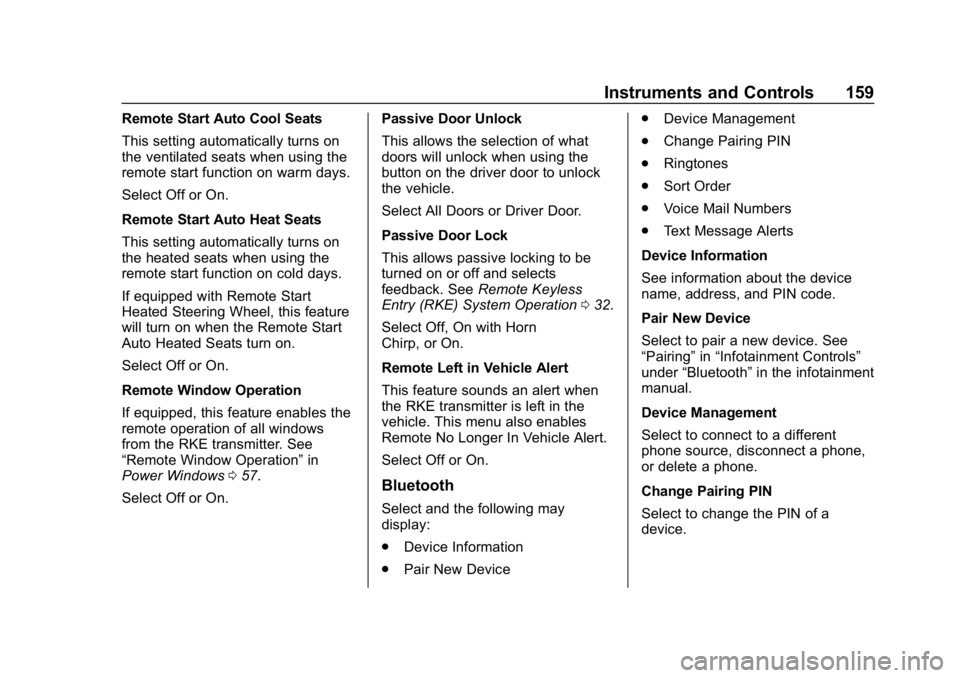
Remote Start Auto Cool Seats
This setting automatically turns on
the ventilated seats when using the
remote start function on warm days.
Select Off or On.
Remote Start Auto Heat Seats
This setting automatically turns on
the heated seats when using the
remote start function on cold days.
If equipped with Remote Start
Heated Steering Wheel, this feature
will turn on when the Remote Start
Auto Heated Seats turn on.
Select Off or On.
Remote Window Operation
If equipped, this feature enables the
remote operation of all windows
from the RKE transmitter. See
“Remote Window Operation”in
Power Windows 057.
Select Off or On. Passive Door Unlock
This allows the selection of what
doors will unlock when using the
button on the driver door to unlock
the vehicle.
Select All Doors or Driver Door.
Passive Door Lock
This allows passive locking to be
turned on or off and selects
feedback. See
Remote Keyless
Entry (RKE) System Operation 032.
Select Off, On with Horn
Chirp, or On.
Remote Left in Vehicle Alert
This feature sounds an alert when
the RKE transmitter is left in the
vehicle. This menu also enables
Remote No Longer In Vehicle Alert.
Select Off or On.
Bluetooth
Select and the following may
display:
. Device Information
. Pair New Device .
Device Management
. Change Pairing PIN
. Ringtones
. Sort Order
. Voice Mail Numbers
. Text Message Alerts
Device Information
See information about the device
name, address, and PIN code.
Pair New Device
Select to pair a new device. See
“Pairing” in“Infotainment Controls”
under “Bluetooth” in the infotainment
manual.
Device Management
Select to connect to a different
phone source, disconnect a phone,
or delete a phone.
Change Pairing PIN
Select to change the PIN of a
device.