ECU CHEVROLET TRAVERSE 2019 Owner's Guide
[x] Cancel search | Manufacturer: CHEVROLET, Model Year: 2019, Model line: TRAVERSE, Model: CHEVROLET TRAVERSE 2019Pages: 428, PDF Size: 6.28 MB
Page 124 of 428
Chevrolet Traverse Owner Manual (GMNA-Localizing-U.S./Canada/Mexico-
12146157) - 2019 - CRC - 10/31/18
Storage 123
Caution
Loading cargo on the roof rack
that weighs more than 100 kg
(220 lb) or hangs over the rear or
sides of the vehicle may damage
the vehicle. Load cargo so that it
rests evenly between the
crossrails, making sure to fasten
cargo securely.
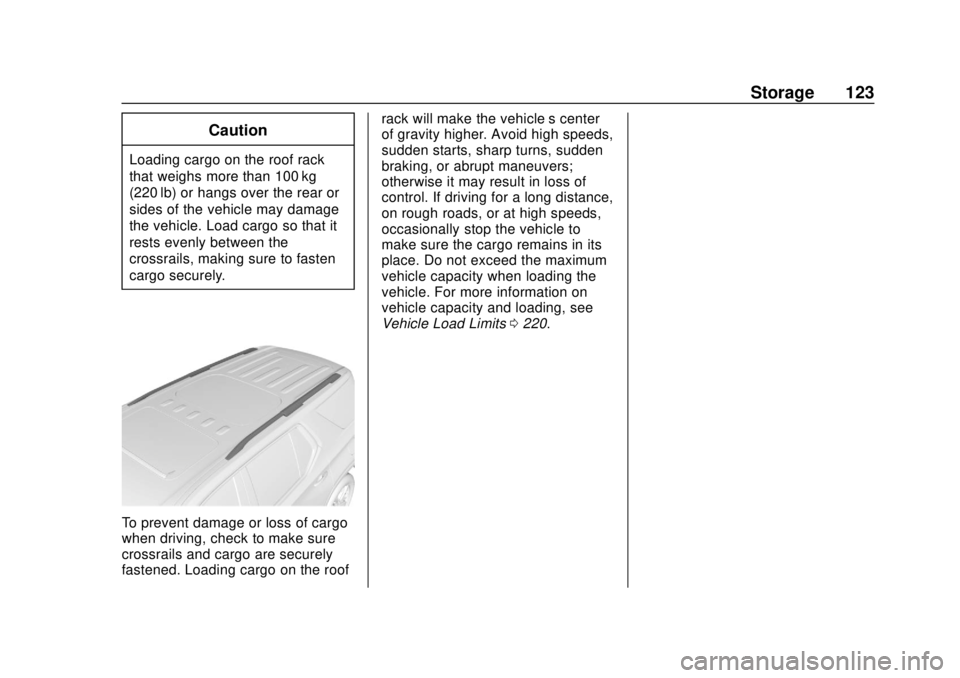
To prevent damage or loss of cargo
when driving, check to make sure
crossrails and cargo are securely
fastened. Loading cargo on the roofrack will make the vehicle’
s center
of gravity higher. Avoid high speeds,
sudden starts, sharp turns, sudden
braking, or abrupt maneuvers;
otherwise it may result in loss of
control. If driving for a long distance,
on rough roads, or at high speeds,
occasionally stop the vehicle to
make sure the cargo remains in its
place. Do not exceed the maximum
vehicle capacity when loading the
vehicle. For more information on
vehicle capacity and loading, see
Vehicle Load Limits 0220.
Page 125 of 428
Chevrolet Traverse Owner Manual (GMNA-Localizing-U.S./Canada/Mexico-
12146157) - 2019 - CRC - 10/31/18
124 Instruments and Controls
Instruments and
Controls
Controls
Steering Wheel Adjustment . . . 125
Steering Wheel Controls . . . . . . 125
Heated Steering Wheel . . . . . . . 126
Horn . . . . . . . . . . . . . . . . . . . . . . . . . . 126
Windshield Wiper/Washer . . . . 127
Rear Window Wiper/Washer . . . . . . . . . . . . . . . . . . . . . 128
Compass . . . . . . . . . . . . . . . . . . . . . 128
Clock . . . . . . . . . . . . . . . . . . . . . . . . . 129
Power Outlets . . . . . . . . . . . . . . . . 130
Wireless Charging . . . . . . . . . . . . 132
Warning Lights, Gauges, and
Indicators
Warning Lights, Gauges, and Indicators . . . . . . . . . . . . . . . . . . . 134
Instrument Cluster . . . . . . . . . . . . 135
Speedometer . . . . . . . . . . . . . . . . . 138
Odometer . . . . . . . . . . . . . . . . . . . . . 138
Trip Odometer . . . . . . . . . . . . . . . . 138
Tachometer . . . . . . . . . . . . . . . . . . . 138
Fuel Gauge . . . . . . . . . . . . . . . . . . . 139
Engine Coolant Temperature
Gauge . . . . . . . . . . . . . . . . . . . . . . 139 Seat Belt Reminders . . . . . . . . . 140
Airbag Readiness Light . . . . . . . 141
Passenger Airbag Status
Indicator . . . . . . . . . . . . . . . . . . . . 141
Charging System Light . . . . . . . 142
Malfunction Indicator Lamp
(Check Engine Light) . . . . . . . . 142
Brake System Warning Light . . . . . . . . . . . . . . . . . . . . . . . . 144
Electric Parking Brake Light . . . . . . . . . . . . . . . . . . . . . . . . 145
Service Electric Parking Brake Light . . . . . . . . . . . . . . . . . . . . . . . . 145
Antilock Brake System (ABS) Warning Light . . . . . . . . . . . . . . . 145
Lane Keep Assist (LKA) Light . . . . . . . . . . . . . . . . . . . . . . . . 146
Vehicle Ahead Indicator . . . . . . 146
Pedestrian Ahead Indicator . . . 146
Traction Off Light . . . . . . . . . . . . . 146
StabiliTrak OFF Light . . . . . . . . . 147
Traction Control System (TCS)/ StabiliTrak Light . . . . . . . . . . . . . 147
Tire Pressure Light . . . . . . . . . . . 148
Engine Oil Pressure Light . . . . 148
Low Fuel Warning Light (Base Level) . . . . . . . . . . . . . . . . . . . . . . . 149
Low Fuel Warning Light (Uplevel) . . . . . . . . . . . . . . . . . . . . 149
Security Light . . . . . . . . . . . . . . . . . 149 High-Beam On Light . . . . . . . . . . 150
Front Fog Lamp Light . . . . . . . . . 150
Lamps On Reminder . . . . . . . . . 150
Cruise Control Light . . . . . . . . . . 150
Door Ajar Light . . . . . . . . . . . . . . . 151
Information Displays
Driver Information
Center (DIC) . . . . . . . . . . . . . . . . 151
Vehicle Messages
Vehicle Messages . . . . . . . . . . . . 154
Engine Power Messages . . . . . 154
Vehicle Speed Messages . . . . . 155
Vehicle Personalization
Vehicle Personalization . . . . . . . 155
Universal Remote System
Universal Remote System . . . . 164
Universal Remote SystemProgramming . . . . . . . . . . . . . . . 164
Universal Remote System Operation . . . . . . . . . . . . . . . . . . . 166
Page 150 of 428
Chevrolet Traverse Owner Manual (GMNA-Localizing-U.S./Canada/Mexico-
12146157) - 2019 - CRC - 10/31/18
Instruments and Controls 149
If the light comes on and stays on, it
means that oil is not flowing through
the engine properly. The vehicle
could be low on oil and might have
some other system problem. See
your dealer.
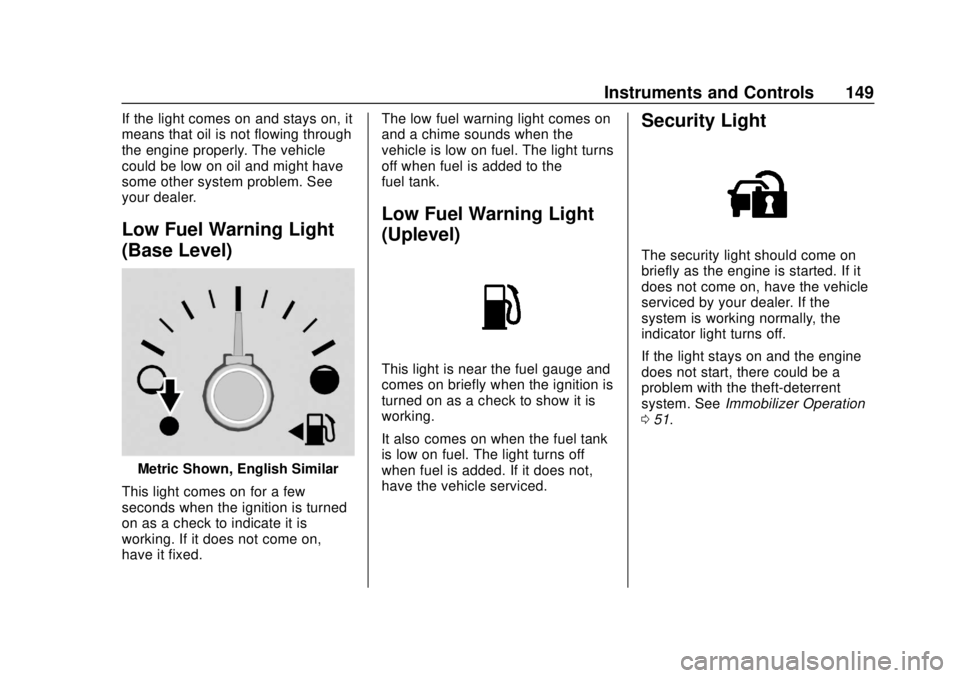
Low Fuel Warning Light
(Base Level)
Metric Shown, English Similar
This light comes on for a few
seconds when the ignition is turned
on as a check to indicate it is
working. If it does not come on,
have it fixed. The low fuel warning light comes on
and a chime sounds when the
vehicle is low on fuel. The light turns
off when fuel is added to the
fuel tank.
Low Fuel Warning Light
(Uplevel)
This light is near the fuel gauge and
comes on briefly when the ignition is
turned on as a check to show it is
working.
It also comes on when the fuel tank
is low on fuel. The light turns off
when fuel is added. If it does not,
have the vehicle serviced.
Security Light
The security light should come on
briefly as the engine is started. If it
does not come on, have the vehicle
serviced by your dealer. If the
system is working normally, the
indicator light turns off.
If the light stays on and the engine
does not start, there could be a
problem with the theft-deterrent
system. See
Immobilizer Operation
0 51.
Page 152 of 428
Chevrolet Traverse Owner Manual (GMNA-Localizing-U.S./Canada/Mexico-
12146157) - 2019 - CRC - 10/31/18
Instruments and Controls 151
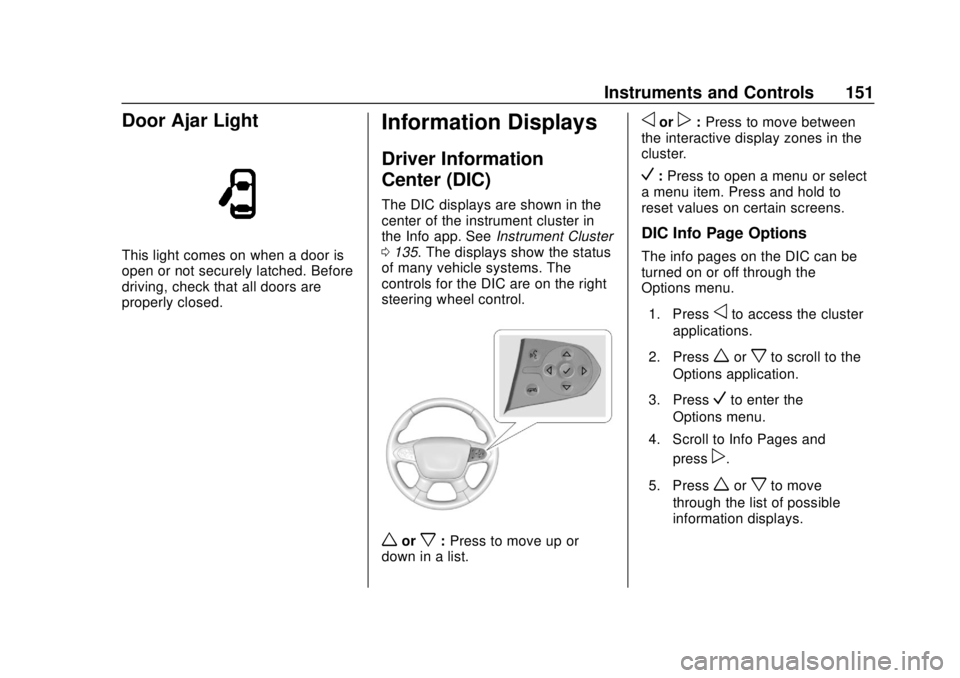
Door Ajar Light
This light comes on when a door is
open or not securely latched. Before
driving, check that all doors are
properly closed.
Information Displays
Driver Information
Center (DIC)
The DIC displays are shown in the
center of the instrument cluster in
the Info app. SeeInstrument Cluster
0 135. The displays show the status
of many vehicle systems. The
controls for the DIC are on the right
steering wheel control.
worx: Press to move up or
down in a list.
oorp: Press to move between
the interactive display zones in the
cluster.
V: Press to open a menu or select
a menu item. Press and hold to
reset values on certain screens.
DIC Info Page Options
The info pages on the DIC can be
turned on or off through the
Options menu.
1. Press
oto access the cluster
applications.
2. Press
worxto scroll to the
Options application.
3. Press
Vto enter the
Options menu.
4. Scroll to Info Pages and press
p.
5. Press
worxto move
through the list of possible
information displays.
Page 155 of 428
Chevrolet Traverse Owner Manual (GMNA-Localizing-U.S./Canada/Mexico-
12146157) - 2019 - CRC - 10/31/18
154 Instruments and Controls
Transmission Fluid
Temperature :Shows the
temperature of the automatic
transmission fluid in either degrees
Celsius (°C) or degrees
Fahrenheit (°F).
Off Road Page : This page shows
the traction, four wheel drive, and
steering angle states. When the
front or rear axles are locked, a lock
icon is displayed.
Blank Page : Shows no
information.Vehicle Messages
Messages displayed on the DIC
indicate the status of the vehicle or
some action that may be needed to
correct a condition. Multiple
messages may appear one after
another.
The messages that do not require
immediate action can be
acknowledged and cleared by
pressing
V. The messages that
require immediate action cannot be
cleared until that action is
performed.
All messages should be taken
seriously; clearing the message
does not correct the problem.
If a SERVICE message appears,
see your dealer.
Follow the instructions given in the
messages. The system displays
messages regarding the following
topics:
. Service Messages
. Fluid Levels
. Vehicle Security .
Brakes
. Steering
. Ride Control Systems
. Driver Assistance Systems
. Cruise Control
. Lighting and Bulb Replacement
. Wiper/Washer Systems
. Doors and Windows
. Seat Belts
. Airbag Systems
. Engine and Transmission
. Tire Pressure
. Battery
Engine Power Messages
ENGINE POWER IS REDUCED
This message displays when the
vehicle's propulsion power is
reduced. A reduction in propulsion
power can affect the vehicle's ability
to accelerate. If this message is on,
but there is no observed reduction
in performance, proceed to your
destination. The performance may
Page 165 of 428
Chevrolet Traverse Owner Manual (GMNA-Localizing-U.S./Canada/Mexico-
12146157) - 2019 - CRC - 10/31/18
164 Instruments and Controls
Universal Remote
System
SeeRadio Frequency Statement
0 399.
Universal Remote System
Programming
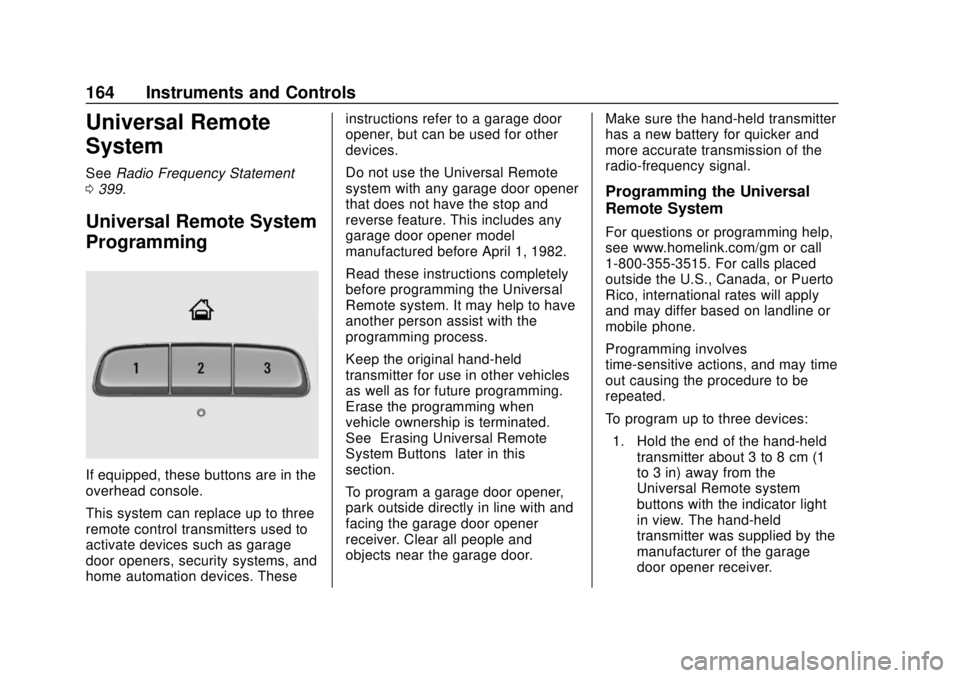
If equipped, these buttons are in the
overhead console.
This system can replace up to three
remote control transmitters used to
activate devices such as garage
door openers, security systems, and
home automation devices. These instructions refer to a garage door
opener, but can be used for other
devices.
Do not use the Universal Remote
system with any garage door opener
that does not have the stop and
reverse feature. This includes any
garage door opener model
manufactured before April 1, 1982.
Read these instructions completely
before programming the Universal
Remote system. It may help to have
another person assist with the
programming process.
Keep the original hand-held
transmitter for use in other vehicles
as well as for future programming.
Erase the programming when
vehicle ownership is terminated.
See
“Erasing Universal Remote
System Buttons” later in this
section.
To program a garage door opener,
park outside directly in line with and
facing the garage door opener
receiver. Clear all people and
objects near the garage door. Make sure the hand-held transmitter
has a new battery for quicker and
more accurate transmission of the
radio-frequency signal.
Programming the Universal
Remote System
For questions or programming help,
see www.homelink.com/gm or call
1-800-355-3515. For calls placed
outside the U.S., Canada, or Puerto
Rico, international rates will apply
and may differ based on landline or
mobile phone.
Programming involves
time-sensitive actions, and may time
out causing the procedure to be
repeated.
To program up to three devices:
1. Hold the end of the hand-held transmitter about 3 to 8 cm (1
to 3 in) away from the
Universal Remote system
buttons with the indicator light
in view. The hand-held
transmitter was supplied by the
manufacturer of the garage
door opener receiver.
Page 178 of 428
Chevrolet Traverse Owner Manual (GMNA-Localizing-U.S./Canada/Mexico-
12146157) - 2019 - CRC - 10/31/18
Infotainment System 177
The infotainment system has built-in
features intended to help avoid
distraction by disabling some
functions when driving. These
functions may gray out when they
are unavailable. Many infotainment
features are also available through
the instrument cluster and steering
wheel controls.
Before driving:
.Become familiar with the
operation, center stack controls,
and infotainment display
controls.
. Set up the audio by presetting
favorite stations, setting the
tone, and adjusting the
speakers. .
Set up phone numbers in
advance so they can be called
easily by pressing a single
control or by using a single voice
command if equipped with
Bluetooth phone capability.
. Set up your Bluetooth, CarPlay,
or Android Auto device. Some
devices will require a series of
setup steps to be taken or a
default app to be chosen prior to
using the feature. Not
completing these steps could
prevent the feature from
functioning properly.
See Defensive Driving 0210.
To play the infotainment system with
the ignition off, see Retained
Accessory Power (RAP) 0230. Active Noise Cancellation (ANC)
If equipped, ANC reduces engine
noise in the vehicle’s interior. ANC
requires the factory-installed audio
system, radio, speakers, amplifier (if
equipped), induction system, and
exhaust system to work properly.
Deactivation is required by your
dealer if related aftermarket
equipment is installed.
Theft-Deterrent Feature
The infotainment system has an
electronic security system installed
to prevent theft.
The infotainment system only works
in the vehicle in which it was first
installed, and cannot be used in
another vehicle.
Page 181 of 428
Chevrolet Traverse Owner Manual (GMNA-Localizing-U.S./Canada/Mexico-
12146157) - 2019 - CRC - 10/31/18
180 Infotainment System
Automatic Switch-Off
If the infotainment system has been
turned on after the ignition is turned
off, the system will turn off
automatically after 10 minutes.
Volume Control
O:Turn to increase or decrease.
Press when the system is on to
mute and unmute the system.
System Settings
Auto Volume
This feature automatically adjusts
the radio volume to compensate for
road and wind noise.
The level of volume compensation
can be selected, or the feature can
be turned off.
Tone Settings
The tone settings can be set for
each radio band and each audio
player source.
Custom Tone Settings
1. Touch SETTINGS on the Home Page. 2. Touch Radio.
3. Touch Tone Settings.
.Bass, Midrange, or Treble:
Touch −or +.
. Fader or Balance: Adjust
the front/rear or left/right
speakers by dragging the
dot in the vehicle image on
the screen.
4. Touch
3to go back to the
source screen.
Software Updates
Over-the-Air Software Updates
If equipped, the infotainment system
can download and install select
software updates over a wireless
connection. The system will prompt
for certain updates to be
downloaded and installed. There is
also an option to check for updates
manually. To manually check for updates,
touch SETTINGS on the Home
Page, followed by Software
Information, and then System
Update. Follow the on-screen
prompts. Steps for downloading and
installing updates may vary by
vehicle.
Downloading Over-the-Air vehicle
software updates requires Internet
connectivity, which can be accessed
through the vehicle’
s built-in OnStar
4G LTE connection, if equipped and
active. If required, data plans are
provided by a third party. Optionally,
a secure Wi-Fi hotspot such as a
compatible mobile device hotspot,
home hotspot or public hotspot can
be used. Applicable data rates may
apply.
Page 182 of 428
Chevrolet Traverse Owner Manual (GMNA-Localizing-U.S./Canada/Mexico-
12146157) - 2019 - CRC - 10/31/18
Infotainment System 181
To connect the infotainment system
to a secured mobile device hotspot,
home hotspot, or a public hotspot,
touch SETTINGS on the Home
Page, followed by Wi-Fi, and then
Manage Wi-Fi Networks. Select the
appropriate Wi-Fi network, and
follow the on-screen prompts.
Download speeds may vary.
On most compatible mobile devices,
activation of the Wi-Fi hotspot is in
the Settings menu under Mobile
Network Sharing, Personal Hotspot,
Mobile Hotspot or similar.
Availability of Over-the-Air vehicle
software updates varies by vehicle
and country. For more information
on this feature, for U.S./Canada,
see my.chevrolet.com/learn. For
Mexico, see my.chevrolet.com.mx.Radio
AM-FM Radio
Playing the Radio
Audio Source Menu
{:Press to go to the Home Page.
O:Press to turn on, mute,
or unmute the system. Press and
hold to turn off the system.
Selecting a Band
1. Press{.
2. Touch AUDIO.
3. Touch Source.
4. Touch AM or FM.
The last station that was playing
starts playing again.
Selecting a Station
Seek Tuning
If the radio station is not known:
Press
gordto automatically
search for available radio stations. Direct Tune
From the AM or FM menu:
1. Touch Tune.
2. Enter the station number.
3. Touch Go.
Favorites
1. Touch
SorTto scroll through
the favorite pages.
2. Touch the station to select it.
Update Station List
. From the AM or FM menu, touch
Menu, then touch Update Station
List. The broadcasting list
updating will begin.
. During the AM or FM
broadcasting list update, touch
Cancel to stop the updates.
Station List 1. From the AM or FM menu, touch Menu.
2. Select Station List.
Page 195 of 428
Chevrolet Traverse Owner Manual (GMNA-Localizing-U.S./Canada/Mexico-
12146157) - 2019 - CRC - 10/31/18
194 Infotainment System
Pairing a Phone–SSP and No
Paired Device
When there is no paired device on
the infotainment system and Simple
Secure Pairing (SSP) is supported:
1. Press
{.
2. Touch PHONE, press
5on the
center stack, or press
gon the
steering wheel without OnStar.
3. Touch Search Device.
4. Touch the desired device to pair on the searched list
screen.
5. Touch Yes on the pop-up screen of the Bluetooth device
and infotainment system.
6. When the Bluetooth device and infotainment system are
successfully paired, the phone
screen is displayed on the
infotainment system. Pairing a Phone
–SSP and Paired
Device
When a paired device is on the
infotainment system and SSP is
supported:
1. Press
{.
2. Touch SETTINGS.
3. Touch Bluetooth, then Device Management.
4. Touch the desired device to pair. When the Bluetooth
device and infotainment system
are successfully paired,
Z/5
is displayed on the pair device
screen. If no desired device is
available go to Step 5.
5. Touch Search Device to search for the desired device.
6. Touch the desired device to pair on the searched list
screen.
7. Touch Yes on the pop-up screen of the Bluetooth device
and infotainment system.
. The connected phone is highlighted by
5.
.
Z/5indicates the hands-free
and phone music functions are
enabled.
.
5indicates only the hands-free
function is enabled.
.
Zindicates only Bluetooth
music is enabled.
Pairing a Phone –No SSP and No
Paired Device
When there is no paired device on
the infotainment system and SSP is
not supported:
1. Press
{.
2. Touch PHONE, press
5on the
center stack, or press
gon the
steering wheel without OnStar.
3. Touch Search Device.
4. Touch the desired device to pair on the searched list
screen.