center console CHEVROLET TRAVERSE 2021 User Guide
[x] Cancel search | Manufacturer: CHEVROLET, Model Year: 2021, Model line: TRAVERSE, Model: CHEVROLET TRAVERSE 2021Pages: 369, PDF Size: 8.12 MB
Page 95 of 369
Chevrolet Traverse Owner Manual (GMNA-Localizing-U.S./Canada/Mexico-
14637844) - 2021 - CRC - 3/26/21
94 Instruments and Controls
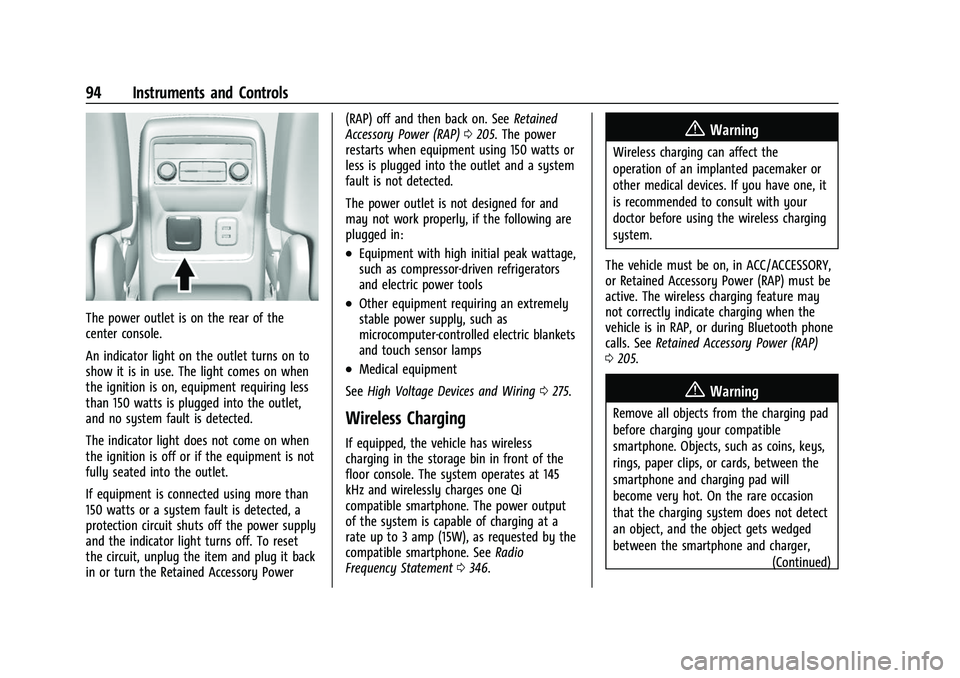
The power outlet is on the rear of the
center console.
An indicator light on the outlet turns on to
show it is in use. The light comes on when
the ignition is on, equipment requiring less
than 150 watts is plugged into the outlet,
and no system fault is detected.
The indicator light does not come on when
the ignition is off or if the equipment is not
fully seated into the outlet.
If equipment is connected using more than
150 watts or a system fault is detected, a
protection circuit shuts off the power supply
and the indicator light turns off. To reset
the circuit, unplug the item and plug it back
in or turn the Retained Accessory Power(RAP) off and then back on. See
Retained
Accessory Power (RAP) 0205. The power
restarts when equipment using 150 watts or
less is plugged into the outlet and a system
fault is not detected.
The power outlet is not designed for and
may not work properly, if the following are
plugged in:
.Equipment with high initial peak wattage,
such as compressor-driven refrigerators
and electric power tools
.Other equipment requiring an extremely
stable power supply, such as
microcomputer-controlled electric blankets
and touch sensor lamps
.Medical equipment
See High Voltage Devices and Wiring 0275.
Wireless Charging
If equipped, the vehicle has wireless
charging in the storage bin in front of the
floor console. The system operates at 145
kHz and wirelessly charges one Qi
compatible smartphone. The power output
of the system is capable of charging at a
rate up to 3 amp (15W), as requested by the
compatible smartphone. See Radio
Frequency Statement 0346.
{Warning
Wireless charging can affect the
operation of an implanted pacemaker or
other medical devices. If you have one, it
is recommended to consult with your
doctor before using the wireless charging
system.
The vehicle must be on, in ACC/ACCESSORY,
or Retained Accessory Power (RAP) must be
active. The wireless charging feature may
not correctly indicate charging when the
vehicle is in RAP, or during Bluetooth phone
calls. See Retained Accessory Power (RAP)
0 205.
{Warning
Remove all objects from the charging pad
before charging your compatible
smartphone. Objects, such as coins, keys,
rings, paper clips, or cards, between the
smartphone and charging pad will
become very hot. On the rare occasion
that the charging system does not detect
an object, and the object gets wedged
between the smartphone and charger,
(Continued)
Page 104 of 369

Chevrolet Traverse Owner Manual (GMNA-Localizing-U.S./Canada/Mexico-
14637844) - 2021 - CRC - 3/26/21
Instruments and Controls 103
When the vehicle is started, this light
flashes and a chime may come on to remind
passengers to fasten their seat belt.
Then the light stays on solid until the belt is
buckled. This cycle continues several times if
the front passenger remains or becomes
unbuckled while the vehicle is moving.
If the front passenger seat belt is buckled,
neither the chime nor the light comes on.
The front passenger seat belt reminder light
and chime may come on if an object is put
on the seat such as a briefcase, handbag,
grocery bag, laptop, or other electronic
device. To turn off the reminder light and/or
chime, remove the object from the seat or
buckle the seat belt.
Airbag Readiness Light
This light shows if there is an electrical
problem with the airbag system. The system
check includes the airbag sensor(s), the
passenger sensing system, the pretensioners,the airbag modules, the wiring, and the
crash sensing and diagnostic module. For
more information on the airbag system, see
Airbag System
055.
The airbag readiness light comes on for
several seconds when the vehicle is started.
If the light does not come on then, have it
fixed immediately.
{Warning
If the airbag readiness light stays on
after the vehicle is started or comes on
while driving, it means the airbag system
might not be working properly. The
airbags in the vehicle might not inflate in
a crash, or they could even inflate
without a crash. To help avoid injury,
have the vehicle serviced right away.
If there is a problem with the airbag
system, a Driver Information Center (DIC)
message may also come on.
Passenger Airbag Status Indicator
The vehicle has a passenger sensing system.
See Passenger Sensing System 061 for
important safety information. The overhead
console has a passenger airbag status
indicator.
When the vehicle is started, the passenger
airbag status indicator will light ON and OFF,
and the symbols for on and off, for several
seconds as a system check. Then, after
several more seconds, the status indicator
will light either ON or OFF, and either the
on or off symbol, to let you know the
status of the front outboard passenger
frontal airbag.
If the word ON, and the on symbol, are lit
on the passenger airbag status indicator, it
means that the front outboard passenger
frontal airbag is allowed to inflate.
Page 128 of 369
Chevrolet Traverse Owner Manual (GMNA-Localizing-U.S./Canada/Mexico-
14637844) - 2021 - CRC - 3/26/21
Lighting 127
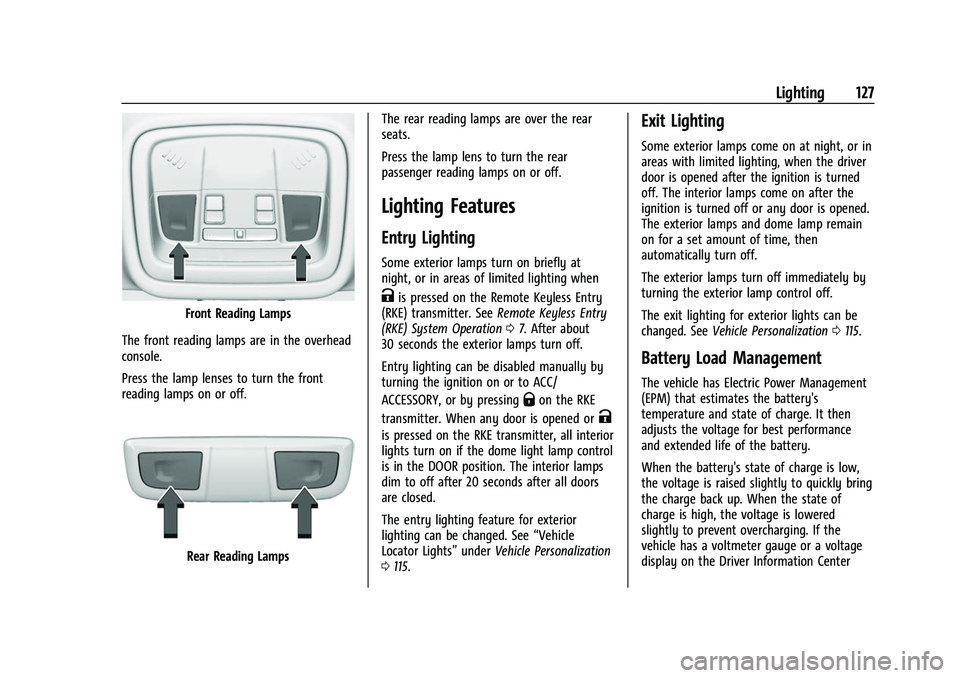
Front Reading Lamps
The front reading lamps are in the overhead
console.
Press the lamp lenses to turn the front
reading lamps on or off.
Rear Reading Lamps The rear reading lamps are over the rear
seats.
Press the lamp lens to turn the rear
passenger reading lamps on or off.
Lighting Features
Entry Lighting
Some exterior lamps turn on briefly at
night, or in areas of limited lighting when
Kis pressed on the Remote Keyless Entry
(RKE) transmitter. See Remote Keyless Entry
(RKE) System Operation 07. After about
30 seconds the exterior lamps turn off.
Entry lighting can be disabled manually by
turning the ignition on or to ACC/
ACCESSORY, or by pressing
Qon the RKE
transmitter. When any door is opened or
K
is pressed on the RKE transmitter, all interior
lights turn on if the dome light lamp control
is in the DOOR position. The interior lamps
dim to off after 20 seconds after all doors
are closed.
The entry lighting feature for exterior
lighting can be changed. See “Vehicle
Locator Lights” underVehicle Personalization
0 115.
Exit Lighting
Some exterior lamps come on at night, or in
areas with limited lighting, when the driver
door is opened after the ignition is turned
off. The interior lamps come on after the
ignition is turned off or any door is opened.
The exterior lamps and dome lamp remain
on for a set amount of time, then
automatically turn off.
The exterior lamps turn off immediately by
turning the exterior lamp control off.
The exit lighting for exterior lights can be
changed. See Vehicle Personalization 0115.
Battery Load Management
The vehicle has Electric Power Management
(EPM) that estimates the battery's
temperature and state of charge. It then
adjusts the voltage for best performance
and extended life of the battery.
When the battery's state of charge is low,
the voltage is raised slightly to quickly bring
the charge back up. When the state of
charge is high, the voltage is lowered
slightly to prevent overcharging. If the
vehicle has a voltmeter gauge or a voltage
display on the Driver Information Center
Page 139 of 369
Chevrolet Traverse Owner Manual (GMNA-Localizing-U.S./Canada/Mexico-
14637844) - 2021 - CRC - 3/26/21
138 Infotainment System
Mobile Device Usage
Mobile device usage, such as making or
receiving calls, charging, or just having the
mobile device on may cause static
interference in the radio. Unplug the mobile
device or turn it off if this happens.
Multi-Band Antenna
The roof antenna may be used for radio,
navigation, and OnStar, depending on the
equipped options. Keep clear of obstructions
for clear reception. If the vehicle has a
sunroof, and it is open, reception can also
be affected.
Audio Players
Avoiding Untrusted Media Devices
When using media devices such as SD cards,
USB devices, and mobile devices, consider
the source. Untrusted media devices could
contain files that affect system operation or
performance. Avoid use if the content or
origin cannot be trusted.
USB Port
Audio stored on a USB device may be
listened to.The vehicle may be equipped with two USB
ports on the center stack. These ports are
for data and charging. There may also be
two USB ports at the rear of the center
console and a USB port on each side of the
third row seats for charging only.
Caution
To avoid vehicle damage, unplug all
accessories and disconnect all accessory
cables from the vehicle when not in use.
Accessory cables left plugged into the
vehicle, unconnected to a device, could be
damaged or cause an electrical short if
the unconnected end comes in contact
with liquids or another power source such
as the accessory power outlet.
Playing from a USB
A USB mass storage device can be connected
to the USB port.
Audio extensions supported by the USB may
include:
.MP3
.AAC
.OGG
.3GP
Gracenote
When plugging in a USB device, Gracenote
service builds voice tags for music. Voice
tags allow artists, albums with hard to
pronounce names, and nicknames to be used
to play music through voice recognition,
if equipped.
While indexing, infotainment features may
be available.
My Media Library
MyMedia is only available when more than
one indexed device is connected. It allows
access to content from all indexed media
sources. MyMedia will show as an available
source in the Source page.
USB MP3 Player and USB Devices
The USB MP3 players and USB devices
connected must comply with the USB Mass
Storage Class specification (USB MSC).
To play a USB device:
1. Connect the USB.
2. Touch Audio from the Home Page.
3. Touch the More option and then touch the USB device.
Use the following when playing an active
USB source:
Page 142 of 369
Chevrolet Traverse Owner Manual (GMNA-Localizing-U.S./Canada/Mexico-
14637844) - 2021 - CRC - 3/26/21
Infotainment System 141
Auxiliary Jack
If equipped, this vehicle has an auxiliary
input jack in the center console. Possible
auxiliary audio sources include:
.Laptop computer
.Audio music player
This jack is not an audio output. Do not
plug headphones into the auxiliary input
jack. Set up an auxiliary device while the
vehicle is in P (Park).
Connect a 3.5 mm (1/8 in) cable from the
auxiliary device to the auxiliary input jack.
When a device is connected, the system can
play audio from the device over the vehicle
speakers.
If an auxiliary device has already been
connected, but a different source is currently
active, touch More and then touch AUX to
make the source active.
Shuffle and Browse are not available in the
AUX source menu.
Bluetooth Audio
Music may be played from a paired
Bluetooth device. See Bluetooth (Overview)
0 160 or
Bluetooth (Pairing and Using a Phone) 0160
for help pairing a device.
Volume and song selection may be
controlled by using the infotainment
controls or the mobile device. If Bluetooth is
selected and no volume is present, check the
volume setting on the infotainment system.
Music can be launched by touching
Bluetooth from the recent sources list on
the left of the display or by touching the
More option and then touching the
Bluetooth device.
To play music via Bluetooth:
1. Power on the device, and pair to connect the device.
2. Once paired, touch Audio from the Home Page, then touch Bluetooth from the
recent sources list on the left of the
display.
Bluetooth Sound Menu
See “Infotainment System Sound Menu”
under AM-FM Radio 0135. Manage Bluetooth Devices
From the Home Page:
1. Touch Audio.
2. Touch More.
3. Touch Bluetooth.
4. Touch Devices to add or delete devices.
When touching Bluetooth, the radio may
not be able to launch the audio player on
the connected device to start playing. When
the vehicle is not moving, use the mobile
device to begin playback.
All devices launch audio differently. When
selecting Bluetooth as a source, the radio
may show as paused on the display. Press
play on the device or touch
pon the
display to begin playback.
Browse functionality will be provided where
supported by the Bluetooth device. This
media content will not be part of the
MyMedia source mode.
Some smartphones support sending
Bluetooth music information to display on
the radio. When the radio receives this
information, it will check to see if any is
available and display it. For more
information about supported Bluetooth
features, see my.chevrolet.com/learn.
Page 187 of 369

Chevrolet Traverse Owner Manual (GMNA-Localizing-U.S./Canada/Mexico-
14637844) - 2021 - CRC - 3/26/21
186 Climate Controls
Rear Climate Control System
The rear climate control system is on the
rear of the center console storage. The
settings can be adjusted by either the rear
climate control or the rear climate display
app on the front infotainment display.
Rear Climate Controls
1. Fan Control
2. AUTO (Automatic Operation)
3. MODE (Air Delivery Mode Control)
4. TEMP (Temperature Control)
5. Heated Rear Seats (If Equipped)
Rear Climate Display
1. Rear Climate Temperature Control
2. Fan Control
3. Outside Temperature Display
4. Sync (Synchronized Temperatures)
5. Rear Control Lockout
6. Air Delivery Mode Control
7. Auto (Automatic Operation)
8. On/Off (Power)
SYNC : Press SYNC on the rear climate
display to match the rear climate control
temperature to the front climate control
driver temperature. The SYNC button will be
lit. Adjust the rear climate control
temperature to change the linked temperature. The SYNC button turns off.
When SYNC is active the display is not
shown.
Rear Control Lockout :
Press
Hon the rear
climate display to lock or unlock control of
the rear climate control system from the
front seat. When locked the rear climate
control system cannot be adjusted from the
rear climate controls.
Automatic Operation
AUTO : Press AUTO or touch Rear Auto on
the rear climate display to automatically
control air delivery and fan speed. A is
indicated in the display on the rear of the
center console storage when automatic
operation is active. If any of the climate
control settings are manually adjusted, this
cancels full automatic operation.
The display on the rear of the center
console storage only indicates climate
control functions when the system is in rear
independent mode.
Manual Operation
9: Turn the knob clockwise or
counterclockwise or touch and hold
]or
9on the rear climate display to increase
or decrease the fan speed.
Page 211 of 369
Chevrolet Traverse Owner Manual (GMNA-Localizing-U.S./Canada/Mexico-
14637844) - 2021 - CRC - 3/26/21
210 Driving and Operating
trailer. The vehicle has an electronic shift
position indicator within the instrument
cluster. When using the ERS mode a number
will display next to the L, indicating the
highest gear available for the range selected.
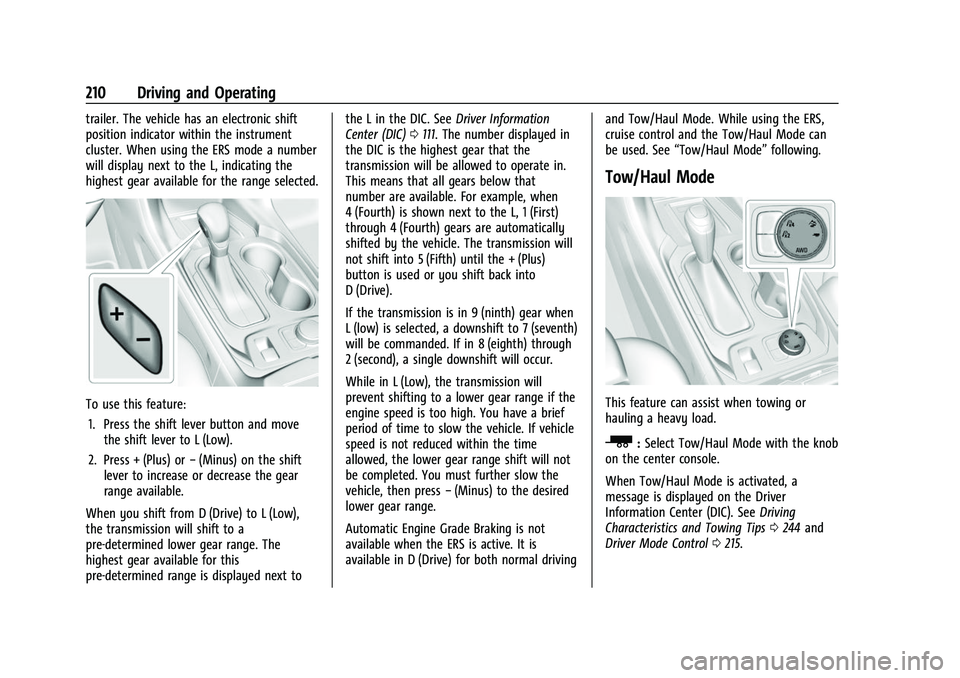
To use this feature:1. Press the shift lever button and move the shift lever to L (Low).
2. Press + (Plus) or −(Minus) on the shift
lever to increase or decrease the gear
range available.
When you shift from D (Drive) to L (Low),
the transmission will shift to a
pre-determined lower gear range. The
highest gear available for this
pre-determined range is displayed next to the L in the DIC. See
Driver Information
Center (DIC) 0111. The number displayed in
the DIC is the highest gear that the
transmission will be allowed to operate in.
This means that all gears below that
number are available. For example, when
4 (Fourth) is shown next to the L, 1 (First)
through 4 (Fourth) gears are automatically
shifted by the vehicle. The transmission will
not shift into 5 (Fifth) until the + (Plus)
button is used or you shift back into
D (Drive).
If the transmission is in 9 (ninth) gear when
L (low) is selected, a downshift to 7 (seventh)
will be commanded. If in 8 (eighth) through
2 (second), a single downshift will occur.
While in L (Low), the transmission will
prevent shifting to a lower gear range if the
engine speed is too high. You have a brief
period of time to slow the vehicle. If vehicle
speed is not reduced within the time
allowed, the lower gear range shift will not
be completed. You must further slow the
vehicle, then press −(Minus) to the desired
lower gear range.
Automatic Engine Grade Braking is not
available when the ERS is active. It is
available in D (Drive) for both normal driving and Tow/Haul Mode. While using the ERS,
cruise control and the Tow/Haul Mode can
be used. See
“Tow/Haul Mode” following.
Tow/Haul Mode
This feature can assist when towing or
hauling a heavy load.
_:Select Tow/Haul Mode with the knob
on the center console.
When Tow/Haul Mode is activated, a
message is displayed on the Driver
Information Center (DIC). See Driving
Characteristics and Towing Tips 0244 and
Driver Mode Control 0215.
Page 216 of 369
Chevrolet Traverse Owner Manual (GMNA-Localizing-U.S./Canada/Mexico-
14637844) - 2021 - CRC - 3/26/21
Driving and Operating 215
Turning the Systems Off and On
Caution
Do not repeatedly brake or accelerate
heavily when TCS is off. The vehicle
driveline could be damaged.
To turn off only TCS, press and release
gon
the center console. The Traction Off light
i
displays in the instrument cluster.
To turn TCS on again, press and release
g.
The Traction Off light
idisplayed in the
instrument cluster will turn off.
If TCS is limiting wheel spin when
gis
pressed, the system will not turn off until
the wheels stop spinning.
To turn off both TCS and StabiliTrak/ESC,
press and hold
guntil the Traction Off light
iand StabiliTrak/ESC OFF lightgcome on
and stay on in the instrument cluster. To turn TCS and StabiliTrak/ESC on again,
press and release
g. The Traction Off light
iand StabiliTrak/ESC OFF lightgin the
instrument cluster turn off.
Adding accessories can affect the vehicle
performance. See Accessories and
Modifications 0256.
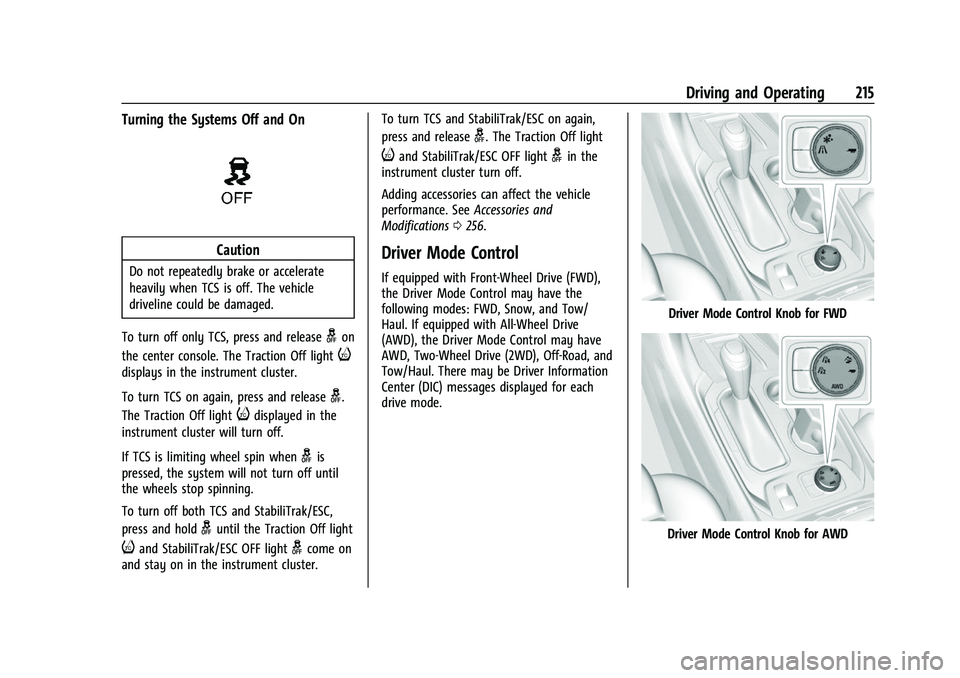
Driver Mode Control
If equipped with Front-Wheel Drive (FWD),
the Driver Mode Control may have the
following modes: FWD, Snow, and Tow/
Haul. If equipped with All-Wheel Drive
(AWD), the Driver Mode Control may have
AWD, Two-Wheel Drive (2WD), Off-Road, and
Tow/Haul. There may be Driver Information
Center (DIC) messages displayed for each
drive mode.
Driver Mode Control Knob for FWD
Driver Mode Control Knob for AWD
Page 241 of 369

Chevrolet Traverse Owner Manual (GMNA-Localizing-U.S./Canada/Mexico-
14637844) - 2021 - CRC - 3/26/21
240 Driving and Operating
Warning (Continued)
Always keep your attention on the road
and maintain proper vehicle position
within the lane, or vehicle damage,
injury, or death could occur. Always keep
the windshield, headlamps, and camera
sensors clean and in good repair. Do not
use LKA in bad weather conditions or on
roads with unclear lane markings, such as
construction zones.
{Warning
Using LKA while towing a trailer or on
slippery roads could cause loss of control
of the vehicle and a crash. Turn the
system off.
How the System Works
LKA uses a camera sensor installed on the
windshield ahead of the rearview mirror to
detect lane markings. It may provide brief
steering assist if it detects an unintended
lane departure. It may further provide an
audible alert that a lane marking has been
crossed.To turn LKA on and off, press
Aon the
center console. If equipped, the indicator
light on the button comes on when LKA is
on and turns off when LKA is disabled.
Ais green if LKA is ready to assist. LKA
may assist by gently turning the steering
wheel if the vehicle approaches a detected
lane marking.
Ais amber when
assisting. It may also provide a Lane
Departure Warning (LDW) alert by flashing
Aamber if the vehicle crosses a
detected lane marking. Additionally, there
may be three beeps on the right or left,
depending on the lane departure direction.
Take Steering
The LKA system does not continuously steer
the vehicle. If LKA does not detect active
driver steering, an alert and chime may be
provided. Steer the vehicle to dismiss. LKA
may become temporarily unavailable after
repeated take steering alerts.
When the System Does Not Seem to
Work Properly
The system performance may be
affected by:
.Close vehicles ahead.
.Sudden lighting changes, such as when
driving through tunnels.
.Banked roads.
.Roads with poor lane markings, such as
two-lane roads.
A camera blocked message may display if
the camera is blocked. Some driver
assistance systems may have reduced
performance or not work at all. An LKA or
LDW unavailable message may display if the
systems are temporarily unavailable. This
message could be due to a blocked camera.
The LKA system does not need service. Clean
the outside of the windshield behind the
rearview mirror.
LKA assistance and/or LDW alerts may occur
due to tar marks, shadows, cracks in the
road, temporary or construction lane
markings, or other road imperfections. This
is normal system operation; the vehicle does
not need service. Turn LKA off if these
conditions continue.
Page 281 of 369
Chevrolet Traverse Owner Manual (GMNA-Localizing-U.S./Canada/Mexico-
14637844) - 2021 - CRC - 3/26/21
280 Vehicle Care
FusesUsage
F66 Engine control module powertrain 2
F67 Engine control module–odd
F68 –
F69 –
F70 –
F71 –
F72 –
F73 –
F74 –
F75 –
F76 –
F77 –
Relays Usage
K1 Starter 1
K2 Run/Crank
K3 Vacuum pump
K4 –
K5 Air conditioning Relays
Usage
K6 –
K7 Engine control module
K8 Folding seats
K9 –
K10 Starter 2
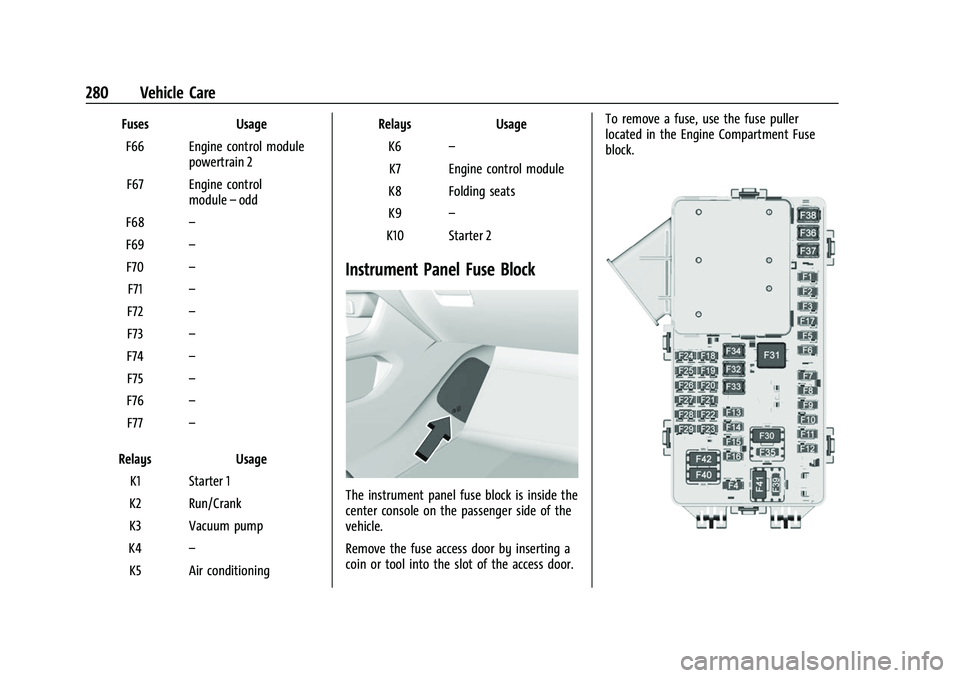
Instrument Panel Fuse Block
The instrument panel fuse block is inside the
center console on the passenger side of the
vehicle.
Remove the fuse access door by inserting a
coin or tool into the slot of the access door. To remove a fuse, use the fuse puller
located in the Engine Compartment Fuse
block.