settings CHEVROLET TRAVERSE 2021 User Guide
[x] Cancel search | Manufacturer: CHEVROLET, Model Year: 2021, Model line: TRAVERSE, Model: CHEVROLET TRAVERSE 2021Pages: 369, PDF Size: 8.12 MB
Page 136 of 369
Chevrolet Traverse Owner Manual (GMNA-Localizing-U.S./Canada/Mexico-
14637844) - 2021 - CRC - 3/26/21
Infotainment System 135
Cleaning High Gloss Surfaces and Vehicle
Information and Radio Displays
For vehicles with high gloss surfaces or
vehicle displays, use a microfiber cloth to
wipe surfaces. Before wiping the surface
with the microfiber cloth, use a soft bristle
brush to remove dirt that could scratch the
surface. Then use the microfiber cloth by
gently rubbing to clean. Never use window
cleaners or solvents. Periodically hand wash
the microfiber cloth separately, using mild
soap. Do not use bleach or fabric softener.
Rinse thoroughly and air dry before
next use.
Software Updates
Over-the-Air Software Updates
If equipped, see“Updates”underSettings
0 165 for details on software updates.
Radio
AM-FM Radio
Playing the Radio
From the Home Page, touch the Audio icon
to display the active audio source page.
Choose from the three most recently used sources listed at the left side of the display
or touch the More option to display a list of
available sources. Examples of available
sources may include AM, FM, SXM (if
equipped), MyMedia, USB, and Bluetooth.
Infotainment System Sound Menu
From any of the audio source main pages,
touch Sound to display the following:
Equalizer :
Touch to adjust Bass, Midrange,
Treble, and Surround (if equipped) using the
options on the infotainment display.
Fade/Balance : Touch to adjust by using the
controls on the infotainment display or by
tapping/dragging the crosshair.
Finding a Station
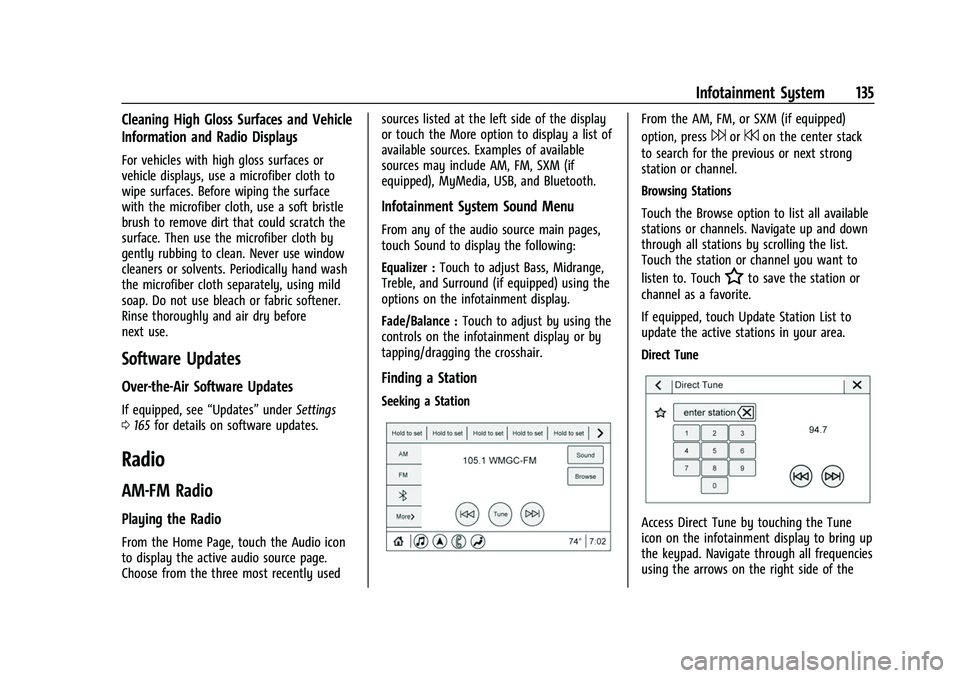
Seeking a Station
From the AM, FM, or SXM (if equipped)
option, press
6or7on the center stack
to search for the previous or next strong
station or channel.
Browsing Stations
Touch the Browse option to list all available
stations or channels. Navigate up and down
through all stations by scrolling the list.
Touch the station or channel you want to
listen to. Touch
Hto save the station or
channel as a favorite.
If equipped, touch Update Station List to
update the active stations in your area.
Direct Tune
Access Direct Tune by touching the Tune
icon on the infotainment display to bring up
the keypad. Navigate through all frequencies
using the arrows on the right side of the
Page 137 of 369

Chevrolet Traverse Owner Manual (GMNA-Localizing-U.S./Canada/Mexico-
14637844) - 2021 - CRC - 3/26/21
136 Infotainment System
Direct Tune display. Directly enter a station
or channel using the keypad. When a new
station or channel is entered, the
information about that station or channel
displays on the right side. This information
will update with each new valid frequency.
Touch
Hto save the station or channel as
a favorite.
The keypad will gray out entries that do not
contribute to a valid frequency and will
automatically place a decimal point within
the frequency number.
Touch (X) to delete one number at a time.
Touch and hold (X) to delete all numbers.
A valid AM or FM station will automatically
tune to the new frequency but not close the
Direct Tune display. When listening to SXM
(if equipped), touch Go after entering the
channel. Touch the Back icon on the
infotainment display or touch
zto exit out
of Direct Tune.
The tune arrows on the right side of the
Direct Tune display will tune through the
complete station or channel list one station
step at a time per touch. A touch and hold
advances through stations or channels
quickly. If equipped, HD Radio multicast stations
cannot be tuned directly through the Direct
Tune feature. Only the analog or
HD1 station can use that feature. Use the
display arrows to adjust to the multicast
stations.
AM, FM, and SXM Categories
From the AM stations, if equipped with HD
Radio, FM, or SXM (if equipped) display,
touch Categories at the top of the Browse
menu to access the categories list. The list
contains names associated with the AM or
FM stations, or SXM channels. Touch a
category name to display a list of stations
or channels for that category. Touching a
station or channel from the list will tune the
radio to that station or channel.
Storing Radio Station Presets
Favorites show in the area at the top of the
display.
AM, FM, SXM (if equipped), and HD Radio
Stations (if equipped) :
Press and hold a
preset to store the current station or
channel as a favorite. Touch a saved favorite
to recall a favorite station or channel.
Favorites can also be stored by touching
H
in a station or channel list. This will
highlight indicating that it is now saved as a
favorite.
The number of favorites displayed is
automatically adjusted by default, but can
be manually adjusted in Settings in the
System tab under Favorites and then Set
Number of Audio Favorites. It can also be
adjusted in Settings in the Apps tab under
Audio and then Set Number of Audio
Favorites.
Radio Data System (RDS)
If equipped, RDS features are available for
use only on FM stations that broadcast RDS
information. With RDS, the radio can:
.Group stations by Category (i.e., Program
Type) such as Rock, Jazz, Classical, etc.
Page 143 of 369
Chevrolet Traverse Owner Manual (GMNA-Localizing-U.S./Canada/Mexico-
14637844) - 2021 - CRC - 3/26/21
142 Infotainment System
OnStar System
4G LTE
If equipped with 4G LTE, up to seven
devices, such as smartphones, tablets, and
laptops, can be connected to high-speed
Internet through the vehicle’s built-in Wi-Fi
hotspot.
Call 1-888-4ONSTAR (1-888-466-7827) to
connect to an OnStar Advisor for assistance.
See www.onstar.com for vehicle availability,
details, and system limitations. Service and
connectivity may vary by make, model,
year, carrier, availability, and conditions. 4G
LTE service is available in select markets. 4G
LTE performance is based on industry
averages and vehicle systems design. Some
services require a data plan.
The OnStar App
If equipped, the infotainment system has
OnStar controls in the embedded OnStar app
on the Home Page. Most OnStar functions
that can be performed with the buttons can
be done using the app. To open the app,
touch the OnStar icon on the Home Page.
App updates require a corresponding service
plan. Features vary by region and model.Features are subject to change. For more
information, see my.chevrolet.com/learn or
press
Q.
Services
The Services tab displays the default view
for the app. Use this page to launch the
available OnStar services. Touch a service to
open its display. Touch Wi-Fi to launch the
connections manager. Turn-by-Turn and
Advisor Call are the other tiled options.
Account
The Account tab displays a snapshot of the
account linked with the vehicle. If there is
no such account, this tab will show all
values as ——. The advisor call icon will be
active even if there is no active account.
Advisor Call
Selecting Advisor Call is the same as
pressing
Qor calling 1-888-4ONSTAR
(1-888-466-7827). The X option in the upper
right corner of the screen does not end the
call, but returns to the previous screen.
Turn-by-Turn Directions
With a connected plan, an OnStar Advisor
can download a destination to the vehicle or
its embedded navigation system, if equipped. Select Turn-by-Turn Directions
from the Services tab of the OnStar app to
call an Advisor or select a recent or favorite
destination. Touch the navigation icons to
select home, address or place. A destination
transfer from OnStar will show the detail
view of the destination when it is
transferred from OnStar to the Navigation
application. See www.onstar.com for a
coverage map. Services vary by model. Map
coverage is available in the United States,
Puerto Rico, and Canada.
Wi-Fi Hotspot
Touch to display the Settings page, which
shows the configurations for the vehicle
hotspot and allows them to be changed.
For more information, see www.onstar.com.
Navigation
Using the Navigation System
If equipped, launch the Nav application by
touching the Nav icon on the Home Page or
on the shortcut tray near the bottom of the
infotainment display.
When the Nav application is launched for
the first time, a product walkthrough is
available. Use of the feature requires the
Page 144 of 369

Chevrolet Traverse Owner Manual (GMNA-Localizing-U.S./Canada/Mexico-
14637844) - 2021 - CRC - 3/26/21
Infotainment System 143
Terms and Conditions and the Privacy
statement to be confirmed. If available and
signed into a profile, it is also suggested to
enable and confirm Predictive Navigation.
Predictive Navigation (If Equipped)
If Predictive Navigation is available and
confirmed, this feature learns preferences by
remembering where the vehicle has been.
It uses the locations and navigation history
to personalize routes and results.
Predictive Navigation may learn elements
such as:
.Personalized routes based on preferred
streets.
.Search results that provide best matches
at the top of the list.
.Predictive traffic.
.Local map content updating.
Predictive Navigation can also be enabled or
disabled at a later time by touching
A
(Options). While in Options, touch Settings,
then Map and Navigation Settings, and then
Predictive Navigation. See Settings0165. Navigation Map View
After opening the Nav application for the
first time, the application will always open
in full map view displaying the vehicle’s
current location. When the vehicle is
stopped, the search bar will appear along
the top of the navigation map view.
Manually close the search bar by touching
z. When the vehicle is moving, the}(Search) icon will replace the search bar to
maximize the full map view.
Destination Card Preferences
From the Nav application, set up Home and
Work addresses to enable one-touch
navigation. To set up Home and Work
addresses, touch
Aand select Settings,
then Map and Navigation Settings, and then
Destination Card Preferences. Show My Places on Map should be on by default.
Select and enter Home and/or Work address
and save.
If the vehicle’s system is not signed into a
customized profile, the current location icon
uses a generic symbol. Once signed into a
customized profile, the current location
symbol will show a customized icon. See
Navigation Symbols
0146.
Map and Navigation Settings
Touch
Awhile in the map view to display
options. The following may display:
.3D Heading Up, 2D Heading Up, 2D North
.Show on Map
.Traffic Events (available with OnStar
Connected Navigation)
.Settings
.Edit Destination (if a route has been set)
Page 145 of 369
Chevrolet Traverse Owner Manual (GMNA-Localizing-U.S./Canada/Mexico-
14637844) - 2021 - CRC - 3/26/21
144 Infotainment System
.Avoid on Route (if a route has been set)
Touch Settings to view Map and Navigation
Settings. The following may display:
.Destination Card Preferences
.Map Preferences
.Route Preferences
.Navigation Voice Control
.Traffic Preferences
.Alert Preferences
.Fuel Grade Preferences
.Manage History
.Predictive Navigation: See “Predictive
Navigation (If Equipped)” previously in
this section.
.About
To exit a list, touch
zin the top right
corner to return to the main map view.
Make sure to set up preferences before
setting a destination and starting active
guidance.
Map Preferences
Touch to choose between basic map feature
configurations: Map Colors
.Auto
–Touch to automatically change
modes based on lighting conditions.
.Day (Light)
.Night (Dark)
3D Landmark (Default is On) : Touch On or
Off. When turned on, the system will
display all 3D Landmarks on the map
depending on the zoom level.
3D Building (Default is Off) : Touch On or
Off. When turned on, the system will
display all of the possible 3D building shapes
on the map depending on the zoom level.
Show Terrain in 3D (Default is Off) :
If equipped, touch On or Off. When turned
on, the system will display terrain
information on the map in 3D view.
Auto-Zoom (Default is On) : Touch On or
Off. When turned on, the system will
automatically adjust the zoom level when
the vehicle is approaching a turn. After the
turn is completed, the system automatically
brings the zoom back to the originally set
level. If the vehicle is approaching a turn
with the next turn occurring shortly after,
the Auto-Zoom will remain on until both
turns are completed. Route Preferences
Touch to access the Route Preferences. The
choices are:
.Preferred Route
–Choose from two
different route options: Fastest or
Eco-Friendly.
‐ Fastest would be the route with the
shortest drive time.
‐ Eco-Friendly would be the most
fuel-efficient route.
.Avoid on Current Route –Choose any of
the road features to avoid while on route:
‐ Highways
‐ Unpaved Roads
‐ Ferries
‐ Carpool Lanes
‐ Toll Roads
‐ Tunnels
‐ Country Borders
Navigation Voice Control
Touch to access the voice control setting
display.
.Navigation Volume –To adjust the
volume level, touch the up and down
arrows. If the voice guidance prompt is
Page 146 of 369
Chevrolet Traverse Owner Manual (GMNA-Localizing-U.S./Canada/Mexico-
14637844) - 2021 - CRC - 3/26/21
Infotainment System 145
being heard, volume can also be adjusted
using the knob on the center stack or the
volume switch on the steering wheel.
.Navigation Voice Prompt Level during a
Call. Options available are:
‐Full Prompt (Selected by default)
‐ Tone Only
‐ None
Traffic Events (If Equipped)
This feature provides a list of events that
are on the route or nearby. Touch
Aand
then select Traffic Events. An OnStar
connected Navigation service plan is
required.
Traffic Preferences (If Equipped)
While in Map View, touch
A, then Settings
and then Map and Navigation Settings to
access Traffic Preferences. When Show
Traffic on Map is turned on, the feature
provides an overview of the traffic flow
using different coded colors. The following
options are available for rerouting:
.Auto Reroute to Better Route –The
system will automatically reroute if the
system detects there is a traffic issue
ahead.
.Ask Before Rerouting (Default) –If the
system detects there is a traffic issue
ahead, it will display a pop-up with
details about the issue. Choose to reroute
or cancel the alert.
.Never Search for Better Route –The
system will not check for a better route
until one of the above options is selected.
Alert Preferences
Set alerts on or off during both inactive and
active guidance views. The following alerts
may be available:
.Road Safety Alerts –Touch to display
upcoming School Zones.
.Traffic Camera Alerts
Manage History
Touch Manage History to access the History
options:
.Clear Recent Destinations –Touch\to
clear the recent destinations.
.Clear Search History –Touch\to clear
the search history.
About
Touch to display software information,
such as:
.Telenav Terms and Conditions
.Telenav Privacy Statement
.Navigation Version
Maps
The Navigation application requires a map
database to run. It is stored on an SD card
that is connected to the infotainment
system. If the map database is not available,
a missing SD card error message will be
displayed.
SD Card Error Messages
The SD card only works for one unique
vehicle. The SD card must pass
authentication verification to be used for
that specific vehicle. If the SD card has a
switch that can be set to read-only mode,
ensure that it is in the upward position and
not in read-only.
Potential error scenarios and messages
include:
.The SD card has initialized for the first
time: “Once initialized, this SD card can
only be used for navigation in this
vehicle.”
.The SD card is not working properly: “SD
card is not functioning properly.
(Error Code).”
Page 149 of 369
Chevrolet Traverse Owner Manual (GMNA-Localizing-U.S./Canada/Mexico-
14637844) - 2021 - CRC - 3/26/21
148 Infotainment System
names, street addresses, and turn
restrictions. A detailed area includes all
major highways, service roads, and
residential roads. The detailed areas include
Places of Interest (POIs) such as restaurants,
airports, banks, hospitals, police stations, gas
stations, tourist attractions, and historical
monuments.
If the vehicle does not have an applicable
service plan, the map database may not
include data for newly constructed areas or
map database corrections that are
completed after production. The navigation
system provides full route guidance in the
detailed map areas.
Zoom Control
The zoom control display is shown on the
map view. A few ways to zoom in or
out are:
.Touch + or–to zoom in or out on
the map.
.Double tap with one finger to zoom in or
single tap with two fingers to zoom out
on the map.
.Use the index finger and thumb to zoom
out by pinching and then zoom in by
spreading those two fingers on the map.
Map Gestures and Map Scale
Use the following gestures on the
infotainment display to adjust the map scale
and display options.
.Pinch to zoom in or out.
.Pan the map.
.Use two fingers to tilt down and change
from 2D to 3D. Tilt up to change back
to 2D.
.Rotate the map.
See Using the System 0132.
Mute
When in active guidance, the audio prompts
while using navigation can be muted. Touch
the speaker icon on the right side of the
upper bar. A slash will appear on the
speaker to indicate voice guidance is muted.
Active Guidance View
When a destination is chosen and a
navigation session is active, the navigation
system enters into an Active Guidance
View (AGV). Map Orientation
Touch
Aon the map to access map
orientation settings. Map orientation is 3D
Heading Up by default.
Available settings are:
.3D Heading Up (Default): 3D map with
the vehicle pointing up. In this mode, the
current location icon will always head up
and the map will rotate around it.
.2D Heading Up: 2D map with the vehicle
pointing up. In this mode, the current
location icon will always head up and the
map will rotate around it.
.2D North Up: 2D map with North pointing
up. In this mode, the current location icon
will shift as the vehicle turns left and
right.
Touch the icon to change the map type. The
icon and label will also update accordingly.
Depending on the zoom level of the 2D
Heading Up and 3D Heading Up maps, the
system may automatically switch to the 2D
North Up map.
When in AGV, the entire route can be
viewed in 2D North Up by touching the
traffic bar. The map will zoom out and
readjust to display the full route. When in
Page 150 of 369
Chevrolet Traverse Owner Manual (GMNA-Localizing-U.S./Canada/Mexico-
14637844) - 2021 - CRC - 3/26/21
Infotainment System 149
2D North Up Route View, the Recenter icon
will appear in the middle of the display.
Touch either the Recenter icon or the traffic
bar again to return to the previous view,
either 2D or 3D.
Lane Guidance
The map will display the lane information
for the upcoming maneuver if it is available.
Junction View
When a vehicle is on the highway and
approaching the exit, an image displays the
lane that the vehicle must stay in to
complete the next maneuver.
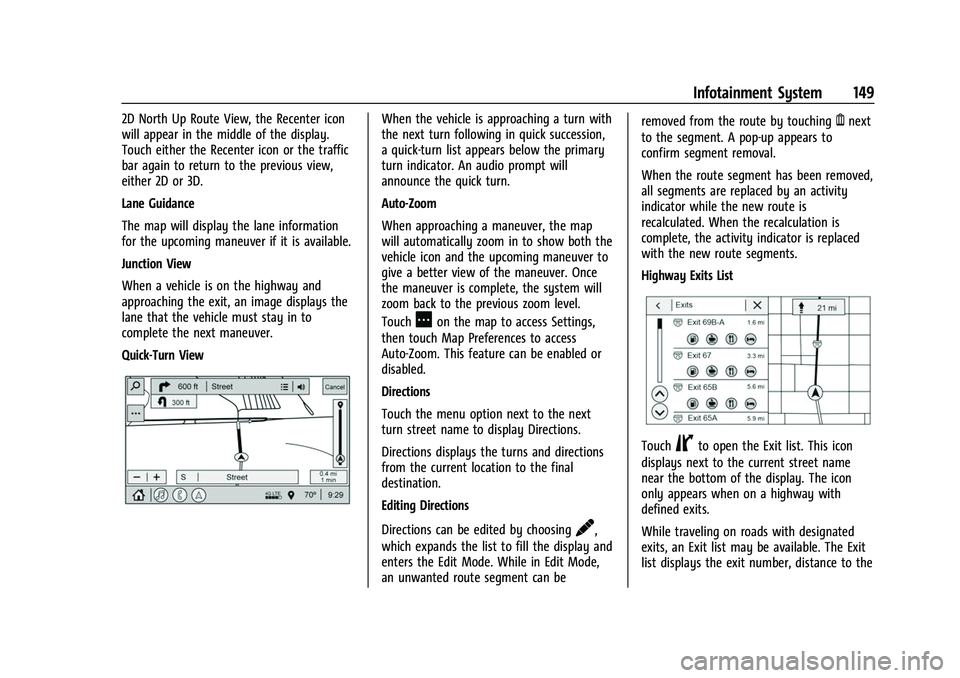
Quick-Turn ViewWhen the vehicle is approaching a turn with
the next turn following in quick succession,
a quick-turn list appears below the primary
turn indicator. An audio prompt will
announce the quick turn.
Auto-Zoom
When approaching a maneuver, the map
will automatically zoom in to show both the
vehicle icon and the upcoming maneuver to
give a better view of the maneuver. Once
the maneuver is complete, the system will
zoom back to the previous zoom level.
Touch
Aon the map to access Settings,
then touch Map Preferences to access
Auto-Zoom. This feature can be enabled or
disabled.
Directions
Touch the menu option next to the next
turn street name to display Directions.
Directions displays the turns and directions
from the current location to the final
destination.
Editing Directions
Directions can be edited by choosing
y,
which expands the list to fill the display and
enters the Edit Mode. While in Edit Mode,
an unwanted route segment can be removed from the route by touching
Ynext
to the segment. A pop-up appears to
confirm segment removal.
When the route segment has been removed,
all segments are replaced by an activity
indicator while the new route is
recalculated. When the recalculation is
complete, the activity indicator is replaced
with the new route segments.
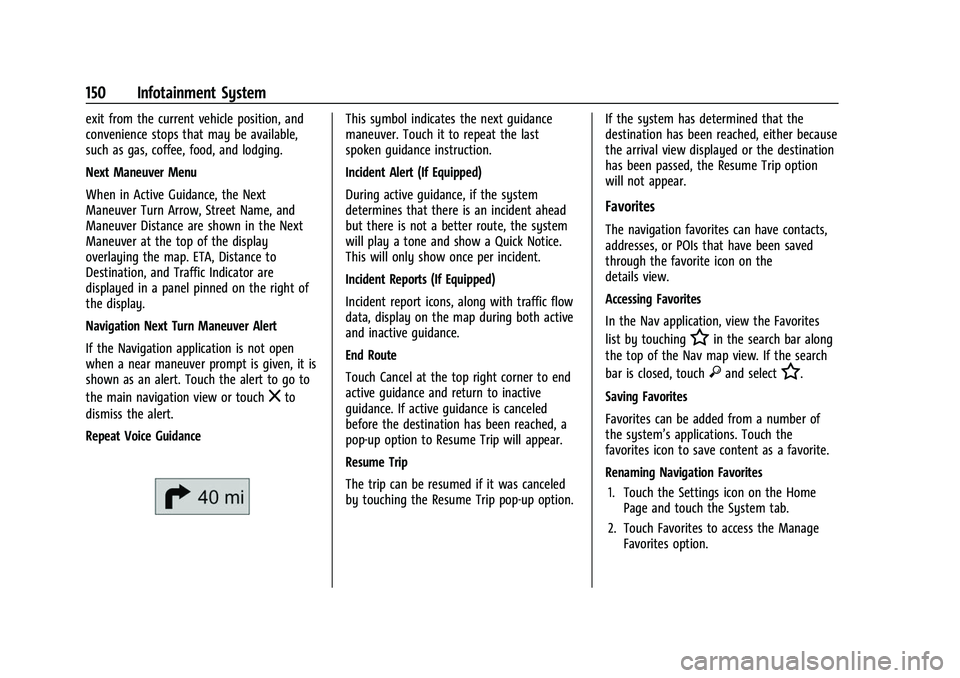
Highway Exits List
TouchCto open the Exit list. This icon
displays next to the current street name
near the bottom of the display. The icon
only appears when on a highway with
defined exits.
While traveling on roads with designated
exits, an Exit list may be available. The Exit
list displays the exit number, distance to the
Page 151 of 369
Chevrolet Traverse Owner Manual (GMNA-Localizing-U.S./Canada/Mexico-
14637844) - 2021 - CRC - 3/26/21
150 Infotainment System
exit from the current vehicle position, and
convenience stops that may be available,
such as gas, coffee, food, and lodging.
Next Maneuver Menu
When in Active Guidance, the Next
Maneuver Turn Arrow, Street Name, and
Maneuver Distance are shown in the Next
Maneuver at the top of the display
overlaying the map. ETA, Distance to
Destination, and Traffic Indicator are
displayed in a panel pinned on the right of
the display.
Navigation Next Turn Maneuver Alert
If the Navigation application is not open
when a near maneuver prompt is given, it is
shown as an alert. Touch the alert to go to
the main navigation view or touch
zto
dismiss the alert.
Repeat Voice Guidance
This symbol indicates the next guidance
maneuver. Touch it to repeat the last
spoken guidance instruction.
Incident Alert (If Equipped)
During active guidance, if the system
determines that there is an incident ahead
but there is not a better route, the system
will play a tone and show a Quick Notice.
This will only show once per incident.
Incident Reports (If Equipped)
Incident report icons, along with traffic flow
data, display on the map during both active
and inactive guidance.
End Route
Touch Cancel at the top right corner to end
active guidance and return to inactive
guidance. If active guidance is canceled
before the destination has been reached, a
pop-up option to Resume Trip will appear.
Resume Trip
The trip can be resumed if it was canceled
by touching the Resume Trip pop-up option. If the system has determined that the
destination has been reached, either because
the arrival view displayed or the destination
has been passed, the Resume Trip option
will not appear.
Favorites
The navigation favorites can have contacts,
addresses, or POIs that have been saved
through the favorite icon on the
details view.
Accessing Favorites
In the Nav application, view the Favorites
list by touching
Hin the search bar along
the top of the Nav map view. If the search
bar is closed, touch
}and selectH.
Saving Favorites
Favorites can be added from a number of
the system’s applications. Touch the
favorites icon to save content as a favorite.
Renaming Navigation Favorites 1. Touch the Settings icon on the Home Page and touch the System tab.
2. Touch Favorites to access the Manage Favorites option.
Page 156 of 369

Chevrolet Traverse Owner Manual (GMNA-Localizing-U.S./Canada/Mexico-
14637844) - 2021 - CRC - 3/26/21
Infotainment System 155
like adjusting the volume or seeking up or
down, are audio features that are easily
performed by touching one or two options,
and are not supported by voice commands.
In general there are flexible ways to speak
commands for completing the tasks.
If your language supports it, try stating a
one-shot command, such as“Directions to
address
while stating the address during the
command. Another example of a one-shot
Destination Entry command is, “Directions to
Place of Interest at
commands do not work, try saying, “Take
me to Place of Interest” or“Find address”
and the system will walk you through by
asking additional questions.
Hybrid Speech Recognition
If equipped, this feature helps distinguish
words by using Internet-based information
along with the system’s voice recognition
database. This allows you to speak more
naturally when using voice recognition.
Using Voice Recognition
Voice recognition becomes available once
the system has been initialized. This begins
when the ignition is turned on. Initialization
may take a few moments.
1. Press
gon the steering wheel controls
to activate voice recognition.
2. The audio system mutes and the system plays a prompt.
3. Clearly speak one of the commands described in this section.
A voice recognition system prompt can
be interrupted while it is playing by
pressing
gagain.
Once voice recognition is started, both the
infotainment display and instrument cluster
show the selections and visual dialog
content. These displays can be turned on or
off in the Tutorial Mode under Settings
0 165.
There are three voice prompt modes
supported:
.Informative verbal prompts: This type of
prompt will provide more information
regarding the supported actions.
.Short prompts: This type of prompt will
provide simple instructions about what
can be stated.
.Auto informative prompts: This type of
prompt plays during the first few speech
sessions, then automatically switches to
the short prompt after some experience
has been gained through using the
system.
If a command is not spoken, the voice
recognition system says a help prompt.
Prompts and Infotainment Displays
While a voice recognition session is active,
there may be corresponding options
showing on the displays. A selection can be
made by manually touching the option,
or by speaking the number for the option to
select. Manual interaction in the voice
recognition session is permitted. Interaction
during a voice session may be completed
entirely using voice commands while some
manual commands may expedite a task. If a
selection is made using a manual control,
the voice recognition dialog will progress in
the same way as if the selection were made
using a voice command. Once the system
completes the task, or the session is
terminated, the voice recognition dialog
stops.