light CHEVROLET TRAVERSE 2023 Owner's Manual
[x] Cancel search | Manufacturer: CHEVROLET, Model Year: 2023, Model line: TRAVERSE, Model: CHEVROLET TRAVERSE 2023Pages: 369, PDF Size: 16.89 MB
Page 83 of 369
Chevrolet Traverse Owner Manual (GMNA-Localizing-U.S./Canada/Mexico-
16411537) - 2023 - CRC - 3/28/22
82 Seats and Restraints
Warning (Continued)
one can guarantee that an airbag will not
deploy under some unusual circumstance,
even though it is turned off.
Secure rear-facing child restraints in a
rear seat, even if the airbag is off. If you
secure a forward-facing child restraint in
the front outboard passenger seat,
always move the seat as far back as it
will go. It is better to secure the child
restraint in a rear seat.
SeePassenger Sensing System 061 for
additional information.
If the child restraint uses a top tether, see
Lower Anchors and Tethers for Children
(LATCH System) 072 for top tether anchor
locations.
Do not secure a child seat in a position
without a top tether anchor if a national or
local law requires that the top tether be
anchored, or if the instructions that come
with the child restraint say that the top
tether must be anchored.
In Canada, the law requires that
forward-facing child restraints have a top
tether, and that the tether be attached. When using the lap-shoulder belt to secure
the child restraint in this position, follow the
instructions that came with the child
restraint and the following instructions:
1. Move the seat as far back as it will go before securing the forward-facing child
restraint. Move the seat upward or the
seatback to an upright position,
if needed, to get a tight installation of
the child restraint. There must be finger
clearance between the push button and
the child restraint.
There must not be direct contact of the
child restraint to the push button.
When the passenger sensing system has
turned off the front outboard passenger
frontal airbag, the OFF indicator on the
passenger airbag status indicator should
light and stay lit when you start the
vehicle. See Passenger Airbag Status
Indicator 0108.
2. Put the child restraint on the seat.
3. Pick up the latch plate and run the lap and shoulder portions of the vehicle seat
belt through or around the restraint.
Ensure the seat belt webbing is routed
as direct as possible and is not caught
on seat handles or plastic trim. The child
restraint instructions will show you how.
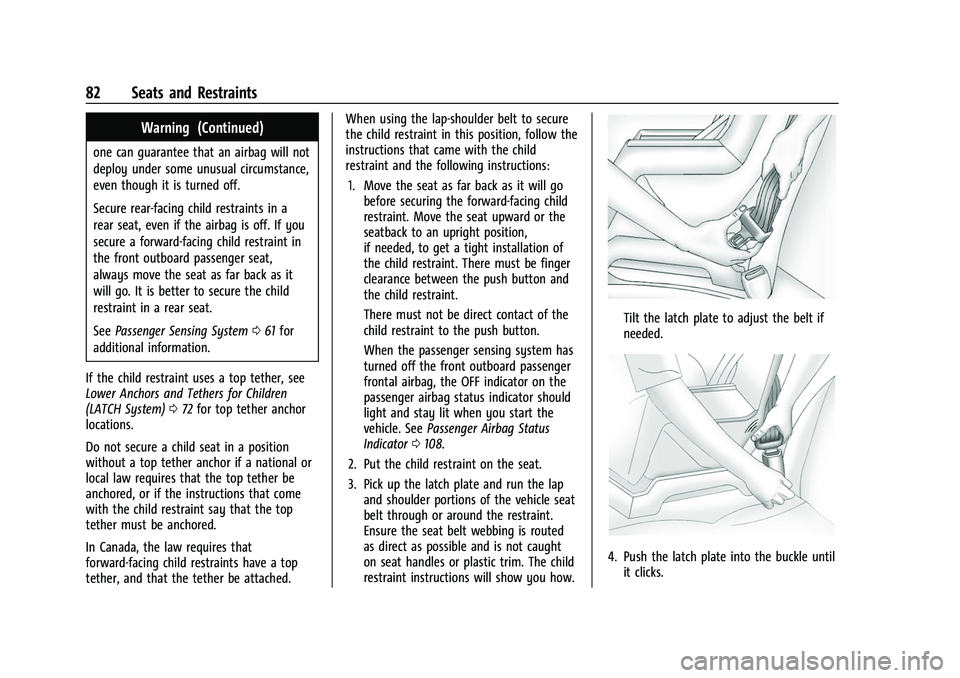
Tilt the latch plate to adjust the belt if
needed.
4. Push the latch plate into the buckle untilit clicks.
Page 90 of 369
Chevrolet Traverse Owner Manual (GMNA-Localizing-U.S./Canada/Mexico-
16411537) - 2023 - CRC - 3/28/22
Instruments and Controls 89
Instruments and Controls
Controls
Steering Wheel Adjustment . . . . . . . . . . . . 90
Heated Steering Wheel . . . . . . . . . . . . . . . . 90
Horn . . . . . . . . . . . . . . . . . . . . . . . . . . . . . . . . . . . . 91
Windshield Wiper/Washer . . . . . . . . . . . . . . 91
Rear Window Wiper/Washer . . . . . . . . . . . 92
Compass . . . . . . . . . . . . . . . . . . . . . . . . . . . . . . . 93
Clock . . . . . . . . . . . . . . . . . . . . . . . . . . . . . . . . . . . 93
Power Outlets . . . . . . . . . . . . . . . . . . . . . . . . . . 93
Wireless Charging . . . . . . . . . . . . . . . . . . . . . . 94
Warning Lights, Gauges, and Indicators
Warning Lights, Gauges, andIndicators . . . . . . . . . . . . . . . . . . . . . . . . . . . . . 97
Instrument Cluster (Base Level) . . . . . . . . . 97
Instrument Cluster (Midlevel) . . . . . . . . . . 99
Instrument Cluster (Uplevel) . . . . . . . . . . . 102
Speedometer . . . . . . . . . . . . . . . . . . . . . . . . . . 104
Odometer . . . . . . . . . . . . . . . . . . . . . . . . . . . . . 104
Trip Odometer . . . . . . . . . . . . . . . . . . . . . . . . 104
Tachometer . . . . . . . . . . . . . . . . . . . . . . . . . . . 104
Fuel Gauge . . . . . . . . . . . . . . . . . . . . . . . . . . . . 104
Engine Oil Temperature Gauge (Uplevel Only) . . . . . . . . . . . . . . . . . . . . . . . 105
Engine Coolant Temperature Gauge . . . 106
Voltmeter Gauge (Uplevel Only) . . . . . . . 106
Seat Belt Reminders . . . . . . . . . . . . . . . . . . . 107
Airbag Readiness Light . . . . . . . . . . . . . . . . . 107 Passenger Airbag Status Indicator . . . . . 108
Charging System Light . . . . . . . . . . . . . . . . 109
Malfunction Indicator Lamp (Check
Engine Light) . . . . . . . . . . . . . . . . . . . . . . . . 109
Brake System Warning Light . . . . . . . . . . . 110
Electric Parking Brake Light . . . . . . . . . . . . . 111
Service Electric Parking Brake Light . . . . . 111
Antilock Brake System (ABS) Warning
Light . . . . . . . . . . . . . . . . . . . . . . . . . . . . . . . . . 112
Lane Keep Assist (LKA) Light . . . . . . . . . . . 112
Vehicle Ahead Indicator . . . . . . . . . . . . . . . . 112
Pedestrian Ahead Indicator . . . . . . . . . . . . . 112
Traction Off Light . . . . . . . . . . . . . . . . . . . . . . 113
StabiliTrak OFF Light . . . . . . . . . . . . . . . . . . . 113
Traction Control System (TCS)/ StabiliTrak Light . . . . . . . . . . . . . . . . . . . . . . 113
Driver Mode Control Light . . . . . . . . . . . . . 114
Tire Pressure Light . . . . . . . . . . . . . . . . . . . . . 114
Engine Oil Pressure Light . . . . . . . . . . . . . . 114
Low Fuel Warning Light . . . . . . . . . . . . . . . . 115
Security Light . . . . . . . . . . . . . . . . . . . . . . . . . . 115
High-Beam On Light . . . . . . . . . . . . . . . . . . . 116
Lamps On Reminder . . . . . . . . . . . . . . . . . . . 116
Cruise Control Light . . . . . . . . . . . . . . . . . . . . 116
Door Ajar Light . . . . . . . . . . . . . . . . . . . . . . . . 116
Information Displays
Driver Information Center (DIC) (Base and Midlevel) . . . . . . . . . . . . . . . . . . . . . . . . 117
Driver Information Center (DIC) (Uplevel) . . . . . . . . . . . . . . . . . . . . . . . . . . . . . 119
Vehicle Messages
Vehicle Messages . . . . . . . . . . . . . . . . . . . . . . 121
Engine Power Messages . . . . . . . . . . . . . . . 122
Vehicle Speed Messages . . . . . . . . . . . . . . . 122
Universal Remote System
Universal Remote System . . . . . . . . . . . . . . 122
Universal Remote SystemProgramming . . . . . . . . . . . . . . . . . . . . . . . . 122
Universal Remote System Operation . . . 124
Page 91 of 369
Chevrolet Traverse Owner Manual (GMNA-Localizing-U.S./Canada/Mexico-
16411537) - 2023 - CRC - 3/28/22
90 Instruments and Controls
Controls
Steering Wheel Adjustment
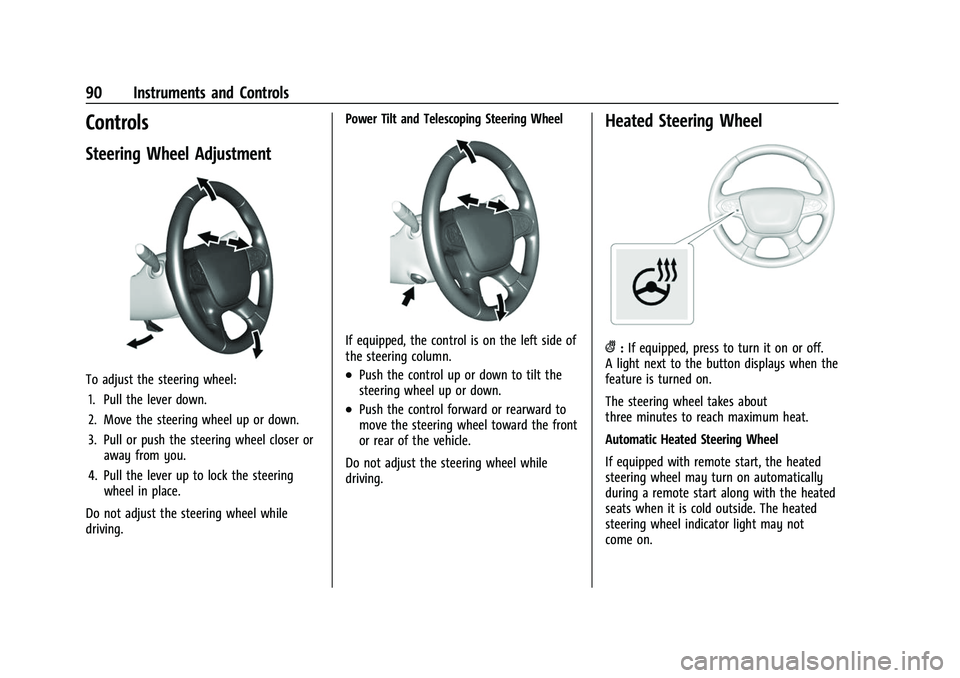
To adjust the steering wheel:1. Pull the lever down.
2. Move the steering wheel up or down.
3. Pull or push the steering wheel closer or away from you.
4. Pull the lever up to lock the steering wheel in place.
Do not adjust the steering wheel while
driving. Power Tilt and Telescoping Steering Wheel
If equipped, the control is on the left side of
the steering column.
.Push the control up or down to tilt the
steering wheel up or down.
.Push the control forward or rearward to
move the steering wheel toward the front
or rear of the vehicle.
Do not adjust the steering wheel while
driving.
Heated Steering Wheel
(: If equipped, press to turn it on or off.
A light next to the button displays when the
feature is turned on.
The steering wheel takes about
three minutes to reach maximum heat.
Automatic Heated Steering Wheel
If equipped with remote start, the heated
steering wheel may turn on automatically
during a remote start along with the heated
seats when it is cold outside. The heated
steering wheel indicator light may not
come on.
Page 95 of 369
Chevrolet Traverse Owner Manual (GMNA-Localizing-U.S./Canada/Mexico-
16411537) - 2023 - CRC - 3/28/22
94 Instruments and Controls
Certain accessory plugs may not be
compatible with the accessory power outlet
and could overload vehicle and adapter
fuses. If a problem is experienced, see your
dealer.
When adding electrical equipment, be sure
to follow the proper installation instructions
included with the equipment. SeeAdd-On
Electrical Equipment 0256.
Caution
Hanging heavy equipment from the
power outlet can cause damage not
covered by the vehicle warranty. The
power outlets are designed for accessory
power plugs only, such as cell phone
charge cords.
Power Outlet 110V/120V Alternating
Current
If equipped with this power outlet it can be
used to plug in electrical equipment that
uses a maximum limit of 150 watts.
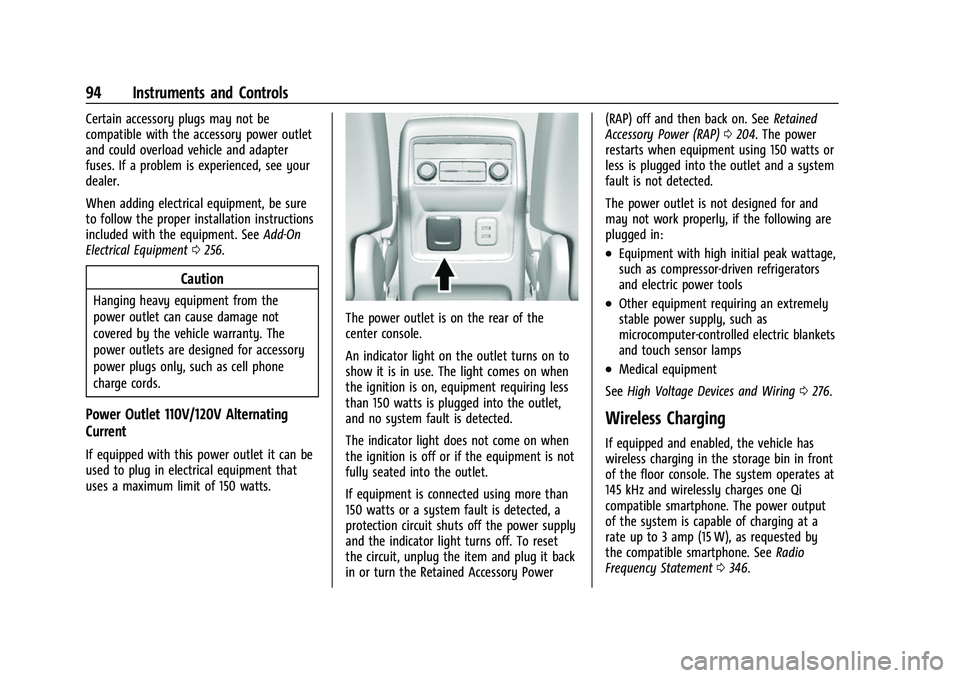
The power outlet is on the rear of the
center console.
An indicator light on the outlet turns on to
show it is in use. The light comes on when
the ignition is on, equipment requiring less
than 150 watts is plugged into the outlet,
and no system fault is detected.
The indicator light does not come on when
the ignition is off or if the equipment is not
fully seated into the outlet.
If equipment is connected using more than
150 watts or a system fault is detected, a
protection circuit shuts off the power supply
and the indicator light turns off. To reset
the circuit, unplug the item and plug it back
in or turn the Retained Accessory Power (RAP) off and then back on. See
Retained
Accessory Power (RAP) 0204. The power
restarts when equipment using 150 watts or
less is plugged into the outlet and a system
fault is not detected.
The power outlet is not designed for and
may not work properly, if the following are
plugged in:
.Equipment with high initial peak wattage,
such as compressor-driven refrigerators
and electric power tools
.Other equipment requiring an extremely
stable power supply, such as
microcomputer-controlled electric blankets
and touch sensor lamps
.Medical equipment
See High Voltage Devices and Wiring 0276.
Wireless Charging
If equipped and enabled, the vehicle has
wireless charging in the storage bin in front
of the floor console. The system operates at
145 kHz and wirelessly charges one Qi
compatible smartphone. The power output
of the system is capable of charging at a
rate up to 3 amp (15 W), as requested by
the compatible smartphone. See Radio
Frequency Statement 0346.
Page 98 of 369
Chevrolet Traverse Owner Manual (GMNA-Localizing-U.S./Canada/Mexico-
16411537) - 2023 - CRC - 3/28/22
Instruments and Controls 97
Warning Lights, Gauges, and
Indicators
Warning lights and gauges can signal that
something is wrong before it becomes
serious enough to cause an expensive repair
or replacement. Paying attention to the
warning lights and gauges could prevent
injury.
Some warning lights come on briefly when
the engine is started to indicate they are
working. When one of the warning lights
comes on and stays on while driving,
or when one of the gauges shows there
may be a problem, check the section that
explains what to do. Waiting to do repairs
can be costly and even dangerous.
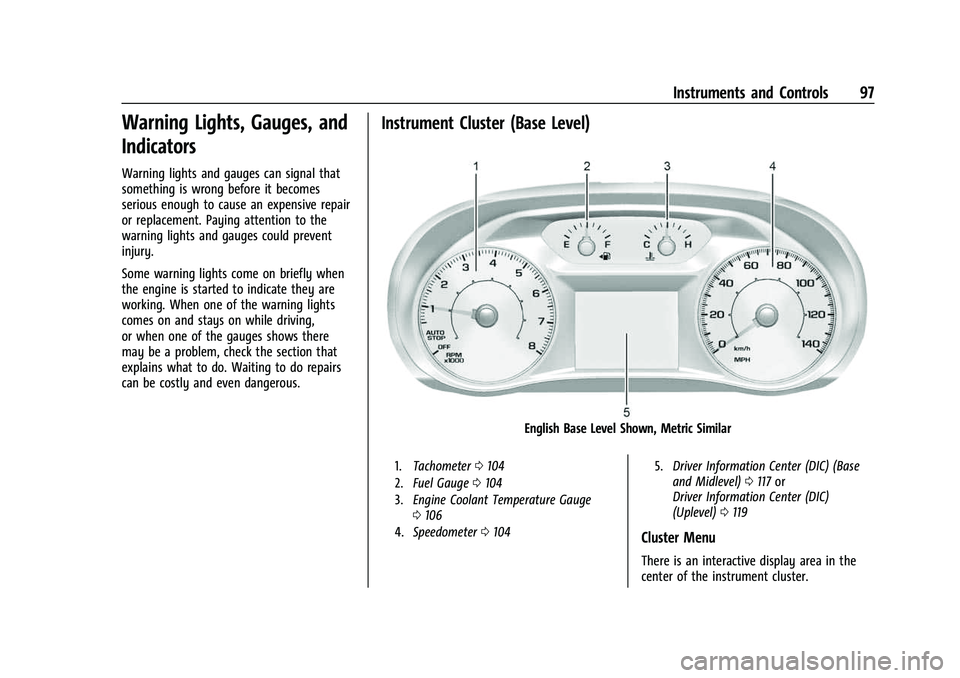
Instrument Cluster (Base Level)
English Base Level Shown, Metric Similar
1.Tachometer 0104
2. Fuel Gauge 0104
3. Engine Coolant Temperature Gauge
0106
4. Speedometer 0104 5.
Driver Information Center (DIC) (Base
and Midlevel) 0117 or
Driver Information Center (DIC)
(Uplevel) 0119
Cluster Menu
There is an interactive display area in the
center of the instrument cluster.
Page 99 of 369
Chevrolet Traverse Owner Manual (GMNA-Localizing-U.S./Canada/Mexico-
16411537) - 2023 - CRC - 3/28/22
98 Instruments and Controls
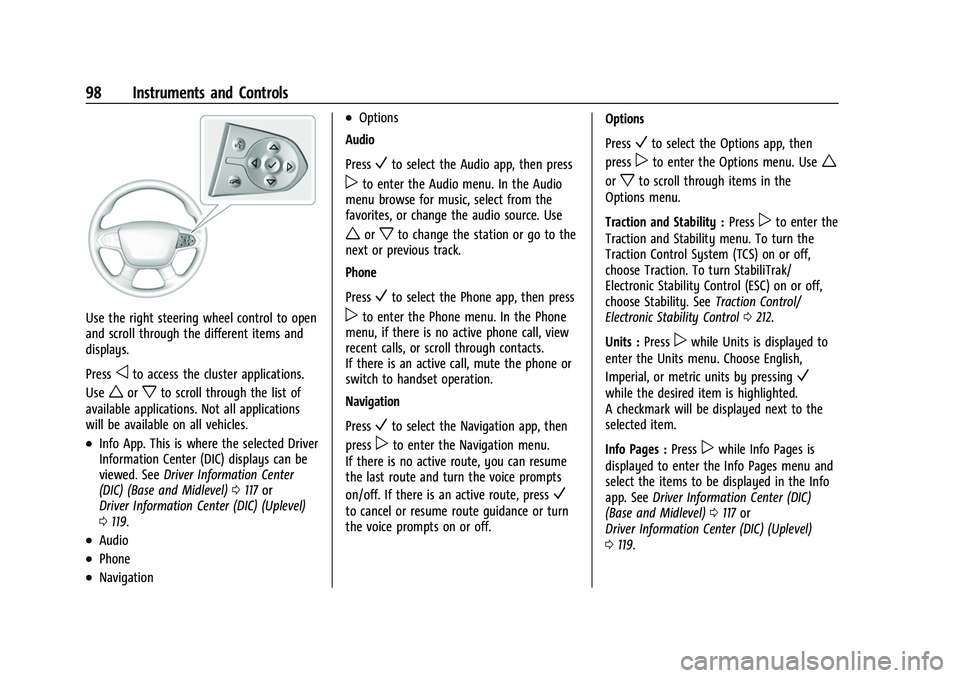
Use the right steering wheel control to open
and scroll through the different items and
displays.
Press
oto access the cluster applications.
Use
worxto scroll through the list of
available applications. Not all applications
will be available on all vehicles.
.Info App. This is where the selected Driver
Information Center (DIC) displays can be
viewed. See Driver Information Center
(DIC) (Base and Midlevel) 0117 or
Driver Information Center (DIC) (Uplevel)
0 119.
.Audio
.Phone
.Navigation
.Options
Audio
Press
Vto select the Audio app, then press
pto enter the Audio menu. In the Audio
menu browse for music, select from the
favorites, or change the audio source. Use
worxto change the station or go to the
next or previous track.
Phone
Press
Vto select the Phone app, then press
pto enter the Phone menu. In the Phone
menu, if there is no active phone call, view
recent calls, or scroll through contacts.
If there is an active call, mute the phone or
switch to handset operation.
Navigation
Press
Vto select the Navigation app, then
press
pto enter the Navigation menu.
If there is no active route, you can resume
the last route and turn the voice prompts
on/off. If there is an active route, press
V
to cancel or resume route guidance or turn
the voice prompts on or off. Options
Press
Vto select the Options app, then
press
pto enter the Options menu. Usew
orxto scroll through items in the
Options menu.
Traction and Stability : Press
pto enter the
Traction and Stability menu. To turn the
Traction Control System (TCS) on or off,
choose Traction. To turn StabiliTrak/
Electronic Stability Control (ESC) on or off,
choose Stability. See Traction Control/
Electronic Stability Control 0212.
Units : Press
pwhile Units is displayed to
enter the Units menu. Choose English,
Imperial, or metric units by pressing
V
while the desired item is highlighted.
A checkmark will be displayed next to the
selected item.
Info Pages : Press
pwhile Info Pages is
displayed to enter the Info Pages menu and
select the items to be displayed in the Info
app. See Driver Information Center (DIC)
(Base and Midlevel) 0117 or
Driver Information Center (DIC) (Uplevel)
0 119.
Page 101 of 369
Chevrolet Traverse Owner Manual (GMNA-Localizing-U.S./Canada/Mexico-
16411537) - 2023 - CRC - 3/28/22
100 Instruments and Controls
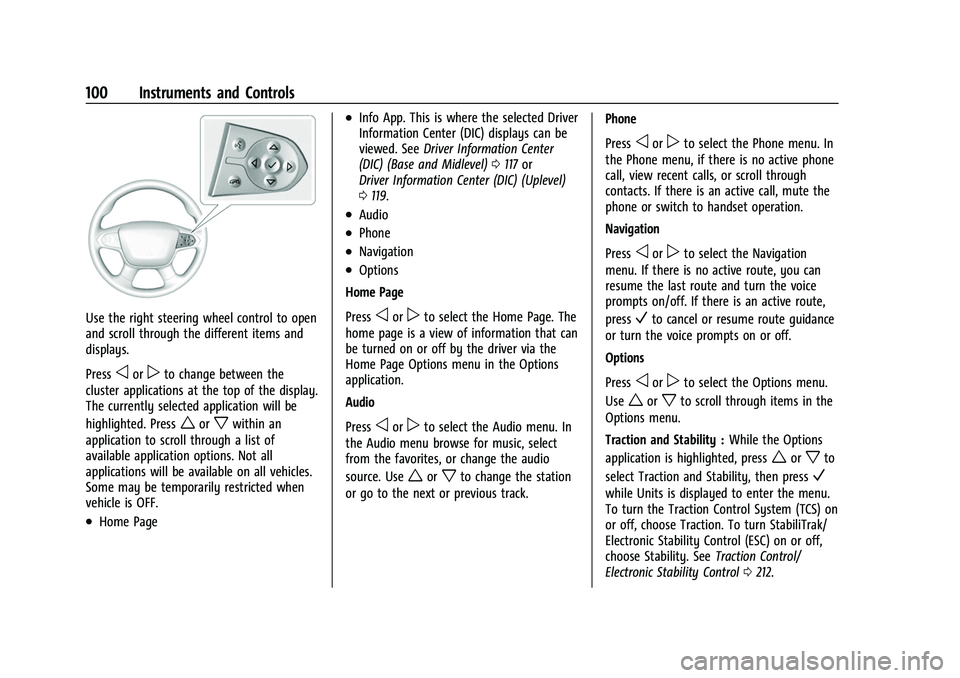
Use the right steering wheel control to open
and scroll through the different items and
displays.
Press
oorpto change between the
cluster applications at the top of the display.
The currently selected application will be
highlighted. Press
worxwithin an
application to scroll through a list of
available application options. Not all
applications will be available on all vehicles.
Some may be temporarily restricted when
vehicle is OFF.
.Home Page
.Info App. This is where the selected Driver
Information Center (DIC) displays can be
viewed. See Driver Information Center
(DIC) (Base and Midlevel) 0117 or
Driver Information Center (DIC) (Uplevel)
0 119.
.Audio
.Phone
.Navigation
.Options
Home Page
Press
oorpto select the Home Page. The
home page is a view of information that can
be turned on or off by the driver via the
Home Page Options menu in the Options
application.
Audio
Press
oorpto select the Audio menu. In
the Audio menu browse for music, select
from the favorites, or change the audio
source. Use
worxto change the station
or go to the next or previous track. Phone
Press
oorpto select the Phone menu. In
the Phone menu, if there is no active phone
call, view recent calls, or scroll through
contacts. If there is an active call, mute the
phone or switch to handset operation.
Navigation
Press
oorpto select the Navigation
menu. If there is no active route, you can
resume the last route and turn the voice
prompts on/off. If there is an active route,
press
Vto cancel or resume route guidance
or turn the voice prompts on or off.
Options
Press
oorpto select the Options menu.
Use
worxto scroll through items in the
Options menu.
Traction and Stability : While the Options
application is highlighted, press
worxto
select Traction and Stability, then press
V
while Units is displayed to enter the menu.
To turn the Traction Control System (TCS) on
or off, choose Traction. To turn StabiliTrak/
Electronic Stability Control (ESC) on or off,
choose Stability. See Traction Control/
Electronic Stability Control 0212.
Page 102 of 369
Chevrolet Traverse Owner Manual (GMNA-Localizing-U.S./Canada/Mexico-
16411537) - 2023 - CRC - 3/28/22
Instruments and Controls 101
Units :While the Options application is
highlighted, press
worxto select Units,
then press
Vwhile Units is displayed to
enter the menu. If available, choose English,
Imperial, or metric units by pressing
V
while the desired item is highlighted.
A checkmark will be displayed next to the
selected item.
Info Pages : While the Options application is
highlighted, press
worxto select Info
Pages, then press
Vwhile Info Pages is
displayed to enter the menu. Select the
items to be displayed in the Info app. See
Driver Information Center (DIC) (Base and
Midlevel) 0117 or
Driver Information Center (DIC) (Uplevel)
0 119. Speed Warning :
The Speed Warning display
allows the driver to set a speed that they
do not want to exceed. While the Options
application is highlighted, press
worxto
select Speed Warning, then press
Vwhile
Speed Warning is displayed to enter
the menu.
Press
worxto adjust the value. PressV
to set the speed.
Once the speed is set, this feature can be
turned off by pressing
Vwhile viewing this
page. If the selected speed limit is exceeded,
a pop-up warning is displayed with a chime. Home Page Options :
While the Options
application is highlighted, press
worxto
select Home Page Options, then press
V
while Home Page Options is displayed to
enter the menu. Select the available
elements to display. Not all elements will be
available on all vehicles: Speedometer,
Active Safety, Speed Sign, Time,
Temperature, and Fuel Range.
Software Information : Displays open source
software information.
Page 104 of 369
Chevrolet Traverse Owner Manual (GMNA-Localizing-U.S./Canada/Mexico-
16411537) - 2023 - CRC - 3/28/22
Instruments and Controls 103
viewed. SeeDriver Information Center
(DIC) (Base and Midlevel) 0117 or
Driver Information Center (DIC) (Uplevel)
0 119.
.Audio
.Navigation
.Phone
.Options
Audio
Press
Vto select the Audio app, then press
pto enter the Audio menu. In the Audio
menu browse for music, select from the
favorites, or change the audio source. Use
worxto change the station or go to the
next or previous track.
Navigation
Press
Vto select the Navigation app, then
press
pto enter the Navigation menu.
If there is no active route, you can resume
the last route and turn the voice prompts
on/off. If there is an active route, press
V
to cancel or resume route guidance or turn
the voice prompts on or off. Phone
Press
Vto select the Phone app, then press
pto enter the Phone menu. In the Phone
menu, if there is no active phone call, view
recent calls, or scroll through contacts.
If there is an active call, mute the phone or
switch to handset operation.
Options
Press
Vto select the Options app, then
press
pto enter the Options menu. Usew
orxto scroll through items in the
Options menu.
Traction and Stability : Press
pto enter the
Traction and Stability menu. To turn the
Traction Control System (TCS) on or off,
choose Traction. To turn StabiliTrak/
Electronic Stability Control (ESC) on or off,
choose Stability. See Traction Control/
Electronic Stability Control 0212.
Units : Press
pwhile Units is displayed to
enter the Units menu. Choose English,
Imperial, or metric units by pressing
V
while the desired item is highlighted.
A checkmark will be displayed next to the
selected item. Display Theme :
There are two instrument
cluster display configurations to choose
from: Sport and Touring.
Info Pages : Press
pwhile Info Pages is
displayed to enter the Info Pages menu and
select the items to be displayed in the Info
app. See Driver Information Center (DIC)
(Base and Midlevel) 0117 or
Driver Information Center (DIC) (Uplevel)
0 119.
Speed Warning : The Speed Warning display
allows the driver to set a speed that they
do not want to exceed. To set the Speed
Warning press
pwhen Speed Warning is
displayed.
Scroll to set speed and press
p. Presswor
xto adjust the value. PressVto set the
speed.
Once the speed is set, this feature can be
turned off by pressing
Vwhile viewing this
page. If the selected speed limit is exceeded,
a pop-up warning is displayed with a chime.
Software Information : Displays open source
software information.
Page 106 of 369
Chevrolet Traverse Owner Manual (GMNA-Localizing-U.S./Canada/Mexico-
16411537) - 2023 - CRC - 3/28/22
Instruments and Controls 105
English Uplevel
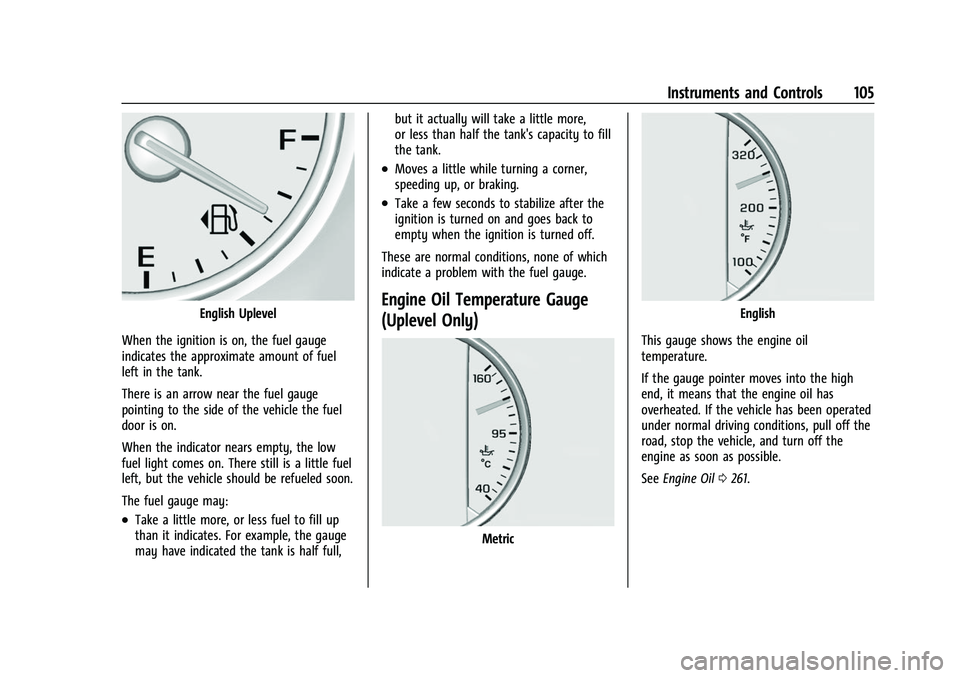
When the ignition is on, the fuel gauge
indicates the approximate amount of fuel
left in the tank.
There is an arrow near the fuel gauge
pointing to the side of the vehicle the fuel
door is on.
When the indicator nears empty, the low
fuel light comes on. There still is a little fuel
left, but the vehicle should be refueled soon.
The fuel gauge may:
.Take a little more, or less fuel to fill up
than it indicates. For example, the gauge
may have indicated the tank is half full, but it actually will take a little more,
or less than half the tank's capacity to fill
the tank.
.Moves a little while turning a corner,
speeding up, or braking.
.Take a few seconds to stabilize after the
ignition is turned on and goes back to
empty when the ignition is turned off.
These are normal conditions, none of which
indicate a problem with the fuel gauge.
Engine Oil Temperature Gauge
(Uplevel Only)
Metric
English
This gauge shows the engine oil
temperature.
If the gauge pointer moves into the high
end, it means that the engine oil has
overheated. If the vehicle has been operated
under normal driving conditions, pull off the
road, stop the vehicle, and turn off the
engine as soon as possible.
See Engine Oil 0261.