radio CHEVROLET TRAX 2013 1.G Service Manual
[x] Cancel search | Manufacturer: CHEVROLET, Model Year: 2013, Model line: TRAX, Model: CHEVROLET TRAX 2013 1.GPages: 408, PDF Size: 6.59 MB
Page 179 of 408
Black plate (27,1)Chevrolet TRAX Owner Manual - 2013 - CRC - 3/6/13
Infotainment System 7-27
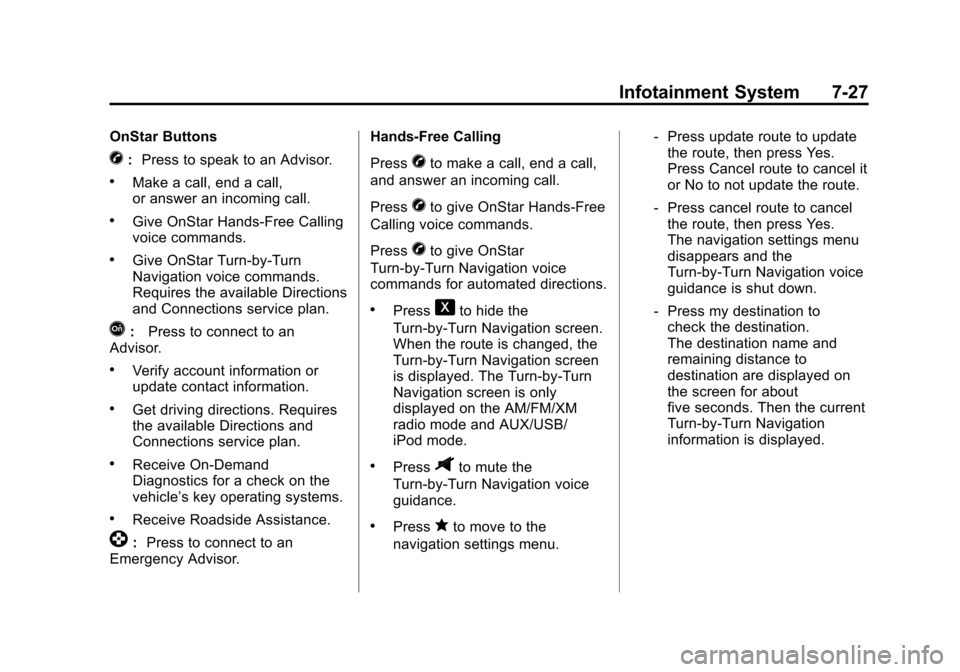
OnStar Buttons
X:Press to speak to an Advisor.
.Make a call, end a call,
or answer an incoming call.
.Give OnStar Hands-Free Calling
voice commands.
.Give OnStar Turn-by-Turn
Navigation voice commands.
Requires the available Directions
and Connections service plan.
Q: Press to connect to an
Advisor.
.Verify account information or
update contact information.
.Get driving directions. Requires
the available Directions and
Connections service plan.
.Receive On-Demand
Diagnostics for a check on the
vehicle’s key operating systems.
.Receive Roadside Assistance.
]: Press to connect to an
Emergency Advisor. Hands-Free Calling
Press
Xto make a call, end a call,
and answer an incoming call.
Press
Xto give OnStar Hands-Free
Calling voice commands.
Press
Xto give OnStar
Turn-by-Turn Navigation voice
commands for automated directions.
.Press1to hide the
Turn-by-Turn Navigation screen.
When the route is changed, the
Turn-by-Turn Navigation screen
is displayed. The Turn-by-Turn
Navigation screen is only
displayed on the AM/FM/XM
radio mode and AUX/USB/
iPod mode.
.Press$to mute the
Turn-by-Turn Navigation voice
guidance.
.Pressqto move to the
navigation settings menu. ‐
Press update route to update
the route, then press Yes.
Press Cancel route to cancel it
or No to not update the route.
‐ Press cancel route to cancel
the route, then press Yes.
The navigation settings menu
disappears and the
Turn-by-Turn Navigation voice
guidance is shut down.
‐ Press my destination to
check the destination.
The destination name and
remaining distance to
destination are displayed on
the screen for about
five seconds. Then the current
Turn-by-Turn Navigation
information is displayed.
Page 182 of 408
Black plate (30,1)Chevrolet TRAX Owner Manual - 2013 - CRC - 3/6/13
7-30 Infotainment System
When to Speak:A tone sounds to
indicate that the system is ready for
a voice command. Wait for the tone
and then speak.
How to Speak: Speak clearly in a
calm and natural voice.
Audio System
When using the Bluetooth system,
sound comes through the vehicle's
front audio system speakers and
overrides the audio system. Use the
O/VOL knob during a call to
change the volume level. The
adjusted volume level remains in
memory for later calls. The system
maintains a minimum volume level.
Other Information
The Bluetooth®word mark and
logos are owned by the Bluetooth®
SIG, Inc. and any use of such marks
by General Motors is under license.
Other trademarks and trade names
are those of their respective owners. See
Radio Frequency Statement
(Canada) on page 13‑18 for
information regarding Part 15 of the
Federal Communications
Commission (FCC) rules and
Industry Canada Standards
RSS-GEN/210/220/310.
Bluetooth (Infotainment
Controls)
For information about how to
navigate the menu system using the
infotainment controls, see Operation
on page 7‑8.
Pairing Without Touchscreen
A Bluetooth-enabled cell phone
must be paired to the Bluetooth
system and then connected to the
vehicle before it can be used. See
your cell phone manufacturer's user
guide for Bluetooth functions before
pairing the cell phone. If a Bluetooth
phone is not connected, calls will be
made using OnStar Hands-Free
Calling, if available. See OnStar
Overview on page 14‑1. Pairing Information
.A Bluetooth phone with MP3
capability can be paired
separately to the vehicle as a
phone and an MP3 player at the
same time. This requires the
device to be paired two times;
once as a
“hands-free” device
and once as an MP3 device.
.Up to five cell phones can be
paired to the Bluetooth system.
.The pairing process is disabled
when the vehicle is moving.
.Pairing only needs to be
completed once, unless the
pairing information on the cell
phone changes or the cell phone
is deleted from the system.
.Only one paired cell phone can
be connected to the Bluetooth
system at a time.
Page 184 of 408
Black plate (32,1)Chevrolet TRAX Owner Manual - 2013 - CRC - 3/6/13
7-32 Infotainment System
5. Select the new phone to link toand follow the on-screen
prompts.
If delete is selected, the
highlighted phone will be
deleted.
Making a Call Using
Phone Book
For cell phones that support the
phone book feature, the Bluetooth
system can use the contacts stored
on your cell phone to make calls.
See your cell phone's owner's guide
or contact your wireless provider to
find out if this feature is supported
by your phone.
When a cell phone supports the
phone book feature, the Phone
Book and Call Lists menus are
automatically available.
The Phone Book menu allows you
to access the phone book stored in
the cell phone to make a call. The Call Lists menu allows you to
access the phone numbers from the
Incoming Calls, Outgoing Calls, and
Missed Calls menus on your cell
phone to make a call.
To make a call using the Phone
Book menu:
1. Press
5/>once or twice
(depending on the radio).
2. Select Phone Book.
3. Search through the list by selecting the letter group the
phone book entry begins with,
or press the MENU/TUNE button
to scroll through the entire list of
names/numbers in the
phone book.
4. Select the name or number you want to call.
To make a call using the Call
Lists menu:
1. Press
5/>once or twice
(depending on the radio).
2. Select Call Lists. 3. Select the Incoming Calls,
Outgoing Calls, or Missed
Calls list.
4. Select the name or number you want to call.
Making a Call
To make a call:
1. Press
5/>once or twice
(depending on the radio).
2. Enter the character sequence. See “Entering a Character
Sequence” inOperation on
page 7‑8.
3. Select Call to start dialing the number.
Accepting or Declining a Call
When an incoming call is received,
the infotainment system mutes and
a ring tone is heard in the vehicle.
Accepting a Call
Turn the MENU/TUNE knob to
“Answer” and press the MENU/
TUNE knob to accept the call.
Page 199 of 408
Black plate (47,1)Chevrolet TRAX Owner Manual - 2013 - CRC - 3/6/13
Infotainment System 7-47
To search for the name Alex:
1. Press (abc) to select the firstcharacter.
2. Press (jkl) to select the second character.
3. Press (def) to select the third character.
4. Press (wxy) to select the fourth character.
Making a Call from Call History
1. Press Call History on the telephone screen.
2. Press one of the following for:
.2Dialed calls.
.4Missed calls.
.9Received calls.
3. Select the phone book entry to call. Making a Call with Speed Dial
Numbers
Press and hold the speed dial
number using the keypad on the
telephone screen.
Only speed dial numbers already
stored on the cell phone can be
used for speed dial calls. Up to
two-digit speed dial numbers are
supported.
For two-digit speed dial numbers,
press and hold the second digit to
make a call to the speed dial
number.
Downloadable
Applications
Smartphone Link
(Overview)
Before Using Smartphone link
If equipped, the vehicle can
connect to Pandora
®and Stitcher
SmartRadio™ through the
infotainment system. The
applications most be downloaded to
the device first.
Pandora
®is a free Internet radio
service that streams personalized
radio stations based on artists,
songs, genres, and comedians.
Create stations using the Pandora
website or smartphone application,
then use
-(thumbs up) or,
(thumbs down) to personalize
stations. To set up an account, or
for more information, go to
www.pandora.com. Pandora may
not be available in Canada or
Mexico.
Page 200 of 408
Black plate (48,1)Chevrolet TRAX Owner Manual - 2013 - CRC - 3/6/13
7-48 Infotainment System
Stitcher SmartRadio is an Internet
radio service that streams news,
sports, and entertainment shows
through the audio system. Create
personalized, on-demand stations or
discover new shows through
Stitcher's preset stations. To set up
an account, download the
application from the Android Market
or iTunes Store, or go to
www.stitcher.com.
A phone or tablet with Internet
connection and the Pandora and/or
Stitcher application installed is
required. Personal cell phone data
plans are used. Make sure the latest
version is installed on the device
and the volume is turned up.
Supported Smartphone
Applications
Pandora
.iPod®/iPhone®, through the USB
connection.
.Android™ phone, through
Bluetooth®wireless.
.On a BlackBerry®phone,
through Bluetooth wireless.
Stitcher
.iPod/iPhone, through the USB
connection.
.Android phone, through
Bluetooth wireless.
iPod/iPhone Error Messages and
Solution
If the infotainment system fails to
activate the application on your
iPod/iPhone connected through the
USB port, the error message is
displayed as, “Unable to start
application, possible reasons.”
.Your iPhone is locked. To
resolve, unlock the iPhone.
.You have another active
application open. To resolve,
close the other active
application.
.You have not installed the
application on your iPhone. To
resolve, install the application on
the iPhone. iOS Version Error
If the iOS version of the iPhone is
less than 4.0, the error message is
displayed as,
“Your iPhone does
not allow this application to be
opened on a USB connection.
Please refer to owner ’s manual.”
.Activate the application on your
iPhone, then press the desired
application menu on the
infotainment system.
Connecting Application Error
If the infotainment system fails to
activate the application on the
smartphone connected through
Bluetooth wireless technology, the
error message is displayed as,
“Connecting application error.”
.Reset all settings related to the
phone, then press the desired
application menu on the
infotainment system.
.Reconnect the smartphone and
Infotainment system through
Bluetooth wireless technology,
Page 203 of 408
Black plate (51,1)Chevrolet TRAX Owner Manual - 2013 - CRC - 3/6/13
Infotainment System 7-51
QuickMix
1. Press MENU. The Pandoramenu is displayed.
2. Press QuickMix
Zto listen to a
selection of tracks from your
stations.
Tone Settings
1. Press MENU. The Pandora menu is displayed.
2. Press tone settings. The tone settings menu is displayed. See
“Tone Settings” under“Radio
Controls With Touchscreen” in
Operation on page 7‑8.
Smartphone Link
(Stitcher)
Some images and explanations may
vary by phone operating systems,
versions, and/or application (App)
versions.
Using Stitcher™
1. Install the Stitcher application on
the smartphone. 2. Connect the smartphone to the
infotainment system through the
USB port or Bluetooth wireless
technology.
.iPhone: USB connection
.Android phone/BlackBerry
phone: Bluetooth wireless
technology
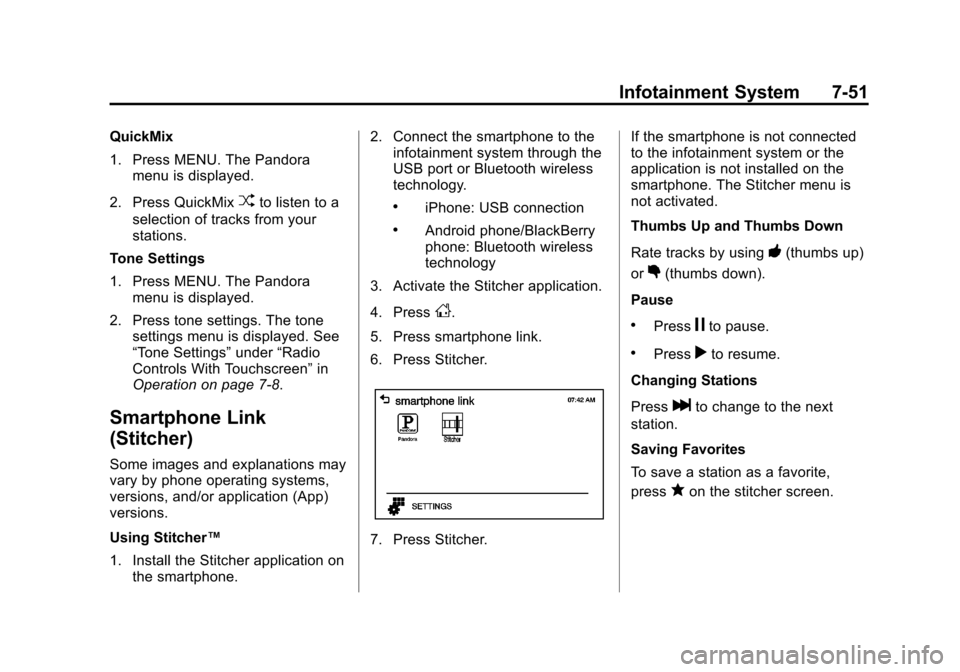
3. Activate the Stitcher application.
4. Press
D.
5. Press smartphone link.
6. Press Stitcher.
7. Press Stitcher. If the smartphone is not connected
to the infotainment system or the
application is not installed on the
smartphone. The Stitcher menu is
not activated.
Thumbs Up and Thumbs Down
Rate tracks by using
-(thumbs up)
or
,(thumbs down).
Pause
.Pressjto pause.
.Pressrto resume.
Changing Stations
Press
lto change to the next
station.
Saving Favorites
To save a station as a favorite,
press
qon the stitcher screen.
Page 204 of 408
Black plate (52,1)Chevrolet TRAX Owner Manual - 2013 - CRC - 3/6/13
7-52 Infotainment System
Stitcher Menus
The Stitcher Station menu displays
available station data from the
Stitcher server.
1. Press MENU. The StitcherStation menu is displayed.
2. Press
QorRto scroll through
the list. Select the desired
station.
Tone Settings
1. Press MENU. The Stitcher menu is displayed.
2. Press tone settings. The tone settings menu is displayed. See
“Tone Settings” under“Radio
Controls With Touchscreen” in
Operation on page 7‑8.
Bluetooth Phone/
Devices
Pictures and Movies
(Audio System)
The infotainment system can play
the music files contained in the USB
storage device or iPod/iPhone
products.
Audio System Information
Using MP3/WMA/OGG/WAV Files
.Music files with .mp3, .wma,
.ogg, and .wav file name
extensions can be played.
.MP3 files that can be played are:
Bit rate: 8 kbps ~ 320 kbps -
Sampling frequency: 48 kHz,
44.1 kHz, 32 kHz, 24 kHz,
22.05 kHz, and 16 kHz.
.Files with a bit rate above
128 kbps will result in higher
quality sound.
.ID3 Tag information for MP3
files, such as the album name
and the artist, can be played.
.To display album title, track title,
and artist information, the file
should be compatible with the
ID3 Tag V1 and V2 formats.
Using USB Storage Devices and
iPod/iPhone
.Use a USB or flash memory type
storage device. Do not connect
using a USB adaptor.
.Do not connect and reconnect
the USB device repeatedly in a
short time, as this may cause
static electricity and problems
using the device.
.Use a USB device with a metal
connecting terminal.
.Connection with i-Stick Type
USB storage devices may be
faulty due to vehicle vibration.
.Do not to touch the USB
connecting terminal.
Page 208 of 408
Black plate (56,1)Chevrolet TRAX Owner Manual - 2013 - CRC - 3/6/13
7-56 Infotainment System
Tone Settings
1. Press
R.
2. Press tone settings. The Tone Settings menu is displayed. See
“Tone Settings” under“Radio
Controls with Touchscreen” in
Operation on page 7‑8.
iPod/iPhone player
This feature is limited to models
supporting the iPod/iPhone
connection.
Playing Music Files
.Connect the iPod/iPhone to the
USB port.
.Play will start from the previously
played point after the system
has finished reading the USB
device.
.If a non-readable USB device is
connected, an error message
displays and the system will
switch to the previous audio
function. If the iPod/iPhone is already
connected:
.PressD.
.Press audio.
.Press SourceR.
.Press iPod.
To stop the device and select
another media source, press
Source
R, then select the other
source.
To remove the device, select
another function, then remove the
device.
Pause
.Pressjto pause.
.Pressrto resume.
Changing to Next/Previous Song
.Presslto change to the
next song.
.Pressgwithin two seconds of
the playback time to play the
previous file.
Returning to the Beginning of the
Current File
Press
gafter two seconds of the
playback time.
Scanning Forward or Backward
Press and hold
gorlduring
playback to rewind or fast-forward.
Release the button to resume
playback at normal speed.
Playing a File Repeatedly
Press
vduring playback.
.1: Plays the current file
repeatedly.
.ALL: Plays all files repeatedly.
.OFF: Returns to normal
playback.
Page 209 of 408
Black plate (57,1)Chevrolet TRAX Owner Manual - 2013 - CRC - 3/6/13
Infotainment System 7-57
Playing a File Randomly
Press
uduring playback.
.NO: Plays all files randomly.
.OFF: Returns to normal
playback.
Viewing Information on the
Currently Playing Song
Press the title during playback to
display information about the current
song playing.
.The information displayed
includes the title, file name,
folder name, and artist/album
saved with the song.
.Incorrect information cannot be
modified or corrected on the
infotainment system.
.The information for songs
expressed in special symbols or
in unavailable languages may be
displayed as “
u.”
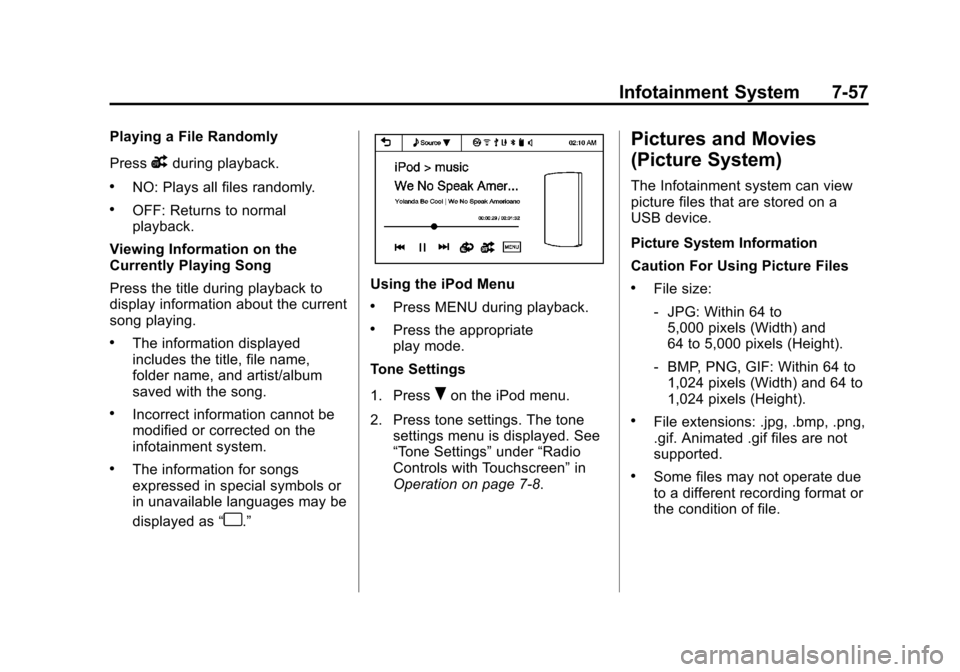
Using the iPod Menu
.Press MENU during playback.
.Press the appropriate
play mode.
Tone Settings
1. Press
Ron the iPod menu.
2. Press tone settings. The tone settings menu is displayed. See
“Tone Settings” under“Radio
Controls with Touchscreen” in
Operation on page 7‑8.
Pictures and Movies
(Picture System)
The Infotainment system can view
picture files that are stored on a
USB device.
Picture System Information
Caution For Using Picture Files
.File size:
‐ JPG: Within 64 to
5,000 pixels (Width) and
64 to 5,000 pixels (Height).
‐ BMP, PNG, GIF: Within 64 to
1,024 pixels (Width) and 64 to
1,024 pixels (Height).
.File extensions: .jpg, .bmp, .png,
.gif. Animated .gif files are not
supported.
.Some files may not operate due
to a different recording format or
the condition of file.
Page 212 of 408
Black plate (60,1)Chevrolet TRAX Owner Manual - 2013 - CRC - 3/6/13
7-60 Infotainment System
Changing to Next/Previous Movie
.Pressuto change to the
next file.
.Presstwithin five seconds of
the playback time to play the
previous file.
Returning to the Beginning of the
Current Movie
Press
tafter five seconds of the
playback time.
Scanning Forward or Backward
Press and hold
toruduring
playback to rewind or fast-forward.
Release the button to resume
playback at normal speed.
Viewing Full Screen
Press
tfrom the movie screen.
Press
tagain to return to the
previous screen.
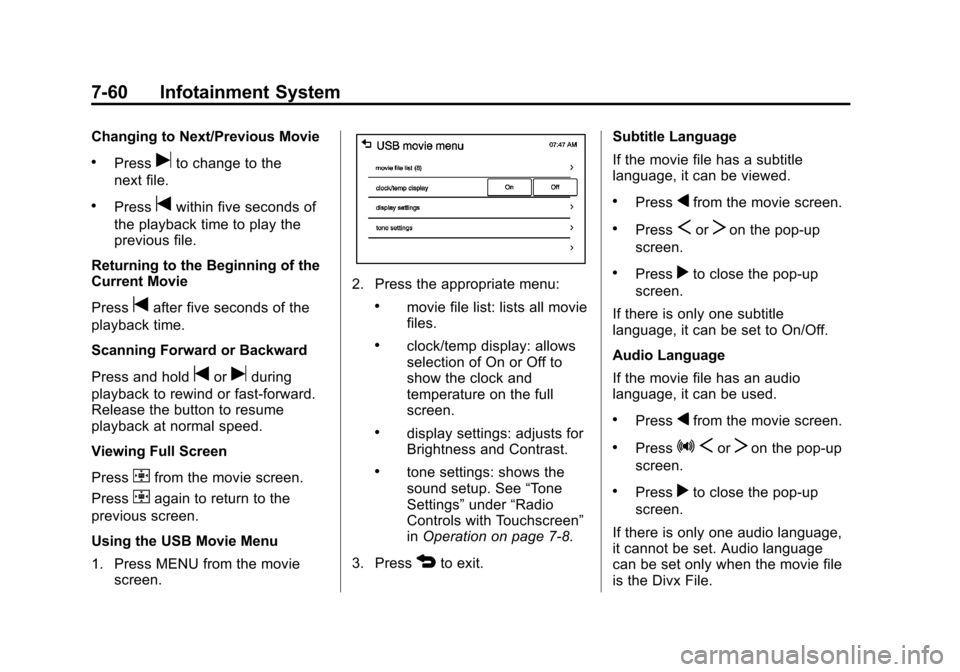
Using the USB Movie Menu
1. Press MENU from the movie screen.
2. Press the appropriate menu:
.movie file list: lists all movie
files.
.clock/temp display: allows
selection of On or Off to
show the clock and
temperature on the full
screen.
.display settings: adjusts for
Brightness and Contrast.
.tone settings: shows the
sound setup. See “Tone
Settings” under“Radio
Controls with Touchscreen”
in Operation on page 7‑8.
3. Press
4to exit. Subtitle Language
If the movie file has a subtitle
language, it can be viewed.
.Pressqfrom the movie screen.
.PressSorTon the pop-up
screen.
.Pressrto close the pop-up
screen.
If there is only one subtitle
language, it can be set to On/Off.
Audio Language
If the movie file has an audio
language, it can be used.
.Pressqfrom the movie screen.
.PressZ SorTon the pop-up
screen.
.Pressrto close the pop-up
screen.
If there is only one audio language,
it cannot be set. Audio language
can be set only when the movie file
is the Divx File.