CD player CHEVROLET TRAX 2016 1.G User Guide
[x] Cancel search | Manufacturer: CHEVROLET, Model Year: 2016, Model line: TRAX, Model: CHEVROLET TRAX 2016 1.GPages: 358, PDF Size: 5.07 MB
Page 152 of 358
Chevrolet TRAX Owner Manual (GMNA-Localizing-U.S./Canada/Mexico-
9159371) - 2016 - crc - 5/21/15
Infotainment System 151
Auxiliary Devices
The 3.5 mm (1/8 in) AUX input jack,
if equipped, is on the front of the
infotainment system. SeeOverview
(Radio with Touchscreen) 0135 or
Overview (AM-FM Radio) 0131 or
Overview (Radio with CD/USB)
0 133.
Portable devices are controlled by
using the menu system described in
Operation 0136.
Radio without Touchscreen
Connect a 3.5 mm (1/8 in) cable to
the auxiliary input jack to use a
portable audio player.
The infotainment system will
automatically switch to the device
when the device is connected to the
AUX input jack. Press the CD/AUX
button to switch to a device that is
already connected.
Playback of an audio device that is
connected to the 3.5 mm (1/8 in)
jack can only be controlled using
the controls on the device. Adjusting the Volume
Turn the
O/VOL knob to adjust the
volume of the infotainment system
after the volume level has been set
on the portable audio device.
Radio with Touchscreen
The infotainment system can play
music or movies connected by the
auxiliary device.
Play will begin when the system has
finished reading the information on
the device.
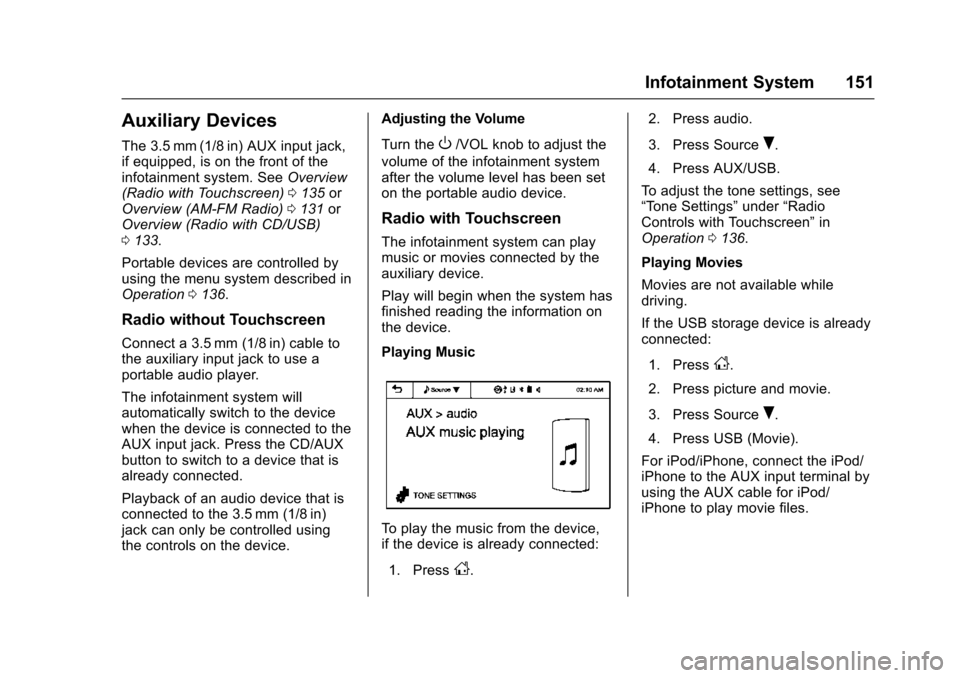
Playing Music
To play the music from the device,
if the device is already connected:
1. Press
D. 2. Press audio.
3. Press Source
R.
4. Press AUX/USB.
To adjust the tone settings, see
“Tone Settings” under“Radio
Controls with Touchscreen” in
Operation 0136.
Playing Movies
Movies are not available while
driving.
If the USB storage device is already
connected:
1. Press
D.
2. Press picture and movie.
3. Press Source
R.
4. Press USB (Movie).
For iPod/iPhone, connect the iPod/
iPhone to the AUX input terminal by
using the AUX cable for iPod/
iPhone to play movie files.
Page 153 of 358
Chevrolet TRAX Owner Manual (GMNA-Localizing-U.S./Canada/Mexico-
9159371) - 2016 - crc - 5/21/15
152 Infotainment System
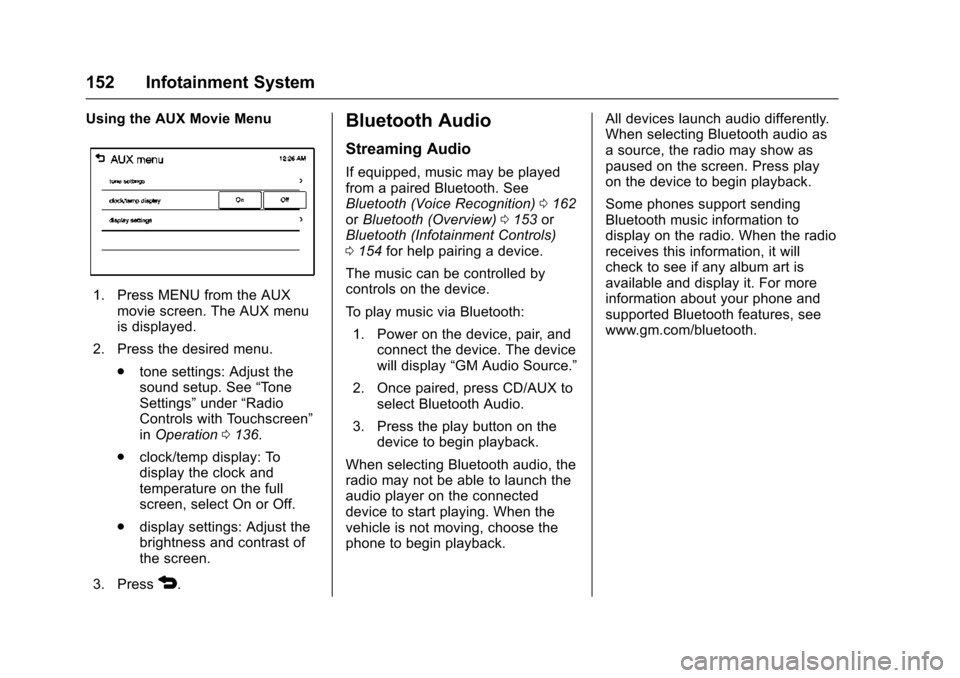
Using the AUX Movie Menu
1. Press MENU from the AUXmovie screen. The AUX menu
is displayed.
2. Press the desired menu. .tone settings: Adjust the
sound setup. See “Tone
Settings” under“Radio
Controls with Touchscreen”
in Operation 0136.
. clock/temp display: To
display the clock and
temperature on the full
screen, select On or Off.
. display settings: Adjust the
brightness and contrast of
the screen.
3. Press
4.
Bluetooth Audio
Streaming Audio
If equipped, music may be played
from a paired Bluetooth. See
Bluetooth (Voice Recognition) 0162
or Bluetooth (Overview) 0153 or
Bluetooth (Infotainment Controls)
0 154 for help pairing a device.
The music can be controlled by
controls on the device.
To play music via Bluetooth: 1. Power on the device, pair, and connect the device. The device
will display “GM Audio Source.”
2. Once paired, press CD/AUX to select Bluetooth Audio.
3. Press the play button on the device to begin playback.
When selecting Bluetooth audio, the
radio may not be able to launch the
audio player on the connected
device to start playing. When the
vehicle is not moving, choose the
phone to begin playback. All devices launch audio differently.
When selecting Bluetooth audio as
a source, the radio may show as
paused on the screen. Press play
on the device to begin playback.
Some phones support sending
Bluetooth music information to
display on the radio. When the radio
receives this information, it will
check to see if any album art is
available and display it. For more
information about your phone and
supported Bluetooth features, see
www.gm.com/bluetooth.
Page 155 of 358
Chevrolet TRAX Owner Manual (GMNA-Localizing-U.S./Canada/Mexico-
9159371) - 2016 - crc - 5/21/15
154 Infotainment System
Infotainment System Controls
If equipped, the infotainment system
allows certain controls to be
selected on the infotainment display.
For information about how to
navigate the menu system using the
infotainment controls, seeOperation
0 136.
5/>(Phone) : Press to enter the
Phone main menu.
Voice Recognition
The voice recognition system uses
commands to control the system
and dial phone numbers.
Noise : The system may not
recognize voice commands if there
is too much background noise. Do
not point the center air vents directly
upward.
When to Speak : A tone sounds to
indicate that the system is ready for
a voice command. Wait for the tone
and then speak.
How to Speak : Speak clearly in a
calm and natural voice.
Audio System
When using the Bluetooth system,
sound comes through the vehicle's
front audio system speakers and
overrides the audio system. Use the
O/VOL knob during a call to
change the volume level. The
adjusted volume level remains in
memory for later calls. The system
maintains a minimum volume level.
Other Information
The Bluetooth®word mark and
logos are owned by the Bluetooth®
SIG, Inc. and any use of such marks
by General Motors is under license.
Other trademarks and trade names
are those of their respective owners.
See Radio Frequency Statement
0 333.
Bluetooth (Infotainment
Controls)
For information about how to
navigate the menu system using the
infotainment controls, see Operation
0 136.
Pairing without Touchscreen
A Bluetooth-enabled cell phone
must be paired to the Bluetooth
system and then connected to the
vehicle before it can be used. See
your cell phone manufacturer's user
guide for Bluetooth functions before
pairing the cell phone. If a Bluetooth
phone is not connected, calls will be
made using OnStar Hands-Free
Calling, if available. See OnStar
Overview 0337.
Pairing Information
. A Bluetooth phone with MP3
capability can be paired
separately to the vehicle as a
phone and an MP3 player at the
same time. This requires the
device to be paired two times;
once as a “hands-free” device
and once as an MP3 device.
. Up to five cell phones can be
paired to the Bluetooth system.
. The pairing process is disabled
when the vehicle is moving.
Page 158 of 358
Chevrolet TRAX Owner Manual (GMNA-Localizing-U.S./Canada/Mexico-
9159371) - 2016 - crc - 5/21/15
Infotainment System 157
Call Waiting
Call waiting must be supported on
the Bluetooth phone and enabled by
the wireless service carrier to work.
Accepting a Call
Turn the MENU/TUNE knob to
“Answer”and press the MENU/
TUNE knob to accept the call.
Declining a Call
Turn the MENU/TUNE knob to
“Decline” and press the MENU/
TUNE knob to decline the call.
Switching Between Calls (Call
Waiting Calls Only)
To switch between calls:
1. Turn or press the MENU/ TUNE knob.
2. Select Switch Call from the menu.
Conference Calling
Conference calling and three-way
calling must be supported on the
Bluetooth phone and enabled by the
wireless service carrier to work. To start a conference while in a
current call:
1. Turn or press the MENU/ TUNE knob.
2. Select Enter Number.
3. Enter the character sequence then select Call.
4. After the call has been placed, turn or press the MENU/TUNE
knob and choose Merge Calls.
5. To add more callers to the conference call, repeat Steps 1
−4. The number of callers that
can be added is limited by your
wireless service carrier.
Ending a Call
Turn or press the MENU/TUNE
knob and select Hang Up.
Muting a Call
To Mute a Call
Turn or press the MENU/TUNE
knob and select Mute Call.
To Cancel Mute
Turn or press the MENU/TUNE
knob and select Mute Call.
Dual Tone Multi-Frequency
(DTMF) Tones
The in-vehicle Bluetooth system can
send numbers during a call. This is
used when calling a menu-driven
phone system.
1. Turn or press the MENU/TUNE knob and select Enter Number.
2. Enter the character sequence.
Pairing with Touchscreen
A Bluetooth-enabled cell phone
must be paired to the Bluetooth
system and then connected to the
vehicle before it can be used. See
your cell phone manufacturer's user
guide for Bluetooth functions before
pairing the cell phone. If a Bluetooth
phone is not connected, calls will be
made using OnStar Hands-Free
Calling, if available. See OnStar
Overview 0337.
Pairing Information
. A Bluetooth phone with MP3
capability cannot be paired to
the vehicle as a phone and an
MP3 player at the same time.
Page 162 of 358
Chevrolet TRAX Owner Manual (GMNA-Localizing-U.S./Canada/Mexico-
9159371) - 2016 - crc - 5/21/15
Infotainment System 161
.From the cell phone or Bluetooth
device, find the Bluetooth device
type to set/connect the item as a
stereo headset.
.
5will appear on the screen if
the stereo headset is
successfully connected.
. The sound played by the
Bluetooth device is delivered
through the infotainment system.
. Bluetooth music can be played
only when a Bluetooth device
has been connected. To play
Bluetooth music, connect the
Bluetooth phone to the
infotainment system.
. If the Bluetooth device is
disconnected while playing
phone music, the music is
discontinued. The audio
streaming function may not be
supported in some Bluetooth
phones. Only one function can
be used at a time between the
Bluetooth hands-free or Phone
music function. For example,
if you convert to the Bluetooth
hands-free while playing Phone
music, the music is discontinued. Playing music from
the car is not possible when
there are no music files stored in
the cell phone.
. For Bluetooth music to play, the
music must be played at least
once from the music player
mode of the cell phone or
Bluetooth device after
connecting as a stereo headset.
After being played at least once,
the music player will
automatically play upon entering
play mode, and it will
automatically stop when the
music player mode ends. If the
cell phone or Bluetooth device is
not in the waiting screen mode,
some devices may not
automatically play in Bluetooth
music play mode.
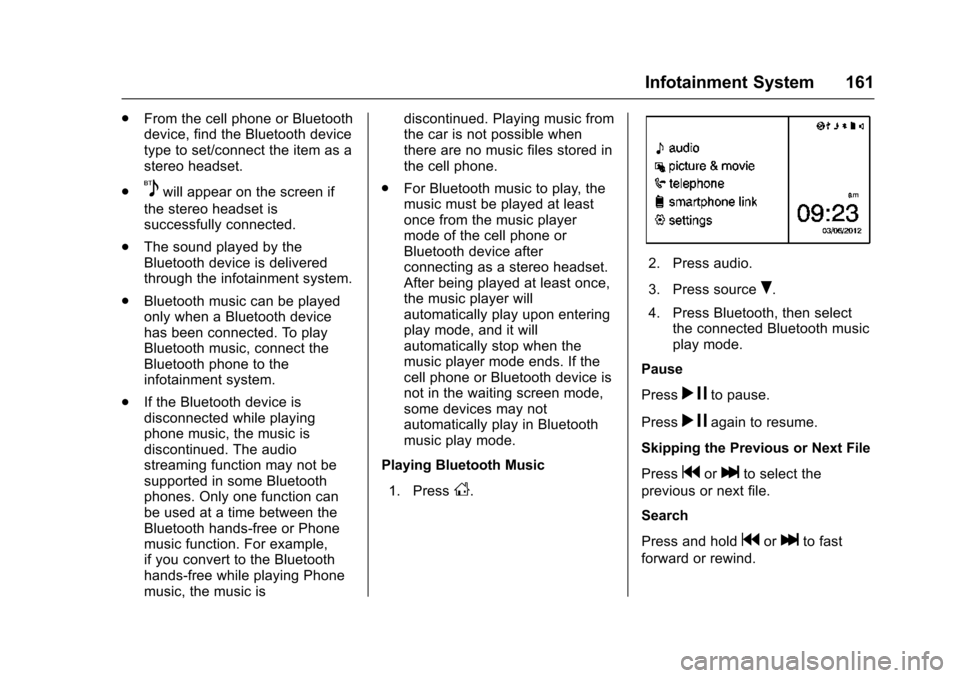
Playing Bluetooth Music
1. Press
D.
2. Press audio.
3. Press source
R.
4. Press Bluetooth, then select the connected Bluetooth music
play mode.
Pause
Press
r jto pause.
Press
r jagain to resume.
Skipping the Previous or Next File
Press
gorlto select the
previous or next file.
Search
Press and hold
gorlto fast
forward or rewind.
Page 163 of 358
Chevrolet TRAX Owner Manual (GMNA-Localizing-U.S./Canada/Mexico-
9159371) - 2016 - crc - 5/21/15
162 Infotainment System
Playing a File Repeatedly
Press
vduring playback.
. 1: Plays the current file
repeatedly.
. ALL: Plays all files repeatedly.
. OFF: Returns to normal
playback.
This function may not be supported
depending on the cell phone.
Playing a File Randomly
Press
uduring playback.
. NO: Plays all files repeatedly.
. OFF: Returns to normal
playback.
This function may not be supported
depending on the cell phone.
Do not change the track too quickly
when playing Bluetooth music.
Conditions that may occur when
playing Bluetooth music:
. It takes some time to transmit
data from the cell phone to the
infotainment system. .
If the cell phone or Bluetooth
device is not in the waiting
screen mode, it may not
automatically play despite being
carried out from the Bluetooth
music play mode.
. The infotainment system
transmits the order to play from
the cell phone in the Bluetooth
music play mode. If this is done
in a different mode, then the
device transmits the order to
stop. Depending on the cell
phone’s options, this order to
play/stop may take time to
activate.
. If the Bluetooth music playback
is not functioning, then check to
see if the cell phone is in the
waiting screen mode.
. Sounds may be cut off during
the Bluetooth music playback.
. The infotainment system outputs
the audio from the cell phone or
Bluetooth device as it is
transmitted.
Bluetooth (Voice
Recognition)
Using Voice Recognition
To use voice recognition, pressb/
gon the steering wheel. Use the
commands below for the various
voice features. For additional
information, say "Help" while you
are in a voice recognition menu.
Pairing
A Bluetooth-enabled cell phone
must be paired to the Bluetooth
system and then connected to the
vehicle before it can be used. See
your cell phone manufacturer's user
guide for Bluetooth functions before
pairing the cell phone. If a Bluetooth
phone is not connected, calls will be
made using OnStar Hands-Free
Calling, if available. See OnStar (if
equipped).
Pairing Information
. A Bluetooth phone with MP3
capability can be paired to the
vehicle as a phone and an MP3
player at the same time.
Page 178 of 358
Chevrolet TRAX Owner Manual (GMNA-Localizing-U.S./Canada/Mexico-
9159371) - 2016 - crc - 5/21/15
Infotainment System 177
supported, but will only display
up to 2,500 files on the screen in
alphabetical order.
. Some iPod/iPhone product
models may not support the
connectivity or functionality of
this product.
. Only connect the iPod/iPhone
with connection cables
supported by iPod/iPhone
products. Other connection
cables cannot be used.
. The iPod/iPhone may be
damaged if it is connected to the
vehicle with the ignition on.
When not in use, disconnect the
iPod/iPhone.
. When the iPod/iPhone is
connected to the USB port by
using the iPod/iPhone cable, the
Bluetooth music is not
supported.
. Connect the iPod/iPhone to the
USB port by using the iPod/
iPhone cable to play the music
files. When the iPod/iPhone is
connected to the AUX input terminal, the music file will play,
but can’t be controlled by the
infotainment system.
. The iPod/iPhone playback
functions and the information
displayed may be different when
played on the infotainment
system.
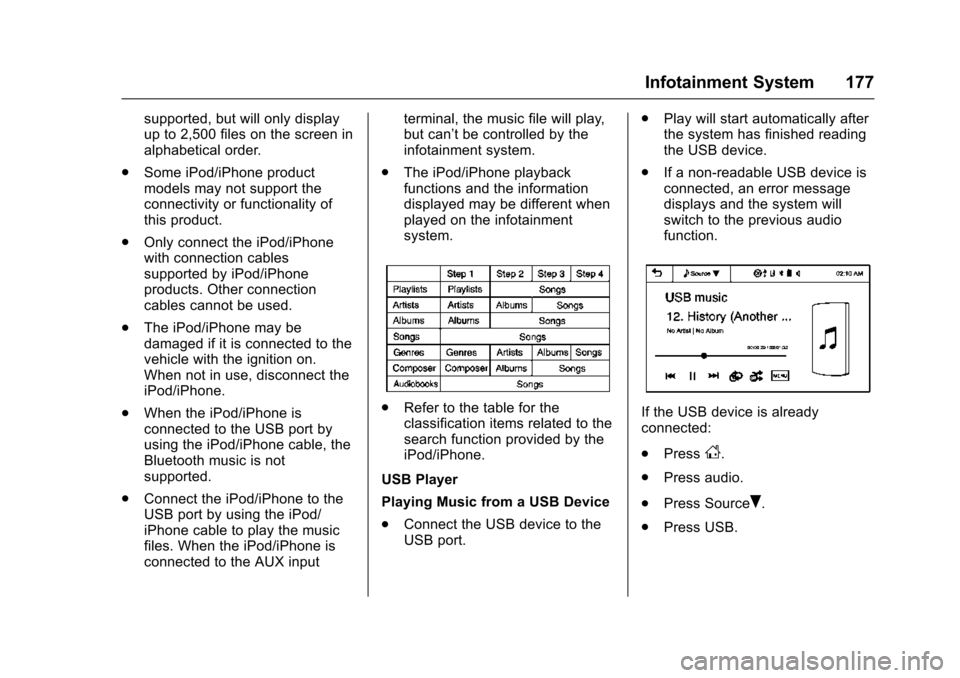
.Refer to the table for the
classification items related to the
search function provided by the
iPod/iPhone.
USB Player
Playing Music from a USB Device
. Connect the USB device to the
USB port. .
Play will start automatically after
the system has finished reading
the USB device.
. If a non-readable USB device is
connected, an error message
displays and the system will
switch to the previous audio
function.If the USB device is already
connected:
.Press
D.
. Press audio.
. Press Source
R.
. Press USB.
Page 180 of 358
Chevrolet TRAX Owner Manual (GMNA-Localizing-U.S./Canada/Mexico-
9159371) - 2016 - crc - 5/21/15
Infotainment System 179
.Press the play mode.
Tone Settings
1. Press
R.
2. Press tone settings. The Tone Settings menu is displayed.
See “Tone Settings” under
“Radio Controls with
Touchscreen” inOperation
0 136.
Media Transfer Protocol (MTP)
This allows music files on a
supported MTP devices to be
played.
Playing Music Files
. Connect the supported device to
the USB port.
. After the infotainment system
reads the device, it will start
to play.
. If a non-readable USB device is
connected, an error message
displays and the system will
switch to the previous audio
function.
Depending on the connected
device, some files may not play. File loading may take few minutes
depending on the type of phone or
the number of file/folder stored in it.
When the MTP device is connected,
the Infotainment system scans
audio files first, then picture and
movie files. Picture and movie files
are not available even if the audio
file in MTP device is played.
MTP device that has external
memory may be recognized as
USB1/USB2.
For other USB operations see
USB
Port 0147.
When a MTP device is connected
and another app is running at the
same time, there may be a delay in
the rear vision camera.
iPod/iPhone Player
This feature is limited to models
supporting the iPod/iPhone
connection.
Playing Music Files
. Connect the iPod/iPhone to the
USB port. .
Play will start from the previously
played point after the system
has finished reading the USB
device.
. If a non-readable USB device is
connected, an error message
displays and the system will
switch to the previous audio
function.
. Connect the iPod/iPhone to the
USB port.
. Play will start from the previously
played point after the system
has finished reading the USB
device.
. If a non-readable USB device is
connected, an error message
displays and the system will
switch to the previous audio
function.
If the iPod/iPhone is already
connected:
1. Press
D.
2. Press
eaudio.
3. Press Source
R.
4. Press iPod.
Page 349 of 358

Chevrolet TRAX Owner Manual (GMNA-Localizing-U.S./Canada/Mexico-
9159371) - 2016 - crc - 5/21/15
348 Index
Assistance Program,Roadside . . . . . . . . . . . . . . . . . . . . . . 327
Audio Bluetooth . . . . . . . . . . . . . . . . . . . . . 152
Theft-Deterrent Feature . . . . . . . 130
Audio Players CD . . . . . . . . . . . . . . . . . . . . . . . . . . . 146
Automatic Door Locks . . . . . . . . . . . . . . . . . . . . . 31
Headlamp System . . . . . . . . . . . . 124
Transmission . . . . . . . . . . . . . . . . . .211
Transmission Fluid . . . . . . . . . . . 241
Automatic Transmission Manual Mode . . . . . . . . . . . . . . . . . 213
Shift Lock Control FunctionCheck . . . . . . . . . . . . . . . . . . . . . . . 254
Auxiliary Devices . . . . . . . . . . . . . . . . . . . . . . . 151
B
BatteryLoad Management . . . . . . . . . . . . 127
Power Protection . . . . . . . . . . . . . 128
Battery - North America . . . . 252, 293
Blade Replacement, Wiper . . . . . 255
Bluetooth Overview . . . . . . . . . . . 153, 154, 162
Bluetooth Audio . . . . . . . . . . . . . . . . 152 Brake
System Warning Light . . . . . . . . 103
Brakes . . . . . . . . . . . . . . . . . . . . . . . . . . 250 Antilock . . . . . . . . . . . . . . . . . . . . . . . 216
Assist . . . . . . . . . . . . . . . . . . . . . . . . . 217
Fluid . . . . . . . . . . . . . . . . . . . . . . . . . . 251
Parking . . . . . . . . . . . . . . . . . . . . . . . 217
Braking . . . . . . . . . . . . . . . . . . . . . . . . . 193
Break-In, New Vehicle . . . . . . . . . . 203
Bulb Replacement . . . . . . . . . . . . . . 259 Halogen Bulbs . . . . . . . . . . . . . . . . 256
Headlamp Aiming . . . . . . . . . . . . . 256
Headlamps . . . . . . . . . . . . . . . . . . . 256
Headlamps, Front Turn
Signal, and Parking
Lamps . . . . . . . . . . . . . . . . . . . . . . 257
License Plate Lamps . . . . . . . . . 258
Buying New Tires . . . . . . . . . . . . . . . 281
C
Calibration . . . . . . . . . . . . . . . . . . . . . . . 93
California Perchlorate MaterialsRequirements . . . . . . . . . . . . . . . 232
California Proposition
65 Warning . . . . . . . . . .232, 252, 293
Camera Rear Vision (RVC) . . . . . . . . . . . . 222 Canadian Vehicle Owners . . . . . . . . 2
Capacities and
Specifications . . . . . . . . . . . . . . . . . 321
Carbon Monoxide Engine Exhaust . . . . . . . . . . . . . . . 210
Liftgate . . . . . . . . . . . . . . . . . . . . . . . . . 32
Winter Driving . . . . . . . . . . . . . . . . 197
Cargo Cover . . . . . . . . . . . . . . . . . . . . . . . . . . . 87
Management System . . . . . . . . . . . 88
Caution, Danger, and Warning . . . . 3
CD Player . . . . . . . . . . . . . . . . . . . . . . 146
Chains, Tire . . . . . . . . . . . . . . . . . . . . 285
Charging System Light . . . . . . . . . 101
Check Ignition Transmission Lock . . . 254
Malfunction Indicator
Engine Light . . . . . . . . . . . . . . . . 101
Child Restraints Infants and Young Children . . . . . 70
Lower Anchors and Tethersfor Children . . . . . . . . . . . . . . . . . . . 75
Older Children . . . . . . . . . . . . . . . . . . 68
Securing . . . . . . . . . . . . . . . . . . . . 81, 83
Systems . . . . . . . . . . . . . . . . . . . . . . . . 72
Circuit Breakers . . . . . . . . . . . . . . . . 260
Cleaning Exterior Care . . . . . . . . . . . . . . . . . 298