USB CHEVROLET TRAX 2016 1.G User Guide
[x] Cancel search | Manufacturer: CHEVROLET, Model Year: 2016, Model line: TRAX, Model: CHEVROLET TRAX 2016 1.GPages: 358, PDF Size: 5.07 MB
Page 151 of 358
Chevrolet TRAX Owner Manual (GMNA-Localizing-U.S./Canada/Mexico-
9159371) - 2016 - crc - 5/21/15
150 Infotainment System
Repeat Functionality
Turn the MENU/TUNE knob and set
Repeat to On or Off.
Repeat On :Repeats the current
track.
Repeat Off : Playback starts from
the beginning of the current track
after the last track finishes.
Radio with Touchscreen
The infotainment system can play
music or movies by connecting an
auxiliary device to the USB port.
USB Support
USB Supported Devices
. USB Flash Drives
. Portable USB Hard Drives
. 2G-5G iPod nano
®
.1G-3G iPod touch®
.120GB/160GB iPod classic®
.
3G/3GS/4/4S iPhone®
Not all iPods and USB drives are
compatible with the USB port. Make sure the iPod has the latest
firmware from Apple
®for proper
operation. iPod firmware can be
updated using the latest iTunes
®
application. See www.apple.com/
itunes.
For help with identifying your iPod,
go to www.apple.com/support.
The USB port can play both lower
and upper case .mp3, .wma, .ogg,
and .wav files stored on a USB
storage device.
USB Supported File and Folder
Structure
The Infotainment system supports:
. Up to 2,500 folders.
. Up to 10 folders in depth.
. Up to 2,500 music files.
. Up to 2,500 photo files.
. Up to 250 movie files.
. ID3 Tag (versions 1.0/1.1/2.2/
2.3/2.4).
. FAT16.
. FAT32.
. exFAT.
Connecting a USB Storage
Device or iPod/iPhone
To connect a USB storage device,
connect the device to the USB port.
To connect an iPod/iPhone, connect
one end of the device’ s cable to the
iPod/iPhone and the other end to
the USB port.
The iPod/iPhone charges while it is
connected to the vehicle if the
vehicle is in the ACC/ACCESSORY
or ON/RUN position. When the
vehicle is turned off, the iPod/
iPhone automatically powers off and
will not charge or draw power from
the vehicle's battery.
For more information on USB
usage, see “Audio System” in
Pictures and Movies (Picture
System) 0181 orPictures and
Movies (Movie System) 0182 or
Pictures and Movies (Audio System)
0 175.
Page 152 of 358
Chevrolet TRAX Owner Manual (GMNA-Localizing-U.S./Canada/Mexico-
9159371) - 2016 - crc - 5/21/15
Infotainment System 151
Auxiliary Devices
The 3.5 mm (1/8 in) AUX input jack,
if equipped, is on the front of the
infotainment system. SeeOverview
(Radio with Touchscreen) 0135 or
Overview (AM-FM Radio) 0131 or
Overview (Radio with CD/USB)
0 133.
Portable devices are controlled by
using the menu system described in
Operation 0136.
Radio without Touchscreen
Connect a 3.5 mm (1/8 in) cable to
the auxiliary input jack to use a
portable audio player.
The infotainment system will
automatically switch to the device
when the device is connected to the
AUX input jack. Press the CD/AUX
button to switch to a device that is
already connected.
Playback of an audio device that is
connected to the 3.5 mm (1/8 in)
jack can only be controlled using
the controls on the device. Adjusting the Volume
Turn the
O/VOL knob to adjust the
volume of the infotainment system
after the volume level has been set
on the portable audio device.
Radio with Touchscreen
The infotainment system can play
music or movies connected by the
auxiliary device.
Play will begin when the system has
finished reading the information on
the device.
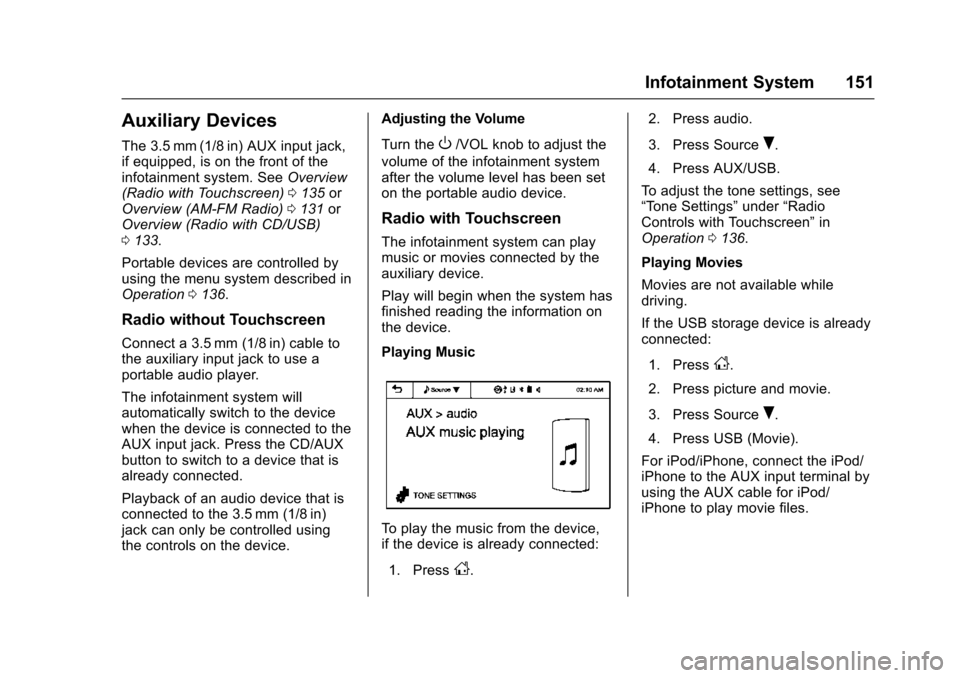
Playing Music
To play the music from the device,
if the device is already connected:
1. Press
D. 2. Press audio.
3. Press Source
R.
4. Press AUX/USB.
To adjust the tone settings, see
“Tone Settings” under“Radio
Controls with Touchscreen” in
Operation 0136.
Playing Movies
Movies are not available while
driving.
If the USB storage device is already
connected:
1. Press
D.
2. Press picture and movie.
3. Press Source
R.
4. Press USB (Movie).
For iPod/iPhone, connect the iPod/
iPhone to the AUX input terminal by
using the AUX cable for iPod/
iPhone to play movie files.
Page 172 of 358
Chevrolet TRAX Owner Manual (GMNA-Localizing-U.S./Canada/Mexico-
9159371) - 2016 - crc - 5/21/15
Infotainment System 171
Stitcher SmartRadio is an Internet
radio service that streams news,
sports, and entertainment shows
through the audio system. Create
personalized, on-demand stations or
discover new shows through
Stitcher's preset stations. To set up
an account, download the
application from the Android Market
or iTunes Store, or go to
www.stitcher.com.
A phone or tablet with Internet
connection and the application
installed is required. Personal cell
phone data plans are used. Make
sure the latest version is installed
on the device and the volume is
turned up.
Smartphone Supported by
Application
To use Applications:
.Connect an iPod/iPhone using
the USB port.
. Connect Andriod™ phones
through Bluetooth. iPod/iPhone Error Messages and
Solutions
If the system fails to activate the
application on the iPod/iPhone
connected, an error message is
displayed as,
“Unable to start
application, possible reasons.”
. Your iPhone is locked. To
resolve, unlock the iPhone.
. You have another active
application open. To resolve,
close the other active
application.
. You have not installed the
application on your iPhone. To
resolve, install the application on
the iPhone.
iOS Version Error
If the iOS version of the iPhone is
less than 4.0, the error message is
displayed as, “Your iPhone does not
allow this application to be opened
on a USB connection. Please refer
to owner ’s manual.”
. Activate the application on your
iPhone, then touch the desired
application menu on the
infotainment system. Connecting Application Error
If the infotainment system fails to
activate the application on the
smartphone connected through
Bluetooth wireless technology, the
error message is displayed as,
“Connecting application failed.”
.
Reset all settings related to the
phone, then touch the desired
application menu on the
infotainment system.
. Reconnect the smartphone and
infotainment system through
Bluetooth wireless technology,
then touch the desired
application menu on the
infotainment system.
. When the application is stopped
on the smartphone, it usually
takes time to return to normal
operation. Try to activate the
application after 10–20 seconds.
To switch to another application
while playing an application and
connected through the USB port,
touch HOME on the iPod/iPhone,
then touch the application icon on
the infotainment system.
Page 173 of 358
Chevrolet TRAX Owner Manual (GMNA-Localizing-U.S./Canada/Mexico-
9159371) - 2016 - crc - 5/21/15
172 Infotainment System
Switching Between a USB
Connected Device and a
Bluetooth Device
When the iPhone is connected to
the infotainment system through the
USB port, and the infotainment
system is connected to another
phone through Bluetooth wireless
technology, touch iPhone or
bluetooth phone on the smartphone
list menu to switch between the two
applications.
Displaying or Hiding Application
Icons
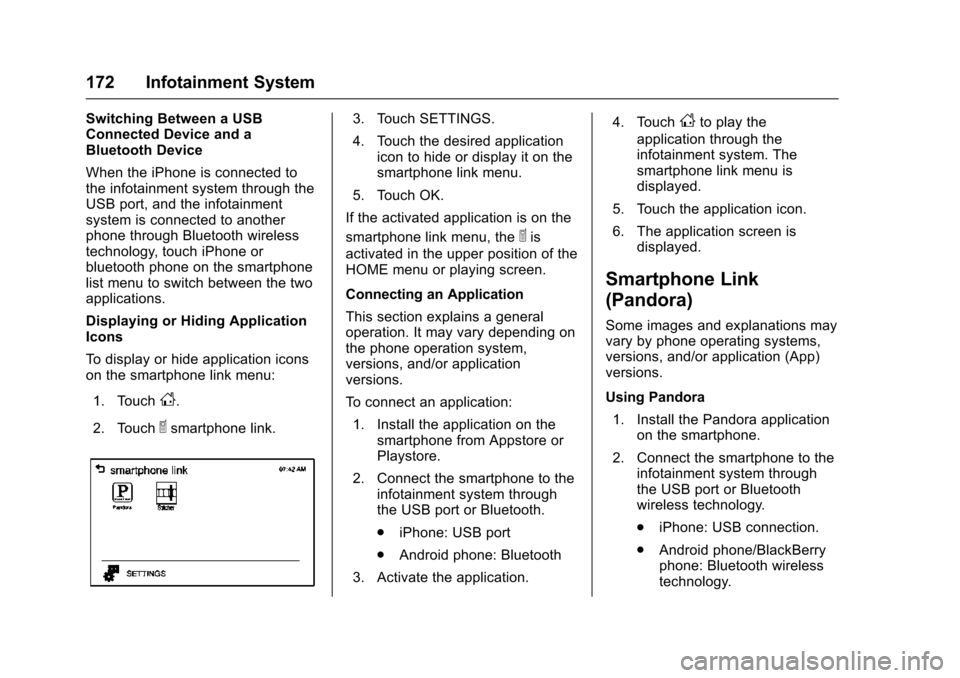
To display or hide application icons
on the smartphone link menu:1. Touch
D.
2. Touch
^smartphone link.
3. Touch SETTINGS.
4. Touch the desired application icon to hide or display it on the
smartphone link menu.
5. Touch OK.
If the activated application is on the
smartphone link menu, the
^is
activated in the upper position of the
HOME menu or playing screen.
Connecting an Application
This section explains a general
operation. It may vary depending on
the phone operation system,
versions, and/or application
versions.
To connect an application:
1. Install the application on the smartphone from Appstore or
Playstore.
2. Connect the smartphone to the infotainment system through
the USB port or Bluetooth.
.iPhone: USB port
. Android phone: Bluetooth
3. Activate the application. 4. Touch
Dto play the
application through the
infotainment system. The
smartphone link menu is
displayed.
5. Touch the application icon.
6. The application screen is displayed.
Smartphone Link
(Pandora)
Some images and explanations may
vary by phone operating systems,
versions, and/or application (App)
versions.
Using Pandora
1. Install the Pandora application on the smartphone.
2. Connect the smartphone to the infotainment system through
the USB port or Bluetooth
wireless technology.
.iPhone: USB connection.
. Android phone/BlackBerry
phone: Bluetooth wireless
technology.
Page 175 of 358
Chevrolet TRAX Owner Manual (GMNA-Localizing-U.S./Canada/Mexico-
9159371) - 2016 - crc - 5/21/15
174 Infotainment System
Tone Settings1. Press MENU. The Pandora menu is displayed.
2. Press tone settings. The tone settings menu is displayed.
See “Tone Settings” under
“Radio Controls with
Touchscreen” inOperation
0 136.
Smartphone Link
(Stitcher)
Some images and explanations may
vary by phone operating systems,
versions, and/or application (App)
versions.
Using Stitcher
1. Install the Stitcher application on the smartphone.
2. Connect the smartphone to the infotainment system through
the USB port or Bluetooth
wireless technology.
.iPhone: USB connection. .
Android phone/BlackBerry
phone: Bluetooth wireless
technology.
3. Activate the Stitcher application.
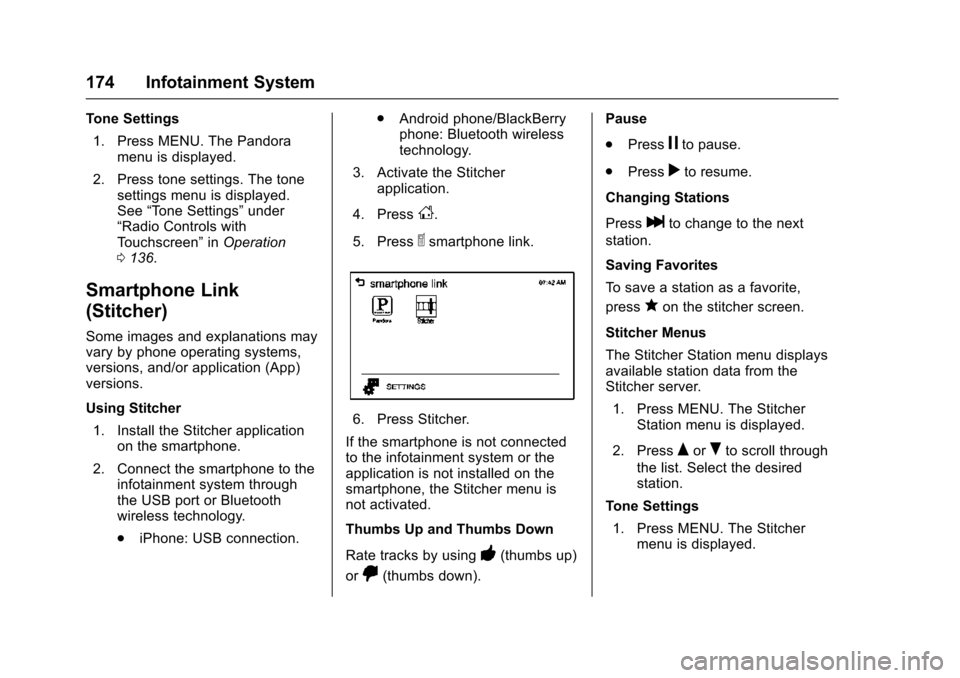
4. Press
D.
5. Press
^smartphone link.
6. Press Stitcher.
If the smartphone is not connected
to the infotainment system or the
application is not installed on the
smartphone, the Stitcher menu is
not activated.
Thumbs Up and Thumbs Down
Rate tracks by using
-(thumbs up)
or
,(thumbs down). Pause
.
Press
jto pause.
. Press
rto resume.
Changing Stations
Press
lto change to the next
station.
Saving Favorites
To save a station as a favorite,
press
qon the stitcher screen.
Stitcher Menus
The Stitcher Station menu displays
available station data from the
Stitcher server. 1. Press MENU. The Stitcher Station menu is displayed.
2. Press
QorRto scroll through
the list. Select the desired
station.
Tone Settings 1. Press MENU. The Stitcher menu is displayed.
Page 176 of 358
Chevrolet TRAX Owner Manual (GMNA-Localizing-U.S./Canada/Mexico-
9159371) - 2016 - crc - 5/21/15
Infotainment System 175
2. Press tone settings. The tonesettings menu is displayed.
See “Tone Settings” under
“Radio Controls with
Touchscreen” inOperation
0 136.
Stitcher usage recommendations:
. Data transference speed must
be 3G or greater.
. Make sure the latest version of
Stitcher is installed, selecting the
correct download depending on
the cellular system.
. Turn the phone Off and restart
after the download of Stitcher is
complete.
. Apple products (iPhone, iPod,
iPAD), the iOS must be 4.0 or
greater.
. Android products version must
be 2.0 or greater.
. If error messages are received
from the radio or phone, turn the
phone off and remove the
battery.
. Avoid switching between Audio
Bluetooth and Stitcher sources. .
Launch Stitcher from the radio
every time the vehicle is
turned on.
Stitcher offers podcast audio based
on phone characteristics, meaning
the launch of audio would depend
on the podcast size and phone
connection.
Phone connection factors are:
. Speed and traffic of
transmission data.
. Hours on usage.
. Applications stored on the
device.
. Available memory of phone.Bluetooth Phone/
Devices
Pictures and Movies
(Audio System)
The infotainment system can play
the music files contained in the USB
storage device or iPod/iPhone
products.
Audio System Information
Using MP3/WMA/OGG/WAV Files
.Music files with .mp3, .wma,
.ogg, and .wav file name
extensions can be played.
. MP3 files that can be played are:
Bit rate: 8 kbps to 320 kbps -
Sampling frequency: 48 kHz,
44.1 kHz, 32 kHz, 24 kHz, 22.05
kHz, and 16 kHz.
. Files with a bit rate above
128 kbps will result in higher
quality sound.
. ID3 Tag information for MP3
files, such as the album name
and the artist, can be played.
Page 177 of 358

Chevrolet TRAX Owner Manual (GMNA-Localizing-U.S./Canada/Mexico-
9159371) - 2016 - crc - 5/21/15
176 Infotainment System
.To display album title, track title,
and artist information, the file
should be compatible with the
ID3 Tag V1 and V2 formats.
Using USB Storage Devices and
iPod/iPhone
. Use a USB or flash memory type
storage device. Do not connect
using a USB adaptor.
. Do not connect and reconnect
the USB device repeatedly in a
short time, as this may cause
static electricity and problems
using the device.
. Use a USB device with a metal
connecting terminal.
. Connection with i-Stick Type
USB storage devices may be
faulty due to vehicle vibration.
. Do not touch the USB
connecting terminal.
. Only USB storage devices
formatted in FAT16/32, exFAT
file system are recognized.
NTFS and other file systems are
not recognized. .
The time it takes to process files
will depend on the USB storage
device type and capacity, and
the type of files stored.
. Some USB storage device files
may not be compatible.
. Up to two USB devices and one
iPod can be played through a
USB hub. All devices may not be
supported, depending on the
performance of the USB hub.
If there is not enough power
supply, it may not operate
normally.
. Do not disconnect the USB
storage device while it is playing.
This may cause damage to the
product or affect the
performance of the USB device.
. Disconnect the USB storage
device when the ignition is
turned off. If the ignition is turned
on while the USB device is
connected, the USB device may
be damaged or may not operate
normally. .
USB storage devices can only
be connected for playing music/
movies, viewing photo files,
or upgrading.
. Do not use the USB terminal to
charge USB accessory
equipment. The heat generated
may cause performance issues
or damage.
. Store files in the top-level drive
of the USB storage device.
When the logical drive is
separated from the device, only
the USB music files from the
top-level logical drive can be
played. Music files stored on
USB storage devices may not
play normally if an application is
loaded by partitioning a separate
drive.
. Music files to which Digital Right
Management (DRM) is applied
cannot be played.
. USB storage device capacity
limit is 2,500 music files, 2,500
photo files, 250 movie files,
2,500 folders, and 10 stages of
folder structure. The iPod/iPhone
can play all music files
Page 178 of 358
Chevrolet TRAX Owner Manual (GMNA-Localizing-U.S./Canada/Mexico-
9159371) - 2016 - crc - 5/21/15
Infotainment System 177
supported, but will only display
up to 2,500 files on the screen in
alphabetical order.
. Some iPod/iPhone product
models may not support the
connectivity or functionality of
this product.
. Only connect the iPod/iPhone
with connection cables
supported by iPod/iPhone
products. Other connection
cables cannot be used.
. The iPod/iPhone may be
damaged if it is connected to the
vehicle with the ignition on.
When not in use, disconnect the
iPod/iPhone.
. When the iPod/iPhone is
connected to the USB port by
using the iPod/iPhone cable, the
Bluetooth music is not
supported.
. Connect the iPod/iPhone to the
USB port by using the iPod/
iPhone cable to play the music
files. When the iPod/iPhone is
connected to the AUX input terminal, the music file will play,
but can’t be controlled by the
infotainment system.
. The iPod/iPhone playback
functions and the information
displayed may be different when
played on the infotainment
system.
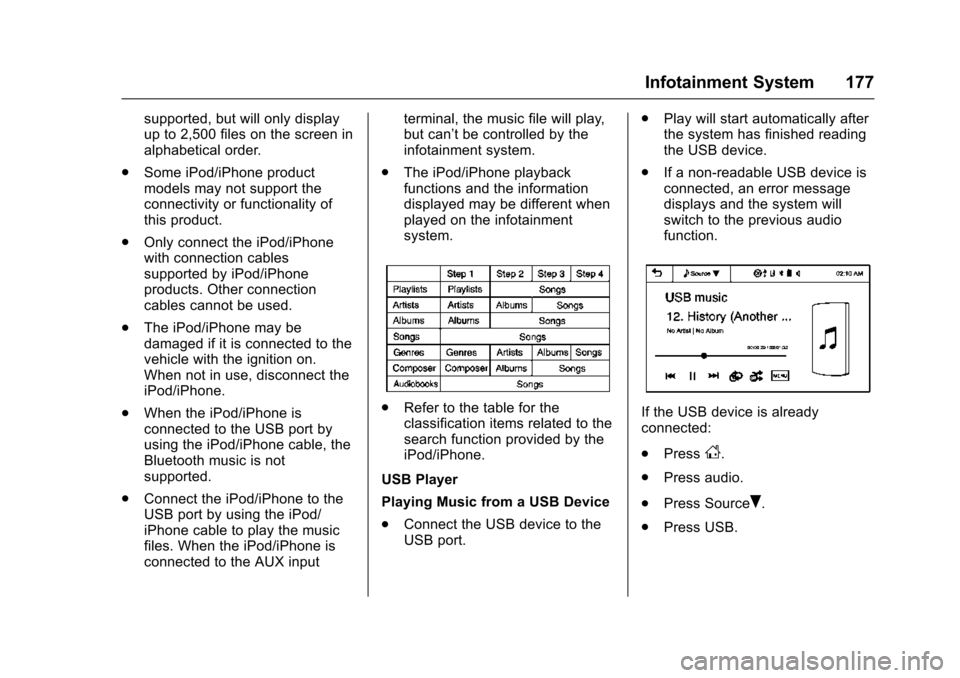
.Refer to the table for the
classification items related to the
search function provided by the
iPod/iPhone.
USB Player
Playing Music from a USB Device
. Connect the USB device to the
USB port. .
Play will start automatically after
the system has finished reading
the USB device.
. If a non-readable USB device is
connected, an error message
displays and the system will
switch to the previous audio
function.If the USB device is already
connected:
.Press
D.
. Press audio.
. Press Source
R.
. Press USB.
Page 179 of 358
Chevrolet TRAX Owner Manual (GMNA-Localizing-U.S./Canada/Mexico-
9159371) - 2016 - crc - 5/21/15
178 Infotainment System
To stop the USB device and select
another media source, press
Source
R, then select the other
source.
To remove the USB device, select
another function, then remove the
USB device.
Pause
. Press
jto pause.
. Press
rto resume.
Changing to Next/Previous Files
. Press
lto change to the
next file.
. Press
gwithin five seconds of
the playback time to play the
previous file.
Returning to the Beginning of the
Current File
Press
gafter five seconds of the
playback time. Scanning Forward or Backward
Press and hold
gorlduring
playback to rewind or fast forward.
Release the button to resume
playback at normal speed.
Playing a File Repeatedly
Press
vduring playback.
. 1: Plays the current file
repeatedly.
. ALL: Plays all files repeatedly.
. OFF: Returns to normal
playback.
Playing a File Randomly
Press
uduring playback.
. ON: Plays all files randomly.
. OFF: Returns to normal
playback. Viewing Information on the
Currently Playing File
Press the title during playback to
display information about the current
file playing.
.
The information displayed
includes the title, file name,
folder name, and artist/album
saved with the song.
. Incorrect information cannot be
modified or corrected on the
infotainment system.
. The information for songs
expressed in special symbols or
in unavailable languages may be
displayed as “u.”
Using the USB Music Menu
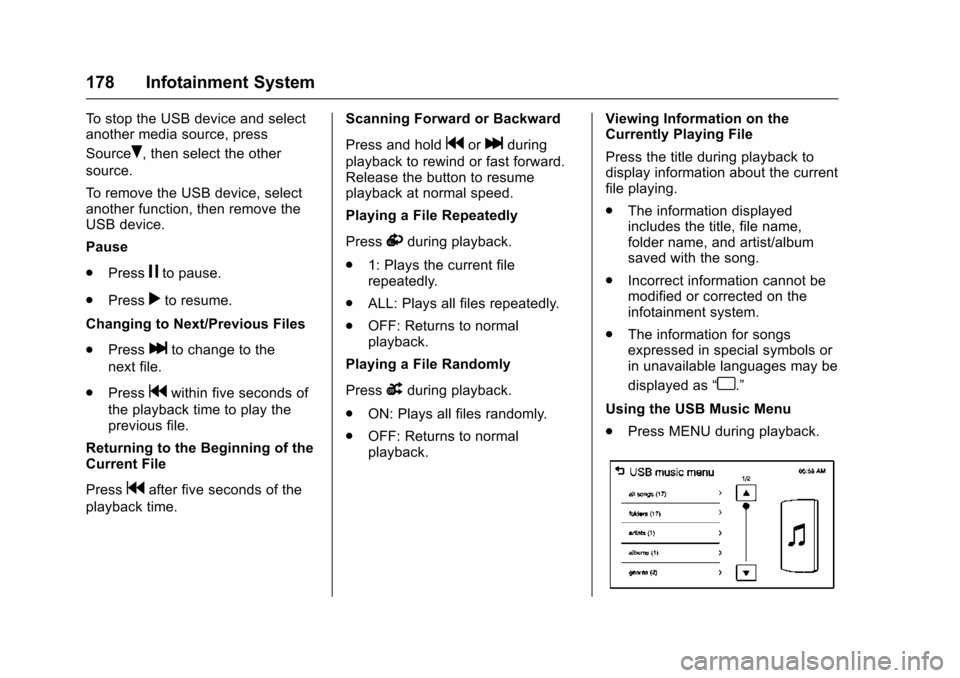
. Press MENU during playback.
Page 180 of 358
Chevrolet TRAX Owner Manual (GMNA-Localizing-U.S./Canada/Mexico-
9159371) - 2016 - crc - 5/21/15
Infotainment System 179
.Press the play mode.
Tone Settings
1. Press
R.
2. Press tone settings. The Tone Settings menu is displayed.
See “Tone Settings” under
“Radio Controls with
Touchscreen” inOperation
0 136.
Media Transfer Protocol (MTP)
This allows music files on a
supported MTP devices to be
played.
Playing Music Files
. Connect the supported device to
the USB port.
. After the infotainment system
reads the device, it will start
to play.
. If a non-readable USB device is
connected, an error message
displays and the system will
switch to the previous audio
function.
Depending on the connected
device, some files may not play. File loading may take few minutes
depending on the type of phone or
the number of file/folder stored in it.
When the MTP device is connected,
the Infotainment system scans
audio files first, then picture and
movie files. Picture and movie files
are not available even if the audio
file in MTP device is played.
MTP device that has external
memory may be recognized as
USB1/USB2.
For other USB operations see
USB
Port 0147.
When a MTP device is connected
and another app is running at the
same time, there may be a delay in
the rear vision camera.
iPod/iPhone Player
This feature is limited to models
supporting the iPod/iPhone
connection.
Playing Music Files
. Connect the iPod/iPhone to the
USB port. .
Play will start from the previously
played point after the system
has finished reading the USB
device.
. If a non-readable USB device is
connected, an error message
displays and the system will
switch to the previous audio
function.
. Connect the iPod/iPhone to the
USB port.
. Play will start from the previously
played point after the system
has finished reading the USB
device.
. If a non-readable USB device is
connected, an error message
displays and the system will
switch to the previous audio
function.
If the iPod/iPhone is already
connected:
1. Press
D.
2. Press
eaudio.
3. Press Source
R.
4. Press iPod.