buttons CHEVROLET TRAX 2016 1.G User Guide
[x] Cancel search | Manufacturer: CHEVROLET, Model Year: 2016, Model line: TRAX, Model: CHEVROLET TRAX 2016 1.GPages: 358, PDF Size: 5.07 MB
Page 134 of 358
Chevrolet TRAX Owner Manual (GMNA-Localizing-U.S./Canada/Mexico-
9159371) - 2016 - crc - 5/21/15
Infotainment System 133
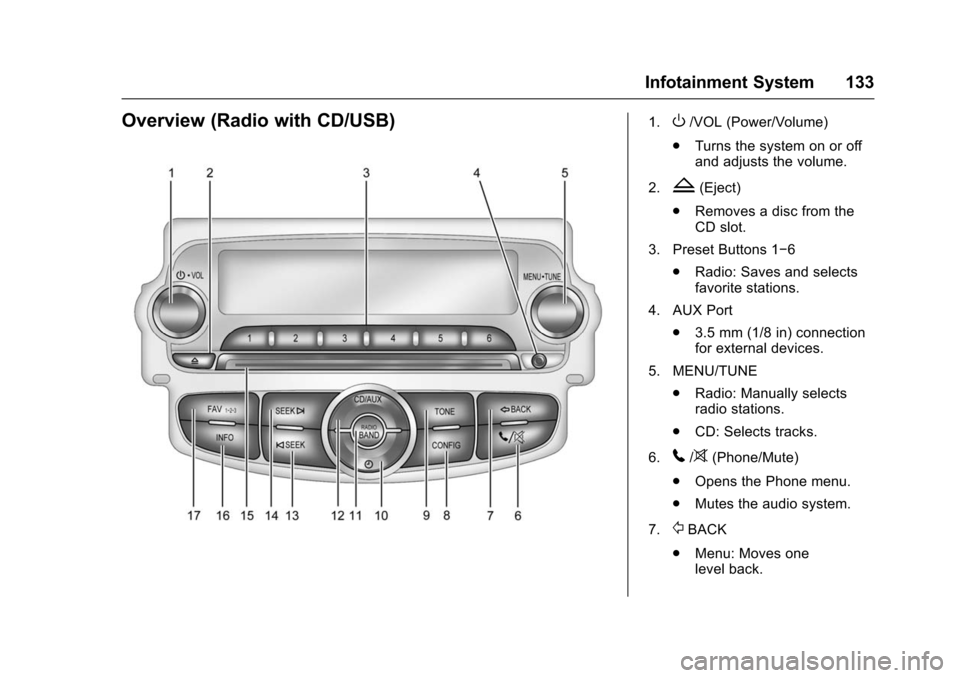
Overview (Radio with CD/USB)1.O/VOL (Power/Volume)
. Turns the system on or off
and adjusts the volume.
2.
Z(Eject)
. Removes a disc from the
CD slot.
3. Preset Buttons 1−6 .Radio: Saves and selects
favorite stations.
4. AUX Port .3.5 mm (1/8 in) connection
for external devices.
5. MENU/TUNE .Radio: Manually selects
radio stations.
. CD: Selects tracks.
6.
5/>(Phone/Mute)
. Opens the Phone menu.
. Mutes the audio system.
7.
/BACK
. Menu: Moves one
level back.
Page 136 of 358
Chevrolet TRAX Owner Manual (GMNA-Localizing-U.S./Canada/Mexico-
9159371) - 2016 - crc - 5/21/15
Infotainment System 135
Overview (Radio with Touchscreen)
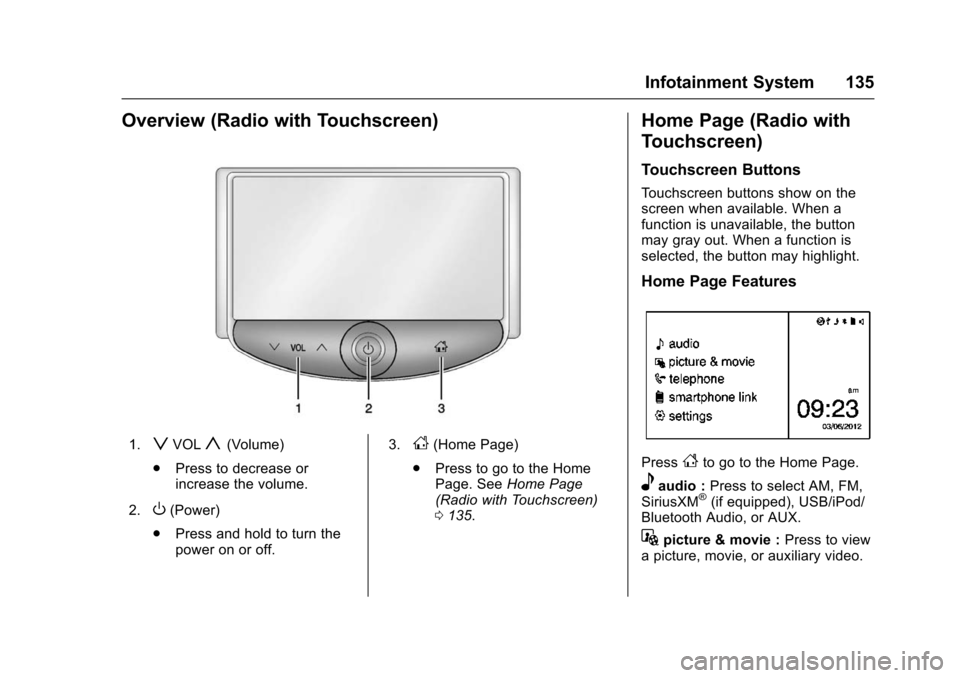
1.zVOLy(Volume)
. Press to decrease or
increase the volume.
2.
O(Power)
. Press and hold to turn the
power on or off. 3.
D(Home Page)
. Press to go to the Home
Page. See Home Page
(Radio with Touchscreen)
0 135.
Home Page (Radio with
Touchscreen)
Touchscreen Buttons
Touchscreen buttons show on the
screen when available. When a
function is unavailable, the button
may gray out. When a function is
selected, the button may highlight.
Home Page Features
PressFto go to the Home Page.
eaudio : Press to select AM, FM,
SiriusXM®(if equipped), USB/iPod/
Bluetooth Audio, or AUX.
Gpicture & movie : Press to view
a picture, movie, or auxiliary video.
Page 137 of 358
Chevrolet TRAX Owner Manual (GMNA-Localizing-U.S./Canada/Mexico-
9159371) - 2016 - crc - 5/21/15
136 Infotainment System
7telephone :Press to activate
the phone features (if equipped).
See Bluetooth (Voice Recognition)
0 162 orBluetooth (Overview) 0153
or Bluetooth (Infotainment Controls)
0 154.
^smartphone link : Press to listen
to Pandora®(if equipped), Stitcher®,
or available application. See
Smartphone Link (Overview) 0170
or Smartphone Link (Pandora)
0 172 orSmartphone Link (Stitcher)
0 174.
8settings : Press to access the
Personalization menu. See Vehicle
Personalization 0114.
Operation
Radio Controls without
Touchscreen
The infotainment system is operated
by using the pushbuttons,
multifunction knobs, and menus
shown on the display.
Turning the System On or Off
O/VOL (Power/Volume) : Press to
turn the radio on and off.
Automatic Switch-Off
If the infotainment system has been
turned on after the ignition is turned
off, the system will turn off
automatically after 10 minutes.
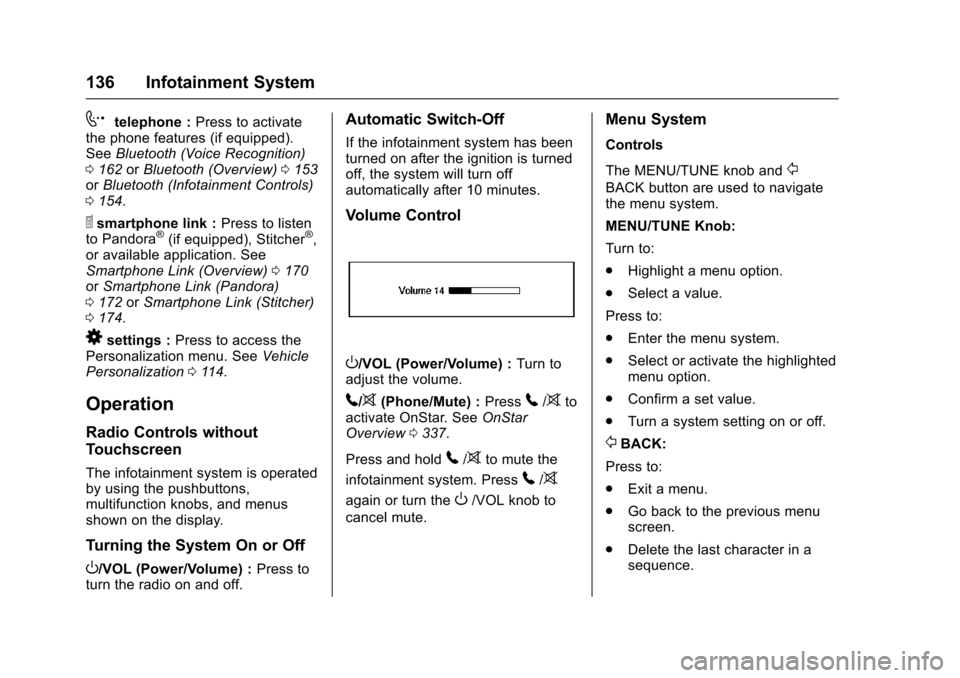
Volume Control
O/VOL (Power/Volume) : Turn to
adjust the volume.
5/>(Phone/Mute) : Press5/>to
activate OnStar. See OnStar
Overview 0337.
Press and hold
5/>to mute the
infotainment system. Press
5/>
again or turn theO/VOL knob to
cancel mute.
Menu System
Controls
The MENU/TUNE knob and
/
BACK button are used to navigate
the menu system.
MENU/TUNE Knob:
Turn to:
. Highlight a menu option.
. Select a value.
Press to:
. Enter the menu system.
. Select or activate the highlighted
menu option.
. Confirm a set value.
. Turn a system setting on or off.
/BACK:
Press to:
. Exit a menu.
. Go back to the previous menu
screen.
. Delete the last character in a
sequence.
Page 138 of 358
Chevrolet TRAX Owner Manual (GMNA-Localizing-U.S./Canada/Mexico-
9159371) - 2016 - crc - 5/21/15
Infotainment System 137
.Press and hold to delete the
entire character sequence.
Submenus
An arrow on the right-hand edge of
the menu indicates that it has a
submenu with other options.
Audio Settings
The audio settings can be set for
each radio band and each audio
player source.
Adjusting the Bass, Midrange,
Treble, Fader, and Balance 1. Press the TONE button.
2. Turn the MENU/TUNE knob to the desired tone.
3. Press the MENU/TUNE knob to select the desired tone.
4. Turn the MENU/TUNE knob to adjust the desired tone.
5. Press the MENU/TUNE knob to save the setting.
Press the
/BACK button to go
back to the Tone Settings menu. Adjusting the EQ (Equalizer)
1. Press the TONE button.
2. Turn the MENU/TUNE knob to EQ.
3. Press the MENU/TUNE knob.
4. Turn the MENU/TUNE knob to the desired setting.
5. Press the MENU/TUNE knob it select it.
Press the
/BACK button to go
back to the Tone Settings menu.
System Settings
Configuring the Number of
Favorite Pages
Up to six favorite pages can be
saved, and each page can store up
to six radio stations.
To configure the number of available
favorite pages:
1. Press the CONFIG button.
2. Select Radio Settings.
3. Select Radio Favorites.
4. Select the number of available favorite pages to display. 5. Press the
/BACK button to go
back to the System
Configuration menu.
Auto Volume
This feature automatically adjusts
the radio volume to compensate for
road and wind noise.
The level of volume compensation
can be selected, or the feature can
be turned off. 1. Press the CONFIG button.
2. Select Radio Settings.
3. Select Auto Volume.
4. Select the setting.
5. Press the
/BACK button to go
back to the System
Configuration menu.
Radio Controls with
Touchscreen
The infotainment system is operated
by using the pushbuttons, menus
shown on the display, and steering
wheel controls.
Page 140 of 358
Chevrolet TRAX Owner Manual (GMNA-Localizing-U.S./Canada/Mexico-
9159371) - 2016 - crc - 5/21/15
Infotainment System 139
Radio
AM-FM Radio
Playing the Radio without
Touchscreen
Audio Source Menu
O/VOL (Power/Volume):Press to
turn the system on and off. Turn to
increase or decrease the volume.
MENU/TUNE : Turn to change the
radio station.
RADIO/BAND : Press to select AM
and FM.
INFO : Press to display additional
information that may be available for
the current song.
FAV 123 : Press to open the
favorites list and select a
favorite page.
Preset Buttons 1–6 : Press to
select preset stations.
Radio Broadcast Data
System (RBDS)
RBDS is a service by FM stations
that makes it easier to find radio
stations with fault-free reception.
RBDS stations are indicated by the
program name instead of the
broadcasting frequency.
View RBDS Broadcast
Information
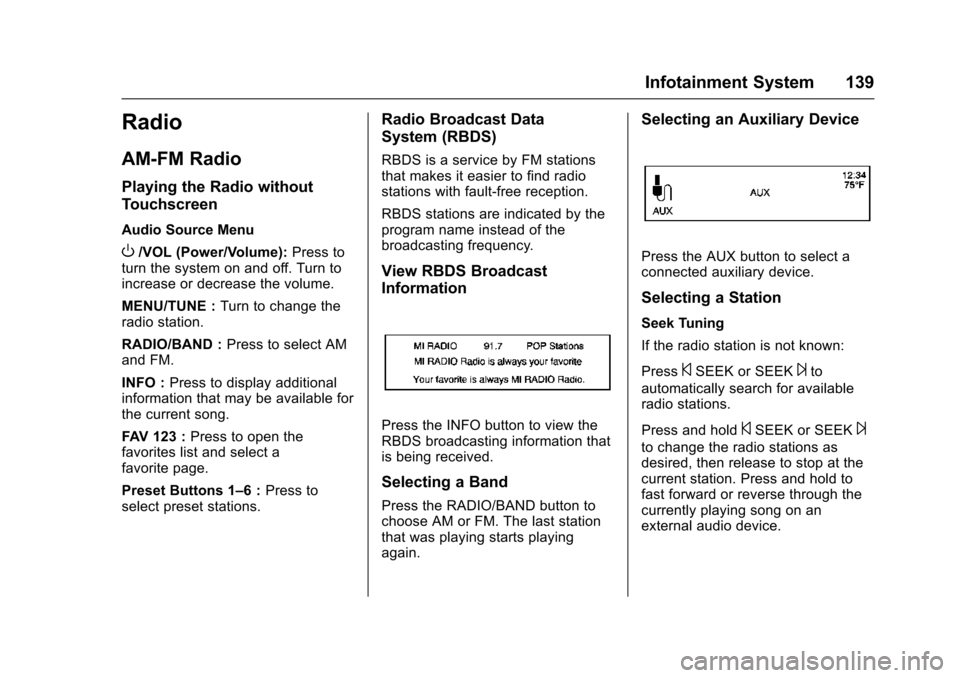
Press the INFO button to view the
RBDS broadcasting information that
is being received.
Selecting a Band
Press the RADIO/BAND button to
choose AM or FM. The last station
that was playing starts playing
again.
Selecting an Auxiliary Device
Press the AUX button to select a
connected auxiliary device.
Selecting a Station
Seek Tuning
If the radio station is not known:
Press
©SEEK or SEEK¨to
automatically search for available
radio stations.
Press and hold
©SEEK or SEEK¨
to change the radio stations as
desired, then release to stop at the
current station. Press and hold to
fast forward or reverse through the
currently playing song on an
external audio device.
Page 144 of 358
Chevrolet TRAX Owner Manual (GMNA-Localizing-U.S./Canada/Mexico-
9159371) - 2016 - crc - 5/21/15
Infotainment System 143
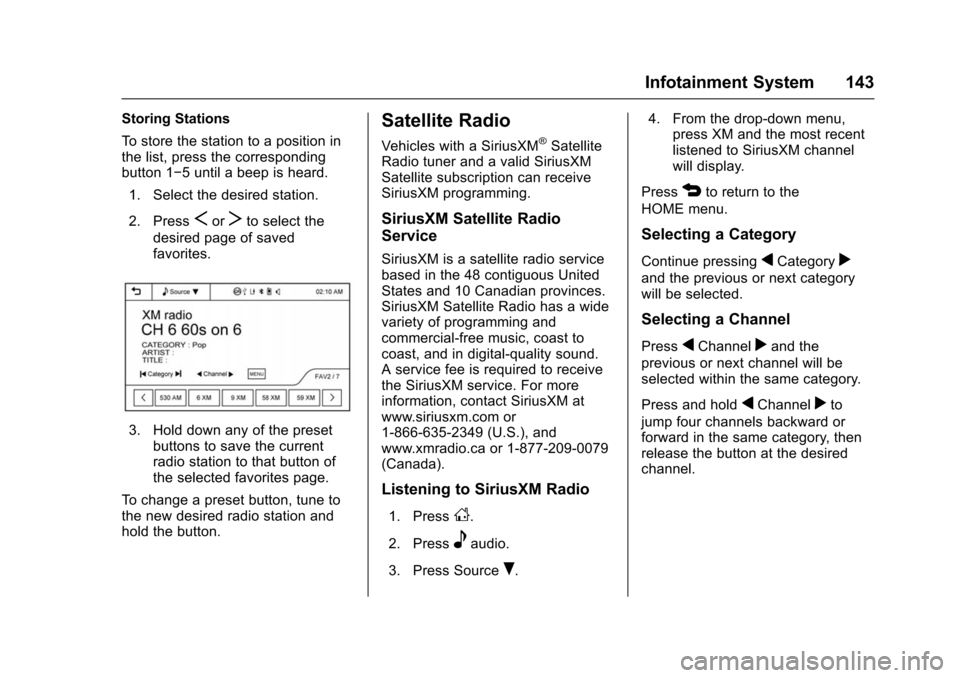
Storing Stations
To store the station to a position in
the list, press the corresponding
button 1−5 until a beep is heard.1. Select the desired station.
2. Press
SorTto select the
desired page of saved
favorites.
3. Hold down any of the preset buttons to save the current
radio station to that button of
the selected favorites page.
To change a preset button, tune to
the new desired radio station and
hold the button.
Satellite Radio
Vehicles with a SiriusXM®Satellite
Radio tuner and a valid SiriusXM
Satellite subscription can receive
SiriusXM programming.
SiriusXM Satellite Radio
Service
SiriusXM is a satellite radio service
based in the 48 contiguous United
States and 10 Canadian provinces.
SiriusXM Satellite Radio has a wide
variety of programming and
commercial-free music, coast to
coast, and in digital-quality sound.
A service fee is required to receive
the SiriusXM service. For more
information, contact SiriusXM at
www.siriusxm.com or
1-866-635-2349 (U.S.), and
www.xmradio.ca or 1-877-209-0079
(Canada).
Listening to SiriusXM Radio
1. PressD.
2. Press
eaudio.
3. Press Source
R. 4. From the drop-down menu,
press XM and the most recent
listened to SiriusXM channel
will display.
Press
4to return to the
HOME menu.
Selecting a Category
Continue pressingqCategoryr
and the previous or next category
will be selected.
Selecting a Channel
PressqChannelrand the
previous or next channel will be
selected within the same category.
Press and hold
qChannelrto
jump four channels backward or
forward in the same category, then
release the button at the desired
channel.
Page 145 of 358
Chevrolet TRAX Owner Manual (GMNA-Localizing-U.S./Canada/Mexico-
9159371) - 2016 - crc - 5/21/15
144 Infotainment System
Using the Preset Buttons
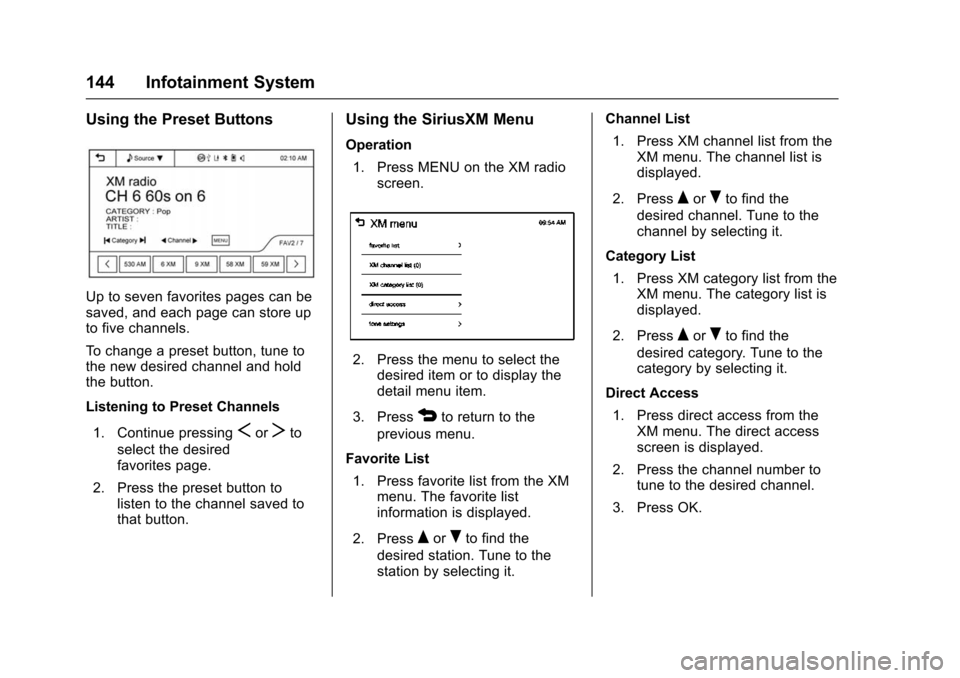
Up to seven favorites pages can be
saved, and each page can store up
to five channels.
To change a preset button, tune to
the new desired channel and hold
the button.
Listening to Preset Channels1. Continue pressing
SorTto
select the desired
favorites page.
2. Press the preset button to listen to the channel saved to
that button.
Using the SiriusXM Menu
Operation
1. Press MENU on the XM radio screen.
2. Press the menu to select thedesired item or to display the
detail menu item.
3. Press
4to return to the
previous menu.
Favorite List 1. Press favorite list from the XM menu. The favorite list
information is displayed.
2. Press
QorRto find the
desired station. Tune to the
station by selecting it. Channel List
1. Press XM channel list from the XM menu. The channel list is
displayed.
2. Press
QorRto find the
desired channel. Tune to the
channel by selecting it.
Category List 1. Press XM category list from the XM menu. The category list is
displayed.
2. Press
QorRto find the
desired category. Tune to the
category by selecting it.
Direct Access 1. Press direct access from the XM menu. The direct access
screen is displayed.
2. Press the channel number to tune to the desired channel.
3. Press OK.
Page 147 of 358
Chevrolet TRAX Owner Manual (GMNA-Localizing-U.S./Canada/Mexico-
9159371) - 2016 - crc - 5/21/15
146 Infotainment System
Audio Players
CD Player
The vehicle may have a CD player.
The CD player can play audio CDs
and MP3 CDs.
The CD player will not play
8 cm (3 in) CDs.
Care of CDs
Sound quality can be reduced due
to disc quality, recording method,
quality of the music recorded, and
how the disc has been handled.
Handle discs carefully and store
them in their original cases or other
protective cases away from direct
sunlight and dust. If the bottom
surface of a disc is damaged, the
disc may not play properly or at all.
Do not touch the bottom surface of
a disc while handling it; this could
damage the surface. Pick up discs
by grasping the outer edges or the
edge of the hole and the outer edge.
If the bottom surface of a disc is
dirty, take a soft, lint-free cloth,
or dampen a clean, soft cloth in amild neutral detergent solution
mixed with water, and clean it. Wipe
the disc from the center to the
outer edge.
Care of the CD Player
Do not add a label to a disc, as it
could get caught in the CD player.
If a label is needed, label the top of
the recorded disc with a
marking pen.
Do not use disc lens cleaners
because they could contaminate the
lens of the disc optics and damage
the CD player.
Caution
If a label is added to a CD, more
than one CD is inserted into the
slot at a time, or an attempt is
made to play scratched or
damaged CDs, the CD player
could be damaged. While using
the CD player, use only CDs in
good condition without any label,
load one CD at a time, and keep
(Continued)
Caution (Continued)
the CD player and the loading slot
free of foreign materials, liquids,
and debris.
Control Buttons
The buttons used to control the CD
player are:
AUX or CD/AUX :Press to use the
CD player.
SEEK
¨or©SEEK : Press to
select tracks or to fast forward or
rewind within a track.
INFO : Press to display additional
information about the current track
that may be available.
MENU/TUNE : Turn to select tracks.
Turn to enter the menu. Press to
select the menu.
Z(Eject) : Press to eject the disc.
Inserting a CD
With the printed side facing up,
insert a disc into the CD slot until it
is drawn in.
Page 148 of 358
Chevrolet TRAX Owner Manual (GMNA-Localizing-U.S./Canada/Mexico-
9159371) - 2016 - crc - 5/21/15
Infotainment System 147
Removing a CD
PressZ.
The disc is pushed out of the
CD slot.
If the disc is not removed after it is
ejected, it is pulled back in after a
few seconds.
Playing a CD or MP3 CD
Press the AUX or CD/AUX button.
If there is a disc in the player, it
begins playing.
Information about the disc and
current track is shown on the
display depending on the data
stored.
Selecting a CD Track
Using the control buttons:
. Press SEEK
¨or©SEEK to
select the next or previous track.
. Turn the MENU/TUNE knob.
Using the CD Menu: 1. Turn the MENU/TUNE knob.
2. Select Tracks List.
3. Select the track. Playing Tracks in Random Order
Turn the MENU/TUNE knob and set
Shuffle Songs to On.
Fast Forward and Rewind
Press and hold SEEK
¨or©SEEK
to fast forward or rewind within the
current track.
Selecting an MP3 Track
Using the control buttons:
. Press SEEK
¨or©SEEK to
select the next or previous track.
. Turn the MENU/TUNE knob.
Using the CD Menu: 1. Turn the MENU/TUNE knob.
2. Select Playlists/Folders.
3. Select the playlist or folder.
4. Select the track.
Searching for MP3 Tracks
The search feature may take some
time to display the information after
reading the disc due to the amount
of information stored on the disc.
FM automatically plays while the
disc is being read. Tracks can be searched by:
.
Playlists
. Artists
. Albums
. Song Titles
. Genres
. Folder View
To search for tracks: 1. Turn the MENU/TUNE knob.
2. Select Search.
3. Select: Playlists, Artists, Albums, Song Titles, Genres,
or Folder View.
4. Select the track.
USB Port
The USB port is in the storage area
to the right of the infotainment
system. See Overview (Radio with
Touchscreen) 0135 orOverview
(AM-FM Radio) 0131 orOverview
(Radio with CD/USB) 0133.
Portable devices are controlled by
using the menu system described in
Operation 0136.
Page 154 of 358
Chevrolet TRAX Owner Manual (GMNA-Localizing-U.S./Canada/Mexico-
9159371) - 2016 - crc - 5/21/15
Infotainment System 153
Phone
Bluetooth (Overview)
For vehicles equipped with
Bluetooth capability, the system can
interact with many cell phones,
allowing:
.Placement and receipt of calls in
a hands-free mode.
. Sharing of the cell phone’s
address book or contact list with
the vehicle.
To minimize driver distraction,
before driving, and with the vehicle
parked:
. Become familiar with the
features of the cell phone.
Organize the phone book and
contact lists clearly and delete
duplicate or rarely used entries.
If possible, program speed dial
or other shortcuts.
. Review the controls and
operation of the infotainment
system. .
Pair cell phone(s) to the vehicle.
The system may not work with
all cell phones. See “Pairing”in
this section.
. If the cell phone has voice
dialing capability, learn to use
that feature to access the
address book or contact list. See
“Voice Pass-Thru” in this
section.
. See “Storing and Deleting Phone
Numbers” in this section.
{Warning
When using a cell phone, it can
be distracting to look too long or
too often at the screen of the
phone or the infotainment system.
Taking your eyes off the road too
long or too often could cause a
crash resulting in injury or death.
Focus your attention on driving.
Vehicles with a Bluetooth system
can use a Bluetooth-capable cell
phone with a Hands-Free Profile to
make and receive phone calls. The
infotainment system and voice recognition are used to control the
system. The system can be used
while in ON/RUN or ACC/
ACCESSORY. The range of the
Bluetooth system can be up to 9.1 m
(30 ft). Not all phones support all
functions and not all phones work
with the Bluetooth system. See
www.gm.com/bluetooth for more
information about compatible
phones.
Bluetooth Controls
Use the buttons located on the
infotainment system and the
steering wheel to operate the
Bluetooth system.
Steering Wheel Controls
b/g(Press to Talk) :
Press to
answer incoming calls, confirm
system information, and start voice
recognition.
$/i(Mute/End Call) : Press to
end a call, reject a call, or cancel an
operation.