change time CHEVROLET TRAX 2016 1.G User Guide
[x] Cancel search | Manufacturer: CHEVROLET, Model Year: 2016, Model line: TRAX, Model: CHEVROLET TRAX 2016 1.GPages: 358, PDF Size: 5.07 MB
Page 123 of 358
Chevrolet TRAX Owner Manual (GMNA-Localizing-U.S./Canada/Mexico-
9159371) - 2016 - crc - 5/21/15
122 Lighting
Lighting
Exterior Lighting
Exterior Lamp Controls . . . . . . . 122
Headlamp High/Low-BeamChanger . . . . . . . . . . . . . . . . . . . . 123
Flash-to-Pass . . . . . . . . . . . . . . . . 123
Daytime Running Lamps (DRL) . . . . . . . . . . . . . . . 123
Automatic Headlamp System . . . . . . . . . . . . . . . . . . . . . . 124
Hazard Warning Flashers . . . . . 124
Turn and Lane-Change Signals . . . . . . . . . . . . . . . . . . . . . . 125
Front Fog Lamps . . . . . . . . . . . . . 125
Interior Lighting
Instrument Panel Illumination Control . . . . . . . . . . . . . . . . . . . . . . 126
Courtesy Lamps . . . . . . . . . . . . . . 126
Dome Lamps . . . . . . . . . . . . . . . . . 126
Reading Lamps . . . . . . . . . . . . . . 127
Lighting Features
Battery Load Management . . . 127
Battery Power Protection . . . . . 128
Exterior Lighting
Exterior Lamp Controls
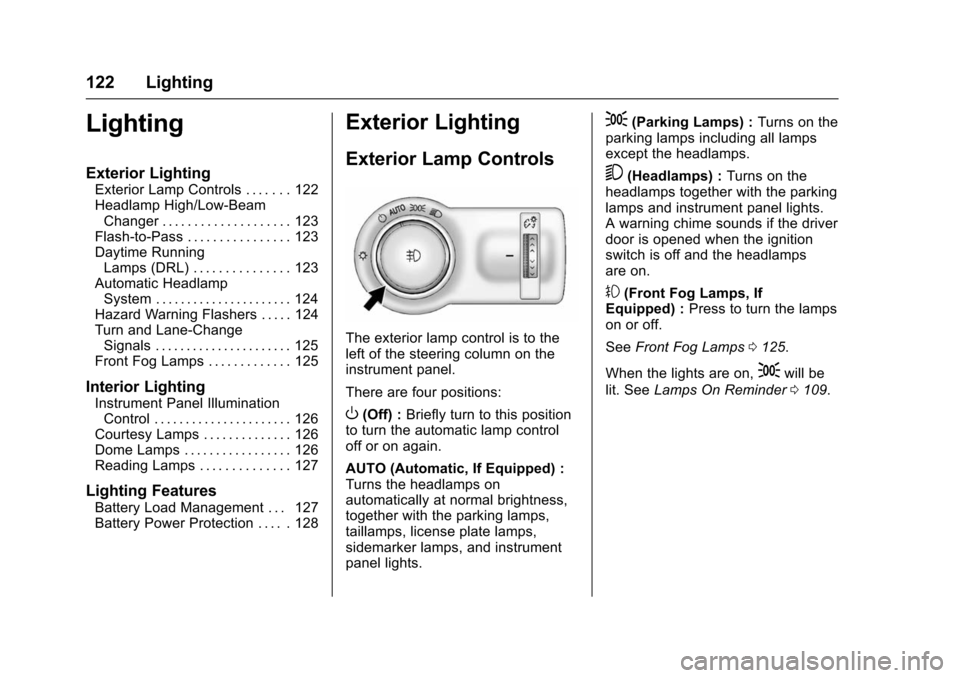
The exterior lamp control is to the
left of the steering column on the
instrument panel.
There are four positions:
O(Off) : Briefly turn to this position
to turn the automatic lamp control
off or on again.
AUTO (Automatic, If Equipped) :
Turns the headlamps on
automatically at normal brightness,
together with the parking lamps,
taillamps, license plate lamps,
sidemarker lamps, and instrument
panel lights.
;(Parking Lamps) : Turns on the
parking lamps including all lamps
except the headlamps.
5(Headlamps) : Turns on the
headlamps together with the parking
lamps and instrument panel lights.
A warning chime sounds if the driver
door is opened when the ignition
switch is off and the headlamps
are on.
#(Front Fog Lamps, If
Equipped) : Press to turn the lamps
on or off.
See Front Fog Lamps 0125.
When the lights are on,
;will be
lit. See Lamps On Reminder 0109.
Page 124 of 358
Chevrolet TRAX Owner Manual (GMNA-Localizing-U.S./Canada/Mexico-
9159371) - 2016 - crc - 5/21/15
Lighting 123
Headlamp High/
Low-Beam Changer
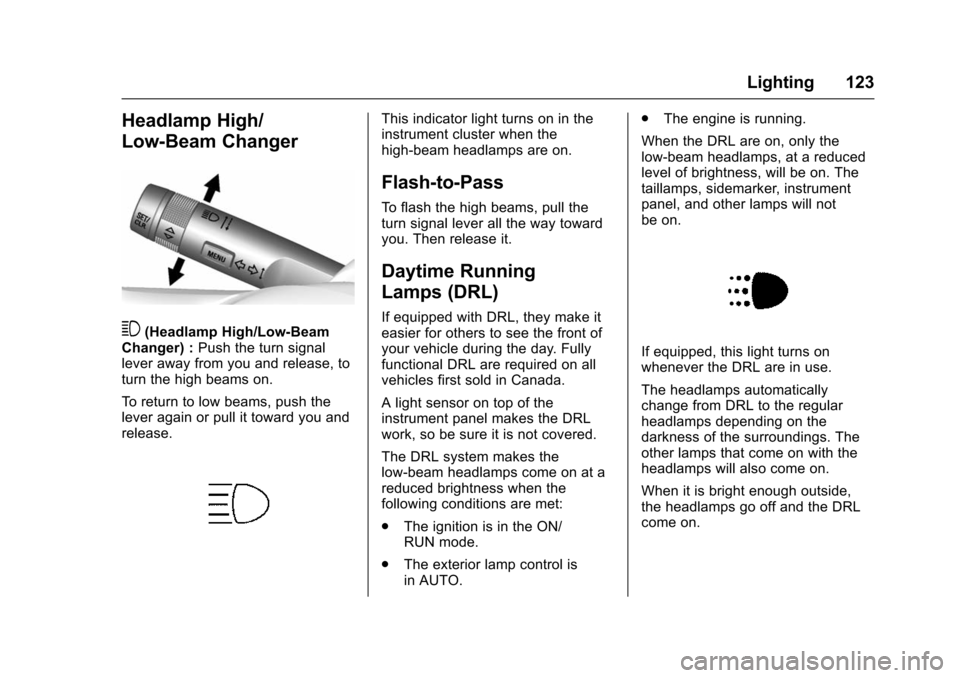
3(Headlamp High/Low-Beam
Changer) : Push the turn signal
lever away from you and release, to
turn the high beams on.
To return to low beams, push the
lever again or pull it toward you and
release.
This indicator light turns on in the
instrument cluster when the
high-beam headlamps are on.
Flash-to-Pass
To flash the high beams, pull the
turn signal lever all the way toward
you. Then release it.
Daytime Running
Lamps (DRL)
If equipped with DRL, they make it
easier for others to see the front of
your vehicle during the day. Fully
functional DRL are required on all
vehicles first sold in Canada.
A light sensor on top of the
instrument panel makes the DRL
work, so be sure it is not covered.
The DRL system makes the
low-beam headlamps come on at a
reduced brightness when the
following conditions are met:
. The ignition is in the ON/
RUN mode.
. The exterior lamp control is
in AUTO. .
The engine is running.
When the DRL are on, only the
low-beam headlamps, at a reduced
level of brightness, will be on. The
taillamps, sidemarker, instrument
panel, and other lamps will not
be on.
If equipped, this light turns on
whenever the DRL are in use.
The headlamps automatically
change from DRL to the regular
headlamps depending on the
darkness of the surroundings. The
other lamps that come on with the
headlamps will also come on.
When it is bright enough outside,
the headlamps go off and the DRL
come on.
Page 126 of 358
Chevrolet TRAX Owner Manual (GMNA-Localizing-U.S./Canada/Mexico-
9159371) - 2016 - crc - 5/21/15
Lighting 125
Turn and Lane-Change
Signals
Move the lever all the way up or
down to signal a turn.
An arrow on the instrument cluster
will flash in the direction of the turn
or lane change.
Raise or lower the lever until the
arrow starts to flash to signal a lane
change. The turn signal flashes
three times.
The lever returns to its starting
position when it is released.
If after signaling a turn or lane
change the arrow flashes rapidly or
does not come on, a signal bulb
may be burned out. Replace anyburned out bulbs. If a bulb is not
burned out, check the fuse. See
Fuses and Circuit Breakers
0260.
Front Fog Lamps
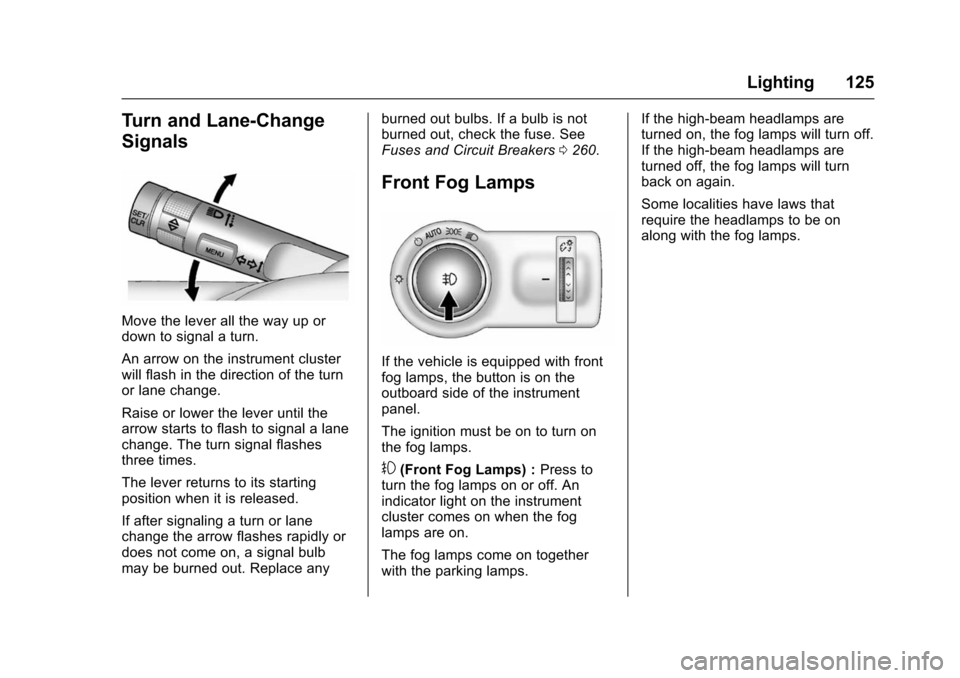
If the vehicle is equipped with front
fog lamps, the button is on the
outboard side of the instrument
panel.
The ignition must be on to turn on
the fog lamps.
#(Front Fog Lamps) : Press to
turn the fog lamps on or off. An
indicator light on the instrument
cluster comes on when the fog
lamps are on.
The fog lamps come on together
with the parking lamps. If the high-beam headlamps are
turned on, the fog lamps will turn off.
If the high-beam headlamps are
turned off, the fog lamps will turn
back on again.
Some localities have laws that
require the headlamps to be on
along with the fog lamps.
Page 155 of 358
Chevrolet TRAX Owner Manual (GMNA-Localizing-U.S./Canada/Mexico-
9159371) - 2016 - crc - 5/21/15
154 Infotainment System
Infotainment System Controls
If equipped, the infotainment system
allows certain controls to be
selected on the infotainment display.
For information about how to
navigate the menu system using the
infotainment controls, seeOperation
0 136.
5/>(Phone) : Press to enter the
Phone main menu.
Voice Recognition
The voice recognition system uses
commands to control the system
and dial phone numbers.
Noise : The system may not
recognize voice commands if there
is too much background noise. Do
not point the center air vents directly
upward.
When to Speak : A tone sounds to
indicate that the system is ready for
a voice command. Wait for the tone
and then speak.
How to Speak : Speak clearly in a
calm and natural voice.
Audio System
When using the Bluetooth system,
sound comes through the vehicle's
front audio system speakers and
overrides the audio system. Use the
O/VOL knob during a call to
change the volume level. The
adjusted volume level remains in
memory for later calls. The system
maintains a minimum volume level.
Other Information
The Bluetooth®word mark and
logos are owned by the Bluetooth®
SIG, Inc. and any use of such marks
by General Motors is under license.
Other trademarks and trade names
are those of their respective owners.
See Radio Frequency Statement
0 333.
Bluetooth (Infotainment
Controls)
For information about how to
navigate the menu system using the
infotainment controls, see Operation
0 136.
Pairing without Touchscreen
A Bluetooth-enabled cell phone
must be paired to the Bluetooth
system and then connected to the
vehicle before it can be used. See
your cell phone manufacturer's user
guide for Bluetooth functions before
pairing the cell phone. If a Bluetooth
phone is not connected, calls will be
made using OnStar Hands-Free
Calling, if available. See OnStar
Overview 0337.
Pairing Information
. A Bluetooth phone with MP3
capability can be paired
separately to the vehicle as a
phone and an MP3 player at the
same time. This requires the
device to be paired two times;
once as a “hands-free” device
and once as an MP3 device.
. Up to five cell phones can be
paired to the Bluetooth system.
. The pairing process is disabled
when the vehicle is moving.
Page 156 of 358
Chevrolet TRAX Owner Manual (GMNA-Localizing-U.S./Canada/Mexico-
9159371) - 2016 - crc - 5/21/15
Infotainment System 155
.Pairing only needs to be
completed once, unless the
pairing information on the cell
phone changes or the cell phone
is deleted from the system.
. Only one paired cell phone can
be connected to the Bluetooth
system at a time.
. If multiple paired cell phones are
within range of the system, the
system connects to the first
available paired cell phone in the
order that they were first paired
to the system. To link to a
different paired phone, see
“Linking to a Different Phone”
later in this section.
Pairing a Phone as a Hands-Free
Device 1. Press the CONFIG button.
2. Select Phone Settings or Bluetooth Settings.
3. Select Bluetooth. 4. Select Pair Device
(Hands-Free). A four-digit
Personal Identification Number
(PIN) appears on the display.
The PIN is used is Step 6.
5. Start the pairing process on the cell phone to be paired to the
vehicle. See the cell phone
manufacturer's user guide for
information on this process.
6. Locate the device named “Your
Vehicle” in the list on the cell
phone. Follow the instructions
on the cell phone to enter the
PIN provided in Step 4. After
the PIN is successfully entered,
the system prompts you to
provide a name for the paired
cell phone. This name will be
used to indicate which phones
are paired and connected to
the vehicle. The system
responds with “
has been successfully paired”
after the pairing process is
complete.
7. Repeat Steps 1−6 to pair additional phones. Listing All Paired and Connected
Phones
1. Press the CONFIG button.
2. Select Phone Settings or Bluetooth Settings.
3. Select Bluetooth.
4. Select Device List.
Deleting a Paired Phone 1. Press the CONFIG button.
2. Select Phone Settings or Bluetooth Settings.
3. Select Bluetooth.
4. Select Device List.
5. Select the phone to delete and follow the on-screen prompts.
Linking to a Different Phone
To link to a different phone, the new
phone must be in the vehicle and
available to be connected to the
Bluetooth system before the
process is started. 1. Press the CONFIG button.
2. Select Phone Settings or Bluetooth Settings.
Page 159 of 358
Chevrolet TRAX Owner Manual (GMNA-Localizing-U.S./Canada/Mexico-
9159371) - 2016 - crc - 5/21/15
158 Infotainment System
.Up to five cell phones can be
paired to the Bluetooth system.
. The pairing process is disabled
when the vehicle is moving.
. Pairing only needs to be
completed once, unless the
pairing information on the cell
phone changes or the cell phone
is deleted from the system.
. Only one paired cell phone can
be connected to the Bluetooth
system at a time.
. If multiple paired cell phones are
within range of the system, the
system connects to the first
available paired cell phone in the
order that they were first paired
to the system. To link to a
different paired phone, see
“Linking to a Different Phone”
later in this section.
When the Bluetooth device and
infotainment system are
successfully paired, the phone book
is downloaded automatically.
However, the phone book may not
be downloaded automatically according to the type of the phone.
In this case, proceed with the
phonebook download on phone.
Pairing a Phone
When there is no paired device on
the infotainment system and the
Simple Secure Pairing (SSP) is
supported:
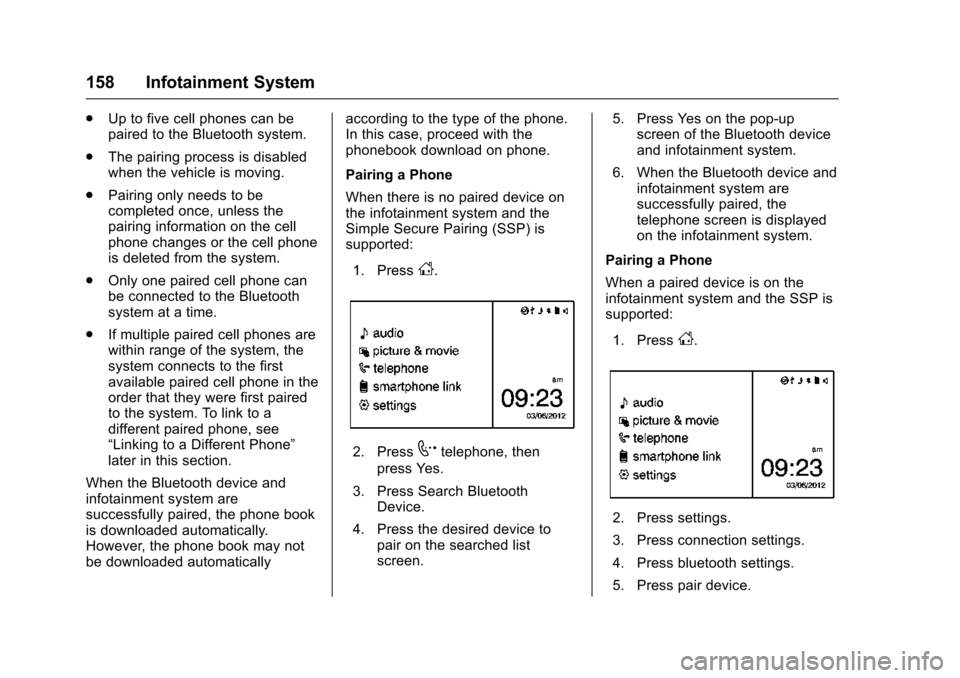
1. Press
D.
2. Press7telephone, then
press Yes.
3. Press Search Bluetooth Device.
4. Press the desired device to pair on the searched list
screen. 5. Press Yes on the pop-up
screen of the Bluetooth device
and infotainment system.
6. When the Bluetooth device and infotainment system are
successfully paired, the
telephone screen is displayed
on the infotainment system.
Pairing a Phone
When a paired device is on the
infotainment system and the SSP is
supported:
1. Press
D.
2. Press settings.
3. Press connection settings.
4. Press bluetooth settings.
5. Press pair device.
Page 163 of 358
Chevrolet TRAX Owner Manual (GMNA-Localizing-U.S./Canada/Mexico-
9159371) - 2016 - crc - 5/21/15
162 Infotainment System
Playing a File Repeatedly
Press
vduring playback.
. 1: Plays the current file
repeatedly.
. ALL: Plays all files repeatedly.
. OFF: Returns to normal
playback.
This function may not be supported
depending on the cell phone.
Playing a File Randomly
Press
uduring playback.
. NO: Plays all files repeatedly.
. OFF: Returns to normal
playback.
This function may not be supported
depending on the cell phone.
Do not change the track too quickly
when playing Bluetooth music.
Conditions that may occur when
playing Bluetooth music:
. It takes some time to transmit
data from the cell phone to the
infotainment system. .
If the cell phone or Bluetooth
device is not in the waiting
screen mode, it may not
automatically play despite being
carried out from the Bluetooth
music play mode.
. The infotainment system
transmits the order to play from
the cell phone in the Bluetooth
music play mode. If this is done
in a different mode, then the
device transmits the order to
stop. Depending on the cell
phone’s options, this order to
play/stop may take time to
activate.
. If the Bluetooth music playback
is not functioning, then check to
see if the cell phone is in the
waiting screen mode.
. Sounds may be cut off during
the Bluetooth music playback.
. The infotainment system outputs
the audio from the cell phone or
Bluetooth device as it is
transmitted.
Bluetooth (Voice
Recognition)
Using Voice Recognition
To use voice recognition, pressb/
gon the steering wheel. Use the
commands below for the various
voice features. For additional
information, say "Help" while you
are in a voice recognition menu.
Pairing
A Bluetooth-enabled cell phone
must be paired to the Bluetooth
system and then connected to the
vehicle before it can be used. See
your cell phone manufacturer's user
guide for Bluetooth functions before
pairing the cell phone. If a Bluetooth
phone is not connected, calls will be
made using OnStar Hands-Free
Calling, if available. See OnStar (if
equipped).
Pairing Information
. A Bluetooth phone with MP3
capability can be paired to the
vehicle as a phone and an MP3
player at the same time.
Page 164 of 358
Chevrolet TRAX Owner Manual (GMNA-Localizing-U.S./Canada/Mexico-
9159371) - 2016 - crc - 5/21/15
Infotainment System 163
.Up to five cell phones can be
paired to the Bluetooth system.
. The pairing process is disabled
when the vehicle is moving.
. Pairing only needs to be
completed once, unless the
pairing information on the cell
phone changes or the cell phone
is deleted from the system.
. Only one paired cell phone can
be connected to the Bluetooth
system at a time.
. If multiple paired cell phones are
within range of the system, the
system connects to the first
available paired cell phone in the
order that they were first paired
to the system. To link to a
different paired phone, see
“Connecting to a Different
Phone” later in this section.
Pairing a Phone
1. Press
b/g. The system
responds “Ready,”followed by
a tone.
2. Say “Bluetooth.” This command
can be skipped. 3. Say
“Pair.”The system
responds with instructions and
a four-digit Personal
Identification Number (PIN).
The PIN is used in Step 5.
4. Start the pairing process on the cell phone that you want to
pair. For help with this process,
see your cell phone
manufacturer's user guide.
5. Locate the device named “Your
Vehicle” in the list on the cell
phone. Follow the instructions
on the cell phone to enter the
PIN provided in Step 3. After
the PIN is successfully entered,
the system prompts you to
provide a name for the paired
cell phone. This name will be
used to indicate which phones
are paired and connected to
the vehicle. The system
responds with “
has been successfully paired”
after the pairing process is
complete.
6. Repeat Steps 1−5 to pair additional phones. Listing All Paired and Connected
Phones
The system can list all cell phones
paired to it. If a paired cell phone is
also connected to the vehicle, the
system responds with
“is connected”
after that phone name.
1. Press
b/g. The system
responds “Ready,”followed by
a tone.
2. Say “Bluetooth.”
3. Say “List.”
Deleting a Paired Phone
If the phone name you want to
delete is unknown, see “Listing All
Paired and Connected Phones”
previously in this section.
1. Press
b/g. The system
responds “Ready,”followed by
a tone.
2. Say “Bluetooth.”
3. Say “Delete.” The system asks
for which phone to delete.
4. Say the name of the phone you want to delete.
Page 165 of 358
Chevrolet TRAX Owner Manual (GMNA-Localizing-U.S./Canada/Mexico-
9159371) - 2016 - crc - 5/21/15
164 Infotainment System
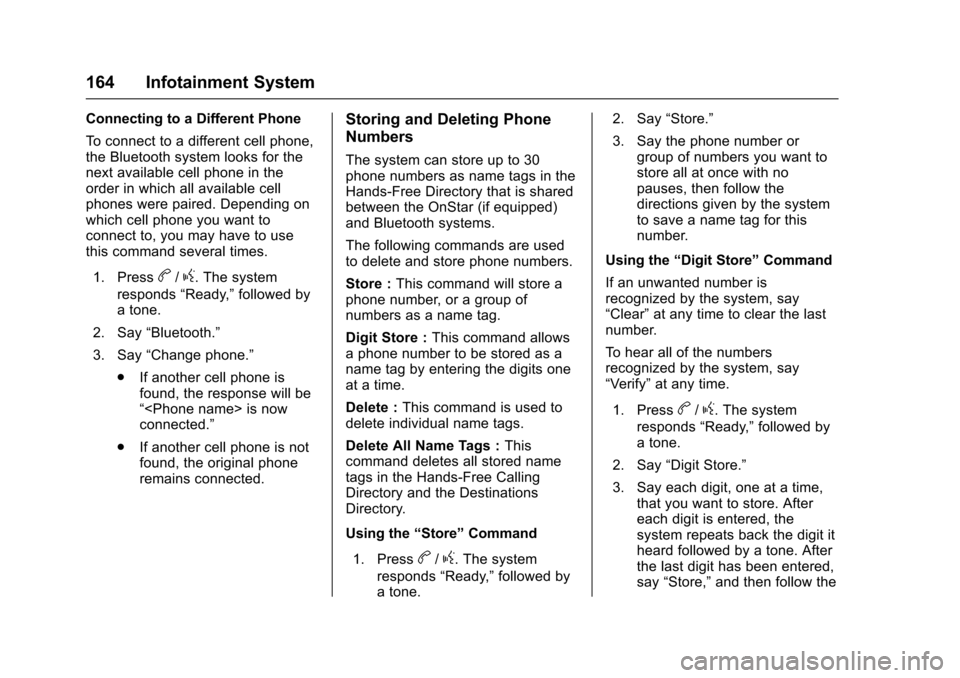
Connecting to a Different Phone
To connect to a different cell phone,
the Bluetooth system looks for the
next available cell phone in the
order in which all available cell
phones were paired. Depending on
which cell phone you want to
connect to, you may have to use
this command several times.1. Press
b/g. The system
responds “Ready,”followed by
a tone.
2. Say “Bluetooth.”
3. Say “Change phone.”
. If another cell phone is
found, the response will be
“
connected.”
. If another cell phone is not
found, the original phone
remains connected.
Storing and Deleting Phone
Numbers
The system can store up to 30
phone numbers as name tags in the
Hands-Free Directory that is shared
between the OnStar (if equipped)
and Bluetooth systems.
The following commands are used
to delete and store phone numbers.
Store : This command will store a
phone number, or a group of
numbers as a name tag.
Digit Store : This command allows
a phone number to be stored as a
name tag by entering the digits one
at a time.
Delete : This command is used to
delete individual name tags.
Delete All Name Tags : This
command deletes all stored name
tags in the Hands-Free Calling
Directory and the Destinations
Directory.
Using the “Store”Command
1. Press
b/g. The system
responds “Ready,”followed by
a tone. 2. Say
“Store.”
3. Say the phone number or group of numbers you want to
store all at once with no
pauses, then follow the
directions given by the system
to save a name tag for this
number.
Using the “Digit Store” Command
If an unwanted number is
recognized by the system, say
“Clear” at any time to clear the last
number.
To hear all of the numbers
recognized by the system, say
“Verify” at any time.
1. Press
b/g. The system
responds “Ready,”followed by
a tone.
2. Say “Digit Store.”
3. Say each digit, one at a time, that you want to store. After
each digit is entered, the
system repeats back the digit it
heard followed by a tone. After
the last digit has been entered,
say “Store,” and then follow the
Page 166 of 358
Chevrolet TRAX Owner Manual (GMNA-Localizing-U.S./Canada/Mexico-
9159371) - 2016 - crc - 5/21/15
Infotainment System 165
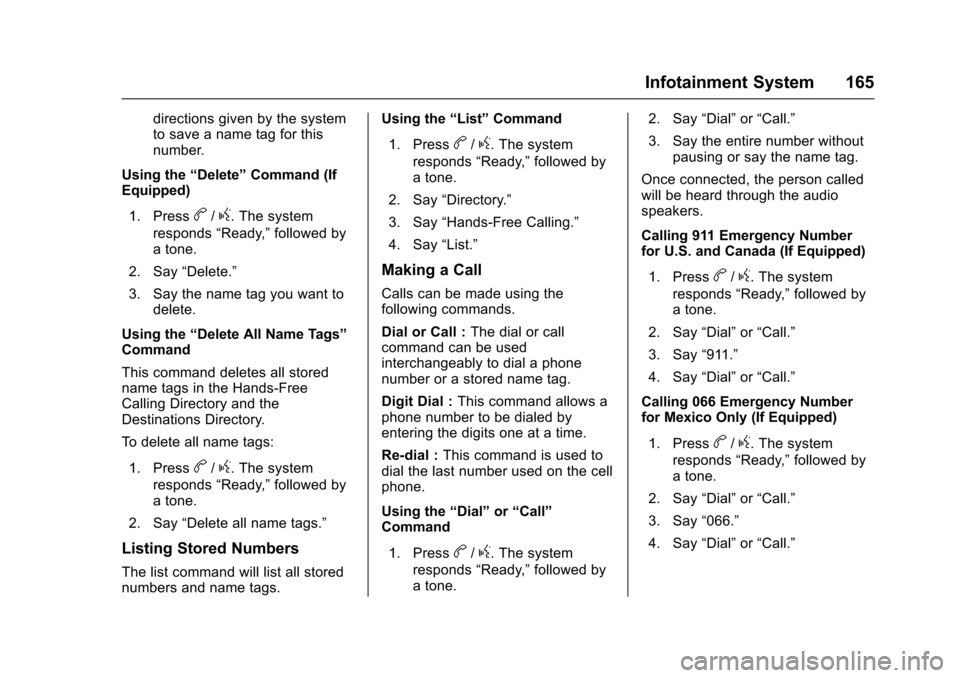
directions given by the system
to save a name tag for this
number.
Using the “Delete”Command (If
Equipped)
1. Press
b/g. The system
responds “Ready,”followed by
a tone.
2. Say “Delete.”
3. Say the name tag you want to delete.
Using the “Delete All Name Tags”
Command
This command deletes all stored
name tags in the Hands-Free
Calling Directory and the
Destinations Directory.
To delete all name tags:
1. Press
b/g. The system
responds “Ready,”followed by
a tone.
2. Say “Delete all name tags.”
Listing Stored Numbers
The list command will list all stored
numbers and name tags. Using the
“List”Command
1. Press
b/g. The system
responds “Ready,”followed by
a tone.
2. Say “Directory.”
3. Say “Hands-Free Calling.”
4. Say “List.”
Making a Call
Calls can be made using the
following commands.
Dial or Call : The dial or call
command can be used
interchangeably to dial a phone
number or a stored name tag.
Digit Dial : This command allows a
phone number to be dialed by
entering the digits one at a time.
Re-dial : This command is used to
dial the last number used on the cell
phone.
Using the “Dial”or“Call”
Command
1. Press
b/g. The system
responds “Ready,”followed by
a tone. 2. Say
“Dial”or“Call.”
3. Say the entire number without pausing or say the name tag.
Once connected, the person called
will be heard through the audio
speakers.
Calling 911 Emergency Number
for U.S. and Canada (If Equipped)
1. Press
b/g. The system
responds “Ready,”followed by
a tone.
2. Say “Dial”or“Call.”
3. Say “911.”
4. Say “Dial”or“Call.”
Calling 066 Emergency Number
for Mexico Only (If Equipped)
1. Press
b/g. The system
responds “Ready,”followed by
a tone.
2. Say “Dial”or“Call.”
3. Say “066.”
4. Say “Dial”or“Call.”